How to Prove Every Inbound Lead Was Followed Up Using Captured Emails and Meetings
Learn how to prove every inbound lead was followed up with captured emails and meetings in Salesforce


Your inbound SLA says every lead gets worked within 48 hours. But right now, the only way to check is to ask each rep in your one-on-ones. Once marketing hands over a lead and routing assigns it, the clock everyone talks about isn't actually running anywhere.
The good news is you can fix that without chasing anyone. When emails and meetings land on the lead record itself through automated Salesforce data capture, Salesforce can answer three questions for you:
- Which leads have no touch at all.
- How long the first touch took.
- Whether the lead replied.
You'll get proof for every lead followed up through corporate email, the calendar, or a connected dialer, plus a list of leads with no captured touch. Think of that list as the start of a conversation with the rep, not a verdict.
What the lead follow-up view looks like when it works
When it works, an empty row is something you can explain, not a mystery. Here's what that looks like for two inbound leads that arrive on the same Tuesday morning:
| Field | Lead A | Lead B |
|---|---|---|
| Source | Demo request form | Event badge scan |
| Assigned to rep | Tuesday, 9:12 | Tuesday, 9:15 |
| First captured email or meeting | Email, Tuesday 10:40 | None |
| Time to first touch | 1 hour 28 minutes | Still open, past 48 hours |
| Lead replied | Yes, Wednesday | No |
| What the row tells you | Worked inside the SLA, and the lead is engaged | No touch reached the record |
Lead B's empty row means no email or meeting reached the lead record, but that doesn't mean the rep did nothing. A call from a personal phone or a duplicate record leaves the same empty row. We'll cover how to tell them apart later on.
Why Lead Status and rep logging can't prove a lead was worked
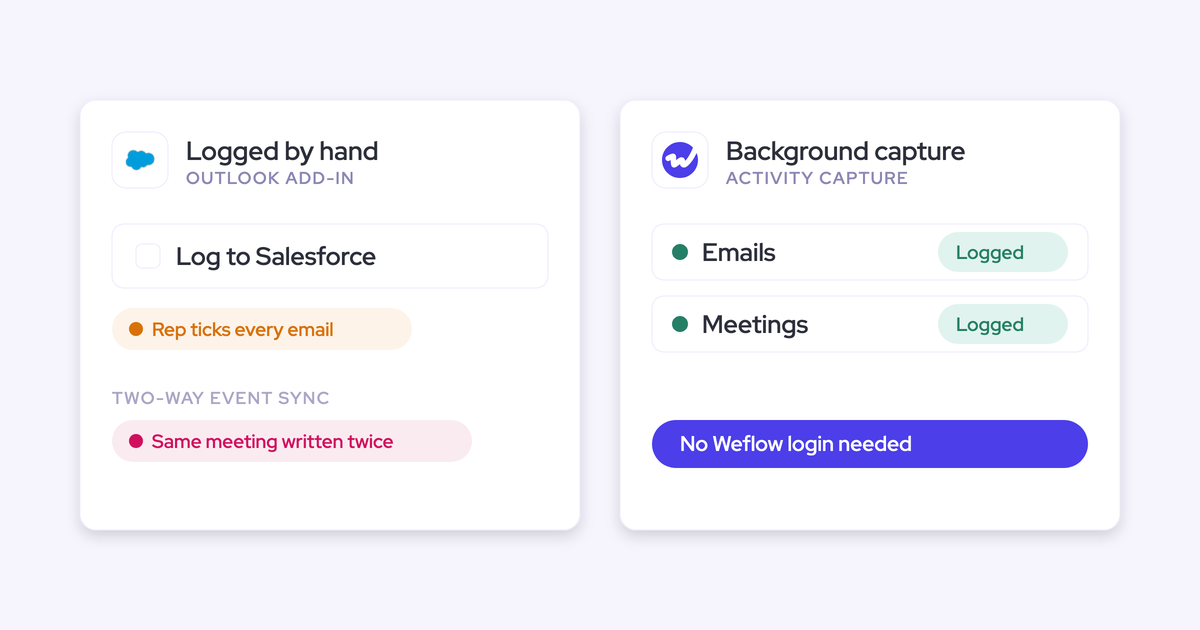
Most ways of tracking follow-up prove something other than contact. Lead Status proves someone clicked a picklist, and manual logging proves the rep remembered to log. Neither proves an email actually went out.
| Path | What it actually proves | Where it breaks |
|---|---|---|
| Keep asking reps | What the rep says happened | It doesn't scale past a handful of leads, and every "did you follow up?" costs trust |
| Lead Status set to "Working" | The rep changed a picklist | "Working" and "emailed someone" are two different facts |
| Manual add-in logging | The emails the rep chose to log | Click-to-log methods land roughly 24 to 52% of activity, and the gaps cluster on the busiest reps and weeks, like the spike after an event |
| Sequencer logging | Emails that went through Outreach or Salesloft | Salesloft logs only lofted emails, and Outreach syncs only existing prospects, so replies sent from the inbox fall out |
| Reporting on what's logged today | Whatever partial data exists | An empty row means nothing when capture itself is optional |
| Automated capture to the lead | An email or meeting with that lead's address happened | Only covers captured channels, and only where the lead record matches |
Automated capture is the only option that starts from the email itself, and the rest of this build depends on it.
What you need in place before you build the report
Before your admin starts, make sure these four things are true:
- The lead already exists in Salesforce, created by marketing or routing before the rep sends anything.
- Email and meetings land as native Salesforce records (Task, EmailMessage, Event), not in a vendor's own store.
- Those records attach to the lead, not only to the account.
- There's a timestamp to measure from: lead creation, or a stored assignment time.
Your admin also has one early decision to make: whether email lands as a Task or an EmailMessage. It affects Steps 2 and 4, and we cover the tradeoff in the hand-off section below.
Step 1: Log emails and meetings to the lead record
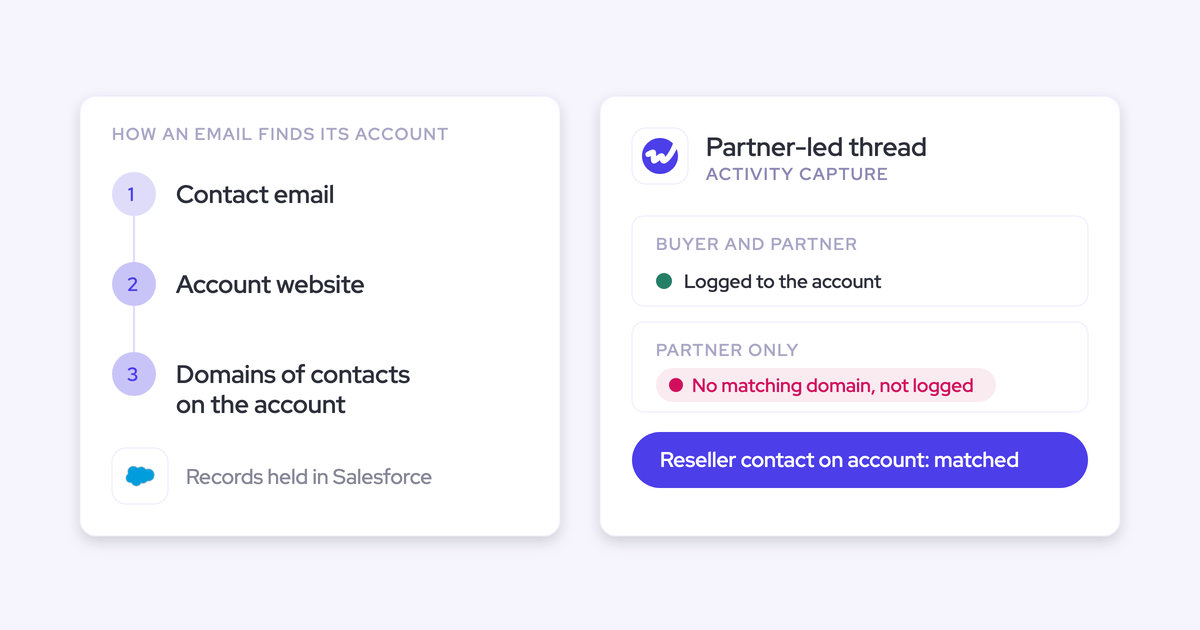
Capture tools, including Weflow and Einstein Activity Capture (EAC), only log an email or meeting when the address matches a record that already exists in Salesforce. Unmatched email gets skipped.
With inbound leads, that's usually not a problem, since the lead exists before the rep writes. What breaks it is duplicates and bad data:
- A lead and a contact with the same email address. In EAC, contacts are checked before leads, so the email lands on the contact.
- A typo in the lead's email, so nothing matches at all.
- Several leads at one company. Activity logged to the account says nothing about which lead got worked.
We hear that last one on sales calls almost word for word:
"log it to the lead, not the company · we have different leads on the same account"
Before you trust any report, run through these checks:
- Check that every open inbound lead carries a valid email address.
- Find leads whose email already exists on a contact, and duplicate leads with the same address. Merge or convert them.
- Send a test email from a rep's mailbox to an external address that sits on a test lead. Don't use a colleague's address, though. Capture excludes internal mail, so the test will look broken.
- Open the test lead and confirm the email and a test meeting both appear on it.
Step 2: Build an untouched leads list in Salesforce
This list shows every assigned lead with no captured email or meeting, so you can work from it instead of asking around.
- Create a Lead report filtered to open, unconverted leads owned by a user rather than a queue.
- Add a cross filter for leads without activities. If email is stored as Task, this one filter catches both emails and meetings.
- Limit the window to leads created or assigned in the last 30 days, so old records don't bury the new ones.
- Group by lead owner, so each rep's orphans sit together.
- Subscribe yourself and each rep to a weekly scheduled run.
Once you've set up a first-touch date in Step 3, swap the cross filter for "First Touch Date is blank," which also accounts for assignment time.
Now, on Monday, you open one list. Each row turns into a specific question for a specific rep, instead of a blanket "did you follow up on everything?"
Step 3: Measure time to first touch from assignment
Salesforce doesn't have a native first-touch field, and capture tools write last-touch fields instead. So you'll need to build time to first touch yourself, by comparing the earliest logged activity against the lead's creation or assignment time.
Teams who've built it don't sugarcoat the effort:
"we've basically built Salesforce reports to do the velocity stuff. And it's been a pain, building flows and custom fields and trying to pick up the right records."
It's a lot less painful if you keep it to four steps:
- Choose the start timestamp: works out of the box. If leads sit in a queue first, add an Assigned Date field and have a flow stamp it when the owner changes from a queue to a user.
- Find the earliest qualifying activity: A record-triggered flow on new emails and meetings related to a lead stamps First Touch Date, but only if it's still blank. Exclude the form-submission task your marketing tool creates, since that isn't a sales touch. You can filter it out by the creating user.
- Store the difference: A formula field calculates hours from the start timestamp to First Touch Date.
- Report on it against the SLA: Bucket leads into "under 48 hours", "over 48 hours" and "no touch yet", grouped by owner.
Now you have the number you've been asking reps for, and it updates on its own.
Step 4: Show which leads replied, not just who emailed
When inbound email is captured to the lead, you can see whether the lead answered. That's how you tell a lead that went cold from one that got neglected.
One thing to watch for: Salesforce sets Status to "Sent" on every EmailMessage, no matter which direction it went. Since you can't use that field to tell inbound from outbound, your admin needs to plan for it.
- Store email as EmailMessage if reply tracking matters most to you, since it carries native From and To addresses and Task doesn't.
- Have a flow compare the From address with the lead's email. A match means the lead wrote to you.
- Stamp a "Lead Replied" checkbox and a Last Reply Date on the lead.
- Add both to the Step 3 report, next to First Touch Date.
That gives you four states to work from:
| What the row shows | What it usually means | What you do |
|---|---|---|
| Rep sent, no reply | The rep did the work, and the lead has gone quiet | Coach on the message or the cadence, not on effort |
| Lead replied, no follow-up | An engaged lead is waiting on your team | Raise it today, it's the costliest row on the list |
| Lead replied, rep answered | A live conversation | Nothing, it's working |
| No touch at all | Nothing reached the record | Run the check in the pitfalls section first |
Step 5: Alert the lead owner when the SLA runs out
Because captured activity is a native Salesforce record, a flow can act on it, and that's what gets you out of the chasing loop.
- Trigger: A scheduled flow runs daily on open, user-owned leads.
- Condition: First Touch Date is blank and the start timestamp is older than your SLA window.
- Action: Create a task for the lead owner, and escalate to their manager or a Slack message if the task stays open past a second deadline.
Start with two flows: the no-touch alert above, and a record-triggered flow that moves Lead Status to "Working" when a meeting is booked on the lead. The second one takes status updates off your SDRs' plates and makes the picklist actually mean something.
What to hand your Salesforce admin for the build
Here's a short spec you can paste straight into the ticket:
| What you want to see | Object or field | Build note | Watch-out |
|---|---|---|---|
| Email and meetings in one report | Task and Event | Store email as Task so one activity report spans both | EmailMessage sits outside the activity reporting model |
| Who the lead replied to | EmailMessage | Store email as EmailMessage for native From, To and Cc | You trade the single activity report for direction |
| Captured records only | Created By | Filter to the capture tool's integration user | Hand-logged and sequencer records come from other users |
| Untouched leads | Lead, cross filter on activities | Then switch to First Touch Date is blank | Group by owner and exclude queue-owned leads |
| Start of the SLA clock | Lead Created Date or a custom Assigned Date | Flow stamps Assigned Date when owner moves from queue to user | Without it, queue time counts against the rep |
| Time to first touch | Custom First Touch Date, formula for hours | Record-triggered flow, stamps only when blank | Exclude the marketing tool's form-submission task |
| Lead replied | Custom Lead Replied checkbox and Last Reply Date | Flow compares From address with the lead's email | EmailMessage Status always reads "Sent" |
| SLA alerts and status updates | Scheduled and record-triggered flows | See Step 5 | A booked meeting is scheduled, not held |
Why a lead you worked can still look untouched
Empty rows usually come down to two causes: CRM data that sends activity to the wrong place, and channels capture never sees. There's also the opposite problem: meetings that look held but weren't. Once you know all three, you can trust the list.
CRM data problems that stop activity reaching the lead
These issues send activity to the wrong record, or nowhere at all, without any error:
- An unconverted lead with a matching contact: The email can land on the contact. Convert or merge the lead.
- Duplicate leads with the same address: Activity splits or lands on the copy nobody watches. Merge them.
- A missing or mistyped lead email: Nothing matches, so nothing logs. Fix the address at intake.
- A rep sending from an address that doesn't match their Salesforce user: Their mailbox drops out of capture. Align the user record with the address they send from.
- A rep who isn't enrolled in capture: Their whole book looks untouched. Enroll every rep who works inbound.
Follow-up channels that capture never sees
Calls from a personal mobile line, WhatsApp messages, and Teams or Google chats never reach the record. If your team is phone-heavy, this is the most likely reason a worked lead shows an empty row.
| Channel | Captured | How it reaches the lead |
|---|---|---|
| Corporate email | Yes | Mailbox capture, matched on address |
| Calendar meetings | Yes | Logged as Salesforce Events |
| Connected dialer | Yes | The dialer's own call log, plus recordings where connected |
| Softphone on the computer | When recorded | Desktop app recording, started by the rep |
| Personal mobile line | No | Manual log only |
| No | Not at all | |
| Teams or Google chat | No | Not at all |
| Slack channels | No | Not at all |
Why a booked meeting doesn't prove the meeting happened
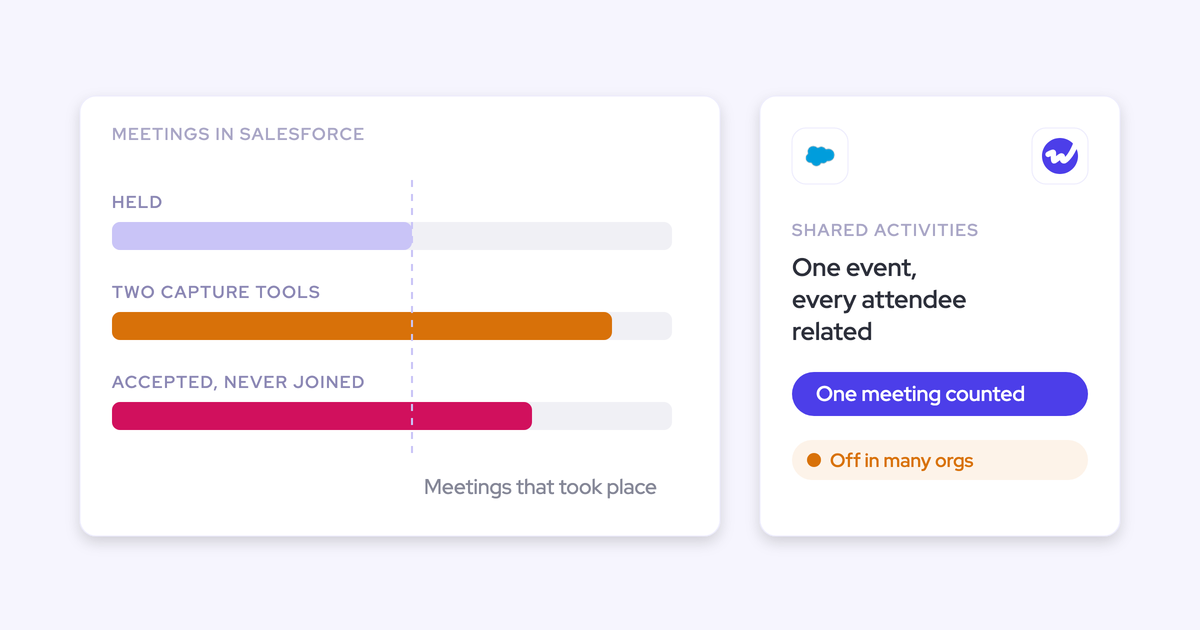
Calendar capture records scheduled meetings and invite responses, not attendance. A lead who accepted and never joined looks the same as one who showed up.
Only a recording proves a meeting was held. This is the opposite problem to an empty row: a lead that looks worked but might not be. Keep that in mind before your "meeting booked" flow moves the status forward.
How to raise an empty lead row without accusing the rep
Start with "did the CRM miss something?" instead of "you're late." Reps will only take the question in good faith if they believe you've checked the data first.
That's exactly how Mallory Lee approaches it:
"I'm not gonna go to the rep and say, you're seven days late on following up with so and so. I'm gonna ask them like, hey, did HubSpot miss something here? And sometimes it does."
Before you raise any row, run three checks:
- Check for data conditions: A duplicate, a matching contact, a bad email, or an unenrolled rep.
- Check for blind-spot channels: Does this rep work the phone or WhatsApp heavily?
- Then ask the rep: "This one shows nothing on the record. Did it go through a channel we don't capture?"
Some rows clear up at the first or second check, and the ones that make it to the third are worth the conversation.
How Weflow Activity & Contact Capture puts follow-up on the lead
Weflow Activity & Contact Capture handles Step 1 without your reps lifting a finger, and adds the untouched leads view and a capture-health check inside Salesforce. You'll still build Steps 3 and 5 in Salesforce.
We built Weflow for Salesforce teams, so everything it captures lands in records you own and can report on.
What Weflow logs to the lead without the rep doing anything
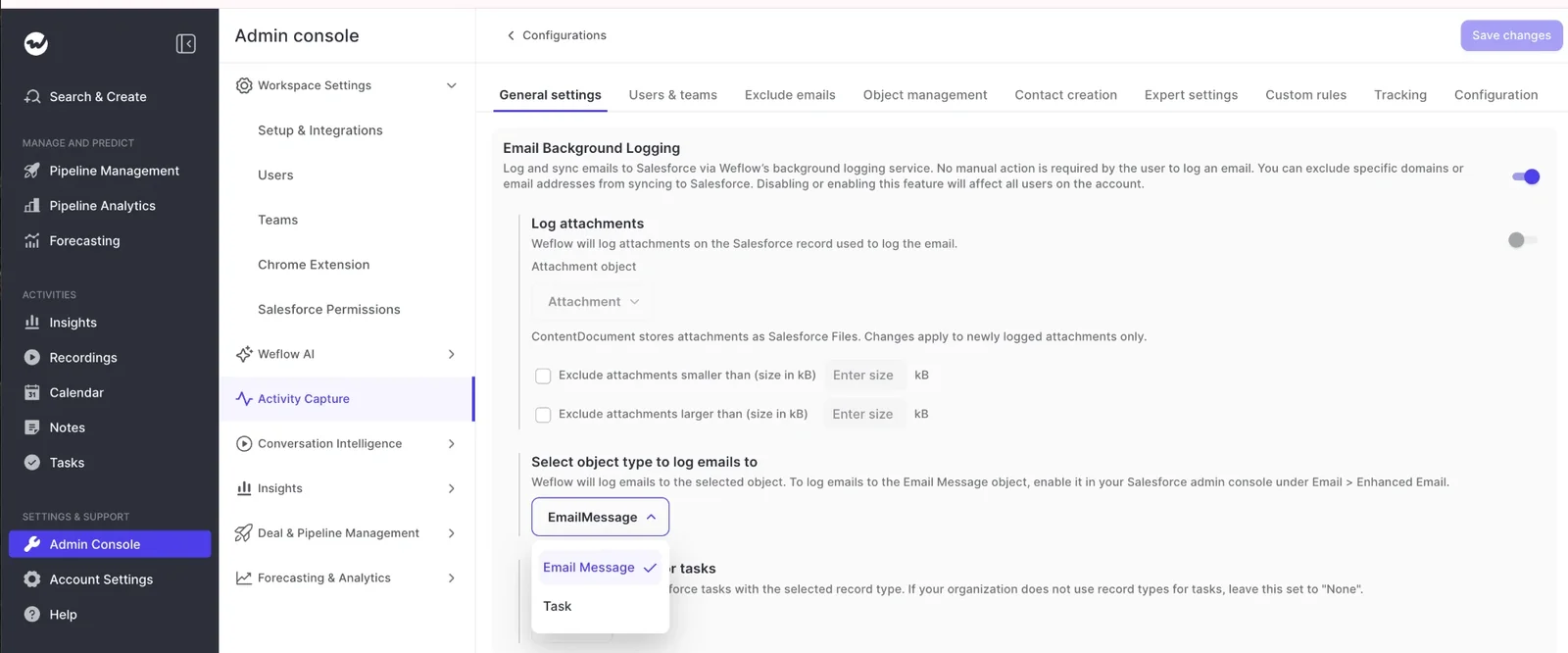
- Capture runs server-side: Weflow reads every enrolled mailbox at the mail tenant through Microsoft Entra or Google Workspace, on every device, with no add-in click.
- Matching finds the lead: Weflow looks up the address on contact, lead and custom-object email fields, secondary fields included. When the address exists as a lead, activity attaches to that lead instead of spawning a contact. That takes care of the "log it to the lead, not the company" request.
- Inbound counts the same as outbound: A buyer's reply goes through the same rules as the rep's email, which is what Step 4 needs.
- Meetings land as Salesforce Events whether or not anyone recorded them, so a booked first meeting is a touch on the lead for Steps 2 and 3.
- Everything is a native record: Email lands as Task or EmailMessage, your admin's choice, and meetings as Event. Your reports and flows read them directly, which Step 5 depends on.
- Captured records are easy to isolate: Emails logged as EmailMessage carry a message ID starting with W_, and Tasks show the Weflow integration user in Created By.
ADVISA switched from Einstein Activity Capture to Weflow and runs it fully automated, with no Outlook add-in. The team built dashboards on last email date and last meeting date for leads and accounts, and those power its automated follow-up workflows.
"Weflow eliminated the need for our VP to ask, 'Did you follow up?' The system now tracks that automatically, creating a framework that drives accountability across the team."
Where Weflow shows untouched leads and capture problems in Salesforce
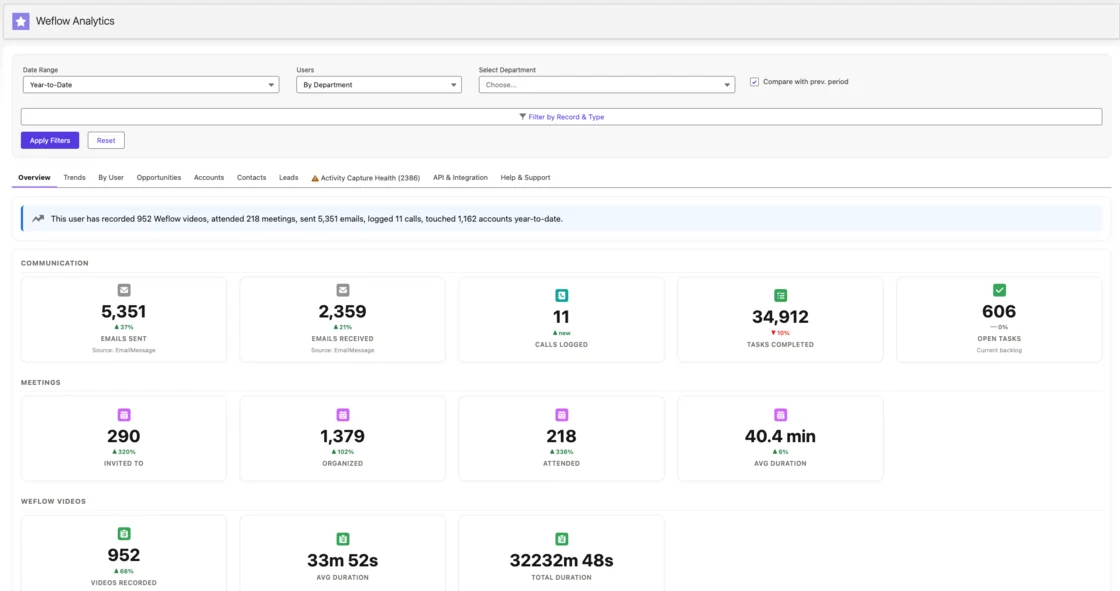
Weflow Analytics runs inside Salesforce and lists the leads, contacts, accounts and opportunities with no activity. It doesn't use any Salesforce API calls, so it can run continuously.
| What you or your admin need | Where Weflow shows it |
|---|---|
| Leads with no activity | Weflow Analytics, inside Salesforce |
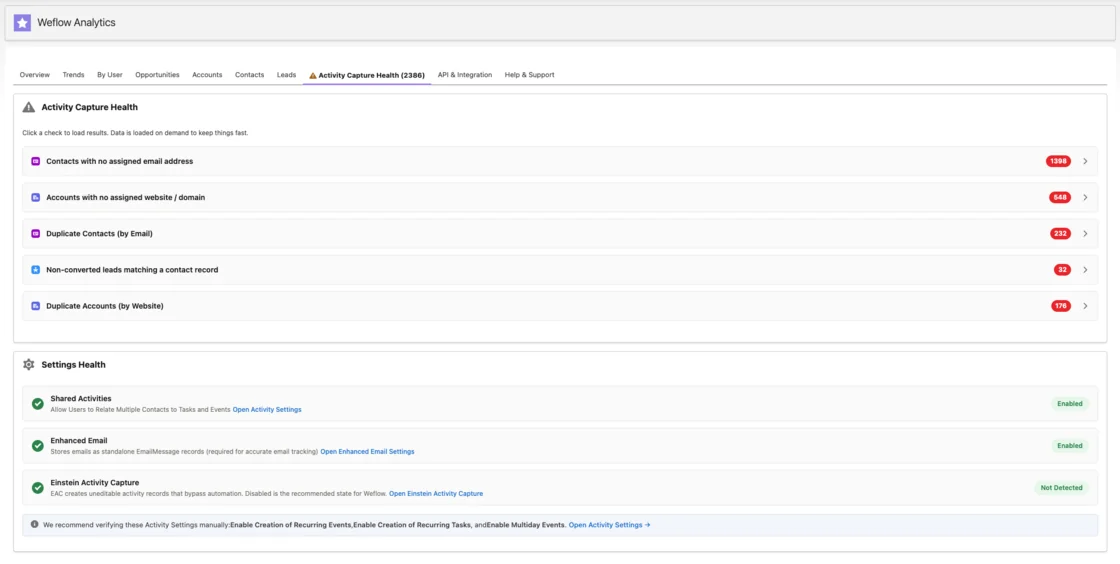
| Unconverted leads with a matching contact, duplicates, missing emails | Activity Capture Health view in Weflow Analytics |
| Capture settings that aren't set up for full capture | Activity Capture Health settings check |
| Last email, last meeting and next meeting on the lead page | Weflow Activity Timeline component |
| How fast each rep answers customer email | Responsiveness reports in Weflow Insights |
| Why a single email didn't log | The rep's Outlook add-in or Chrome extension |
| A rep whose mailbox Weflow can't reach | Warning icon next to the user in the capture configuration |
We'd open the Activity Capture Health view first, since it flags the exact data issues from the pitfalls section that make a worked lead look untouched.
Treat responsiveness as a coaching signal, not a compliance one. A slow reply time usually points to workload or prioritization, not a lack of effort.
What Weflow Activity & Contact Capture doesn't do for lead follow-up
- There's no first-touch field: Weflow's activity fields cover last email, last meeting and next meeting, so you build time to first touch in Salesforce as in Step 3.
- Weflow never creates leads: The lead has to exist from marketing or routing first.
- Personal mobile calls, WhatsApp, and Teams or Google chat stay outside capture.
- Meetings count as scheduled, not attended, unless they were recorded.
- Admins get no per-email failure report: The rep sees why one email didn't log, and team-wide coverage checks go through our support team.
- The Activity Timeline reads email from one object only, so keep all email on either Task or EmailMessage.
What Weflow Activity & Contact Capture costs
Weflow Activity & Contact Capture is $19 per user per month, billed annually, with a 10-user minimum. It includes Ask Weflow AI Pro and Agent Builder Free with 25 agent actions a month. Seats you add mid-term are charged pro rata to the end of that term.
Call recording isn't included in capture. If you also want recordings that prove a meeting was held, the Weflow Revenue AI Foundation bundle pairs Weflow Activity & Contact Capture with Weflow Conversation Intelligence and Mobile Copilot.
| Option | Price per user per month | What it adds for lead follow-up |
|---|---|---|
| Weflow Activity & Contact Capture | $19 | Email, meetings and contacts on the lead, Weflow Analytics, Activity Capture Health |
| Weflow Revenue AI Foundation | $49 | Everything above, plus recordings that show a meeting was held |
When you need the report, not a new capture tool
If your current capture tool already writes reliable native records to leads and stays connected, you don't need a new tool, just Steps 2 to 5.
Einstein Activity Capture on Sync Email as Salesforce Activity, the default for setups since Summer '25, stores captured email as Task and EmailMessage records and captures both sent and received mail.
If that's your setup and it's working, go ahead and build the report.
Not sure? Test your current setup against four questions:
- Does it log inbound email? If not, Step 4 is impossible and you only see rep effort.
- Does it log to the lead, not only the account? If not, several leads at one company blur together.
- Does it write native Salesforce records? If not, Steps 3 and 5 have nothing for a flow to read.
- Does it stay connected? If reps drop out silently, your empty rows mean nothing.
If you answered yes to all four, the report is what's missing, so start with Step 2. If you answered no to any of them, the capture underneath is what's breaking your proof, so start there.
Either way, hand your admin the free Salesforce Activity Capture Cheat Sheet alongside the spec above, so you both test capture against the same checklist.
Lead follow-up tracking in Salesforce: FAQ
Do SDRs on Outreach or Salesloft need to change how they work?
No. Weflow runs alongside Outreach and Salesloft through compatibility mode, which skips emails the sequencer already logs, so the same email doesn't land twice. Emails sent straight from the inbox, outside the sequencer, still get captured.
Will reps feel like their email is being read?
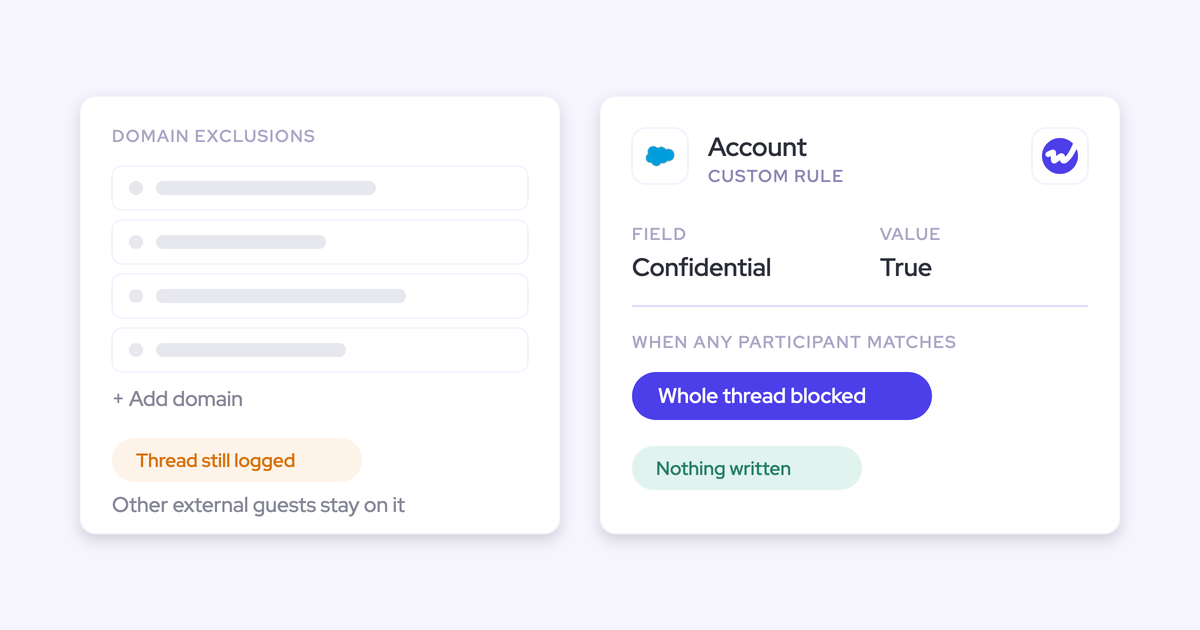
Weflow only logs business-relevant activity, so email and meetings where every participant is on your own domain are never logged, and anything a rep marks private stays out.
Weflow keeps no copy of the emails it logs, and our support team sees how an email was matched, not what it says.
Whose mailboxes does automated capture cover?
Weflow captures the mailboxes of Salesforce users enrolled in a capture configuration, pairing each one with the email address on the user record, aliases included. A mailbox with no Salesforce user behind it isn't synced.
How do dialer calls show up as a touch on the lead?
Most dialers write their own call Task to the lead, so include call Tasks in your Step 3 filter.
Weflow Conversation Intelligence pulls Outreach dialer calls in as recordings with a transcript and summary, and its desktop app records softphones like Aircall or RingCentral when the rep starts the recording.
Can I see follow-up on leads that came in before go-live?
Yes. Weflow offers historical backfill of up to 24 months of email and meetings as an add-on, so leads from before go-live get their touches on the record too.
How long until the untouched leads list is trustworthy?
The technical setup takes 30 to 45 minutes with your Salesforce admin and your Google Workspace or Microsoft admin, and capture typically goes live in about two weeks.
Before you act on the list, clear what Activity Capture Health flags and run the external test email from Step 1. Once that's done, an empty row really does mean untouched.