How to Measure Activity Capture Coverage per Rep and Find the Gaps
Learn how to measure activity capture coverage per rep in Salesforce and pinpoint coverage gaps


These days, leadership has started using activity numbers to make real decisions about rep KPIs, capacity, partner compensation, and headcount. So when some reps' numbers look off, it matters.
And it's usually the rep who notices first, because a failed capture doesn't throw an error, it just leaves an empty record.
Here's the catch: no capture tool, Weflow included, shows you coverage as a single number. Instead, you work it out per rep from the Salesforce data you already have, then trace every gap back to one of four causes:
- User setup
- CRM data
- Configuration
- A structural blind spot
Over-capture counts as a gap too. A rep whose meetings are double-logged skews the same per-rep metric just as much as a rep whose emails never land.
By the end you'll have a per-rep coverage view, a named cause for every gap, and the fix each cause points to. The method works with any capture tool.
Once it's in place, we'll show you how Weflow's Salesforce data capture keeps the audit running, and where its limits are.
What activity capture coverage per rep actually measures
Activity capture coverage per rep is the share of a rep's real customer interactions that land in Salesforce as accurate records on the right contact, account and opportunity.
The tricky part is that Salesforce has no denominator, because an interaction that never got logged leaves no trace to count.
So instead, you approximate coverage three ways:
- Each rep's counts against peers in the same role
- Records that show no activity when they should
- A cause attributed to each gap you find
Over-capture feeds into the same number. Duplicate meetings, internal stand-ups and auto-replies make a rep look covered when they aren't.
| What you can measure from Salesforce data | What no tool can tell you directly |
|---|---|
| Emails, meetings and other activity per rep, per week | A per-rep capture success rate |
| Each rep against the average of their role and team | Which emails silently failed to log, across the whole team |
| Accounts, contacts and opportunities with no recent activity | Whether a scheduled meeting was actually attended |
| Duplicate events, internal meetings and auto-replies | Conversations on WhatsApp, text, chat or a personal phone |
| Activity on the account versus on its open opportunities | Whether an email filed to the account belonged to a specific deal |
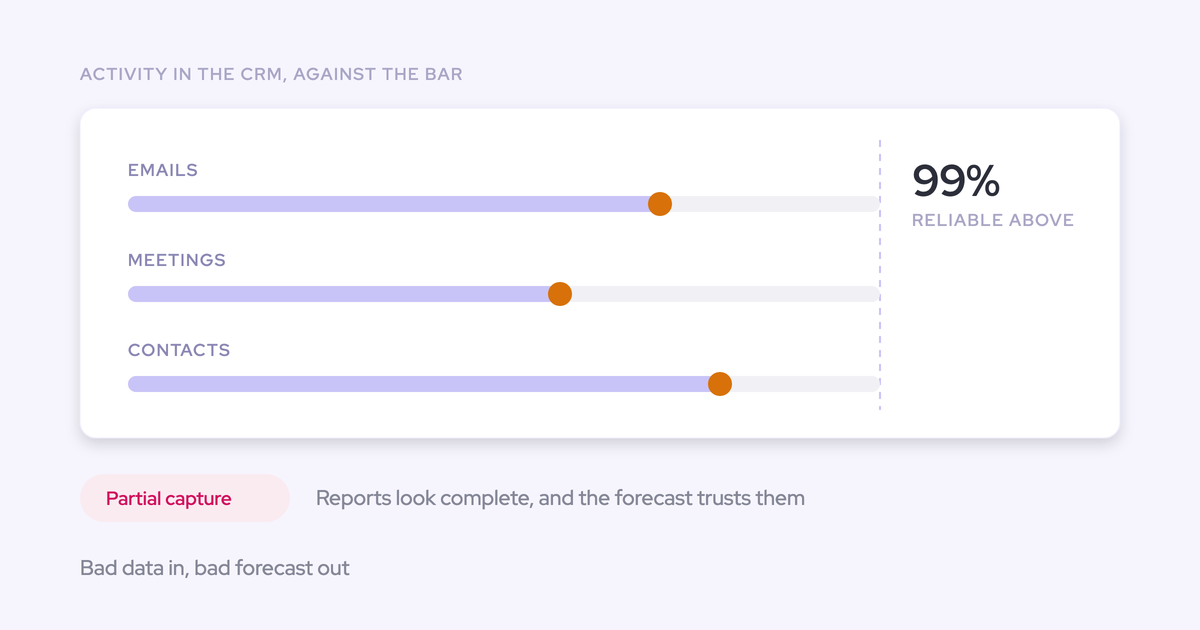
Once these numbers drive KPIs and capacity decisions, the bar gets high. In our view, captured data can carry reports and automations only when roughly 99% of emails, meetings and contacts land in the CRM.
Anything below that, partial capture produces confident-looking reports on an incomplete record, and that's worse than knowing you have no data at all.
What you need before you start the coverage audit
Before any number in this audit means anything, you'll need a few things in place. If you inherited the setup, some of these might not exist yet, and building them is part of the work.
- You have permission to create reports and custom report types in Salesforce.
- You have a list of every user who should be captured, with their role (AE, AM, CSM, SDR) and team.
- You know every tool that writes activity into Salesforce, including the ones a single team bought on its own.
- You've fixed one comparison window of full weeks, long enough to smooth out holidays and conference weeks, and you use it for every rep.
- You know whether emails are stored as Task or EmailMessage records, and whether that choice changed at some point.
Build a per-rep coverage baseline from your Salesforce data
You can only trust a baseline once you've mapped every writer, chosen the right objects, removed inflation and compared like with like. Work through the steps in order, since each one changes what the next one shows you.
Step 1: List every tool that writes activity into Salesforce
Before you trust a single total, map each tool to the object it writes, what it logs and what it skips. When several tools write with different rules and nobody reconciles them, counts drift in both directions at once.
| Tool | Object written | What it logs | What it skips by default |
|---|---|---|---|
| Einstein Activity Capture (EAC) | Task and EmailMessage for email under Sync Email as Salesforce Activity; Event for meetings | Email and calendar for users in a syncing configuration, matched to users, contacts, leads, accounts and opportunities | Email that matches no Salesforce record until someone creates the contact or lead. It does log internal meetings and room bookings unless excluded. |
| Outreach | Event for meetings; email through its prospect sync | Meetings and emails involving Outreach prospects | Meetings with no Outreach prospect, cancelled meetings, and meetings the user didn't organize (logged once, for the organizer). Emails with people who aren't prospects. History for prospects created after the mailbox was connected. |
| CI notetaker | Usually its own Event or Task per recorded meeting | The recorded meeting, often as a separate record from the one your capture tool wrote | Email, in most cases. Fireflies, for example, writes notes, events and tasks, never emails. |
| Manual Outlook or Gmail add-in | Task or EmailMessage, depending on setup | Whatever the rep clicks to log | Everything the rep forgets. Manual logging captures somewhere between 24% and 52% of activity. |
| Your other tools | Varies | Salesloft logs only lofted emails and meetings with a known Salesloft person. CS platforms such as ChurnZero log their own activity. | Anything outside their own workflow, mapped by their own rules |
A meeting that two tools both write counts twice, while an email no tool sees counts zero. You need this table before you can tell which is happening to a given rep.
Step 2: Report on Task, Event and EmailMessage the right way
Build the baseline on standard activity objects, be ready for email to need its own report. A single Salesforce activity report spans Task and Event, but it can't include EmailMessage.
So if your emails live as EmailMessage records, they won't appear next to meetings in the same report.
- Create an activity report on the Tasks and Events or Activities with Accounts report type.
- Group it by assigned user, then by week of the activity date.
- Split it by type: Events for meetings, Task Subtype for email, call and task.
- If emails are EmailMessage records, build a second report with Email Message as the primary object, grouped by sender and week.
- Put both reports on one dashboard so each rep's email and meeting totals sit side by side.
If you have customer success reps, there's one extra check. Salesforce creates a Task for an outgoing email logged to a Case, but not for an incoming one, so a Task-based report on a CS team undercounts every customer reply.
Two things to keep out of the baseline:
- The Status field for direction: Salesforce sets Status to Sent on every logged EmailMessage, from any tool, because the picklist was built for Case workflows and has no Received value. Derive inbound versus outbound from the From address against your own domains.
- Activity 360 or Activity Metrics as the base: EAC's legacy reporting retires in February 2027. Anything you build on it now, you'll have to rebuild later.
Step 3: Strip out over-capture before you compare reps
Before you benchmark anyone, remove or flag inflation. Otherwise, an inflated rep pulls the team average up, and a missing rep can hide underneath it. Over-capture is also harder to spot than a gap, because the records look perfectly correct.
| Inflation pattern | How to detect and exclude it in a report |
|---|---|
| Multi-attendee meetings logged once per person | Group Events by subject and start time. Any group with more than one record from the same rep's team is a candidate duplicate. With EAC, this happens when the organizer isn't in a syncing configuration, so each syncing attendee gets a standalone copy. |
| Capture tool and CI notetaker both writing the meeting | Group Events by owner, start time and subject, then look for pairs where one record came from each tool, usually visible in Created By or a record type. |
| Internal meetings counted as rep meetings | Filter out Events with no related contact or lead. Then spot-check the remainder for invites with a single outside address, such as a training session run by an external provider. |
| Auto-replies and meeting responses counted as replies | Filter email subjects that start with Accepted, Declined or Tentative, and those carrying your common out-of-office phrases. |
Of these, the CI-plus-capture duplicate is the one we see most when teams stack tools.
"This is often a problem when you have multiple providers for CI and AC. They basically both create an event object, which creates a duplicate. So in your reporting you need to deduplicate that, which is really annoying."
Auto-replies distort reply rates in a similar way. A rep sending a hundred emails a day collects plenty of out-of-office responses, so they look more engaged than a rep doing targeted outreach.
Step 4: Benchmark each rep against peers in the same role
Since you don't have a denominator, peer comparison stands in for it. You can't say what share of a rep's work got captured, but you can say whose numbers sit far from everyone doing the same job.
- Group reps by role and team: AEs with AEs, CSMs with CSMs. Keep customer success activity out of sales numbers, or the sales team looks busier than it is.
- For each group, compute the average weekly emails, meetings and other activity.
- Add touchpoints per open opportunity, because twenty emails mean something only against the number of deals they were spread across.
- Flag low outliers for gap tracing in Steps 6 to 9.
- Flag high outliers too, and run them back through Step 3. An unusually busy rep is often an inflated one.
It's tempting to use login rate as a shortcut, but it tells you nothing about capture. We'll explain why in the mistakes section below.
Step 5: Pull accounts and opportunities with no activity in 90 days
Per-rep totals can hide gaps, which is where record-side checks come in. A rep can look normal in aggregate while a set of their accounts sits silent because of bad matching underneath.
- Build an accounts report filtered to Last Activity older than 90 days or blank, scoped to accounts with an open opportunity or an active customer status.
- Do the same for open opportunities and for contacts on those opportunities.
- Build a second view: Accounts with activity in the last 30 days whose open opportunities show none. That's activity piling up on the account while the deals look untouched.
- Group both lists by owner: A cluster of silent records under one rep points to that rep's setup. A cluster across reps on the same accounts points to data.
One thing to watch for: on older EAC setups that store email outside the org, captured activity doesn't update Last Activity Date, so this report will overstate dormancy.
Account hierarchies skew the untouched list. When a parent has several child accounts, activity attaches to whichever child the conversation belonged to.
The report then flags the parent as untouched even though someone emailed a child account last week. Roll activity up the hierarchy before you hand that list to anyone.
Trace every coverage gap to one of four causes
Every gap you flagged in Steps 4 and 5 belongs to one of four causes: user setup, CRM data, configuration or a structural blind spot. It's best to check them in that order, since the cheapest checks come first and explain most low reps.
Step 6: Check enrollment, connection and email match for each low rep
Let's start with the user-setup cause. A rep can drop out of capture in several ways, and each one looks exactly like a rep who isn't working.
- Confirm the rep is enrolled in the capture configuration their role should be in. Inherited setups often miss new hires and people who changed teams.
- Confirm their connection is live. Per-user connections stop syncing when a rep dismisses a re-authentication prompt, and there's no error to tell you. Salesloft works a bit differently: email and call logging runs on each rep's own CRM connection, so a disconnected rep stops logging while field sync carries on.
- Compare the address the rep sends from with the email on their Salesforce user record. Acquisitions, legacy domains, aliases and marketing subdomains all break this match silently.
- Check whether the rep's own address also sits on a contact or lead record. EAC matches an address to the user first, so a user email on a contact record misroutes activity.
- Ask the rep which address and which device they actually send from.
Step 7: Check the account and contact data matching relies on
This step tests the CRM-data cause. Capture can only match what your CRM lets it match. When the data underneath is wrong, the activity drops or lands on the wrong record, and the tool reports no error.
| Data condition | What it does to capture | How to find it with a report |
|---|---|---|
| Wrong or missing account Website field | Domain-based matching fails, so email from new contacts at that customer resolves to nothing. A wrong domain, including a personal mailbox domain, pulls unrelated mail onto the account. | Accounts with Website blank, then accounts whose Website holds a free-mail domain |
| Duplicate accounts sharing a domain | The tool can't tell which account an email belongs to, so activity spreads across them or lands on the wrong one | Accounts grouped by Website, filtered to groups with more than one record |
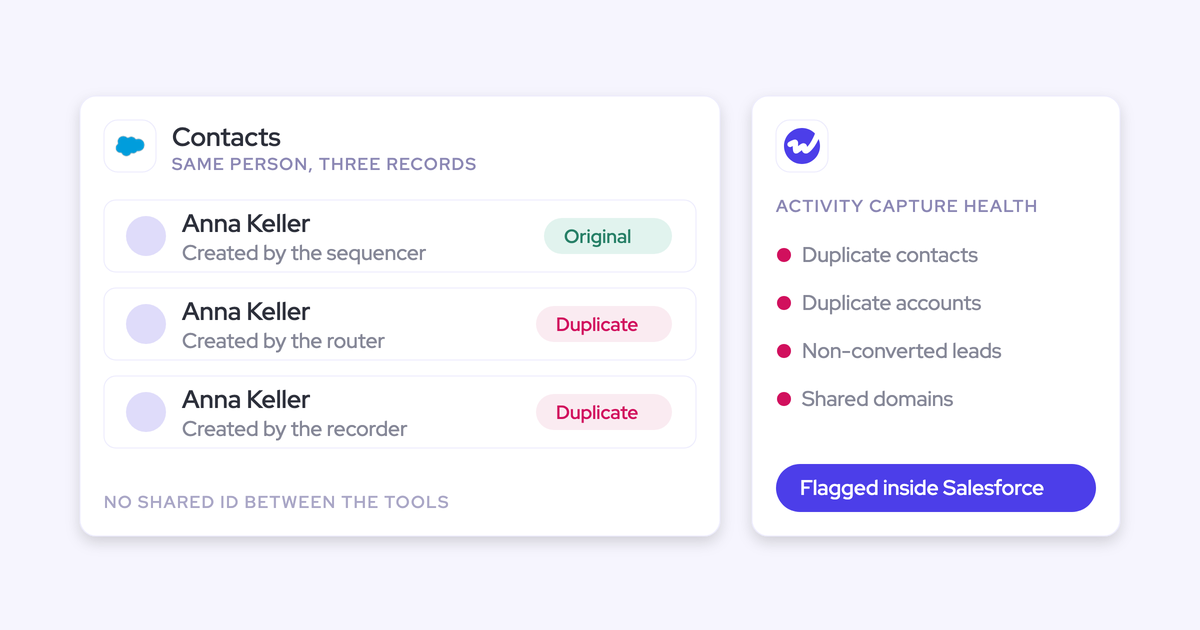
| Duplicate contacts | Activity splits across two records for the same person | Contacts grouped by Email, filtered to groups with more than one record |
| Unconverted leads with a matching contact | Activity can attach to the lead instead of the contact on the deal | Lead emails compared against contact emails, using your duplicate rules or an export |
| Contacts with no email | Nothing can match to them, so their conversations never reach the record | Contacts with Email blank, on accounts with open opportunities |
| Missing opportunity contact roles | Email reaches the opportunity through contact roles. Without them, activity falls back to the account. | Open opportunities with a cross filter for those without contact roles |
Missing contact roles explain most of the "busy account, empty deal" pattern from Step 5. In an account with several open opportunities and no contact roles, no algorithm can decide which deal an email belongs to.
Step 8: Check capture settings, exclusions and validation rules
This step tests the configuration cause. A quietly wrong setting can produce gaps that nobody traces back to configuration for months, so review these:
- Domain exclusions, including whether a customer domain landed on the internal or external exclusion list by mistake.
- The logging object for email, and whether it changed partway through your comparison window.
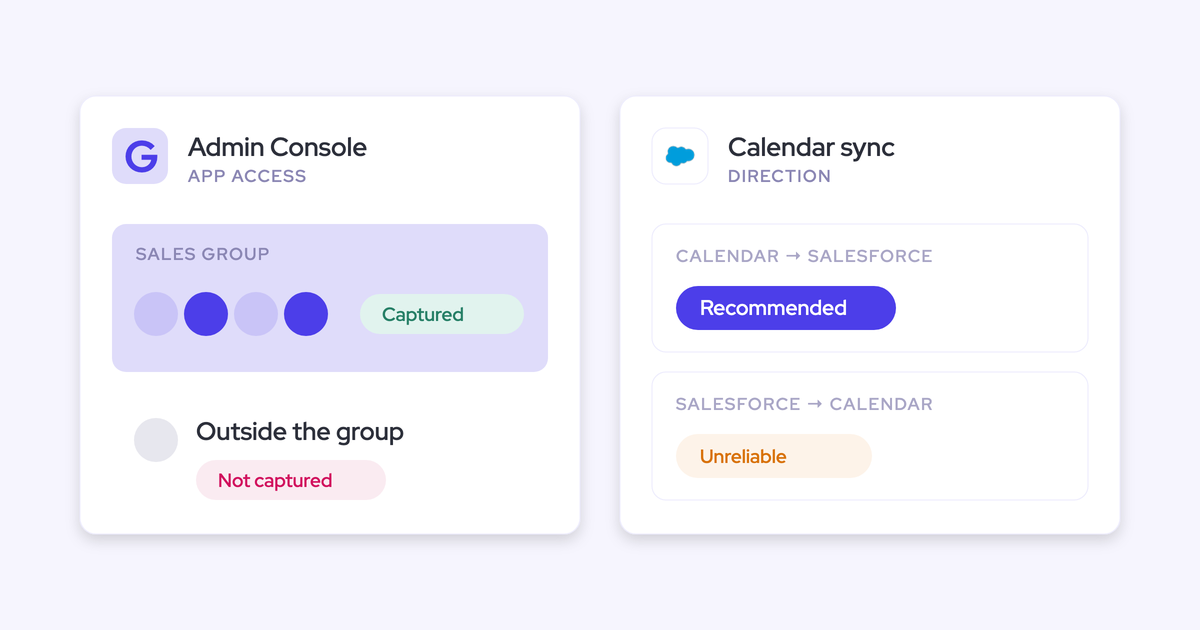
- Calendar sync direction, and whether events created in Salesforce are expected to reach calendars.
- Which users and teams each configuration covers, and who falls between configurations.
- Validation rules on Contact that block automatic contact creation for the integration user.
- Permissions for the integration user to create, update and delete Events, not only create them.
Once you've reviewed them, run a short sandbox test with one enrolled user:
- Send an email to an address outside your company. Mail between colleagues is excluded as internal, so a colleague-only test logs nothing and looks broken.
- Put that address's domain on a test account's Website field, so contact creation gets exercised too.
- Create a meeting with the external address, then move it, reschedule it and delete it.
- Check that each change reached Salesforce. Creating a meeting only proves the create permission, while moving and deleting it proves the update rights that would otherwise fail weeks after go-live.
Step 9: Name the channels no capture tool can see
Finally, there's the structural-blind-spot cause. Some gaps can't be closed by any mailbox-based tool, and you're better off labeling them now than having a manager discover them in a pipeline review.
- WhatsApp, text and iMessage: These run on personal phones, so the usual workaround is a field the rep sets on the opportunity.
- Calls from a personal mobile: They exist in Salesforce only if the rep logs them by hand. A dialer or a softphone on the computer gives you a route to capture.
- Slack, Microsoft Teams chat and Google Chat: Deal rooms and shared channels hold context that never reaches the record. Treat them as uncaptured unless a tool reads them.
- People who joined through a forwarded invite: They never appear on the seller's calendar event, so they're neither logged as attendees nor created as contacts until they join an email thread.
- Attendance: Calendar data records who was invited and how they responded, not who showed up. The organizer always appears as attending. Only a recording or a join log proves a meeting happened.
"In a lot of businesses that I've been a part of, one of the best indicators of success is if you're on a text message basis with your buyer, especially in enterprise, I think that becomes really important. But I don't think that you can easily integrate that or measure it. It's like the one remaining black box that you just have to have some janky checkbox like, are you texting with them? Yes or no?"
Note these blind spots on every KPI report that uses activity data. A limit you've stated up front is easy to defend, but one leadership finds on its own takes your credibility with it.
Match each cause to its fix: Setup, data, configuration or tool
Luckily, most causes have a fix short of buying a new tool. Replacing the capture layer pays off only when per-user capture keeps recreating the user-setup cause, or when several writers can't be reconciled.
| Cause | Evidence you found | The fix | When it points to replacing the capture layer |
|---|---|---|---|
| User setup | Reps not enrolled, dropped connections, mismatched addresses | Enroll centrally by role and team, align user emails with mailbox addresses | When per-user connections keep dropping and you're re-enrolling the same people every month |
| CRM data | Bad Website fields, duplicates, missing contact roles, contacts with no email | Clean the records, then fix the intake that created them | Rarely. Every capture tool matches on this data, so a new tool inherits the same mess. |
| Configuration | Wrong exclusions, scope gaps, validation rules blocking the integration user | Change the setting and rerun the sandbox test from Step 8 | When the tool can't express the rule you need, such as excluding by a field on the record |
| Structural blind spot | Activity happening on phones, chat or forwarded invites | Label it in every report, add a field or a recording route where you can | Only for channels a different tool can actually read, such as dialer calls |
| Over-capture | Duplicate events, internal meetings, auto-replies | Exclusions, deduplication in reports, one writer per meeting | When two tools write the same meeting and neither can stop |
Whichever path you take, one split holds. If your sequencing reps live in Outreach, Outreach should keep logging their sequence activity, because it owns sequence metrics that exist nowhere else.
A capture layer pays off for the inbox-based roles: AEs, AMs and CSMs who were never licensed on the sequencer and whose email nobody else sees. Paying sales engagement prices for seats that only use capture is one of the most expensive patterns in a revenue stack.
Mistakes that make activity coverage numbers lie
At this stage, there are three traps admins commonly fall into: the wrong health metric, reporting that's about to retire, and acting on a quiet rep too early.
Using login rate as an activity capture health metric
Login rate is the wrong signal for background capture, because capture works best when nobody opens the tool. In fact, a falling login count can mean the tool is doing exactly what you bought it for.
Meanwhile, a rep whose connection dropped can keep logging in every day.
Instead, watch the signals that carry meaning:
- Activity is still being written for every enrolled rep, week over week
- Records are complete, measured by the silent-record checks in Step 5
- The people who rely on the reports still trust them
Building coverage reports on Activity 360 or Activity Metrics
EAC's legacy reporting retires with Salesforce's Spring '27 release in February 2027. If you turned on EAC after Summer '25, you never had it. If you turned it on earlier, you keep it until the switch or the retirement, which makes now the time to stop building on it.
Here's what stops working:
- Saved reports built on Activity 360 stop returning data, because the objects behind them retire.
- Activity Metrics fields on accounts and opportunities return null, and any code, validation rule or report referencing them fails or comes back empty.
- The Activities Dashboard stops loading, and its history isn't preserved.
- Recommended Connections components disappear from record pages and Seller Home.
Your captured activity records will stay, though. Salesforce expects your admin to rebuild the reporting: Activity 360 reports on Tasks and Events or Activities with Accounts report types, and Activity Metrics as reports on Task and EmailMessage grouped by account or opportunity and filtered by task subtype.
Its timeline asks you to audit usage by June 2026, build replacements between June and December 2026, and validate them in a sandbox in January 2027. The baseline from Step 2 is that rebuild.
Treating a quiet rep as a low performer before checking capture
Run Steps 6 to 8 before a low number reaches a manager. Always ask whether the system missed something first. Only then is it fair to ask why the rep is behind. A rep blamed for a capture failure stops trusting every report you send afterward.
"I'm not gonna go to the rep and say, you're seven days late on following up with so and so. I'm gonna ask them like, hey, did HubSpot miss something here? And sometimes it does. It just misses something. Or your connector gets shut off or your Chrome needs to update."
If you want the report types, objects and settings from this audit on one page, get the free Salesforce Activity Capture Cheat Sheet.
How Weflow Activity and Contact Capture keeps the audit running
Weflow is a Revenue AI Orchestration platform built for Salesforce teams in sales, customer success and RevOps. Its Activity & Contact Capture turns this audit from a quarterly fire drill into a set of standing views.
It takes the user-setup cause off your gap list, names the CRM-data causes inside Salesforce, and keeps per-rep counts in Salesforce. You'll still derive coverage from those views yourself, since Weflow doesn't hand you a success rate.
Server-side capture takes rep setup out of the gap list
Weflow captures through a tenant app installed once in Microsoft Entra or Google Workspace, so there's no per-user connection for a rep to break.
Capture reads the mailbox at the server, which means mail sent from a phone, a browser or a desktop client lands the same way. Writes reach Salesforce through the integration user almost immediately, not on a nightly batch.
Enrolled users are captured whether or not they ever log in to Weflow, so coverage stays independent of adoption, and a low login count isn't a capture problem.
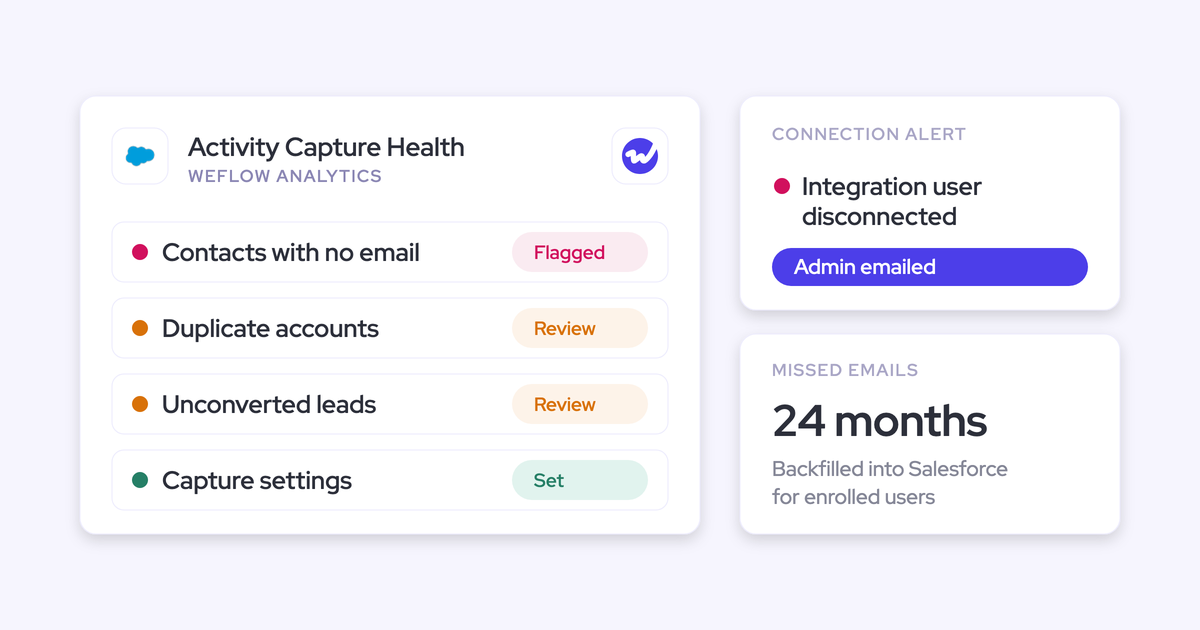
When a user's mailbox subscription fails, or their email address differs between Microsoft and Salesforce, a warning icon appears next to them in the admin console. That's the silent drop-out from Step 6, made visible.
That takes these chores off your Step 6 list:
- Chasing reps who dismissed a re-authentication prompt
- Guessing which device a rep sends from
- Finding address mismatches by asking each rep one by one
The Activity Capture Health view flags the CRM data causes
Activity Capture Health is a Weflow Analytics view inside Salesforce that flags the Step 7 conditions as a standing list. So when a rep says capture isn't working, you can see right away whether capture failed or the data underneath it did.
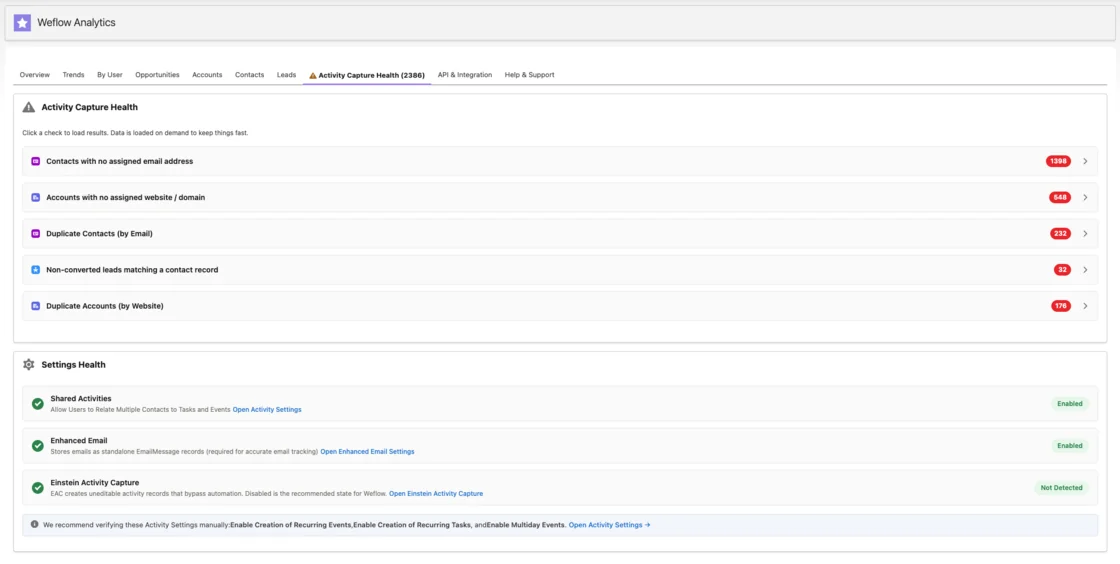
| Step 7 check you'd run by hand | What the Health view shows |
|---|---|
| Accounts grouped by Website with more than one record | Duplicate accounts by website |
| Contacts grouped by Email with more than one record | Duplicate contacts by email |
| Lead emails compared against contact emails | Non-converted leads matching a contact record |
| Contacts with Email blank | Contacts with no assigned email address |
| Accounts with Website blank | Accounts with no website or domain |
| The configuration review from Step 8 | Capture settings not yet configured for optimal capture |
Weflow Analytics shows per-rep coverage inside Salesforce
Weflow Analytics is a Salesforce app that reports on the activity records in your CRM without consuming any Salesforce API calls. You can run it continuously without competing with your other integrations for the daily limit.
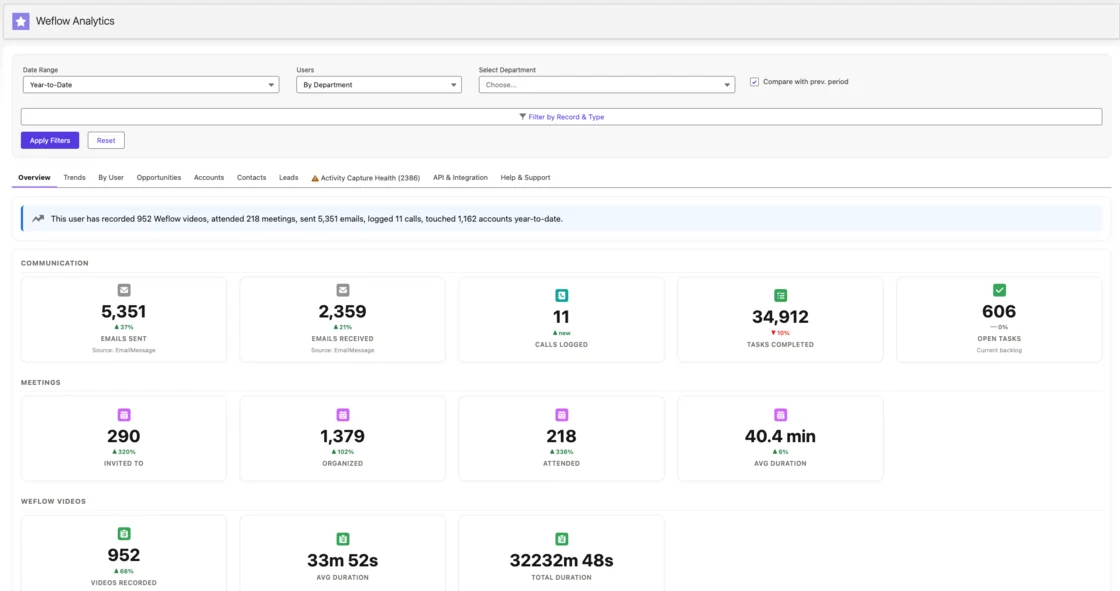
Here's how each view maps to the baseline:
- Step 4: Per-user activity counts split by emails, meetings and other types, plus trend lines over time.
- Step 5: Accounts, contacts, leads and opportunities with no activity in the last 90 days, and activity broken down by record and by account.
- Peer benchmarks: Weflow Insights shows every metric for a set of users against two averages, the selected group and all users, so outliers on either side stand out.

Keep in mind that the two views measure different things. Insights counts every email and meeting Weflow can see in a connected mailbox, whether or not it was logged to Salesforce.
Weflow Analytics counts what sits in the CRM. When a rep's Insights total is healthy and their Analytics total is low, the activity happened and something stopped it reaching the record.
How Weflow keeps over-capture out of rep counts
Out of the box, Weflow handles three of the four inflation patterns from Step 3:
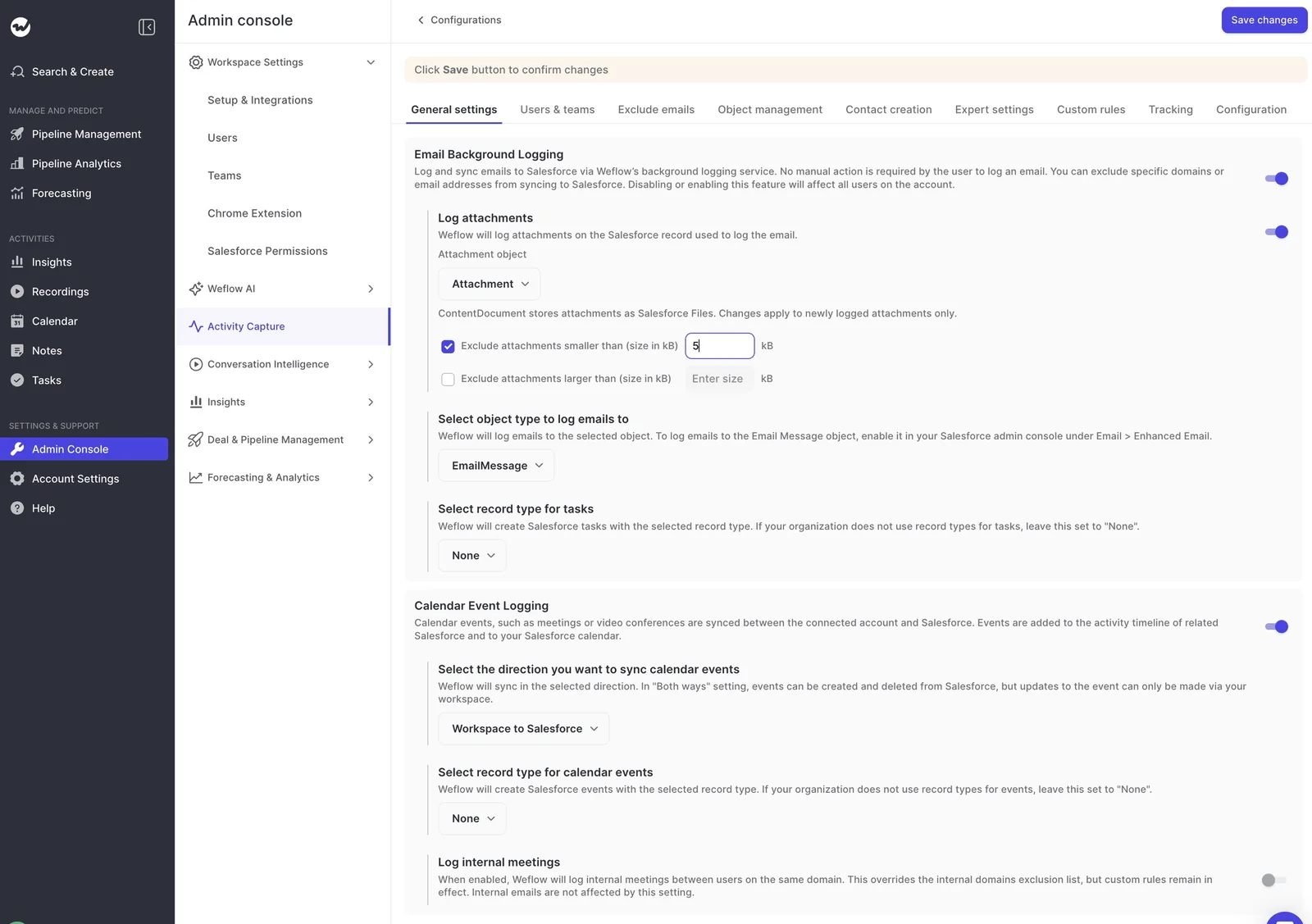
- Internal meetings: They stay out of Salesforce unless an admin switches on Log internal meetings for a configuration. Internal email stays excluded either way.
- Meeting responses: An expert setting stops accepted, tentative and declined responses from logging, so accepting an invite doesn't count as an email touchpoint.
- Capture plus CI duplicates: When a meeting is recorded, Weflow adds the summary, attendees and recording link to the one meeting record. A recording never creates a second event.
What Weflow still can't measure for you
Here's where Weflow leaves the work with you:
- Weflow has no capture success rate and no mismatch rate in the app. A team that wants either gets a one-off report compiled by Weflow support from the sync logs.
- Weflow gives admins no report of which emails failed to log. A rep sees the reason for a single email in the Outlook add-in or Chrome extension, and team-wide audits go through support.
- An email that resolves to the account instead of one of its open opportunities is logged correctly by Weflow's rules, so it never shows up as a failure.
- Meeting counts reflect meetings scheduled, not attended, unless the meeting was recorded.
- Out-of-office replies aren't filtered by default. An admin can drop those carrying a known phrase with a compatibility mode pattern.
- Weflow doesn't capture WhatsApp, text messages, Slack channels, Microsoft Teams chat, Google Chat or calls from a rep's personal mobile number.
- People who join through a forwarded invite aren't created as contacts until they appear on an email thread with the seller.
Running Weflow in parallel with Outreach or Einstein Activity Capture
The best way to evaluate a capture replacement is a parallel parity run on default settings, judged on whether anything is lost. Since you're managing the risk of a hole in the activity record, features can wait.
- Enroll the same users in Weflow that your current tool captures. With EAC, one setting change lets both run during a transition.
- Leave Weflow on its defaults, with no templates or custom rules.
- Run both for your comparison window and put each rep's weekly counts side by side.
- Sample threads and meetings for a handful of reps and check that they tracked one for one.
- Only start configuring once the parity question is settled.
If you're running Outreach, the split from earlier still applies. Outreach keeps logging sequence activity for your sequencing reps, and Weflow runs alongside it through compatibility mode. Weflow pays off where inbox-based roles are the gap.
What Weflow Activity and Contact Capture costs
Weflow Activity & Contact Capture is $19 per user per month, billed annually, with a minimum of 10 users. It includes Ask Weflow AI Pro and Agent Builder Free, which comes with 25 agent actions per month.
If you also need attendance evidence, the Weflow Revenue AI Foundation bundle is $49 per user per month and adds Weflow Conversation Intelligence.
FAQ: Activity capture coverage questions Sales Ops teams ask
What activity capture coverage rate should we aim for?
Our working threshold is roughly 99% of emails, meetings and contacts landing in the CRM, because below that the data can't safely carry reports and automations.
For comparison, manual add-in logging captures somewhere between 24% and 52% of activity. Reps using EAC estimate it logs about 80% of theirs. Treat those figures as reference points from the field, not benchmarks for your org.
What happens to Einstein Activity Capture reports after February 2027?
EAC's Activity 360 Reporting, Activity Metrics and Activities Dashboard retire with the Spring '27 release. Saved reports on them stop returning data, Activity Metrics fields go null, and the dashboard's history is gone.
Your captured activity records stay as standard Task, EmailMessage and Event records, though, so you can rebuild coverage reporting on those objects.
Does activity coverage reporting use up my Salesforce API limits?
Reporting that pulls activity out of Salesforce through the API competes with every other integration for your org's daily limit. Weflow Analytics runs inside Salesforce and consumes no API calls.
Weflow Insights reads Weflow's own data for the same reason, so it never pulls every task and email out of your org. On the capture side, custom rules add API calls as you add more of them.
Can I run a new capture tool in parallel with Einstein Activity Capture?
Yes. You can run Weflow alongside EAC during a transition by adjusting one setting, and that's how we recommend you evaluate it. Run both on defaults for the same users and compare per-rep counts one for one before you configure anything else.
Does a capture tool touch the integration user, permission sets or validation rules?
Weflow writes to Salesforce through an integration user and respects your validation rules, field dependencies, permissions and role hierarchy. Where things most often break is contact creation. A validation rule that requires a field enrichment couldn't fill will stop that contact from saving.
You can relax the rule for the integration user or create those contacts by hand. The sandbox test in Step 8 shows you any update-permission gaps before reps are enrolled.
How do I keep sensitive mailboxes or accounts out of capture?
In Microsoft Entra, assign a group to Weflow's app and set Assignment required to Yes. Without that setting, Weflow can still reach mailboxes outside the group.
Inside Weflow, you can exclude whole customer domains, block specific addresses, and write custom rules that block logging against any record based on a field, such as a confidential flag. Events and emails a user marks private also stay out.
Do reps need to do anything, and how long does setup take?
Reps don't need to do anything for capture to work. The technical setup takes 30 to 45 minutes with your Salesforce admin and your Google Workspace or Microsoft admin.
And since Weflow reads no mailbox until a user is enrolled in a capture configuration, you can finish the technical setup while a legal review is still open. Capture goes live as soon as the logging rules are configured.