How to Control What Weflow Writes to Salesforce: Read-Only Mode, Field-Level Write Permissions and Change History
Learn how to control Weflow writes to Salesforce with read-only mode, field permissions, and change history


If you're the admin signing off on Weflow write-back, here's the short answer. Weflow can only write what your Salesforce permissions already allow. On top of that, you decide which fields it can touch and which ones wait for a human.
Weflow is the Revenue AI Orchestration platform for sales, customer success, and RevOps teams. Everything it captures and generates lands in native Salesforce objects. Salesforce data capture with Weflow runs inside your org's own permission model: it writes as the signed-in user, with your validation rules and field dependencies applied.
On top of that sit three admin controls:
- Read-only mode stops every field update and record creation from Weflow, while activity capture keeps running.
- Field-level write permissions set which fields stay editable on Opportunity, Contact, Account and Lead.
- Weflow AI Field Updates let you choose, field by field, whether a value writes automatically or waits for review.
Field changes made through Weflow stay reviewable in Weflow for 100 days.
Two things you should know before you open the Admin Console:
- Field-level write permissions are permissive by default.
- Restrictions you enforce only through Lightning visibility don't carry over.
Both are covered below, with the exact settings.
Four layers that control what Weflow writes to Salesforce
Weflow's write controls stack in four layers, plus an audit trail. Here's the whole map before we go through each one.
| Layer | What it controls | What it leaves alone | Default |
|---|---|---|---|
| 1. Inherited Salesforce model | Field and record access as the signed-in user, plus validation rules, field dependencies, permission sets and role hierarchy | Restrictions enforced only through page layouts, Lightning component visibility or list views | Always on. Salesforce changes reach Weflow within about an hour |
| 2. Read-only mode (Admin Console > Salesforce Permissions) | Every record creation and field update from Weflow into Salesforce | Tasks, notes, events, emails and recordings, so capture and Conversation Intelligence keep working | Off. Weflow syncs both ways until you turn it on |
| 3. Field-level write permissions | Which fields stay editable on Opportunity, Contact, Account and Lead | Objects and fields outside those four objects | All fields editable until you select some |
| 4. AI Field Updates, per field | Whether each AI-extracted value writes automatically or waits for review | Required fields, which stay locked | Set per field when you configure it |
| Audit: change history | A record of field changes made through Weflow | Changes made directly in Salesforce | Kept for 100 days |
Why writing to Salesforce needs more control than reading
A tool that reads your CRM can show someone the wrong number. A tool that writes to it can change the number your CRO forecasts on.
One misheard sentence on a call can push Close Date into next quarter or move Stage forward. Nobody notices until the roll-up looks off.
The quieter damage is rep trust. Reps already type into qualification fields after calls.
The fear is earned. Once a rep watches their own note disappear, they stop maintaining that field. Now you have an automated field nobody corrects and nobody believes.
Integrations have also trained you to expect the worst on permissions:
- Attention's Salesforce connection requires the authenticating user to hold Modify All Data.
- Nektar's default setup asks for Modify All Data, plus metadata and profile permissions. Nektar does support a reduced-privilege setup, and it warns that this setup needs considerable Salesforce admin expertise.
- Other tools impose their own field mapping instead of working inside your rules.
So before any write-back goes live, you need a concrete control surface. That's what the rest of this guide walks through.
How Weflow inherits your Salesforce permissions and validation rules
Weflow applies your existing Salesforce configuration instead of asking you to rebuild it. Standard and custom fields and objects, field dependencies, validation rules, permission sets and role hierarchy all carry over.
That means there's no second permission model or field map to keep in step. You change access in Salesforce, in one place.
"Everything we do has a bi-directional Salesforce integration that is real time and API based, that respects all your validation, field dependencies, permission sets. And that is actually quite different to for example Gong or Attention, that typically have to do field mapping."
Weflow writes as the signed-in user, inside field-level security
Weflow applies field and record access as the signed-in user. A field someone can't see or edit in Salesforce isn't visible or editable for them in Weflow either.
Permission sets and role hierarchy carry over the same way. Users sign in to Weflow only through your Salesforce authentication, using OAuth and whatever SSO or two-factor your org already enforces. There's no separate Weflow identity, and deactivating a user in Salesforce removes their Weflow access.
The same floor applies to Ask Weflow AI. It returns only data the user can already reach in Salesforce, and it adds its own guardrails on top, so it will sometimes withhold information the user could find directly in Salesforce.
Validation rules and field dependencies apply to Weflow writes
Weflow applies your existing validation rules and field dependencies to every write. It doesn't keep its own copy of them.
For you, that means the gates you built still gate. If an opportunity can't enter a stage until five fields are filled, that rule holds whether a rep edits in Salesforce, edits on a Weflow board, or accepts an AI field update.
Salesforce configuration changes reach Weflow within about an hour
Weflow reads your Salesforce configuration through the API and caches it for about an hour. The cache exists so that rendering a field doesn't cost an API call every time.
A changed validation rule, field dependency or permission takes effect in Weflow within the hour, with nothing to do on the Weflow side. But it isn't instant.
Here's the practical tip: if you change a rule and test it straight away, you may see the old behavior. Save the change, wait an hour, then retest.
The Weflow integration user runs without Modify All Data
Weflow doesn't need Modify All Data. Each customer gets a least-privilege permission set, worked out with you during setup, so the integration user touches only the records and fields capture writes to.
The integration user is a dedicated Salesforce Integration user on the Minimum Access API Only Integrations profile, never an admin's own login. It gets the Salesforce API Integration permission set license plus a purpose-built permission set:
- Read and edit on Account, Contact, Opportunity, Lead and Opportunity Contact Role.
- Full access to Event. Delete rights apply only here, because a calendar deletion has to propagate.
- Edit rights on the three Weflow custom objects.
- System permissions to update email messages, edit tasks, access activities and edit events.
When Weflow creates or enriches a contact, it writes eight fields: first name, last name, email, account, website, LinkedIn URL, title and phone. So you can scope the integration user's field-level edit access on Contact to those eight.
The one broader grant applies only if your org-wide defaults are Private. In that case the integration user needs Modify All Records on Account, Opportunity and Contact.
Read, Edit and View All aren't enough there. With those alone, the integration user can create the first event or email on a record it doesn't own, then can't update it later. The result looks random: an AI summary lands on an opportunity and fails on an account, depending on what the meeting mapped to.
We know security teams push back on Modify All Records because it includes delete. In practice, Weflow never deletes an opportunity. What it deletes is an event it logged incorrectly.
Why Lightning visibility and list views don't carry into Weflow
Salesforce doesn't expose Lightning page visibility through the API, so no external tool can inherit restrictions enforced that way, Weflow included. If your org grants open field-level security and then controls editing through page layouts or Lightning visibility, Weflow sees write access and offers the field for editing.
| Restriction method | Does Weflow inherit it? |
|---|---|
| Field-level security | Yes |
| Permission sets and profiles | Yes |
| Role hierarchy | Yes |
| Validation rules | Yes |
| Field dependencies | Yes |
| Page layout restrictions | No |
| Lightning component visibility | No |
| List view restrictions | No |
The fix depends on what you're restricting:
- For fields: set real field-level security at the permission layer. That holds in Salesforce, in Weflow, and in any other tool that writes back.
- For views: build the pipeline and account views centrally in Weflow, assign them per team, and switch off users' ability to build their own views. Data export from a view sits behind its own feature flag.
This matters most in orgs where portal or community users sit under the role hierarchy. There, view-level restrictions are doing work the role hierarchy isn't.
How to stop every Weflow field update with read-only mode
Read-only mode is one switch in Admin Console > Salesforce Permissions. It blocks every record creation and field update from Weflow into Salesforce, without removing the product.
By default, Weflow syncs both ways and a change made in Weflow reaches Salesforce immediately. Read-only mode cuts that write path while the activity layer keeps flowing.
| Write type | While read-only mode is on |
|---|---|
| Field updates on existing records | Blocked |
| New record creation | Blocked |
| Tasks | Keep writing |
| Notes | Keep writing |
| Events | Keep writing |
| Emails | Keep writing |
| Recordings | Keep writing |
So Weflow Activity & Contact Capture and Weflow Conversation Intelligence keep working while nothing edits an existing record. Next to it sits a separate toggle that controls whether new Salesforce records can be created at all.
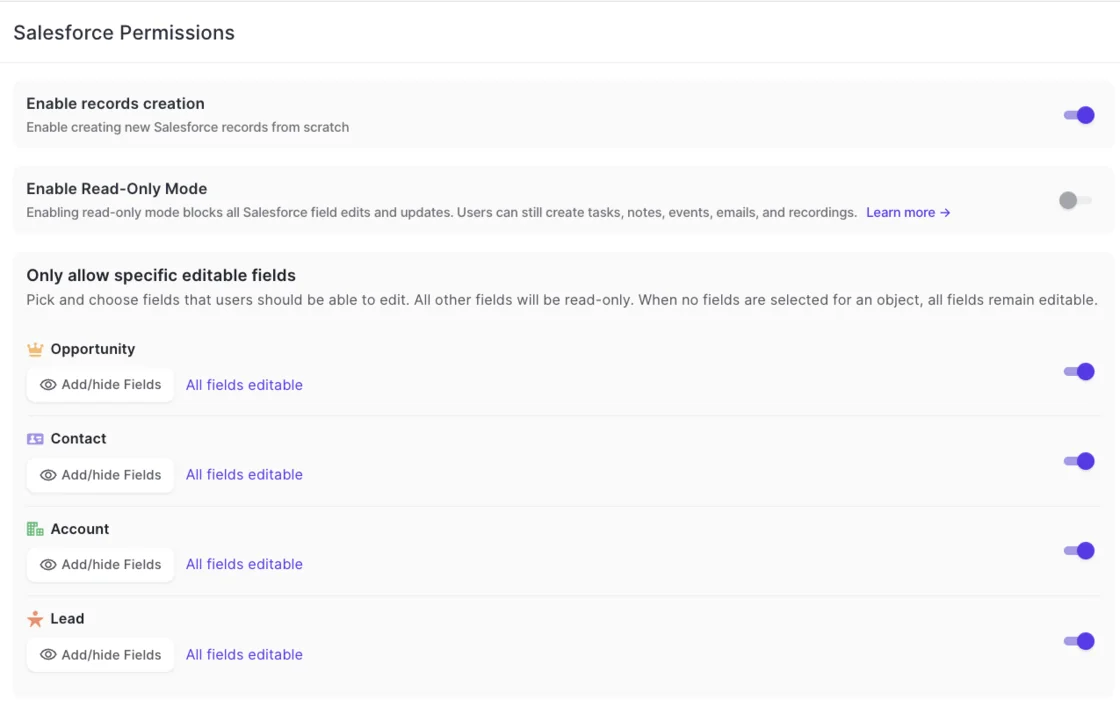
One scope note, because the names sound alike: read-only mode limits what Weflow writes to Salesforce. It isn't a read-only admin role, which Weflow doesn't have today (more on that below).
How to lock forecast fields with Weflow field-level write permissions
Weflow field-level write permissions let you pick the editable fields on Opportunity, Contact, Account and Lead. Every other field on that object becomes read-only in Weflow.
This is where field selection stays with the admin.
Why saving no field selection leaves every field editable
The default is permissive. If you select no fields for an object, every field on that object stays editable.
That means opening the screen and saving changes nothing. The setting only restricts once you add at least one field to an object's list.
A starting Opportunity setup: Close Date open, forecast fields locked
The shape most revenue teams want keeps Close Date editable and locks the fields that drive the forecast. Those are exactly the fields you don't want edited outside a review.
| Field | Setting | Why |
|---|---|---|
| Close Date | Editable | Reps own their best guess on timing and update it often |
| Stage | Locked | Moves the forecast category and pipeline reporting |
| Amount | Locked | Changes the number leadership commits to |
| Owner | Locked | Drives roll-ups, territory and quota attribution |
How to set auto-write or review per AI Field Updates field
Weflow AI Field Updates decide auto-write or review per field, not per team or workspace. The same rep can have an address update itself while the champion field waits for review, inside the same configuration.
That's the lever for earning trust in stages. You don't flip a single switch for all AI writes.
What a rep sees when an AI field update waits for review
With review on, the rep sees the current Salesforce value beside the suggested one. From there they can:
- Accept the suggestion as it is.
- Edit it before it writes.
- Reject it and keep the current value.
- Reassign the deal, after which the AI reanalyzes against the right opportunity.
Accepted values write back to Salesforce in one click. With auto-update on, the field writes to Salesforce after the call without confirmation.
Two guards apply either way:
- Required fields stay locked.
- Before writing to a picklist or multi-picklist, Weflow reads the field's allowed values and matches against them, so it never writes a value the field doesn't accept.
Which fields to automate and which to keep under review
Decide by field type. Unambiguous fields can auto-write early. Interpretive fields stay under review until you've watched the output. Single-value commercial fields get a quick human check because they move the forecast.
| Field | Type | Start with | Why |
|---|---|---|---|
| Website | Unambiguous | Auto-write | One right answer, easy to verify |
| Billing address | Unambiguous | Auto-write | One right answer, easy to verify |
| Pain | Interpretive | Review | Needs judgment until the prompt has proven itself |
| Champion | Interpretive | Review | Easy to fill with something plausible and wrong |
| Next step | Single-value commercial | Review | One misheard sentence overwrites it |
| Close Date | Single-value commercial | Review | Shifts the forecast period |
| Stage | Single-value commercial | Review | Moves pipeline and forecast category |
| Amount | Single-value commercial | Review | Changes the committed number |
Interpretive prompts need the exclusions your team actually uses. We've seen a champion field name the customer's own internal employee until the prompt said to exclude internal people, and a metrics field return headcount.
For cumulative qualification fields like champion or metrics, an AI playbook is often the better route than a per-call update. It reads every email, meeting and field on the opportunity on a schedule and keeps the value at the current best answer, rather than whatever the last call said.
You also don't need perfect output to start, especially when a human gates the fields that matter.
Why Opportunity Stage should stay under human review
AI Field Updates can write Opportunity Stage itself. A deal moves between stages when the exit criteria written into the prompt are met on the call.
The same mechanism reaches the fields your stage gates depend on. If a validation rule blocks a stage change until five fields are filled, AI Field Updates can fill them from what was said.
That's the point where field updates start driving your sales process. It's also where a wrong extraction has real consequences. So our advice is to keep Stage on review, even after other fields have moved to auto-write.
How to audit Weflow changes with 100 days of change history
Field changes made through Weflow are reviewable in Weflow for up to 100 days. That gives you an after-the-fact view of what changed through Weflow, alongside whatever you already track in Salesforce.
A weekly review during rollout catches problems while they're small. Look for:
- Changes to forecast fields that should have been locked.
- Fields you recently moved to auto-write, and whether their values hold up.
- Fields with an unusual volume of changes, which often points to two write routes competing.
- Records where reps edited AI values heavily, which tells you which prompts need tuning.
Where Weflow's write controls stop today
Two gaps should shape your rollout plan, on top of the Lightning visibility gap above.
There's no read-only admin role for CROs and analysts
Weflow has no read-only administrator role. Seeing everything in the workspace requires full admin, and full admin also carries the ability to change configuration.
That's awkward for exactly the people who want the complete view: revenue leaders and analysts reading across every deal. Today you either grant that risk or withhold the view.
Unlimited view-only licenses cover watching recordings, summaries, transcripts, pipeline views and analytics. They don't extend to the admin console or to asking questions across all the data.
Weflow's permission levels are:
- Limited Access: users see their own data plus Salesforce-defined direct reports.
- Full Access
- Admin: a Weflow admin doesn't need to be a Salesforce admin.
A failed write to Salesforce isn't replayed later
An AI summary or field update fires once, when the call ends. If that write fails, nothing triggers it again.
The content survives in the Weflow recording object, which is where you go to recover it. The write to the Event or the opportunity field doesn't come back unless someone copies it across by hand.
Failures from misconfiguration are silent. So the affected period is usually everything up to the day someone asks why some meetings have summaries and others don't. That's why the testing section below matters more than any setting.
Credit where it's due: Momentum can append to a Salesforce field with a timestamp instead of overwriting it. Fireflies' Autofill CRM offers an append or overwrite choice per field. Weflow's answer today is per-field review, where the rep sees the current value before anything replaces it.
How to roll out Weflow write-back: locked, reviewed, then automatic
Start locked down and loosen per field as the output proves itself. This is the sequence we recommend:
- Move layout-only restrictions to real field-level security. Anything you enforce through page layouts, Lightning visibility or list views won't hold in Weflow until it lives at the permission layer.
- Set up the least-privilege integration user. Use a dedicated Integration user on the Minimum Access API Only Integrations profile with the Weflow permission set. Add Modify All Records on Account, Opportunity and Contact only if your org-wide defaults are Private.
- Turn on read-only mode while capture runs. Emails, events and recordings keep flowing into Salesforce, and nothing edits an existing record.
- Set field-level write permissions, forecast fields first. On Opportunity, lock Stage, Amount and Owner. Remember an empty selection leaves everything editable.
- Test every write path. Use the checklist in the next section.
- Turn off read-only mode with every AI Field Updates field on review. Reps see current and suggested values side by side and decide.
- Move unambiguous fields to auto-write. Website and address first, once a few weeks of reviews show clean output. Keep Stage on review.
- Audit change history on a regular cadence. Weekly during rollout, then whenever you move another field to auto-write.
Mailbox capture works the same way. Weflow reads no mailbox until a user is enrolled in an activity capture configuration. So you can finish the technical setup while a legal or security review is still open.
What to test before Weflow write-back goes live
Test writes against every object your activities map to, not just one. These are the checks that catch silent failures before rollout:
- Wait about an hour after changing any validation rule, field dependency or permission before you test its effect in Weflow.
- Confirm the integration user has full access to Event, including every field it writes, because missing access on a single field like location stops the whole event from logging while emails keep working.
- Set a default Event record type in Weflow if Event has several record types, because otherwise the log fails.
- Move, reschedule and delete a test meeting, because permission to create an event isn't permission to update it.
- Confirm the integration user can read Opportunity Contact Role, because without it emails land on the account instead of the deal.
- Check that every restriction you used to enforce through Lightning visibility now exists as real field-level security.
- Write an AI summary to an account and an opportunity the integration user doesn't own, if your org-wide defaults are Private.
- Review required fields on Contact, because a required field with no Salesforce default blocks automatic contact creation.
- Give the integration user a role high in the hierarchy, so it keeps the right to update activities it hands to owners above it.
If you'd rather walk through these controls against your own org's permissions and validation rules, we're happy to do it live. See how Weflow captures activity, updates Salesforce fields from calls, and rolls up your forecast. Book a 30-minute demo.
FAQ: controlling Weflow writes to Salesforce
Does an AI field update overwrite what a rep already typed?
With review on, nothing writes until the rep has seen the current value beside the AI suggestion and accepted, edited or rejected it. With auto-write on, the new value writes to Salesforce without confirmation. That's why we recommend keeping fields reps maintain by hand on review. We cover overwrite and append behavior in more depth in a separate article.
Do field-level write permissions govern AI Field Updates or only user edits?
Field-level write permissions set which fields users can edit through Weflow on Opportunity, Contact, Account and Lead. AI Field Updates have their own per-field configuration, where you map each field to a prompt and choose auto-write or review. Read-only mode sits above both and blocks every field update from Weflow into Salesforce.
What happens when a Weflow write breaks a validation rule?
Weflow inherits and applies your validation rules, so a value your rules reject doesn't get past them. A blocked or failed AI write isn't replayed, and its content stays in the Weflow recording object. For contacts, a required field with a Salesforce default gets that default, while a required field with no default blocks automatic creation.
Can reps see or change which fields Weflow can write?
Field write scope lives in the Admin Console under Salesforce Permissions, which Weflow admins configure. Weflow has three permission levels: Limited Access, Full Access and Admin. On top of that, reps can only edit fields their own Salesforce permissions allow.
Can a per-call field update and an AI playbook write the same field?
Yes, both routes can write the same field, so decide in advance which route owns which field. Use AI playbooks for cumulative fields like champion or metrics, which build across a deal. Use per-call updates for single-call facts. Weflow's AI agents can't write to Salesforce fields, so these two routes are the only AI writers.
Is Weflow change history the same as Salesforce field history tracking?
No. Weflow change history shows field changes made through Weflow, reviewable in Weflow for up to 100 days. Weflow doesn't depend on Salesforce field history tracking. The managed package uses webhooks to capture field changes.
How long is the Weflow POC, and what should I test during it?
Weflow offers a free 14-day POC. Use it to run the checklist above against your own org, especially the Event permissions, Private org-wide default behavior and any Lightning-only restrictions.
How much does Weflow cost?
Weflow's prices are per user per month, billed annually, with a 10-user minimum:
- Weflow Activity & Contact Capture is $19.
- Weflow Conversation Intelligence, which includes AI Field Updates from calls, is $39.
- Revenue AI Foundation bundles both for $49, roughly 16% less than buying them separately.
Seats added mid-term are charged pro rata to the end of that term. There are no implementation fees.