Weflow Outlook Add-In and Chrome Extension: What Reps Use Them For When Capture Is Automatic
Learn when reps use Weflow's Outlook add-in and Chrome extension when capture is automatic


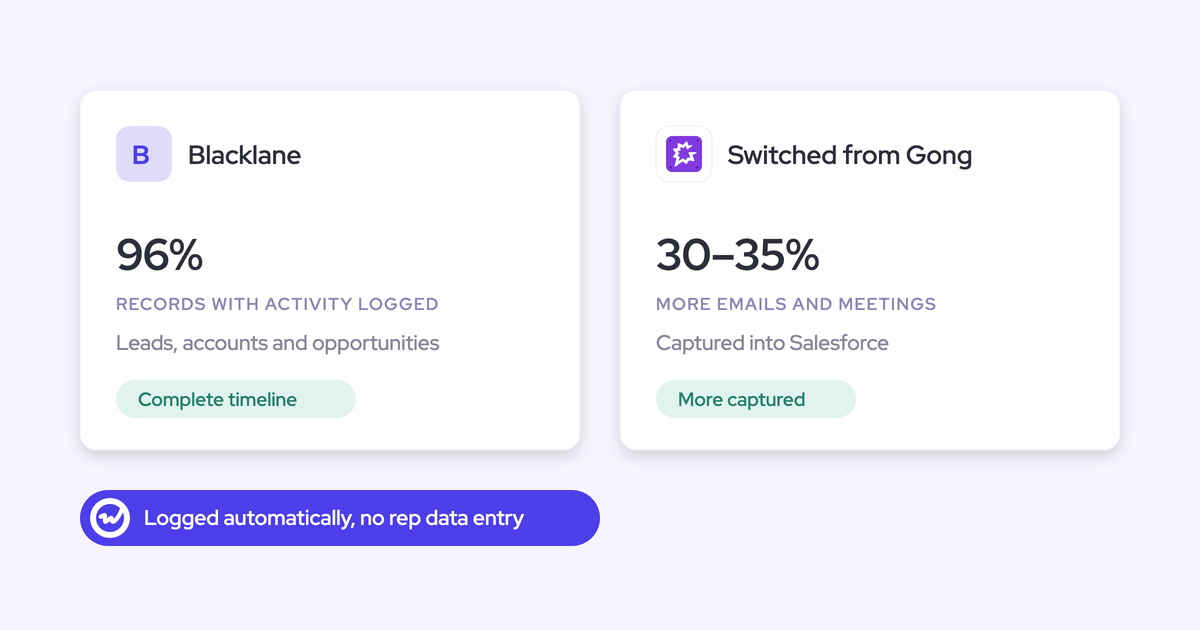
Weflow is the Revenue AI Orchestration platform for sales, customer success, and RevOps teams, built for Salesforce teams. Weflow Activity & Contact Capture logs your emails and meetings at the mail server. Your emails log themselves whether or not you ever open the Weflow sidebar in Outlook or the Chrome extension in Gmail.
So you can ignore the add-in most days. You open it for a handful of moments where only you know the answer:
- Picking the right deal when one contact sits on two open opportunities.
- Fixing an email or meeting that landed on the wrong record.
- Keeping a thread or a contact out of Salesforce.
- Getting open tracking on the emails you send.
- Prepping a meeting or asking a question with Ask Weflow AI in the Chrome extension.
There's one exception. If your team runs manual mode, the tick in the add-in is the capture. We cover that case below.
Do I need the Weflow add-in for emails to log?
No. Weflow captures your email and meetings server side, through a central app your IT team installs once in Microsoft Entra or Google Workspace. Nothing about capture runs through the add-in.
Capture keeps going whatever you do with the sidebar:
- It logs inbound and outbound mail, so your buyer's replies land too.
- It works on any device: desktop, browser or phone.
- It logs your mail from the moment you're enrolled, even if you've never signed in to Weflow.
The Outlook add-in and the Chrome extension are an optional layer on top. They show you what's about to log and where, and they let you change it. Some of our customers don't deploy the add-in at all and run fully automated.
"Most of our team doesn't even know we have Weflow for activity capture. That was a big attraction for me: I didn't need them to set it up or learn anything new."
Why Salesforce says your email isn't connected
Salesforce prompts every user to connect their own mailbox, and it shows a red warning when you haven't. That warning knows nothing about capture running at your mail tenant. It shows up even while Weflow logs every email you send.
The warning doesn't mean your email isn't logging. Weflow's capture doesn't need you to connect anything, so what you connect in Salesforce is your admin's call.
If you want to see it working, open the add-in on an email you sent. It shows whether that email logged and to which record.
Which emails Weflow logs and which it skips
Weflow logs business correspondence and nothing else. It decides where an email goes from the email addresses and the Salesforce records around them, never from what the email says.
What logs:
- Emails and meetings with at least one external participant who matches a Salesforce contact, lead or account.
- Inbound and outbound mail, under the same rules.
What never logs:
- Internal-only threads, where everyone on the thread sits on your company's domain.
- Personal mail that matches no record in Salesforce.
- Calendar entries with no other attendees and no meeting link, like a lunch block.
- Emails and events you mark private before Weflow processes them.
- Your personal email accounts, text messages and calls from your personal mobile.
Our support team can see how Weflow decided to log or skip an email when they troubleshoot. They can't see what the email says.
The moments worth opening the Weflow add-in or extension
A short, fixed set of moments justifies opening the panel. Everything else logs on its own.
We'll concede a point some buyers make on calls with us: any rep click can look like the old bargain in new clothes.
We agree about manual logging, which is why capture doesn't depend on you. The add-in exists for the cases no rule can settle, because the answer lives in your head.
Learn the first two rows on day one. You'll meet the rest as they come up.
| Moment | What you do in the add-in or extension | What your deal shows if you skip it |
|---|---|---|
| Two live deals, one contact | Pick the opportunity once on the first email | The thread logs to the account and the opportunity timeline stays empty |
| Thread on the wrong record | Move the logged email to the right record | It stays where it landed, because Weflow never moves logged activity on its own |
| Meeting filed to the account | Re-map the meeting from Outlook or the Chrome extension | The recording can sit on the deal while the meeting doesn't, so the deal looks inactive |
| Confidential thread | Untick logging for that thread | The thread logs to the matched record, visible to anyone who can see it |
| Unwanted contacts | Clear the contact tick before you send | Vendors and one-offs on To or CC become Salesforce contacts |
| Manual-mode email | Tick Log to Salesforce before you send | The email never reaches Salesforce |
| Open tracking | Send the email through the Outlook add-in | The email still logs, with no open data |
| Meeting prep | Run Prepare meeting from the Chrome extension | You build the brief yourself, in another tab |
| Sent from your phone | No control on mobile, see below | Weflow matches it automatically by address and domain |
Why your deal looks untouched after a week of emails
Your emails probably did log. They landed on the account instead of the deal.
In Salesforce, an activity relates to an opportunity or an account, never both. When Weflow can't tell which deal an email belongs to, it logs to the account on purpose.
We built it that way because an account-level log is easy to fix and a wrong-deal log isn't. A renewal email sitting on your expansion would quietly mislead everyone who reads that deal.
Three things usually push your email to the account:
- No contact role. Opportunity contact roles are the main signal for which deal a person belongs to, and in most orgs they're empty.
- Copied contact roles. Where they're filled, the primary contact is often copied onto every opportunity, so the signal points at your renewal and your expansion at once.
- The first message. The first email in a thread sets the mapping for the whole thread, so one ambiguous start pulls the entire conversation to the account.
The account timeline shows your work. The opportunity timeline, the one your manager reads in a deal review, stays empty.
| What you see on the deal | What actually happened |
|---|---|
| Empty opportunity timeline | Your emails logged to the account because Weflow couldn't settle which open deal they belonged to |
| Busy account, quiet deals | The account holds every activity that fell back from its open opportunities |
| Recording on the deal but no meeting | The recording sits on the opportunity, while the calendar Event the timeline reads sits on the account |
No field in Salesforce says which deal you meant. You're the only one who knows, and you know it at the moment you send.
How to read the Weflow side panel on an email
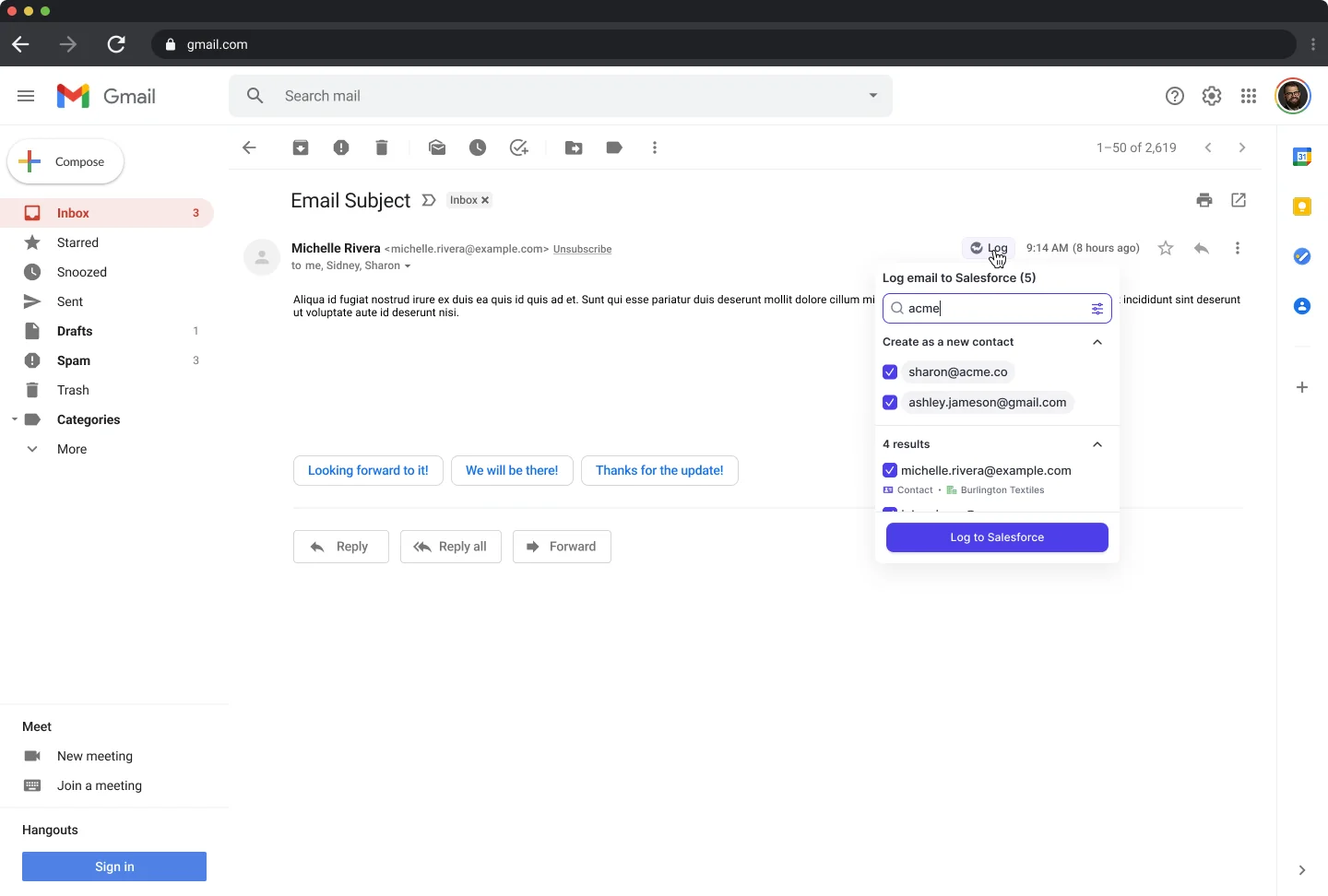
The Weflow side panel shows who it matched on the email and the record the email will log to. Changing that record takes one choice. You sign in with your Salesforce login, so there's no separate Weflow password.
-
Open or compose an email with the panel visible. In Outlook it's the Weflow add-in on the right. In Gmail it's the Chrome extension.
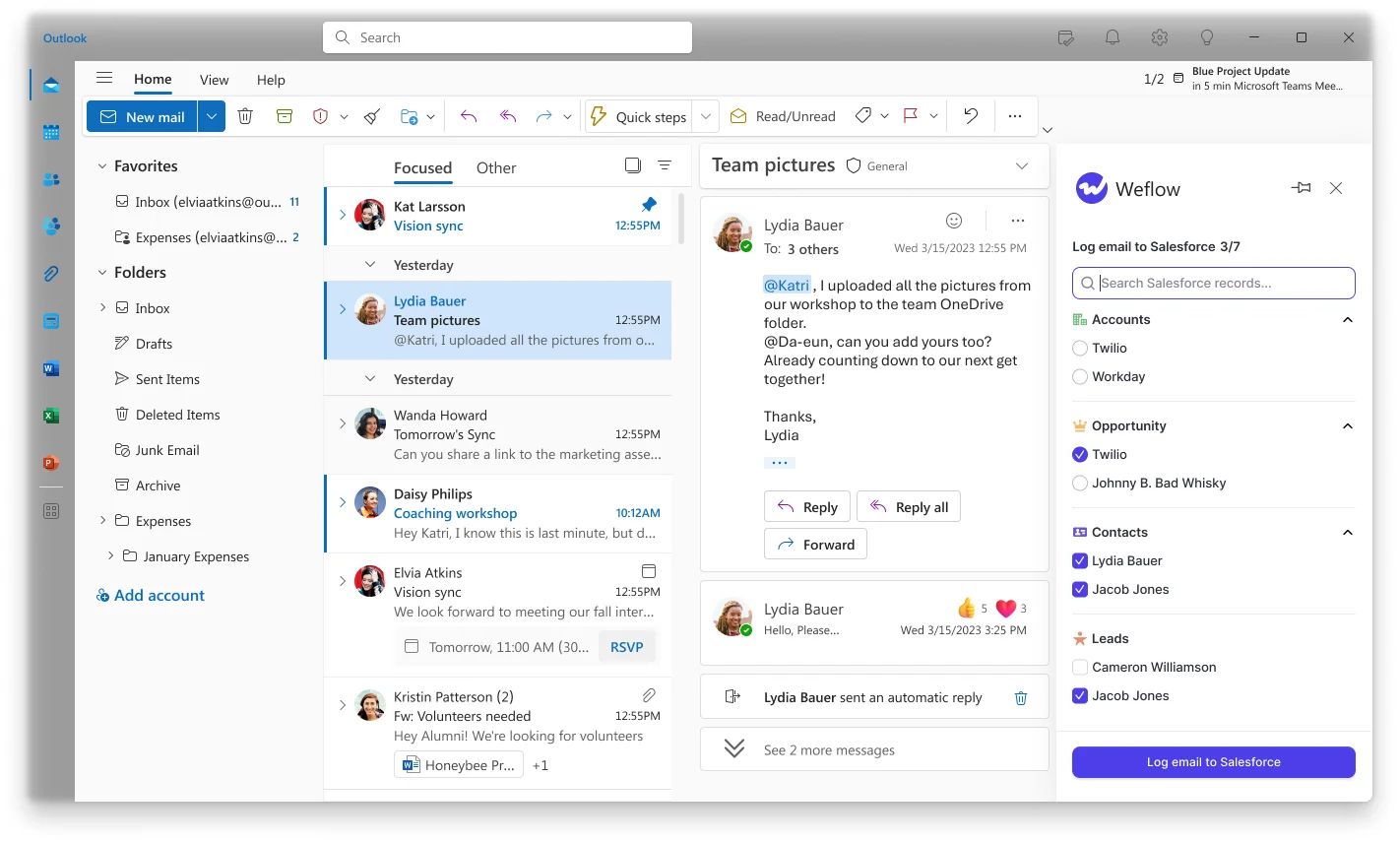
- Check the matched contact and account. Weflow finds them from the email addresses on the thread and the account's website domain in Salesforce.
- Check which opportunity it will log to. The panel lists the open opportunities it matched. If the email is set to log to the account, Weflow didn't find one clear deal.
-
Pick a different record if you need to. Choose another opportunity, the account, or a custom object if your admin has enabled one in the extension.
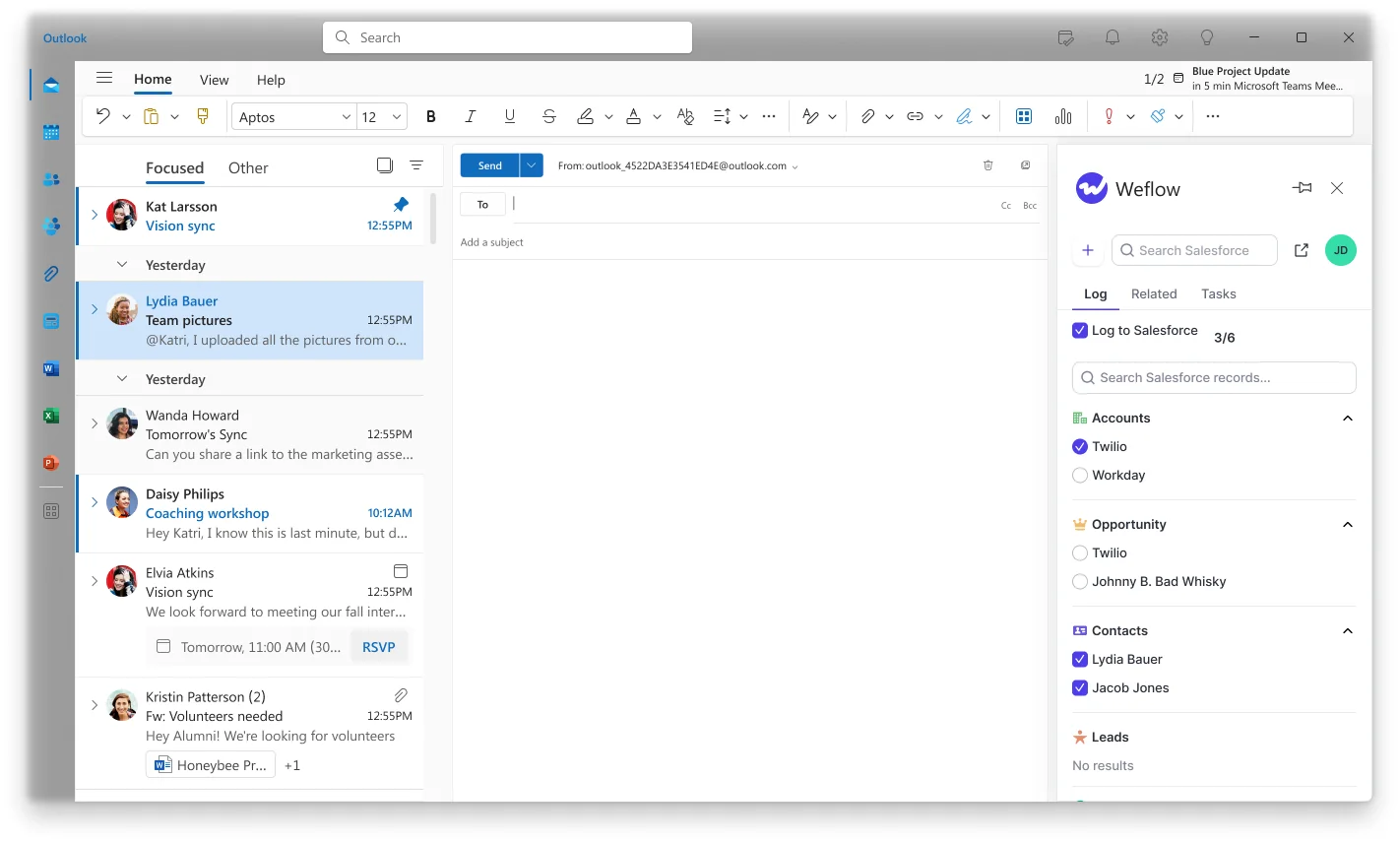
- Leave the log tick on, or untick it. On is the default in hybrid mode. Unticking keeps that thread out of Salesforce.
Pick the right opportunity once and the whole thread follows
When one contact sits on two live deals, pick the opportunity once in the Weflow side panel. Every later reply in that thread, in both directions, logs there without you touching it again.
That's per conversation, not per email. Logging email by email is the habit the old Salesforce add-in trained into reps, and it's why most of that activity never made it in.
"And for each email, it required four clicks for the seller because they were logging to a custom object. So it was even more complicated than just logging to a contact. I think with a contact, it's more like two or three clicks, but the custom object was even more. So for each email, four clicks, and then only the outgoing emails. And then imagine you have thirty, forty emails, right, per week. Some people have that per day easily as well. Right? So how many clicks is that? It's completely insane. So, obviously, no one is gonna do that all the time."
Say your main contact at a customer is on both the renewal and an expansion, and you start a thread about the expansion. Here's the difference one click makes:
| Before: you don't pick | After: you pick the expansion once | |
|---|---|---|
| What you do | Nothing | Choose the expansion in the side panel on the first email |
| First email logs to | The account | The expansion opportunity |
| Replies, both directions | The account | The expansion opportunity |
| Expansion timeline | Empty | Every email in the thread |
| Renewal timeline | Unchanged | Unchanged |
Two limits to know:
- An email sits on only one opportunity. If one thread covers both deals, put it on the deal it moves most.
- A new thread resets the choice, so pick again when you start one.
If your admin has turned on automatic contact roles, picking the deal also adds your contact to that opportunity as a contact role. The next email from that person then finds the deal on its own.
Fix emails and meetings logged to the wrong deal
Yes, you can fix it after the fact, and you don't have to edit anything in Salesforce. Weflow never moves logged activity on its own. Whatever landed in the wrong place stays there until you or an admin moves it.
Move a logged email thread to another record from your inbox
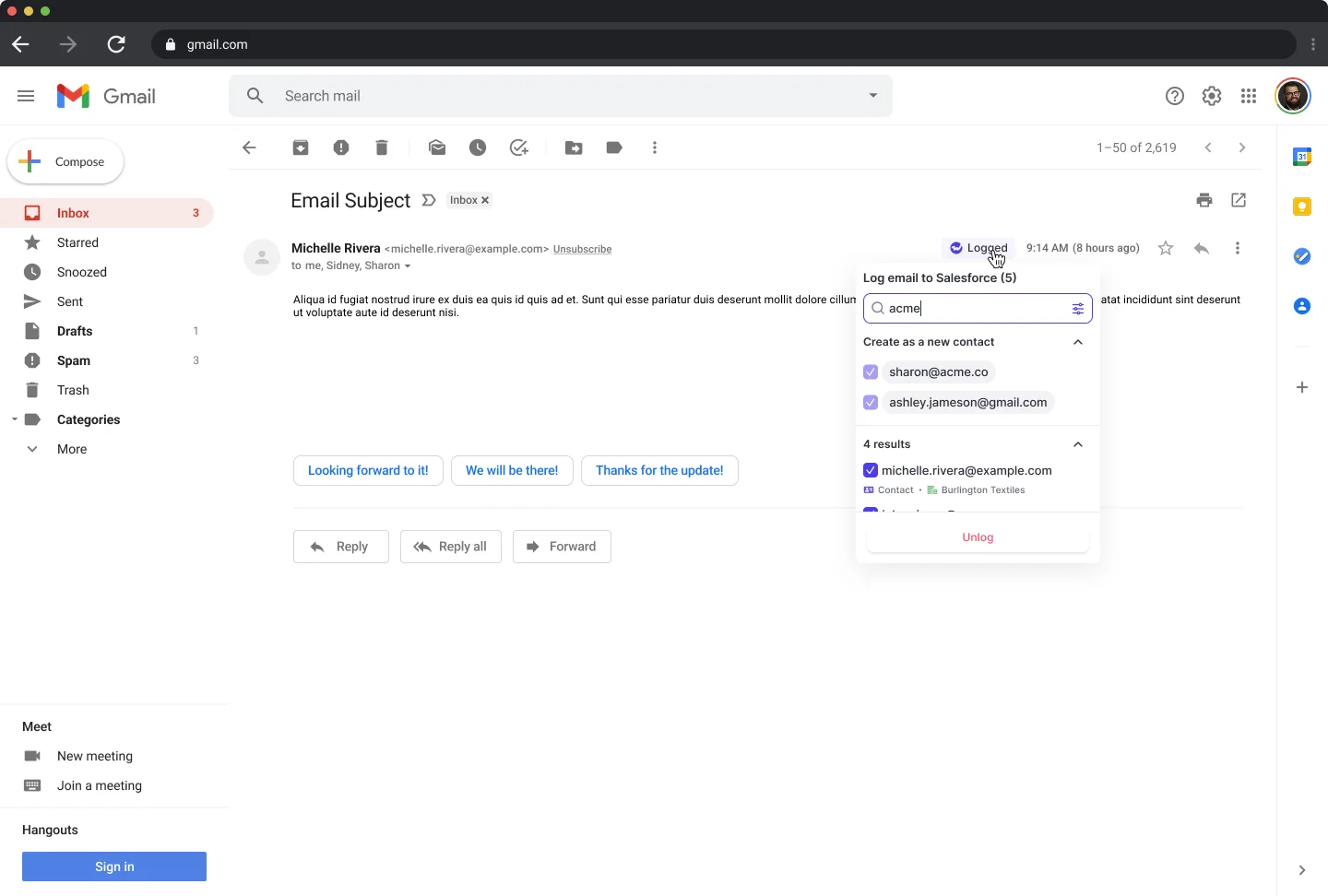
You move a logged email from the same Outlook add-in or Chrome extension panel you'd use before sending:
- Open the logged email in Outlook or Gmail with the Weflow panel visible.
- Select the right opportunity, account or custom object.
- Keep replying as normal. Every later reply in the thread follows your correction.
Salesforce Einstein Activity Capture (EAC) also lets you correct a match, on the email record in Salesforce. With Weflow, the correction happens in the inbox you're already working in.
Fix a meeting from the mail client, not the Weflow app
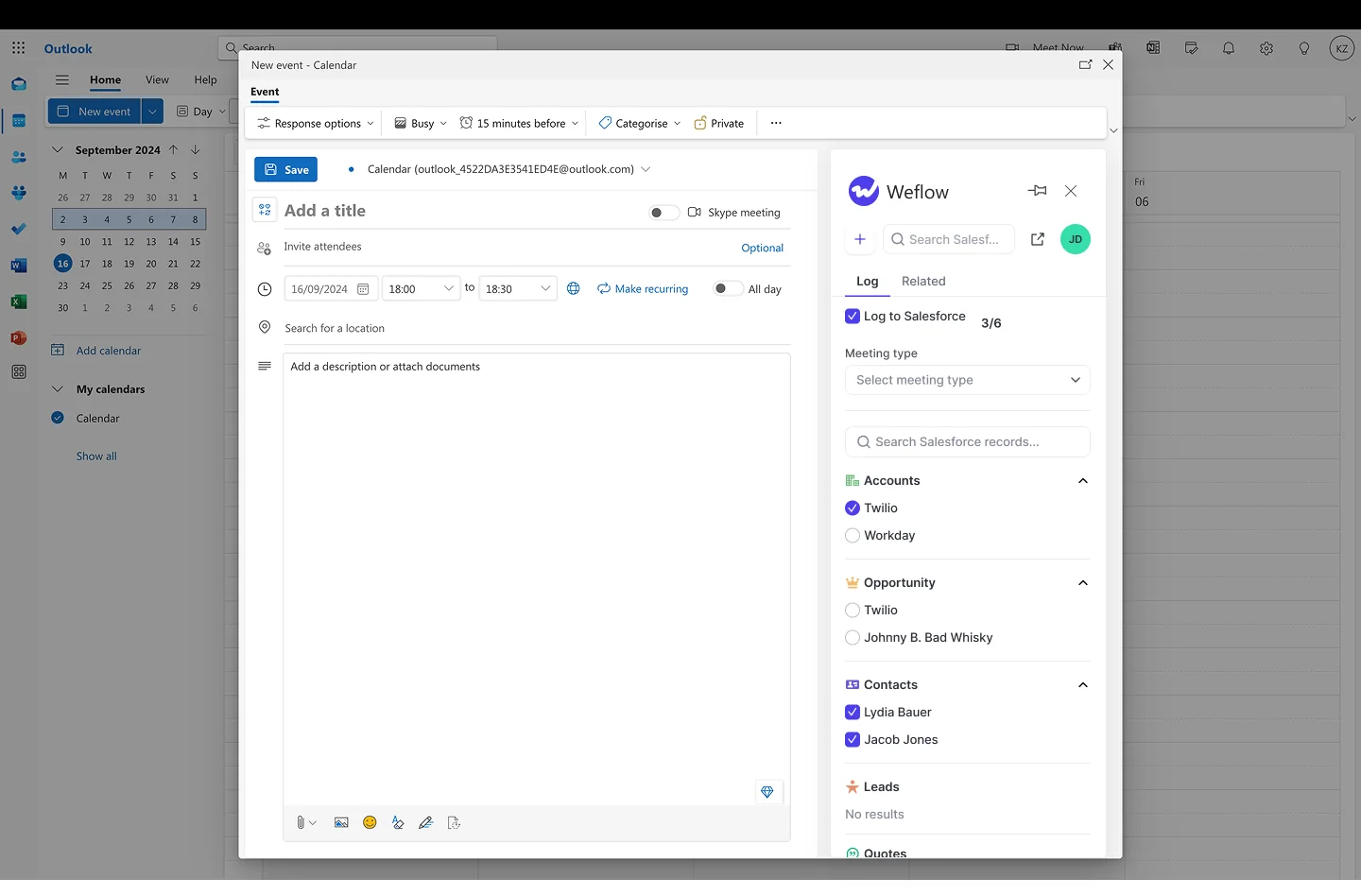
Every meeting creates two records: the Salesforce Event from your calendar, and the recording from Weflow Conversation Intelligence. The opportunity timeline reads the Event, so where the Event sits decides whether your deal looks active.
| Fix it in Outlook or the Chrome extension | Fix it in the Weflow app | |
|---|---|---|
| Salesforce Event | Moves | Stays where it was |
| Recording | Moves | Moves |
| Opportunity timeline | Shows the meeting | Still empty |
| Why it works this way | The mail client decides where the Event lands | The app won't rewrite a Salesforce activity from a recording view, on purpose |
The rule: always fix meetings from the mail client. You can also set the opportunity in the Weflow panel while you create the invite, which saves you the fix later.
Keep a confidential thread or unwanted contact out of Salesforce
You can hold back a thread or a contact with a tick. Weflow won't spot sensitive mail for you, so the tick only works when you use it.
Untick logging for a single thread before it reaches Salesforce
In hybrid mode, untick logging in the Weflow panel and that thread stays out of Salesforce. The rest of your mail keeps logging as normal.
It's built for the judgement call no exclusion rule can make. The deal under NDA that two people at your company should know about. The thread with an existing customer that has nothing to do with a deal. You're the one who knows, so the control sits with you.
Clear the contact tick so vendors and one-offs stay out
Weflow creates contacts when you send, from the people in To and CC. People you only BCC aren't created, and Weflow never creates leads.
Most of the noise never gets that far. Admins can restrict creation to accounts already in Salesforce, cap contacts per meeting, and block addresses like billing, invoice, no-reply and support.
For the rest, there's the tick. Say you reply to a customer thread with their outside consultant on CC, and you don't want that person on your deal. Clear the contact tick before you hit send, and Weflow won't create them.
Where your control stops and your admin takes over
- Nothing in Weflow detects that a thread is sensitive. If you don't untick it, it logs.
- A customer whose mail must never reach Salesforce is an admin exclusion, set centrally on the account. Your tick isn't the right tool for it.
- Your admin can ship the add-in with the opt-out control removed. If you don't see it, your team runs without it.
- Marking a meeting private after it logged doesn't remove it from Salesforce. Mark it private before Weflow processes it.
Manual mode: your email logs only when you tick it
Some teams run manual mode, often for leadership, whose mail is the most sensitive. In manual mode, an email logs only if you tick Log to Salesforce before sending. That explains most "my email never logged" reports we see from those teams.
Your admin can set the tick to start on, in which case the panel pre-selects the matching record and you only step in to change it.
| Hybrid or fully automated | Manual | |
|---|---|---|
| What logs by default | Every matching email and meeting | Nothing |
| What the tick does | Unticking keeps a thread out | Ticking is the only way an email logs |
| What you need to do | Nothing, unless one of the moments above comes up | Tick Log to Salesforce before sending, every time |
| Who usually runs it | Most customers, and most individual contributors | Typically leadership |
Your admin sets the mode per team, so they know which one you're on.
Open tracking only covers mail sent through the Weflow add-in
Open tracking works by inserting a pixel when you send through the Weflow Outlook add-in. It's part of an optional analytics package, and it writes last opened and open count to the email record in Salesforce.
Because the add-in inserts the pixel at send, server-side capture can't carry it. An email you send any other way still logs. It just has no open data.
That's why some of your emails show opens and others don't.
Use Ask Weflow AI and Prepare meeting in the Chrome extension
The Chrome extension is where the add-in stops being about logging and starts saving you time. Prepare meeting builds the same brief as the Weflow web app: prior emails, meetings and CRM context, assembled for that meeting.
Ask Weflow AI runs in the Chrome extension on any page, including Salesforce records. You can ask a question about your own deal without leaving the opportunity you're looking at. The extension spots when what you type is a question and sends it to Ask Weflow AI instead of saving it as a note.
A few ways reps use it:
- Run Prepare meeting from your calendar before a renewal call and walk in knowing what was said last time.
- Ask what's open on a deal while you're on its Salesforce record.
- Ask, based on similar deals in Salesforce, what the best next activity is.
All of this works better when your emails and meetings sit on the right deal. That's the payoff of the one-click fixes above.
What happens to emails you send from your phone
Weflow captures email you send from your phone like any other, because capture runs on the mail server. What you lose on mobile is the side panel: you can't see or change where an email logs from your phone.
Weflow matches phone mail automatically by email address and domain. A thread you already mapped on desktop keeps that mapping.
The practical tip: if you know you'll carry a thread on from your phone, set the deal on desktop at the start. Every reply you send from the road then lands on the right opportunity.
Walk through the product yourself, no call required.
FAQ: Weflow Outlook add-in and Chrome extension questions from reps
Does Weflow capture stop if I never sign in to the add-in?
No. Weflow captures every enrolled user, whether or not they sign in. Signing in only matters for seeing insights and using the side panel.
What's the difference between the Weflow Outlook add-in and Chrome extension?
Both show where an email will log, let you re-map a thread once, move an email that already logged, untick logging and clear contact creation before sending. Prepare meeting and Ask Weflow AI run in the Chrome extension. Open tracking comes through the Outlook add-in.
What happens if I never pick an opportunity in the Weflow side panel?
Weflow follows its rules. Where one deal is clear, the email logs there. Where it isn't, the email logs to the account, and you can move it later from the panel.
Does Weflow move my logged emails when a deal changes?
No. Weflow decides where each new email logs from the Salesforce data at that moment, so new activity follows new contact roles. Earlier activity stays where it logged until you or an admin moves it.
Why don't emails from my sequencing tool's subdomain show in Salesforce?
Weflow matches on the sender address held in Salesforce. Mail sent from a separate deliverability subdomain doesn't log. Capture picks the thread up once the buyer replies and the conversation moves back to your main domain.
Can I log an email to a custom Salesforce object from the extension?
Yes, when your admin has enabled that object in the extension. It then appears in the side panel next to opportunities and accounts, and you link the email to it directly.
Does open tracking hurt email deliverability?
Open tracking applies only to individually composed emails you send through the Outlook add-in, not bulk sends. We've had no customer feedback that it affected deliverability. That's an absence of complaints, not a measurement.
Does marking a meeting private remove it from Salesforce?
Only if you mark it private before Weflow processes it. A meeting that already logged stays in Salesforce.