Rolling Out Weflow Activity Capture Without Asking Reps to Install Anything
Learn how Weflow Activity Capture works without rep installs, plus server-side vs add-ins.


Reps don't install anything to get Weflow Activity & Contact Capture running. One central app in Microsoft Entra or Google Workspace captures every enrolled user's email and meetings at the server, on any device and any mail client, and writes them into Salesforce. Nothing is read until you enroll a user.
Weflow is the Revenue AI Orchestration platform for sales, customer success, and RevOps teams, and capture is the foundation the rest of it runs on. In a capture rollout, every task sits with IT and ops.
The technical session takes 30 to 45 minutes. Two things set your go-live date:
- Getting your Salesforce admin and your Microsoft or Google admin into the same session.
- IT approving the scope.
Capture costs $19 per user per month, billed annually, with no implementation fee and a free 14-day POC.
We'll also walk through the awkward parts we see on real rollouts:
- The Microsoft admin has to consent from Weflow's console.
- Salesforce keeps showing reps a red "email not connected" warning.
- The optional Outlook add-in doesn't support classic Outlook for Windows.
The title's claim has two limits. If you deploy the add-in, reps use it. And Weflow Conversation Intelligence needs each user to sign in once. Capture itself needs neither.
How capture runs without anything installed on reps' machines
Capture lives at the mail tenant, not on the rep's laptop. That explains every step that follows, and it's the model you'll repeat to IT.
Weflow reads mail through one central app, not per-rep plug-ins
Weflow reads mail and calendars through one app your admin installs centrally in Microsoft Entra or Google Workspace. It captures inbound and outbound email and meetings at the server. A reply sent from a phone, a browser or a desktop client gets captured the same way.
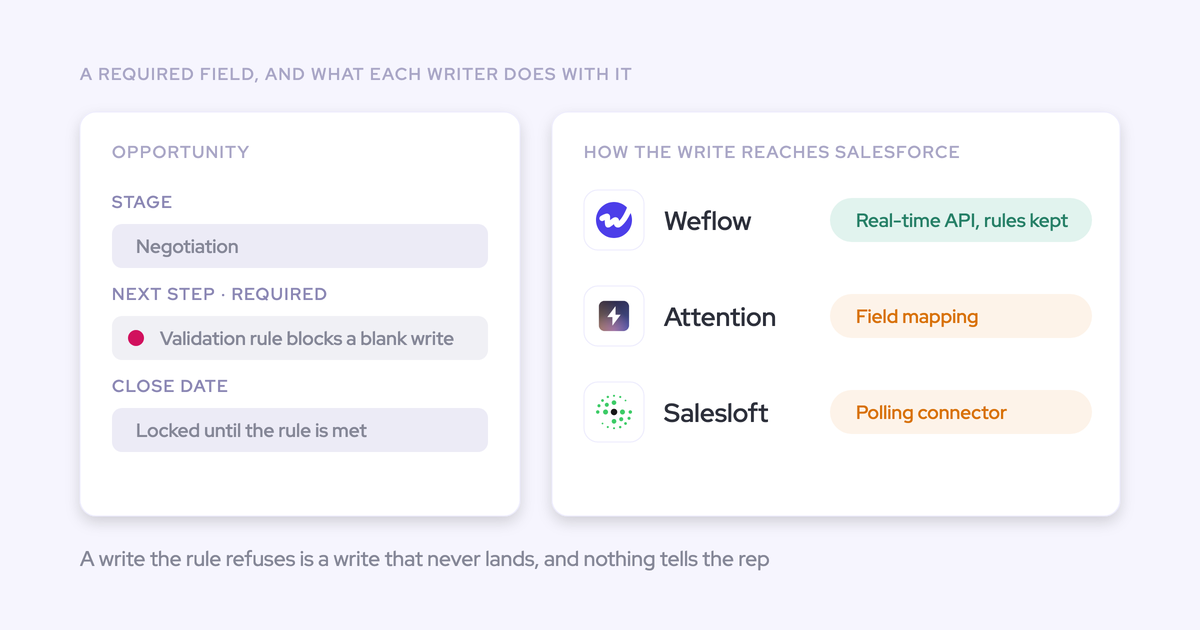
Writes go to Salesforce through your integration user almost immediately, not in a nightly batch. Deal timelines show today's conversations.
Per-rep connections fail differently. The Salesforce extension for Outlook and Gmail authenticates each user separately. When that connection lapses, reps don't re-authenticate, and capture degrades one rep at a time with no central signal. Revenue Grid's Intelligence package has a similar dependency: its rollout requires every rep to install the Email Sidebar and connect their own Salesforce account and mailbox.
Central admin-consent capture isn't unique to us. Avoma, Backstory, Mediafly and Gong's company-wide connection work this way too. What matters for your rollout is what Weflow adds around it:
- Enrollment as the switch.
- Scope you can prove.
- Alerts when capture breaks.
- Writes into standard Salesforce objects.
| What changes | Per-rep connection | Weflow's tenant-level app |
|---|---|---|
| Who authenticates | Each rep, individually | Your Microsoft or Google admin, once |
| What happens when a rep ignores a sign-in prompt | That rep stops syncing, silently | Nothing, because the rep isn't in the authentication path |
| Devices and clients covered | Only what passes through the plug-in | Every device and client on the tenant |
| Who notices a failure first | Usually the rep, in a pipeline review | The admin, by email alert |
| Rep install required | Yes | No |
Enrollment, not installation, is what switches capture on
Weflow reads no mailbox until a user is enrolled in an activity capture configuration. Installing the managed packages, connecting the integration user and adding the workspace app all grant access without capturing anything.
The mechanics are concrete. When you save a user into a capture configuration, Weflow creates a Microsoft Graph subscription to that one mailbox. Before that moment, no email or calendar event is read and nothing is written to Salesforce.
That gives you a sequence to send to legal. You can finish the technical setup while their review is still open, and capture starts only when you enroll the pilot group.
Reps who never sign in to Weflow still get captured
Capture doesn't depend on login. An enrolled user who has never opened Weflow is captured exactly like anyone else. Every user sits in one of three states:
| User state | What it means for capture |
|---|---|
| External | Enrolled in capture and never signed in. Emails and meetings are captured fully. |
| Pending | Invited to the app, not yet logged in. Captured if enrolled. |
| Active | Using the app. Captured if enrolled. |
So a low login count tells you nothing about whether capture is working. ADVISA runs exactly this way:
"Most of our team doesn't even know we have Weflow for activity capture. That was a big attraction for me: I didn't need them to set it up or learn anything new."
Who does what in a Weflow Activity and Contact Capture rollout
Three roles do all the work: the Salesforce admin, the Microsoft or Google admin, and the ops owner. Our customer success team guides them. The rep row stays empty.
| Role | What they do | When | Access they need |
|---|---|---|---|
| Salesforce admin | Installs the managed packages, creates the dedicated integration user, assigns its permission set and relaxes IP restrictions on the connected app | Before and during the technical session | Salesforce admin rights |
| Microsoft 365 or Google Workspace admin | Starts the Microsoft install from Weflow's console and consents there, or approves the Google app. Then scopes access to the pilot group | During the technical session, with scoping right after | Rights to grant admin consent in Entra or approve apps in Google Workspace. For Microsoft, a Salesforce login to reach Weflow's console |
| Ops owner | Builds the capture configuration, picks the pilot team, runs sandbox tests and writes rep comms | Configuration and rollout | Weflow admin console |
| Reps | Nothing for capture | Never | None |
| Weflow customer success | Runs onboarding against a mutual action plan with named owners on both sides, and copies sandbox teams and templates to production | Throughout | Logging logic only, never email content |
Two footnotes on the rep row:
- If you choose hybrid mode, reps get an optional Outlook add-in or Chrome extension.
- If Weflow Conversation Intelligence is in scope, each user signs in to Weflow once.
The two admins are usually on different teams. Getting them into the same call is what turns a one-hour job into a two-week one, so book that session first.
How long the rollout takes, and what sets your go-live date
The product steps are short. Internal alignment and IT approval set the date.
| Phase | Typical time | What decides it |
|---|---|---|
| IT approval of the Microsoft or Google app | Set by your IT team | Security review of scope, and both admins being free on the same day |
| Technical session | 30 to 45 minutes | Having the Salesforce admin and the mail admin in the same call |
| Workspace configuration | About an hour | Your decisions on mode, exclusions and target objects |
| Guided rollout | Two to four weeks, four to six for a large org | Pilot size, sandbox testing and rep comms |
IT approval sets your earliest go-live, because you can't create a capture configuration until the tenant is connected.
Google environments tend to move faster than Microsoft ones. Microsoft adds the console-consent step covered in Step 4.
"It took almost no time at all… the actual onboarding was definitely within a week. The only time really spent was the sessions to show the team how it works."
What Weflow never logs, and how you keep sensitive mail out
Exclusion in Weflow works by rule, and an admin sets it centrally. It doesn't depend on rep discretion.
Settle this before configuration, because it's the first thing legal and HR will ask.
Internal-only threads never reach Salesforce
Weflow never logs an email or meeting where every participant sits on an internal domain. It logs activity only when an external participant matches a Salesforce record, and it doesn't log unmatched mail at all.
Inbound mail goes through the same rules as outbound, so a buyer's reply is evaluated exactly like a rep's send.
Recording an internal meeting is possible, but it's an explicit per-meeting opt-in, not a default. That covers the performance conversation between a manager and a rep.
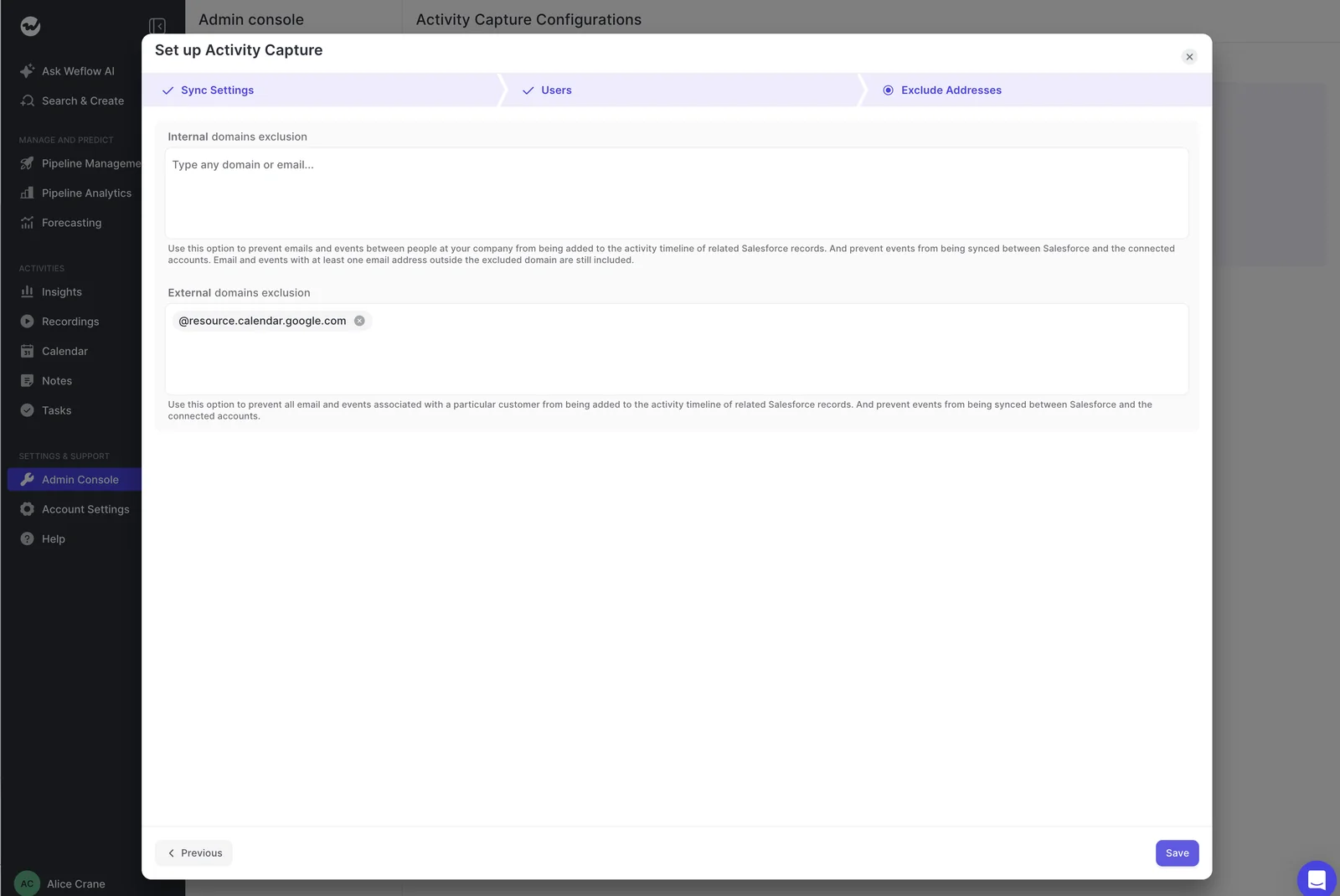
Exclude domains, addresses and whole accounts centrally
On top of the internal-domain rule, you get three more exclusion layers:
- You can exclude external domains, such as suppliers or free-mail providers that generate noise.
- You can exclude specific addresses, for example an employment lawyer or your accountant.
- Custom rules can block logging against an entire Salesforce record based on any field on the object. Regulated customers use this to keep confidential accounts out.
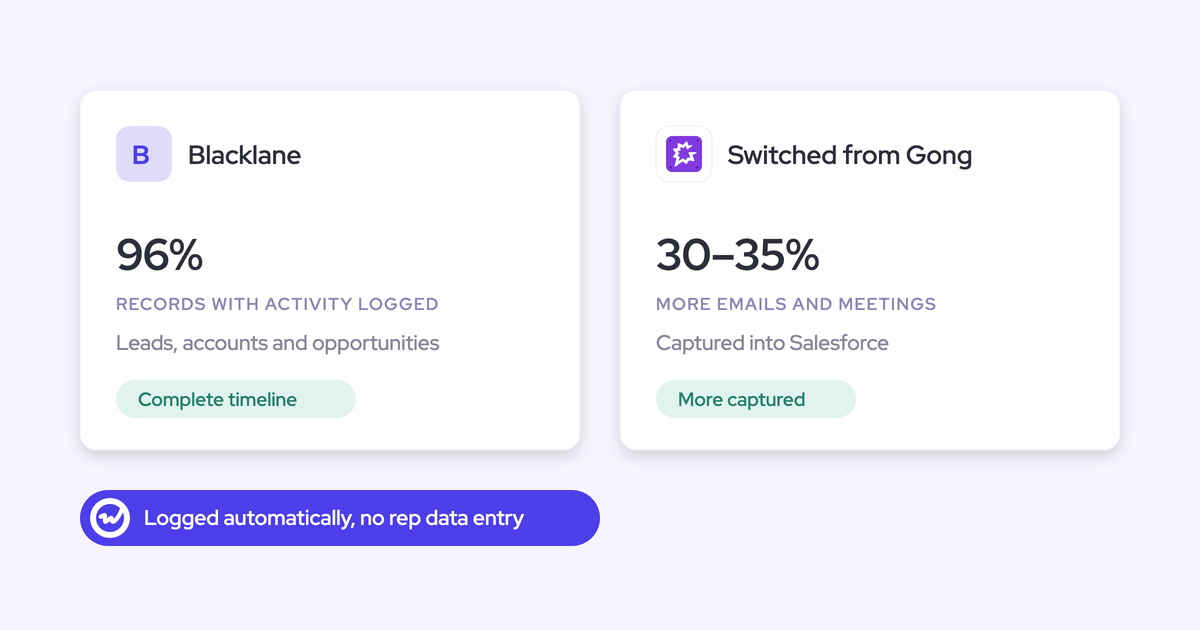
Blacklane runs a B2B2C motion and uses custom exclusion rules to keep B2C contacts out of Salesforce.
Handle NDA deals and leadership mailboxes with modes and rules
Match the control to the situation:
| Situation | Control to use |
|---|---|
| Leadership mailboxes | Put that team on manual mode, so nothing logs unless someone chooses to log it |
| An account under NDA that must never be captured | A custom rule that blocks logging against that record |
| A one-off sensitive thread on a normal account | In hybrid mode, the rep unticks logging for that thread |
| A supplier or noisy free-mail domain | A domain exclusion in the configuration |
Nothing in Weflow detects that a message is sensitive. The rep-side untick only works when the rep notices. That's why an account that must never be captured belongs in an admin rule, not in a rep's judgement.
Fully automated or hybrid: do your reps need the Outlook add-in?
Our recommendation for most pilots is to start fully automated. Add hybrid for teams whose accounts regularly carry several open opportunities at once.
Capture runs the same in every mode. The add-in gives reps visibility and a way to re-map records. Leaving it out keeps the rep column empty.
You set the mode per team, so sales can run one mode while leadership runs another.
| Mode | Rep action | Best for |
|---|---|---|
| Fully automated | None | Reps who resist new tools, and accounts that rarely carry parallel opportunities |
| Hybrid | Optional: see the match, re-map a thread, untick logging | Accounts running a renewal and an expansion side by side |
| Hybrid with the "don't log" control removed | Optional: see and re-map, but no suppressing | Teams that want visibility without gaps |
| Manual | The rep logs what they choose | Leadership and other sensitive mailboxes |
Senior buyers split on this. One camp sees the override as what makes automated data trustworthy. The other sees any rep click as admin creeping back in. If you're in the second camp, fully automated is the honest choice.
Fully automated mode asks nothing of reps
Fully automated mode uses no add-in at all. Weflow captures in the background and maps each email by address and Salesforce relationships. It never reads the email's content to decide where it goes.
When the evidence doesn't settle which opportunity an email belongs to, Weflow logs it to the account instead of guessing. A wrong deal is hard to fix. An account-level log is easy to fix.
ADVISA runs fully automated with no Outlook add-in. Attachments land in Salesforce, and dashboards on last email and last meeting date drive their follow-up workflows.
Hybrid mode lets reps re-map a thread once, if they choose
In hybrid mode, the Outlook add-in or Chrome extension shows the rep which contact, account and opportunity an email will log to.
- A re-map holds for the whole thread, so every later reply routes to the same record.
- Reps can move an email that's already logged to a different record.
- Admins can deploy the add-in with the "don't log" control removed.
Re-mapping is what fixes the case server-side capture can't resolve: one contact sitting on a renewal and an expansion at the same time.
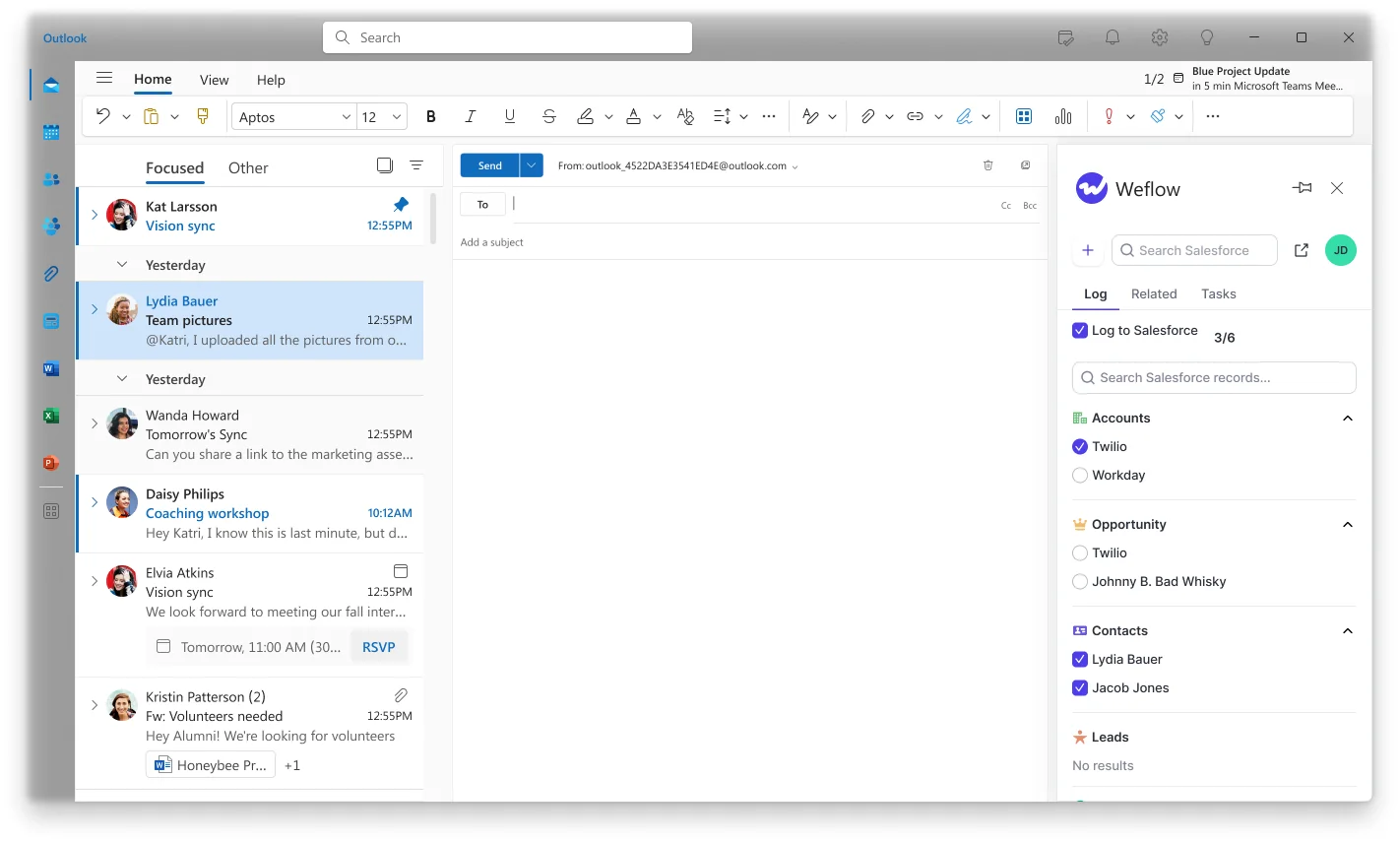
Plan around these limits:
- The add-in supports Outlook on the web and the new Outlook for Microsoft 365. It doesn't support classic Outlook for Windows, where the side panel often doesn't populate. Capture itself isn't affected.
- Reps can't see or re-map records from a phone. Mail sent from a phone is still captured and matched automatically, and a thread already mapped on desktop keeps its mapping.
Your rollout, step by step: Salesforce, Microsoft 365, Google Workspace
Eight steps, in order. The awkward ones are Step 4 and Step 5.
Step 1: Check account websites and user emails before the session
Weflow matches activity to accounts on the account Website field, so audit it first:
- Search for personal-mail domains in Website fields. Any value there behaves as a matching domain, so one gmail.com entry pulls every email involving that domain, from any connected mailbox, onto that single account.
- Find accounts with a missing or wrong Website field. They won't match a new contact's email.
- Check for duplicate accounts sharing a domain, which spread activity across them.
- Confirm each user's email address is the same in Microsoft or Google and in Salesforce.
- List your internal domains. If you run several tenants, list every sibling entity's domain too.
Step 2: Book the Salesforce admin and mail admin together
One session with both admins present saves more time than any other step. Prepare these before the call:
- IP restrictions relaxed on the connected app.
- A license ready for the dedicated integration user.
- A way for the Microsoft admin to reach Weflow's console: a temporary Salesforce license, or a screen-share.
- The pilot group created as an Entra security group or a Google group.
- Your internal domain list from Step 1.
Step 3: Install the managed packages and a dedicated integration user
Nothing in this step needs a code deployment.
- Install the core managed package. It carries the capture objects and fields and creates three Weflow custom objects.
- Decide whether you want the second package. It's optional and adds email open tracking, which only registers on mail sent through the add-in.
- Create a dedicated integration user and assign Weflow's permission set.
Keep it to one integration per user. Salesforce no longer allows an integration user to also be a person who logs in, so sharing one user across tools or people breaks connections.
Step 4: Connect your Microsoft 365 or Google Workspace tenant
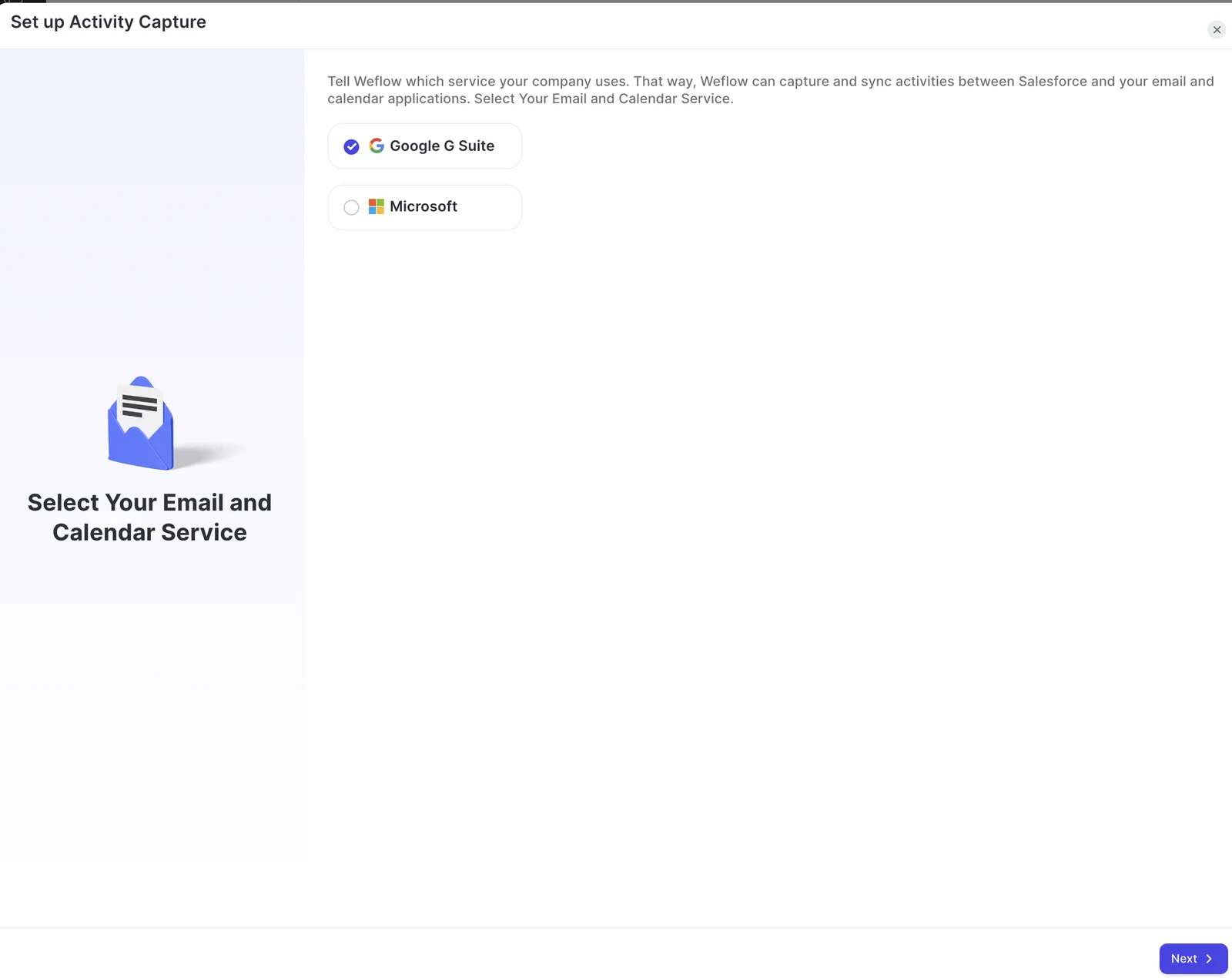
Microsoft 365. The Microsoft admin has to start the install from the Microsoft section of Weflow's admin console and consent there.
- Approving the app in the Microsoft 365 admin center doesn't complete the connection.
- A Salesforce admin can't do it for them.
- The reason: Weflow needs Microsoft's callback to link the two systems, and that callback only happens when the install starts from Weflow.
Weflow's console uses Salesforce sign-in, so the Microsoft admin needs a Salesforce login. They have two options:
- A temporary Salesforce license. Deactivating it afterwards doesn't affect capture.
- A screen-share where they take control of a Weflow admin's session. This is quicker.
Google Workspace. Your Google admin approves the Weflow app for the whole organization or for a named group. With the group approach, every enrolled user also has to be in that group. Anyone left out shows a connection warning and logs nothing.
Step 5: Lock access to the pilot group and test the restriction
Scope has to be provable, not promised. Here's how you prove it.
- Entra: open the Weflow Activity Capture enterprise app and set Assignment required to Yes. Then add your pilot group under Users and groups. With Assignment required set to No, adding a group doesn't restrict anything: the app can still reach unassigned users, guest accounts included.
- Optional second layer in Microsoft: some IT teams also scope the app's Exchange Online access to the same group's mailboxes.
- Google: scope by group membership, as set in Step 4.
- Test: add someone outside the scope to a capture configuration and save. When the restriction holds, a warning icon appears next to that user because the mailbox subscription fails.
The same warning appears when a user's email differs between Microsoft and Salesforce. Run the test with someone whose addresses match.
The IT proof: an out-of-scope user saved into a configuration shows a warning icon, because Weflow can't subscribe to their mailbox.
Step 6: Build the capture configuration for your pilot team
Apply the decisions from the two sections above:
- Users and teams: the pilot group only.
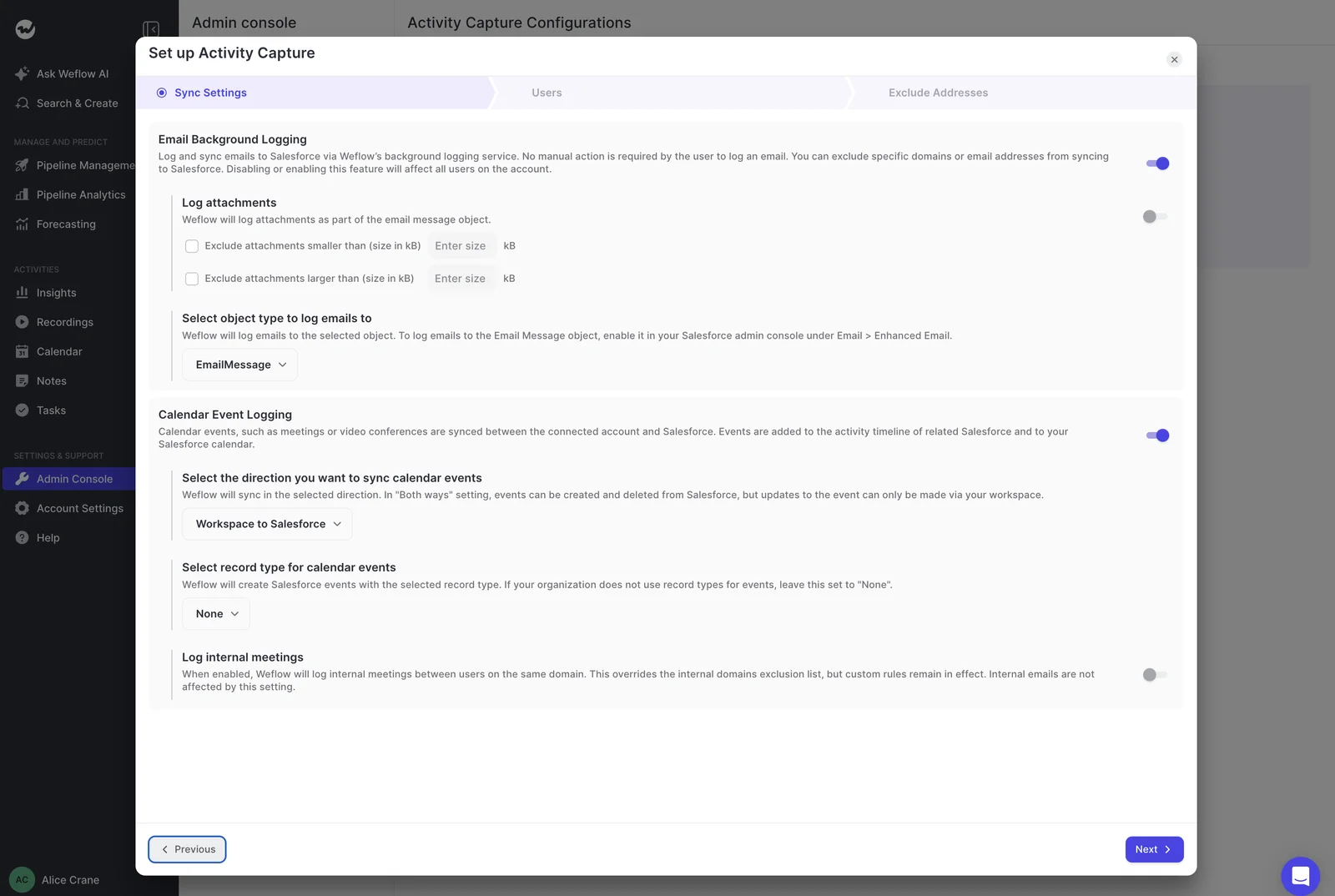
- Mode: fully automated, hybrid or manual, per team.
- Exclusions: internal domains, sibling-entity domains, supplier domains, addresses and custom record rules.
- Target objects: account, contact, lead, opportunity, case, or custom objects. There's also a toggle to log to an opportunity only when its owner is on the thread. We don't recommend it, because it drops activity from everyone else on the deal.
- Email record type: email message or task.
- Attachments: on or off, with a size cap.
- Contact creation: on or off, and how many contacts per event.
- Domain-to-account matching: on means mail from people not yet in Salesforce still lands on the account, but it inherits any mess in the Website field.
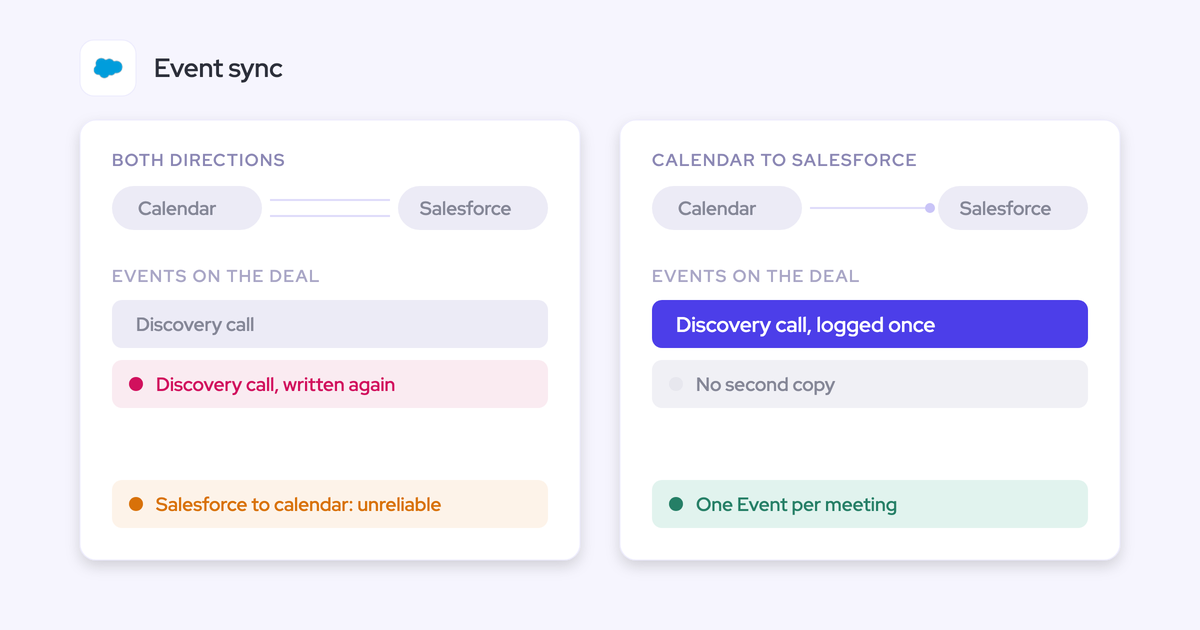
- Calendar sync: one direction, from workspace to Salesforce. The Salesforce-to-calendar direction is the one that's unreliable, and teams that create meetings in their calendar lose nothing.
Step 7: Test in a sandbox with external addresses and moved meetings
The failures that matter only show up on the real path. Test one user against these cases:
- Email an external or personal address. Internal-to-internal mail logs nothing and looks broken.
- Put that test domain on a test account's Website field, so you also exercise contact creation.
- Create, move, reschedule and delete meetings. Creating proves the create permission. Moving and deleting prove the update rights that otherwise fail weeks after go-live.
- Test writes against every object activity will map to, not just one.
If Weflow Conversation Intelligence is in scope, that last check matters even more. A failed AI field write can't be replayed after the call ends.
Step 8: Cut over to production and enroll the pilot through a Salesforce team
- Switch off capture, and conversation intelligence if it's running, on the sandbox workspace before production goes live. Running both against the same users causes conflicts.
- Ask our team to copy your teams and templates from sandbox to production, so you don't rebuild the pilot setup by hand.
- Set up the packages, the integration user and the Microsoft or Google connection again in production.
- Enroll the pilot through a dynamic team built from Salesforce: by manager, role, a field condition, or a checkbox on the user record. Weflow re-checks it hourly.
What reps notice in week one, and what to tell them
Reps notice almost nothing, because nothing changes in their inbox. Three things do come up, and each one has a ready answer.
Tell reps to ignore Salesforce's "email not connected" warning
Salesforce still prompts each user to connect their own mailbox and shows a red warning when they haven't. It doesn't know about tenant-level capture.
A correctly configured rollout still generates alarmed messages like this one, from an ops lead on a call with us:
"Our users are saying that red icon, your emails are not connected to Salesforce, because Salesforce is trying to get you to connect your email directly."
Visible proof settles it. Add the Weflow Activity Timeline component to Account, Opportunity, Contact and Lead pages so reps see their captured emails and meetings on the record. In hybrid mode, the add-in shows it too.
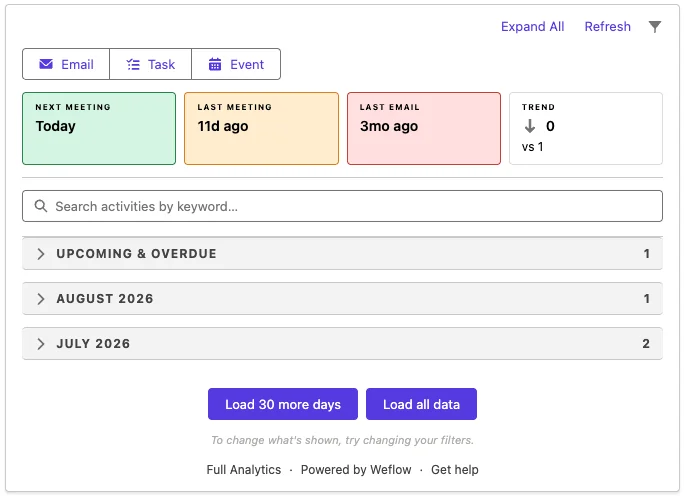
Suggested message to reps:
"You'll see a red 'email not connected' icon in Salesforce. Ignore it and don't connect anything. Weflow already captures your customer emails and meetings centrally. Check the Activity Timeline on any account to see them."
Ask reps to stop hand-logging emails and meetings
Double entry carries on when reps don't believe capture is happening. Here's what an ops lead told us about their own rollout:
"I had like one CSM reach out and say I think I'm going to keep tracking this manually. And I'm like, don't, like don't track this manually because it's already being tracked."
Frame the change as work taken away, not a new way to watch reps.
Say the internal-domain rule out loud: internal mail is never logged. That one sentence defuses most of the surveillance read.
For teams new to Salesforce, pace the rollout behind the CRM itself and frame activity data as coaching.
Suggested message to reps:
"Stop logging emails and meetings by hand. Weflow logs customer conversations for you, inbound and outbound. Internal mail between colleagues is never logged."
Expect capture to surface CRM data problems that predate Weflow
Automated capture exposes data problems that selective manual logging used to hide. Diagnose them before "Weflow doesn't work" spreads around the sales floor.
| What the rep sees | The actual cause |
|---|---|
| Emails land on the wrong account | A shared or personal domain in a Website field, or duplicate accounts with the same domain |
| The deal looks inactive while the account looks busy | Several open opportunities with no contact role, so Weflow falls back to the account |
| One user's mail isn't logging | Their email differs between Microsoft and Salesforce, or they're not in the Google group |
| New contacts have an email address in the last name field | The incoming mail carried no display name, so there was no name to capture |
| "My test email didn't log" | It went to a colleague, and internal-only mail is excluded |
The Activity Capture Health tab in Weflow Analytics counts the underlying problems for you: contacts with no email, accounts with no website, and duplicate contacts and accounts.
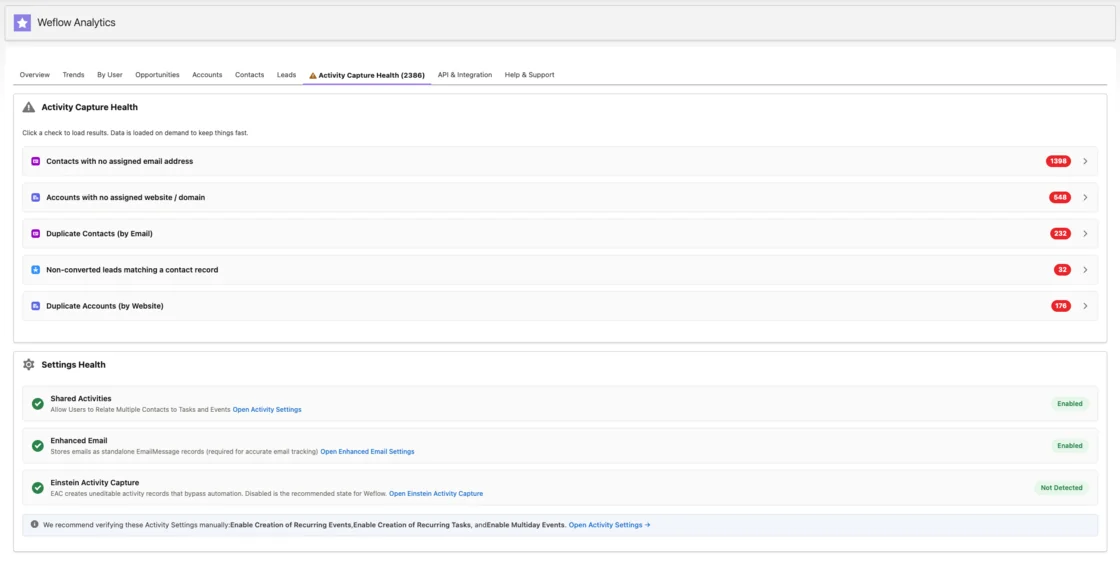
Suggested message to reps:
"If something lands on the wrong record or looks missing, send it to ops. In week one it's usually a Salesforce data issue we're fixing, not a capture failure."
How to prove capture works when nobody logs in
Measure what Weflow writes and how complete your records are, and let alerts tell you about failures. Logins won't tell you either.
Why login rate is the wrong adoption metric for capture
Capture works best when nobody opens it, so a falling login count can mean it's doing exactly its job. These signals tell you something real:
- Activity is still being written: emails sent and received, and meetings, by user and team, trending week over week.
- Records are complete: the data quality counts in Activity Capture Health going down.
- Users are in scope: every pilot user sits in a capture configuration with no warning icon.
- People rely on the output: the reports and automations that now run on activity data, such as last-email and last-meeting fields.
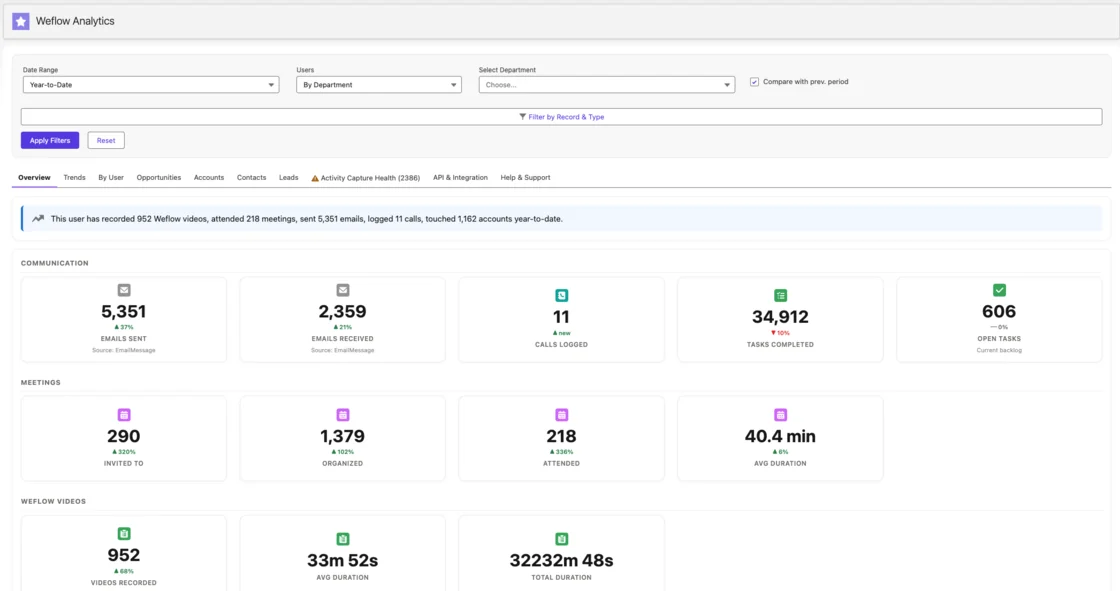
Our co-founder sets the bar for "working" like this:
"And reliably, I really mean, you know, you wanna have, like, ninety nine percent or more of those activities stored in your CRM so you can run reports on it, automations, flows, and so on."
One more reason to report on output rather than the tool: background capture is easy to forget. Show leadership which reports depend on it, so the value survives the next budget review.
Weflow tells you first when capture breaks
Most admins we talk to found out about past capture failures from their reps. One described three years of it with a previous tool:
"Whenever that sync would break, there was no trigger. We never knew. People would realise activities were missing from their report, and we could never proactively manage that sync."
Weflow emails your admin and alerts your Weflow customer success manager when capture breaks at the connection level, for example when the integration user disconnects. Here's what you hear about, and where:
| Failure | Who hears | Where you see it |
|---|---|---|
| Integration user disconnects | Your admin by email, plus your Weflow CSM | The alert email |
| Individual emails or meetings skipped or errored | Your admin | Capture health metrics for a chosen period, with a CSV download |
| User outside scope or with mismatched emails | Your admin | A warning icon next to the user in the configuration |
| A rep ignores a sign-in prompt or never logs in | Nobody needs to | Nothing breaks, because capture runs on the tenant permission |
Running Weflow alongside Einstein Activity Capture or Outreach at cutover
You can keep Einstein Activity Capture or a sequencing tool running during cutover without double logging. Each needs one setting before go-live:
| Tool you're running | What to set before go-live |
|---|---|
| Einstein Activity Capture | Set the Einstein event sync to one direction, calendar into Salesforce. Removing the Einstein permission from users isn't enough to stop the loop that writes meetings twice, and duplicates already written don't get cleaned up automatically. With the setting changed, you don't have to switch EAC off on day one. |
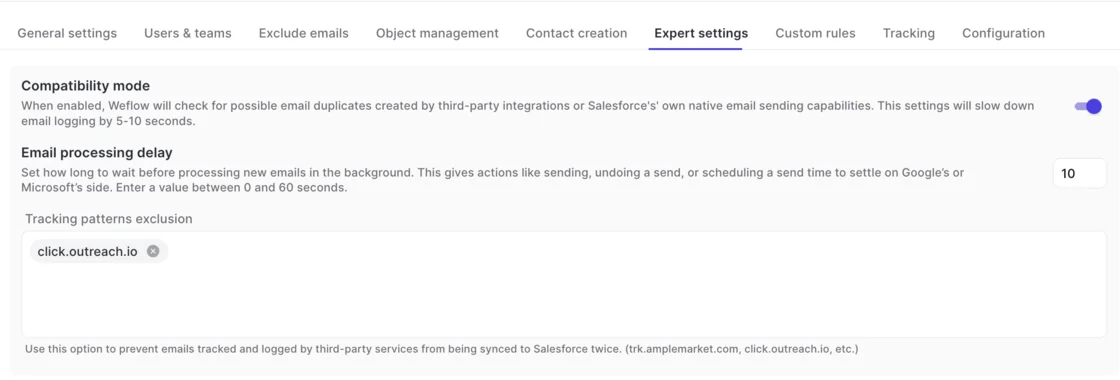
| Outreach, Salesloft, Apollo or Clay | Turn on compatibility mode. Weflow recognizes activity those tools already logged and skips it. You can also add tracking patterns, such as click.outreach.io, to the exclusion list. |
| Another notetaker | Plan a clean switch. Two notetakers can't share a meeting without putting two bots in front of the customer and splitting your data. |
| The Salesforce Outlook plugin being sunset | Nothing to run in parallel. Turn on Weflow capture for the pilot and retire the plugin. |
Weflow Analytics also runs a Settings Health check that detects EAC in your org and recommends disabling it once Weflow takes over.
Limits to plan around: chat, personal channels, on-prem Exchange
Some gaps are by design, and some teams shouldn't switch:
- Weflow doesn't capture Google Chat or Microsoft Teams chat, so deals agreed in chat stay out of the activity record.
- Personal email accounts, SMS and calls from personal mobiles are outside capture. Your channel policy is part of the rollout.
- Mail sent from a separate deliverability subdomain isn't captured, because Weflow matches on the sender address held in Salesforce.
- Weflow doesn't support on-prem Exchange without Microsoft 365. If that's your setup, stay where you are.
- A group with several mail tenants needs one capture configuration per tenant, and each configuration has to list every sibling entity's domain.
- Weflow Conversation Intelligence needs each user to sign in once before the notetaker joins their meetings.
What Weflow Activity and Contact Capture costs for your rollout
Weflow Activity & Contact Capture costs $19 per user per month at list price, billed annually. There's no implementation fee.
| Item | What it means |
|---|---|
| List price | $19 per user per month, billed annually. Includes Ask Weflow AI Pro and Agent Builder on the free tier (25 agent actions per month) |
| Minimum | 10 users |
| Seats added mid-term | Charged pro rata to the end of the term, so you don't have to hold hires until renewal |
| Leavers | A disabled Salesforce user consumes no license |
| Adding Weflow Conversation Intelligence | The Revenue AI Foundation bundle at $49 per user per month, roughly 16% below buying both standalone |
| Implementation | No fee. Our customer success team runs onboarding |
| Trial | Free 14-day POC with guided onboarding |
Starting with capture and adding Conversation Intelligence later costs less than the reverse. It also means you have several weeks of clean activity data by the time you configure anything downstream.
See how Weflow captures activity, updates Salesforce fields from calls, and rolls up your forecast. Book a 30-minute demo.
FAQ: rolling out Weflow Activity and Contact Capture
Do reps need to install anything for Weflow Activity and Contact Capture?
No. Weflow Activity & Contact Capture runs through one central app in Microsoft Entra or Google Workspace, so reps don't install, connect or sign in to anything for capture. The optional Outlook add-in or Chrome extension is something reps use only if you choose hybrid mode. Weflow Conversation Intelligence is separate and needs each user to sign in once.
Why does the Microsoft admin need a Salesforce login to connect Weflow?
Weflow needs Microsoft's callback to link the two systems, and that callback only happens when the Microsoft admin starts the install from Weflow's admin console. Weflow sign-in runs through Salesforce, so the admin needs a Salesforce user. A temporary license works and can be deactivated afterwards without affecting capture. The quicker option is a screen-share where the Microsoft admin takes control of a Weflow admin's session.
What's the difference between enrolling a user and inviting them to Weflow?
Enrollment is a back-end connection: the user's email and calendar are captured, and they never need to sign in. An invite gives app access, which Weflow Conversation Intelligence, boards and forecasting depend on. The two look similar in the interface. Mixing them up is the usual reason a historical backfill appears to do nothing.
Why isn't the Weflow notetaker joining meetings for users who never signed in?
The Weflow notetaker only joins meetings for users who have signed in to Weflow at least once. Capture keeps running for them in the background, which is why their emails and meetings appear in Salesforce while their calls go unrecorded. The notetaker also only joins meetings with at least one attendee outside your internal domains.
Should we backfill historical emails and meetings, and how long does it take?
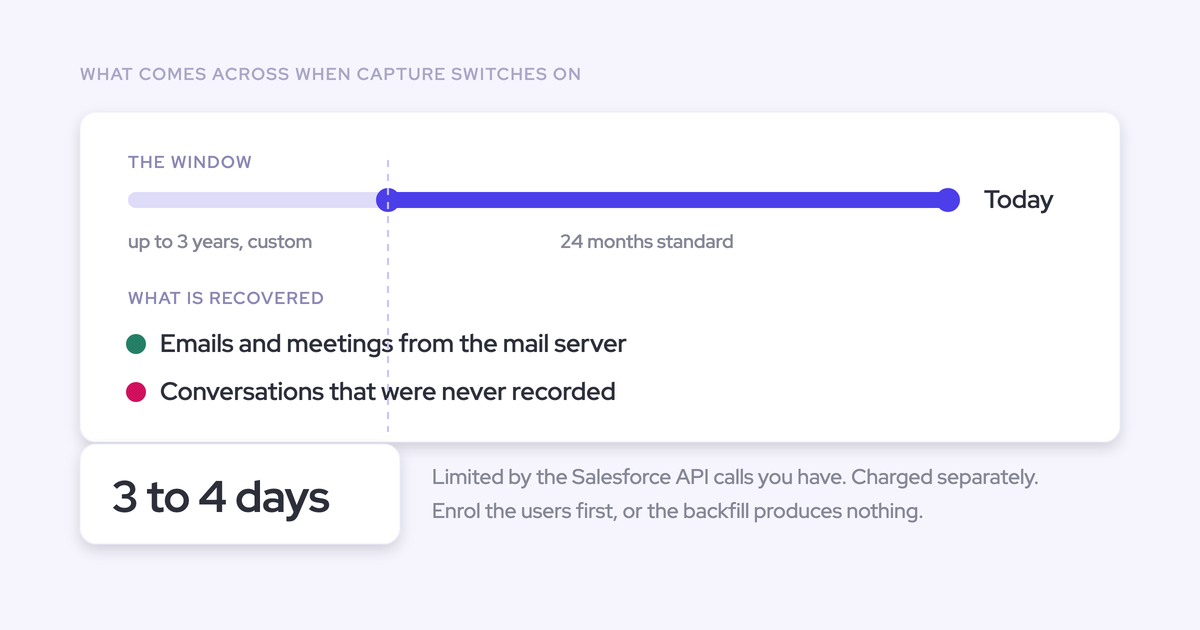
Weflow can backfill up to two years of email and meetings. It's opt-in and runs only for users already enrolled in capture. Plan on weeks, not days: one month for one user takes about 15 to 20 minutes and 2,000 to 3,000 Salesforce API calls, and your daily API allowance sets the pace. Teams whose previous tool already logged history often skip it.
What happens to capture when people join or leave the team?
If you enroll through a dynamic team built from Salesforce, Weflow re-checks membership hourly. New starters get captured and leavers drop out without anyone opening Weflow. Deactivating a user in Salesforce removes their Weflow access immediately, because Weflow sign-in runs only through Salesforce authentication.
Can Weflow's support team read our captured emails?
No. Weflow's support team sees the logging logic for each message: whether it synced, and which rule skipped it. It never sees the content. When support needs to confirm what a message was about, you read it on your side.