How to Set Up Bi-Directional Sync Between a Meeting Tool and Salesforce
Learn how to set up bi-directional sync between a meeting tool and Salesforce without loops.


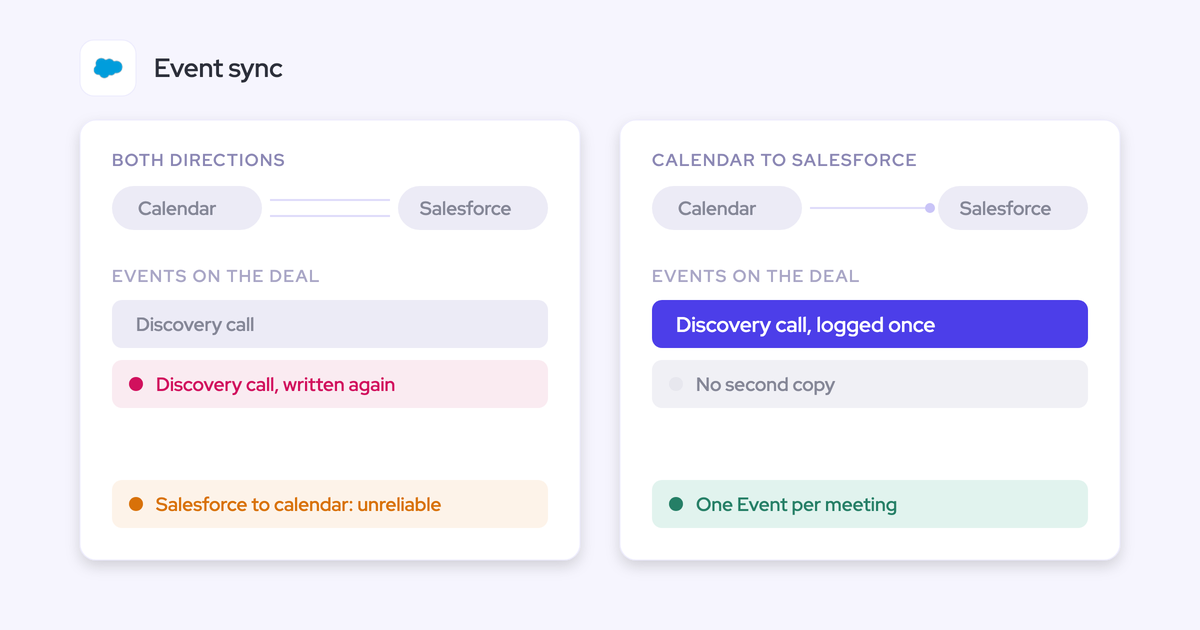

Bi-directional sync between a meeting tool and Salesforce is really two flows, and they need opposite settings.
- Calendar events sync one way: from the calendar into Salesforce.
- Record and field data syncs both ways: live through the Salesforce API, under your org's own validation rules and permissions.
If you set events to sync both ways, you build a loop. The meeting logs to Salesforce, gets pushed back to the calendar, and logs again. That loop is where most duplicate meetings come from.
You're probably here because some reps' meetings never reach Salesforce, or they land twice and your activity counts stop agreeing. The seven steps below fix that whatever tool you run:
- Audit every tool that already writes meetings.
- Set Einstein Activity Capture to sync events in one direction.
- Create a least-privilege integration user.
- Turn on Shared Activities and fill Opportunity Contact Roles.
- Connect your meeting tool directly to the Salesforce API.
- Set write controls before you enroll users.
- Verify that one meeting lands as one record.
We use Weflow as the worked example. Weflow is the Revenue AI Orchestration platform for sales, customer success, and RevOps teams, built for Salesforce teams. The end goal is the same with any tool: deal hygiene in Salesforce you can trust, with opportunity records kept current from every meeting you capture.
Sync meetings one way and record data both ways
Set two-way sync on record and field data. Set one-way sync on calendar events.
The two flows fail in different ways. That's why one "bi-directional" checkbox can't cover both.
| Calendar events | Record and field data | |
|---|---|---|
| Direction | One way, calendar to Salesforce | Both ways |
| Mechanism | The calendar is the source of truth for the meeting itself | Live writes through the Salesforce API, not a copy or a polling job |
| Why | Each side can edit the meeting, so you need a conflict winner and loop prevention | Reps update fields wherever they work, and Salesforce rules have to judge every write |
| What breaks if you get it backwards | Loops, duplicate Events and inflated meeting counts | Stale fields, silent failures and writes that collide with validation rules |
Why two-way event sync duplicates your meetings
Two-way event sync means both systems can edit the same meeting. That needs a rule for who wins, and it creates a loop as soon as a second tool is writing too:
- The meeting syncs from the calendar into Salesforce as an Event.
- The Salesforce-to-calendar direction pushes that Event back out to the calendar.
- The calendar copy gets logged to Salesforce again, and you now have two Events for one meeting.
Einstein Activity Capture (EAC) documents this itself. Its recommended event direction is Microsoft or Google to Salesforce, which typically syncs within 5 minutes. Changes made in Salesforce take 15 minutes or more to reach the external calendar. When the same meeting is edited in both places, the calendar's version wins.
Most teams create meetings in their calendar, not in Salesforce. For those teams, one-way sync captures every meeting and gives up nothing.
Why record data needs live two-way sync through the API
Field and record data is where two-way sync belongs. A rep changes a next step, a stage or a close date, and that change has to reach Salesforce and come back without anyone reconciling two versions.
The mechanism matters more than the label. "Real-time" and "two-way" on a vendor page often hide one of these:
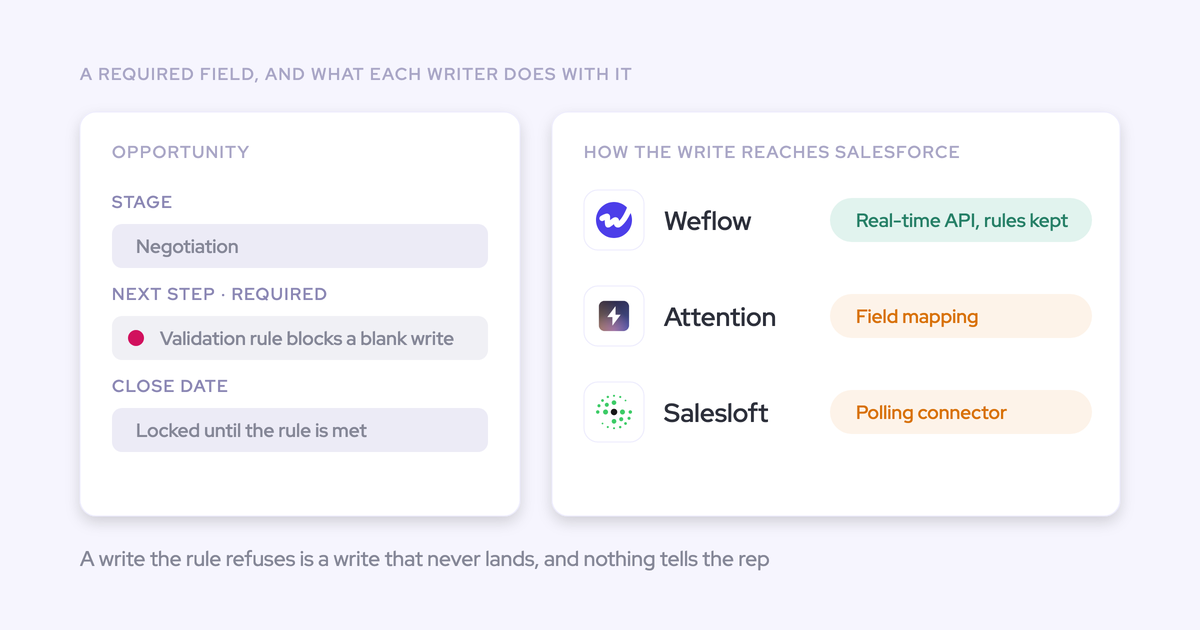
- Salesloft syncs with Salesforce by polling through one connector user every 1, 5 or 10 minutes, with 10 as the default, and it spends your org's API allowance to do it.
- Revenue Grid markets its Salesforce integration as real-time, but email auto-saving runs on a 30-minute sync cycle.
- EAC event sync can take a day or more when many users start syncing at once, and it doesn't sync custom fields.
Some tools also set direction per field. Avoma, for example, syncs an imported field out to Salesforce when a Smart Topic is mapped to it, in when the field is read-only, and typically both ways when it's editable and unmapped.
That level of detail is the right way to think about it. Ask what moves each field, how often, and what happens when a validation rule says no.
What to have in place in Salesforce before you start
Settle access and decisions before you touch configuration, so no later step stalls:
- Edition: You're on a Salesforce edition with API access. Enterprise and Unlimited include it. Professional typically needs the API add-on.
- Integration user: You can create an integration user and assign the API Integration permission set license.
- Sandbox: You have a sandbox to test in before production.
- Native sync: You know whether EAC or Lightning Sync is active. The two can't run in the same org.
- Shared Activities: You've raised the change request now. In a large org it's a change request, not a toggle, and it takes time.
- Security review: Your security reviewer is in the loop. With Weflow, you can finish technical setup before legal review closes, because Weflow reads nothing until you enroll users.
- Admins: A Salesforce admin and a Google Workspace or Microsoft admin are both available. Weflow's technical setup takes 30 to 45 minutes with the two of them in the room.
Step 1: List every tool that writes meetings to Salesforce
Start by finding every existing writer. Stacked tools are the main source of duplicates, and each one has its own mapping logic and its own target object.
Fill in a table like this one for your org:
| Tool | What it logs | Object it writes | Keep, reconfigure or turn off |
|---|---|---|---|
| Calendar capture (EAC or Lightning Sync) | Meetings, contacts, emails | Event | Reconfigure to one direction (Step 2) |
| Conversation intelligence tool (Chorus, for example) | Recorded meetings | Task or Event, whichever the admin chose | Decide whether it should write a record at all |
| Sequencer (Outreach, Salesloft) | Emails, calls, sequence steps | Usually Task | Keep for sequence activity, and check that it doesn't also log meetings |
| CS platform | Customer meetings and emails | Varies by tool | Check against the calendar writer |
| Routing or scheduling tool | Booked meetings | Varies by tool | Check against the calendar writer |
| The new tool you're adding | Ask what it writes and what it stops writing | Should be Event for meetings | Becomes the single meeting writer |
Your target state is one writer per meeting, on the Event object.
Step 2: Set Einstein Activity Capture to sync events one way
Set EAC event sync to calendar-to-Salesforce. This stops the loop at its source, and it's the fix most teams with duplicate meetings need.
- Open each Einstein Activity Capture configuration that your users are assigned to.
- Set event sync to Microsoft or Google to Salesforce.
- Save the change and test it in your sandbox (see Step 7).
After the change, new meetings stop duplicating. Two things carry over from before:
- Old duplicates stay. Duplicates EAC already wrote aren't cleaned up automatically. A rep can show 13 meetings a week in one view and 8 in another until you remove them.
- Permissions don't stop the loop. Removing the EAC permission from users isn't enough. The direction setting is what fixes it.
You don't have to switch EAC off to adopt Weflow. With EAC set to one direction, Weflow adds call summaries onto the events EAC already creates.
If you run Lightning Sync instead, EAC isn't active in that org, because the two can't run together. Apply the same rule to whatever syncs your events: one direction, calendar into Salesforce. If nothing native syncs events today, skip this step.
Step 3: Create a least-privilege Salesforce integration user
Use a dedicated integration user with the API Integration permission set license and a purpose-built permission set. Don't grant Modify All Data or System Administrator, and don't repurpose a normal user.
Since a 2026 Salesforce policy change, a normal platform user can't double as the integration user. A full user license pressed into service as an integration user also tends to time out.
- Create a dedicated integration user and assign the API Integration permission set license.
- Create a new permission set for the integration. Don't edit an existing one, so the access stays auditable.
- Grant the object and system permissions below.
- Assign the permission set to the integration user.
Here's the Weflow integration user as the worked example:
| Object or permission | Access | Why it's needed | What breaks without it |
|---|---|---|---|
| Account, Contact, Opportunity, Lead | Read and edit | Lets the sync match activity to the right records | Activity can't attach to the record it belongs to |
| Opportunity Contact Role | Read and edit | This is how activity reaches the deal | Emails and meetings land on the account instead of the opportunity |
| Event | Full access, including delete | Writes meetings. Delete lets calendar deletions propagate | The most common day-one failure: meetings appear to log, then never land in Salesforce |
| Weflow's three custom objects | Edit | Stores Weflow's conversation data | Weflow can't write its own data |
| System permissions | Update email messages, edit tasks, access activities, edit events | Lets the background sync write activity | Activity writes fail |
Delete rights apply to events only. Nothing else in the org can be deleted by the integration.
For comparison, here's what other tools ask for:
- Attention requires the connecting user to hold Modify All Data, along with API Enabled and Customize Application.
- Nektar's default setup asks for Modify All Data plus metadata, profile and permission set permissions. Nektar supports reduced-privilege alternatives, though it warns they need considerable Salesforce admin expertise.
- Backstory asks for View All Data and View All Users, places the user at the top of the role hierarchy, and recommends the System Administrator profile.
- Revenue Grid's Instant Sync needs an integration user with the System Administrator profile.
Step 4: Relate meetings to every attendee and the opportunity
Getting the meeting into Salesforce is only half the job. Two Salesforce settings decide whether it reaches every attendee and the deal.
Turn on Shared Activities so every attendee gets the meeting
With Shared Activities off, only the primary contact gets the activity. Turning it on makes one parent record with a child record per attendee, so the meeting attaches to everyone who was there.
This is a Salesforce change you make in your org. Weflow can't relate a meeting to every attendee until it's on.
| Shared Activities off | Shared Activities on | |
|---|---|---|
| How the meeting is stored | One record with one primary contact | One parent record, one child record per attendee |
| Who gets the activity | The primary contact only | Every matched attendee |
| Contact activity reports | Incomplete for everyone except the primary contact | Complete per contact |
| Multi-threading | You can't measure it | You can see how many people you're engaging per account |
Fill Opportunity Contact Roles so meetings land on the deal
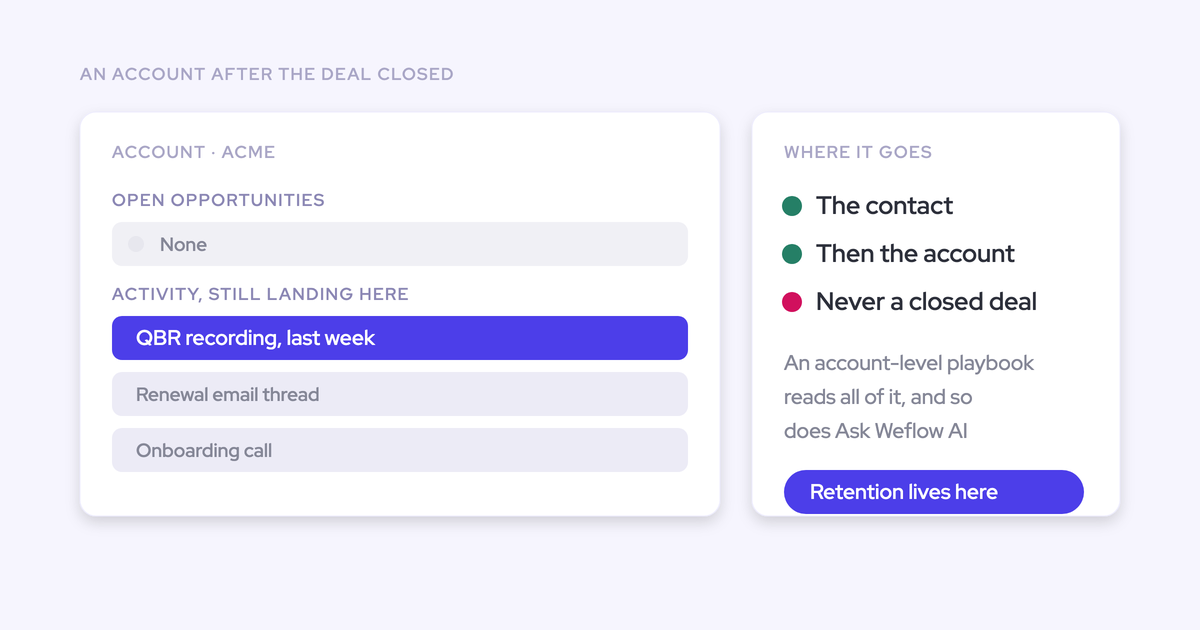
Activities reach the opportunity through Opportunity Contact Roles (OCRs). When OCRs are empty, or the integration ignores them, meetings get stranded on the account.
Chorus, for example, attaches activity to the matched account and opportunity, but OCRs aren't among the objects its Salesforce integration works with. Weflow reads OCRs and can set them automatically.
Run these three checks:
- Look at how many open deals have OCRs populated. Deals without them won't receive meetings.
- Confirm the integration user has read and edit on Opportunity Contact Role (Step 3).
- Confirm your meeting tool reads OCRs when it maps a meeting to a deal.
Step 5: Connect your meeting tool straight to the Salesforce API
Connect the tool directly to Salesforce, with no middleware hop and no vendor-cloud copy in the path. Anything that syncs through a middle layer eventually breaks, and the data quietly stops arriving.
Ask any vendor these five questions before the demo:
- Is there middleware or a sync service between your tool and Salesforce?
- Do you write live, or poll on an interval? If you poll, how often?
- What permission scope does your integration user need?
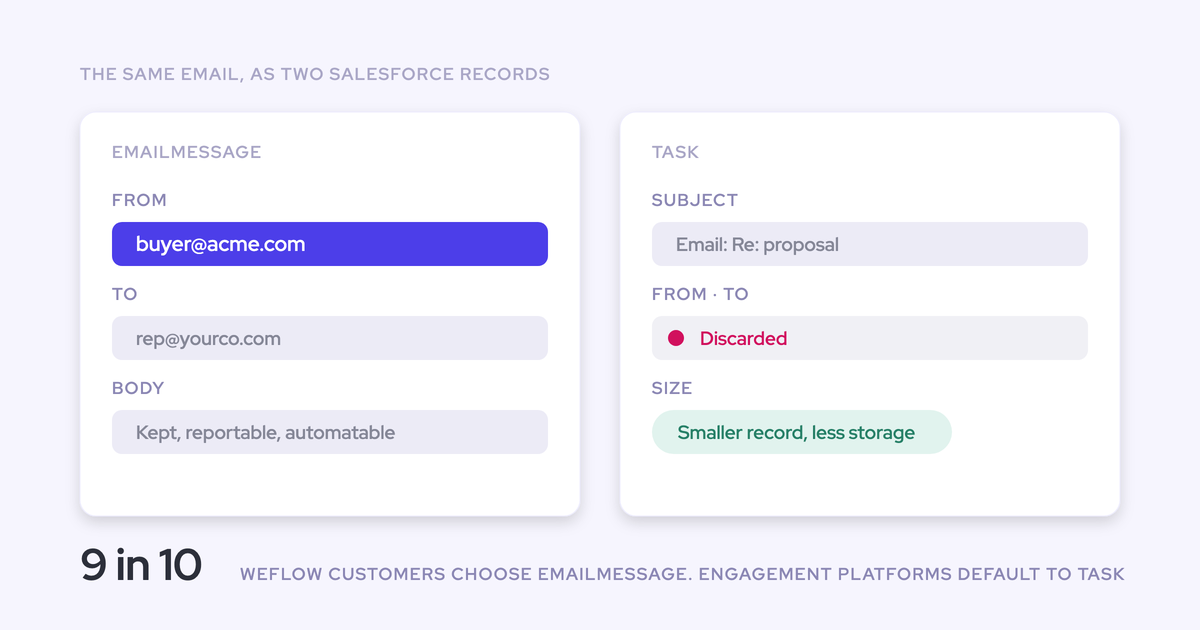
- Which object do you write meetings to: Task, Event or Email Message?
- What will you stop writing that another tool writes today?
In Weflow, the connect sequence looks like this:
- Install the Weflow managed package. It takes about 5 minutes.
- Connect the integration user you built in Step 3.
- Install the workspace app: the Google Workspace Admin App or the Microsoft Entra ID App, for server-side calendar and email access.
- Roll out centrally through OAuth. United Fintech had activity capture live in under an hour this way.
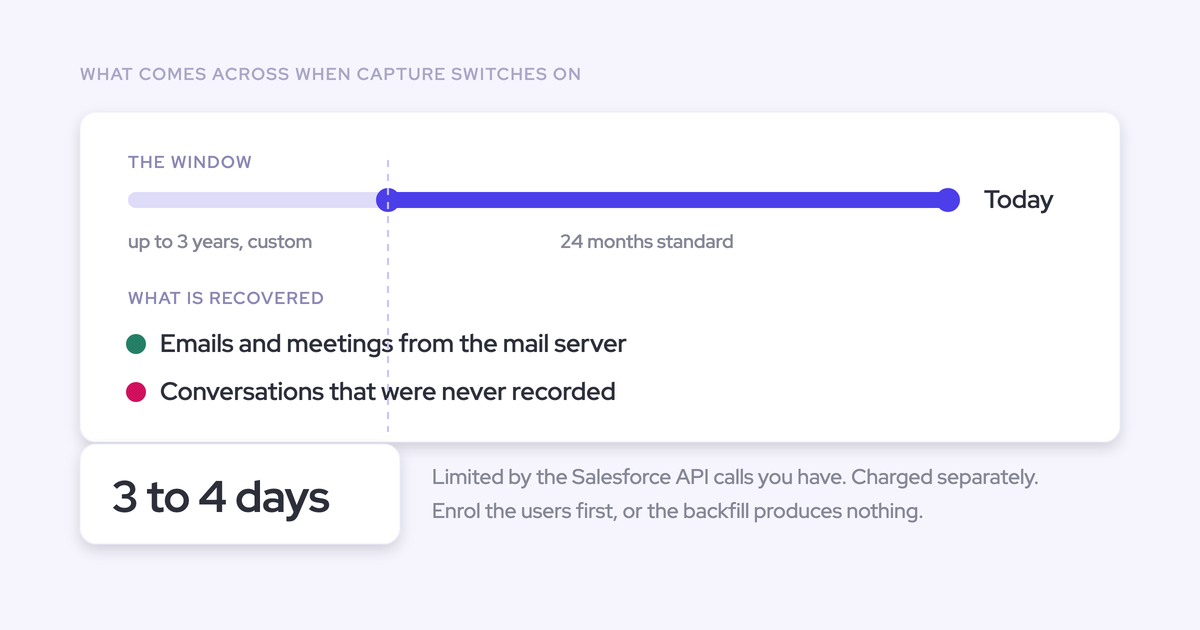
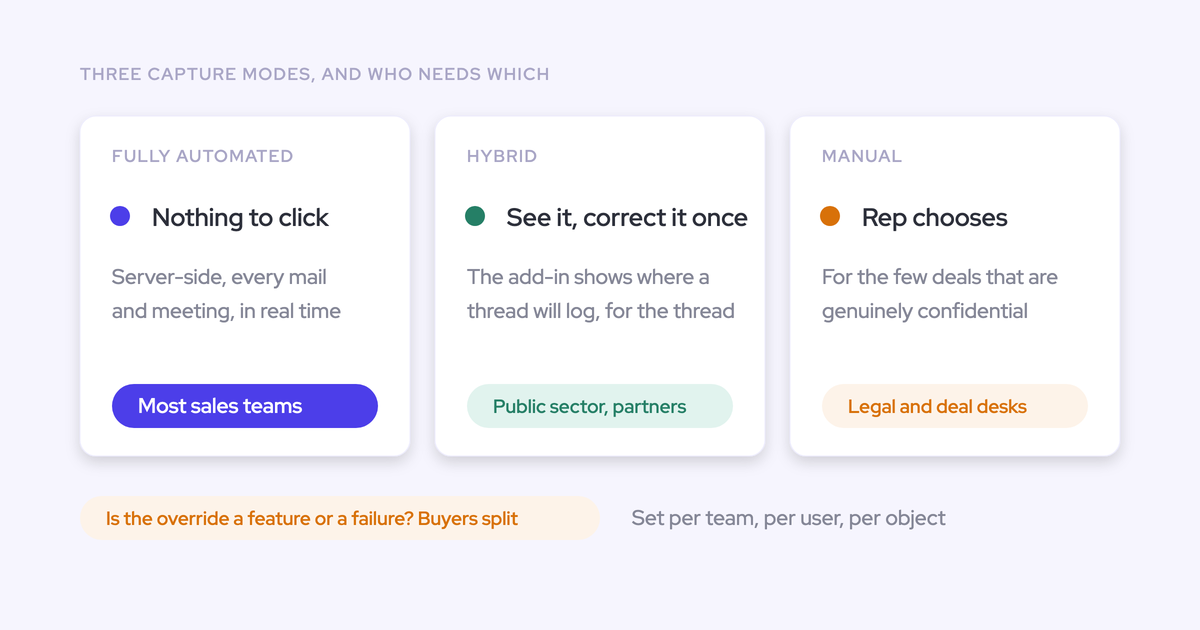
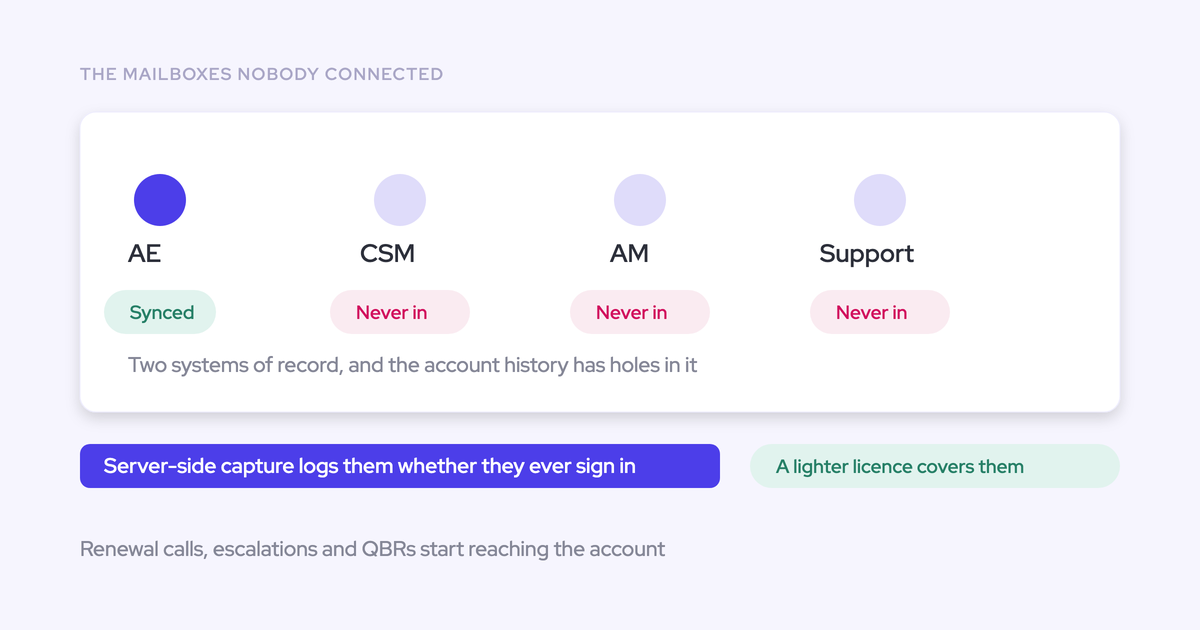
- Enroll users in an activity capture configuration. Enrollment is the switch that starts capture.
The Admin Console tracks each of these setup steps:
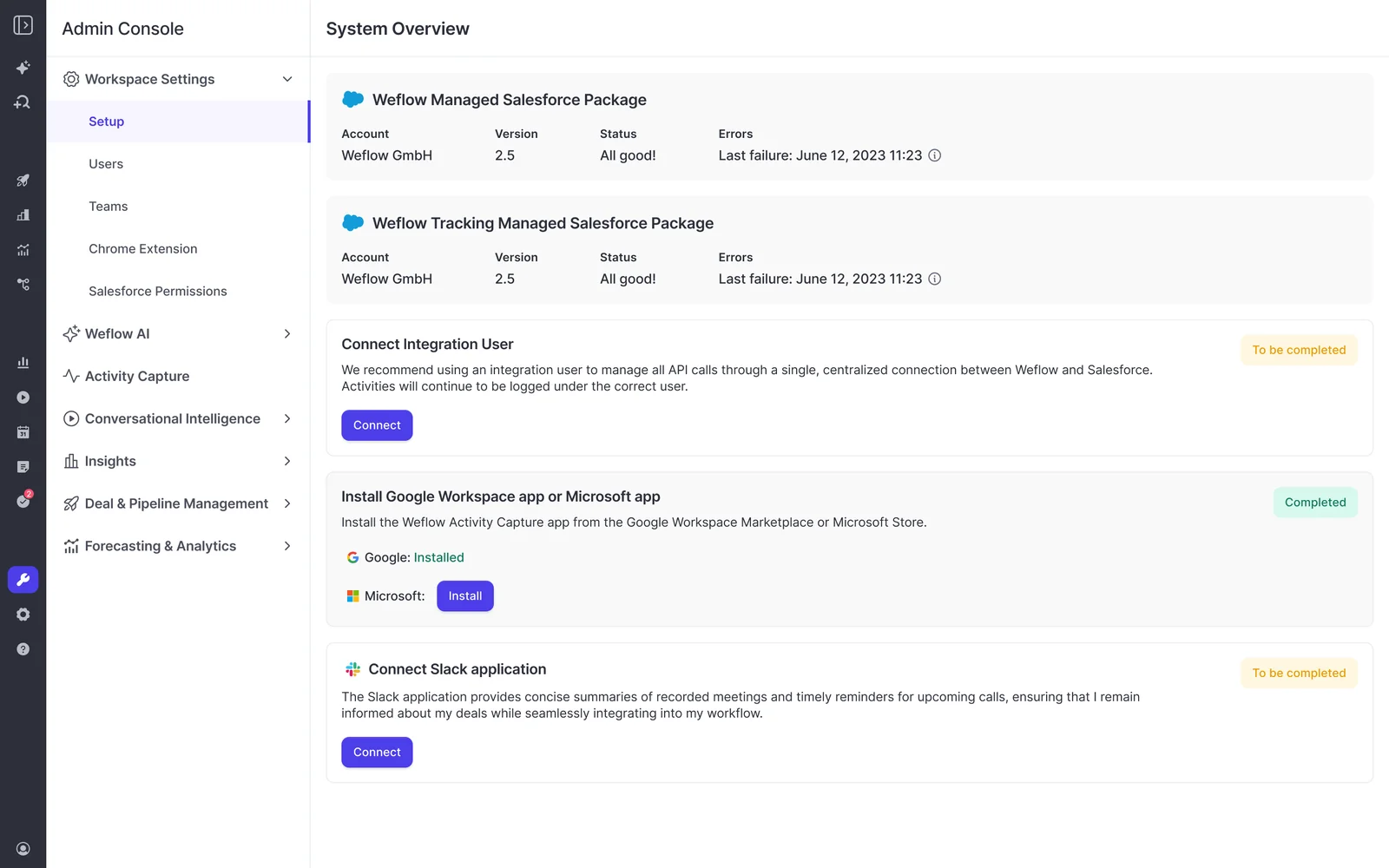
Installing the package, connecting the integration user and adding the workspace app grant access, but Weflow reads nothing until you enroll users.
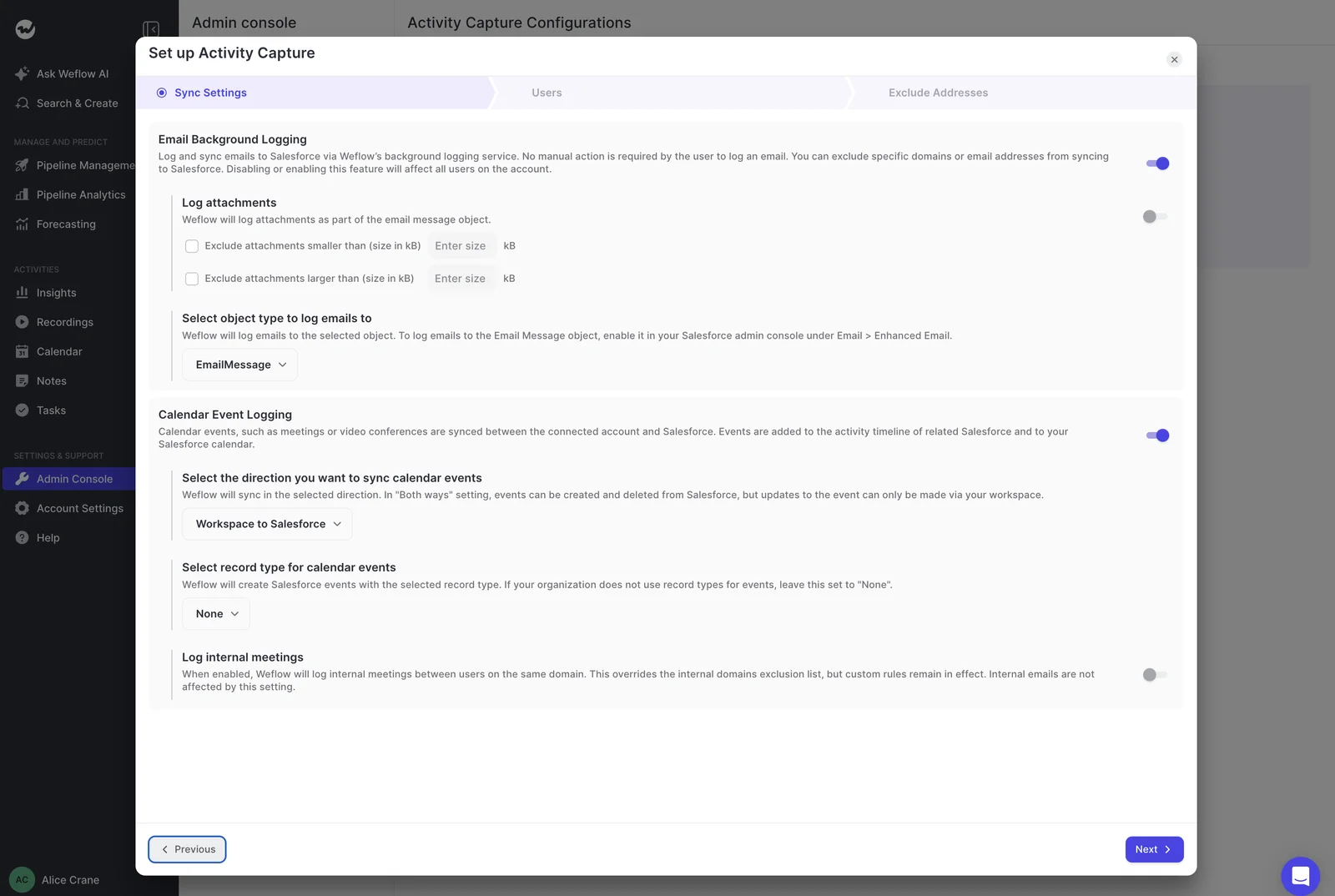
When you enroll a team, you set the calendar event logging direction. Pick Workspace to Salesforce.
Step 6: Decide what can write to Salesforce before enrolling users
Decide what's allowed to change records before you go live. This is how you pilot without anything editing your data, and it's what lets you set the integration up once.
In Weflow, you have four controls on the write path:
| Control | What it does | When to use it |
|---|---|---|
| Read-only mode | Blocks every record creation and field update from Weflow into Salesforce. Capture keeps running, so tasks, notes, events, emails and recordings still sync | Pilots, and any freeze where nothing may edit existing records |
| New-record toggle | Controls whether Weflow may create new Salesforce records at all | Orgs that only want activity on records that already exist |
| Per-field AI Field Updates setting | Sets each field to write automatically or wait for review | Auto-write unambiguous fields like a website, and review interpretive ones like pain or champion |
| 100-day field change review | Keeps field changes made through Weflow reviewable for 100 days | Auditing what changed during and after a pilot |
Read-only mode and the new-record toggle sit side by side under Admin Console, Salesforce Permissions.
Step 7: Check that one meeting lands as one Salesforce event
A test meeting should produce one Event, related to every attendee and to the opportunity, with field writes still obeying your validation rules. Run this script in the sandbox first, then again in production:
- Book an external meeting with a contact on an open deal, and invite two internal attendees.
- Confirm Salesforce holds a single Event record for it, not two.
- Confirm the Event relates to every matched attendee.
- Confirm the Event relates to the opportunity.
- If your tool records calls, confirm the AI summary sits on that same Event, not on a second record.
- Try a write that a validation rule should block, such as a stage change that needs other fields filled first. Confirm it stays blocked.
- Compare that rep's meeting count across two views, such as an activity report and the record timeline. The numbers should match.
If you test EAC in a sandbox, note that one user can't sync to several orgs at once. Remove the user from the sandbox configuration before you add them in production.
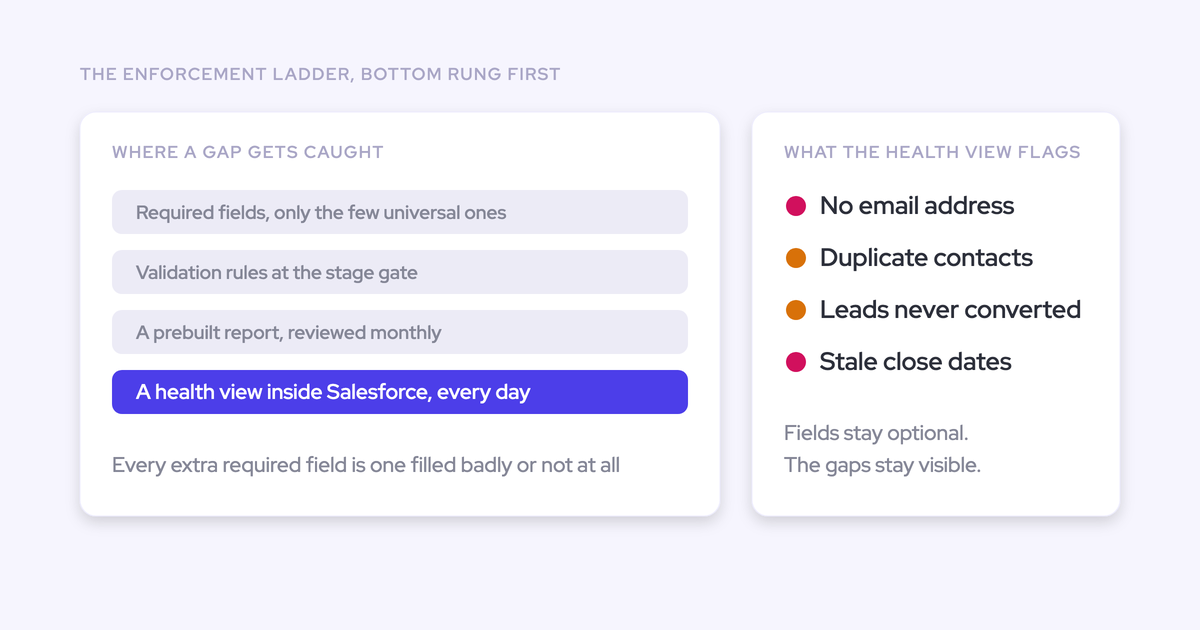
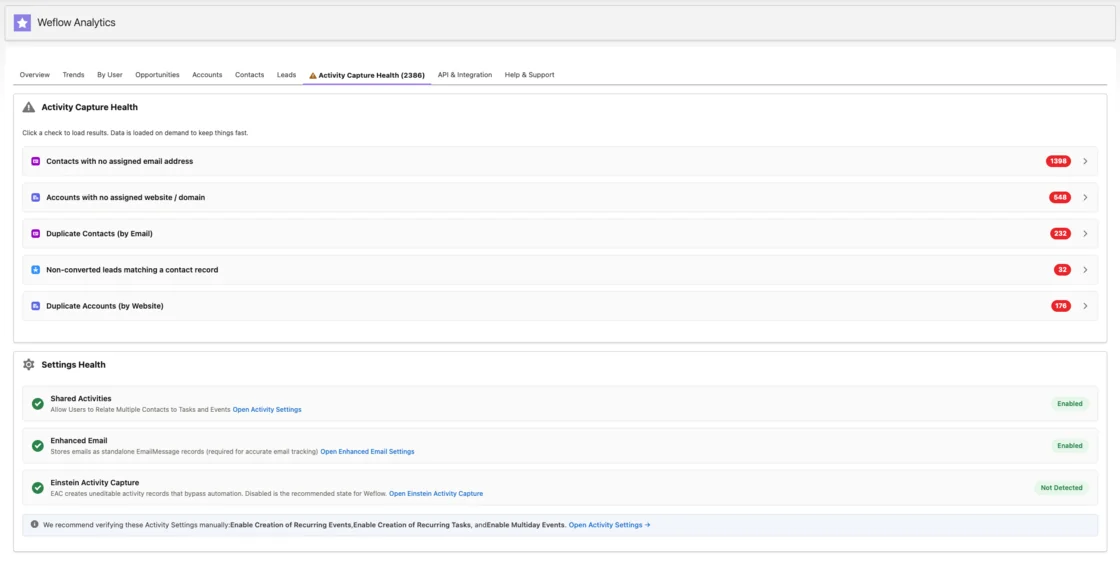
In Weflow, a capture health component inside Salesforce flags the data conditions that make capture fail quietly:
- Contacts with no email address
- Duplicate accounts
- Duplicate contacts
- Unconverted leads that already have a matching contact
It also checks your Shared Activities, Enhanced Email and EAC settings. When a rep says capture isn't working, the component shows whether the fault is in the capture or in the CRM data underneath.
Fix the Salesforce meeting sync failures admins hit most
Each common symptom traces back to one cause and one fix. Use this table when a ticket comes in.
| Symptom | Cause | Fix |
|---|---|---|
| Meetings show in the calendar but never land in Salesforce | The integration user lacks full access on Event, or EAC can't relate the event and parks it in Unresolved Items | Grant full access on Event (Step 3), and work through the Unresolved Items list |
| Two meetings appear when two people join | EAC follows the organizer's settings, so attendees of an organizer outside a syncing configuration each get a standalone copy | Put organizers in a syncing configuration, and turn on Shared Activities (Step 4) |
| Meeting counts disagree between views | Bidirectional event sync or several tools writing the same meeting | Audit the writers (Step 1), and set EAC to one direction (Step 2) |
| The meeting is on the account, not the deal | OCRs are empty, the integration user can't access them, or the tool ignores them | Fill OCRs and grant access (Step 4) |
| Only the primary contact gets the meeting | Shared Activities is off | Turn on Shared Activities (Step 4) |
| A new Salesforce field doesn't appear in the meeting tool | The tool needs manual mapping (Attention maps forward-only), doesn't sync custom fields (EAC), or refreshes field definitions on a schedule | Use a tool that reads field definitions from Salesforce. In Weflow, new fields appear within 8 hours, and support can sync sooner |
| The sync stopped and nobody noticed | Middleware or polling failures surface late. Salesloft, for example, emails one alert contact every 48 hours until a failure is resolved | Connect directly to the API (Step 5), and watch the capture health component (Step 7) |
| Attendee-less blockers flood in as external meetings | Event sync can treat breaks and reminders with no attendees as external meetings | Narrow event sync filters so these events don't sync. In Weflow, leave internal meeting logging off and exclude resource calendar domains |
How Weflow Activity & Contact Capture handles two-way Salesforce sync
Weflow Activity & Contact Capture is one capture layer that writes one meeting record live through the Salesforce API, under your org's rules. Here's what you get, where it stops, and what it costs.
Weflow writes to Salesforce live through the REST API
Weflow writes directly to Salesforce through the REST API. There's no middleware, no nightly batch and no copy in a vendor cloud, and Weflow has worked this way for five years.
That architecture shapes everything below:
- Speed: Writes land in about 200 milliseconds, so there's no window in which Weflow and Salesforce disagree. Our infrastructure sits close to Salesforce's regional servers for that reason.
- API usage: The managed package uses webhooks to capture field changes, which cuts API call consumption. Weflow doesn't depend on field history tracking.
- Your rules apply: Weflow inherits your validation rules, field dependencies, permission sets, role hierarchy and custom objects. A write a validation rule blocks stays blocked.
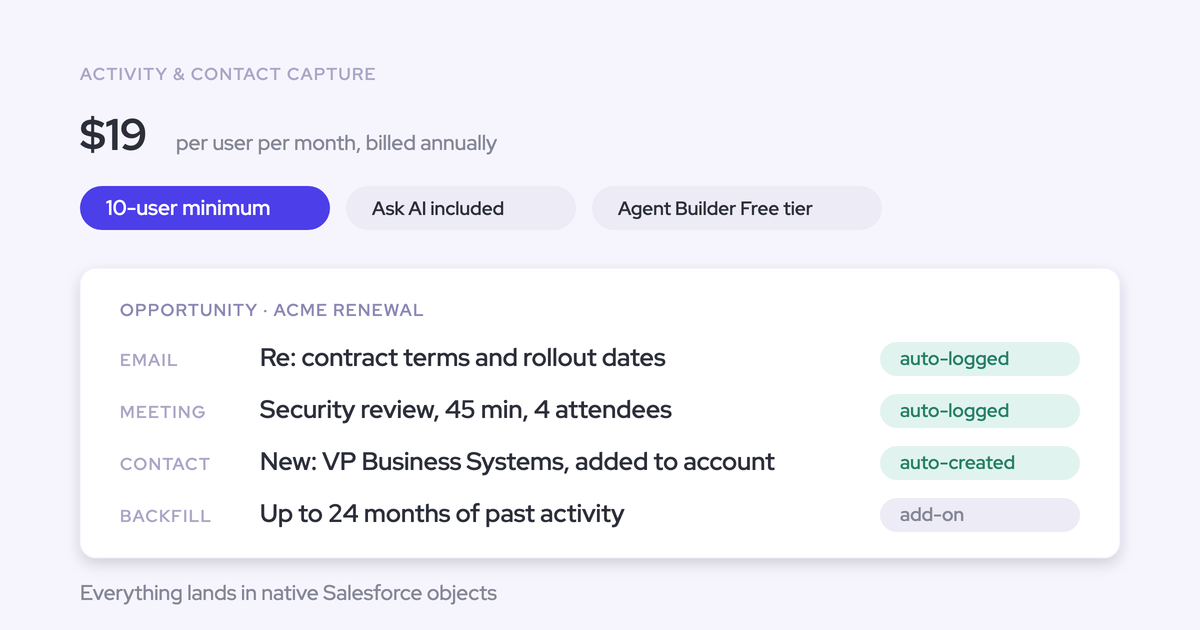
- One record per meeting: The meeting goes to the Event object, the AI summary attaches to that same record, and the activity relates to the opportunity.
- One-way events by default: Weflow can sync calendar events both ways, but we recommend one-way, calendar to Salesforce.
Records in your own org are what make activity reportable. Blacklane and Blockaid both left EAC because they couldn't report on their activities.
To be fair to Salesforce, this has since changed for email. EAC setups made since Summer '25 store captured email as Salesforce records.
Where Weflow falls short and when you don't need it
Weflow has real limits, and for some teams a different path fits better.
| If this is your situation | The path that fits |
|---|---|
| You run a CRM other than Salesforce | Weflow works only with Salesforce, so it isn't an option for you |
| You need Salesforce-created events pushed out to calendars | That direction is unreliable in Weflow too. A per-direction calendar sync like Cirrus Insight Calendar Sync ($11 per user per month) sets direction per user and has a rule for which version wins |
| EAC set to calendar-to-Salesforce already works for your team | You may not need anything else |
| You add Salesforce fields often and need them instantly | New fields take up to 8 hours to appear in Weflow, and support can trigger a sync sooner |
| You want to write relationship lookup fields | Weflow can't write lookups. Every other field type is in scope |
| You want AI Field Updates on custom objects | Weflow support sets these up with you |
| You need every attendee related to the meeting | Turning on Shared Activities is your change to make in Salesforce |
What Weflow Activity & Contact Capture costs
Weflow Activity & Contact Capture costs $19 per user per month, billed annually. That includes Ask Weflow AI and Agent Builder, with a 10-user minimum, no implementation fees and a 14-day free trial.
If you also want call summaries on the same Event, Revenue AI Foundation adds Weflow Conversation Intelligence for $49 per user per month.
Want a reference you can keep open in Setup? Get the free Salesforce Activity Capture Cheat Sheet.
FAQ: bi-directional meeting sync with Salesforce
Which Salesforce edition does an API-based meeting sync need?
An API-based meeting sync needs an edition with API access. Enterprise and Unlimited include it. Professional typically needs Salesforce's API add-on before any API-based tool can connect.
How many Salesforce API calls does meeting sync use?
API usage depends on the mechanism. Polling tools spend your allowance on every interval, whether anything changed or not. Weflow's managed package uses webhooks to capture field changes, which cuts the calls the sync consumes.
Can I test meeting sync in a Salesforce sandbox first?
Yes. With EAC, one user can't sync to several orgs at once, so you remove them from the sandbox configuration before adding them in production. With Weflow, you can install and connect everything and nothing is read until you enroll users.
Can Einstein Activity Capture and Lightning Sync run together?
No. Einstein Activity Capture and Lightning Sync can't run at the same time in one Salesforce org, so you use one or the other.
How do I clean up duplicate meetings that already exist?
Fix the direction first, so no new duplicates appear. Duplicates that EAC already wrote don't clean themselves up. They stay and distort activity metrics until someone removes them.
What happens when a meeting is edited in both places?
With EAC set to sync both ways, a change made in both places before sync resolves in favor of the external calendar. One-way event sync removes the conflict, because only the calendar edits the meeting.
How do I see when a validation rule blocks a write?
Weflow writes under your validation rules, so a blocked write stays blocked until the fields the rule depends on are filled. You can review field changes made through Weflow for up to 100 days, which shows what reached Salesforce.
Will Weflow re-log meetings Outreach or Salesloft already logged?
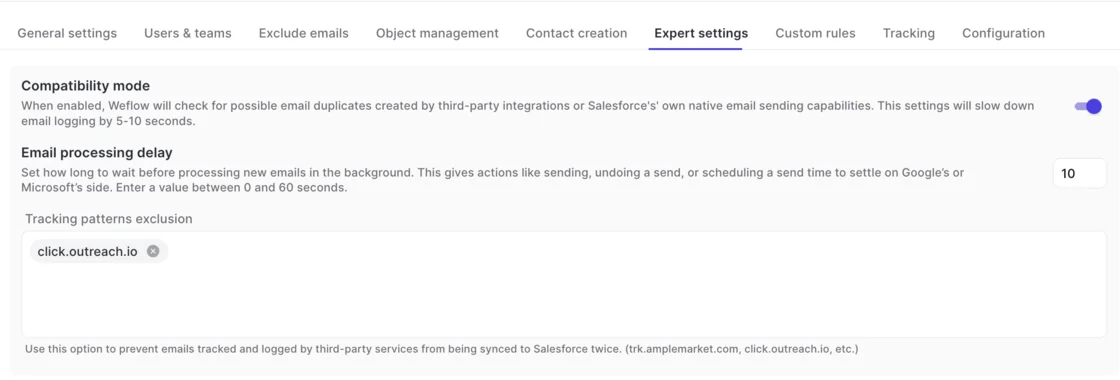
Weflow runs alongside Outreach and Salesloft through compatibility mode, a logging rule that skips activity another tool already logged. On email, it checks for duplicates created by third-party integrations or Salesforce's native email sending, and you can exclude tracking patterns like click.outreach.io. Our support team's logging-logic panel shows which rule skipped a given item.
Does Weflow backfill past meetings into Salesforce?
Yes. Weflow backfills up to 24 months of emails, meetings and contacts as standard, and up to 3 years by arrangement.
What will security review ask about a meeting sync tool?
Security review usually asks how users log in, who can see data, and what the integration can touch. With Weflow:
- Login: Users sign in only through Salesforce OAuth, with your org's SSO or Salesforce two-factor. Deactivating a user in Salesforce removes their Weflow access immediately.
- Support visibility: Our support team sees how Weflow decided to log or skip each email, never the email's content.
- Permissions: The integration user has a defined permission set, with delete rights on events only.
- Before enrollment: Nothing is read until you enroll users.