Ask Weflow AI prompts for taking over accounts from a departing rep
Learn which Ask Weflow AI prompts to use when taking over accounts from a departing rep.


A colleague has resigned, their book is now yours, and your first customer call is already on the calendar. It can feel like everything they knew about those accounts is walking out the door with them. The good news: most of it isn't.
That's because Weflow Activity and Contact Capture has been logging the old rep's emails and meetings to Salesforce in the background all along, so the account history is still there.
Weflow is the Revenue AI Orchestration platform for sales, customer success, and RevOps teams. Point Ask Weflow AI at an account and it reads that history in minutes, with every answer linking back to the email, call or transcript it came from.
This guide follows the order you'll need it in:
- Find what was captured.
- Get oriented on each account.
- Pull out what was promised and what's at risk.
- Prep the first call.
- Ask the old rep what the record can't hold, before their last day.
One thing to keep in mind: the prompts only work on captured history. If some of the old rep's emails predate capture, the last section explains how your admin can recover them.
The account handover runbook: Which prompt to run when
Not everything needs doing at once. Some of it belongs on day one, some before the first call, and one part has a hard deadline: the old rep's last day.
| When | What you need to know | Prompt or action | Scope |
|---|---|---|---|
| Day one | Why the account looks empty | Inactive-user filter and account timeline check | Activity views, account |
| Day one | Which deals need you first | Rank the inherited deals | Filtered deal board |
| Day one | The story on each account | Handover brief | Account |
| Day one | Who actually decides | Decision-maker prompt | Account |
| Day one | Who's who on the account | People map | Account |
| Before the first call | What you now owe the customer | Commitments and open loops | Account |
| Before the first call | What could lose you the account | Competitors, objections, quiet contacts | Account |
| Before the first call | The brief and what to say | Prepare meeting, then two follow-ups | Meeting |
| Before the old rep's last day | What the record can't hold | Exit questions, plus asking your admin to keep the mailbox active | Old rep, manager, admin |
Most of this can slip a day if it has to. The last row can't: once the old rep leaves and their mailbox is suspended, you lose both the conversation and the chance to backfill.
Find the old rep's activity before you run any prompt
If an inherited account looks untouched, it usually isn't. The history is there, just hidden by default views and by where Salesforce attaches activity. It's worth surfacing it first, so the prompts read the whole history and not just half of it.
Filter Weflow activity views to inactive users
By default, Weflow activity views only show active users. So once the old rep is deactivated in Salesforce, their activity drops out of sight, and the accounts they worked on look like nobody's been in touch.
- Open the activity view in Weflow.
- Change the user filter to include inactive users.
You'll now see the old rep's emails and meetings (still assigned to them) against the accounts you inherited.
Check the account timeline when an opportunity looks untouched
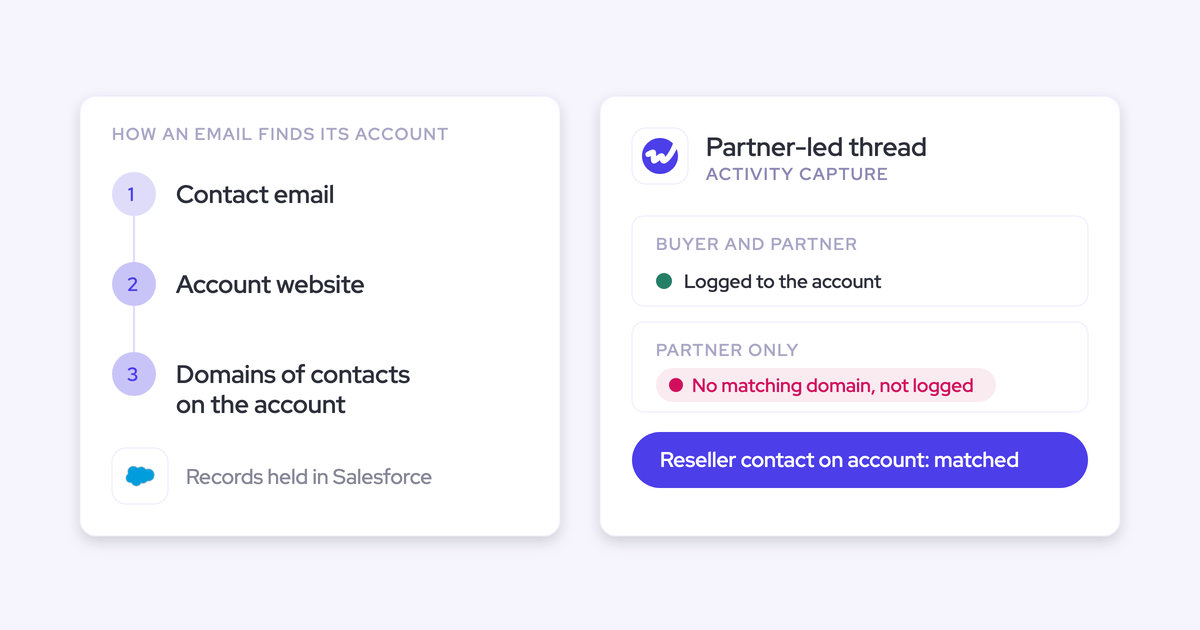
In Salesforce, an activity relates to either one opportunity or the account, never both. When Weflow can't tell which open deal an email belongs to, it logs it to the account rather than guessing, which means some deal history sits one level up.
| What you see | What's actually happening |
|---|---|
| A live deal with an empty activity timeline | The emails couldn't be tied to that opportunity, so they're on the account |
| Two open deals with the same contact, and only one has activity | An email logs to one opportunity at most, so it landed on the other deal or on the account |
| A whole thread on the wrong record | The first message in a thread sets the mapping, and every reply followed it |
| A deal opened late with no early history | Earlier activity stays on the record it was logged to and never moves on its own |
| A parent account that looks quiet | The activity sits on the child account the conversation belonged to |
So when a deal looks dead, check the account timeline next. That's where you'll find activity that never made it onto an opportunity.
Move a mis-logged email to the right opportunity
Weflow never moves logged activity on its own, but you can fix this yourself from the Outlook add-in or the Chrome extension.
- Open the email in Outlook, or in Gmail with the Chrome extension.
- Open the Weflow panel. It shows the contact, account and opportunity the email is logged to.
- Pick the right opportunity, account or custom object.
- Later replies on that thread follow your choice. A new thread starts fresh.
Only move threads that clearly belong to one deal. An email sitting on the account is easy to fix later, but one on the wrong deal distorts that deal's history.
Scope Ask Weflow AI to the account and check sources
Every prompt in this guide works best with two habits: pointing it at the right scope and checking the answer against its sources.
Point Ask Weflow AI at one account from Salesforce
When you scope Ask Weflow AI to an account, it pulls every email, event and transcript on that account into the question. That way, it answers from what was actually said, not from what the old rep remembered to type into a field.
You don't even have to leave Salesforce: open the account record, launch Ask Weflow AI from the Weflow Chrome extension, and ask away. If you're in the Weflow app, add the account as a source with "+ Add Source" instead.
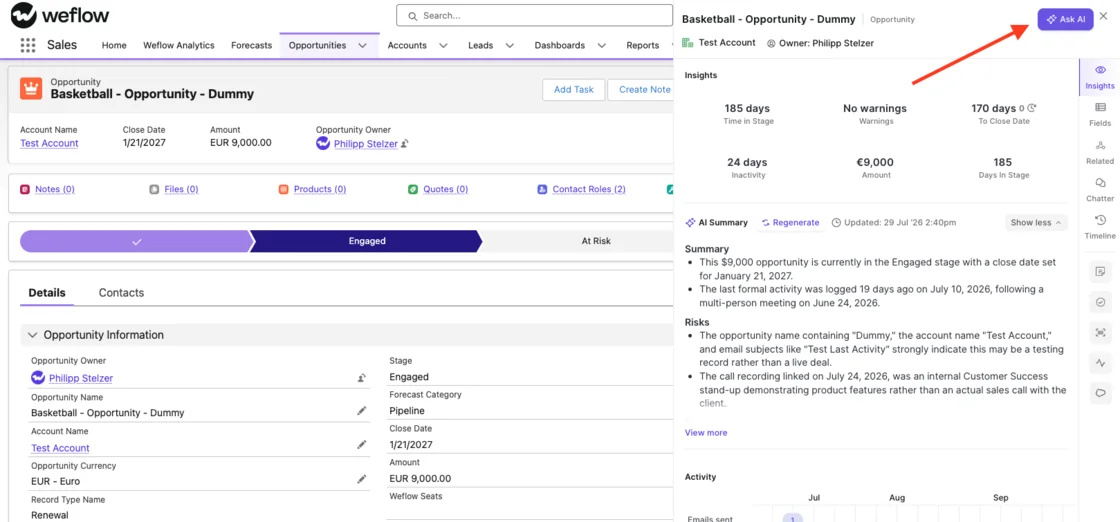
Pick the scope to match the question:
| Scope | When to use it in a handover |
|---|---|
| Account | Most of this library: history, people, promises, risks |
| Single deal | One opportunity you need to understand before a close or renewal |
| Filtered deal board | Triage across all the deals you inherited at once |
| Single call | A specific recorded conversation you want to unpack |
| Meeting | The first call, through Prepare meeting |
You won't be starting from a blank box, either. Ask Weflow AI's built-in prompt library includes a handover brief, and the prompts below build on it.
Click through to the email, call or transcript behind answers
An AI summary you can't check isn't worth repeating to a customer. That's why Ask Weflow AI lists the sources behind each answer (the opportunity, account, contacts, calendar events, emails and recordings), and you can open any of them.
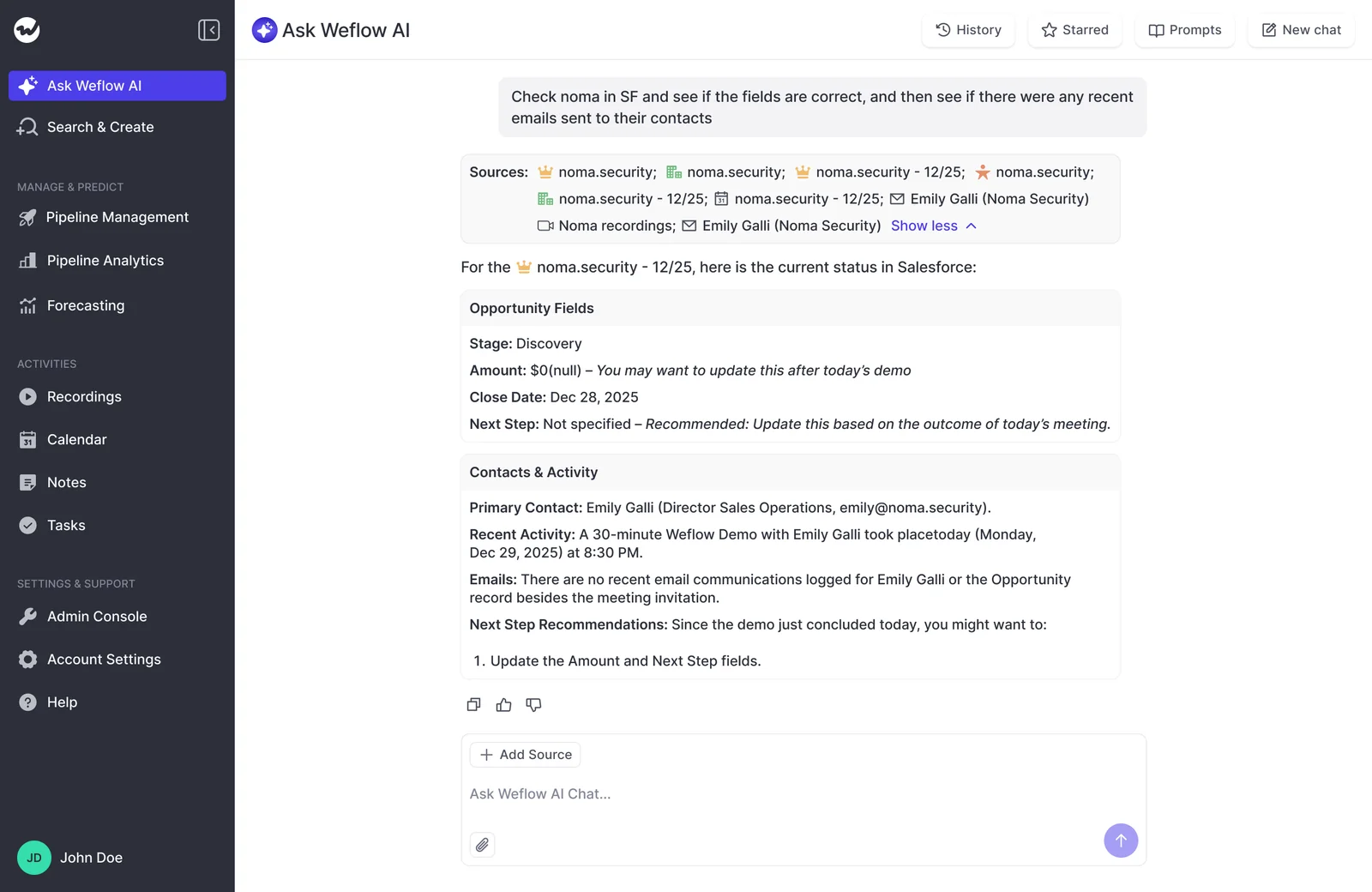
It's also the part our customers lean on most.
"I love being able to go right to the call, transcript or email and see where something was said that the AI is referencing."
— Scott Jones, SVP of GTM Revenue Intelligence & Enablement, KORE Wireless
A good rule of thumb: if you're going to say it out loud to the customer, open the source first.
Day-one prompts to get oriented on your inherited book
Start by triaging the whole book, then go account by account.
Rank which inherited deals need you first
Use this prompt to figure out which of your new deals to look at today.
These are the open opportunities I've just inherited from [old rep name]. Rank them by how urgently I need to act. For each deal, give me the reason: days since the last email or meeting, how close the close date is, whether only one contact is engaged, and any next step from the last conversation that's still open.- Scope: A deal board filtered to the reassigned deals.
- Run it from: The Weflow app, on the pipeline view.
- You get back: A ranked list of deals, each with the reason it needs attention.
- Check it by: Opening the activity timeline on the top three deals.
Get a handover brief for one inherited account
This one gives you the full story on a single account: the relationship, what's open and what was said recently.
Give me a handover brief for [account name]. I'm taking over from [old rep name]. Cover how long we've worked with them and how the relationship developed, what's open right now (opportunities, renewals, projects), what was discussed in the last three conversations, and anything the customer seemed unhappy about.- Scope: The account.
- Run it from: The Chrome extension on the Salesforce account page, or the Weflow app.
- You get back: A short account narrative with open items and recent conversations, each tied to sources.
- Check it by: Opening the last email and the last meeting it cites.
Want to dig deeper into any part of it? Just keep asking in the same thread.
Find out who actually makes the decision
This prompt helps you find the real decision maker, based on years of emails and meetings.
Based on every email and meeting on [account name], who actually makes the buying decision? Don't rely on contact roles or job titles. Tell me who signs off, who influences the decision, and who has blocked or delayed things, and show me where that comes through in the emails or calls.- Scope: The account.
- Run it from: The Chrome extension on the Salesforce account page.
- You get back: The likely decision maker and influencers, with the evidence for each.
- Check it by: Reading the threads where that person approves, pushes back or goes silent.
Contact role fields won't answer this for you. Weflow attaches captured contacts to deals, but it doesn't infer whether someone is the champion or the economic buyer, so the answer has to come from the conversations.
List everyone the old rep worked with on the account
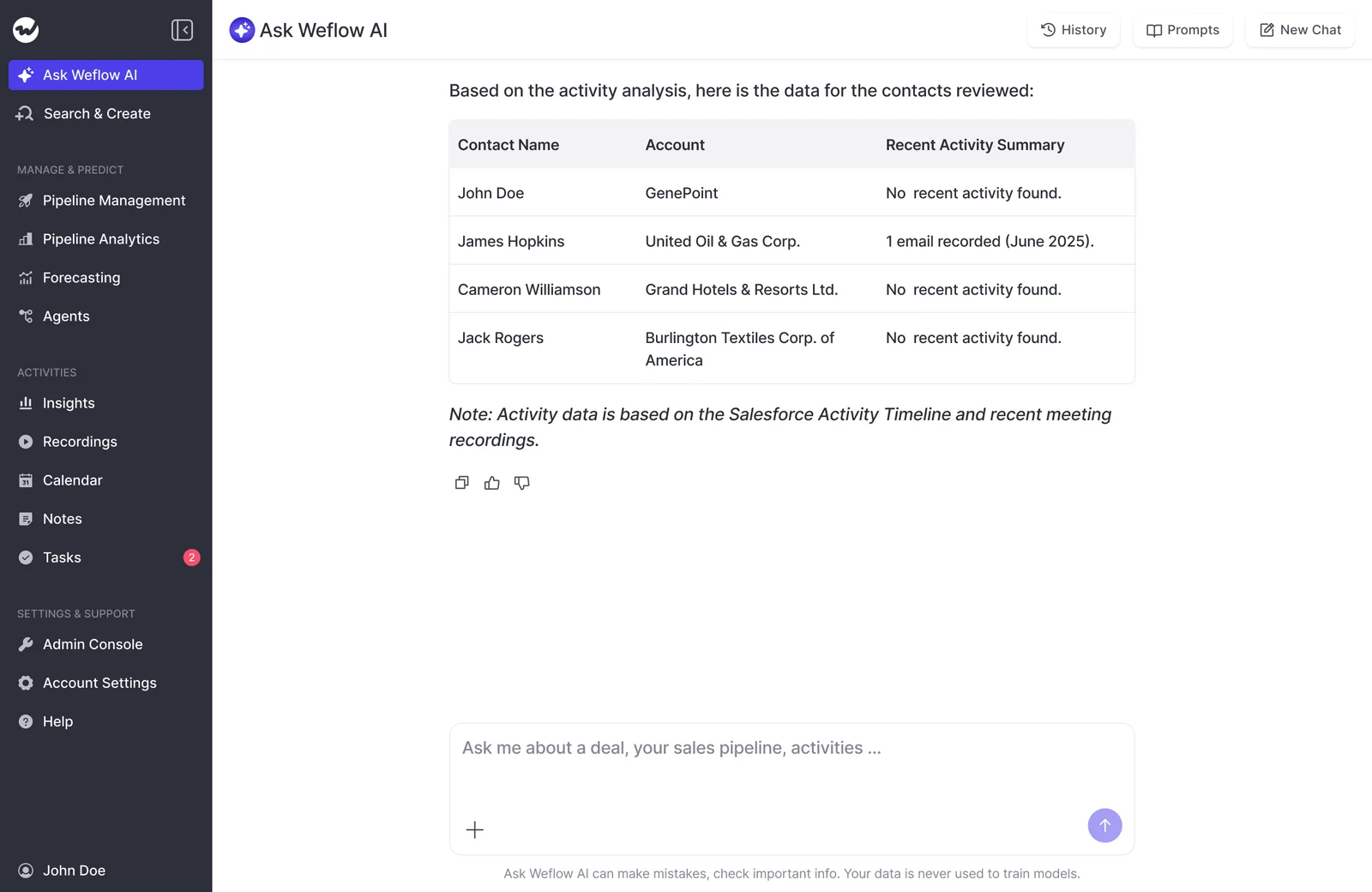
Next, build your people map: who was involved, how recently and on which deals.
List every person at [account name] that [old rep name] emailed or met with. For each one, give their title if it's on the record, the last time they were on an email thread or in a meeting, which opportunity they were involved in, and how often they were in contact.- Scope: The account.
- Run it from: The Weflow app or the Chrome extension.
- You get back: A table of contacts with their last activity and a short summary of each relationship.
- Check it by: Opening the contacts and threads the answer cites.
This list shows you who'll notice a new name on their emails, and those are the people to reach out to first.
Prompts that surface what the old rep promised and risked
Commitments, open loops, competitors and objections rarely make it into a CRM field, but the customer remembers every one of them. So you'll want to read them from what was actually said.
Pull out every commitment made to the customer
Start with what you now owe the customer.
List every commitment [old rep name] or anyone on our side made to [account name]: dates, discounts, pricing, features, introductions and follow-ups. For each one, give the date it was made, the email or call it came from, and whether later emails or meetings show it was delivered.- Scope: The account.
- Run it from: The Chrome extension on the Salesforce account page.
- You get back: A list of commitments, each with its source and its status as far as the record shows.
- Check it by: Opening the source for every commitment marked open.
Find the open loops the customer is waiting on
Next, find out what the customer is still waiting to hear back on.
What is [account name] still waiting to hear back from us on? Find questions they asked in emails or calls that nobody answered, follow-ups we promised and didn't send, and threads where the customer wrote last.- Scope: The account.
- Run it from: The Weflow app or the Chrome extension.
- You get back: A list of unanswered questions and pending follow-ups, with who's waiting and since when.
- Check it by: Opening the last message in each thread.
See which competitors came up in the last six months
This prompt shows you who else is in the deal.
Which competitors came up with [account name] in the last six months, and what happened each time? Include who raised it, what they said, and how [old rep name] responded.- Scope: The account, or a single deal if the competition is specific to one opportunity.
- Run it from: The Chrome extension on the Salesforce record.
- You get back: Each competitor mentioned, when, by whom, and the outcome of that conversation.
- Check it by: Opening the transcript or email where each competitor first appears.
Surface the objections and walk-away conditions the customer raised
Before a renewal or close, use this prompt to find anything that could cost you the account.
What objections, constraints and concerns has [account name] raised? Include pricing pushback, technical or security blockers, internal politics, and anything they said would make them leave or not renew. Quote the line, and give the date and source.- Scope: The account.
- Run it from: The Weflow app or the Chrome extension.
- You get back: A list of objections and walk-away conditions with quoted lines and sources.
- Check it by: Reading each quoted line in its original email or transcript.
Spot the contacts and threads that went quiet
This one finds relationships that cooled off before you arrived.
Which contacts at [account name] used to be active in emails or meetings and have gone quiet in the last [90] days? For each one, tell me when they were last in contact and what the last conversation was about.- Scope: The account.
- Run it from: The Chrome extension on the Salesforce account page.
- You get back: Contacts who went silent, their last contact date and the topic of that last conversation.
- Check it by: Opening the last thread with each contact.
Adjust the window to fit your sales cycle, since thirty days of silence means something on a short cycle and very little on a twelve-month one.
Prep your first call with the inherited customer
Your goal for the first call is simple: the customer shouldn't feel like they're starting over. Prepare meeting builds the brief straight from the calendar entry, and two follow-up prompts in the same thread make sure you don't re-ask anything.
Build the first-call brief with Prepare meeting
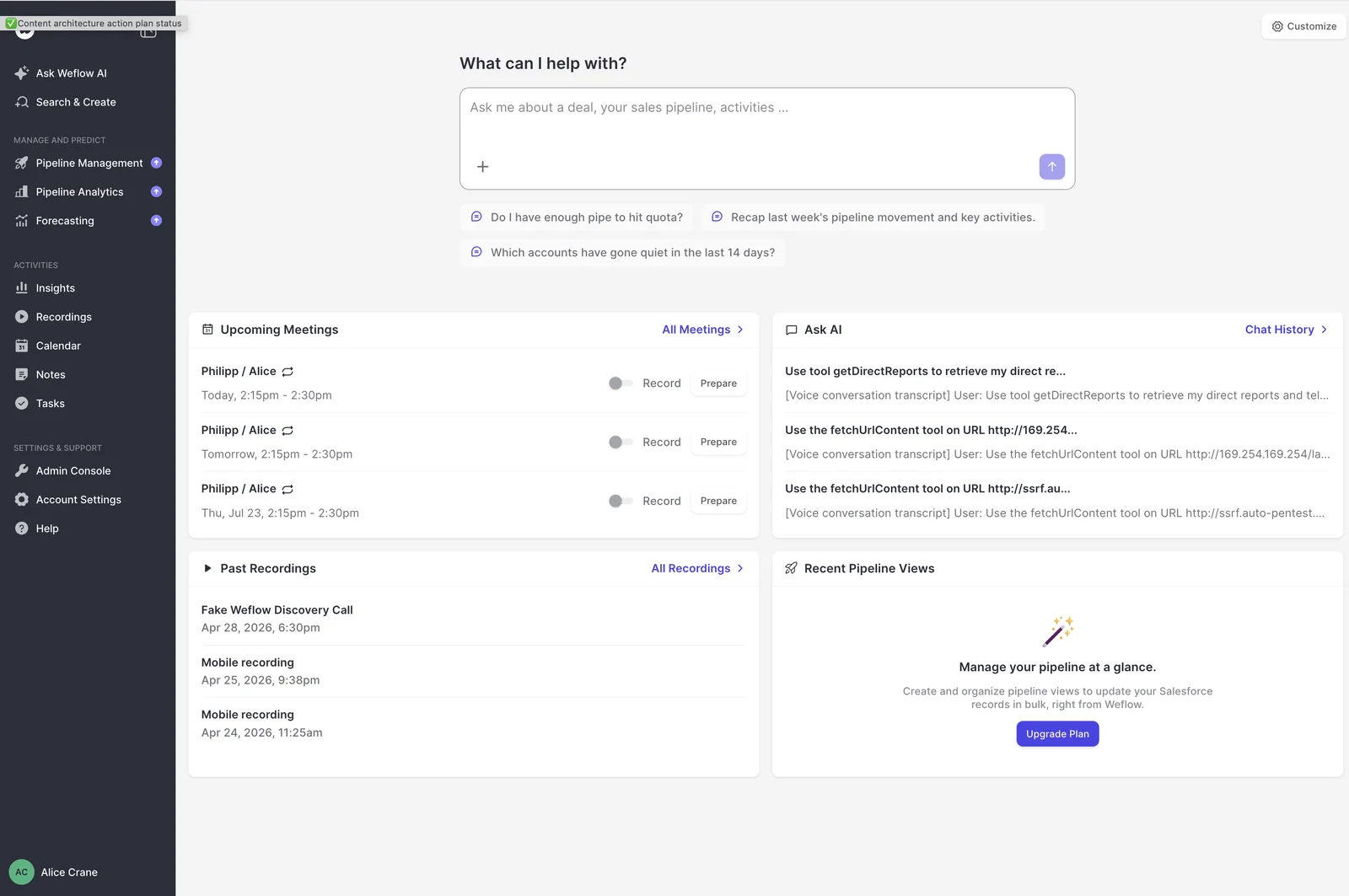
Click Prepare meeting on any meeting in the Weflow calendar, and Ask Weflow AI gets that meeting as context. There's no need to describe the meeting or gather anything, since the calendar entry does it for you.
- Open the Weflow home screen and find the meeting under Upcoming Meetings.
- Click Prepare on the meeting with the inherited customer.
- The chat opens with the meeting already attached as context.
- Read the brief, then keep asking in the same thread.
- Scope: The meeting.
- Run it from: The Weflow calendar.
- You get back: A brief drawn from prior emails, meetings, recordings and Salesforce.
- Check it by: Opening the sources behind anything you plan to mention.
Ask what the customer already answered so you don't re-ask
In the same Prepare meeting thread, run this follow-up to get a list of questions you shouldn't ask again.
Which questions has [account name] already answered for us? List the discovery and qualification questions they've already covered, with their answer and the email or call it came from, so I don't ask them again on this call.- Scope: The meeting, in the Prepare meeting thread.
- Run it from: The Weflow app.
- You get back: Questions already answered, each with the customer's answer and its source.
- Check it by: Opening the source for any answer you'll reference on the call.
Draft an opener that picks up where the old rep left off
This last follow-up gives you the first two minutes of the call.
Draft a short opening for this call, two or three sentences. Acknowledge that I'm taking over from [old rep name], reference the last real conversation they had with us, and mention any open commitment I'm picking up. Keep it plain, with no sales language.- Scope: The meeting, in the Prepare meeting thread.
- Run it from: The Weflow app.
- You get back: A two-to-three sentence opener that names the handover and picks up the last thread.
- Check it by: Opening the source behind every reference before you say it live.
Just make sure to rewrite it in your own words, since the value is in the references, not the phrasing.
Adapt these prompts to your book and your deals
A few tweaks will get you better answers:
- Swap the placeholders for real names. "[old rep name]" matters, because it keeps the answer on their history rather than everyone's.
- Run book-level prompts, like the triage ranking, on a filtered deal board. You can combine up to 10 pipeline views in one chat if your inherited deals sit across several.
- Match every time window to your sales cycle. Six months of competitor history is right for a mid-length cycle and too short for a long enterprise one.
- Keep asking in the same thread instead of starting over. Follow-ups like "which of these is most urgent?" use the context you've already built.
- Narrow a prompt to one opportunity when an account carries several deals of very different value.
What the captured history can't tell you about an account
No prompt can recover what was never captured. For those gaps, the old rep or your manager is still your best source, so ask before their last day.
Knowing where the record stops matters just as much as knowing what's in it.
"It's worse to have basically incomplete, inconsistent, or inaccurate data than to have no data at all because then you have this illusion of like, oh, I have data and I can trust the data."
— Philipp Stelzer, CPO & Co-founder, Weflow
The gaps no Ask Weflow AI prompt can fill
| What's missing | Why it isn't captured | Who to ask instead |
|---|---|---|
| Personal notes | They never left the old rep's notebook or notes app | The old rep |
| Texts | Weflow doesn't capture SMS or text messages | The old rep |
| Calls from the rep's own mobile number | A carrier-line call runs through no dialer, desktop app or mobile app Weflow connects to | The old rep |
| Deal Slack channels | The Slack integration is outbound only, so Weflow posts to Slack but doesn't read channels | The old rep, or whoever else was in the channel |
| People added through a forwarded invite | They never appeared on the rep's calendar event or an email thread, so no contact was created | The old rep, or the meeting recording if there is one |
| A mailbox suspended or deleted before a backfill | A suspended mailbox can't be read | Your manager |
Ask the old rep these questions before their last day
Focus the exit conversation on what the record can't hold, since you can read the rest yourself.
- Which of these accounts has context that lives only in your notes or your head?
- Who do you text or call from your own phone, and what was agreed that way?
- Which deals have a Slack channel with the customer, and what's been decided there?
- Who's involved in these deals but has never been on an email thread with you?
- What did you promise on a call or in passing that never made it into an email?
- Which relationships are personal enough that they need a warm introduction from you before you go?
Finally, check with your admin that the old rep's mailbox stays active until any backfill is done.
Recover the old rep's emails from before capture started
You can often still get them back. Weflow can backfill a former employee's email history into Salesforce under certain conditions, but the window closes once the mailbox is suspended.
Capture pairs one mailbox with one Salesforce license, so both need to exist while the sync runs. And as long as the old rep stays enrolled during their notice period, live capture keeps running on their mailbox in the background.
- The old rep's mailbox must still be active.
- Your admin reactivates their Salesforce user with a license for the duration of the sync.
- Your admin requests the backfill, and our team runs it. We keep it hands-on because a careless configuration can create duplicates or eat into your Salesforce API allowance.
- It takes one to three days, depending on volume, and is scoped case by case up to two to three years back.
- Afterwards, the user can be deactivated again.
Historic sync is a separately priced add-on, because it runs as its own scoped service on your Salesforce API allowance.
If the old rep's history is missing, let your manager or admin know today. The backfill is only possible while the mailbox is still active.
Want to see Ask Weflow AI and Prepare meeting at work before your first call? Walk through the product yourself, no call required.
FAQ: Taking over accounts with Ask Weflow AI
Can I see the old rep's call recordings, including migrated ones?
Yes, but you may need to look in a different place. When Weflow migrates call history from another recorder, recordings of people who've left are reassigned to a named user, such as their line manager, so start there.
Does the old rep's forecast history transfer to me?
No. In Weflow forecasting, targets and past submissions belong to the person, not the team, so they stay with the old rep, and you'll submit fresh on the inherited deals.
Will new emails with inherited contacts log to my opportunities?
Yes. Weflow places each new email based on your Salesforce data at that moment, including contact roles and open opportunities.
Do I need to log anything myself going forward?
No. Weflow Activity and Contact Capture runs on a tenant-level Microsoft or Google connection, so there's nothing you need to do. The only exception is calls you place from your own mobile number.
Does using Ask Weflow AI for handovers cost extra?
No. Ask AI Pro is included every Weflow plan, and since it's seat-based with no metering, you can run these prompts as often as you like. The only separately priced piece is the historic email backfill.