How to Review Account Activity in Weflow When There Is No Open Opportunity: Where Post-Sale Emails and Meetings Land
Learn where Weflow logs post-sale emails and meetings in Salesforce with no open opportunity.


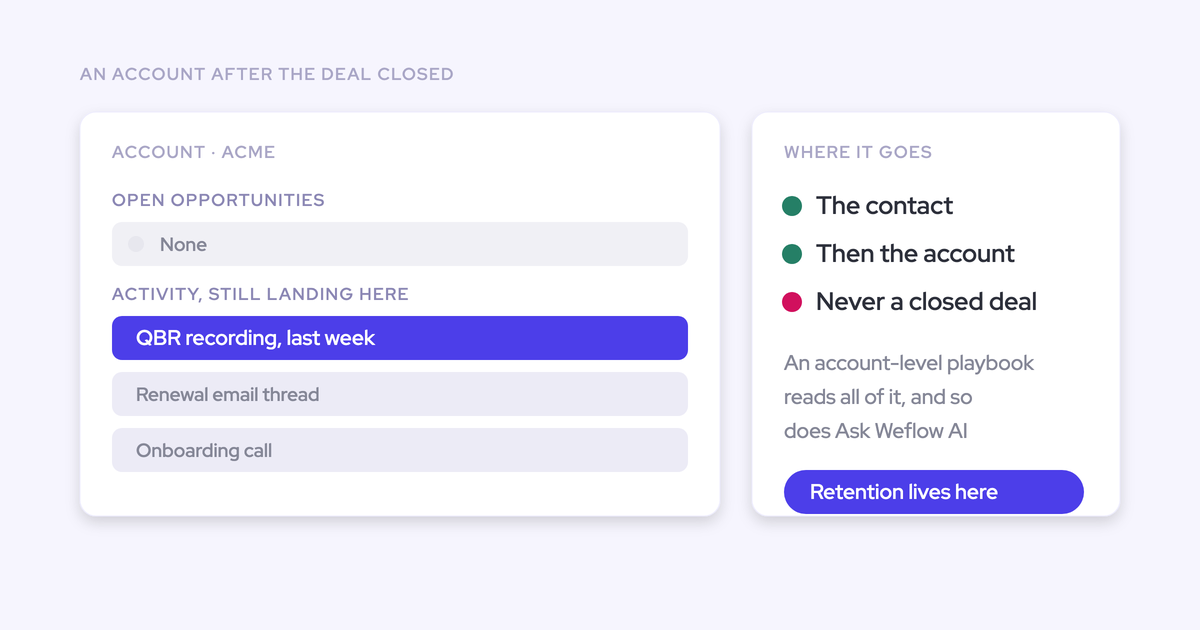

When your customer has no open opportunity, Weflow logs matched emails and meetings to the Salesforce account. To review them, open the customer’s Account page in Salesforce and use the Weflow Activity Timeline. An empty opportunity view doesn’t mean the communication wasn’t captured.
No open opportunity is normal during onboarding, ongoing account management, and escalations. You don’t need to create a deal to give that work a home. This guide shows you where to find the communication, read the meeting context, and investigate anything missing.
Weflow is the Revenue AI Orchestration platform for sales, customer success, and RevOps teams. Weflow Activity & Contact Capture writes your emails and meetings into Salesforce. The account-review workflow below uses our Salesforce-embedded experience.
Where does Weflow log activity without an open opportunity?
Weflow relates matched activity to the Salesforce account when no open opportunity exists. We never log activity to a closed opportunity.
Matching starts with the email address and the Salesforce relationships around it. An unambiguous open opportunity takes priority over the account. If several open opportunities leave the destination unclear, Weflow falls back to the account rather than guessing.
| Item to review | Salesforce record type | Relationship scope | Where you review it |
|---|---|---|---|
| Task or EmailMessage, depending on your admin’s configuration | Matched person and related account or opportunity | Weflow Activity Timeline on the Salesforce Account page | |
| Calendar meeting | Event | One account or opportunity destination | Weflow Activity Timeline and the Salesforce Event record |
| Meeting summary and transcript | Weflow recording object | Can relate to several Salesforce records | Recording summaries in the Weflow Activity Timeline; summary and transcript on the recording record |
| Recording playback | Associated with the Weflow recording object; Weflow stores the media outside Salesforce | Follows the recording’s relationships | Weflow’s recording view |
The calendar Event and the recording are separate records. Salesforce gives the Event one account-or-opportunity relationship through its WhatId. The Weflow recording object can relate to several records, so finding the recording doesn’t establish where the meeting activity sits.
What do you need to review Weflow account activity?
You need access to the customer’s Salesforce account and the Weflow Activity Timeline on its record page. Your admin handles the package and page configuration; you handle the customer review.
For basic account review:
- Your mailbox must belong to an active Weflow capture configuration.
- The communication must match an existing Salesforce record and pass your organization’s capture rules.
- You need permission to read the account and its activity records.
Admin dependencies:
- The Advanced Analytics package supplies the Weflow Activity Timeline component.
- Your admin places the component on the Salesforce Account page.
- Weflow Analytics must be available in Salesforce for the reporting step.
For recording review: The meeting needs an existing Weflow recording, and you need access to its recording record. Capturing the calendar Event doesn’t record the conversation.
For mapping corrections: Use our Outlook add-in or Chrome extension, with manual overrides enabled in your organization’s configuration. Neither extension is necessary for background capture.
How to review Weflow account activity in Salesforce
Start with the customer’s account, find a known exchange, then read the meeting context and activity pattern. That gives you evidence you can use in a customer review.
For example, you’re preparing a QBR after an onboarding review and a follow-up email exchange. The customer’s original opportunity is closed, and no renewal opportunity exists yet.
1. Open the customer’s account in Salesforce
Find and open the customer’s Account record in Salesforce, then locate the Weflow Activity Timeline.
- Search for the customer account.
- Match the account’s identity and associated contacts to the customer you’re reviewing.
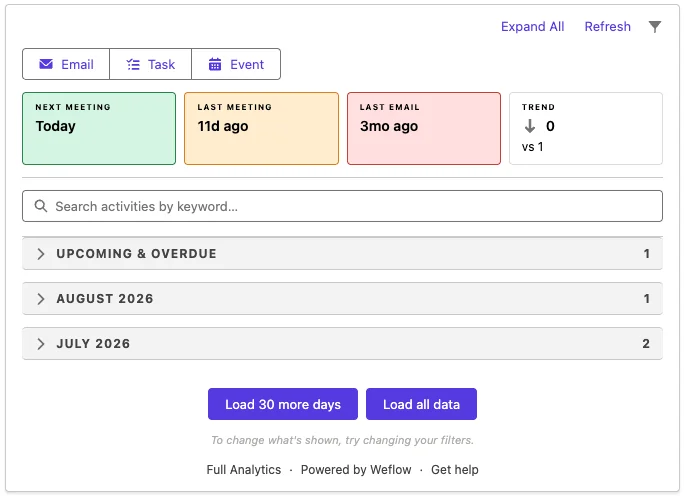
- Locate the component showing Next Meeting, Last Meeting, and Last Email.
In the QBR example, open the account associated with your onboarding contact, not the closed-won opportunity. If the customer has several subsidiaries, choose the account your contact belongs to.
You’re in the right place when: You can see the customer’s account details and the Weflow Activity Timeline on the same Salesforce record.
2. Review the account’s email threads and meetings
Find the specific email exchange and meeting you remember before interpreting the account’s activity totals.
- Use the Email and Event filters to focus the timeline.
- Use the keyword search to find the relevant subject or meeting title.
- Expand the relevant month.
- Read the grouped email conversation and inspect the matching meeting.
For your QBR, find the onboarding review and its follow-up thread. Read the customer’s reply as well as your outbound message. Sending a follow-up and receiving agreement are different evidence.
Weflow groups emails by conversation, so you can read the exchange without treating every reply as a separate customer interaction.
Before moving on, establish:
- The subject, participants, and date match the communication you remember.
- The customer’s latest response supports your understanding of the next step.
- The meeting appears on the intended account.
3. Review the meeting’s recording and summary
Read the recording summary for the meeting’s substance, separately from the Event that shows the meeting activity.
- Find the meeting’s recording summary in the Weflow Activity Timeline.
- Match its title and date to the Event you just reviewed.
- Open the related Weflow recording record in Salesforce to read the summary and full transcript.
- Use recording playback in Weflow when you need to revisit the conversation itself.
For the onboarding review, look for the customer’s unresolved issues and agreed next steps. Bring those into the QBR rather than relying on the fact that a meeting appears in the timeline.
You’re done when: You can explain what the customer raised, what your team committed to, and what still needs attention.
If the Event exists but the recording doesn’t, the meeting activity still reached Salesforce. Recording requires Weflow Conversation Intelligence and a successful recording session. If the recording exists but you can’t read it, your Salesforce admin owns the access issue.
4. Check account activity in Weflow Analytics
Use Weflow Analytics inside Salesforce to compare the account’s broader activity pattern with the exchanges you just read.
- Open Weflow Analytics in Salesforce.
- Select the Accounts tab and locate the customer account.
- Use the period relevant to your review and inspect the account’s activity.
- Compare that pattern with the recent emails and meetings on the account.
Weflow Analytics reports activity by account and surfaces accounts with no activity in the last 90 days. That gives you a way to find quiet accounts without opening each record.
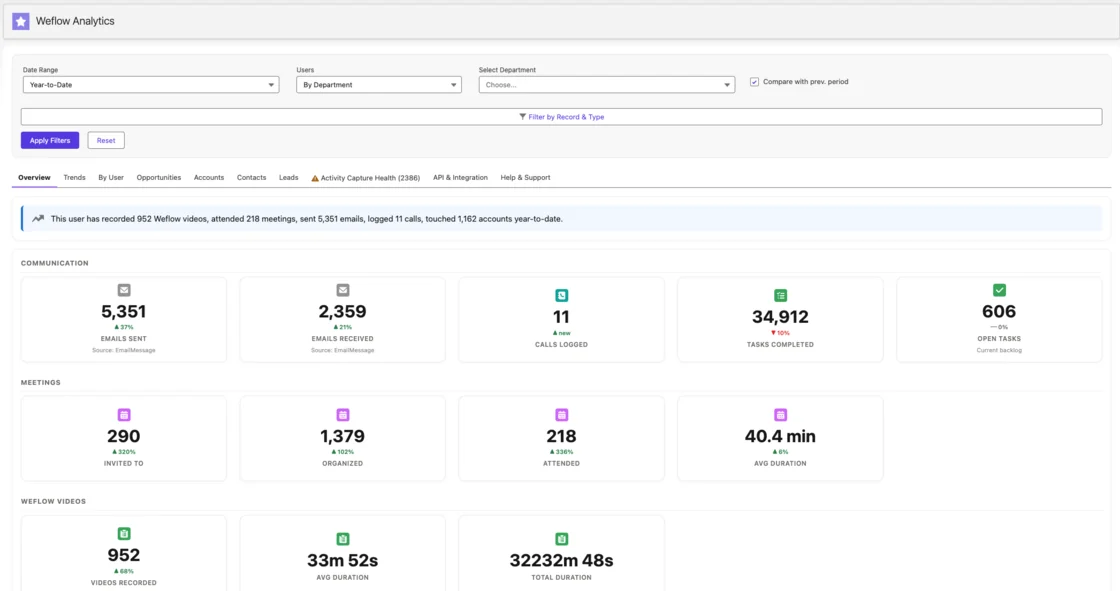
In the QBR example, recent onboarding meetings may explain a busy activity period. Their summaries tell you whether those meetings resolved issues or repeatedly discussed the same blocker.
Your account review is complete when you have:
- The latest customer exchange and meeting.
- The relevant conversation context, where a recording exists.
- An account-level view of recent communication.
- A next action grounded in what the customer said.
Activity volume isn’t customer health. An escalation can generate plenty of communication.
What should you check when account activity looks missing?
First establish whether Salesforce holds the activity. Then separate a visibility problem from a mapping problem or a capture gap. Don’t create a replacement activity before finding the original.
Find out whether Salesforce holds the missing activity
Use a known subject, date, and participant address to trace the email or meeting through Salesforce. Those details give your admin something specific to investigate.
| Symptom | Check | Interpretation | Next action | Owner |
|---|---|---|---|---|
| The timeline looks empty | Activity filters and loaded dates | The view may hide the relevant record | Include the relevant activity type and load the earlier period | You |
| The activity isn’t on the expected account | Matched contact, account, and open opportunity | Salesforce may hold it elsewhere | Inspect the underlying record’s relationship | You; admin for inaccessible records |
| An email is absent from an activity report | Whether capture uses Task or EmailMessage | A Task-and-Event report doesn’t include EmailMessage | Use the appropriate report or Weflow’s account view | You and admin |
| Handover activity looks missing | Whether the view excludes inactive users | A former account owner’s activity may remain outside the current view | Include inactive users in the activity review | You or admin |
| No matching activity record exists | Mailbox enrollment, Salesforce address match, and exclusions | Capture may not cover the mailbox or communication | Review capture configuration and matching records | Admin |
| Mapping repeatedly selects the wrong account | Duplicate contacts, duplicate accounts, and account domains | CRM relationships give capture conflicting signals | Resolve the underlying record relationships | Admin or RevOps |
| The recording has a summary, but the Event doesn’t | Integration-user access and update errors | The Salesforce update may have failed | Resolve the integration permission issue | Admin |
Weflow doesn’t log unmatched emails or meetings. A message in your mailbox alone doesn’t establish that Salesforce has a record Weflow can attach it to.
Our Activity Capture Health view inside Salesforce surfaces matching problems, including missing email addresses and duplicate records. Your admin can use it to investigate recurring gaps rather than correcting each activity separately.
For an admin handoff, provide the account, subject or meeting title, participant address, and date. Include any activity or recording record you found elsewhere.
Correct the activity’s account mapping from your mailbox
Use the Outlook add-in or Chrome extension to correct activity mapping. Editing a recording’s relationships inside Weflow changes the recording, not the Salesforce Event.
| Correction surface | What changes |
|---|---|
| Email mapping in the Outlook add-in or Chrome extension | Weflow remembers your selected destination for later replies in that thread |
| Meeting mapping in the mailbox or calendar extension | The Salesforce Event and its Weflow recording relationship move together |
| Recording relationships inside Weflow | Only the recording’s relationships change; the Event stays where it is |
For example, your onboarding follow-up belongs on the account, but the mapping points to an unrelated expansion opportunity. Correct that destination from the communication itself.
- Open the email thread or calendar meeting in your mail client.
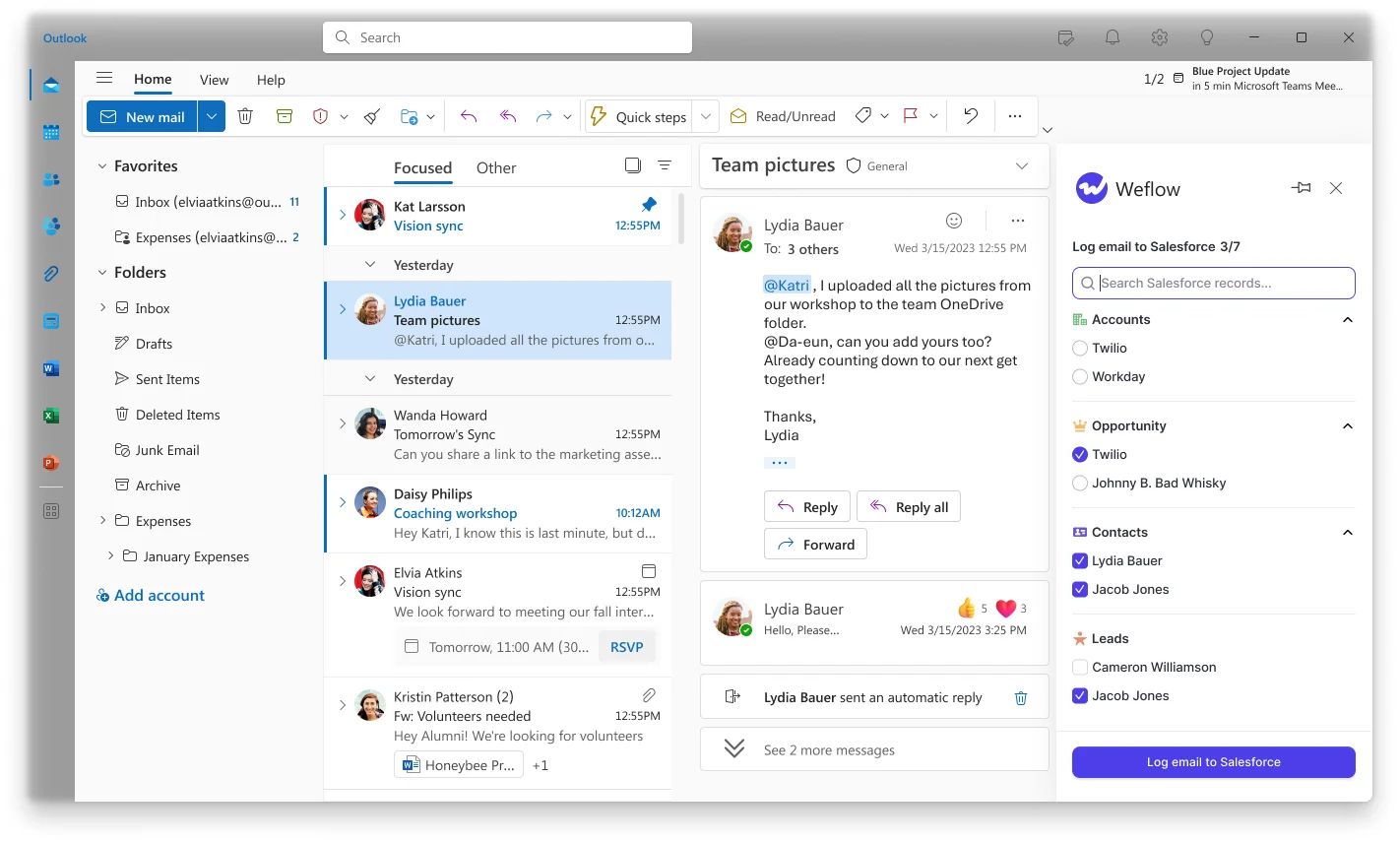
- Open the Weflow side panel and inspect the proposed Salesforce records.
- Select the intended account instead of the unrelated opportunity, then apply the mapping.
- For a meeting, reopen the Salesforce Event and its recording to inspect both relationships.
- For an email thread, inspect the next reply’s destination. Weflow carries your choice forward within that thread.
Weflow’s Outlook add-in shows the matched Salesforce records, so you can correct a destination without searching through a separate activity report.
A new email thread starts a new mapping decision. If the same wrong destination keeps returning, RevOps needs to address the contact and account relationships behind it.
Weflow account activity FAQ
Account review depends on the Salesforce destination, the review surface, and whether you need activity history or recorded conversation content.
Can I review account activity in Weflow’s web app?
Weflow’s web application doesn’t have an equivalent account-level activity timeline. Use the Weflow Activity Timeline on the Salesforce Account page and Weflow Analytics inside Salesforce for account-level review.
What if the account has several open opportunities?
Weflow uses Salesforce relationships, including opportunity contact roles, to choose an open opportunity. When those relationships don’t resolve the ambiguity, activity falls back to the account. We don’t select an opportunity simply because its close date is nearest.
If you know the communication belongs to a particular deal or the account, make that selection in the Outlook add-in or Chrome extension.
How do I review activity across parent and child accounts?
Review the account records where the customer’s contacts and communication sit, including relevant child accounts. A quiet parent record doesn’t establish that the whole customer relationship has gone quiet.
For hierarchy-wide reporting, RevOps needs to define the parent-and-child scope in Salesforce. Keep that reporting scope separate from the activity attached directly to one account.
Can Weflow backfill older account emails and meetings?
Yes. Weflow supports historical email and meeting backfill into Salesforce for up to 24 months as an add-on. Your admin manages the sync-back for the relevant mailboxes.
Backfill restores activity history, not conversations nobody recorded.
Do I need Weflow Conversation Intelligence to record meetings?
Yes. Meeting recording belongs to Weflow Conversation Intelligence. Weflow Activity & Contact Capture logs the calendar Event without recording the conversation.
Viewing existing recordings is separate from recording them. Weflow includes free view-only licenses, while Salesforce permissions govern access to recording records inside Salesforce.
Does Weflow capture activity when I’m not logged in?
Yes. Once your admin enrolls your mailbox, Weflow captures eligible emails and meetings server-side from Microsoft 365 or Google Workspace. Capture doesn’t depend on your device, an open browser extension, or a Weflow login.
Our meeting notetaker has a different activation requirement: a user with Weflow Conversation Intelligence must sign in once before the notetaker starts joining their meetings.
Before your next customer review, start with one email and one meeting you know happened. Find their Salesforce destinations, then use the account history to prepare your next conversation.