How to Find Duplicate Accounts, Duplicate Contacts, and Orphaned Activity in Salesforce
Learn how to find duplicate accounts, contacts, and orphaned activity in Salesforce.




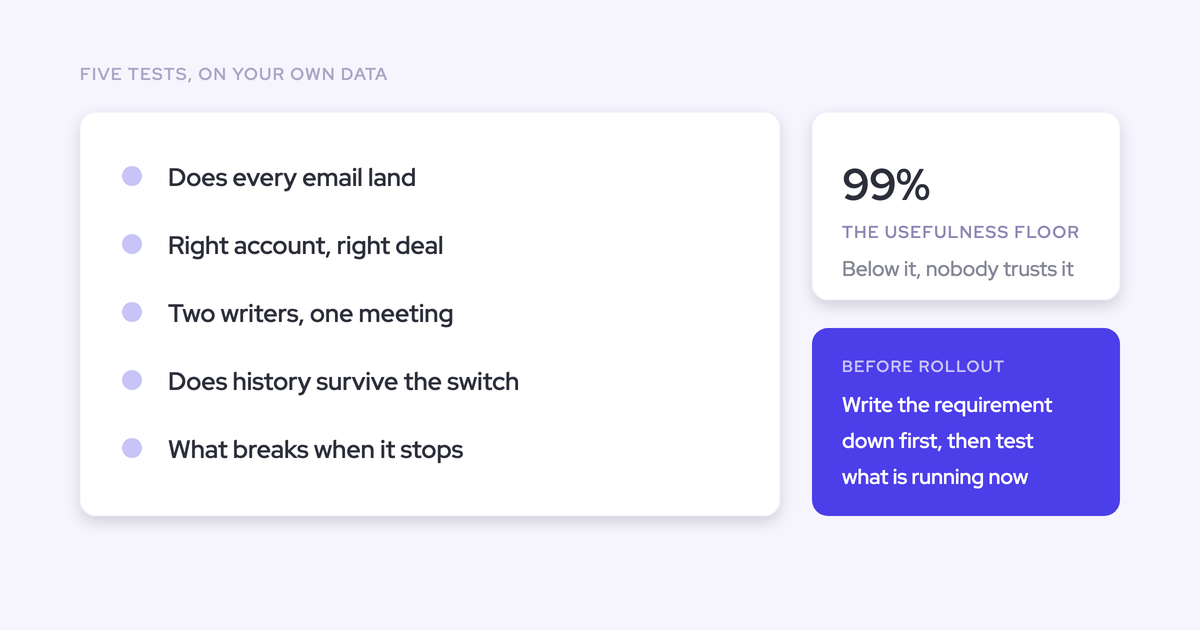
You already know the data is bad. What you don't have is a way to prove which part of it is bad, record by record, fast enough to settle an argument.
That argument is usually the same one. A rep says the capture tool doesn't work. You suspect the fault was in the CRM long before the tool arrived, and you can't demonstrate it in the ten minutes you have before the next meeting.
So this is the audit that draws the line. Native Salesforce reports, duplicate rules and cross filters first, because they work with what you already have and cost nothing. Then how a standing deal hygiene view stops the audit from becoming a job that never finishes.
Why Salesforce default views hide duplicates and dead records
Salesforce's default surfaces are built to show what exists, not what's doubled or missing. That's the whole reason this damage survives for years in an org that's actively managed.
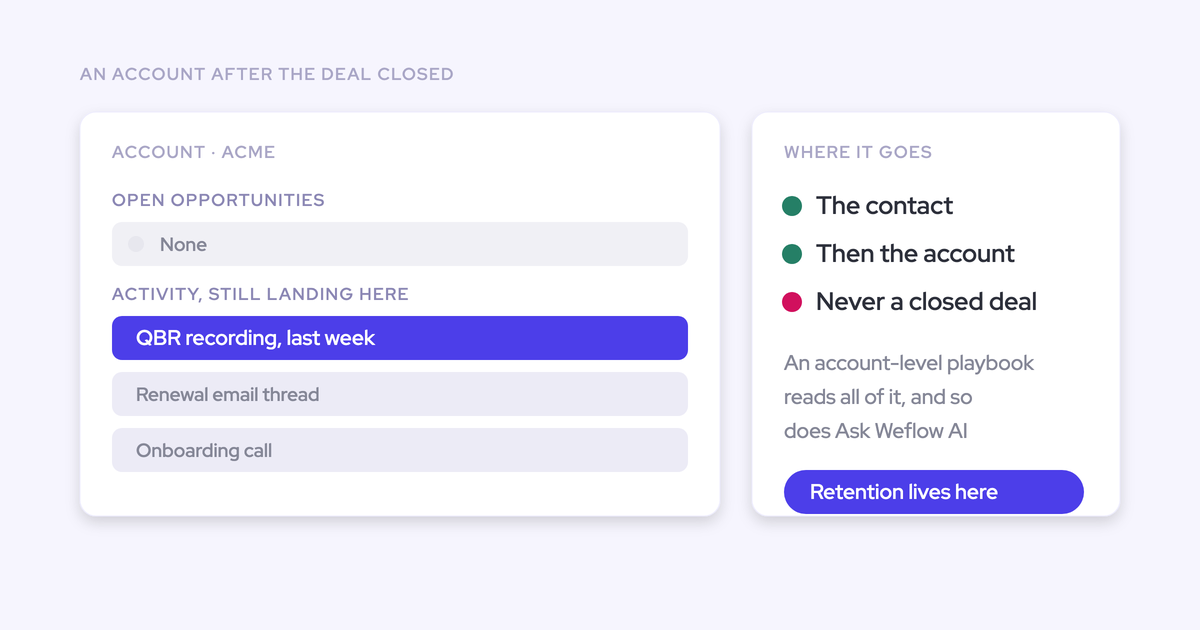
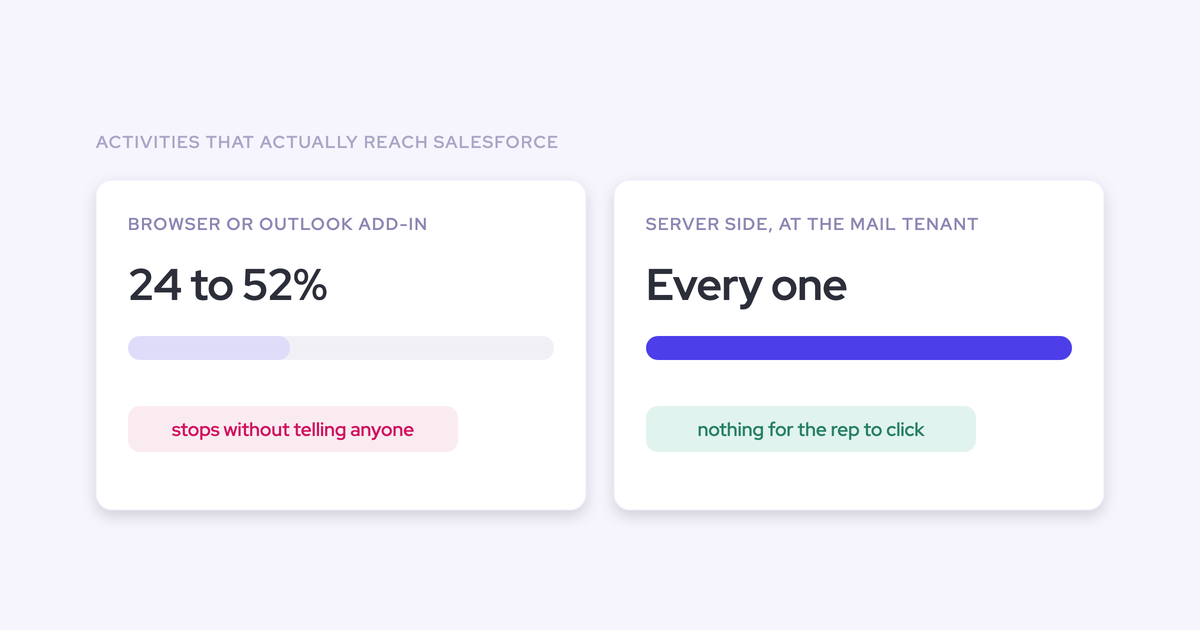
- An activity in Salesforce can relate to an opportunity or an account, not both. When a capture tool can't work out which opportunity an email belongs to, it falls back to the account. There's no error and no warning: the account timeline looks busy while the opportunity reads dormant.
- There is no native "records with no activity" view. You can open a record and see its activity. You cannot ask the org which accounts have none without building the report by inversion.
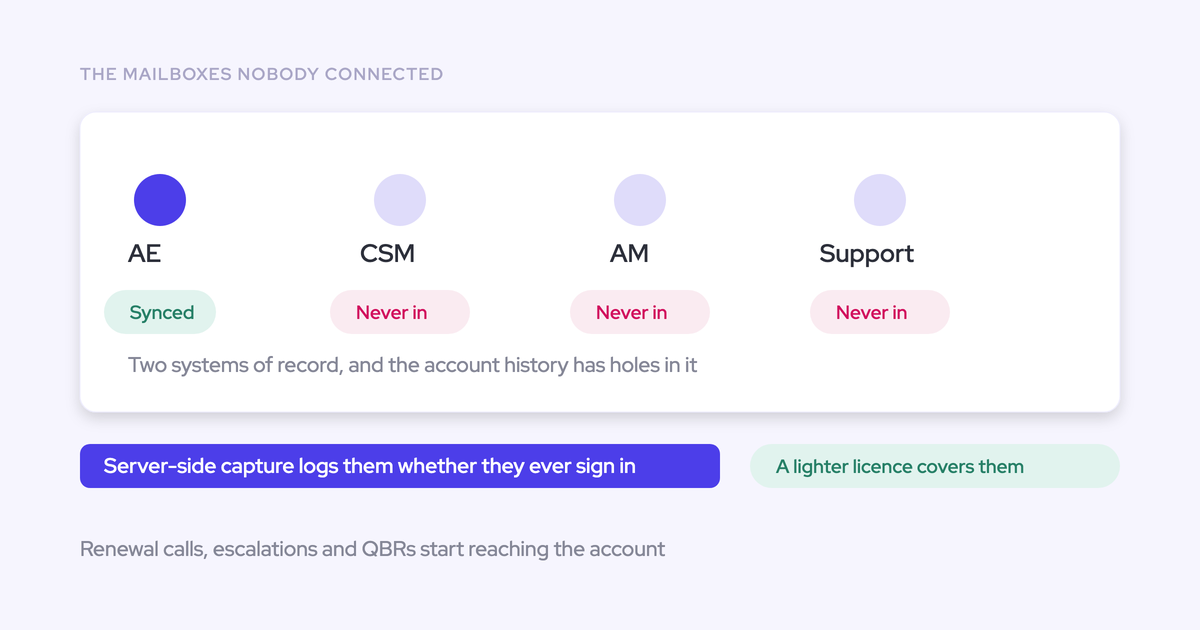
- Default activity views filter to active users. Activity owned by someone who left is still in the database and still invisible, so their accounts read as quiet.
- Duplicate rules fire at save time. They warn or block on new records; they don't go back and scan the ten thousand records already sitting there.
- Two accounts on the same website domain look entirely legitimate in a list view. Different names, different IDs, one domain, and nothing in the UI connects them.
None of that is negligence on your part. It's architecture. Which is why the audit has to be deliberate rather than something you notice.
What you need to run a Salesforce data quality audit
Confirm these before you start, or you'll backtrack halfway through:
- Report builder access, plus the ability to create custom report types if the ones you need aren't already in the org.
- Setup access to Matching Rules, Duplicate Rules and Duplicate Jobs. Duplicate Jobs isn't available in every Salesforce edition, so check the Setup menu before you plan around it.
- Delete permission on the objects you intend to merge.
- A decision on scope: which objects, which time window (90 days is a sensible default for activity), and which teams or regions you're auditing first.
- Somewhere to record what you find. Duplicate record sets or a spreadsheet of record IDs, since the merging happens later and by hand.
- A rough sense of your org's daily API allowance if you plan to export in bulk. It's shared with every other integration you run.
How to find duplicate accounts in Salesforce
There are two native paths to duplicate accounts and they catch different things. Run both. The rule engine finds the near-identical names; the report finds the pairs that are quietly breaking your activity data.
Run duplicate jobs with account matching rules
- Go to Setup, Matching Rules, and look at the Standard Account Matching Rule. It leans on fuzzy account name and billing address elements. Activate it if it isn't already.
- Check Setup, Duplicate Rules, for an active rule on the Account object pointing at that matching rule.
- Open Setup, Duplicate Jobs, and run a job against Account.
- Review the output as Duplicate Record Sets, or report on Duplicate Record Items so you can group by owner and created date.
Here's where it stops. The standard rule needs name and address similarity to score a match. Records created automatically by an enrichment service, a form handler or a routing tool often carry no billing address and a slightly different legal name, so the pair never scores high enough to surface. Those are exactly the duplicates you care about, because nobody typed them and nobody reconciled them.
Report on accounts sharing the same website domain
Grouping accounts by website domain is the check that finds the duplicates breaking your activity-to-opportunity mapping, and the standard account matching rule doesn't look at the website field at all.
- New report, Accounts report type.
- Columns: Account Name, Website, Account Owner, Created Date, Created By, Record Type, Billing Country.
- Filter Website not equal to blank.
- Group rows by Website.
- Scan for any group with more than one account in it. If your Website field is messy with www prefixes and trailing slashes, export and normalize the domain in a sheet before you group.
Now the part that matters. Activity capture tools resolve an inbound email by matching the participant to a contact and the domain to an account. When two accounts hold the same domain, there is no rule that can decide which one the email belongs to.
The activity lands on one of them, or falls back to the account level entirely, and the opportunity you're inspecting shows nothing. That's the fault line. It isn't the capture tool guessing badly, it's the CRM offering two equally valid answers.
One caution before you start merging: same domain does not mean duplicate. Franchises, subsidiaries, regional entities and multi-site customers legitimately share one web domain, and a single contact at the parent can sit across several of them. Treat the report as a review queue, not a merge list.
How to find duplicate contacts and unconverted leads
The same person existing two or three times inflates every count you build on people: contact coverage on an account, buying committee depth, engagement per opportunity. Email address is the identifier that exposes it, and it's the one thing most services do write correctly.
Group contacts by email to surface duplicate people
- New report, Contacts report type.
- Columns: Contact Name, Email, Account Name, Contact Owner, Created Date, Created By, Last Activity.
- Filter Email not equal to blank.
- Group rows by Email.
- Sort by record count, or export and pivot on the email column if your edition makes aggregate filtering awkward.
Keep Created By in the columns. It names the integration user that wrote the record, which tells you which system to go and fix rather than which record to go and merge.
What this misses: the same human on two different addresses. A personal address from a webinar signup, a maiden name, a legacy domain after an acquisition. Those won't group, and you'll need name plus account grouping or a fuzzy matching rule to catch them.
Find leads that overlap with existing contacts
- New report, Leads report type.
- Filter Converted equals False and Email not equal to blank.
- Add Company, Lead Owner, Created Date, Created By and Lead Source as columns.
- Export and cross-reference against the contact export by email address.
- Check Setup, Duplicate Rules, that the standard lead rule compares leads against contacts as well as against other leads.
This split is expensive in a way that doesn't show up as an error. Activity captured against a lead never appears on the account, so the account reads quiet while a live email thread sits on a lead record nobody opens. Every coverage number on that account is wrong in the direction that makes you complacent.
How to find activity owned by deactivated users
Activity owned by a departed rep is still in the database. It's the view that's filtering it out, because the standard activity views scope to active users.
- New report on Activities, or Accounts with Activities if you want the account context.
- Set Show Me to All Activities rather than My Activities or My Team's Activities.
- Filter on the assigned user's Active field equals False where that field is exposed. If it isn't, filter to the named list of deactivated users instead.
- Set the date range wide, twelve to twenty-four months.
- Group by Account Name, and add Assigned To as a column.
What comes back is usually more than people expect after a reorg or a territory change. Reassigning it isn't a click: Salesforce's mass transfer tool doesn't cover tasks and events, so ownership updates run through Data Loader, or you leave ownership alone and fix your reports to include inactive users.
Either way, this is the find that makes territory handover auditable instead of guessed. And it's the one you check before you declare an account dormant, because an account with "no contact in six months" is often just an account whose history belongs to someone who left.
How to find accounts and opportunities with no recent activity
Salesforce has no native no-activity view, so you build this one by inversion. It's the set no pipeline review ever surfaces, because pipeline reviews are built from what exists.
- New report, Accounts report type (repeat afterwards with Opportunities).
- Add a cross filter: Accounts without Activities.
- Add a subfilter to that cross filter on Activity Date greater than LAST 90 DAYS. You now have accounts with no activity inside the window.
- Add your own scope filters so the list is actionable: account type, owner, region, or for opportunities, stage not equal to closed.
- Group by owner and sort by amount if you're running the opportunity version.
The opportunity version of this report is the uncomfortable one. Open deals, real amounts, close dates in the current quarter, and not one logged interaction in ninety days.
Before you take that list to a forecast call, cross-reference it against the two previous finds. An empty record can mean silence, or it can mean the activity is owned by a deactivated user, or that it landed on the account instead of the opportunity, or that it went to the wrong one of two accounts sharing a domain. The three reports answer each other.
How to merge Salesforce duplicates without losing activity history
Finding is reportable. Merging is manual, and in the wrong order it destroys more than it fixes.
- Decide the master record before you open the merge screen. Pick the record carrying the most related data and the ID your downstream systems already reference, not the oldest one out of habit.
- Open the losing record and inventory what hangs off it: opportunities, contacts, cases, child accounts, activities.
- Merge people first, accounts second. Merge the duplicate contacts and resolve the lead overlaps under each account, then merge the accounts. Do it the other way round and you end up with two of the same person sitting under one surviving account.
- Run the merge and choose field values explicitly rather than accepting the master's values by default.
- Re-run the same-domain report to confirm the pair is gone and nothing new appeared behind it.
The mistakes that turn an audit destructive:
- Merging deletes the losing record IDs. Anything external pointing at them, a BI model, a sequencer, a marketing platform, breaks quietly and nobody connects the two events.
- Treating every same-domain pair as a duplicate. Check parent-child and multi-site structures first; some of those pairs are supposed to exist.
- Choosing the master by created date instead of by data. The oldest record is frequently the emptiest one.
- Merging before checking the losing account's opportunities. They survive the merge, but they should be opportunities that belong on the surviving account.
- Doing this once and calling it done. Every report above was true on the day you ran it, and the services that created the duplicates are still running.
How Weflow Activity Capture Health makes the audit continuous
That last pitfall is the real problem with everything above. It's a periodic audit somebody has to remember to run, and it competes with every other thing on an admin's plate, so it gets run once after a merger and then not again for a year.
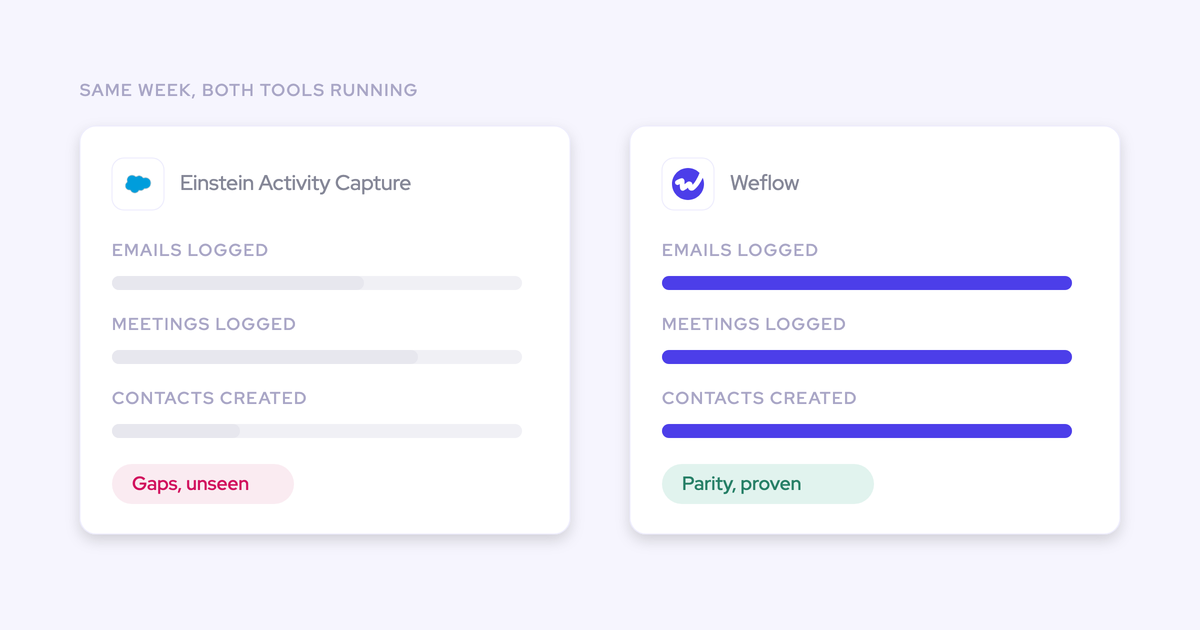
Weflow is the Revenue AI Orchestration platform for sales, customer success, and RevOps teams. Activity Capture Health is the piece that matters here: it turns the audit into a standing view you open inside Salesforce rather than a report you rebuild.
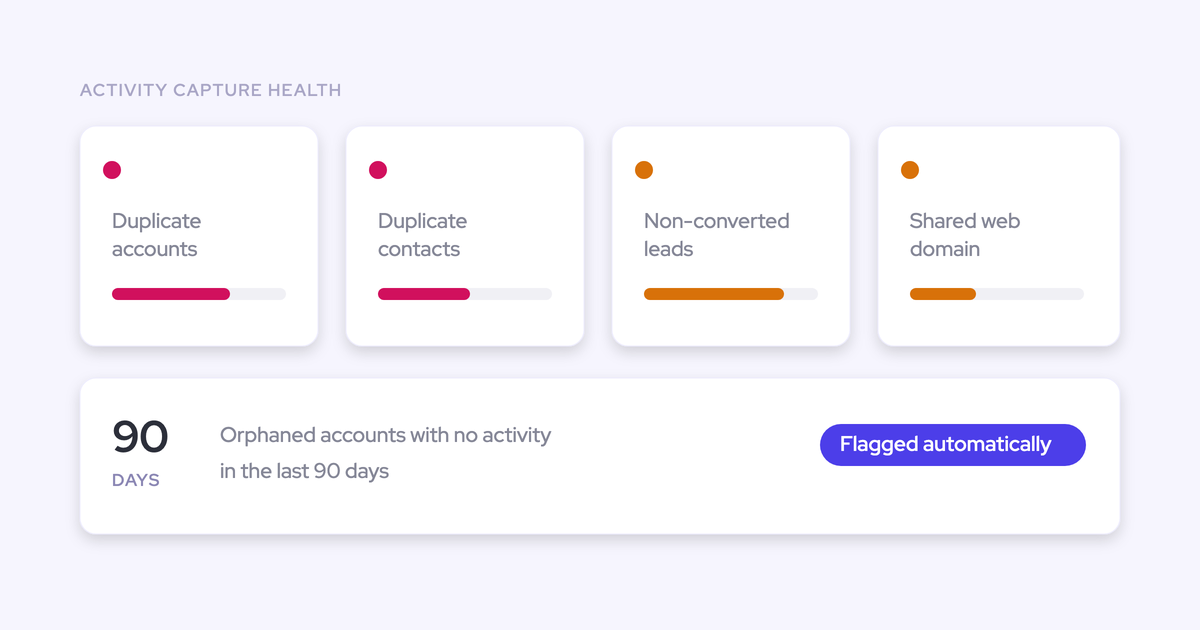
What the Activity Capture Health view flags
Each flag maps back to a manual step from earlier in this article:
| Manual audit step | Standing health check |
| Duplicate jobs plus account matching rules | Duplicate accounts, flagged continuously |
| Accounts grouped by website domain | Accounts sharing the same website domain |
| Contacts grouped by email address | Duplicate contacts |
| Unconverted leads cross-referenced against contacts | Non-converted leads |
| No manual equivalent | Capture settings not yet configured for optimal capture |
That last row is the one admins underrate, and it matters most in the first month of an install. A capture configuration that's quietly wrong produces missing activity, and missing activity gets blamed on reps, on adoption, on the tool, on anything except the setting that caused it. Usually months later.
Orphaned records and inactive users in one standing view
The two hardest finds to keep running by hand are the two that Weflow keeps standing.
- The orphaned-record view inverts the question and shows which accounts, contacts, leads and opportunities have no activity in the last 90 days, without you rebuilding a cross filter each time.
- Weflow's activity views can be filtered to inactive users, which surfaces activity still assigned to people deactivated in Salesforce. That's the set the default view structurally buries.
- Alongside them sit activity trend lines over time, activity broken down by record and by account, and activity counts per user split by emails, meetings and other types.
The per-user split is worth more than a volume number. A rep who sends email and never runs meetings looks identical to a busy rep in a total count, and completely different in a split one.
Why the reports consume no Salesforce API calls
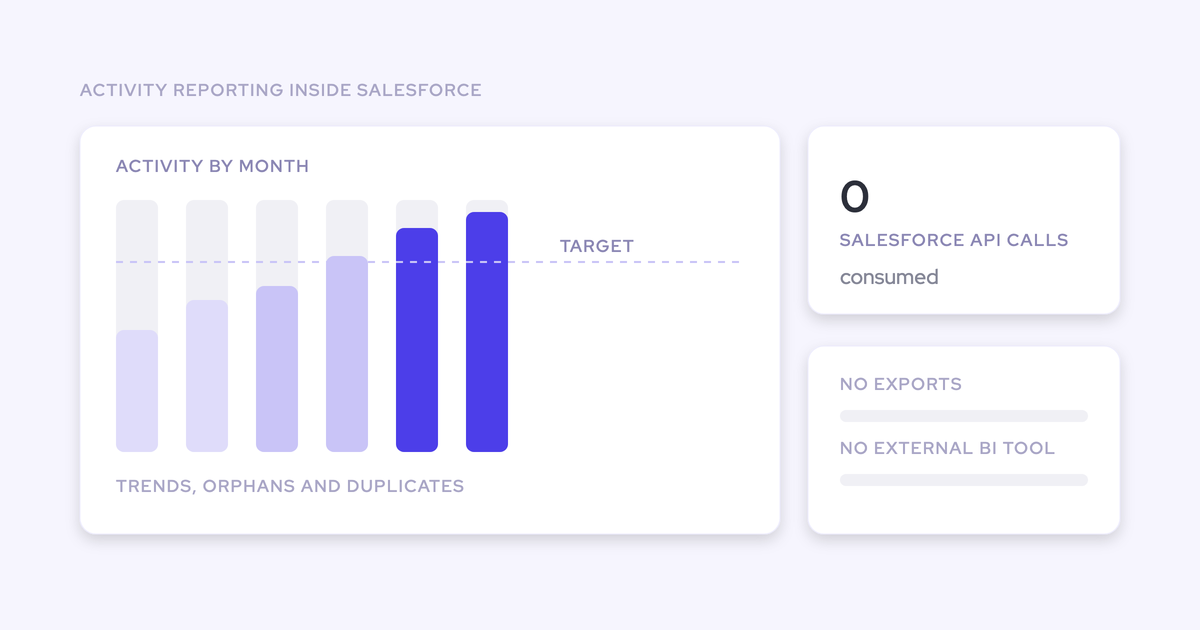
The Weflow Analytics package gives you these activity reports natively inside Salesforce and consumes no Salesforce API calls. No exports, no external BI tool, no share of the daily budget. An admin enables it from the Weflow admin console and it shows up as a Salesforce app.
This is the part that decides whether "continuous" is real. Your org's daily API allowance is shared by every connected system, so reporting built on the API competes with your enrichment tool, your sequencer and your data warehouse job. Teams either ration it or give up and move the data out. Reporting that costs nothing from that budget can just run.
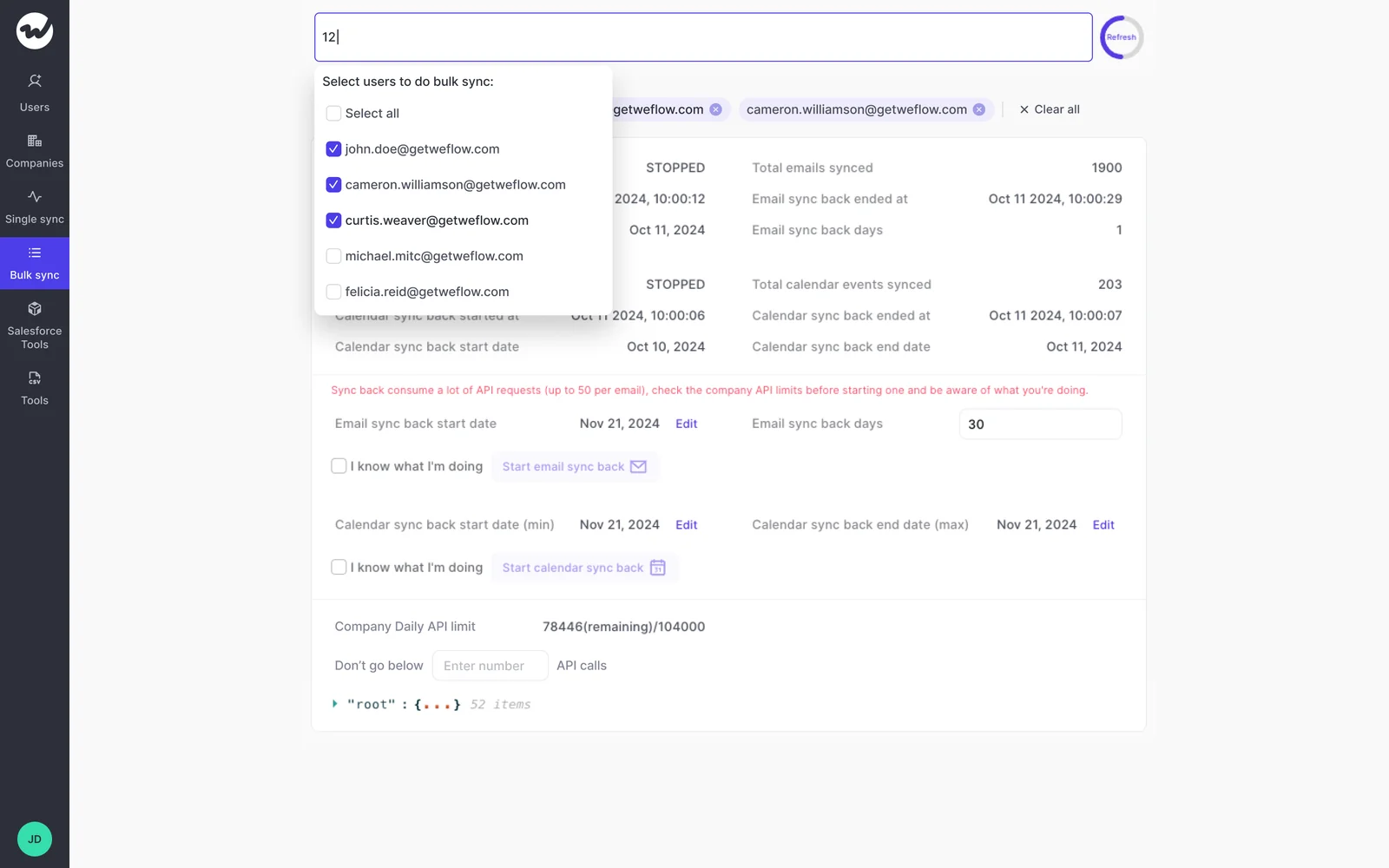
The honest exception is the historical sync-back. Backfilling the previous twelve to twenty-four months of email and meetings takes three to four days and is limited by the API calls you have available, which is why the console shows your daily consumption while it runs.
What stops Weflow from creating new duplicates
Fair question, and the one this persona always asks second. You've watched tools create the mess you're now cleaning up. Here's what the guards actually are:
- Weflow creates Salesforce contacts only on accounts that already exist. It never creates accounts, leads or opportunities, so capture can't spawn orphan records.
- If an email address already exists as a lead, the activity attaches to that lead rather than creating a duplicate contact. Lead conversion stays a manual Salesforce step where it belongs.
- A deduplication layer sits on top of your own Salesforce duplicate rules rather than around them.
- There's a cap on how many contacts a single event may create, so a hundred-person webinar doesn't write ninety-nine contacts into your org overnight.
- Weflow logs an activity only when it can match it to an existing Salesforce record. Unmatched emails and events aren't logged at all.
- Compatibility mode recognizes activity already logged by Outreach, Salesloft, Apollo or Clay and skips it, so the same email doesn't land twice from two tools.
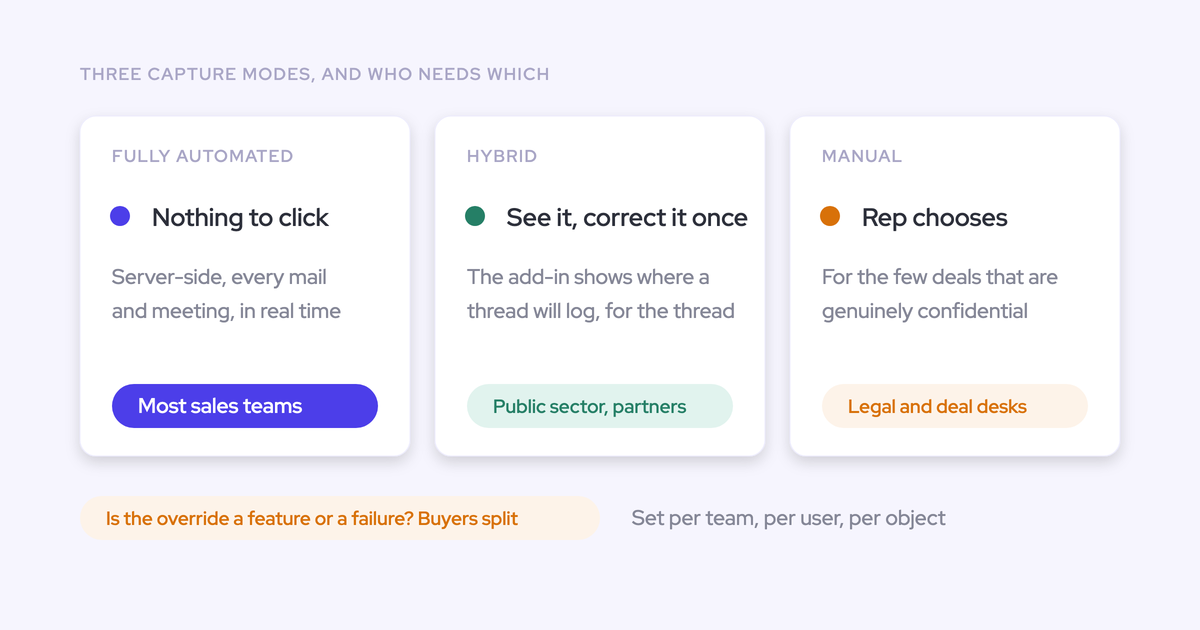
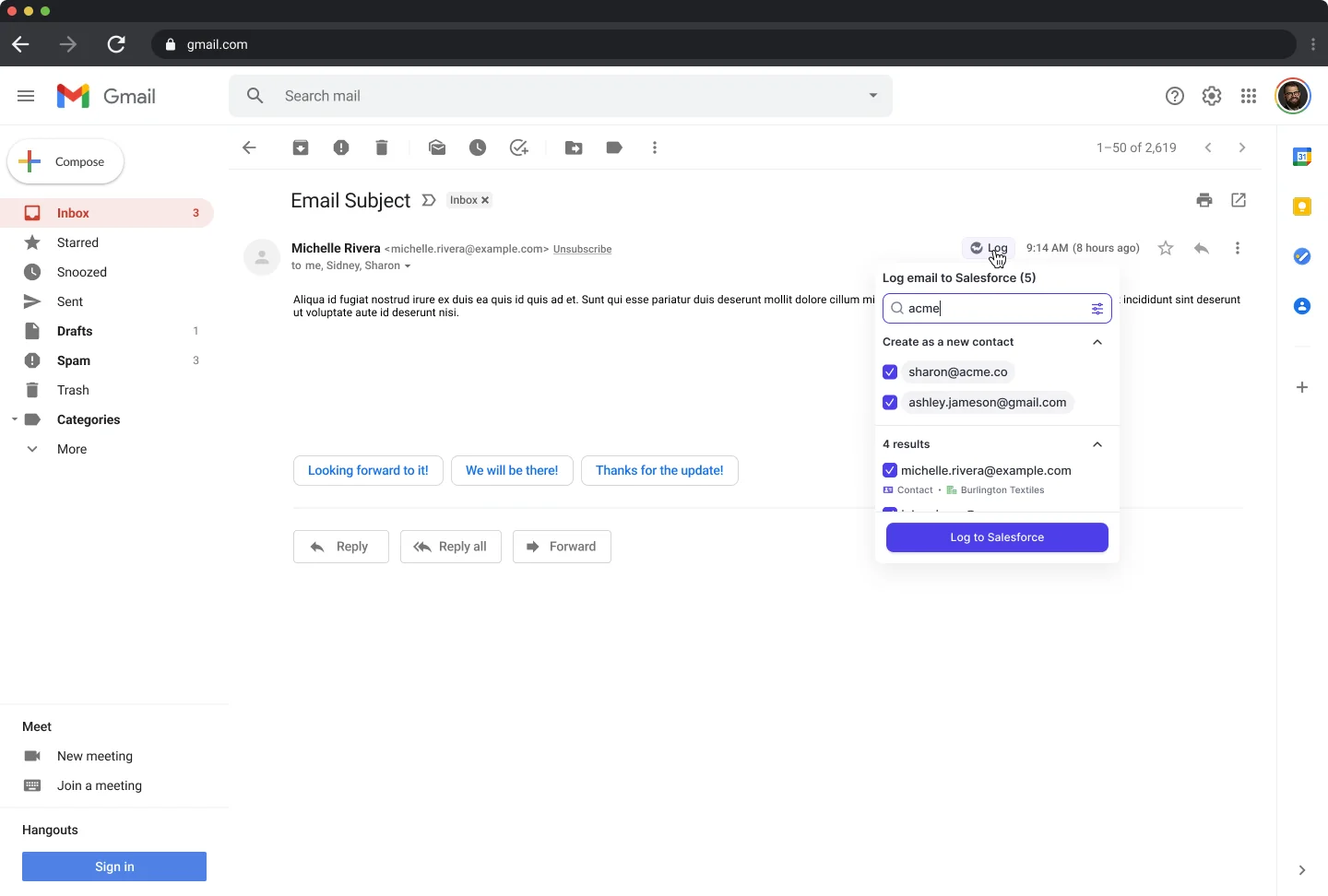
On the mapping side, the Outlook add-in and Chrome extension show the rep which Salesforce records an email will log to and let them re-map it once. Weflow then applies that choice to the rest of the thread, which is the only point in the process where someone actually knows the right answer.
Now the shortfall, because it's the thing you'd find out anyway. Weflow finds and flags the duplicates, the orphans and the leads. It does not auto-merge them.
Deduplicating what's already in your org is still manual Salesforce merge work, in the order described earlier in this article.
Frequently asked questions about Salesforce data cleanup
Do I need a full Weflow rollout to see Activity Capture Health?
No. The Weflow Analytics package is enabled from the Weflow admin console and appears as a Salesforce app in your org.
Activity capture itself is configured per team, per user and per object, so you can scope a test group before committing the wider rollout. Historical sync-back doesn't require a license either, as long as the users are in the capture configuration, which means you can backfill a small group and look at real data before anyone signs anything.
What does Weflow Activity & Contact Capture cost?
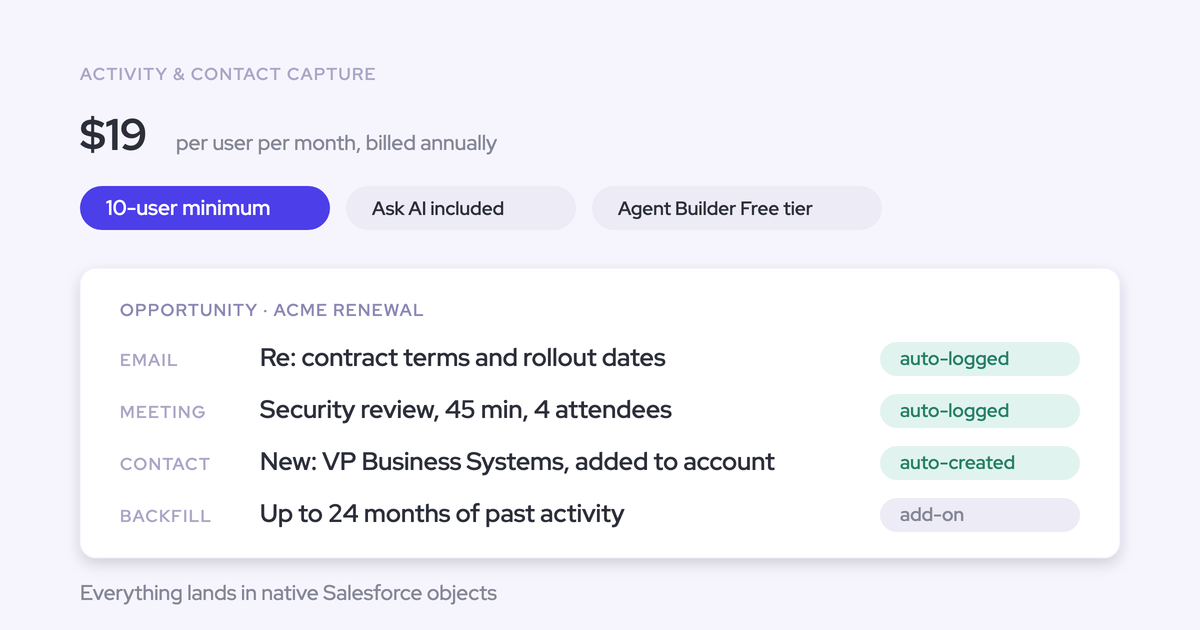
Weflow Activity & Contact Capture is $19 per user per month, billed annually, with a minimum of 10 users. Ask Weflow AI Pro and the Agent Builder free tier (25 agent actions per month) are included.
How does the same-domain check handle franchises and parent accounts?
It flags, you decide. The same-website-domain check is a review signal, not an auto-merge, so legitimate multi-site, franchise and parent-child structures get reviewed and dismissed by the admin who knows the account structure.
That's precisely why detection and merging are separate steps. A tool confident enough to merge two accounts on a shared domain would eventually collapse a franchise group into one record, and you'd be rebuilding it from a backup.
Can the audit find users whose emails are silently not captured?
Indirectly, through the per-user activity counts split by emails, meetings and other types. A user whose row is empty while their calendar clearly isn't is the signal.
The usual cause is a sending address that doesn't match the address on their Salesforce user record: a legacy domain kept after an acquisition, a secondary alias, a marketing subdomain. Nothing errors, so the person simply looks like they aren't working. There's no dedicated address-mismatch check in the view, and honestly the empty row does the job, because it's visible in a list next to everyone else's.
Does Weflow merge the duplicates it finds?
No. Weflow flags duplicate accounts, duplicate contacts, non-converted leads and accounts sharing a website domain, and merging those records remains manual Salesforce work.
What changes is that the finding stops being a project. The merge queue is still yours, but it's a queue you work down rather than an audit you restart from scratch every time someone asks whether the data can be trusted.
If you want the report recipes and the hygiene checks in one place while you work through your org, grab the free Salesforce Data Hygiene Cheat Sheet and keep it open next to the report builder.