Salesforce Gmail Integration: Native Options vs. Alternatives
Compare Salesforce Gmail integration native options vs alternatives on logging, cost, and data.




What Are the 3 Native Ways to Integrate Salesforce with Gmail?
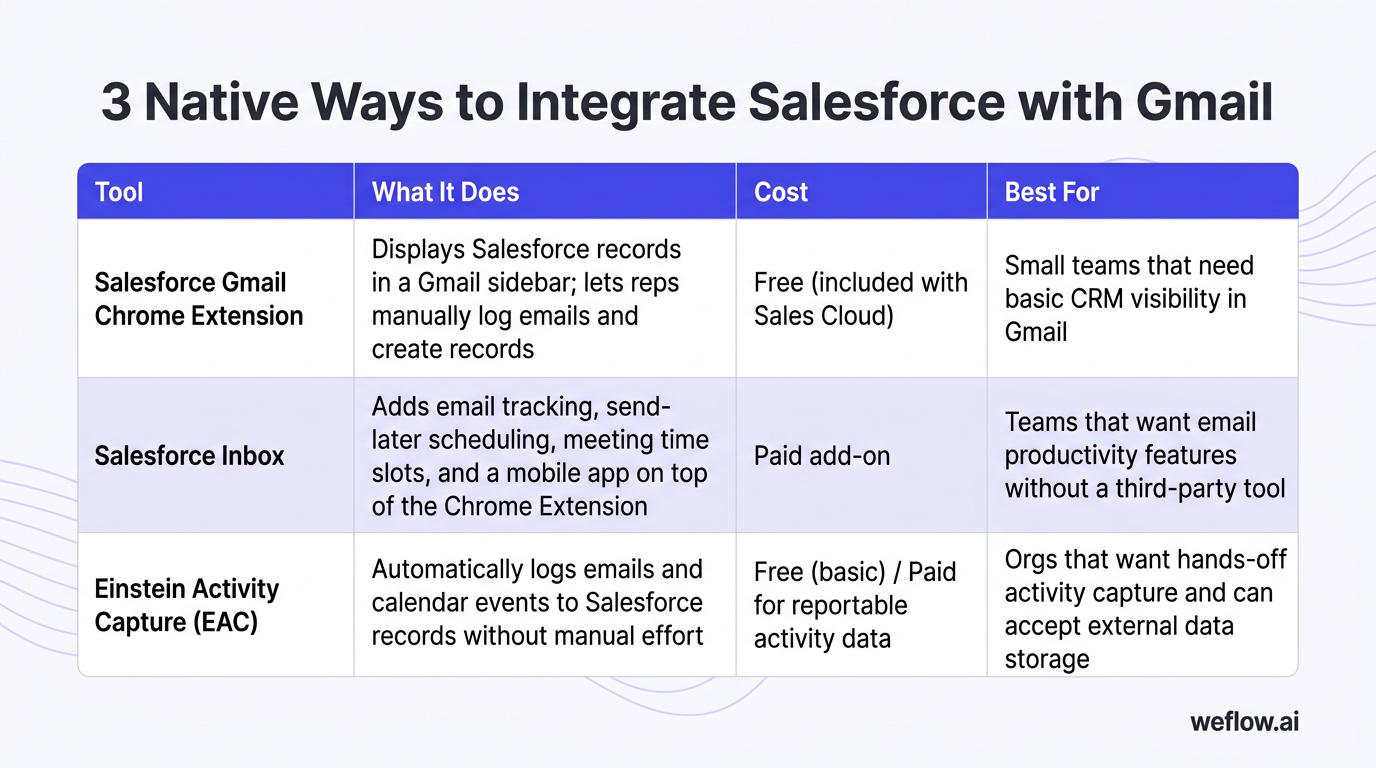
Salesforce offers three built-in options for connecting Gmail to your CRM. Each handles a different piece of the problem—viewing data, logging activity, or automating capture—but none covers all three well.
Tool | What It Does | Cost | Best For |
|---|---|---|---|
Salesforce Gmail Chrome Extension | Displays Salesforce records in a Gmail sidebar; lets reps manually log emails and create records | Free (included with Sales Cloud) | Small teams that need basic CRM visibility in Gmail |
Adds email tracking, send-later scheduling, meeting time slots, and a mobile app on top of the Chrome Extension | Paid add-on (check current Salesforce pricing—previously $25/user/month) | Teams that want email productivity features without a third-party tool | |
Einstein Activity Capture (EAC) | Automatically logs emails and calendar events to Salesforce records without manual effort | Free (basic) / Paid for reportable activity data | Orgs that want hands-off activity capture and can accept external data storage |
The trade-offs between these three tools—manual effort, data ownership, reportability, and cost—are what push most RevOps teams toward third-party alternatives. Here's how each one works and where it falls short.
Salesforce Gmail Chrome Extension: Features and Limitations
The Salesforce Gmail Chrome Extension is a free connector that puts a Salesforce sidebar inside your Gmail interface. When you open an email, it pulls up the sender's contact record, related accounts, opportunities, and recent activities.
What it does:
View Salesforce records (contacts, accounts, opportunities) alongside emails
Log emails and calendar events to Salesforce records
Create new leads and contacts directly from Gmail
Compose messages using Salesforce email templates
Where it falls short:
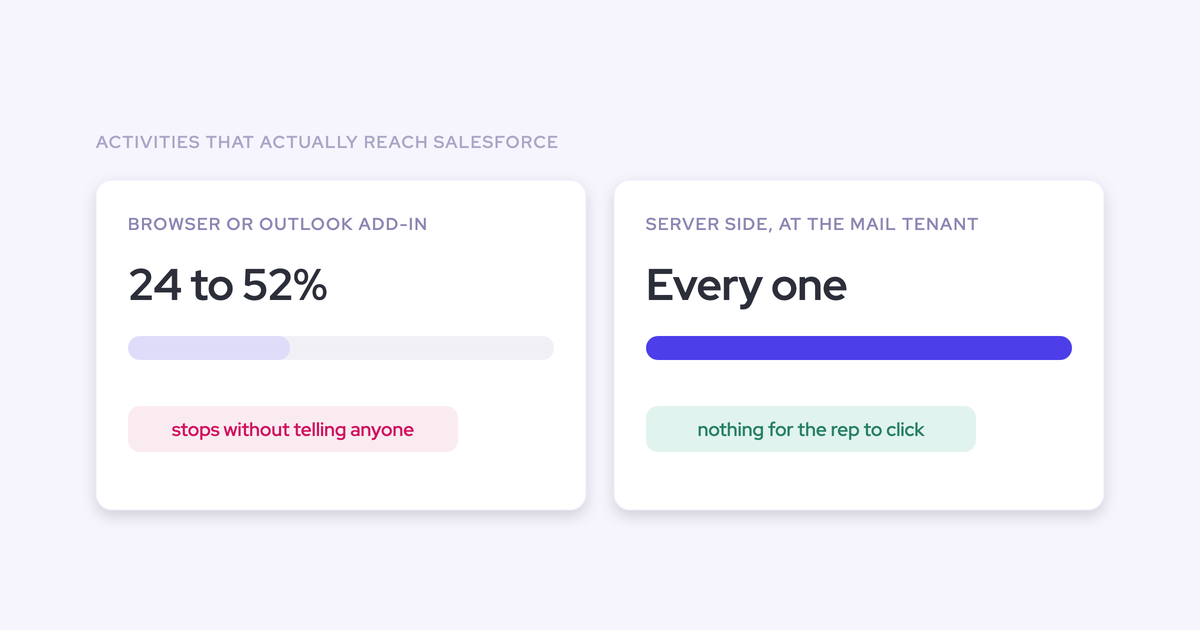
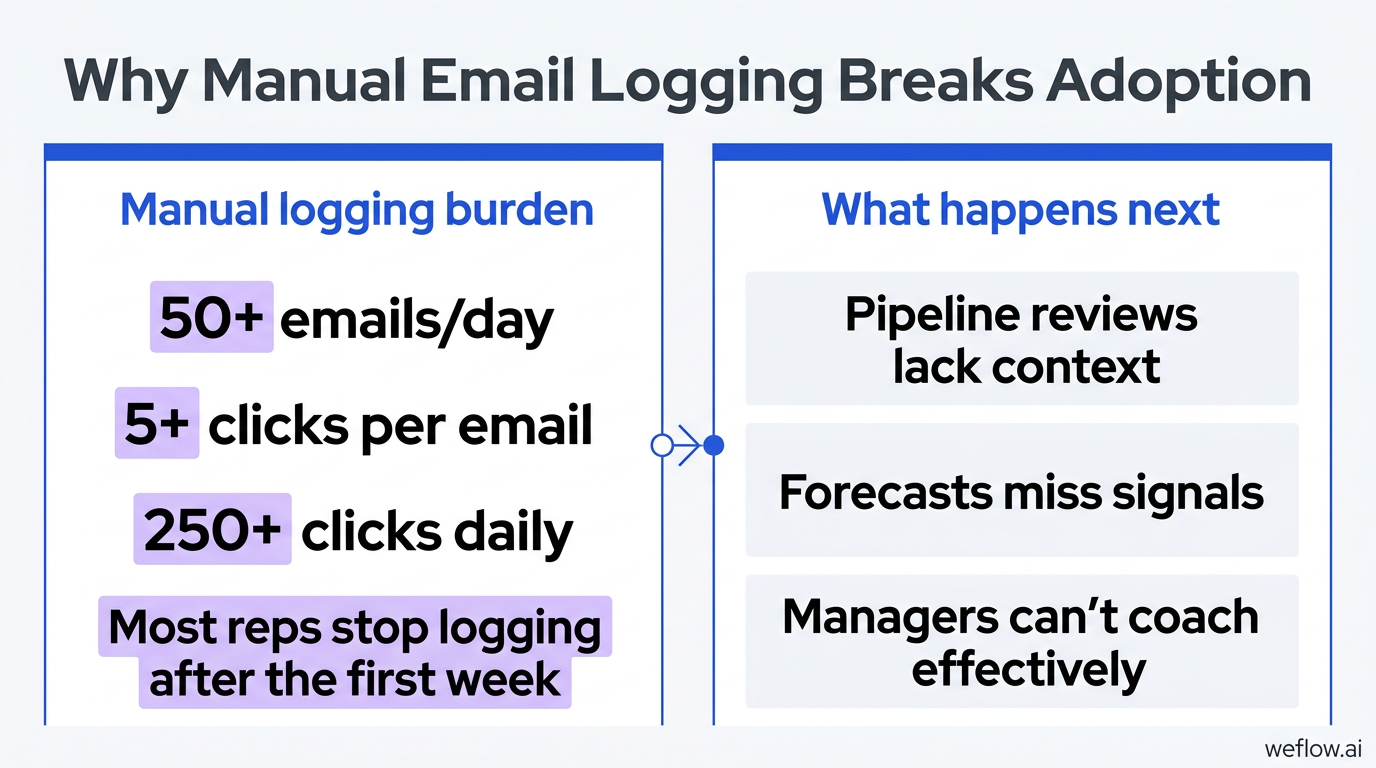
Every email must be manually logged—5+ clicks per email (open sidebar → click Log Email → select contacts → save → close panel)
The sidebar consumes significant screen real estate in Gmail
Frequent re-authentication interrupts workflow
No email tracking, scheduling, or automation features
Why Does Manual Email Logging Slow Down Sales Reps?
The math is straightforward. A rep who sends and receives 50+ emails per day needs 5+ clicks to log each one. That's 250+ clicks daily spent on data entry instead of selling. Most reps stop logging after the first week, which means your Salesforce activity data is incomplete from day one.
Incomplete activity data cascades into every downstream process: pipeline reviews lack context, forecasts miss signals, and managers can't coach effectively because they can't see what's actually happening in deals. The Chrome Extension gives you CRM visibility in Gmail, but it doesn't solve the Salesforce data hygiene problem.
Salesforce Inbox: What It Adds and What It Costs
Salesforce Inbox is a paid add-on that layers email productivity features on top of the Gmail Chrome Extension. It doesn't replace the Extension—it extends it.
What it adds:
Insert available meeting times directly into emails
Schedule emails to send at a future time
Track email opens and link clicks
Access a mobile app for on-the-go CRM interaction
Where it falls short:
Additional per-user cost on top of your Sales Cloud license
Inherits all the manual logging limitations of the Chrome Extension—reps still click through the same 5-step process for every email
Historically Chrome-only (verify current browser support for your org)
For a deeper breakdown, see our full guide to Salesforce Inbox.
Is Salesforce Inbox Worth the Investment?
If your reps need email tracking and meeting scheduling inside Gmail, Inbox delivers those features. But it doesn't solve the core problem: activity data still requires manual logging. You're paying extra for productivity features while the data quality gap remains open. Most RevOps teams find that the cost is better spent on a tool that automates activity capture entirely.
Einstein Activity Capture: How Automated Email Logging Works in Salesforce
Einstein Activity Capture (EAC) takes a different approach. Instead of asking reps to log emails manually, it connects to Gmail (or Google Workspace) and automatically syncs emails and calendar events to the corresponding Salesforce records.
What it does:
Automatically logs emails and calendar events to Salesforce—no manual clicks
Provides an Activities Dashboard with engagement metrics (paid tier)
Supports custom rules and filters for assigning interactions to records
EAC removes the manual effort that kills adoption with the Chrome Extension. But the trade-offs are significant.
What Are the Data Ownership Risks of Einstein Activity Capture?
EAC has three limitations that RevOps leaders need to evaluate carefully:
Data loss on deactivation. If you ever turn off Einstein Activity Capture, all captured activities are permanently removed from Salesforce record timelines. There's no export, no archive, no recovery. This is a one-way door.
External storage with a 2-year retention limit. EAC stores activity data on external servers—not inside your Salesforce org. That data is available for 24 months, then it's gone. You don't own it in the way you own native Salesforce records.
Non-reportable without a paid upgrade. The free tier of EAC captures activities but doesn't let you run Salesforce reports on them. You need the paid tier to get reportable activity data—which defeats part of the "free" value proposition.
For a detailed comparison, see Weflow vs. Einstein Activity Capture.
Salesforce Gmail Integration Comparison: Native vs. Third-Party Tools
Here's how the three native options stack up against Weflow, a Salesforce-native revenue AI platform, across the dimensions that matter most to RevOps teams:
Capability | Gmail Chrome Extension | Salesforce Inbox | Einstein Activity Capture | Weflow |
|---|---|---|---|---|
Automatic email sync | No—manual logging only | No—manual logging only | Yes | Yes—automatic with manual override controls |
Calendar event sync | No | Limited | Yes | Yes |
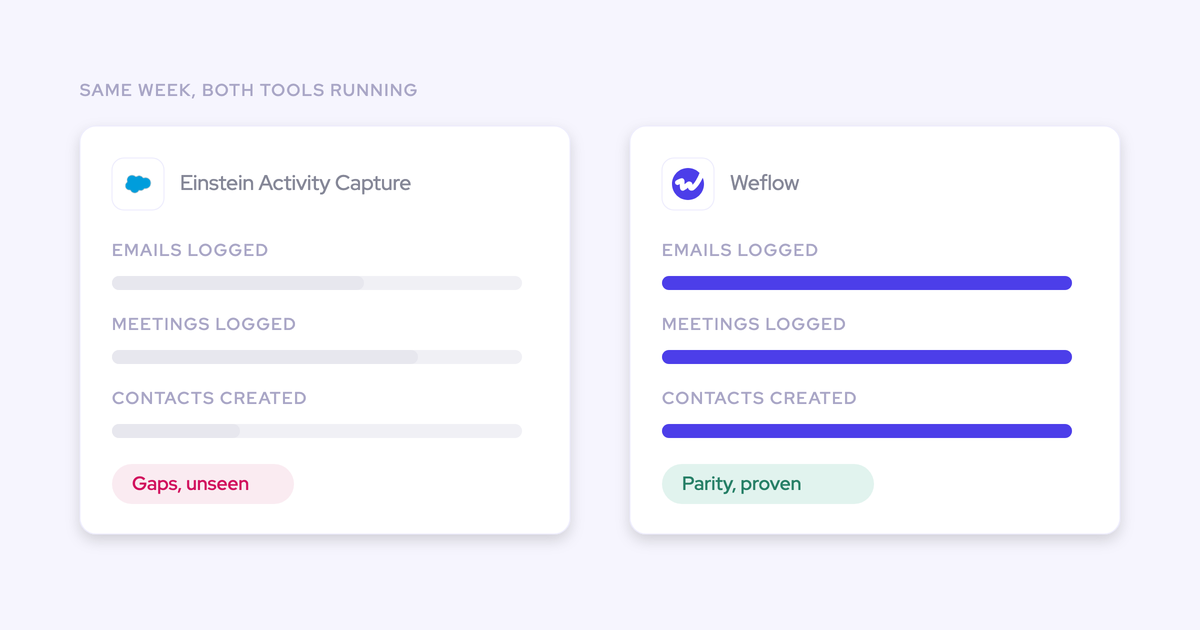
Activity data reportable in Salesforce | Yes (if manually logged) | Yes (if manually logged) | Paid tier only | Yes—always reportable in both Weflow and Salesforce |
Data stored in your Salesforce org | Yes | Yes | No—external servers, 2-year limit | Yes—native Salesforce records, permanent |
Data retained after tool removal | Yes | Yes | No—all data deleted on deactivation | Yes—activities stay in Salesforce forever |
Sync speed | N/A (manual) | N/A (manual) | Delayed (minutes to hours) | Real-time |
Email tracking and scheduling | No | Yes | No | Yes |
Cost | Free | Paid add-on | Free (basic) / Paid (reporting) | Per-user subscription |
How Does Weflow Compare to Salesforce's Native Gmail Tools?
Weflow, a Salesforce-native revenue AI platform, addresses the four gaps that Salesforce's built-in Gmail tools leave open: reportability, data ownership, automatic sync, and speed.
Full Activity Reportability in Salesforce and Weflow
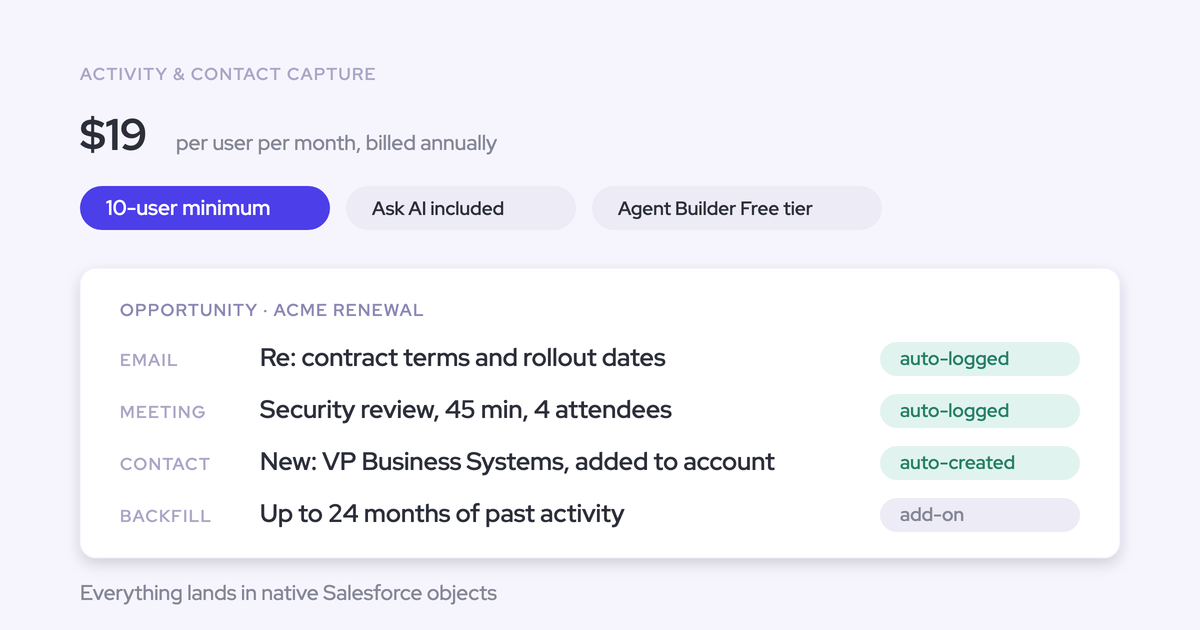
Activities captured by Weflow are stored as native Salesforce records—Tasks and Events that show up in standard Salesforce reports, dashboards, and automation. No paid upgrade required. Your RevOps team can build activity-based pipeline reports, track sales efficiency metrics, and identify deals with low engagement—all from the data Weflow captures automatically.
With EAC's free tier, that same data exists but isn't reportable. You can see it on individual record timelines, but you can't aggregate it, trend it, or use it in Salesforce flows.
Data Ownership: What Happens to Your Activity Data If You Switch Tools?
Every email and meeting Weflow captures lives inside your Salesforce org as a standard Activity record. If you ever remove Weflow, those records stay. They're yours—permanently.
Einstein Activity Capture works differently. Deactivating EAC deletes all captured activities from Salesforce timelines. Two years of customer interaction history, gone. For RevOps teams that treat activity data as a strategic asset—for territory planning, capacity modeling, and process optimization—that's an unacceptable risk.
Automatic Email Sync with Manual Override Controls
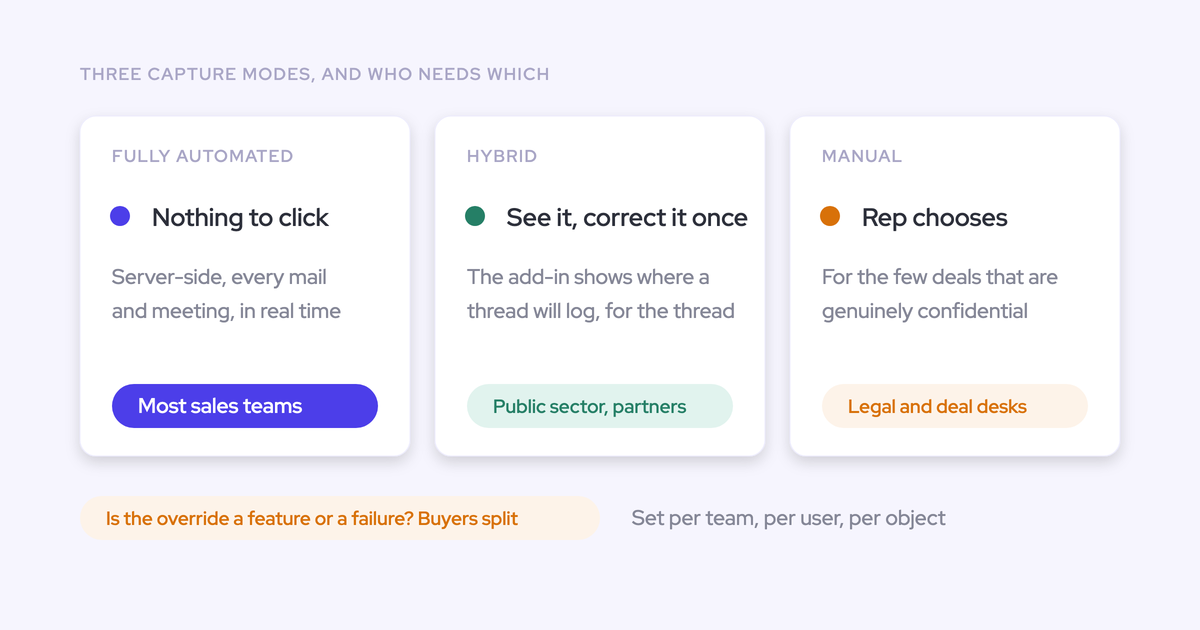
Weflow syncs Gmail emails to Salesforce automatically. But unlike a fully automated system where you lose control, Weflow gives reps the ability to choose how each email is logged—which record it's associated with, whether it should be logged at all—without requiring 5+ clicks per email.
This matters because not every email belongs in Salesforce. Internal threads, personal messages, and vendor communications shouldn't clutter your CRM. Weflow's approach gives you 95%+ automated capture with intelligent human override when it matters.
Real-Time Salesforce Sync: Why Speed Matters for Pipeline Accuracy
Weflow syncs activity data to Salesforce in real time. EAC operates on a delay—sometimes minutes, sometimes hours. That gap matters during live pipeline reviews and forecast calls. When a manager asks "what happened with the Acme deal this morning?" and the latest email isn't in Salesforce yet, the conversation stalls.
Real-time sync means your pipeline data reflects what's actually happening right now—not what happened a few hours ago.
How to Set Up Salesforce Gmail Integration (Step-by-Step)
Option 1: Native Salesforce Gmail Integration Setup
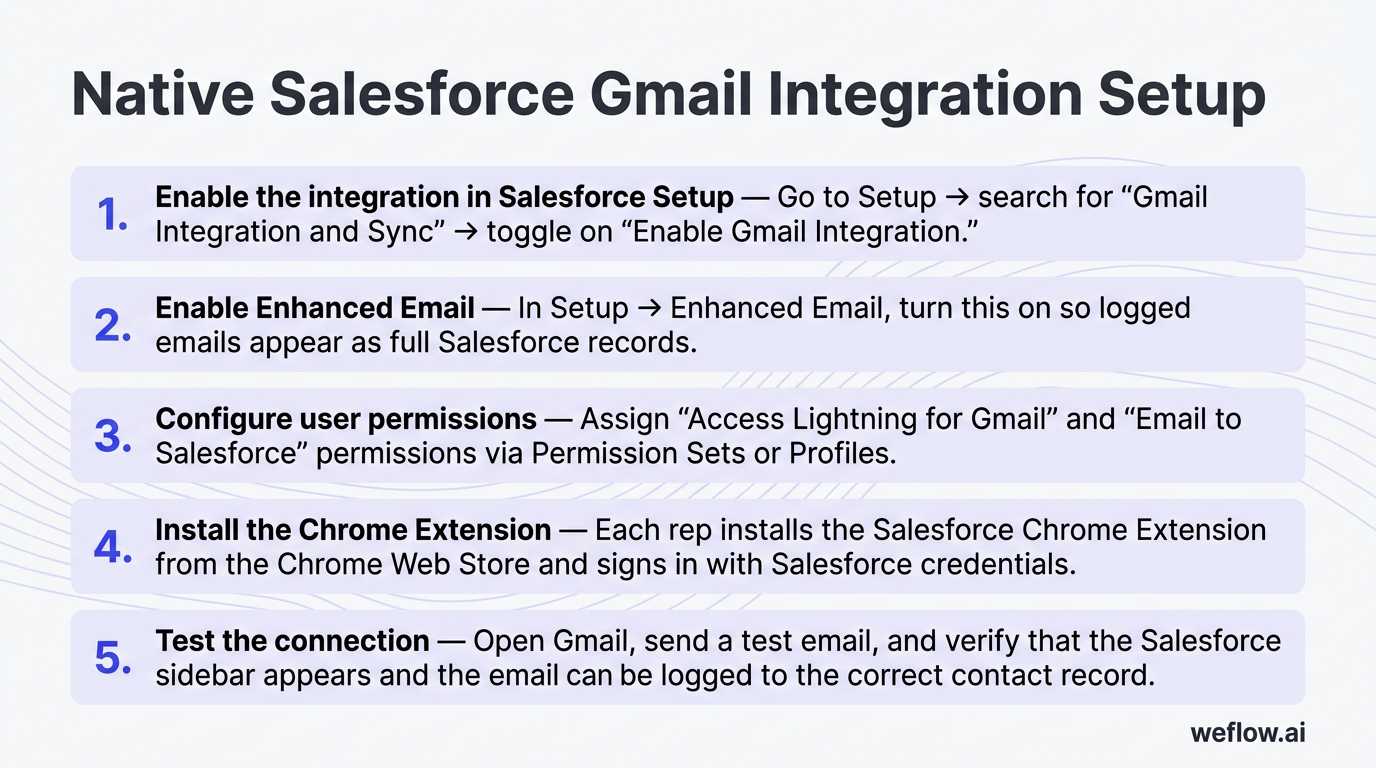
This is the admin-side configuration for Salesforce's built-in Gmail connector.
Enable the integration in Salesforce Setup. Go to Setup → search for "Gmail Integration and Sync" → toggle on "Enable Gmail Integration."
Enable Enhanced Email. In Setup → Enhanced Email, turn this on so logged emails appear as full Salesforce records (not just text attachments).
Configure user permissions. Assign "Access Lightning for Gmail" and "Email to Salesforce" permissions via Permission Sets or Profiles.
Install the Chrome Extension. Each rep installs the Salesforce Chrome Extension from the Chrome Web Store and signs in with their Salesforce credentials.
Test the connection. Open Gmail, send a test email, and verify that the Salesforce sidebar appears and the email can be logged to the correct contact record.
Option 2: Weflow Gmail-to-Salesforce Setup
Weflow deploys in minutes, not hours.
Install the Weflow Chrome Extension from the Chrome Web Store and sign in using Salesforce Single Sign-On (SSO). No separate credentials needed.
Connect your Gmail account. Follow the in-app walkthrough to authorize Gmail access. Weflow connects to Google Workspace via OAuth—no IT tickets required.
Configure sync rules. Choose which emails to log automatically, which contacts to match, and any exclusion rules (internal domains, personal addresses).
Verify the sync. Send a test email and confirm it appears on the correct Salesforce record within seconds.
Not using Chrome? Weflow also works via the Weflow web app, which supports Gmail integration without a browser extension.
Common Salesforce Gmail Integration Problems and How to Fix Them
Even a well-configured integration can run into issues. Here are the most common problems and how to resolve them.
Problem | Cause | Fix |
|---|---|---|
Salesforce sidebar doesn't appear in Gmail | Chrome Extension not installed or disabled | Reinstall the extension from the Chrome Web Store. Check that it isn't blocked by your org's Chrome policy. |
Emails don't log to the correct Salesforce record | Contact matching rules misconfigured or duplicate records | Review your matching rules in Salesforce Setup. Merge duplicate contacts/leads that confuse the matching logic. |
EAC and Gmail integration conflict | Both tools trying to log the same emails | Choose one logging method per user. If using EAC for auto-capture, disable manual email logging from the Chrome Extension to avoid duplicates. |
Frequent re-authentication prompts | OAuth token expiring or browser clearing cookies | Check Chrome's cookie settings. Ensure Gmail and Salesforce domains aren't in a cookie auto-clear list. Re-authorize if needed. |
Sync delays with Einstein Activity Capture | EAC processes on a batch schedule, not real-time | This is by design—EAC doesn't sync instantly. If real-time sync is critical, use a third-party tool like Weflow. |
Low team adoption | Too many manual steps, no clear value for reps | Reduce the number of clicks required. Automate logging where possible. Show reps how the integration saves them time—don't just mandate usage. |
Frequently Asked Questions
How do I integrate Salesforce with Gmail?
Go to Salesforce Setup, search for "Gmail Integration and Sync," and enable it. Then install the Salesforce Chrome Extension from the Chrome Web Store, sign in with your Salesforce credentials, and authorize the connection. Your reps will see a Salesforce sidebar inside Gmail within minutes.
What is the difference between Salesforce Gmail Integration, Salesforce Inbox, and Einstein Activity Capture?
The Salesforce Gmail Chrome Extension is a free connector that lets reps view CRM data and manually log emails. Salesforce Inbox adds email tracking, scheduling, and templates as a paid add-on. Einstein Activity Capture automatically logs emails and calendar events without manual effort, but stores data externally with a 2-year retention limit.
Is the Salesforce Gmail integration free?
The basic Chrome Extension is free with Sales Cloud. Einstein Activity Capture has a free tier with limited reporting. Advanced features like email tracking and scheduling require Salesforce Inbox or a third-party tool, both of which carry additional per-user costs.
Can I sync both emails and calendar events between Gmail and Salesforce?
Yes. Einstein Activity Capture and third-party tools like Weflow sync both emails and Google Calendar events to Salesforce automatically. The native Gmail Chrome Extension requires manual logging for emails and doesn't sync calendar events on its own.
What happens to my activity data if I turn off Einstein Activity Capture?
All captured activities are permanently removed from Salesforce record timelines when you deactivate EAC. The data is stored on external servers, not inside your Salesforce org, so there's no way to recover it after deactivation.
Does the Salesforce Gmail integration work on mobile devices?
The native integration primarily works through the Chrome Extension on desktop. Some third-party tools offer mobile apps or mobile browser support for accessing Salesforce data alongside Gmail on the go.
How do I fix sync issues between Gmail and Salesforce?
Start by checking that Gmail Integration and Sync is enabled in Salesforce Setup and that user permissions include "Access Lightning for Gmail." Verify that the Chrome Extension is up to date. If Einstein Activity Capture is also active, confirm it isn't conflicting with your integration settings. Re-authenticate your Gmail connection if sync stalls.
What are the best third-party alternatives to Salesforce's native Gmail integration?
Weflow, Cirrus Insight, and Mixmax are popular options. They offer automatic email and calendar sync, activity data that stays natively in Salesforce, real-time logging, and advanced features like email tracking, scheduling, and AI-powered workflows that go beyond what Salesforce's native tools provide.