How to Sync Google Calendar with Salesforce: 2 Methods Compared
Learn how to sync Google Calendar with Salesforce: Einstein Activity Capture vs. Weflow.




Salesforce Google Calendar integration eliminates the manual meeting logging that costs sales reps 4–5 hours per week. When calendar events automatically sync to Salesforce, CRM data quality improves, activity metrics become reportable, and managers gain visibility into deal engagement without chasing reps for updates. This guide compares two methods: Einstein Activity Capture (Salesforce’s native tool) and Weflow (a third-party activity capture platform). You’ll learn how each option works, their limitations, and which approach fits your Salesforce environment.
Why sync Google Calendar with Salesforce? 5 measurable benefits
Automatic activity logging improves CRM data quality
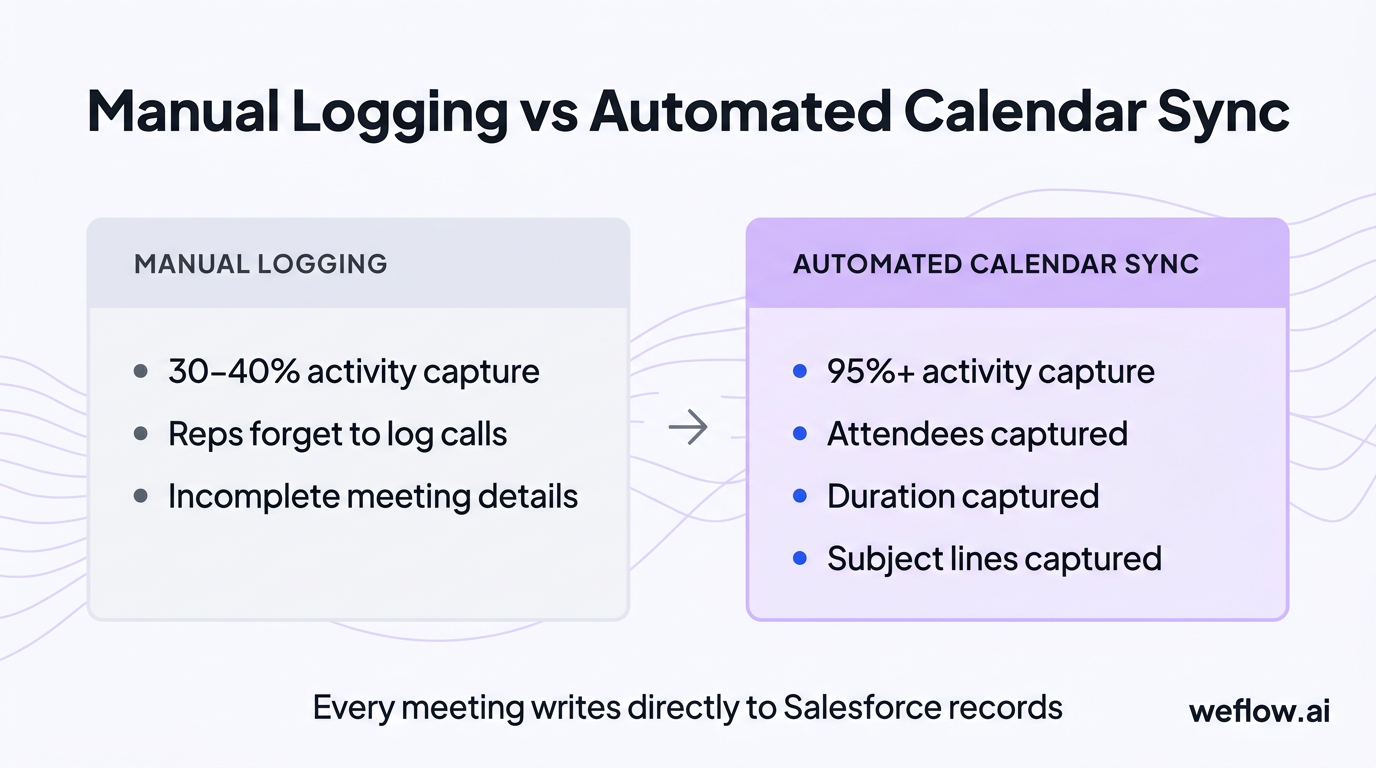
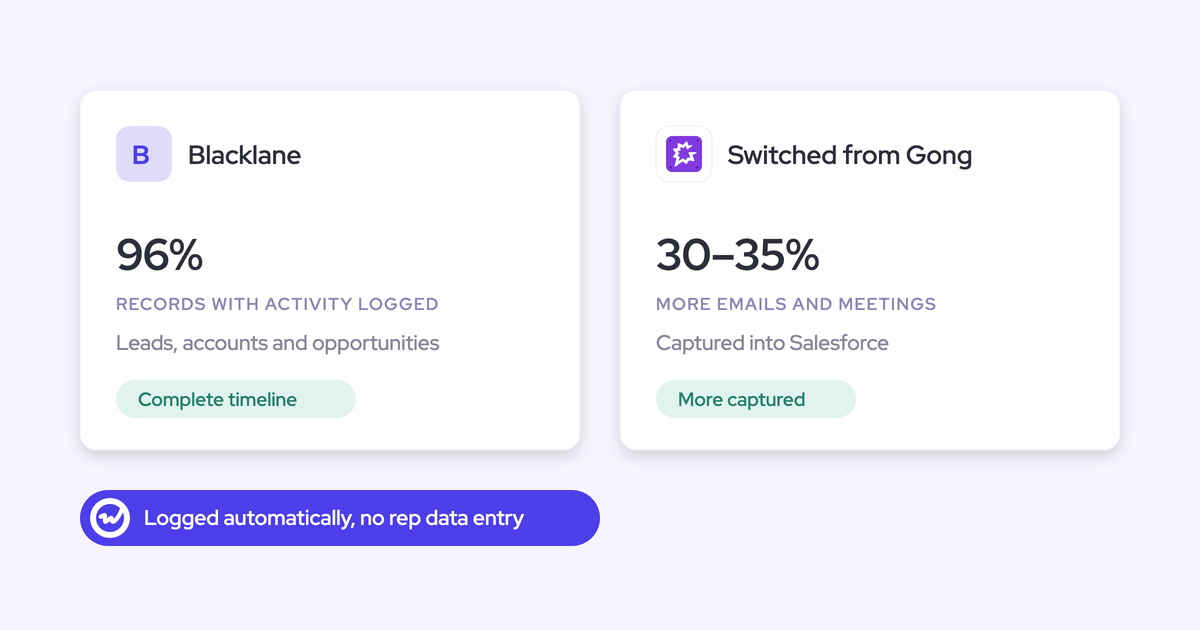
Manual meeting entry fails at scale. Reps forget to log calls, enter incomplete details, or stop updating Salesforce entirely when deals get busy. Automated calendar sync captures every meeting—attendees, duration, subject lines—and writes it directly to Salesforce records. The result: 95%+ activity capture rates instead of the 30–40% typical with manual logging.
How calendar sync reduces manual data entry by hours per week
Sales reps spend an average of 5.9 hours per week on CRM data entry, according to Salesforce’s own research. Automated calendar sync eliminates the most repetitive task: logging meetings. Teams that implement calendar integration report 3–5 hours saved per rep per week—time redirected toward pipeline development and customer conversations.
Shared activity visibility for sales managers and reps
Without calendar sync, managers rely on rep self-reporting to understand deal engagement. This creates blind spots: deals marked “on track” may have had no customer contact in weeks. Synced calendar data shows exactly when meetings occurred, who attended, and how engagement patterns correlate with stage progression. Managers can spot stalled deals before the weekly pipeline call instead of discovering them during commit reviews.
Activity-based forecasting: why logged meetings improve accuracy
Forecast accuracy depends on activity data. A deal with three executive meetings in the past two weeks has different close probability than one with no contact since last quarter. When calendar events sync to Salesforce, forecasting models can weight opportunities by recent engagement—not just rep-entered stage and close date. Teams using activity-informed forecasting report 10–15% improvement in forecast accuracy within the first quarter.
Reducing CRM maintenance costs with automated sync
RevOps teams spend significant hours cleaning up activity data: deduplicating manual entries, filling gaps in contact records, and reconciling meeting notes. Automated sync reduces this maintenance burden by ensuring consistent, structured activity data from day one. The operational cost savings compound over time as historical activity data becomes trustworthy for trend analysis and reporting.
Prerequisites: what you need before syncing Google Calendar with Salesforce
Before configuring either Einstein Activity Capture or Weflow, confirm your environment meets these requirements:
Requirement | Details |
|---|---|
Salesforce edition | Einstein Activity Capture requires Sales Cloud with Inbox (available in Essentials, Professional, Enterprise, or Unlimited). Weflow supports Salesforce Professional, Enterprise, and Unlimited editions. |
Admin permissions | You’ll need Salesforce System Administrator access to enable Einstein Activity Capture or install Weflow’s managed package. For EAC, you also need permission to configure Einstein Activity Capture settings. |
Google Workspace account | Both solutions require Google Workspace (formerly G Suite) accounts—personal Gmail accounts won’t work for enterprise calendar sync. Your Google Workspace admin may need to approve OAuth connections. |
Enhanced Email (for EAC) | Einstein Activity Capture requires Enhanced Email to be enabled in Salesforce. This is a prerequisite for capturing email activity alongside calendar events. |
How to set up Einstein Activity Capture for Google Calendar (step-by-step)
What is Einstein Activity Capture (EAC)?
Einstein Activity Capture is Salesforce’s native tool for syncing emails and calendar events from Google Workspace or Microsoft 365 into Salesforce. It runs in the background, automatically associating meetings and emails with Contact and Lead records based on attendee email addresses.
EAC is bundled with Sales Cloud and Salesforce Inbox licenses, making it a zero-additional-cost option for organizations already paying for these products. However, the “free” positioning obscures significant limitations that affect how RevOps teams can use the captured data—particularly around reporting and long-term data retention.
6 limitations of Einstein Activity Capture you should know
Limitation | Impact |
|---|---|
Not reportable in Salesforce | EAC data doesn’t write to standard Salesforce objects. You can’t include synced activities in reports, dashboards, or list views. Activity metrics require Einstein Activity Metrics ($50/user/month). |
Data stored outside Salesforce (AWS) | EAC stores activity data in AWS, not in your Salesforce org. This affects data governance, compliance audits, and your ability to query activity data alongside other CRM records. |
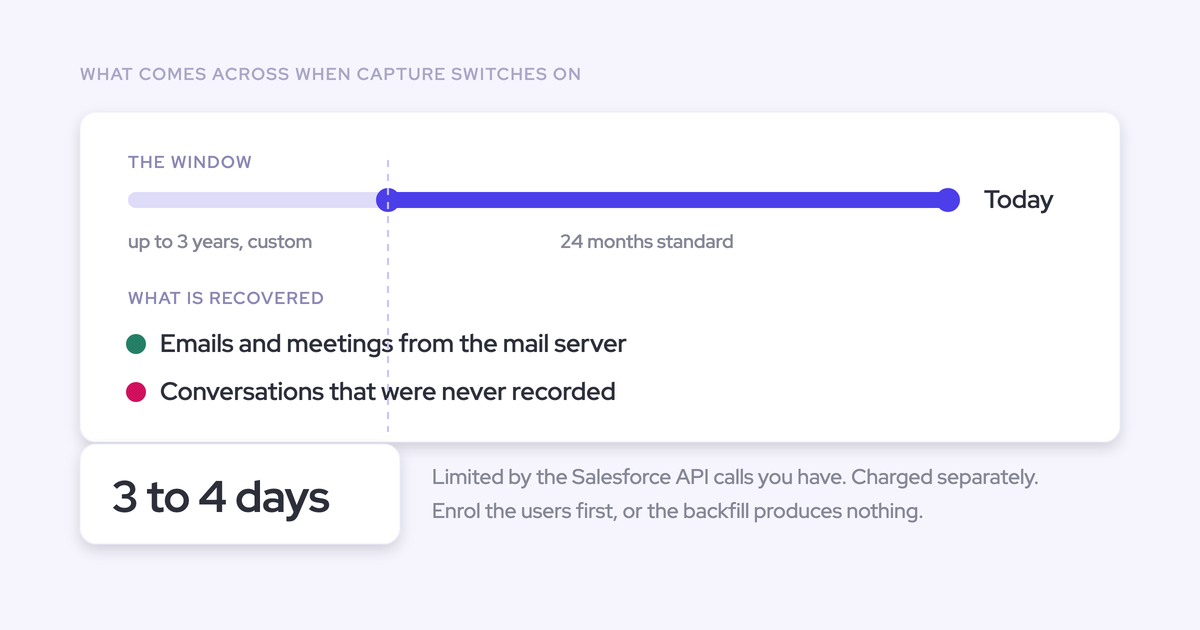
24-month data retention limit | EAC retains activity data for 24 months maximum. After that, historical meetings disappear—no archive, no export. |
Deactivation deletes all data | If you disable EAC or a user leaves, their captured activity data is permanently deleted. There’s no way to migrate this data to standard Salesforce objects before deactivation. |
No recurring or canceled event sync | EAC doesn’t sync recurring calendar events or capture canceled meetings. For teams with weekly check-ins or regular customer cadences, this leaves significant activity gaps. |
Sync delays up to several hours | EAC syncs on a batch schedule, not real-time. Calendar events may take 1–4 hours to appear in Salesforce. |
Step-by-step: enable Einstein Activity Capture for Google Calendar
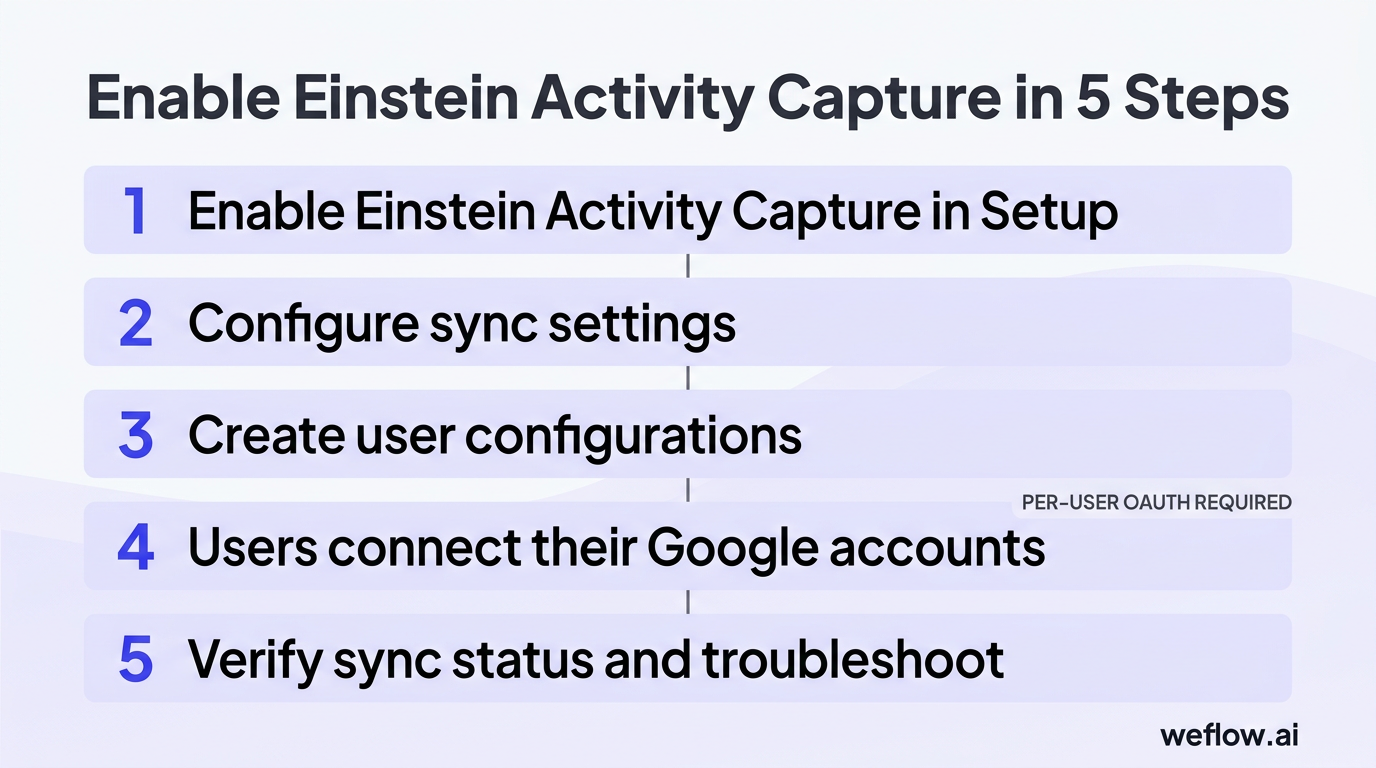
Enable Einstein Activity Capture in Setup. Navigate to Setup > Einstein Activity Capture > Settings. Toggle on Einstein Activity Capture. Select Google as your email and calendar provider.
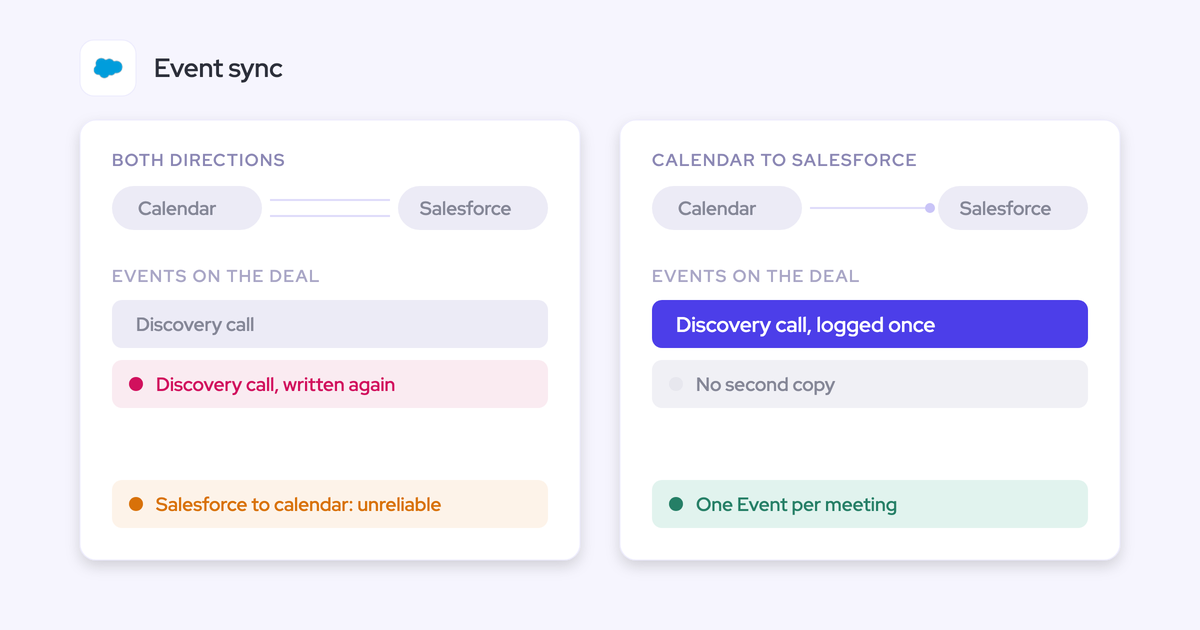
Configure sync settings. Choose which activity types to capture (emails, events, or both). Define which Salesforce objects should receive activity associations. Set your sync direction.
Create user configurations. In Einstein Activity Capture Settings, create a configuration that defines which users will have sync enabled. Assign users or permission sets.
Users connect their Google accounts. Each user must individually authorize the connection between their Google Workspace account and Salesforce via Settings > My Email Settings.
Verify sync status and troubleshoot. Check the Einstein Activity Capture dashboard in Setup to confirm users are connected and syncing.
Weflow vs. Einstein Activity Capture: a faster alternative for calendar sync
7 ways Weflow outperforms Einstein Activity Capture
Weflow, a Salesforce-native revenue AI platform, approaches calendar sync differently than EAC. Instead of storing data externally, Weflow writes directly to standard Salesforce Task and Event objects—making activity data immediately reportable and permanently retained.
Feature | Einstein Activity Capture | Weflow |
|---|---|---|
Reportability | Not reportable in standard Salesforce reports. Requires $50/user/month add-on. | Fully reportable. Writes to native Task and Event objects. |
Data retention | 24 months maximum. | Unlimited. Data persists in Salesforce. |
Event types synced | Single-instance events only. | All event types including recurring and canceled. |
Sync speed | Batch sync, 1–4 hour delays. | Near real-time (minutes). |
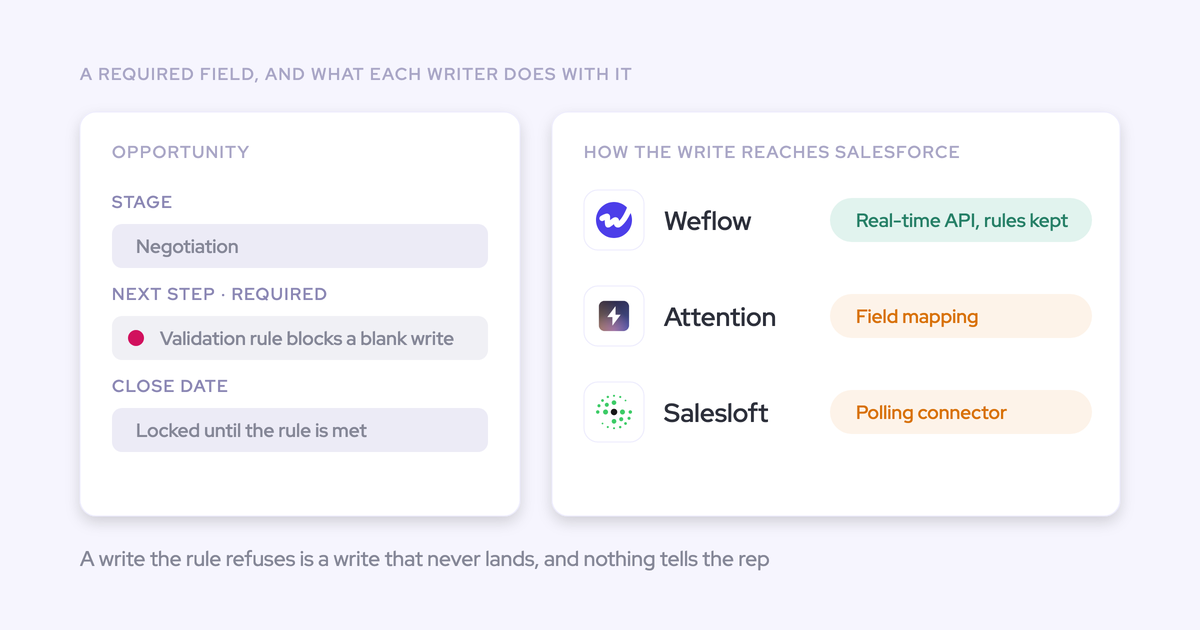
Custom field mapping | Limited to predefined fields. | Configurable—map to any standard or custom field. |
Meeting notes | Calendar event descriptions only. | Full meeting notes with AI summaries and automated workflows. |
Deployment model | Per-user OAuth required. | Admin-deployed. No per-rep authorization needed. |
How to set up Weflow’s Google Calendar sync in two steps
Install Weflow from the Salesforce AppExchange. Search for Weflow and click “Get It Now.” Follow the managed package installation wizard. Installation takes 5–10 minutes.
Connect Google Workspace via admin deployment. In Weflow Settings, navigate to Integrations > Google Workspace. Deploy org-wide through Google Workspace Marketplace. Calendar sync starts automatically.
Einstein Activity Capture vs. Weflow: feature comparison table

Feature | Einstein Activity Capture | Weflow |
|---|---|---|
Data storage | AWS (external) | Native Salesforce objects |
Data retention | 24 months max | Unlimited |
Reportability | Not reportable without $50/user add-on | Fully reportable |
Setup complexity | Moderate—per-user OAuth | Low—admin-deployed |
Pricing | Included with Sales Cloud + Inbox. Metrics add-on: $50/user/month. | Starts at $39/user/month. |
Sync speed | Batch (1–4 hours) | Near real-time (minutes) |
Recurring events | No | Yes |
Data on deactivation | Deleted | Persists in Salesforce |
Validation rules | Bypassed | Respected |
AI meeting summaries | No | Yes |
Deployment timeline | Days to weeks | Hours to days |
Troubleshooting common Salesforce Google Calendar sync issues
Sync delays or missing events
Check sync status in settings. For EAC, navigate to Setup > Einstein Activity Capture > Activity Capture Dashboard. For Weflow, check Settings > Integrations.
Verify calendar permissions. Confirm that Salesforce or Weflow has been approved in Google Admin Console > Security > API Controls.
Review event filtering rules. Check sync configuration to ensure missing events aren’t being filtered intentionally.
Authentication errors
Reconnect the Google account. OAuth tokens expire or get revoked. Disconnect and reconnect the Google account.
Check Google Workspace domain policies. Your Google Workspace admin may need to add Salesforce or Weflow to the approved app list.
Clear browser cache and cookies. Try reconnection in an incognito window to rule out caching issues.
Duplicate events
Disable overlapping sync tools. Running both EAC and another sync tool will create duplicates. Choose one and disable the others.
Check for manual entry alongside sync. Train users on the automated workflow and establish data entry guidelines.
Run a deduplication audit. Use Salesforce reports to identify duplicate Event records by matching subject, date, and attendee combinations.
Frequently asked questions
Can you sync Google Calendar with Salesforce?
Yes. Salesforce offers two primary methods: Einstein Activity Capture (native) and third-party tools like Weflow. Both connect to Google Workspace and automatically create Salesforce activity records when calendar events occur. For teams also using Salesforce Gmail integration, combining email and calendar sync provides complete activity capture.
How do I set up Einstein Activity Capture for Google Calendar?
Enable EAC in Salesforce Setup, configure sync settings for emails and events, create user configurations, and have each user authorize their Google account via OAuth. The process takes 15–30 minutes for admin setup, plus user-by-user authorization time.
What are the limitations of Einstein Activity Capture?
EAC’s main limitations: captured data isn’t reportable without a $50/user/month add-on, data is stored in AWS (not native Salesforce), retention is capped at 24 months, recurring events don’t sync, and all data is deleted if you disable EAC or deactivate a user.
Does Salesforce Google Calendar sync work with recurring events?
Einstein Activity Capture does not sync recurring events—only single-instance calendar entries. Weflow syncs all event types including recurring meetings.
How long does it take for Google Calendar events to appear in Salesforce?
With Einstein Activity Capture, expect 1–4 hours due to batch processing. Weflow syncs in near real-time—calendar events typically appear in Salesforce within minutes.
Is the synced calendar data reportable in Salesforce?
EAC data is not reportable in standard Salesforce reports. You need Einstein Activity Metrics ($50/user/month) to include EAC data in dashboards. Weflow writes to native Task and Event objects, so synced data works immediately with existing reports and dashboards.
What Salesforce editions support Google Calendar integration?
Einstein Activity Capture requires Sales Cloud with Inbox, available in Essentials, Professional, Enterprise, and Unlimited editions. Weflow supports Professional, Enterprise, and Unlimited editions. Both require Google Workspace accounts.
What happens to synced data if I uninstall a calendar integration tool?
With Einstein Activity Capture, all captured data is permanently deleted when you disable EAC or remove a user. Weflow writes to standard Salesforce objects, so data persists in your org even if you uninstall the managed package.