How to Write a Weflow AI Field Update Prompt for Picklists, Dates, Numbers and Opportunity Stage
Learn to write Weflow AI Field Update prompts for picklists, dates, numbers, and Opportunity Stage.


On structured fields, Weflow makes the value valid and your prompt makes it correct. Weflow AI Field Updates write to picklists, multi-selects, date fields, number and amount fields, and Opportunity Stage. Before any picklist write, Weflow reads the field's allowed values and matches its output against them, so it never writes a value your field rejects.
Weflow can't know your team's definitions. It doesn't know when "2" beats "3" on your qualification score, that headcount isn't a metric, or that a discovery call should never move Stage. Those rules live in the prompt. Weflow is the Revenue AI Orchestration platform for sales, customer success, and RevOps teams, and these structured fields are where call content starts driving deal execution in Salesforce, not just filling text boxes.
We'll go field type by field type. For each one, you'll see what Weflow already enforces, what your prompt has to carry, and whether the field should auto-write or wait for review. The last section is a test protocol, because a failed write doesn't replay. If writing the prompts forces you to write down definitions your team never documented, that's normal. It's most of the project.
Weflow AI Field Updates keep values valid; your prompt makes them correct
Weflow removes invalid writes. Only your prompt can prevent a valid but wrong value. That split decides where you spend your setup time.
| Item | Who owns it | What it means for you |
|---|---|---|
| Allowed-value matching on picklists and multi-selects | Weflow | No invented values pollute the field or fail the write |
| Writable field types | Weflow | Picklist, multi-select, number, date and text, on standard and custom objects. Lookups aren't writable. |
| Validation rules | Weflow respects them | A blocked stage change stays blocked until the gating fields are filled |
| Auto-write or review | Weflow, set per field by you | Interpretive fields can wait for the rep while unambiguous ones write themselves |
| A definition for each value | Your prompt | The model knows when each picklist value applies |
| What doesn't count | Your prompt | Plausible but irrelevant answers get excluded |
| When to leave the field alone | Your prompt | A call with no evidence doesn't overwrite good data |
| Conversation-only restriction | Your prompt | Values come from what the buyer said, not the web |
| Any calculation | Your prompt | Derived numbers follow your formula |
The failure that hurts most here is the field that's filled but wrong. A buyer on one of our calls put it like this:
"If the metrics comes back and says they have 50,000 staff, that is a metric, but it's not relevant to what we're looking at in our sales process."
A wrong value is worse than an empty field. Managers learn to ignore the field, and you've paid for automation that changed nothing. Every prompt below is built to prevent that.
What to have ready before you write structured field prompts
Most structured-field failures are decided before you write the first prompt. They come from the field list, the object setup and definitions nobody wrote down.
- You have admin access to the AI section of the Weflow admin console, where Prompt Templates and Context and Sources live.
- Your field list has lookups such as Primary Contact removed, because Weflow can't write relationship lookup fields.
- Any custom objects you plan to write to are set up with Weflow support.
- Each team that should see updates has a template assigned. The update pop-up only appears for users whose team has one.
- You have a written definition for every picklist value and every stage exit.
If those definitions don't exist yet, writing them is the real project. A champion field once named the customer's own employee until its prompt excluded internal people. The model wasn't broken. The definition was missing.
How to set up a structured field prompt in Weflow
A structured-field prompt is short and specific. You start from a pre-built prompt, tell the AI what the field means, keep the source to the conversation, then choose review or auto-write.
- Start from the prompts library. Weflow ships more than 250 pre-built prompts. Pick the closest one instead of starting from a blank field.
- Add Field Context and Object Context. Under Context and Sources, describe what the field means and what the object represents, so the AI doesn't have to infer it.
- Write the prompt in four parts. Define the values, list the exclusions, state when to leave the field alone, and add "use only what was said on this call." Stay well under the 2,000-character cap. Pitfall: over-specified prompts perform worse than simple ones.
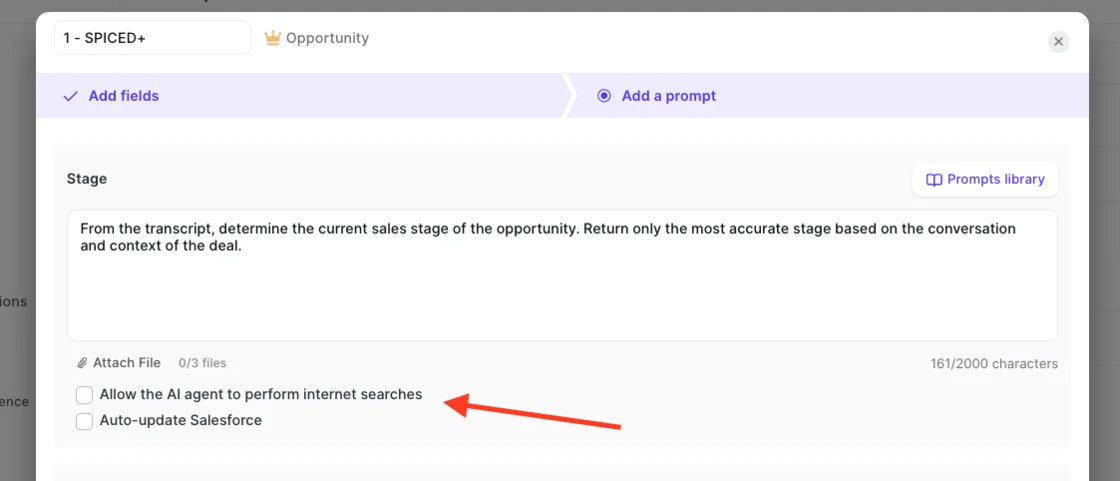
- Attach documents if the definitions run long. Each prompt takes up to three PDFs, such as a stage-criteria doc or a pricing sheet. Leave internet search off, which is the default. Pitfall: turning search on for a field the call should own blends web results into it.
- Choose review or auto-write. Section 8 covers which fields belong where.
- Assign the prompt. Put it in the right team template, with the right meeting type.
Here's the prompt editor for a Stage field. You can see the attachment slots, the character count, and the internet search and auto-update checkboxes, both off.
The edits that improve accuracy are usually small. Our customers' best corrections come from the people reading the output every day, and they tend to be one added sentence or a few cut words.
How to write prompts for Salesforce picklists and multi-selects
Weflow guarantees the value exists on the field. Your prompt has to say when each value applies. Most of the "AI picked the wrong value" complaints we hear come from prompts that list the values but never define them.
How to define each value in a single-select picklist prompt
Give each allowed value a one-line condition you could check against the transcript. Then add what doesn't count, and what to do when the call doesn't settle it. Use the picklist values exactly as they appear on the field.
Here's a pattern for a 0–3 qualification score:
Score how well this opportunity is qualified, using only what the buyer said on this call.

3 = The buyer described a business problem with a number attached (cost, time, revenue), named who signs off, and gave a timeline.
2 = Two of the three above.
1 = The buyer described a problem but gave no number, decision maker or timeline.
0 = The buyer described no business problem.

Do not count statements made by our rep.
Company size, headcount or revenue is not a business problem.
If this call adds no evidence for any of the three, leave the field unchanged.
The same structure works for lead source, deal type or any single-select field. One condition per value, one exclusion line, one leave-alone line.
How to write a multi-select prompt for competitors mentioned
Name the allowed values in the prompt and define what counts as a mention. A buyer evaluating a vendor isn't the same as a passing reference. Your rep comparing you to a competitor isn't the same as the buyer evaluating one.
Janis Zech said this directly when we discussed it on the podcast:
"Prompt quality plays a big role, right, if you have multi pick lists and you don't incorporate that into the prompts. It just doesn't really work. But if you do the right prompt engineering and you have the right setup and tool, it's really powerful."
Select every competitor the buyer is currently evaluating or already uses for this problem.

Allowed values: Gong, Clari, Salesforce Einstein Activity Capture, In-house build, Other.

Counts: the buyer says they are talking to, trialing, comparing, or currently paying for the vendor.
Does not count: our rep mentioning a vendor, a passing reference with no evaluation, or a vendor the buyer used in a past job.
Use "Other" only when the buyer names a vendor not on this list.
If no competitor is evaluated on this call, leave the field unchanged.
A competitors field built this way gives you something you can report on. You can chart which vendors show up in which segments, from what buyers said instead of what reps remembered.
How to write a prompt for a Salesforce date field
Weflow writes to date fields. Accuracy comes from the prompt naming which date the field holds and requiring an explicit date on the call. Vague timing is where date fields go wrong, so the safest instruction is usually to leave the field alone when the buyer is vague.
A date prompt should state:
- Which event the date belongs to, such as go-live, contract start or next meeting.
- Who has to say it. Usually the buyer, not the rep.
- What counts as explicit: a calendar date, or a day and month.
- What to do with "next quarter," "after summer" or "end of next month": leave the field unchanged.
Fill this field with the date the buyer plans to go live with our product.

Write a date only if the buyer states a specific calendar date, or a day and month.
Do not use dates mentioned for other events, such as contract signature, renewals or internal meetings.
If the buyer gives only a vague timeframe ("next quarter", "after the summer", "early next year"), leave the field unchanged.
Use only what was said on this call.
Close date is a different kind of field. It encodes the rep's judgment about the deal and moves the forecast the moment it changes, so it belongs in review. Section 8 covers that.
How to write prompts for number and amount fields
Single-value fields like amount are overwritten, not appended. Your prompt has to be strict about when to write. It can also compute the value instead of copying it.
Why an amount prompt needs a rule for leaving it alone
Methodology text fields add to what's already there. Amount doesn't. One misheard sentence, or one throwaway number from a buyer thinking out loud, replaces the figure your forecast reads. The prompt should write only on an explicit, buyer-confirmed figure.
| Write the amount when… | Leave the amount alone when… |
|---|---|
| The buyer confirms a total contract value | The buyer floats a budget range |
| Both sides agree on a quoted price on the call | The rep mentions list price and the buyer doesn't respond to it |
| The buyer confirms a revised figure after negotiation | A number refers to another vendor, another product or a past deal |
| The figure matches this opportunity's scope | The call contains no new figure at all |
Fill this field with the total annual contract value for this opportunity.

Write a number only if the buyer confirms a specific figure for this deal on this call.
Do not use budget ranges, list prices the buyer did not accept, or figures about other vendors or past purchases.
If no confirmed figure was stated, leave the field unchanged.
Return the number only, with no currency symbol or text.
How to calculate an amount from seats and price
A prompt can derive a number from what was discussed, such as seats multiplied by the agreed price per seat. Reps rarely type that math into Salesforce, and the inputs are usually right there in the transcript.
One packaging company has run this since the capability launched. Its own prompts encode its pricing logic, so when a buyer asks for a given volume of given package sizes at a given weight, the transcript becomes an order calculation after the call. The logic lives in the prompt, not in a quoting module.
Calculate the annual contract value for this opportunity.

Formula: number of seats x price per seat per year.
Both inputs must be stated on this call and accepted by the buyer.
If price is quoted per month, multiply by 12.
If either input is missing or the buyer has not accepted it, leave the field unchanged.
Return the number only.
How to move Opportunity Stage from your written exit criteria
Weflow treats Opportunity Stage as another field with a prompt against it. Stage moves when the exit criteria written into the prompt are met on the call. That only works if your exit criteria are written down.
This is where field updates start driving the sales process. It's also where a wrong extraction has real consequences, which is why Stage starts in review.
How to turn your stage exit criteria into a Stage prompt
State, per stage, what has to be true to leave it, and that Stage doesn't move otherwise. When your criteria doc is longer than the prompt can hold, attach it as one of the three PDFs.
- List your stages using the exact picklist values from the Stage field.
- For each stage, write the exit criteria as things a buyer would say or confirm on a call.
- Cut anything only a rep could know, such as internal approvals, from the prompt.
- Add the default: if the criteria for the next stage aren't met on this call, Stage stays where it is.
- Attach the full criteria doc as a PDF if the definitions run longer than the prompt.
Decide whether this opportunity has met the exit criteria for its current stage, using only what the buyer said on this call.

Move from "Discovery" to "Evaluation" only if all of these are true:
- The buyer described the business problem in their own words.
- The buyer named who will make the final decision.
- The buyer agreed to a next meeting to evaluate our product.

If any criterion is missing, do not change the stage.
Statements made by our rep do not count as the buyer confirming a criterion.
For other stages, use the exit criteria in the attached document.
How to fill the fields your stage validation rule checks
Weflow respects your validation rules. If a rule blocks a stage change until certain fields are filled, the change stays blocked until they are. The good news is that those gating fields are writable the same way, from what was said on the call.
Map them alongside Stage, in this order:
- List every field your stage validation rules depend on.
- Write prompts for those gating fields first, using the picklist, date and number patterns above.
- Write the Stage prompt last, once the fields it depends on can fill.
That way the gate is satisfied by what the buyer said, not by a rep filling in a form afterwards to get past the rule.
How meeting type detection keeps closing criteria off discovery calls
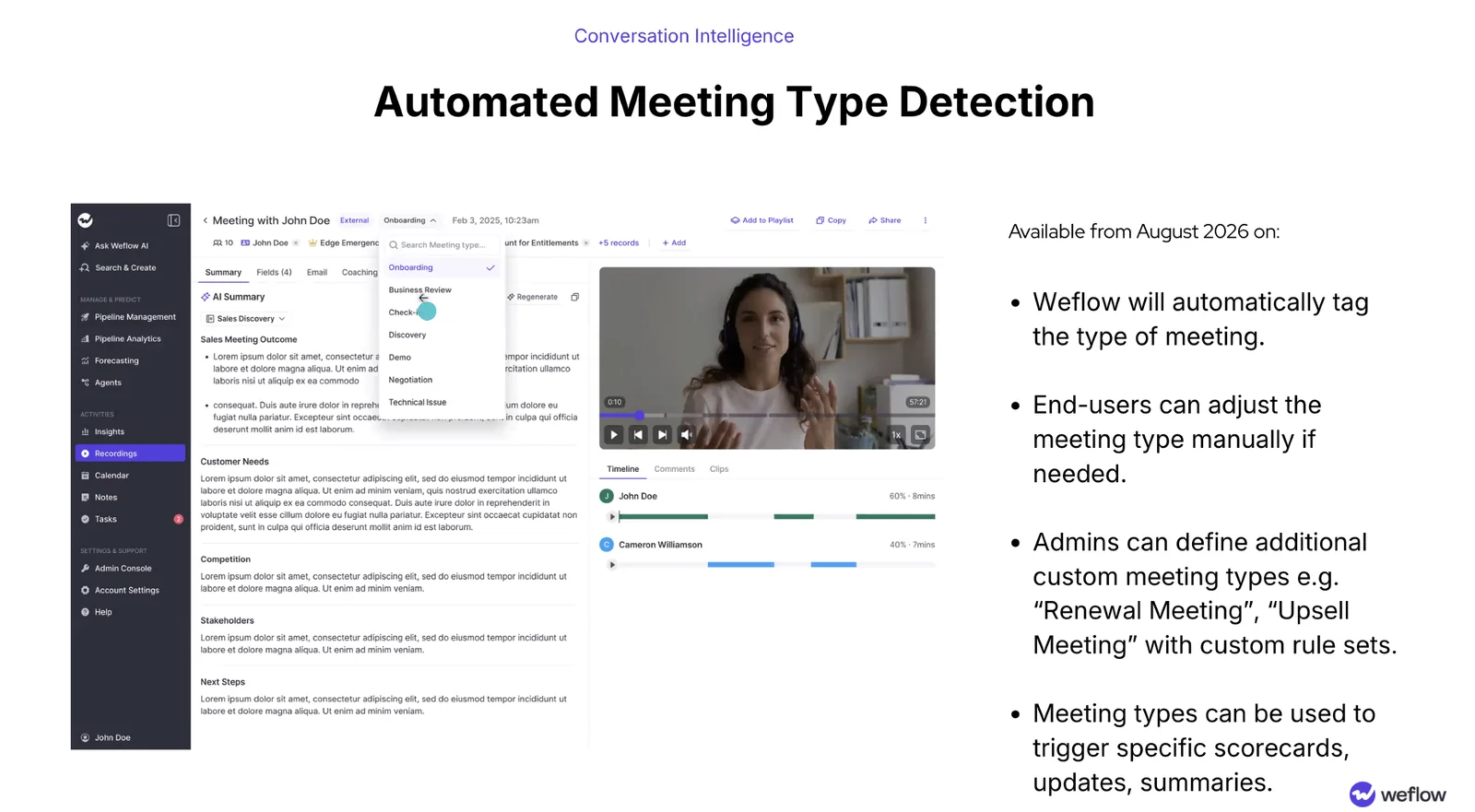
Weflow tags each recorded meeting with its type automatically. The set includes onboarding, business review, check-in, discovery, demo, negotiation and technical issue. A meeting type can trigger its own set of field updates, so a Stage prompt never scores a discovery call on closing criteria.
Reps can override the tag from a picker when the AI reads a call wrong. Admins can add their own types, such as renewal or upsell meetings, with their own rule sets.
| Meeting type | Structured fields to run |
|---|---|
| Discovery | Qualification score, competitors evaluated, Stage (early exits only) |
| Demo | Competitors evaluated, go-live date |
| Negotiation | Amount, seats, Stage (late exits) |
| Renewal (custom type) | Renewal-specific fields on your renewal record type |
Which structured fields should auto-write and which need rep review
You set this per field, not per team. Start interpretive and forecast-moving fields in review, and promote a field to auto-write only once it has held up on real calls. Required fields stay locked either way.
With review on, the rep accepts or edits each value, or reassigns the call to a different deal and the AI reanalyzes it. With auto-write on, the value goes to Salesforce without confirmation.
| Field type | Example field | Start in | Promote to auto-write when |
|---|---|---|---|
| Unambiguous text | Website | Auto-write | From day one |
| Single-select picklist | Qualification score 0–3 | Review | Reps stop editing it across several weeks of calls |
| Multi-select picklist | Competitors evaluated | Review | Passing mentions no longer get selected |
| Date | Close date | Review | Keep in review. It's the rep's judgment and it moves the forecast. |
| Number | Amount | Review | Keep in review. One misheard figure overwrites the number. |
| Picklist that drives process | Opportunity Stage | Review | Keep in review. A rep check costs seconds and protects the pipeline. |
That's our position: anything single-value and commercial stays with the rep. The proposed updates arrive within a minute or so of the call ending, so the review is a quick accept, not a data-entry session.
Buyers don't expect perfection here. They expect to know where the human sits.
The honest alternative to an AI-maintained field is usually an empty one. Review mode is how you get the 90% safely and catch the 10% before it reaches a report.
How to test field prompts when failed writes can't be replayed
A field update fires once, when the call ends. If a write fails because of a misconfiguration, nothing triggers it again, and the failure is silent. So you test in review mode on real calls, across every object and meeting type, before anything goes to auto-write.
- Put every structured field in review.
- Run real calls of each meeting type you've configured.
- Check writes against every object your activities map to, not just the Opportunity.
- Read the comparison view, which shows the old value beside the new one, and log every value that's valid but wrong.
- Fix the prompt by adding one sentence or cutting words, then run more calls.
- Promote fields to auto-write one at a time.
If a write is lost, the summary and transcript still live in the Weflow recording object in Salesforce. The field write itself doesn't come back, which is why this protocol runs before rollout and not after.
See how Weflow captures activity, updates Salesforce fields from calls, and rolls up your forecast. Book a 30-minute demo.
Questions admins ask about Weflow AI Field Updates on structured fields
Can Weflow AI Field Updates write to custom Salesforce objects?
Yes. Weflow AI Field Updates write to custom objects as well as Account, Contact, Opportunity and Lead. Custom objects need a one-time setup with Weflow support before you map fields to them.
Can different teams use different prompts for the same field?
Yes. Weflow supports a separate template per team, so sales, onboarding and customer success can each run their own prompts and write to different objects. Meeting type detection adds a second layer, applying different field sets to discovery, demo or renewal calls.
Can I edit field update prompts through the API or MCP?
No. Prompts are edited only in the Weflow admin console. The API and the MCP connector serve data out of Weflow; they don't configure templates. During guided setup, we usually enter your prompts with you.
Can I see whether a value came from the call or a web search?
No. The comparison view shows what changed, not which source produced it. Internet search is off by default for each prompt. To keep a field to the conversation, leave search off and write "use only what was said on this call" into its prompt.
Does an AI field update overwrite what the rep already wrote?
It depends on the field type. On methodology text fields, Weflow adds to the existing content, so MEDDIC or SPICED fields build up over the deal. Single-value fields such as amount, close date and Stage are overwritten, which is why those start in review.
When should a field use an AI Playbook instead of a per-call update?
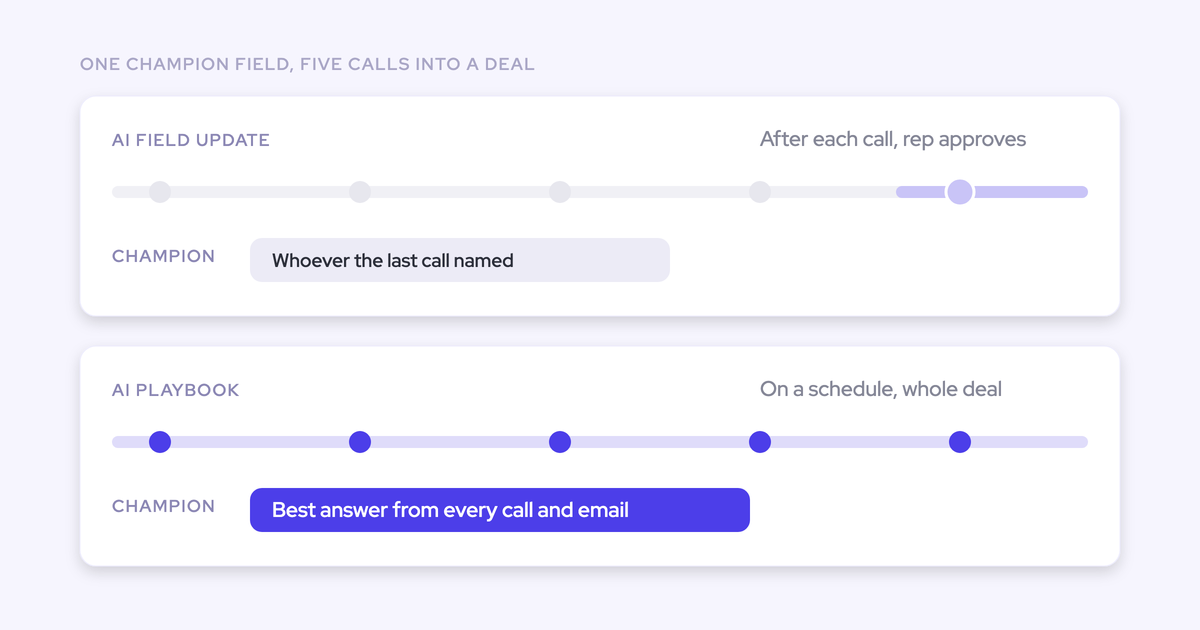
Use a per-call update when the field should reflect one call. Use an AI Playbook for cumulative fields, because it reads every email, meeting, transcript and field on the opportunity and keeps the value at the current best answer.
- Playbooks suit teams where many deals happen in email. One buyer told us only about half their opportunities ever have a recorded call.
- Playbooks rerun every three hours, but only for opportunities created or changed after you configure them. Older deals need a bulk regenerate.
- If both routes write to the same field, decide upfront which one owns it, so they don't overwrite each other.
Do Weflow AI Field Updates cost extra per field?
No. AI Field Updates come with the Weflow Conversation Intelligence seat at $39 per user per month, billed annually. Weflow pricing has no usage-based charges, so adding a field prompt doesn't add a fee.