How to Build a Sales Call Library in Weflow With Chapters, Clips and Playlists
Learn how to build a Weflow sales call library with chapters, clips, and best-practice playlists.


An onboarding call library is a short list of clips you pick by hand and file by call type and moment. A new rep opens it and hears what a good discovery call sounds like, without waiting for someone to be free to sit with them. If your team records calls in Weflow Conversation Intelligence, you already have everything you need to build one.
Weflow is the Revenue AI Orchestration platform for sales, customer success, and RevOps teams. This job uses four parts of it:
- automatic chapters, to find the moment
- clips, cut from the transcript or the timeline
- playlists, filed by call type and moment
- timestamped links, which land a new rep on the exact second
The build has seven steps: map the curriculum, find the moments, jump in with chapters, cut the clip, file it, share it, and decide who sees what. You decide what goes in. That's deliberate, and the next sections explain why the pick belongs with you.
What your Weflow call library looks like when it's done
The finished library is a handful of short playlists. Each one is named for one call type and one moment, such as "Discovery: pain questions". Each one holds a few clips of real customer conversations.
A new rep opens the playlist, clicks a link, and lands on the second the good part starts. Nobody has to explain where to look. That's the test the library has to pass: new reps use it without you in the room.
| What changes | Without a library | With a curated library |
|---|---|---|
| How a new hire learns discovery | From whichever manager or peer has time that week | From several strong versions of the same moment, picked by you |
| Where the good calls live | Scattered across hundreds of recordings nobody curates | In named playlists, one per call type and moment |
| What a new rep opens on day one | A full 45-minute recording, or nothing | A playlist of short clips that start at the right second |
| What ramp depends on | Which manager the rep happened to get | How your company actually sells |
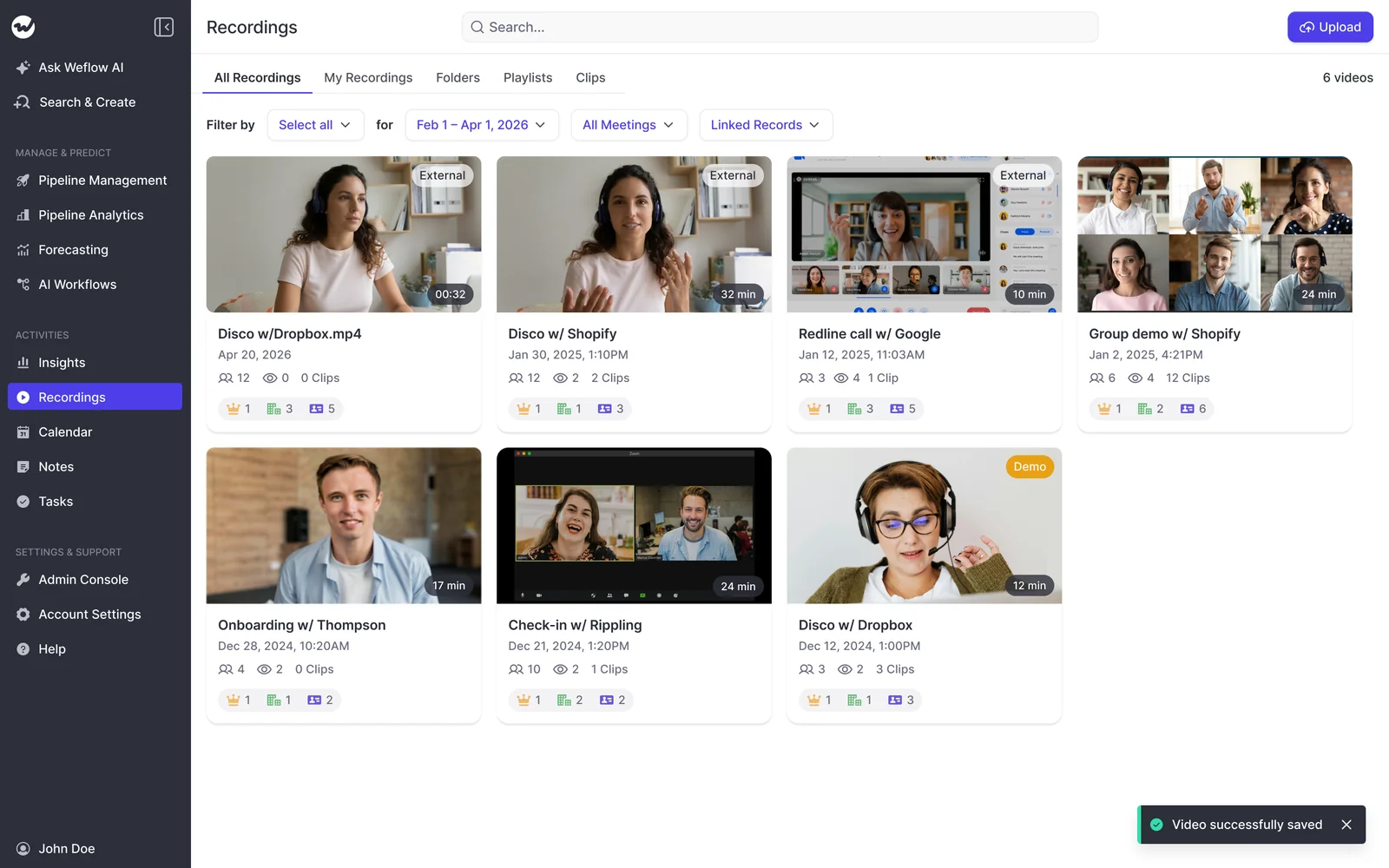
In Weflow, playlists and clips have their own tabs in Recordings, next to the full call library.
Why we leave the clip choice to you, not an auto-feed
Weflow doesn't create clips or fill playlists automatically. You pick every clip. We think that's the right design for an onboarding library, and the reason starts with arithmetic.
Ten reps on three to four hours of calls a day produce more than 100 hours of conversation daily. No manager can watch that. A complete archive of everything good is the wrong goal, because nobody will curate it and no new hire will get through it.
Auto-clip feeds and self-filling playlists solve a different problem. They handle volume for voice of the customer: competitor mentions, praise, product feedback, all flowing into a channel. If an automatic voice-of-customer feed is what you want, Weflow doesn't build that today.
An onboarding library asks a different question: which call should a new hire copy? That needs your judgment about how your team sells. A model can tell you where pricing came up. It can't tell you which pricing conversation you want ten new reps to imitate.
So Weflow makes the judgment cheap instead of replacing it:
- meeting types and trackers narrow hundreds of recordings to a few candidates
- Ask Weflow AI points you to the moments worth a look
- chapters take you straight to the part you need
The final pick stays with you.
What you need in Weflow before you start
You need three things in place. Two of them are checks, and one is admin setup.
- A Weflow Conversation Intelligence seat for each rep whose calls you want. Recording lives inside Conversation Intelligence, so calls from reps without that seat won't be in the library.
- Every rep has signed in to Weflow at least once (admin checks, rep acts). The notetaker won't join meetings for a user who holds a license but has never logged in. Their emails and meetings still sync to Salesforce, so the gap is easy to miss.
- The calls you care about have an external attendee. The notetaker only joins meetings where at least one attendee sits outside your internal domains. Internal role-plays and team calls won't be there.
- The recording health dashboard looks clean (admin). It shows meetings recorded, recording attempts, meetings skipped and an error rate, with each failure attributed. You see the gaps before you go looking for a call that was never captured.
- Meeting types match how you sell (admin). If you run renewal or upsell meetings, add them as custom types before you start filtering.
- Trackers exist for the terms you'll hunt for (admin or manager). Typical trackers cover competitor names, pricing language and your common objections.
Step 1: Map your curriculum by call type and moment
Decide what the library contains before you search for anything. A new rep thinks "what does a good discovery opening sound like?", not "which calls did Sarah have in March?". Build a short grid of call type by moment, and fill only that grid.
| Call type | Moment | What a new rep should learn from it |
|---|---|---|
| Discovery | The opening | How to set an agenda and earn the rest of the call |
| Discovery | Pain questions | Which questions get the buyer to describe the problem in their own words |
| Discovery | Your methodology's key step | What a strong answer sounds like for the framework you just rolled out |
| Demo | Tying the demo to the pain | How to show only what matters to this buyer |
| Demo | The competitor objection | How your best rep answers "we're also looking at another vendor" |
| Negotiation | The pricing conversation | How to talk about price without opening with a discount |
Start with the two or three moments new hires ask you about most, and add rows later. If you just rolled out a methodology, give it its own row so the best examples of it sit in one place.
Step 2: Find the calls and moments worth copying
Each of three finders narrows the pile a different way: meeting types by kind of call, trackers by moment, and Ask Weflow AI by what your best rep does differently.
Pull candidate calls by Weflow meeting type
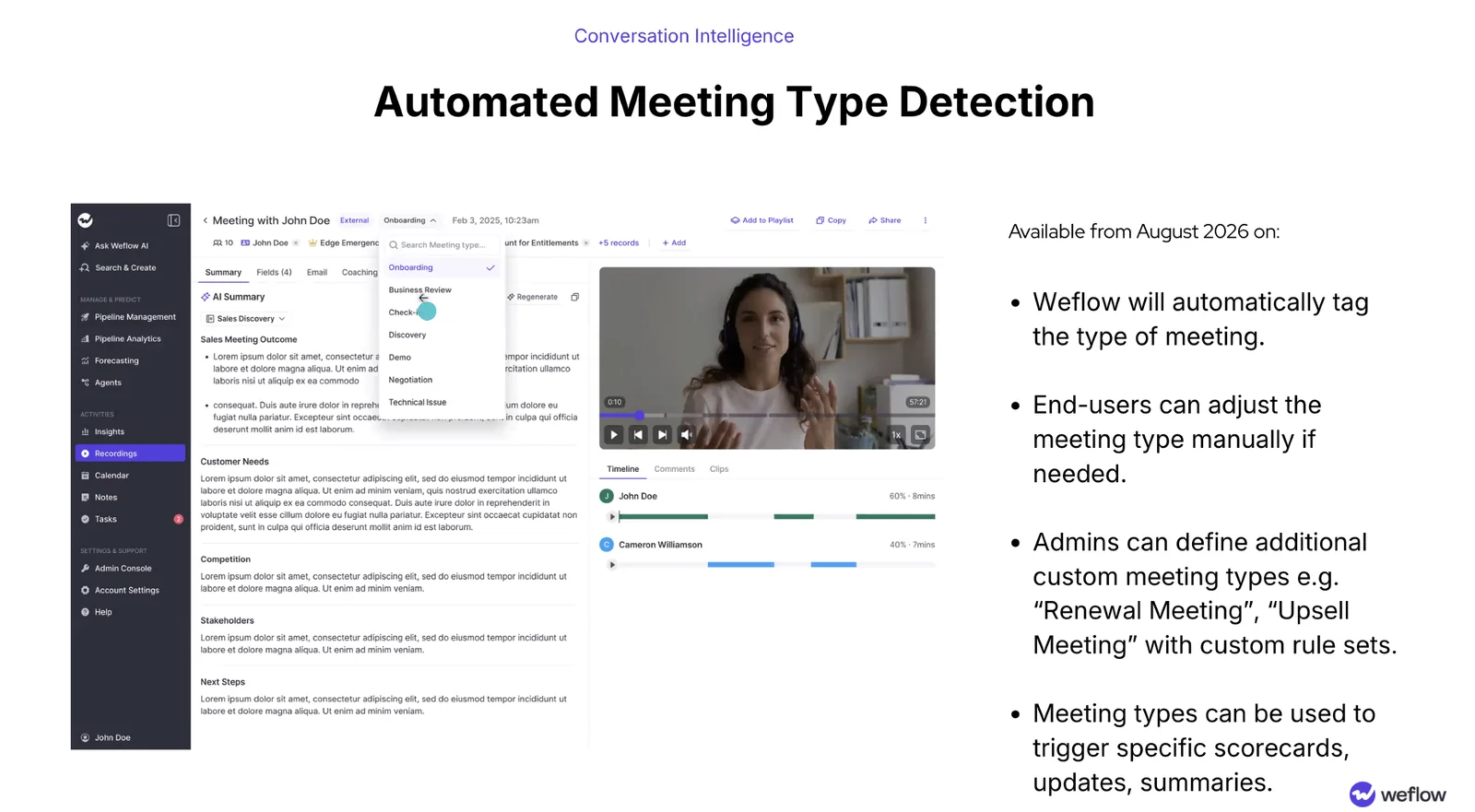
Weflow tags every recording with its meeting type automatically, from a set that includes discovery, demo, negotiation, onboarding, business review, check-in and technical issue. That lets you narrow the library by call type.
- Your admin opens the Admin Console, then Conversation Intelligence, then Meeting types.
- They remove default types you don't run and add your own, such as a renewal or upsell meeting. A company runs up to ten active types.
- You filter the Recordings library by the type that matches your curriculum row.
- When the AI reads a call wrong, the rep corrects the tag from the picker on the recording, so your filters stay accurate.
Find the exact moments with trackers and Insights
Transcript search tells you which calls mention a term, not where in each call it was said. It ranks recordings by how densely the term appears, so you still open each one and hunt. Trackers close that gap: a tracker records every hit of a term across calls, and Insights reports those hits.
- Define a tracker for the moment you want, for example a competitor's name, "pricing" or a common objection phrase. New trackers also apply to past recordings, so you don't wait for new calls.
- Read the hits in Insights, broken down by rep and time period.
- Open the calls where your strongest reps hit the term, and go to the mention.
Ask Weflow AI what your top rep does differently
Most managers we talk to want the same thing from a library. One sales leader put it this way:
everyone to do what the best performer does, while coaching the least strong performer.
Ask Weflow AI gets you there faster because one question covers many recordings at once. Add a set of your top rep's discovery calls to the question and ask what they do that others don't. The answer draws on every recording you added.
Across these discovery calls, what does she do in the first ten minutes that sets up the pain questions? Point me to the moments.

What do these demos have in common when the buyer brings up a competitor? Show me where each one happens.
Answers reference back to the calls, so you go from the AI's claim to the actual moment in one click.
I love being able to go right to the call, transcript or email and see where something was said that the AI is referencing.
— Scott Jones, SVP of GTM Revenue Intelligence & Enablement, KORE Wireless
Ask Weflow AI points you to the moments. You still listen and decide which ones go in the library.
Step 3: Jump straight to the moment with Weflow chapters
Weflow splits every recorded call into topic chapters by default. You don't scrub through 45 minutes looking for the pricing conversation. You click it.
- Open the recording from your shortlist.
- Scan the chapter list, which sits beside the transcript and the timeline.
- Click the chapter for your curriculum moment, such as pricing or the objection.
Each chapter covers one topic, so it's already a ready-made clip boundary. Often you can clip the chapter as it stands.
Step 4: Cut a clip from a chapter, timeline or transcript
Weflow gives you three ways to cut a clip. Each one produces a clip you share on its own or save to a playlist.
| Clip method | How you cut it, and when to use it |
|---|---|
| From a chapter | Turn the chapter into a clip. Use it when the whole topic is the lesson, such as a complete pricing discussion. |
| From the timeline | Drag a range on the call timeline. Use it when the moment spans a chapter boundary or you want a little lead-in. |
| From the transcript | Highlight the passage in the transcript. Use it when you want the buyer's exact words, start to finish. |
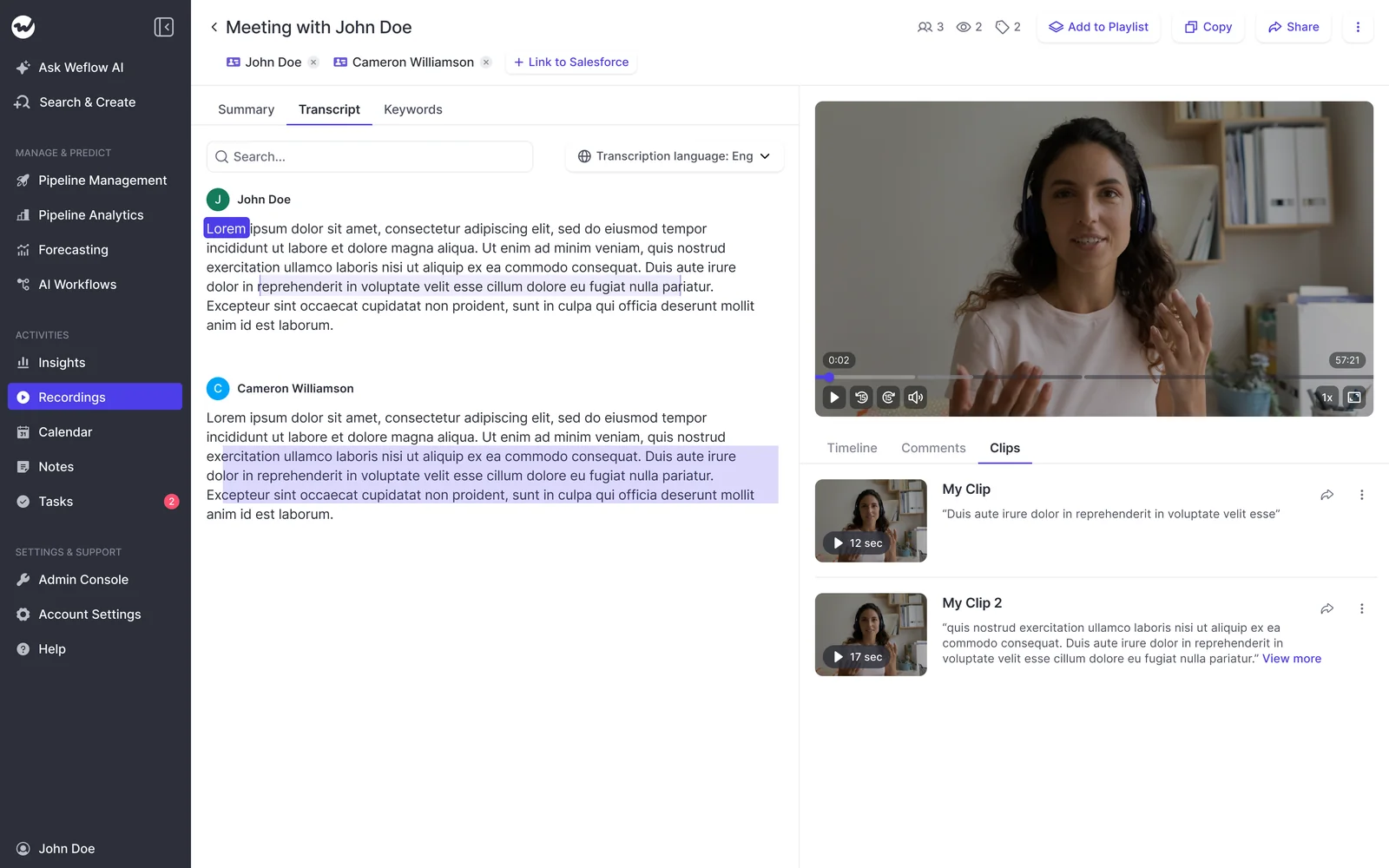
Highlighting the transcript is the method we'd reach for most in an onboarding library. Fifteen seconds of a buyer describing their problem carries a conviction no summary does, and a new rep learns what to listen for by hearing it said.
Step 5: File each clip into a playlist by moment
File by moment, not by rep or by date. A new hire opens one playlist and hears several good versions of the same moment, which teaches the pattern instead of one rep's style.
- Save the clip.
- Choose the playlist for its curriculum row, or create it if it's the first clip for that row.
- Name the playlist by call type and moment, using the same wording as your grid from Step 1.
A naming convention keeps the library readable as it grows:
- Discovery: the opening
- Discovery: pain questions
- Demo: the competitor objection
- Negotiation: the pricing conversation
You save clips from different calls and different reps into the same playlist. That mix is the point.
Step 6: Share clips with timestamped links new reps can open
When Weflow links to a moment in a recording, the link shows the time it jumps to, for example 1:03. A new rep sees which part of the call it points at before clicking, and lands on that moment rather than scrubbing.
Two sharing patterns cover most of onboarding:
- A single clip in a one-on-one. A new rep asks how to handle a price objection, and you send the one clip that shows it.
- A playlist in the onboarding plan. Add "Discovery: pain questions" to week one, and the rep works through it before their first shadowed call.
Step 7: Decide who sees the library and what stays out
Recording visibility in Weflow follows your Salesforce hierarchy. Plan your library around that rule before you share widely, and know where it stops.
Who sees which calls under the Salesforce hierarchy
By default, reps don't see each other's calls. Managers see their reports' recordings, and everyone else sees the meetings they were invited to.
| Who | What they see by default |
|---|---|
| Managers | Recordings from the people who report to them |
| Reps and other users | Recordings of meetings they were invited to |
| A user tagged on a single call | That call, shared with them individually |
Admins can override the default with a custom Weflow hierarchy, or grant access through Teams. That's how a cross-team enablement library becomes visible to new hires who don't report to you.
Give people outside Salesforce View-Only access
Product managers, onboarding peers and other teammates who aren't Salesforce users get a View-Only license. Every Weflow plan includes view-only licenses (up to one per recording license) at no extra cost, so the people who want clips don't need a full seat to watch them.
How to keep board and exec calls out of the library
Weflow has no per-call private flag. Visibility follows position in the hierarchy. Placing a user at the top of the hierarchy hides all of their calls from everyone below them.
- Fits: an executive or board member whose calls should never sit in a shared library. Put them at the top, and none of their calls show up.
- Doesn't fit: someone who wants nine of ten calls shared and one kept private. The setting is all or nothing, so the only route is to hide everything and re-share calls one by one by tagging users.
Team-level tagging, which would share a call with a whole group in one action, doesn't exist yet.
Mistakes that turn a call library back into an archive
Libraries fail on scope, structure and ownership. The tooling is rarely the problem.
- Clipping everything instead of the curriculum rows. Every extra clip makes the good ones harder to find. Build only the grid from Step 1.
- Filing by rep or date instead of by moment. A new rep doesn't know who to look up. File by moment, as in Step 5.
- Sharing whole calls instead of clips. New reps won't scrub a 45-minute recording to find two minutes. Send the clip.
- Putting rep-level metrics or weak-call examples next to the library. Reps read talk ratios and "what not to do" clips as surveillance, and they go cold on recording. Keep the library the positive side of recording: only calls worth copying.
- Leaving curation without a named owner. Playlists go stale when nobody owns them. Name one person who adds a clip when a better example comes along.
How the same Weflow recording feeds Salesforce and your library
The recording you clip is the same one that already writes field updates and summaries into Salesforce after every call. The transcript sits in a native Salesforce recording object, so the conversation stays reportable in your CRM whether or not anyone ever clips it.
That makes your onboarding library a by-product of the Weflow Conversation Intelligence your team already runs. You don't buy another tool or keep a second system in sync. You spend a little of your judgment on recordings that are already there.
Walk through the product yourself, no call required.
FAQ: building a sales call library in Weflow
Can reps see each other's calls in Weflow?
Not by default. Weflow follows your Salesforce hierarchy: managers see their reports' recordings, and reps see only meetings they were invited to. Admins can widen access with a custom Weflow hierarchy or Teams, and anyone can share a single call by tagging a user.
Can one Weflow playlist hold clips from different calls?
Yes. You save clips from different calls into the same playlist, which is how you build a library of examples, such as strong discovery questions or competitor objections from several reps.
How long does Weflow keep call recordings?
By default, Weflow keeps recordings for as long as you subscribe, with no storage cap under fair use. Customers who treat retention as a security control can have all recordings deleted after a set period, such as every 30 days.
Can we bring our Gong recordings into Weflow for the library?
Weflow imports recordings from most conversation intelligence tools, through the vendor's API or from files exported out of the tool. Imports run at no extra cost and take about one to two weeks depending on volume. For a clip library, the video matters as much as the transcript, so secure the media files before you leave the old vendor.
What if our best calls were never recorded?
Calls that were never recorded can't be recovered. The common holes are:
- The lobby: the notetaker joins as a participant and needs admitting. If the organizer never arrives, it leaves after about ten minutes.
- Reps who never signed in: the notetaker won't join their meetings until they log in once.
- Internal-only meetings: the notetaker only joins meetings with an external attendee.
The recording health dashboard shows these gaps per meeting. If the notetaker gets stuck in a lobby, the rep sends it back in mid-call from the Weflow calendar and keeps the rest of the conversation.
Do customers in the clips need to have consented to recording?
The Weflow notetaker carries the consent flow. You choose opt-in, opt-out or none, and the notetaker posts a notice in the meeting chat with a link that stops the recording, plus an optional pre-meeting email. The Weflow desktop app doesn't run that flow, so consent on desktop recordings is the rep's responsibility. For EU and works-council markets, our guidance is to check the consent requirements in your participants' countries with your legal team before you build a shared library.
Why build a library of real calls instead of AI role-play?
A real call carries the buyer's exact words, hesitations and objections as they actually came up in your market. A new rep learns what to listen for from hearing a customer say it, and that's the reason to clip real moments instead of describing them.
How much does Weflow Conversation Intelligence cost?
Weflow Conversation Intelligence is $39 per user per month, billed annually, with a minimum of 10 users. Recording requires this seat. It includes:
- Ask Weflow AI Pro
- Agent Builder Free, with 25 agent actions per month
- Weflow Mobile Copilot
- the Weflow desktop app
Conversation Intelligence also comes inside the Revenue AI Foundation ($49), Revenue AI Business ($59) and Revenue AI Enterprise ($79) bundles, each priced per user per month.