How to Get Phone Calls, In-Person Meetings and Offline Recordings Into Weflow
Learn which Weflow route captures phone calls, in-person meetings, and offline recordings.


Your notetaker already covers Zoom, Google Meet and Microsoft Teams. For conversations with no meeting link, Weflow gives you four more routes:
- The Weflow desktop app for softphone calls on Aircall, RingCentral or any dialer whose audio runs through the computer.
- The Outreach dialer connection for SDRs calling from Outreach.
- Weflow Mobile Copilot for in-person recordings and post-meeting voice notes.
- Manual upload for recordings made somewhere Weflow wasn't present.
All four feed the same Weflow Conversation Intelligence pipeline as a notetaker recording. That means a transcript, a summary, AI Field Updates and a scorecard, written into Salesforce.
There are two boundaries to plan around from day one:
- Calls on a rep's personal mobile carrier line aren't captured. No vendor can capture those.
- The desktop and mobile routes depend on the rep starting the recording.
Weflow is the Revenue AI Orchestration platform for sales, customer success, and RevOps teams. For your rollout, that means the recording is only the input. What you're delivering to leadership is structured Salesforce data from every channel your reps talk on.
Below you'll find:
- one routing table
- setup steps for each route
- who owns consent on each route
- what isn't covered
- a test list to run before go-live
Which Weflow route covers each type of sales conversation
Each conversation type maps to one Weflow route, with a known trigger, a known consent owner and a known gap. Two types have no route at all.
| Conversation type | Weflow route | Who starts it | Who owns consent | What lands in Salesforce | What you lose |
|---|---|---|---|---|---|
| Scheduled video meeting on Zoom, Meet or Teams | Notetaker (the baseline) | Scheduled from the calendar onto external meetings | Weflow's consent flow | Weflow_Recording__c with transcript and summary, summary on the Event, AI Field Updates | Nothing. This is the reference output. |
| Softphone call on the computer (Aircall, RingCentral, others) | Weflow desktop app | The rep, by pressing Record meeting | The rep | Weflow_Recording__c with transcript, summary, AI Field Updates and scorecard | Automatic start and Weflow's consent flow |
| Outreach dialer call | Outreach dialer connection | Automatic once Outreach is connected | Outreach, because it records the call | Call activity, with transcript, summary and AI Field Updates | Video |
| Call on a dialer Weflow hasn't connected | Desktop app now, Weflow-built connection after implementation | The rep, until the connection exists | The rep on the desktop app, the dialer once connected | Same as a softphone call | Automatic pull until we connect the dialer |
| In-person field meeting | Mobile Copilot recording | The rep, in the room | The rep, who asks the people present | Summary and AI Field Updates synced to Salesforce | Automatic start |
| Field meeting where recording was refused | Mobile Copilot voice note | The rep, after the meeting | No participant is recorded | Same summaries, AI Field Updates and scorecards | What was actually said. You only get what the rep remembered. |
| Recording from a customer's platform or an old tool | Manual upload | Any Weflow user | Whoever made the original recording | Processed like a native recording, linked to the records the uploader picks | Speaker names |
| Call on a rep's personal mobile carrier line | No route | Not applicable | Not applicable | Only what the rep logs by hand | The whole conversation |
| WhatsApp, Teams chat and Google Chat | No route | Not applicable | Not applicable | Nothing | The whole conversation |
The sections below follow the routes in this order.
Why a dialer call or upload isn't a second-class record
A softphone call, an Outreach call, a voice note and an upload all get the same treatment as a notetaker recording. Every route produces:
- a transcript
- a summary, split into chapters by topic
- AI Field Updates to the Salesforce fields you've mapped
- coaching scorecards
- a follow-up email draft
- search, plus Ask Weflow AI across one or many recordings at once
The data lands in the same places every time:
- Transcripts and summaries go into
Weflow_Recording__c, the custom object our managed package adds. - Where there's a related Event, the summary also writes to that Event.
- Calls pulled from a connected dialer arrive in Salesforce as a call activity.
Here's how each route differs from the notetaker baseline:
| Route | The one difference from a notetaker recording |
|---|---|
| Desktop app (softphone call) | The rep starts it, and Weflow's consent flow doesn't run |
| Outreach dialer | No video |
| Mobile Copilot recording | The rep starts it in the room |
| Mobile Copilot voice note | Captures the rep's recollection, not the conversation |
| Manual upload | Speakers show as Speaker A, B and C |
Our co-founder puts the order of value plainly:
"It's great if you have those recordings, but, like, the real challenge is to make sure that, you know, the next steps that are discussed in that meeting... turn that transcript data that you're able to create from that into actual updates and information that is, you know, structured in your CRM so you can retrieve it..."
So judge each route by the Salesforce write it produces, not by the recording.
What you need in place before any route records
Four gates decide whether every route works. Skip one and the route fails silently. Run this list against your user list today:
- A Weflow Conversation Intelligence seat. It can be standalone or inside a bundle. The seat carries both the desktop app and Mobile Copilot. Neither comes with Weflow Activity & Contact Capture alone.
- One sign-in per user. Recording starts only after the user has signed in to Weflow once. Assigning the seat isn't enough.
- Salesforce REST API enabled. Logging runs through the REST API, and every user needs write access to
Weflow_Recording__c. - Minimum versions. Manual upload needs Weflow 3.18 or later. Mobile Copilot on iPhone needs iOS 17 or later.
Record Aircall and RingCentral calls with the Weflow desktop app
The Weflow desktop app records any softphone call whose audio runs through the computer. That includes Aircall, RingCentral and providers we've never integrated with.
It works because the app captures the system audio and the microphone. It doesn't connect to your telephony provider. This is the gap we hear about most from teams with a phone motion:
"when people say they have a conversation and then something goes sideways in the deal later, there is no way for me to coach to it, because it was a conversation on the phone that we are not able to capture."
Here's the setup for each inside rep:
- Download the desktop app from the Weflow web app, our website or the help center. Builds exist for Windows, Mac with Apple Silicon and Mac with Intel.
- Sign in with the same Weflow account the rep already uses.
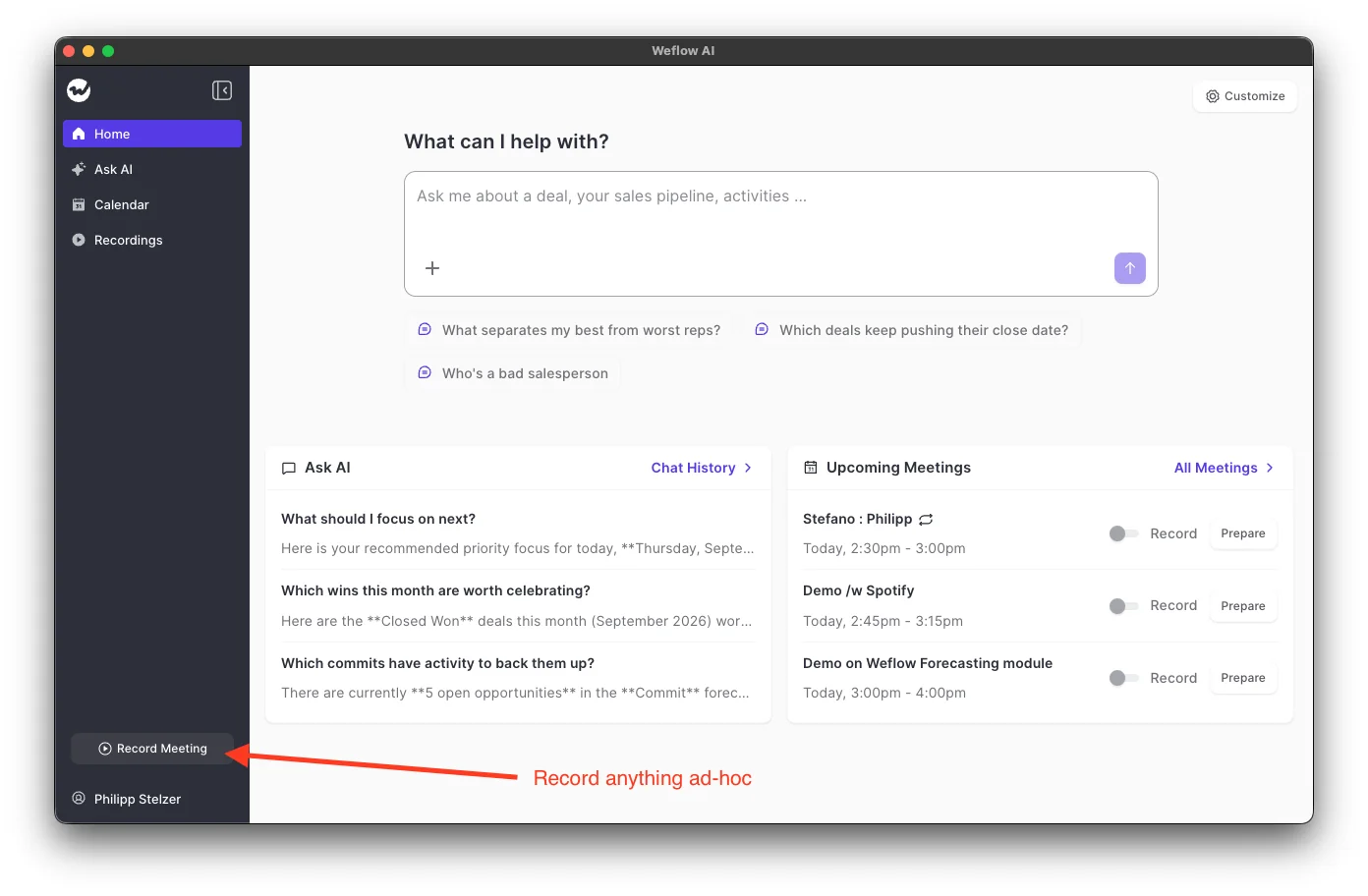
- When the call starts, press Record meeting in the app's sidebar. The app records whatever the system audio and microphone are carrying.
- After the call, the processed recording shows up in Weflow and in Salesforce, with the same transcript, summary, AI Field Updates and scorecard as a recorded meeting.
Two things to plan for:
- The trigger is manual. The app sends a prompt when a rep joins an ad-hoc Zoom or Google Meet meeting. It doesn't prompt for Microsoft Teams or for softphone calls, so on a phone call the rep has to remember to press record.
- Switching dialers doesn't break capture. Capture doesn't depend on a provider integration, so moving from one softphone to another leaves recording intact.
On consent, the rep owns it for desktop recordings. The consent section below covers what that means for legal.
Pull Outreach dialer calls and other dialers into Weflow
Outreach is Weflow's established automatic dialer connection. Any other dialer needs a connection our team builds after the trial. Until then, reps use the desktop app.
Weflow doesn't record calls inside a VoIP dialer. For a connected dialer, the dialer records the call. Weflow then pulls that recording, transcribes and analyzes it, and writes it to Salesforce.
How to connect the Outreach dialer on Weflow's Setup and Integrations page
You connect your own Outreach account from Weflow, and calls start flowing in:
- Open Weflow's Setup and Integrations page.
- Select the Outreach integration.
- Connect your Outreach account.
Each Outreach call then arrives in Weflow with:
- an outbound call label and the name of the person called
- the audio, with speaker separation
- a transcript, a summary and coaching
- AI Field Updates, scorecards and search, like any other recording
- no video
Outreach records these calls, so Outreach owns recording compliance for them. That includes the announcement some countries and US states require. Reps who record through the dialer don't need to be on Weflow's recording list for those calls.
One email detail to set up at the same time. Compatibility mode recognizes Outreach emails by the tracking links in the email body. If your team sends through a branded custom tracking domain, add that domain to the exclusion patterns, or those emails log twice. You'll find the domain in Outreach's admin console under custom domain.
What connecting a dialer other than Outreach involves
Weflow's team builds connections to new dialers. Your admin can't switch one on. Connecting a provider such as Five9 or another contact-center dialer takes us hours to days, and we schedule that work into the full implementation.
So the timeline looks like this:
- During the trial: softphone calls on the computer go through the desktop app, and Outreach calls come in through the established connection.
- After implementation: the dialer we've connected pulls its recordings in automatically, with the dialer as the recorder.
Record field meetings with Weflow Mobile Copilot
Field sellers carry the biggest quotas and leave the least data behind. There's no video call for a notetaker to join, so face-to-face meetings usually reach Salesforce only if the rep types them in. One buyer described their current process to us like this:
"we're currently asking our field reps to manually add face to face meetings... that to me is like stone age"
Weflow Mobile Copilot records in-person meetings on iOS and Android. It also accepts a voice note after the meeting that produces the same AI Field Updates. That means even a meeting where recording was refused still lands structured data in Salesforce.
How to deploy Mobile Copilot to a field team with MDM
You deploy Mobile Copilot through your existing device management, with no private build:
- Make sure each field rep holds a Conversation Intelligence seat. The mobile app is included in it.
- Check that iPhones run iOS 17 or later.
- Push the Weflow app from the public Apple App Store and Google Play through any MDM. You don't need to pre-configure accounts in the MDM.
- Have each rep open the app and sign in with Salesforce SSO.
How to record an in-person meeting on iPhone or Android
Here's what the rep does in the room:
- Open Mobile Copilot and select the meeting.
- Ask the people present for consent, then press record.
- Put the phone on the table.
- Stop the recording when the meeting ends. Summaries and AI Field Updates sync to Salesforce like any other recording.
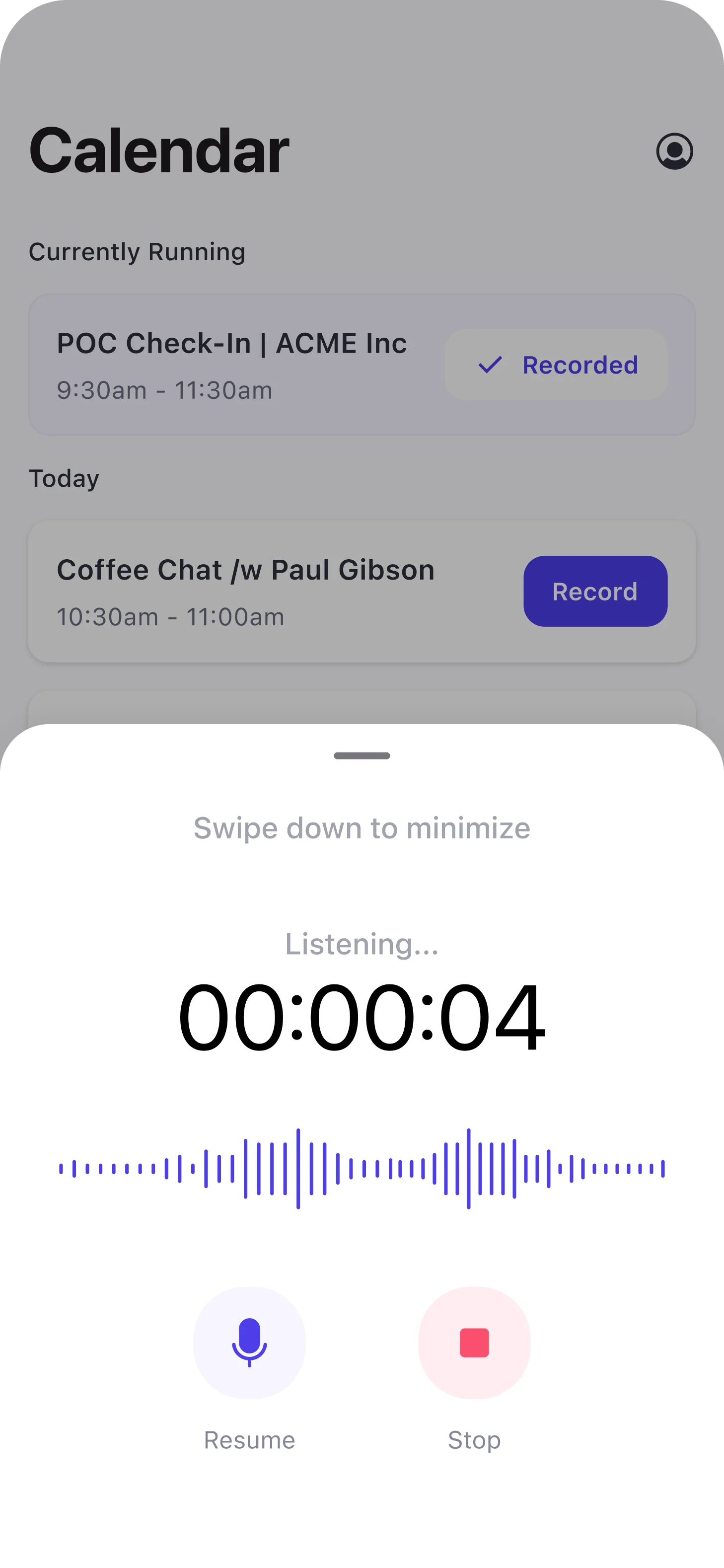
Before the meeting, the rep can request a briefing on demand. It pulls the contact, the opportunity, prior meeting context and the communication history into a prep sheet they can read while travelling.
Consent on this route sits with the rep in the room. The consent section covers the details.
How to log a meeting with a voice note instead
Sometimes putting a phone on the table is socially impossible, or the customer says no. In that case, the rep dictates afterwards:
- Leave the meeting and open Mobile Copilot.
- Record a voice note covering what happened: budget, contacts, next steps, objections.
- Stop the note. It's processed like a call recording and produces the same summaries, AI Field Updates, scorecards and follow-up email.
The trade-off is that a voice note holds what the rep remembered, not what was said. The app can't prompt them while they dictate, so anything they leave out stays out.
Those gaps surface later, when the playbook marks an element as never discussed. A scheduled agent can check each opportunity against the playbook and message the rep about what's missing.
Upload recordings from a customer's platform or an old tool
Any Weflow user can upload a recording of up to 512MB, on version 3.18 or later. Weflow processes it like a meeting it recorded itself.
This covers the conversations Weflow wasn't present for: a call on a customer's platform, a file from another tool, or a meeting someone captured on their phone.
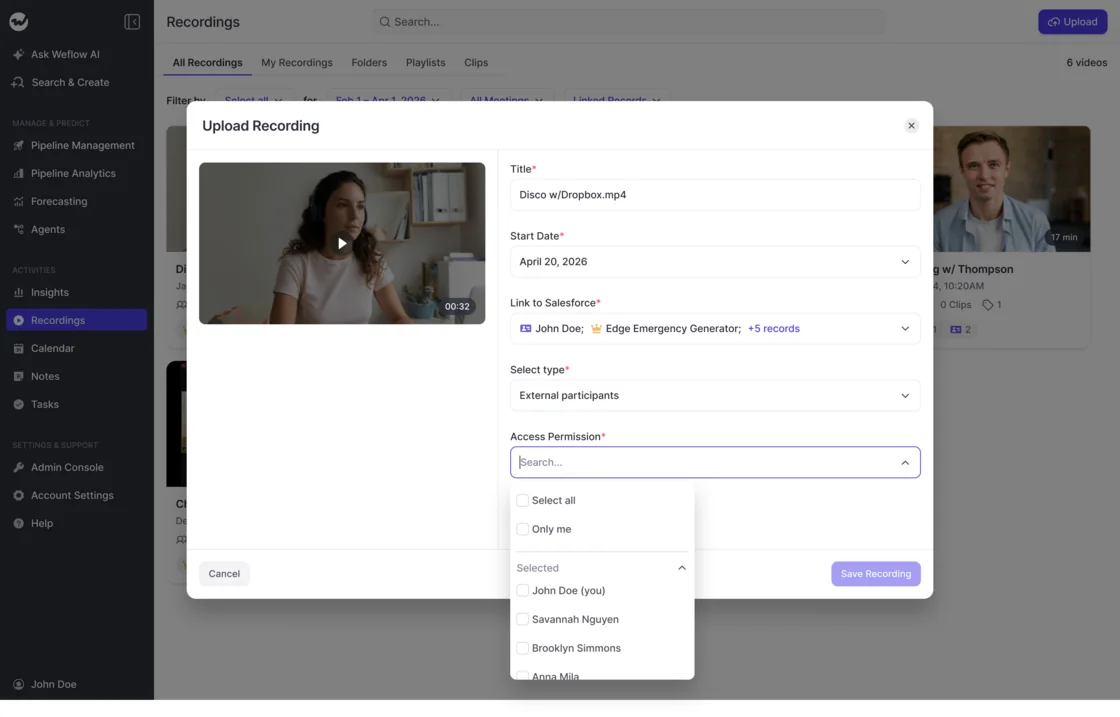
- Open Recordings in Weflow and choose to upload a recording.
- Add the title and start date.
- Link it to the Salesforce records it belongs to, such as a contact and an opportunity.
- Set the participant type, for example external participants.
- Set access, from named colleagues down to only yourself.
Here's what you lose with an upload:
- Speakers appear as Speaker A, B and C, and you can't rename them.
- The summary, coaching and search can't say who said what, because the file carries no attendee list.
Who owns recording consent on each Weflow route
Consent ownership changes from route to route. Legal and your works council need to hear that before rollout, not after the first objection.
| Route | Who records | Consent handled by | What runs automatically |
|---|---|---|---|
| Notetaker | Weflow | Weflow's consent flow, set to opt-in, opt-out or none | A notice in the meeting chat with a link that stops the recording, plus an optional pre-meeting email |
| Outreach or another connected dialer | The dialer | The dialer | Whatever recording announcement the dialer is configured to play |
| Desktop app | Weflow, on the rep's machine | The rep | Nothing. The product doesn't tell other participants. |
| Mobile Copilot recording | Weflow, on the rep's phone | The rep, who asks in the room | Nothing beyond the rep's request |
| Mobile Copilot voice note | Weflow, recording only the rep | Not needed from the customer | Not applicable |
Teams that pick the desktop app to avoid a visible bot also give up the automated consent flow. Our guidance is to check the consent requirements in your participants' countries with your legal team.
What Weflow doesn't capture, and where to look instead
These are the holes, and whether each one is ours or the category's:
- Calls on a rep's personal mobile carrier line. Neither iOS nor Android lets any third-party app record a native phone call, so no vendor captures these. The workaround is placing calls through a softphone on the computer, where the desktop app can record them. That's a behavior change for field reps, and it rarely sticks. A voice note after the call is the fallback.
- VoIP calls on dialers we haven't connected. Weflow doesn't record inside a dialer. Until we build the connection, use the desktop app for calls whose audio runs through the computer.
- WhatsApp. Weflow has no WhatsApp integration, so those conversations don't reach Salesforce.
- Microsoft Teams chat and Google Chat. Chat isn't among Weflow's capture sources, so anything agreed there stays outside the activity record.
One case where Weflow isn't the strongest fit: a high-volume calling motion spread across many dialers, where every one needs automatic API-level import.
Gong lists about thirty dialers it connects to by API, and Chorus imports from more than thirty. Weflow's established automatic pull is Outreach. Other dialers need a connection we build after the trial, or a rep-started desktop recording in the meantime.
Rollout gaps that hide missing recordings in Salesforce
Four gaps stay invisible by default, and each one looks like a rep who simply had no meetings. Each has a check.
Why reps with assigned Weflow seats still have no recordings
Conversation intelligence starts only after a user signs in to Weflow once. Until then, the notetaker won't join their meetings.
The admin view doesn't make this obvious. An assigned but unregistered user shows as external, and the seat looks allocated.
Activity capture keeps running for that user in the background. So their emails and meetings fill Salesforce while their calls are never recorded.
The check: look for users who show as external in the admin view, and get each of them to sign in before go-live.
Why a recording filed to an opportunity doesn't show on its timeline
The opportunity activity timeline reads the Event, not Weflow_Recording__c. That's what causes the confusion:
- A Salesforce Event can link to only one opportunity, and it falls back to the account when several are open.
- The recording is a custom object and can link to several records at once.
- So a rep can attach a recording to three opportunities and still see no activity on any of them.
Since release 3.24, the account timeline shows activity logged to its child records. The opportunity timelines still don't.
What moves depends on where you change the mapping:
| Where you change the mapping | What moves |
|---|---|
| Outlook add-in | Both the Event and the recording |
| Chrome extension | Both the Event and the recording |
| Weflow app | Only the recording. The Event stays where it was. |
Train reps to make corrections from the mail client, so the timeline and the recording agree.
Why a failed Salesforce field write can't be replayed
Summary and field writes fire once, when the call ends. Nothing can trigger them again.
If a permission or mapping is wrong, the write fails silently. The content survives in Weflow_Recording__c, but the Event and the field updates don't come back unless someone copies them across by hand.
Because the failure is silent, the affected period usually runs from the start of the deployment to the day someone notices. That's the reason to test writes against every object your activities map to before rollout, not just one.
How to monitor recordings that reps have to start themselves
The desktop app and Mobile Copilot only record when the rep starts them, so coverage on those routes is a behavior you manage. Review recording ratio by team a month after rollout. Low-ratio teams need retraining, not a new tool.
As a reference for meetings, our Conversation Intelligence customers typically record 50 to 70 percent of them.
What to review each cycle:
- recording ratio by team, against that 50 to 70 percent reference
- seat holders with zero recordings since rollout
- field reps with customer meetings on the calendar and no mobile recording or voice note
- inside reps whose call volume doesn't match their desktop recordings
Pre-rollout checklist: test every Weflow recording route
Run one real test per route on your own setup, and verify every write in Salesforce before go-live. Writes can't be replayed later.
- Confirm every seat holder has signed in to Weflow once.
- Record a softphone test call through the desktop app on each dialer your reps use.
- Connect Outreach on the Setup and Integrations page and confirm a call arrives with its transcript and summary.
- Add any custom Outreach tracking domain to the compatibility mode exclusion patterns.
- Deploy Mobile Copilot to a pilot group of field reps, then record one in-person meeting and one voice note.
- Upload one recording and link it to an opportunity.
- Check
Weflow_Recording__c, the Event summary and the AI Field Updates on every object your activities map to. - Correct one mapping from the Outlook add-in or Chrome extension and confirm the opportunity timeline shows the meeting.
- Send the consent table to legal and your works council.
- Set a date to review recording ratio by team.
See how Weflow captures activity, updates Salesforce fields from calls, and rolls up your forecast. Book a 30-minute demo.
FAQ: phone, field and uploaded recordings in Weflow
Which Weflow seat do the desktop app and Mobile Copilot need?
Both are included in the Weflow Conversation Intelligence seat, at $39 per user per month billed annually. They're also included in any bundle that contains Conversation Intelligence, such as Weflow Revenue AI Foundation. Neither comes with Weflow Activity & Contact Capture alone or with Weflow Deal Intelligence & Forecasting alone.
Can the Weflow desktop app start recording a softphone call automatically?
No. The rep presses Record meeting for every softphone call. The app's automatic prompt covers ad-hoc Zoom and Google Meet meetings only.
Can Weflow connect a dialer other than Outreach during a trial?
No. A new dialer is a connection our team builds, it takes hours to days, and we do it during the full implementation. During the trial, use the desktop app for softphone calls on the computer.
How does compatibility mode stop Outreach emails logging twice?
Compatibility mode reads Outreach's tracking links in the email body and skips those messages, so only one system writes them to Salesforce. A branded custom tracking domain doesn't match the default pattern, so add it to the exclusion patterns.
Can speakers in an uploaded recording be named?
No. Uploaded recordings show speakers as Speaker A, B and C, with no way to rename them. The summary and coaching can't attribute what was said to a person.
Can we import call history from our old recorder?
Yes. Weflow imports recordings from most conversation intelligence tools, through the vendor's API or from exported files, and re-links them to Salesforce records. Conversations that were never recorded can't be recovered.
How long does Weflow keep phone and field recordings?
By default, Weflow keeps recordings for as long as you subscribe, with no storage cap under fair use. You can configure automatic deletion of all recordings after a set period, such as every 30 days. Recordings live in Weflow's storage, not in Salesforce file storage.
Does Weflow record calls made from a rep's own mobile phone?
No. iOS and Android block every third-party app from recording native carrier calls. Reps can place the call through a softphone on the computer and record it with the desktop app, or dictate a voice note in Mobile Copilot afterwards.