How to Capture Outreach Dialer Calls and Meeting Recordings Together in Weflow
Learn how Weflow imports Outreach dialer calls and meetings without duplicate Salesforce activity.


You can keep Outreach for sequencing and dialing while bringing its recorded outbound calls into the same Weflow coaching workflow as scheduled meetings. Weflow imports the recording Outreach creates after the call. It doesn’t place or live-record the Outreach call.
The practical test is to follow one phone call and one video meeting through that workflow. You should see usable coaching feedback and the intended Salesforce updates, without adding another upload task for reps or inflating activity counts.
Weflow is the Revenue AI Orchestration platform for sales, customer success, and RevOps teams. Built for Salesforce teams, Weflow Conversation Intelligence processes Outreach recordings alongside meetings from Zoom, Google Meet, Microsoft Teams, and WebEx.
What do you need before connecting Outreach to Weflow?
Start with a small test using your existing meeting-recording workflow and an Outreach account that creates outbound call recordings. You’re testing the coaching process and Salesforce outputs, not just whether audio arrives.
- Weflow access: Sign in through your Salesforce account and have Weflow Conversation Intelligence available for the test.
- Source recordings: Use an Outreach-recorded outbound conversation and a recorded video meeting with a comparable purpose, such as discovery.
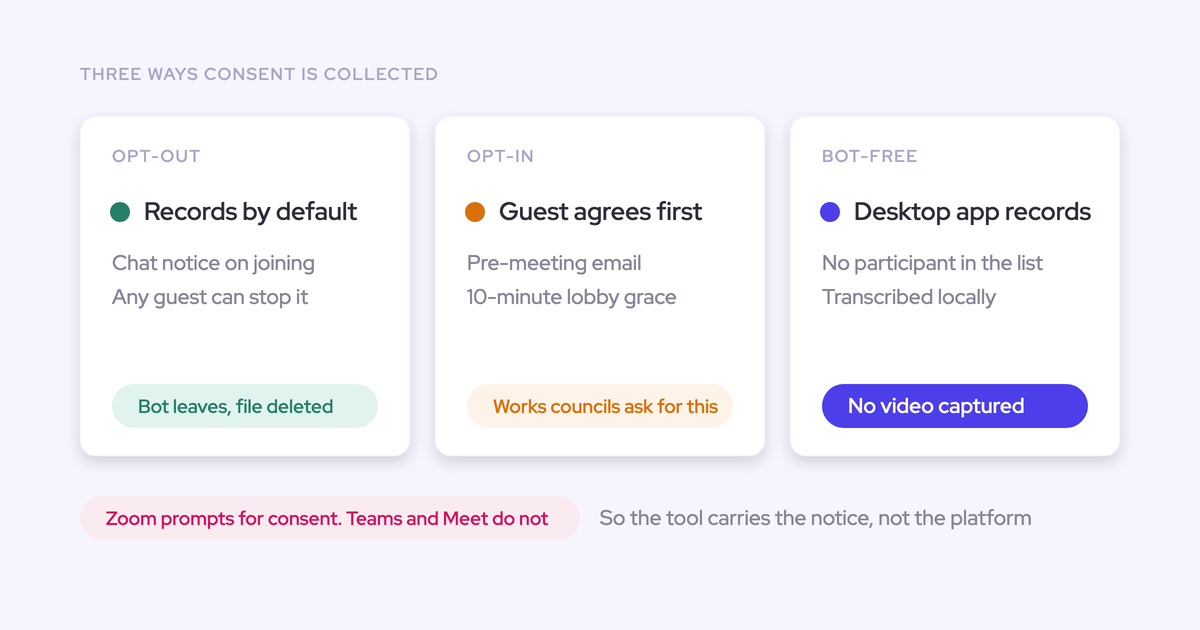
- Approved recording policy: Cover outbound recording and subsequent analysis under your company’s consent and privacy procedures. Importing audio doesn’t replace those procedures.
- Salesforce destinations: Identify the contacts, accounts, opportunities, and fields you expect the test conversations to update.
- Configuration ownership: Name the person who maintains scorecards, prompts, and field mappings. The manager owns whether the coaching output is useful; your RevOps or Salesforce admin owns the configuration.
Choose conversations where the rep had a fair opportunity to demonstrate the skill you want to coach. Comparing a brief appointment-setting call with a full discovery meeting tells you more about the conversation length than the rep.
1. Set Salesforce logging ownership before connecting Outreach
Give each activity source one designated Salesforce writer before you add conversation analysis. A second recording system shouldn’t turn one customer interaction into two reported activities.
We separate three things here: the source recording, the Salesforce activity, and the structured information extracted from the conversation. They serve different purposes and need separate checks.
Assign one Salesforce activity writer per conversation source
Keep Outreach responsible for the outbound activities your team already logs through Outreach. Assign inbox and calendar capture separately, then let Weflow process the recordings and generate the configured outputs.
For a team using both Weflow Conversation Intelligence and Weflow Activity & Contact Capture, the ownership plan can look like this:
| Activity source | Designated writer | Intended Salesforce destination | Verification check |
|---|---|---|---|
| Outreach outbound call | Outreach owns the call activity; Weflow processes the imported recording | The existing call Task and the records selected for conversation outputs | Count call activities before and after import. Inspect the recording association and field updates separately. |
| Outreach-tracked email | Outreach | The Task created by the existing Outreach logging configuration | Send one tracked email and inspect whether another writer logs the same message. |
| One-off Outlook or Gmail email | Weflow Activity & Contact Capture | EmailMessage or Task, according to your capture configuration | Send a message outside Outreach and inspect its destination and record association. |
| Scheduled video meeting | Weflow Activity & Contact Capture in this setup | One Event, plus the separate Weflow recording record and configured field updates | Count one meeting activity and inspect the summary and opportunity association. |
This table defines the intended result. Use the actual Salesforce records to judge whether your running configuration produces it.
A Weflow recording record isn’t a duplicate meeting activity. For scheduled meetings, Salesforce stores the Event and the recording as separate records. Your activity report should count the meeting, not count the recording as another meeting.
Exclude Outreach-tracked emails from Weflow Activity and Contact Capture
If you also use Weflow Activity & Contact Capture, compatibility mode identifies Outreach-tracked emails through tracking links in the message body. A branded tracking domain needs its own exclusion pattern.
- Find the custom tracking domain in Outreach’s admin configuration.
- Add that domain to the exclusion patterns in your Weflow capture configuration. For example, a team using
track.example.comneeds an exclusion that recognizes that domain. - Send an Outreach email containing a tracked link, then inspect the resulting Salesforce activity.
- Send a separate one-off email from the rep’s inbox. Make sure your exclusion hasn’t removed the inbox activity you wanted Weflow to capture.
Weflow’s Outreach tracking-domain exclusions prevent overlapping email logging. They aren’t a universal deduplication rule for calls and meetings, so test those sources separately.
2. Connect Outreach through Weflow’s Setup and Integrations
Connect your Outreach account from Weflow’s Setup and Integrations page. Once connected, Weflow pulls Outreach calls into its recording workflow for transcription, summaries, and coaching.
- Open Setup and Integrations in Weflow.
- Find the Outreach integration and connect your Outreach account.
- Make an approved outbound test call through that account, with Outreach recording the conversation.
- Open the imported call in Weflow to inspect the result.
Use the account that will place the test call. Connecting your own Outreach account and testing a colleague’s call would introduce another variable before you’ve established the basic workflow.
Reps continue dialing in Outreach. Weflow imports the resulting recordings without a separate upload step for each call.
3. Check an Outreach recording alongside a video meeting
An imported Outreach recording contains the called person’s name, audio, speaker separation, a transcript, a summary, and coaching output. It arrives as an outbound call and contains no video.
Open your Outreach discovery call and a Zoom discovery meeting in Weflow’s Recordings library. Keep this pair for the coaching and Salesforce tests that follow.
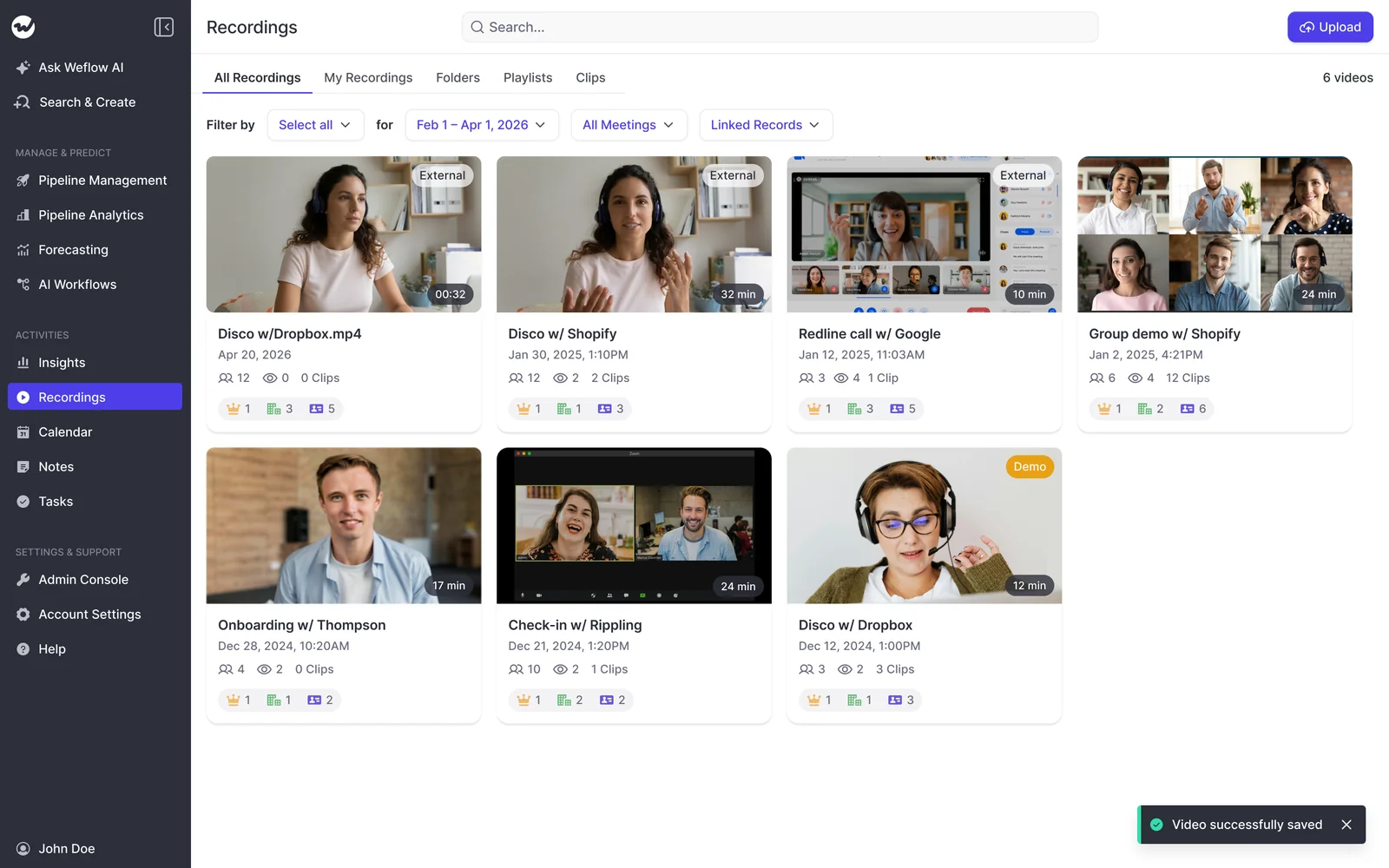
- Identify each conversation. Match the Outreach entry to the person called. Match the Zoom recording to the scheduled meeting and participants.
- Play a section you recognize. Listen for both sides of the conversation and compare the audio with the transcript.
- Inspect speaker separation. Make sure the transcript distinguishes the rep’s statements from the customer’s answers.
- Read the summary against the conversation. Look for the customer’s stated problem and agreed next steps, rather than accepting plausible wording.
| What you inspect | Outreach discovery call | Zoom discovery meeting |
|---|---|---|
| Identification | Outbound call with the name of the person called | The scheduled meeting and its participants |
| Media | Imported call audio | Meeting audio and captured video |
| Transcript | Searchable text from the phone conversation | Searchable text from the video meeting |
| Speaker separation | Separate speaker turns for reviewing who said what | Separate speaker turns across the meeting participants |
| Summary | Post-call summary generated from the imported recording | Post-meeting summary generated from the meeting recording |
Weflow processes Outreach calls through the same recording workflow used for AI summaries, field updates, scorecards, search, and Ask Weflow AI. That gives you a shared review process without changing where reps make their calls.
4. Review Outreach calls and meetings with Weflow scorecards
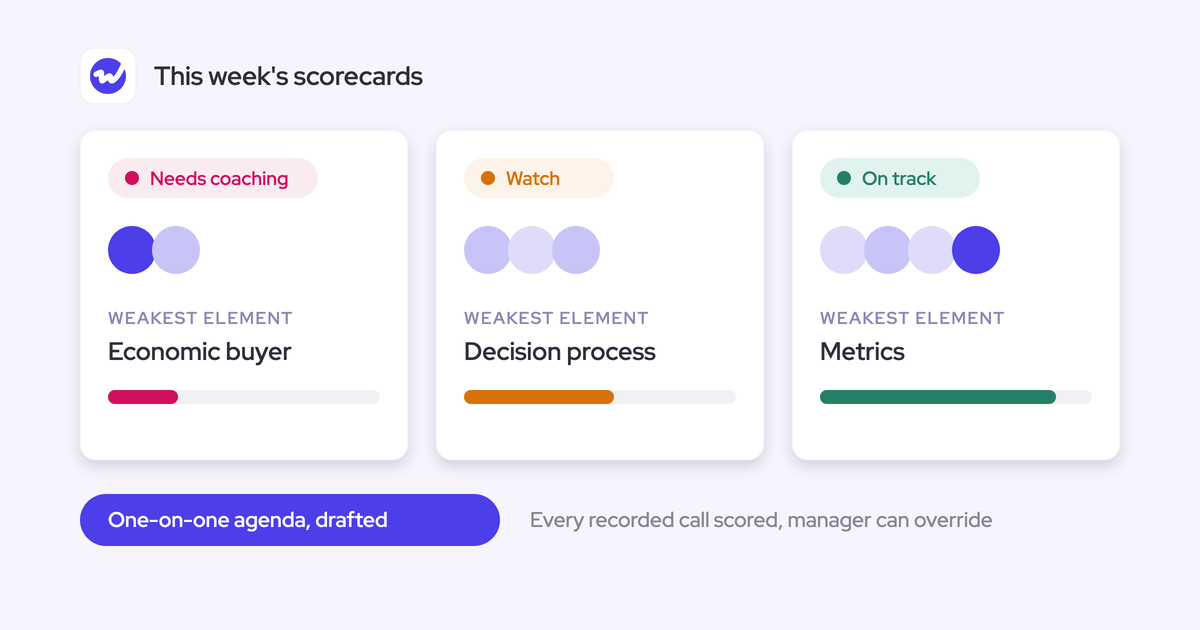
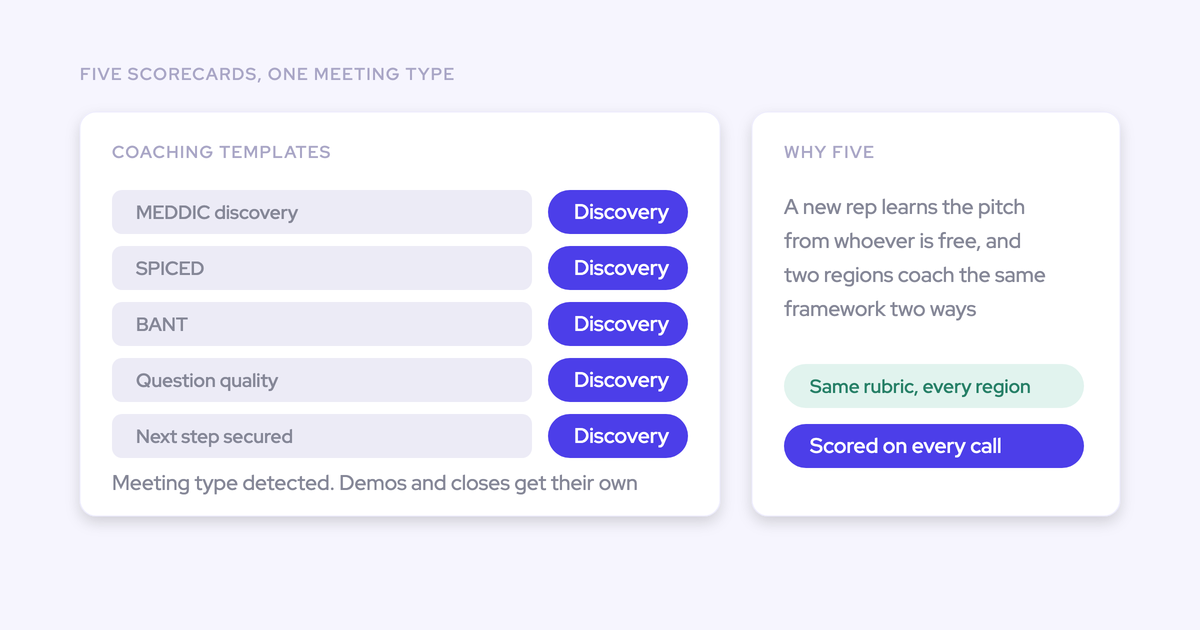
Use the same coaching criteria for phone and video conversations with a comparable purpose. Weflow scorecards provide configurable ratings and feedback, so you can review the behavior rather than treating the channel as a proxy for quality.
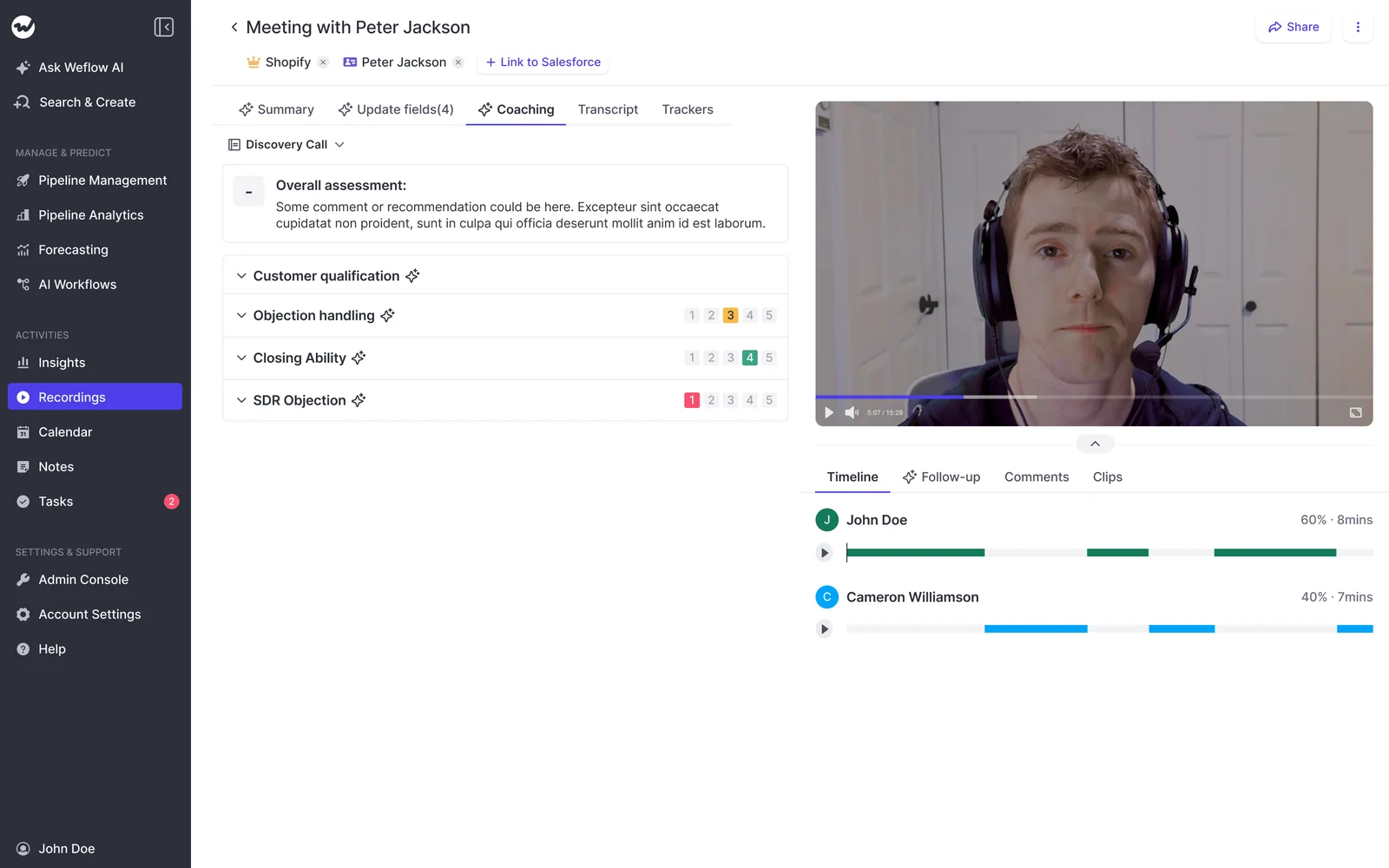
- Inspect scorecard applicability. Review which scorecard and conditions apply to each test recording, including any deal-stage conditions.
- Compare the same dimension. Start with customer qualification or objection handling instead of comparing only the overall scores.
- Read the evidence. Use the transcript and relevant audio to understand the feedback. A score tells you where to look; the conversation explains what happened.
- Choose one behavior to coach. Give the rep a specific action to practice on the next comparable call.
For example, focus both discovery reviews on decision process:
| Conversation evidence | Coaching takeaway | Next-call behavior |
|---|---|---|
| The Outreach call establishes the customer’s problem, but the rep moves on without asking how the customer approves a purchase. | The rep needs to connect discovery to the buying process. | Ask which steps follow evaluation and who participates in approval. |
| The Zoom meeting identifies an approver, but the rep accepts a target date without exploring the steps behind it. | The rep has part of the decision process, but hasn’t tested the timeline. | Work backward from the target date and ask what must happen first. |
That’s a useful coaching theme across channels: the rep uncovers a need but leaves the approval path incomplete. Keep the feedback at that level.
Weflow supports methodology scoring at the individual-call, opportunity, and long-term rep level. Once your test passes, use the broader view to distinguish a repeated skill gap from one conversation where the topic never came up.
You can also add both recordings to one Ask Weflow AI question. Ask which decision-process questions the rep left unanswered, then review the supporting conversation before using the answer in coaching.
5. Verify Salesforce field updates before expanding Outreach coverage
Expand only after both recording types produce the intended Salesforce outputs. A transcript in Weflow doesn’t prove that the summary reached its destination or that the activity belongs to the right opportunity.
- Record the starting state. Note the current values in your selected Salesforce fields and the existing activity count for each test conversation.
- Review the generated content. Compare the AI output with the transcript before judging the Salesforce write.
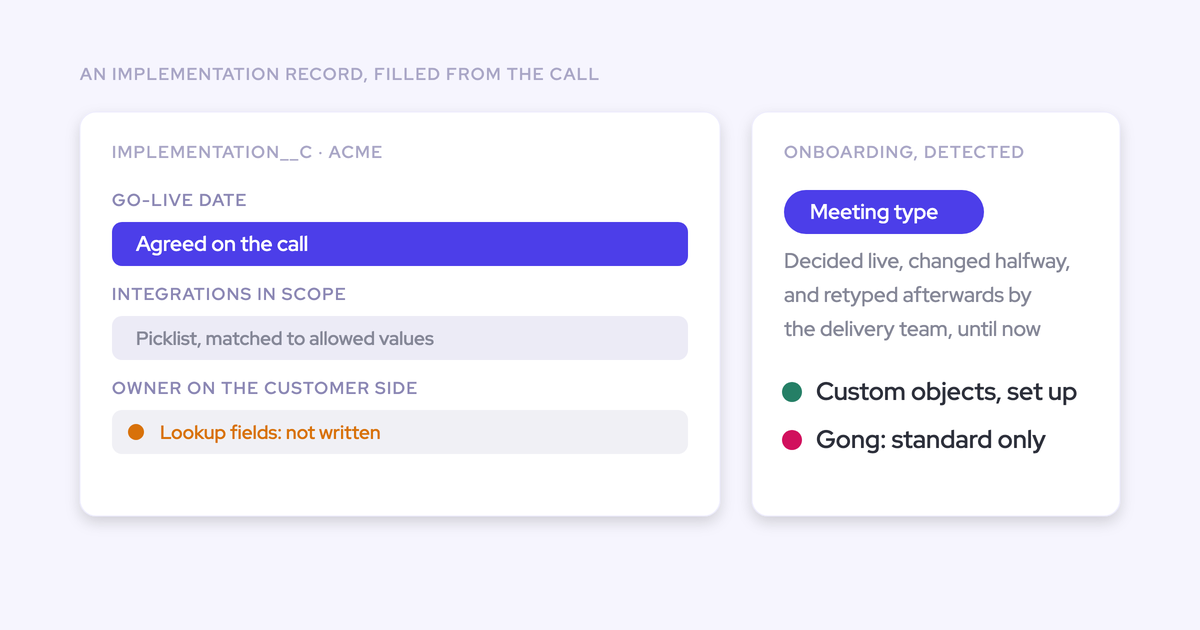
- Trace each output to its destination. For the Outreach call, follow the extracted next step to the intended Opportunity field. For the Zoom meeting, inspect the configured Event summary and Opportunity field separately.
- Inspect associations independently. Open the recording’s linked records and the activity’s related record. They answer different questions.
- Count activities again. Compare the result with your logging-ownership plan and investigate unexpected Tasks or Events.
- Test each intended destination. Include Account and Opportunity destinations if your configuration uses both. One successful write doesn’t establish that every destination works.
For scheduled meetings, changing a recording’s links inside Weflow doesn’t move the Salesforce Event. Correct the meeting mapping through the Outlook or Chrome add-in when both records need to move.
Before you add more reps, your acceptance checklist should include:
- The configured summaries and field values reach the intended Salesforce records.
- Recording links and activity associations reflect the correct customer and deal.
- Activity counts match the agreed ownership plan.
- The manager can access the audio, transcript, and coaching results they need.
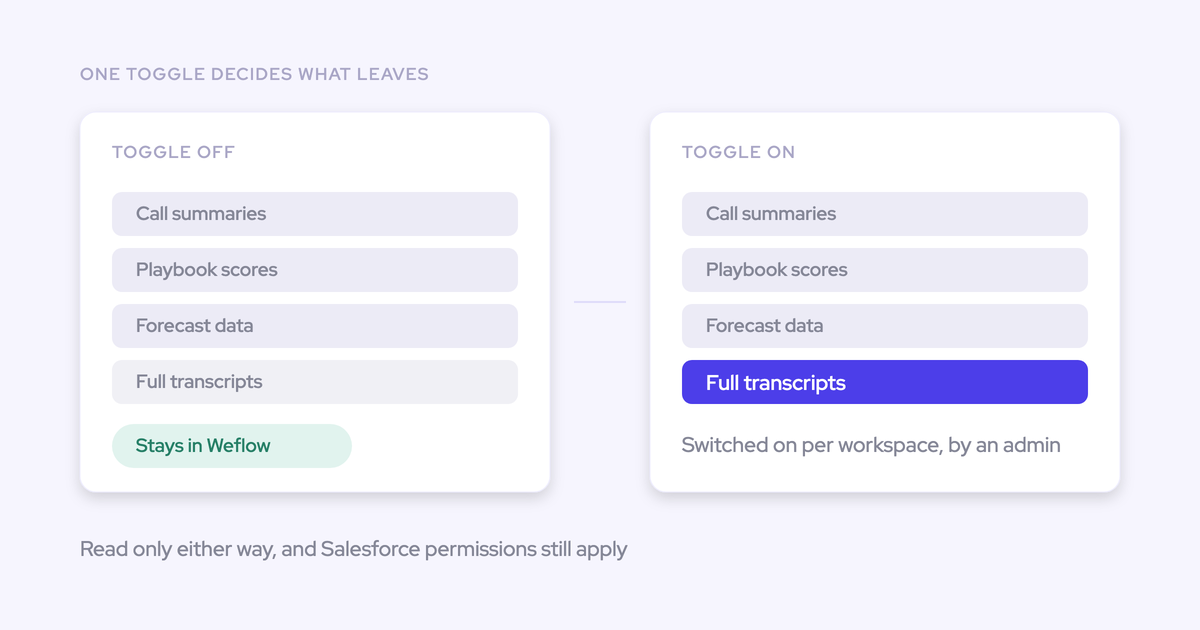
- Your admin has tested recording access with the intended user roles, including access to transcript and summary data in Salesforce.
- A named owner maintains prompts, scorecards, and field mappings.
We put this test before rollout because failed AI summary and field-update writes can’t be replayed. The content remains in the Weflow recording object, but recovering a missed Salesforce update requires someone to copy it across manually.
See how Weflow captures activity, updates Salesforce fields from calls, and rolls up your forecast. Book a 30-minute demo.
Troubleshoot Outreach imports and Salesforce writes
Find the failing stage before changing configuration: source recording, Weflow processing, or Salesforce write. A missing call and a missing opportunity update need different fixes.
Trace a missing Outreach recording
Start in Outreach and establish whether the original recording exists. Weflow can’t recover a conversation that Outreach never recorded.
- Find the call in Outreach and open its recording.
- Match the rep’s Outreach account to the account connected through Weflow’s Setup and Integrations page.
- Look for the corresponding outbound recording in Weflow using the called person and call details.
- If the source recording exists but the Weflow entry is missing, gather the details needed to trace that specific import.
For escalation, include:
- The Outreach account and rep involved.
- The call date, time, time zone, and person called.
- The source recording reference and whether its audio plays in Outreach.
- Whether other calls from the same connected account appear in Weflow.
Recover a missing Salesforce summary or field update
Recover the existing content manually, then repair the configuration for future writes. Treat those as separate jobs.
- Open the Weflow recording object and locate the summary or extracted content.
- Review the content and copy the missing update to the intended Salesforce destination.
- Have your admin inspect the field mapping, integration-user access, validation rules, and relevant record types.
- Run a fresh recorded conversation through the corrected configuration and inspect every intended write.
For meeting logging and updates, the integration user needs access to the Event and Task objects, including the fields and record types Weflow writes. If your Event object has several record types, set a default in Weflow.
In Salesforce orgs with Private organization-wide defaults, Weflow’s integration user requires Modify All Records on Account, Opportunity, and Contact. Read, Edit, and View All alone don’t provide the access needed for subsequent updates to records the user doesn’t own.
Trace duplicate Salesforce activities to their logging source
Identify the overlapping writers before changing exclusions. The record type and creation details help you distinguish a duplicate activity from a separate recording record.
| Symptom | What to inspect | What to change |
|---|---|---|
| Two activities for one Outreach call | Inspect both records’ creation details and the call-logging configurations feeding Salesforce. | Restore the designated call writer from your ownership plan. |
| Two records for one Outreach email | Inspect the tracking links and whether Outreach uses a branded domain. | Add the custom domain to Weflow’s email exclusion patterns where needed. |
| Two Events for one video meeting | Inspect the calendar capture and recording systems that create meeting activities. | Remove overlapping Event creation while preserving the intended summary and field updates. |
| An Event and a Weflow recording record for one meeting | Inspect the report’s objects and counting logic. | Count the Event as the meeting activity rather than treating the recording as another meeting. |
Retest with a new interaction from the affected source. Use the same ownership plan to evaluate the result, then address the existing duplicate records separately.
Weflow and Outreach integration FAQ
Weflow Conversation Intelligence handles the imported recordings. Weflow Activity & Contact Capture is a separate product for email, calendar, and contact capture.
Which Weflow product do I need for Outreach recordings?
You need Weflow Conversation Intelligence for recording analysis, summaries, scorecards, and AI field updates. Weflow Activity & Contact Capture alone doesn’t include call recording.
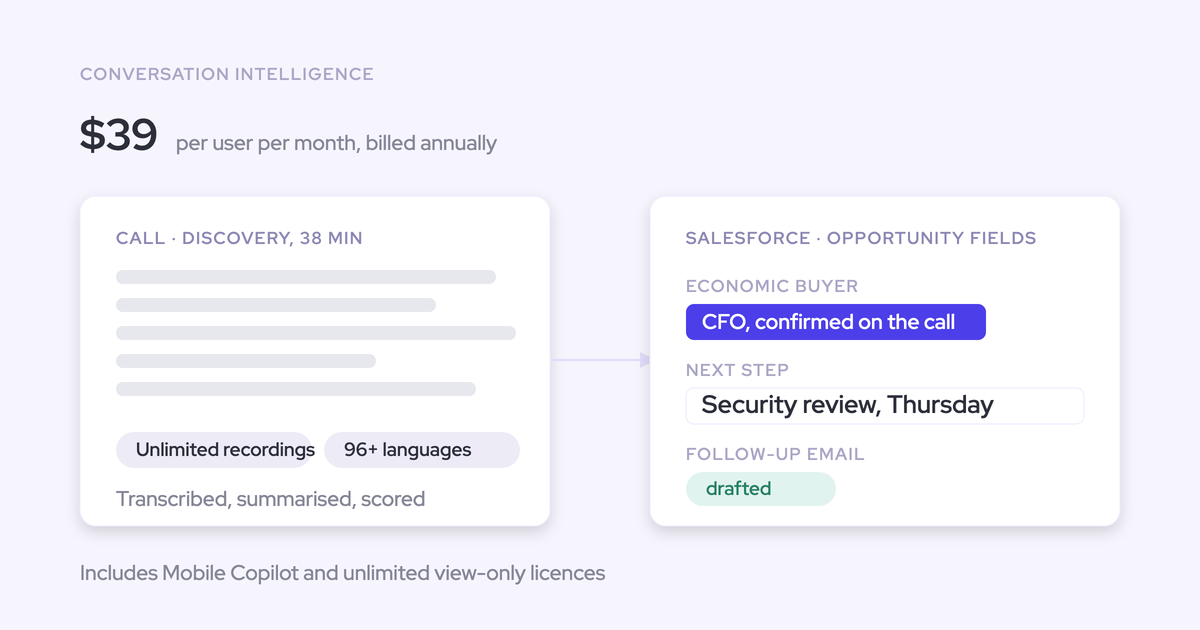
- Weflow Conversation Intelligence: $39 per user per month, billed annually.
- Revenue AI Foundation: $49 per user per month, billed annually, combining Weflow Activity & Contact Capture with Weflow Conversation Intelligence.
Weflow’s plans have a 10-user minimum. Choose Revenue AI Foundation when you also need inbox and calendar capture alongside conversation analysis.
Do reps need to upload Outreach recordings to Weflow?
No. Once the Outreach account is connected, Weflow pulls the recordings into its processing workflow. Outreach still needs to create the source recording.
Does Weflow provide live coaching during Outreach calls?
No. Weflow provides post-call analysis, not a live assistant or real-time battlecards. You review the processed transcript, summary, scorecard, and field updates after the conversation.