Weflow for Account Executives: Meeting Prep, Follow-Ups and Fields Filled From Calls
Learn how Weflow automates AE meeting prep, follow-up emails, and Salesforce field updates.


Five back-to-back calls, ten different people, and one evening to update Salesforce. What ends up on the opportunity is whatever you still remember by then. A CRM that depends on you typing will always lose to the actual job of selling. That's how CRMs are built, and trying harder doesn't change it.
Weflow takes the admin around your meetings off your day, and it doesn't give you a new place to work. Before the call, a brief builds itself from your calendar entry. Within about a minute of hanging up, Weflow Conversation Intelligence and AI Field Updates give you three things:
- the call summary, already on the Salesforce Event;
- a drafted follow-up email;
- proposed updates to your opportunity fields.
Here's what you still do yourself:
- approve the fields that need your judgment;
- paste the follow-up, add the recipients and hit send;
- own your forecast fields: stage, close date and amount.
Your AE day with Weflow: what's automated, what stays yours
Every piece of admin around a meeting either happens on its own or becomes a review click. The few things you keep are named in the table below.
This page is for you if your company is trialling or rolling out Weflow and you want to know what changes in your own week.
Weflow is the Revenue AI Orchestration platform for sales, customer success, and RevOps teams. It's built for Salesforce teams. Everything it captures and generates lands in the Salesforce records you already work in.
| Moment | What you do today | What Weflow does | What you still do |
|---|---|---|---|
| Before the meeting | Hop between LinkedIn, the company site, CRM history and old emails | Prepare meeting builds a brief from prior emails, meetings, recordings and Salesforce | Click Prepare meeting and read the brief |
| The minute after the call | Jot notes and promise yourself you'll write the follow-up later | Puts the summary on the Salesforce Event, drafts the follow-up and proposes field updates within 30 to 60 seconds | One review click on fields; paste the follow-up, add recipients, send |
| The evening | Rebuild five calls from memory and log meetings by hand | Leaves nothing to rebuild; your emails and meetings log themselves (with Weflow Activity & Contact Capture) | Nothing, unless you saved a field review for later |
| An in-person meeting | Type notes in the car hours later, or skip them | Mobile Copilot records the meeting, or turns your voice note into the summary and field updates | Press record on your phone, or dictate two minutes afterwards |
| The next morning | Work out who to chase from your inbox and memory | The deal board shows last email, last meeting, next meeting and AI follow-up nudges | Open the board and start chasing |
All of it shows up in Salesforce, your inbox, your calendar or your phone. You don't get a second tool to keep current.
How Weflow builds your meeting prep from the calendar
Open the meeting on your Weflow calendar and click Prepare meeting. That hands the meeting to Ask Weflow AI with the meeting already attached as context. You don't have to explain which call you mean, and you don't have to gather anything first.
A prospect described the usual routine on a call with us:
"When I go into a net new meeting right now, the process is like I go into LinkedIn, I look at the company website and I'm pulling all of this detail to see like okay, what do I need to know to have a good discovery."
The Weflow brief covers everything your company already holds on the account:
- prior emails with the people on the invite;
- earlier meetings on the account;
- previous call recordings and what was said in them;
- the Salesforce data on the account, contacts and opportunity.
The brief doesn't go out and research the company on the web. On a brand-new account, LinkedIn and the website are still on you. On every account with history, the digging is done before you open a tab.
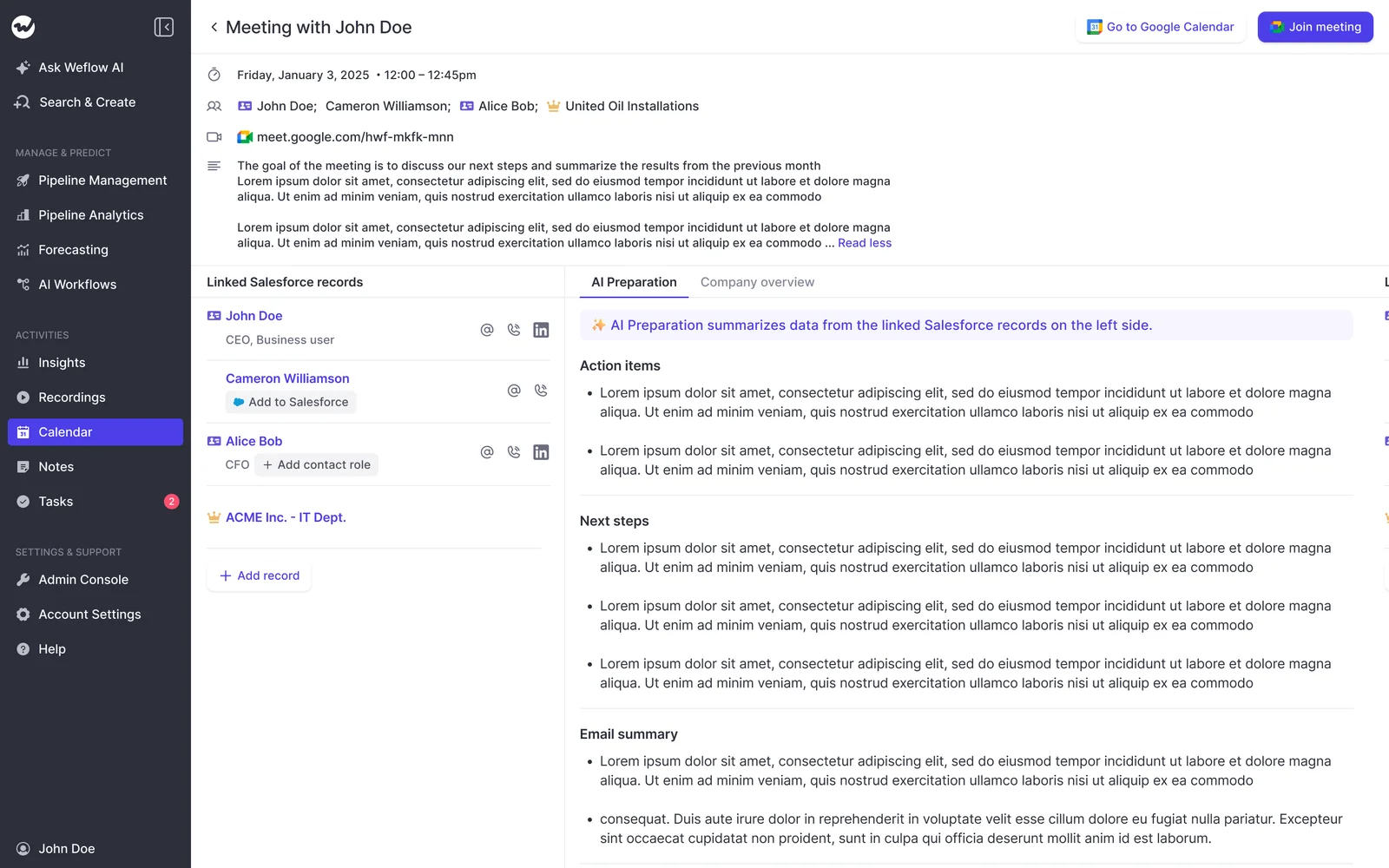
You'll find the same Prepare meeting button in the Weflow Chrome extension. That means you can prep from your inbox or calendar tab without switching tools.
The brief opens as an Ask Weflow AI chat, so you can keep asking questions in the same thread. The extension also runs Ask Weflow AI on Salesforce record pages, which is handy when you're already on the opportunity.
What you still do: click the button, read the brief, and walk in knowing what was said last time.
What Weflow gives you within a minute of hanging up
Within 30 to 60 seconds of a meeting ending, Weflow hands you four things:
- the processed recording;
- the summary;
- a drafted follow-up;
- proposed Salesforce field updates.
That speed is what makes the follow-up usable. You send it while the call is still fresh, not in an end-of-day batch you write from scraps.
Our co-founder sells too, and he put it plainly:
"When I have five back to back meetings, each of these, like, thirty to forty five minutes long, and I speak to basically ten different people, then, yeah, it's just no chance I can remember everything. So I need that. I need to have that automated summary."
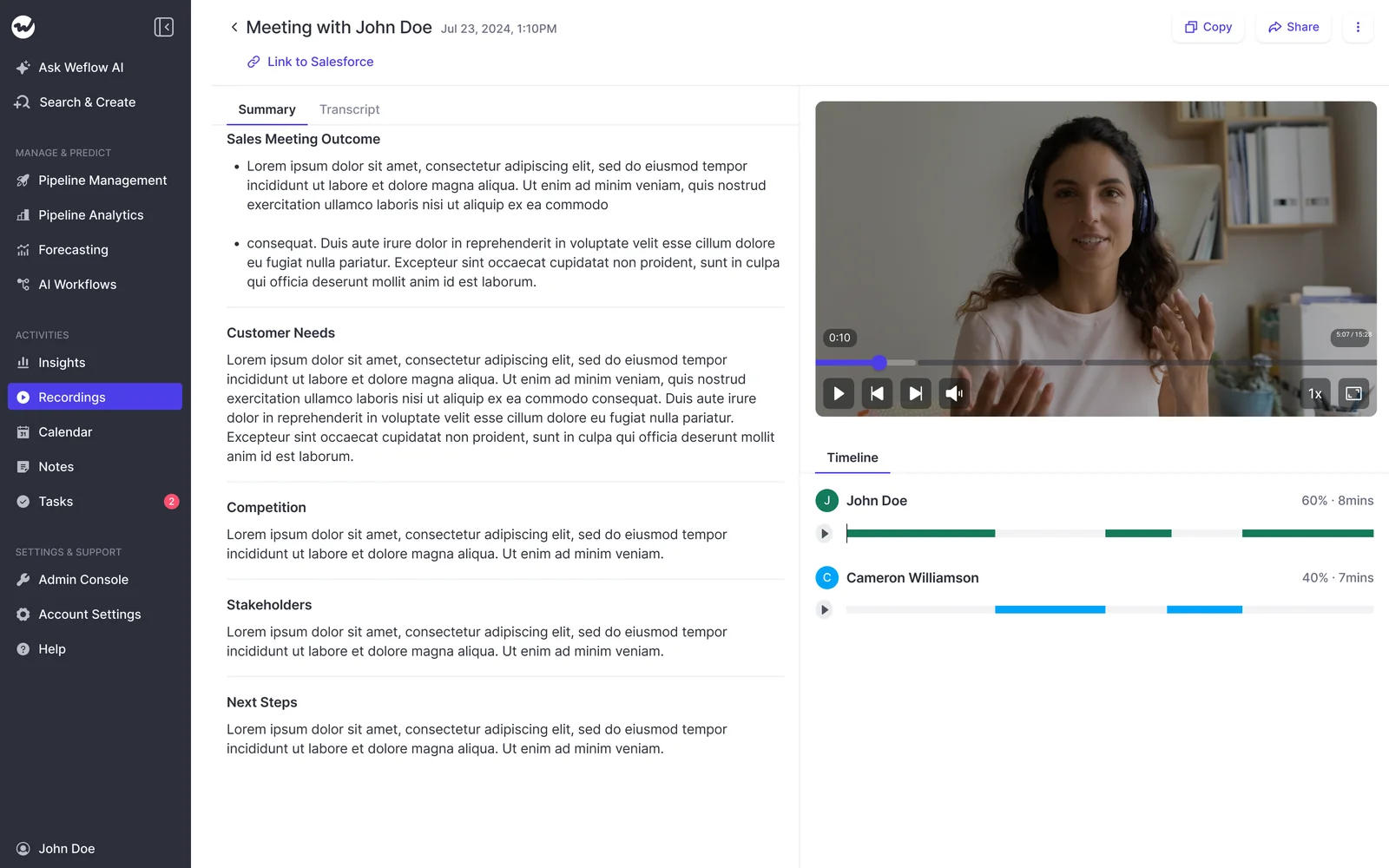
The call summary lands on your Salesforce Event
Weflow writes the call summary onto the Salesforce Event, with a link to the recording, so it appears on the opportunity timeline. You don't open Weflow to find out what happened on a call. It's on the record you were going to look at anyway.
Your team sets the summary format through templates. If your org has a mandated note structure, the summary can follow it exactly.
The summary lists next steps, but it can't assign one to a named person.
Your follow-up email, drafted in the meeting's language
Weflow drafts the follow-up from the transcript. The template can pull in Salesforce deal fields, so the email carries the right deal context, not just a recap.
Language follows the destination:
- A call held in German produces a German follow-up email.
- The summary in Salesforce stays in your workspace language, so your CRM doesn't fragment into several languages.
- Weflow detects the spoken language on its own across 96 languages, so you don't pick one before the call.
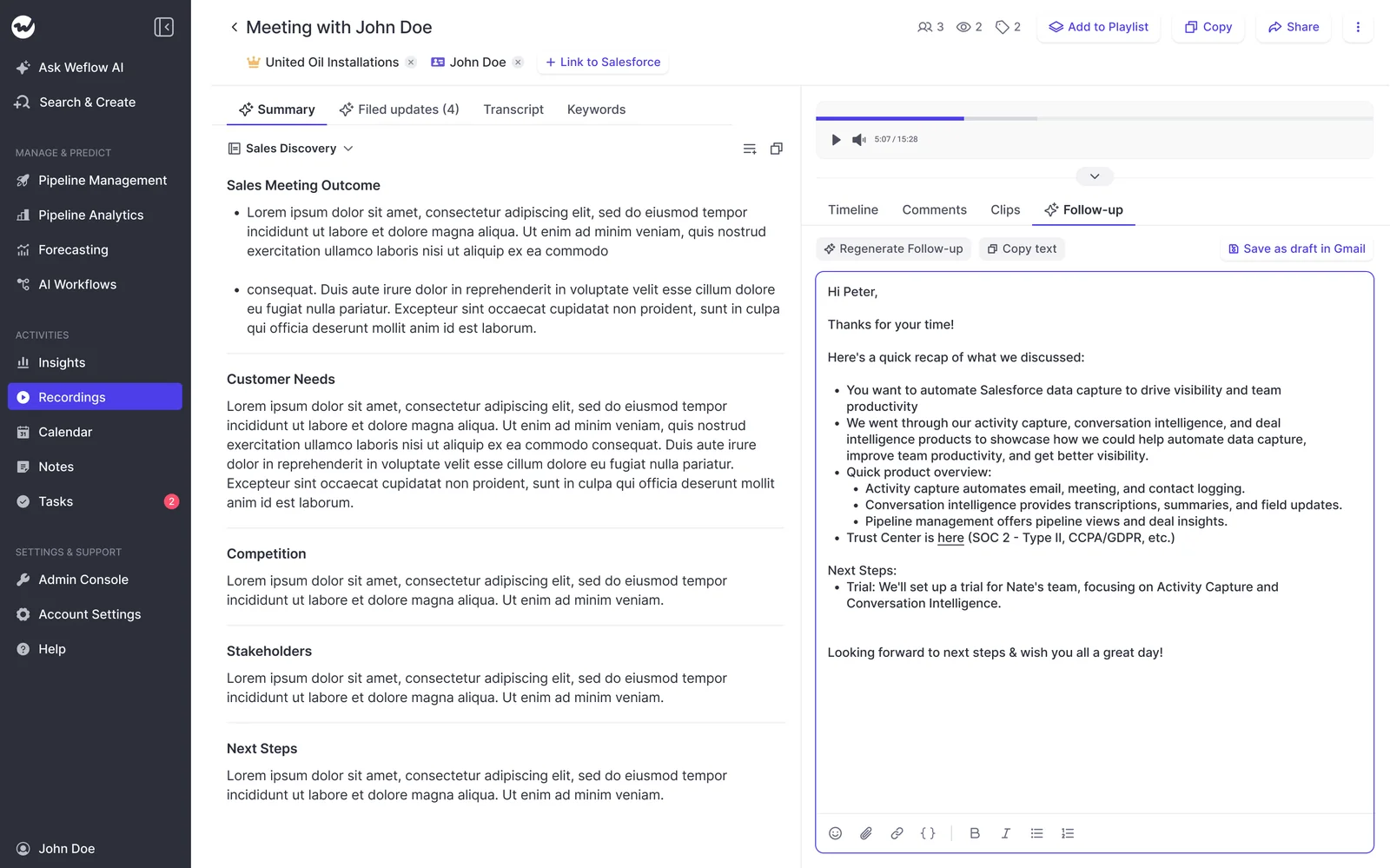
What you still do: read the draft, copy it or save it as a draft, add the recipients, and send. Weflow doesn't send the email or fill in the To line for you.
How Weflow AI Field Updates fill Salesforce fields from calls
Weflow AI Field Updates turn what was said on the call into values in your Salesforce fields. That includes picklists, numbers, dates and multi-selects, and each field is set to write on its own or wait for your review.
Field types matter more than they sound. A paragraph dumped into a text box can't be reported on. A picklist value can.
Before Weflow writes to a picklist, it reads the field's allowed values and matches against them. It never writes a value your field doesn't accept. This is the part of Conversation Intelligence & AI Field Updates that takes the qualification typing off your plate.
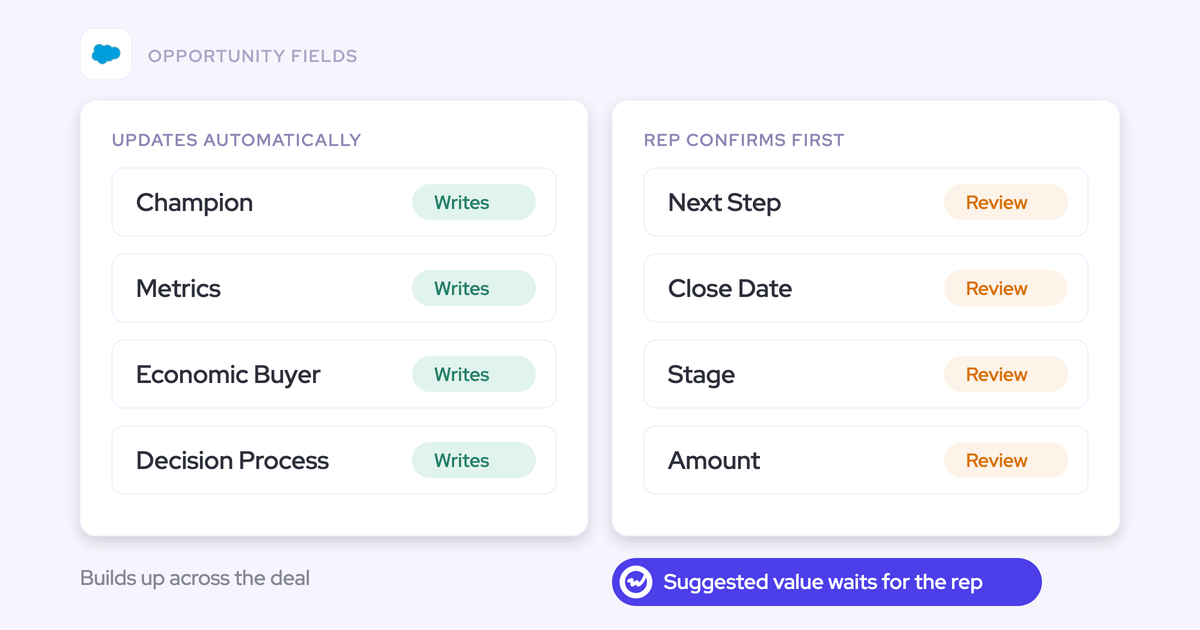
Which fields update on their own and which wait for you
Fields with one obvious answer can update themselves. Fields that need interpretation wait for you. Your admin sets this field by field, not for the whole team at once.
| Field | Typical setting | Why |
|---|---|---|
| Website | Updates on its own | There's one right answer |
| Billing address | Updates on its own | There's one right answer |
| Pain | Waits for your review | It's interpretive, and you know the deal |
| Champion | Waits for your review | A wrong name misleads everyone who reads the record |
| MEDDIC or MEDDPICC fields you've written into | Waits for your review | It protects what you already typed |
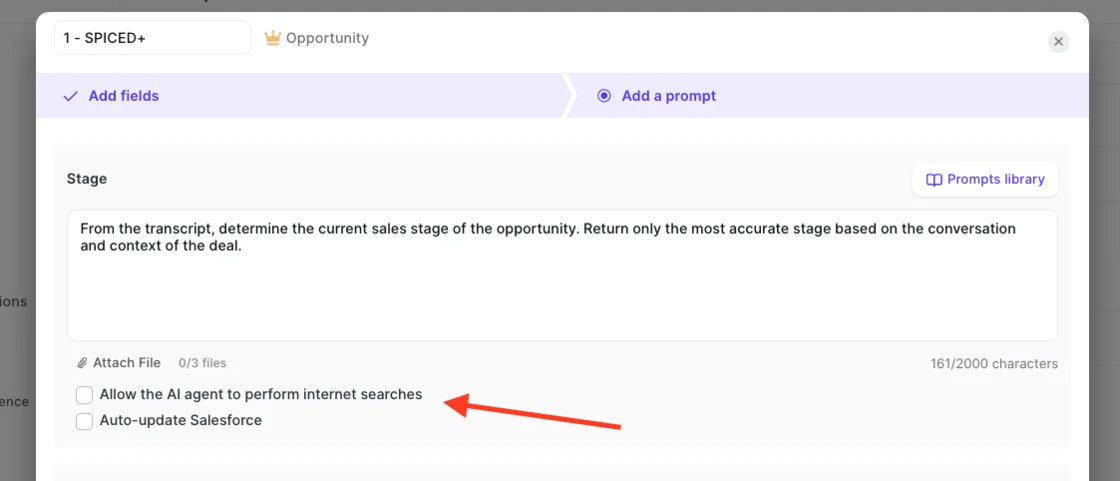
Review is quick. You see the current value beside the suggestion, then accept, edit or reject each one, and write them all back with a single click.
If Weflow matched the call to the wrong deal, pick the right one and it reanalyzes. You'll see the review pop-up once your admin has assigned a template to your team.
Will Weflow overwrite what you already typed in a field?
Not in review mode. You see what's in the field now beside what Weflow suggests, remove anything that shouldn't change, and sync only the rest.
Automatic mode works differently. There, the latest call's output replaces what's in the field. Two protections stop that from wiping your notes:
- Review mode on any field you write into yourself.
- A prompt instruction that tells the field to stay untouched when the call adds nothing new, so a quick check-in call can't blank it.
Our advice: if you've typed into a field and care about it, ask your admin to keep it on review. Watching your own note disappear is the fastest way to stop trusting a field, and we'd rather you never get there.
Why stage, close date and amount stay yours to confirm
Forecast fields hold one value, and they move the number the moment they change. One misheard sentence on a call can shift a close date by a quarter. A check after the call takes seconds and protects your number.
Weflow can write stage from a call if your team puts its exit criteria into a prompt. We still recommend keeping stage under review.
The heavy qualification typing comes off your plate. These fields stay yours:
- stage;
- close date;
- amount;
- products on the deal.
How Weflow Mobile Copilot logs in-person meetings and voice notes
Weflow Mobile Copilot is an iOS and Android app that records in-person meetings and turns a voice note into the same summary and field updates as a recorded call. Field meetings, conference chats and lunches are the conversations that usually never reach Salesforce, because there's no video call for a notetaker to join.
At the table, put the phone down and press record.
When recording isn't an option, dictate a voice note in the car afterwards. Weflow processes it exactly like a call recording, so even a meeting where the customer said no to recording still lands structured data in Salesforce.
A prospect described what they wanted from this on a call with us:
"after a field meeting you walk out and you commentate basically about like okay, hey, my budget was X, the contact I spoke to was Y"
That's exactly how the voice note works.
Mobile Copilot also prepares a briefing you can read on the way in. It pulls in the contact record, the opportunity, prior meeting context and the communication history.
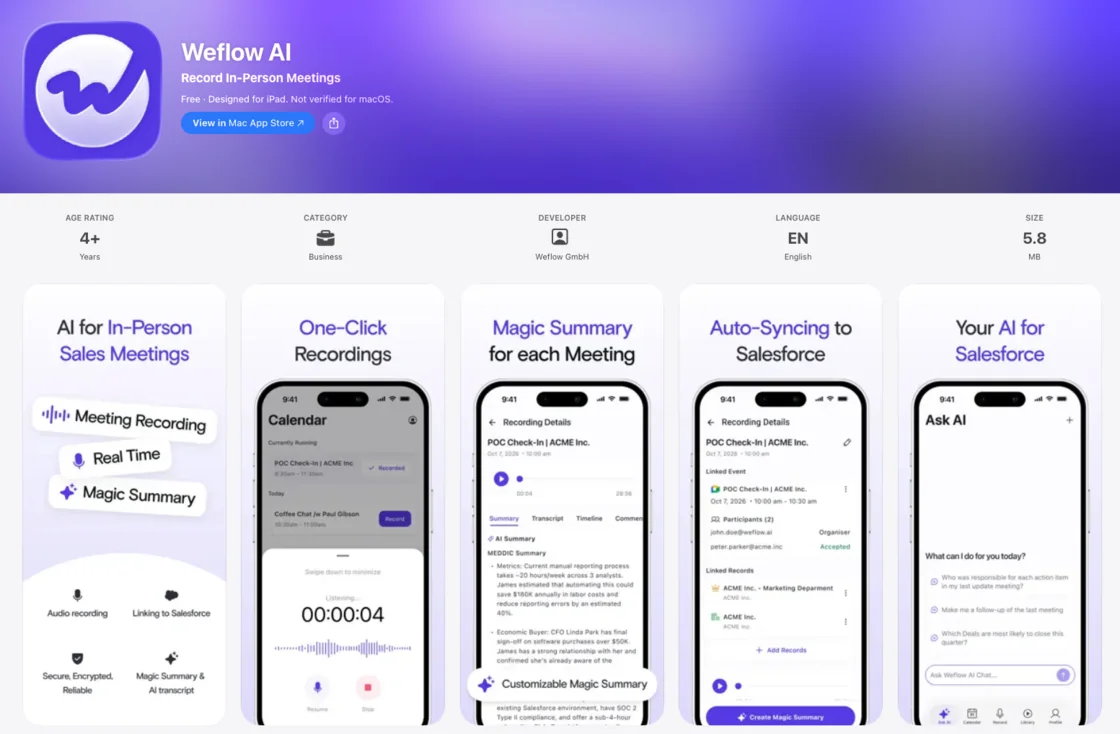
What you still do: press record, or talk for two minutes once you're back in the car.
You keep working in Salesforce, not in another tool
Weflow puts your call and email history on the Salesforce record and in your inbox, so you don't add a daily destination.
The Weflow Activity Timeline on your Salesforce records
The Weflow Activity Timeline is a Lightning component on your Account, Opportunity, Contact and Lead pages. You see the deal history without leaving the CRM:
- next meeting, last meeting and last email at a glance;
- a trend line of activity over time;
- email threads grouped by conversation, so six emails read as one thread instead of six rows to open;
- summaries of your recorded calls and meetings.
Your admin places the component on the page layout through Edit Page, wherever your team works.
The Weflow Chrome extension carries Ask Weflow AI on the same record. You can ask about the deal right where you're looking at it.
The Weflow deal board as your morning task list
The deal board is where you start the day. Each deal shows:
- last email, last meeting and next meeting;
- its full activity timeline;
- AI nudges telling you who needs a follow-up.
You open it, see who to chase, and get going. The deal board comes with Weflow Deal Intelligence & Forecasting.
What Weflow doesn't do for you yet
Everything Weflow produces arrives after the call, a few steps stay manual, and only recorded meetings feed field updates. Here's what you'll notice in week one, and what you do instead.
| Limit | What you do instead |
|---|---|
| No live in-meeting assistant or real-time battlecards | Prep with the brief beforehand; everything else arrives once the call is processed |
| The follow-up is drafted, not sent, and recipients are added by hand | Paste or save the draft, add the attendees from the invite, send |
| Next steps in the summary can't be assigned to a named person | Assign owners when you send the follow-up or create the task |
| Field updates don't mark whether a value came from the call or a web search | Web search is off by default and set per prompt; keep it off for fields that should come only from the call |
| Only recorded meetings feed field updates, so email-heavy deals get less | Record what you can; on deals that live in email, you still update qualification fields yourself |
| Salesforce only | If your company runs another CRM, Weflow isn't for you |
One honest note: if you only want personal notes and your company doesn't need the data in Salesforce, a cheap note taker is enough.
How much selling time you can realistically get back
Expect a 5 to 10 point shift in how much of your week goes to selling, not a calendar that triples. Our CEO starts from this baseline:
"The typical AE spends thirty, thirty five percent on just selling. And the rest is preparing meetings, administrative work, preparing meetings, following up on meetings, feeding the CRM, updating CRM."
RevOps leaders running these programs treat a 5 to 10 point shift as a strong result. The admin that survives automation is the part that needs your judgment.
In your week, that looks like this:
- fewer evenings spent on the CRM;
- follow-ups that go out the same hour;
- qualification fields you no longer fill the night before the forecast call.
Reps at United Fintech started out skeptical too:
"At first reps were hesitant, but now they say, 'I don't have to do this anymore - I can spend that time on selling.'"
Rugile Pudzevelyte, Senior Revenue Operations Manager at United Fintech
The capture side asks even less of you. At ADVISA, Weflow Activity & Contact Capture runs in the background so completely that reps barely notice it:
"Most of our team doesn't even know we have Weflow for activity capture. That was a big attraction for me: I didn't need them to set it up or learn anything new."
Your manager gets better data out of this too. That's a side effect of you not typing it.
Which Weflow seat gives you each part of your day
Most of your day runs on Weflow Conversation Intelligence. Emails logging themselves need Weflow Activity & Contact Capture, and the deal board needs Weflow Deal Intelligence & Forecasting.
| Part of your day | Weflow product | List price per user per month |
|---|---|---|
| Recording, summaries, follow-ups, AI Field Updates, Mobile Copilot, the desktop app and Ask Weflow AI Pro | Weflow Conversation Intelligence | $39 |
| Emails and meetings logging themselves | Weflow Activity & Contact Capture | $19 |
| The deal board | Weflow Deal Intelligence & Forecasting | $39 |
| Activity & Contact Capture plus Conversation Intelligence together | Weflow Revenue AI Foundation | $49 |
Plans bill annually with a 10-user minimum. Ask Weflow AI Pro comes with every plan.
Want to see your own day in the product before your rollout reaches you? Walk through the product yourself, no call required.
Weflow for account executives: frequently asked questions
Do I have to invite a note taker or press record for every meeting?
No. Your admin can schedule the Weflow notetaker from your calendar so recording is the default. You can also switch recording on or off per meeting.
The Weflow desktop app records without a notetaker joining the call, and it comes with your Conversation Intelligence seat. Weflow records meetings on Zoom, Microsoft Teams and Google Meet.
What happens when a customer won't let me record the meeting?
You dictate a voice note into Weflow Mobile Copilot afterwards. Weflow processes it like a recorded call, so you still get the summary and the field updates in Salesforce.
Is Weflow reading my internal email?
No. Weflow Activity & Contact Capture doesn't log mail between people at your own company. It logs business-relevant external communication, inbound and outbound alike.
Where do my call recordings and transcripts live?
Your summary and transcript live in your Salesforce, on the Weflow recording object and on the Event. The recording itself stays in Weflow storage, in the region your company chooses.
Weflow is SOC 2 Type II certified, runs AI processing with Zero Data Retention, and never uses customer data to train AI models.
How accurate are Weflow AI Field Updates, and what if they're wrong?
Accuracy depends on how well each field's prompt is written. Your admin starts from more than 250 pre-built prompts and tunes them for your team.
Picklists only ever get values the field accepts. On fields in review mode, you see the current value beside the suggestion and reject anything wrong before it writes.
Field updates don't mark whether a value came from the call or a web search. Web search stays off unless someone switches it on for that prompt.
Will my team get every Weflow feature on day one?
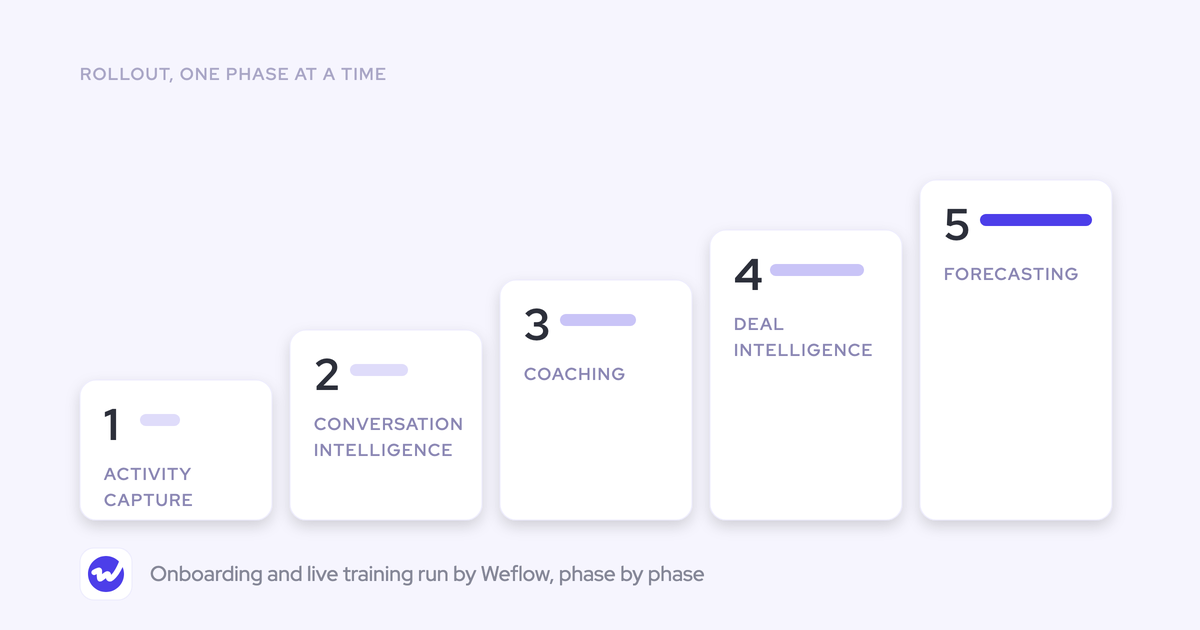
Usually not, and that's on purpose. Many teams roll out in phases: capture and Conversation Intelligence first, because they make your day easier without asking anything of you, then pipeline and forecasting once that's stuck.
KORE Wireless ran five phases:
- Activity Capture
- Conversation Intelligence
- Coaching
- Deal Intelligence
- Forecasting
Do I need Weflow if I already use Otter or Fireflies?
That depends on where you need the output. Teams that come to us with a note taker already in place tell us the summary is fine, but it doesn't reach Salesforce the way they need, so the retyping continues.
Fireflies does offer CRM autofill, but the review happens inside Fireflies, one meeting at a time. Weflow writes the summary to the Salesforce Event and puts the field review next to your call.
If you only want personal notes and nobody needs the data in Salesforce, a note taker is enough.