How to Roll Out Conversation Intelligence in Phases: Recording Scope, Summaries, Then Field Updates
Learn the rollout order for conversation intelligence: recording scope, summaries, then AI field updates.


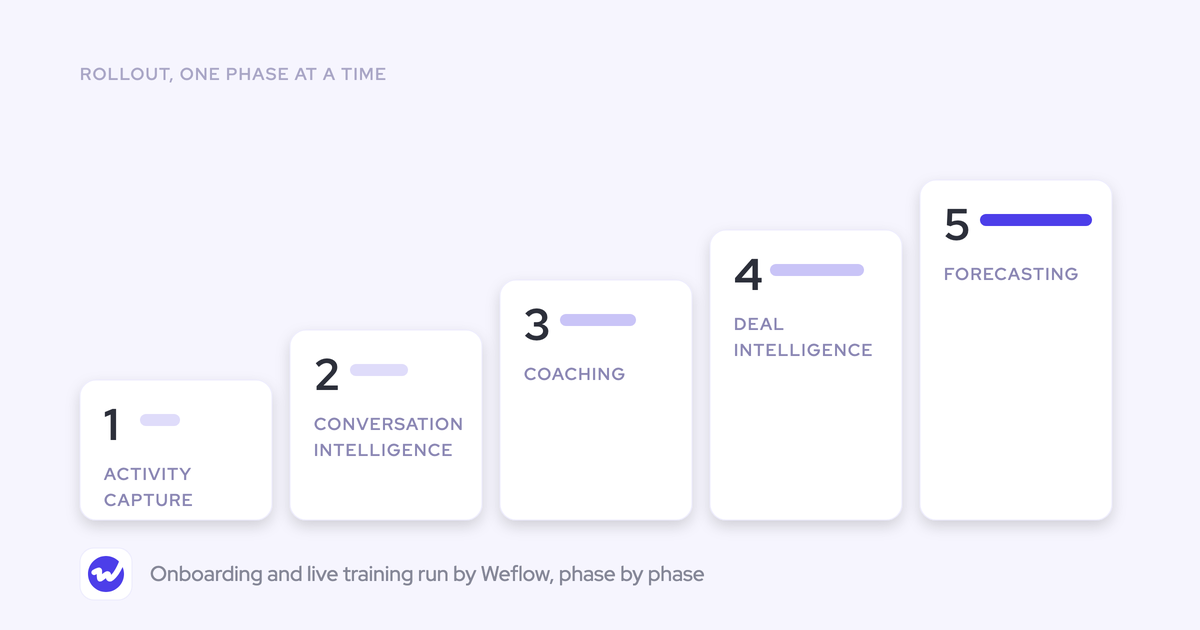

Roll out Weflow Conversation Intelligence + AI Field Updates in four steps, and don't start a step until the one before it has earned it:
- Calendar capture.
- Recording scope and coverage.
- AI summaries.
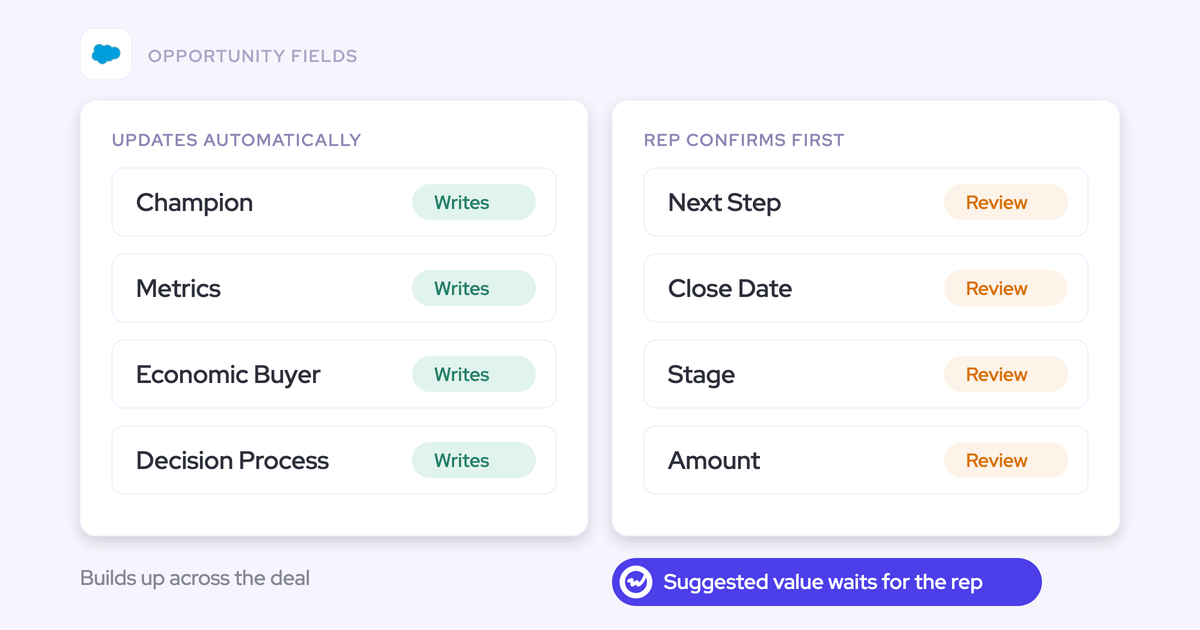
- AI Field Updates. Every field starts in review and moves to automatic one at a time.
The order matters because rollouts rarely fail on the AI. They fail on a visible incident. One call that didn't record, or one note a rep typed that got overwritten, and the sales floor decides the tool doesn't work. This sequence prevents those incidents before you ask reps to trust anything.
Weflow is the Revenue AI Orchestration platform for sales, customer success, and RevOps teams. It's built for Salesforce teams. This guide sequences the rollout inside one product, Conversation Intelligence, and walks through the settings you'll touch at each step.
The Weflow Conversation Intelligence rollout order at a glance
Coverage comes before anything reps get judged on. Each phase has a clear signal for when you're ready to move on.
| Phase | What you switch on | What it earns you | Move on when |
|---|---|---|---|
| Phase 0 | Weflow Activity & Contact Capture with calendar access | The calendar events the notetaker is scheduled from | Every recording user's calendar is connected |
| Phase 1 | Recording scope, license mix, call visibility, coverage monitoring | Recordings that reps and managers can count on | The recording ratio sits around 60–70% per team and the remaining gap is explained |
| Phase 2 | AI summaries, with a template per meeting type | A first personal win for reps, plus evidence for which fields to build | Reps read and use summaries, and recurring elements show up across teams |
| Phase 3 | AI Field Updates in review, then automatic per field; AI Playbooks for cumulative fields | Salesforce fields filled from what customers said | Reps stop editing a field's suggestions and it clears your accuracy bar |
| Next waves | Coaching scorecards, deal intelligence, forecasting | Coaching and forecasting built on complete data | Recording is routine and field updates have stuck |
We don't put a duration on each phase. Weflow Activity & Contact Capture and Weflow Conversation Intelligence typically go live in two to four weeks overall, and in four to six weeks for a large org.
What to set up before the notetaker joins a single call
Three things have to exist before recording starts: calendar capture, the right people in the technical session, and a leadership decision.
Connect Weflow Activity & Contact Capture with calendar access first
Weflow Conversation Intelligence needs Weflow Activity & Contact Capture with calendar access configured first, because the notetaker is scheduled from calendar events. Meeting details come from the connected calendar. If a rep's calendar isn't connected, the notetaker has no meetings to join.
Capture on its own records nothing, though. Recording lives in Weflow Conversation Intelligence, so a team that buys capture and assumes recordings come with it finds out in week one. That's why Weflow Revenue AI Foundation pairs the two products.
Get your Salesforce admin and mail admin into the technical session
The technical install is a single session of under an hour. It needs both admins in the room, because the most common delay is waiting on one of them. Here's what happens in that session:
- Your Salesforce admin attends. They install the managed package, which adds the recording object that holds summaries and transcripts.
- The Salesforce REST API gets enabled. Weflow logs to Salesforce through it, and recording users need write access to the recording object.
- Your mail admin attends. They connect the Google Workspace Admin App or the Microsoft Entra ID App for server-side calendar and email access.
- On Microsoft, the mail admin sets Assignment required to Yes if you're limiting Weflow to a group's mailboxes. With it set to No, assigning a group doesn't restrict which mailboxes Weflow can reach.
- You decide which profiles get access to the recording object. We cover why that's a confidentiality call in Phase 1.
Weflow runs onboarding itself, with a mutual action plan and named owners on both sides. If RevOps bandwidth is your bottleneck, there's a managed service option where Weflow does the heavy lifting and your team answers questions and unlocks access.
Make recording a leadership decision, not a pilot vote
A pilot with reps who've never been recorded turns into a referendum on being tracked. Four weeks in, you're no longer testing the product. You're counting how many reps were comfortable.
Make recording a decision about how the team runs. Leadership announces it once, and then you back it with enablement: why calls are recorded, who sees them, and what reps get out of it in Phase 2.
Sales leaders usually raise coverage first. A recorder that reps can switch off produces a dataset with holes exactly where the weakest calls are.
"One thing we want to avoid is the ability to not use the system."
Before Phase 1, have legal settle your consent mode and opt-out rules. That way, the decision reps hear is final.
Phase 1: Set recording scope and fix coverage first
Coverage failures are silent, and every one of them reads as a product failure. Fix who gets recorded, who sees what, and the silent gaps before anyone judges a single summary.
Decide who records, who listens, and who only watches
Treat licensing as an access decision. Weflow Conversation Intelligence has three license types. The free view-only one is what stops you rationing access to your own call library.
| License | Who it's for | What they can and can't do |
|---|---|---|
| Full Conversation Intelligence seat | Customer-facing Salesforce users who run external meetings | Recording, summaries, AI Field Updates, the desktop app, Mobile Copilot and Ask Weflow AI |
| Lighter notetaker seat | People outside Salesforce who still need the AI notetaker | The notetaker without the rest of the platform, so one recorder can cover the whole company |
| View-only license (free, up to the number of recording licenses) | Enablement, product, sales engineers, finance, and leaders who don't record | They watch recordings and see insights, and sign in with Google or Microsoft. They can't use Ask Weflow AI, and you group them into teams by hand |
| Admin with no license | The RevOps owner who configures the workspace | Configures Weflow without holding a seat |
Set who can see whose calls before the first recording
Call visibility in Weflow follows your Salesforce hierarchy by default. Managers see their reports' recordings, and reps see the meetings they were invited to. You can override this with a custom Weflow hierarchy or grant access through Teams.
Make two decisions before the first call lands, not after someone asks:
- Recording object access is transcript access. Granting a profile access to the recording object grants access to what was said on every call it holds. You set it per profile, so make it a confidentiality decision rather than a configuration step.
- Executive privacy comes from the hierarchy. Weflow has no per-call private flag. Placing an executive at the top of the hierarchy hides all of their calls from everyone below. To share a single call outside the hierarchy, you tag an individual user.
- Decide whether connected AI assistants read transcripts or only summaries. If you switch on the Weflow MCP connector, a separate toggle controls whether assistants like Claude reach full transcripts.
Point recording at teams so new joiners get covered
Configure recording scope by team, not by user. When you add people one at a time, every new hire goes silently unrecorded until someone remembers them. A team you add to Weflow Conversation Intelligence updates as its membership changes, so coverage follows the org chart.
- Open the Conversation Intelligence configuration and go to the Users tab.
- Switch the selector from individual users to Teams.
- Add each team that runs external meetings, such as Sales and Customer Success.
- Check that each team's definition matches how your Salesforce users are set up, because dynamic teams filter on Salesforce user data.
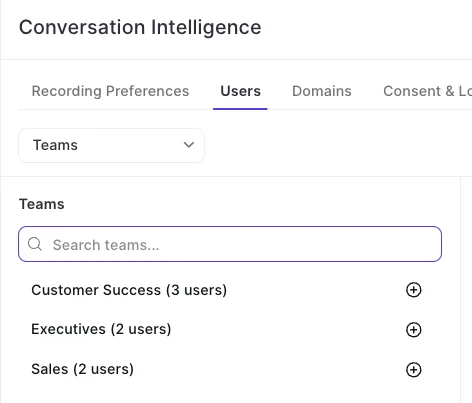
You still populate teams by hand in two cases: where the dynamic definition doesn't fit your structure, and for view-only users, who have no Salesforce user to filter on.
Get every licensed rep to sign in to Weflow once
A licensed user who has never signed in to Weflow doesn't get recorded. Their emails and meetings still capture in the background, so their Salesforce activity looks complete and nobody notices the missing calls until someone goes looking for a recording.
The admin view doesn't flag this. The license looks allocated, and the unregistered user shows as external.
Make sign-in a tracked rollout task, with a deadline before Phase 2. Then check the user list for anyone licensed who still shows as external. Any rep with captured meetings and zero recordings is your other tell.
Recover the meetings the notetaker can't get into
Three more gaps cause most "my call didn't record" messages. Each has a known recovery, and your reps need to know it before the first time it happens.
| Gap | What the rep or admin does |
|---|---|
| The notetaker waits in the lobby because the organizer never joined, and leaves after about ten minutes | The rep uses the start-recording control on the Weflow calendar page to send the notetaker back in mid-call, then asks the customer to admit it |
| An internal meeting has no recording | Nothing. The notetaker only joins meetings with at least one attendee outside your internal domains, so internal meetings aren't missed calls |
| The meeting was never on the calendar, or its link changed at the last minute | The rep records from the Weflow desktop app, which doesn't need a meeting link |
| The notetaker can't join the meeting at all | The rep records from the desktop app. The consent flow doesn't run for desktop recordings, so the rep handles consent |
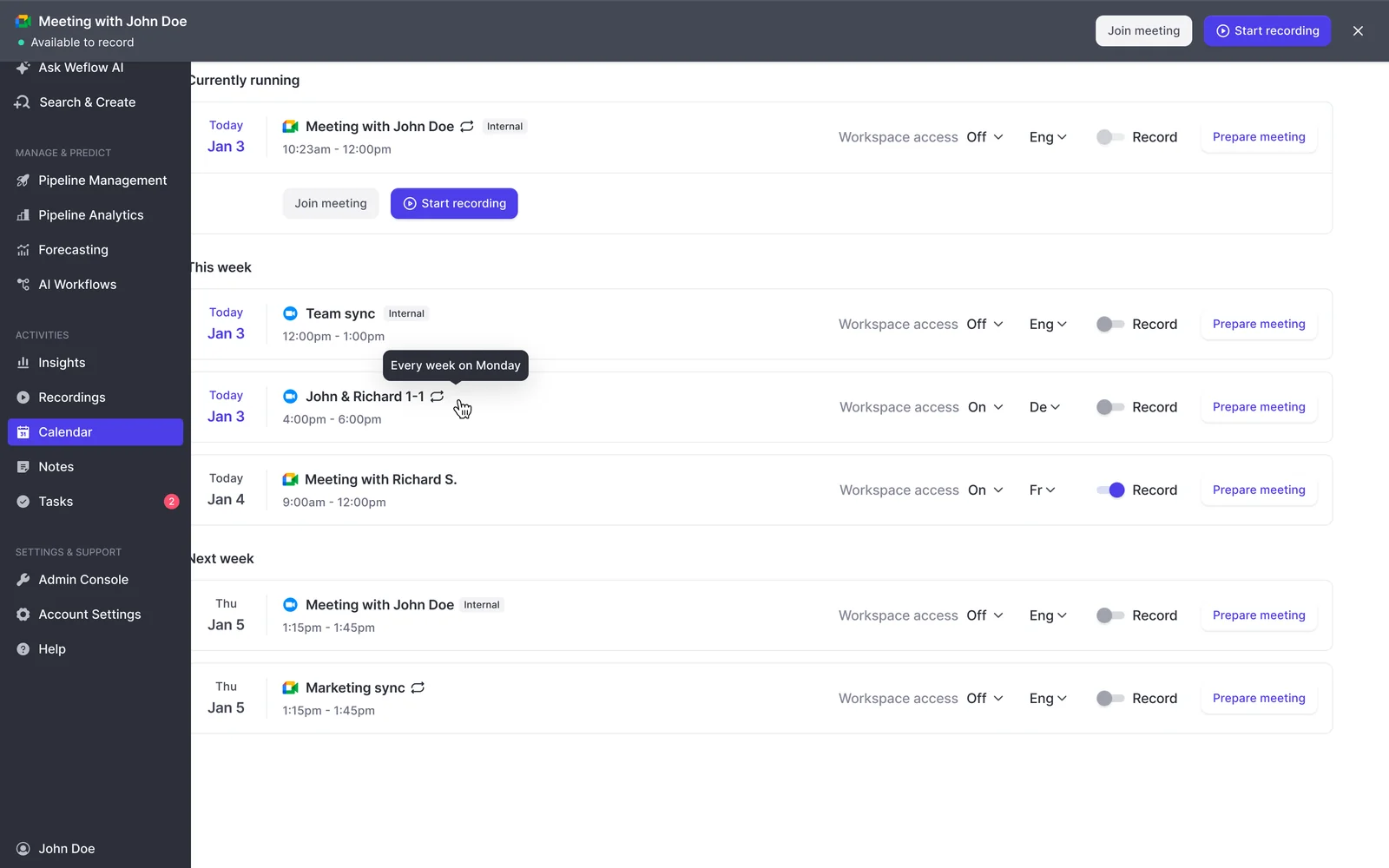
The lobby is the most common reason a meeting that should have recorded didn't. It almost never gets read as what it is.
Check the recording health dashboard before reps spot gaps
The recording health dashboard in the Weflow admin console attributes every failure to a cause. That's how you tell a rep problem from a config problem from a product problem. It shows meetings recorded, recording attempts, meetings skipped and an error rate, with a CSV export per time window.
Each failure falls into one of four causes:
- The recorder wasn't admitted.
- The meeting link changed after the invite.
- The meeting didn't happen.
- A genuine platform error occurred.
Skipped reasons are listed per meeting, including opt-outs. Run this check every week during Phase 1:
- Export last week's CSV.
- Group skipped meetings by reason.
- Where not-admitted failures cluster on one rep, coach the lobby recovery.
- Where link-changed failures repeat, show that rep the desktop app.
- Raise genuine platform errors with Weflow support.
- Compare the recording ratio team by team.
The Weflow Slack app also posts to a channel when a recording and its summary are ready. Reps see the tool working without opening it.
What recording ratio should you expect a month in?
Expect 60–70% of eligible meetings recorded. That's normal and healthy, because some customers decline and some reps skip recordings on purpose. Across our customers, you'll see figures anywhere from 50% to 80%, depending on how eligible meetings are counted. Calendar systems that attach a video link to every event, including in-person and internal ones, distort the ratio.
Chasing 100% is the wrong target. The real test is whether the remaining gap is explained. Review the ratio by team, because a team with a low ratio needs retraining, not a new tool.
| Ratio band | What it means | What to do |
|---|---|---|
| Below 40% | A rollout problem, not a product ceiling | Fix sign-in, team scope and lobby habits. Teams that start here typically reach 80–90% |
| 40–60% | Silence in transcripts tells you nothing yet | Keep fixing explained gaps before you build anything on transcripts |
| 60–70%, gap explained | Normal and healthy | Move to Phase 2 |
| Above 70% | Strong coverage | Keep the weekly check and move on |
This is why coverage gates everything after it. Below about 60%, "nobody mentioned the competitor" might just mean nobody recorded the call.
Phase 2: Turn on AI summaries as the reps' first win
Summaries give reps something that helps them before field updates ask anything of them. They also become the design input for Phase 3.
Within 30 to 60 seconds of a meeting ending, Weflow writes the AI summary onto the Salesforce Event with a link to the recording. It shows up on the opportunity activity timeline, so reps never leave Salesforce to see what happened on the call.
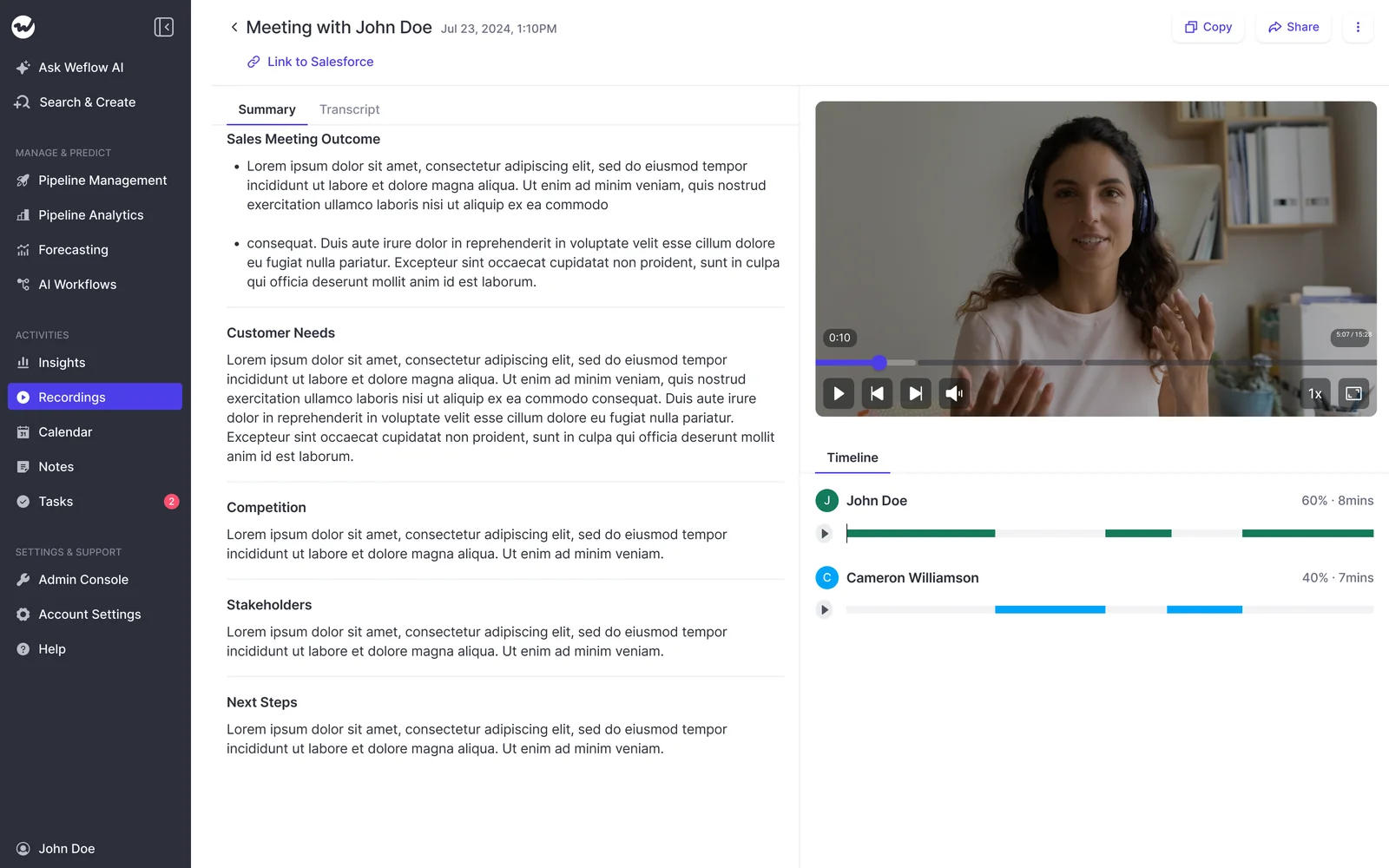
Build a summary template for each meeting type
Weflow summary templates are unlimited, and every AI output on a call is a prompt you can rewrite. If your org mandates an internal note format, you can reproduce it exactly. Meeting type detection lets a discovery call, a demo and a closing conversation each get their own summary.
| Meeting type | Sections the template carries |
|---|---|
| Discovery | Customer needs, current tools, stakeholders, competition, next steps |
| Demo | Use cases shown, questions raised, objections, buying signals, next steps |
| Negotiation | Commercial terms discussed, open points, procurement steps, decision timeline |
| Business review (CS) | Account health, feature requests, expansion signals, risks to renewal |
Reps can also pick a different template from a dropdown on the call record. The same meeting can then be summarized for a sales view and for a customer success view.
Keep one short line in the rep's own words
Expect a sales leader to push back on AI notes alone, even when the summary is more complete than anything the rep would have written. What they want from a rep's note isn't the information. It's proof the rep engaged with the deal and will put their name on a view of it.
One team we work with switched off manual notes. Their head of sales came back asking to hear the rep's voice. They didn't roll back. They kept full automatic capture and added a short rep-written sales summary note of around 255 characters to each update.
Build that line in now, before leadership asks for it.
Read across summaries to decide which fields AI should fill
Most teams can't say which fields they want AI to fill until they've seen what it reliably finds. So don't design the field model up front. Let summaries act as a staging area and let the evidence pick the fields.
- Run summaries for a few weeks across every team in scope.
- Read across transcripts and summaries for elements that recur from team to team.
- Propose fields only for the elements that keep showing up.
- Pick about five fields reps are held to, and put them in a view built for reps.
- Let AI fill everything else, and show it in a separate RevOps view.
Five isn't arbitrary. It's the number sales leaders give us when they're honest about what reps maintain.
"I do not think I can realistically expect my team to update more than five manual fields with any sense of consistency."
You're ready for Phase 3 when reps read and use the summaries, and the same elements keep surfacing across teams.
Phase 3: Switch on AI Field Updates one field at a time
This is the riskiest phase, so it gets the most control. Every field starts in review, and interpretive fields earn automatic mode only after you've watched them.
Single-value commercial fields and cumulative methodology fields also take different routes. Decide which route owns which field before you switch anything on.
Set each field to review or automatic, starting with review
In Weflow, review or automatic is set per field, not per team or workspace. An unambiguous field updates itself while an interpretive one waits for a person, inside the same configuration and for the same rep.
In review mode, the rep sees the suggested value next to the current one. They accept it, edit it, or reassign the deal, and the AI reanalyzes if they pick a different deal.
| Field | Start in | Why |
|---|---|---|
| Website | Automatic | One correct answer, low risk if it changes |
| Billing address | Automatic | Unambiguous and easy to spot if wrong |
| Pain | Review | Interpretive, and depends on your team's definition |
| Champion | Review | Fails plausibly, for example by naming one of your own employees |
| Next step, close date, amount, Stage | Review | Changes the forecast the moment it changes |
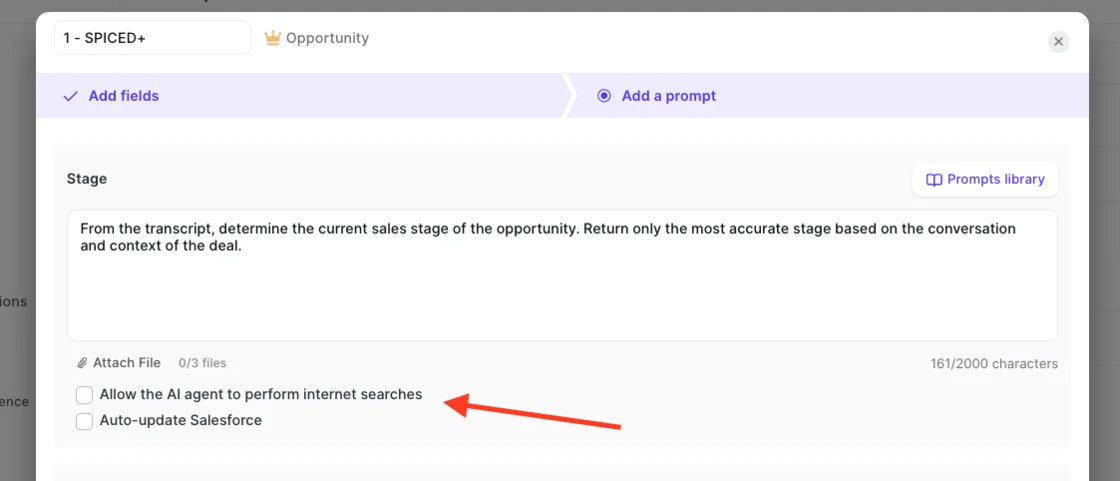
On scope, AI Field Updates write to every Salesforce field type except relationship lookups. That includes picklists, number, date and multi-select fields. Before writing to a picklist, Weflow reads the field's allowed values and matches against them, so it never writes a value the field won't accept.
Per-field control isn't unique to Weflow, and we'll say so. Momentum recommends starting on confirm-to-write and then moving most fields to write-if-empty. Scratchpad, Jiminny and Terret also let admins choose per field or per automation.
Where tools differ is at the extremes:
- Chorus and Fireflies require a rep to approve every write, so fields fill only as fast as reps click.
- Attention sets sync behavior once per workflow. When it finds nothing on a call, it writes prose about the missing information into the field.
Tell each prompt what doesn't count as an answer
Interpretive fields fail plausibly. In one rollout, a champion field named the customer's own employee until its prompt excluded internal people. In another, a metrics field returned company headcount.
"If the metrics comes back and says they have 50,000 staff, that is a metric, but it's not relevant to what we're looking at in our sales process."
Neither is a model failure. Each is an unstated definition. Your prompt has to carry the definition your team uses, including the exclusions, so writing prompts is partly writing down your methodology.
| What went wrong | Prompt instruction that fixes it |
|---|---|
| Champion names your own employee | "Only name people who work at the customer. Exclude anyone from our company." |
| Metrics returns headcount | "Return only the business outcome the customer wants to measure, such as time saved or revenue impact. Company size is not a metric." |
| A value came from the web, not the call | Leave internet search off and add: "Use only what was said in this conversation." |
| An empty call wipes a filled field | "If the call adds nothing new on this topic, leave the field unchanged." |
Weflow doesn't mark whether a value came from the call or a web search. The internet search toggle is off by default, and you restrict a field to call data in its prompt.
Start from the pre-built prompts. Weflow ships more than 250 of them, and you can attach up to three PDFs per prompt, such as your methodology definition. Keep prompts simple. Over-specified prompts perform worse than plain ones, and the best corrections usually come from the people reading the output each day, as a sentence added or a few words removed.
Stop automatic writes from wiping what reps already typed
In automatic mode, an AI field update writes what the latest call produced over the field's existing content. It reads one transcript. A rep's earlier note survives only if you protect it, and one overwritten note is enough for a rep to stop maintaining the field.
You have two protections:
- Review mode. The rep sees the current value beside the AI suggestion, removes what shouldn't change, and syncs only the rest.
- A prompt instruction. Tell the field not to update when the call carries no new information, so a call that never touched the topic doesn't blank it.
For fields that should get richer over the whole deal, use the second route in this phase: AI Playbooks.
Keep next step, close date, amount and Stage under rep review
Single-value commercial fields change your forecast the moment they change. One misheard sentence can overwrite them. A rep's check after the call takes seconds and protects the number, so these fields stay in review for every call.
Weflow can write the opportunity Stage itself, moving a deal when the exit criteria in your prompt are met on the call. It can also fill the fields your validation rules depend on, so a stage gate gets satisfied by what was said.
We'd still keep Stage under review. That's the point where field updates start driving your sales process, and also where a wrong extraction has consequences. Validation rules keep applying either way: a stage change blocked by a rule stays blocked until its fields are filled.
Hand cumulative MEDDIC fields to Weflow AI Playbooks
Methodology fields build up across a deal, so the last call to mention a champion isn't the best source for it. Weflow AI Playbooks read every email, meeting, related record, transcript and field on the opportunity. They keep methodology fields at the current best answer instead of the most recent one.
| AI Field Updates (per call) | AI Playbooks (per deal) | |
|---|---|---|
| What it reads | One call transcript | Every email, meeting, transcript, related record and field on the opportunity |
| When it runs | After each recorded call | When new activity lands on the record, and otherwise every three hours |
| Fields it should own | Next step, close date, amount, Stage, and unambiguous fields like website | Champion, economic buyer, metrics, decision criteria, and the rest of MEDDIC or SPICED |
| Email-only qualification | Misses it | Picks it up |
| Rep-typed filler | Doesn't evaluate it | Marks an element as not assessed when a rep filled it with filler |
Both routes can write to the same field. Assign each field to one route in advance so they don't overwrite each other.
When you set up a playbook, run Generate AI Playbooks in bulk on your existing opportunities. Playbooks only score opportunities created or changed after configuration. Otherwise, the board fills in for new deals while the pipeline you care about stays blank.
Playbooks read transcripts of meetings Weflow recorded. A team recording with another tool gets results built from the CRM record, emails and meeting metadata only.
Move a field to automatic once its output earns it
Your bar here is honest, explained performance, not perfection. For a field that's empty today, "better than empty" is usually the real standard.
"If it is only 90% accurate, then I will take it, I will work with it."
- Watch the review queue for each field separately.
- Track how often reps edit or reject that field's suggestions.
- Agree the accuracy bar for the field with whoever reports on it.
- When edits stop and the output clears that bar, switch that one field to automatic.
- Tell reps which field changed and when.
- Keep reading a sample of that field's values for the next few weeks.
Do it one field at a time. Switching five fields together means you can't tell which one caused a complaint.
What to switch on after AI Field Updates have stuck
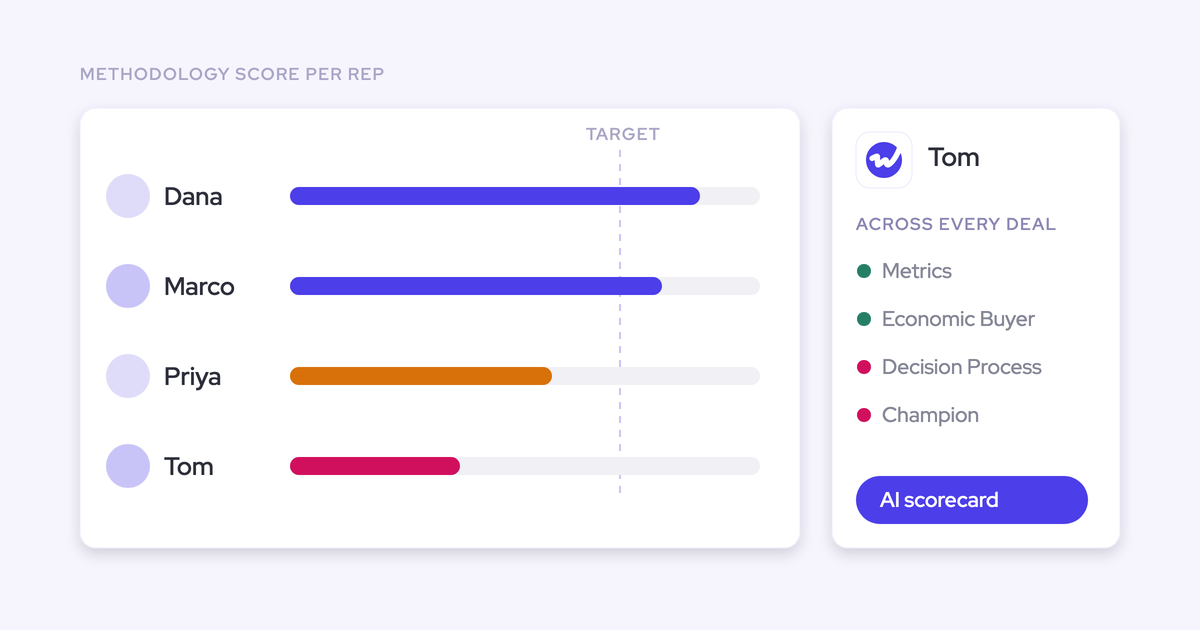
Coaching scorecards come once recording is routine. Before that, a scorecard measures a sample the rep chose. We've seen teams on Gong build scorecards their account executives never used. One team only put coaching on its agenda after a year, once just under 80% of meetings were recorded.
- Coaching scorecards, once coverage is stable and reps trust the summaries.
- Deal intelligence, once activity and conversation data sit on the right opportunities.
- Forecasting, last, because it encodes an operating cadence and needs sales leadership in the room.
Give each wave its own short training session and a follow-up slot for the questions it creates.
Rollout symptoms and the phase that actually fixes them
Most "the tool doesn't work" complaints trace back to a skipped phase.
"Their next comment is going to be, the tool does not work."
| What you hear from the floor | Real cause | Phase that prevents it |
|---|---|---|
| "My call didn't record" | The notetaker sat in the lobby, or the link changed | Phase 1: lobby recovery and the health dashboard |
| "The new hire has no calls" | Recording scoped by user, or the rep never signed in | Phase 1: team-based scope and the sign-in task |
| "The champion field names our own AE" | The prompt doesn't exclude internal people | Phase 3: prompt exclusions |
| "My note is gone" | An interpretive field went automatic too early | Phase 3: review first, plus a leave-unchanged instruction |
| "The Playbook board is empty" | Opportunities that existed before setup were never regenerated | Phase 3: bulk Generate AI Playbooks |
| "Meeting counts doubled" | A separate notetaker and a capture tool each logged the meeting | Phase 0: one tool handling capture and recording |
| "Nobody uses the scorecards" | Coaching launched before recording was routine | Next waves: coaching after coverage |
Where Weflow Conversation Intelligence won't fit your rollout yet
These are the gaps you'll run into, with the workaround where one exists:
- There's no per-call private flag. Call visibility follows the hierarchy. An executive's calls stay private when you place them at the top, and you share single calls by tagging individual users.
- There's no live in-meeting assistant. Summaries, field updates, follow-up emails and coaching scores all arrive after the call. Reps don't get real-time battlecards.
- Field values aren't marked by source. The comparison view shows what changed, not whether it came from the call or the web. You restrict a field to call data in its prompt.
- The follow-up email is drafted, not sent. Recipients aren't filled in either, so the rep adds participant addresses by hand.
- Summary next steps can't be assigned to a named person. You can push next steps through the API into a task system that owns assignment.
- Desktop app recordings bypass the consent flow. Nothing joins the meeting to post a notice, so the rep obtains consent.
- Weflow records meetings only. It covers Zoom, Google Meet, Microsoft Teams and WebEx, and doesn't capture phone calls from a dialer.
- Weflow works exclusively with Salesforce. HubSpot and other CRMs aren't supported.
One case where you should stay put: if your legal team forbids recording or transcribing calls with customers, conversation intelligence isn't the move yet. Start with Weflow Activity & Contact Capture and come back when the policy changes.
What a mixed Weflow Conversation Intelligence license model costs
Recording sits in Weflow Conversation Intelligence, not in Weflow Activity & Contact Capture. A mixed model works well:
- Full seats for Salesforce users who record.
- The lighter notetaker seat for people outside Salesforce.
- Free view-only access for everyone who listens.
| Option | What it includes | Price basis |
|---|---|---|
| Weflow Conversation Intelligence | Recording, transcription, summaries, AI Field Updates, follow-up emails, the desktop app, Mobile Copilot, Ask Weflow AI, Agent Builder Free | $39 per user per month, billed annually |
| Weflow Activity & Contact Capture | Email, meeting and contact sync to Salesforce, including the calendar connection recording depends on | $19 per user per month, billed annually |
| Weflow Revenue AI Foundation | Activity & Contact Capture plus Conversation Intelligence, Mobile Copilot, Ask Weflow AI, Agent Builder Free | $49 per user per month, billed annually |
| Lighter notetaker seat | The AI notetaker for non-Salesforce users, without the rest of the platform | Quoted by Weflow, not on the pricing page |
| View-only license | Watch recordings and see insights | Free, up to the number of recording licenses |
| Implementation | Technical session, configuration and rollout training, run by Weflow | No charge |
Weflow Revenue AI Foundation costs about 16% less than buying the two products standalone. That's also why starting with capture and adding Conversation Intelligence later is cheaper than the reverse.
All plans bill annually with a 10-user minimum. Multi-year terms carry 10% off for two years and 20% off for three.
See how Weflow captures activity, updates Salesforce fields from calls, and rolls up your forecast. Book a 30-minute demo.
Frequently asked questions about rolling out Weflow Conversation Intelligence
Does Weflow Activity & Contact Capture include call recording?
No. Weflow Activity & Contact Capture syncs emails, meetings and contacts to Salesforce, and call recording is part of Weflow Conversation Intelligence. Weflow Revenue AI Foundation pairs the two in one bundle, which is the usual starting point for a recording rollout.
How long does a Weflow Conversation Intelligence rollout take?
A Weflow Conversation Intelligence rollout typically goes live in two to four weeks, and in four to six weeks for a large org. Weflow runs onboarding itself in three phases:
- A technical session of under an hour with your Salesforce admin and mail admin.
- Configuration.
- Role-based training.
We don't charge for implementation.
Can reps turn the Weflow notetaker off for a meeting?
Yes. A rep can stop the Weflow notetaker and remove it from a call using the same control on the Weflow calendar page that starts it. The trade-off is coverage: every stop is a hole in the data, often on the calls managers most want to see. Set the expectation in the leadership decision, and watch opt-outs per rep on the recording health dashboard.
How does recording consent work for teams selling in Europe?
The Weflow notetaker supports opt-in, opt-out or no consent mode. It can post a notice in the meeting chat with a link that stops the recording, and send an optional pre-meeting email.
Weflow provides a Data Processing Agreement with EU Standard Contractual Clauses. Weflow is a German company hosted in Frankfurt, and your instance region can be set to keep data in the EU or UK. Works-council agreements and local consent law sit with your legal team, and these settings are how you implement what they decide.
Can I bring recordings over from Gong, Fathom or Salesloft?
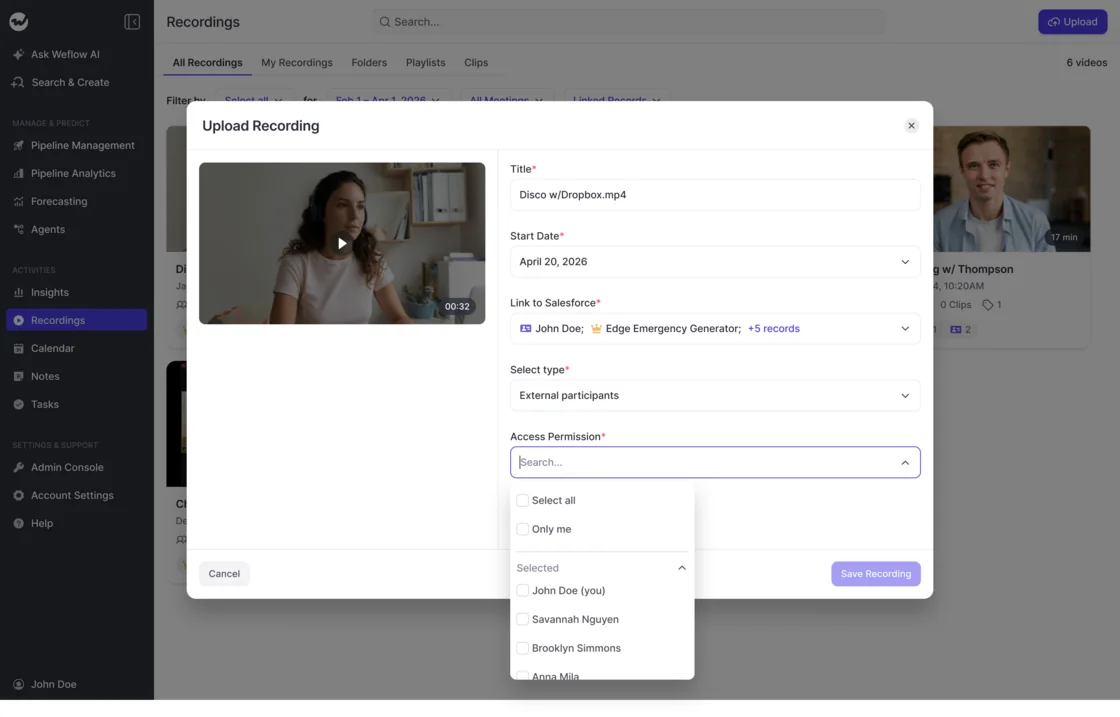
Yes. Any Weflow user can upload a recording of up to 512MB by hand, and Weflow processes it like a meeting it recorded itself: transcription, extraction, search and Ask Weflow AI. The uploader links it to Salesforce records, sets the participant type, and controls who can access it.
Will the notetaker and activity capture log the same meeting twice?
No, not when Weflow handles both. Weflow logs one meeting and writes the AI summary onto that same Salesforce Event, so meetings-per-rep reports stay accurate. Duplicates happen when you stack a separate notetaker on top of a capture tool and each writes its own record.
Can AI Field Updates write to custom Salesforce objects?
Yes. AI Field Updates write to standard objects (Account, Contact, Opportunity, Lead) and to custom objects, with custom objects set up by Weflow support. Every field type is writable except relationship lookups.
What about deals that run mostly over email?
AI Playbooks read email as well as calls, so they pick up qualification that never came up in a meeting, like a champion named only in a thread. Per-call AI Field Updates read one transcript, so on their own they leave email-only qualification untouched. Route cumulative methodology fields to Playbooks if a lot of your deals run over email.
Which security certifications cover call recordings in Weflow?
Weflow holds SOC 2 Type II, complies with GDPR, applies Zero Data Retention to AI processing, and never uses customer data to train AI models. ISO 27001 is in progress, not yet certified.
Recordings are kept for as long as you subscribe by default. You can set them to be deleted after a fixed period, such as every 30 days.