
How to Set Up AI Follow-Up Email Templates in Weflow by Meeting Type
Learn to set up Weflow AI follow-up email templates by meeting type and test transcript-based drafts


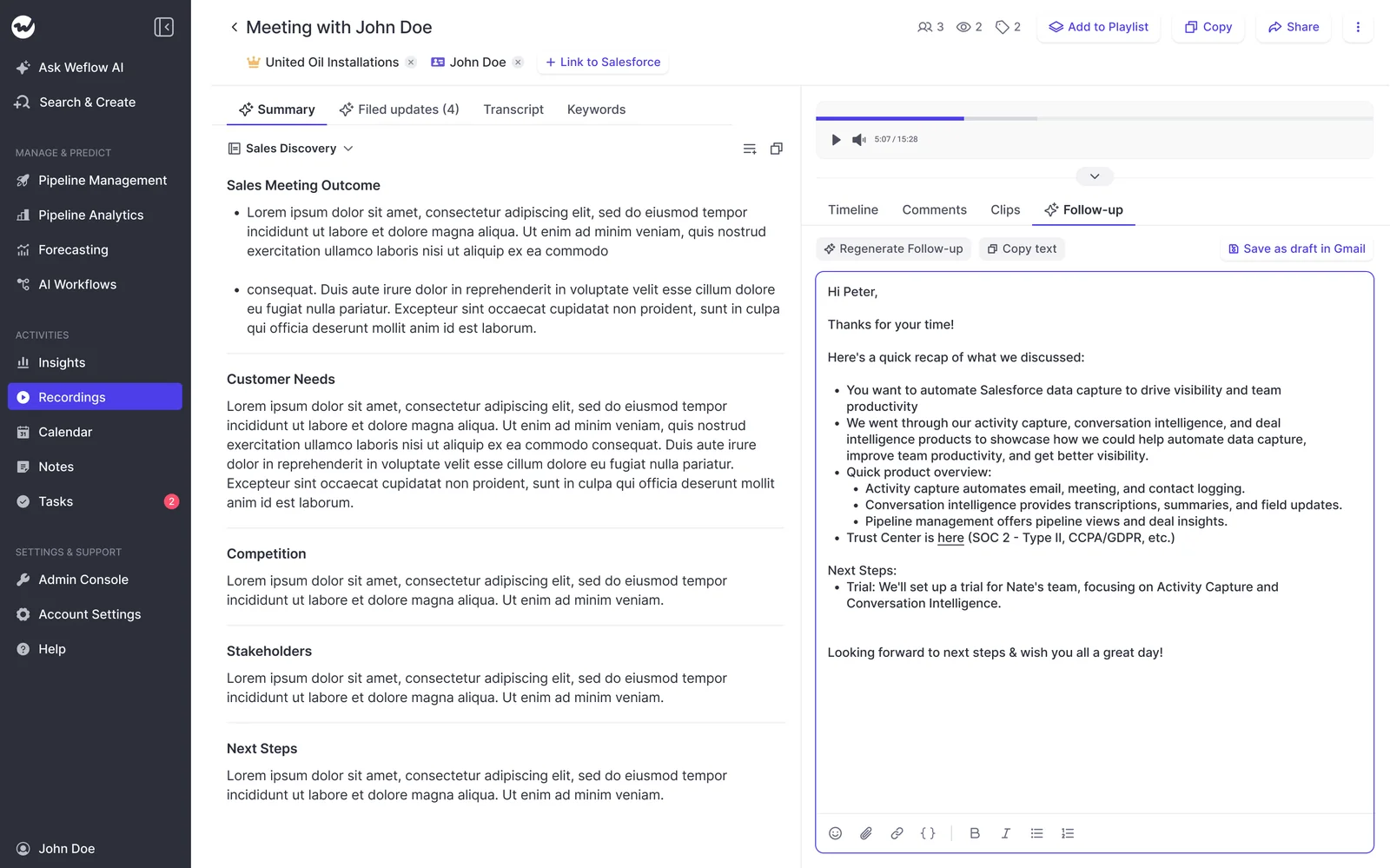
About a minute after a sales call ends, Weflow gives the rep three things from the same transcript: a drafted follow-up email, the call summary on the Salesforce Event, and the proposed Salesforce field updates. You get that draft to fit the meeting that just happened with two decisions:
- Trim your meeting types down to the meetings your team actually runs.
- Write one follow-up template per type that names what that meeting has to lock in.
Weflow is the Revenue AI Orchestration platform for sales, customer success, and RevOps teams. The follow-up draft is one output of Weflow Conversation Intelligence + AI Field Updates. That output carries a lot of weight, because the follow-up is often the only written record of what was agreed on the call.
One limit up front: Weflow drafts the email but doesn't send it or fill in the recipients. Your reps add the addresses and a line of their own, then send it.
What Weflow gives your reps about a minute after every call
Within 30 to 60 seconds of a meeting ending, Weflow hands the rep four outputs, all built from one transcript.
| Output | Where it lands | What the rep does with it |
|---|---|---|
| Processed recording and transcript | Weflow, linked from the Salesforce Event | Goes back to the exact moment something was said |
| AI summary | The Salesforce Event, so it shows on the opportunity activity timeline | Nothing. It's already in the CRM |
| Drafted follow-up email | Weflow, ready to copy or open via link | Reviews it, adds recipients and one line, sends |
| Proposed Salesforce field updates | A review pop-up showing the current value beside the suggested value | Accepts, edits or rejects each one |
The email and the CRM record come from the same transcript at the same moment. So the next steps in the email can't drift from the next steps in Salesforce, which is exactly what happens when a rep writes both by hand three hours apart.
Our co-founder Philipp puts the rep's side of it plainly:
"And, you know, as someone who's also spending a lot of time selling, I actually don't wanna go back to a time where I don't have automated summaries of my meetings because the reality is when I have five back to back meetings, each of these, like, thirty to forty five minutes long, and I speak to basically ten different people, then, yeah, it's just no chance I can remember everything. So I need that. I need to have that automated summary. It's the only way for me to have a guarantee that I'm actually able to put in the data properly into the CRM, write, like, a proper follow-up email and remember the day after or three days or five days later when I do the follow-up what the conversation was actually about."
Speed fixes the follow-up that goes out late. It doesn't fix the follow-up that reads wrong. A demo recap and a discovery recap written from the same template still look the same, and the rest of this guide fixes that.
What you need in place before you build follow-up templates
Sort out these five things before your admin opens a single setting. Each one prevents a failure further down the line.
- Every rep has a Weflow Conversation Intelligence seat and has signed in once. The seat can be standalone or part of a bundle. The notetaker won't join meetings for a licensed user who has never logged in, and the admin view doesn't make that obvious.
- Salesforce can accept the writes. The Salesforce REST API is enabled, and users have write access to the Weflow recording object (Weflow_Recording__c) and the Event. A failed summary write can't be replayed, so test writes on every object your meetings map to before you roll out.
- An admin can reach the Admin Console. Meeting types and templates are configured there.
- A named owner exists for template content. That's usually you, the sales manager.
- You have one real recorded call for each meeting type you plan to keep. You'll test against these in Step 5. The notetaker only joins meetings with at least one attendee outside your internal domains, so pick external calls.
What each meeting type's follow-up email has to lock in
Each type of meeting closes something different, so one template can't serve all of them.
- Discovery confirms the pain and the next meeting.
- A demo recaps what you showed against the buyer's criteria.
- Negotiation restates terms.
- Onboarding and check-ins serve customer success, not new business.
Decide this before anyone touches a prompt. It's your call as the manager, because you know what each meeting is supposed to produce.
| Meeting type | What the follow-up must confirm in writing | What to leave out |
|---|---|---|
| Discovery | The pain in the buyer's own words, who else is involved, and the date and attendees of the next meeting | Product pitch, pricing |
| Demo | What you showed, mapped to the criteria the buyer named, plus open questions and who needs to see what next | Features nobody asked about |
| Negotiation | Terms as discussed (price, scope, contract dates) and the open points on each side | Discovery recap, value pitch |
| Onboarding | What you configured or covered, what the customer does before the next session, and when that session is | Sales language, upsell |
| Check-in | Status, issues the customer raised, and agreed actions | "Just checking in" filler |
| Renewal (custom type, your example) | Renewal date, concerns the customer raised, and what has to happen before signature | New-logo discovery questions |
That last row matters more than it looks. The gap most teams feel isn't the follow-up after the big meeting. It's the generic emails between meetings.
Judge every template on one test: are the agreed actions it pulls out the ones a human would have written down? If yes, it's ready. If the draft is polished but misses the agreed next meeting, it fails.
How to set up follow-up email templates by meeting type in Weflow
Here are five steps, in order. Steps 1 and 3 are admin work. You own the content of Steps 2 and 5, and Step 4 is shared.
Step 1: Trim meeting types to the meetings your team runs
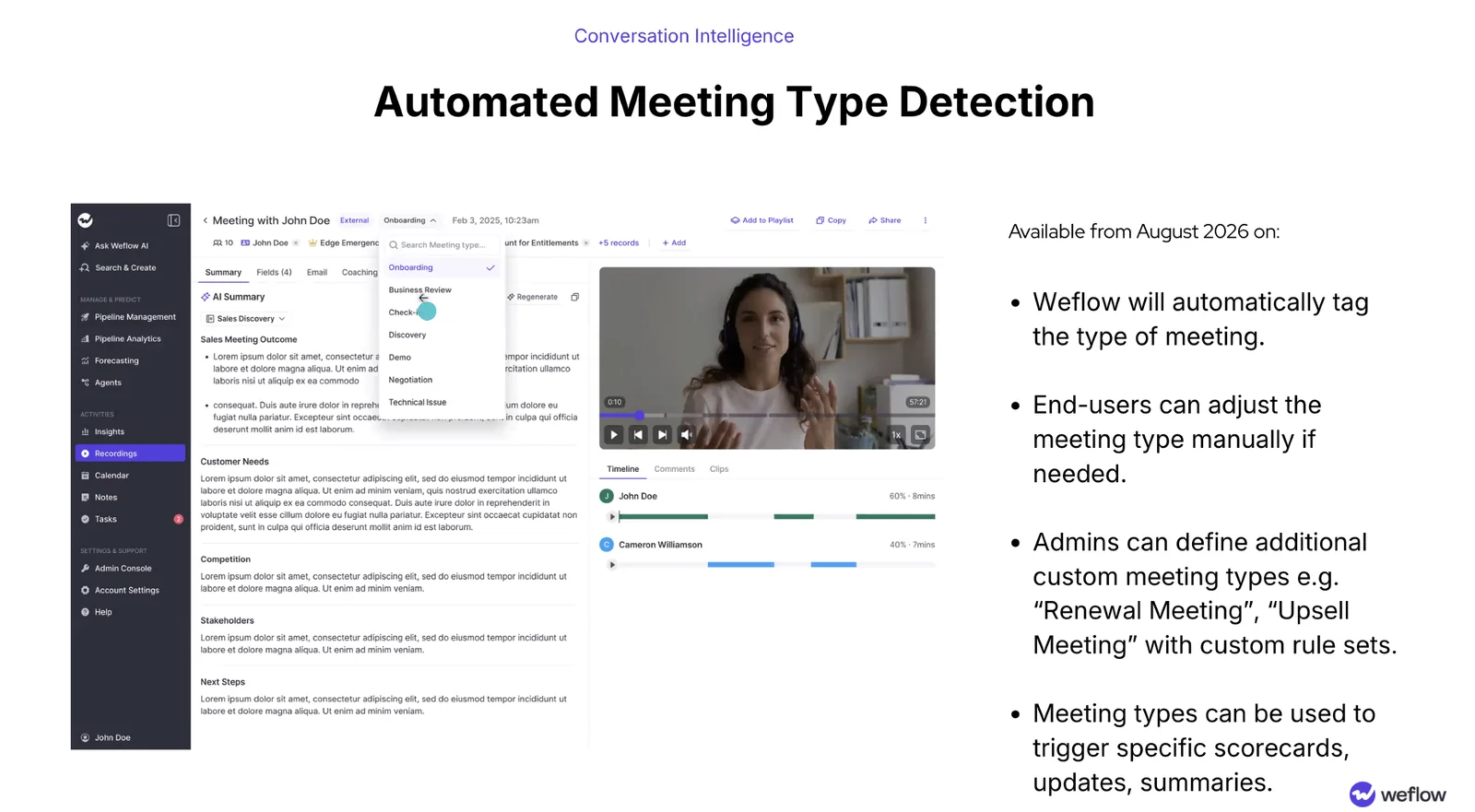
Admin step. Weflow tags every new recording with one of your active meeting types automatically. The type decides which summary, field updates and scorecard run on the call, so a stale list produces stale output.
- Open Admin Console › Conversation Intelligence › Meeting types.
- Review the defaults: onboarding, business review, check-in, discovery, demo, negotiation and technical issue.
- Remove any default your team doesn't run, so Weflow never sorts a recording into it.
- Add custom types such as renewal or upsell, each with its own rule describing what that meeting looks like.
- Keep the active list at ten types or fewer. Ten is the maximum.
Our rule of thumb for adding a custom type:
- Add it when the meeting has to lock in something different from every existing type. A renewal and a check-in sound alike but close different things.
- Add it when the meeting needs its own summary, field updates or scorecard.
- Skip it when it's just a variant your reps would describe the same way as an existing type.
Reps can override a wrong type from a picker on the recording, so the list doesn't need to be perfect on day one.
Step 2: Write one follow-up prompt for each meeting type
Your step. A Weflow follow-up template is a prompt your team writes, not a block of fixed copy, and you can create as many templates as you need. The draft only comes out short and specific when the prompt spells out five things:
- Length: a word or sentence limit.
- Tone: how your reps actually write to buyers.
- Structure: the sections, in order.
- What to extract: the lock-in items from your table in the previous section.
- What to leave out: the right-hand column of that table.
Here's a discovery prompt built that way:
Write a follow-up email to the customer after this discovery call.
Keep it under 150 words, friendly and direct, no sales language.
Structure: one line thanking them, then "What we heard" with the
customer's main problem in their own words, then "Who else is involved",
then "Next step" with the date, time and attendees of the next meeting.
Do not describe our product or mention pricing.
If no next meeting was agreed, say so plainly and propose one.
Compare that with the one-line prompt most teams start with:
| Element | Generic prompt | Discovery prompt |
|---|---|---|
| Instruction | "Write a follow-up email for this call." | The discovery prompt above |
| Length | Whatever the model picks | Under 150 words |
| Structure | A paragraph recap of everything said | Four named sections |
| What it extracts | Topics discussed | The pain, the stakeholders, the next meeting |
| What it leaves out | Nothing | Product pitch and pricing |
Attention runs prompt-based email templates per team too, and suggests separate first-touch, demo-recap and renewal templates. The per-motion idea isn't ours alone. What Weflow adds is that the draft comes from the same transcript that fills your Salesforce record, at the same moment.
Step 3: Pull Salesforce deal fields into the follow-up email
Admin step, your field choices. Weflow can map Salesforce fields into a follow-up template, so the email carries deal context and not just transcript text.
Your admin maps whichever fields you choose. Deal context worth pulling in:
- The close date or contract start date, for negotiation follow-ups.
- The next step field, so the email matches what's on the opportunity.
- Products on the opportunity, for demo recaps.
- Renewal date, for a custom renewal type.
Only map what the buyer should see. Internal fields like forecast category or your own amount estimate don't belong in a customer email.
Step 4: Match each follow-up template to its meeting type
Shared step. Meeting type drives which summary, field updates and scorecard Weflow runs on a call. Follow-up templates are set up per use case, so you build the match yourself and make it obvious to reps.
- Name each follow-up template after its meeting type, exactly as it appears in your meeting-type list.
- Keep one follow-up template per active meeting type, and retire templates for types you removed in Step 1.
- Share a reference table with your reps (below).
- Tell reps to fix a wrong meeting type from the picker on the recording, so the summary, field updates and scorecard match the meeting too.
| Meeting type | Follow-up template | Used by |
|---|---|---|
| Discovery | Discovery follow-up | Sales |
| Demo | Demo follow-up | Sales |
| Negotiation | Negotiation follow-up | Sales |
| Onboarding | Onboarding follow-up | Customer success |
| Check-in | Check-in follow-up | Customer success |
| Renewal | Renewal follow-up | Customer success or account management |
Step 5: Test each template on a real recorded call
Your step. Run each template against one real call of its type before rollout, using the test from the meeting-type table.
- Pick a recent external call of that type that the rep still remembers.
- Before anyone reads the draft, ask the rep to write down the agreed actions in two minutes.
- Compare the rep's list with the actions in the draft.
- Rewrite the prompt where the draft missed something or added filler.
- Run it again on the next call of that type, and repeat until it passes twice in a row.
A template passes when:
- Every agreed action on the rep's list appears in the draft.
- The draft doesn't invent an action nobody agreed to.
- The next meeting or next step matches what's on the Salesforce record.
- It stays within the length you set.
- A rep would send it after adding one line, not after rewriting it.
How your reps should handle every follow-up draft
The rep routine takes a few minutes and happens right after the call, while the conversation is still fresh.
- Read the draft against what you remember from the call.
- Copy it into your mail client or open it via the link.
- Add the recipients.
- Add one line of your own: the thing the transcript couldn't know, or the personal note that makes it yours.
- Send.
How you pitch this matters as much as the template. Reps who hear "use the template" hear enforcement and comply badly. The pitch that works: the email is already written for you, and you only add what the machine couldn't know. The rep feels the time come back first, and only then gets asked for one line.
That one line also answers a request you'll hear from leadership sooner or later: to hear the voice of the rep.
You don't need to roll back automation to meet that request. The draft does the recap, and the rep's own line is the voice. Reps tend to come around once they feel the difference:
"At first reps were hesitant, but now they say, 'I don't have to do this anymore - I can spend that time on selling.'"
— Rugile Pudzevelyte, Senior Revenue Operations Manager at United Fintech
Where the Weflow follow-up draft stops, and how to work around it
Your reps will notice these limits within the first week, so tell them before they find out on their own.
| What the draft doesn't do | What to do instead |
|---|---|
| Weflow doesn't send the email | Reps copy the draft or open it via link, and send from their own mailbox |
| Weflow doesn't fill in recipients | Reps add the addresses from the calendar invite. Make it a named step in the routine |
| The draft can't assign next steps to a named person | Write the prompt to split actions into your side and the customer's side, and push next steps through the Weflow API into a task system that owns assignment |
| Meeting type doesn't land on a Salesforce field | Copy it onto the activity with a Flow or an API call if you want to report on it |
If one-click sending is your top priority, weigh it honestly. Gong's draft addresses the invitees from meeting metadata, though the rep generates it on request. Momentum sends through Gmail with one click, and Gmail only. Airspeed writes the draft into the rep's own Gmail or Outlook inbox and can send from it.
How to fix a missing or off-target follow-up draft
A missing draft is almost always a recording problem. A wrong draft is almost always a meeting type or prompt problem.
When no follow-up draft shows up after a call
No recording means no draft. These three causes cover almost every case.
| Cause | Fix |
|---|---|
| The rep has a license but has never signed in to Weflow. Their activity still syncs, so nobody notices | Have the rep log in once. Recording starts from their next meeting |
| The meeting was internal-only. The notetaker only joins meetings with at least one attendee outside your internal domains | Nothing to fix. Internal meetings don't get recorded or drafted |
| The notetaker sat in the lobby. When the customer organizes the meeting and doesn't admit it, it leaves after about ten minutes | The rep re-triggers recording from the Weflow calendar mid-call and asks the customer to admit it |
When the draft doesn't fit the meeting that just happened
- The meeting type is wrong. The AI read a check-in as a demo, for example. The rep corrects it from the meeting type picker on the recording.
- The prompt is vague. A draft that recaps everything and confirms nothing usually comes from a prompt missing length, structure or the extraction list. Rewrite it with all five elements from Step 2.
- A type your team doesn't run is still active. Recordings get sorted into it and pick up the wrong template. Remove it in Admin Console › Conversation Intelligence › Meeting types.
- The rep used the wrong follow-up template. Point them back to the reference table from Step 4.
Who should own your follow-up templates after rollout
Templates are ongoing work, not a one-time setup. Capture largely runs itself. Prompts don't.
Without a named owner, templates go stale as your sales process changes, the drafts drift, and reps quietly stop trusting them. Once that happens, you're back to chasing "did you follow up?" with a tool everyone has written off.
Split ownership the way you split the setup:
| Role | Owns | Reviews when |
|---|---|---|
| Sales manager | What each template says and the lock-in for each meeting type | On a set cadence, and whenever the sales process changes |
| CS lead | Onboarding, check-in and renewal template content | When the post-sale motion changes |
| Admin or RevOps | Meeting types, field mappings and template configuration | When a type is added or removed, or a Salesforce field changes |
| Reps | Their own line in each email, and flagging drafts that miss | Every send |
We'd run the first review a month after rollout, using the test from Step 5 on a fresh call of each type. After that, pick a cadence your team will actually keep.
Want to see the setup surface before you brief your admin? Take a product tour.
FAQ: Weflow AI follow-up email templates
Does Weflow pick the follow-up template from the detected meeting type?
Weflow detects the meeting type on every recording, and that type drives which summary, field updates and scorecard run on the call. Follow-up email templates are set up per use case. Teams build one follow-up template per meeting type and name it after that type, so reps know which one goes with which meeting.
Can sales and customer success run different follow-up templates?
Weflow supports different AI summary and field-update templates per team, so sales and customer success can each run their own structure. Follow-up templates are unlimited, so you can build separate templates for sales meetings and for onboarding, check-in and renewal calls.
Does Weflow send the follow-up email for my reps?
No. Weflow drafts the follow-up email, and the rep copies it into their mail client or opens it via a link, then adds the recipients by hand. The rep sends it from their own mailbox.
Can the follow-up email assign next steps to named people?
No. Weflow lists next steps in the generated text but can't assign one to a named person. Teams that need assignment push next steps through the Weflow API into a task system that owns it.
What language does Weflow write the follow-up email in?
Weflow writes the follow-up email in the language the meeting was held in, and writes the Salesforce summary in your workspace language. A German call produces a German email the rep can send and, in an English workspace, an English record in Salesforce. Weflow transcribes 96 languages and detects the spoken language automatically.
Do reps get follow-up drafts when they record with the Weflow desktop app?
Yes. The Weflow desktop app for Windows and macOS records without a notetaker joining, and its recordings get the same follow-up emails, summaries and field updates as notetaker recordings. Recording consent becomes the rep's responsibility, because nothing joins the meeting to post a notice. Our guidance is to agree the consent requirements for your participants' countries with your legal team.
Can I report on meetings by type in Salesforce?
Not out of the box. Weflow classifies every recording by meeting type but doesn't write that type to a field on the Salesforce activity. A Flow or an API call copies it across so standard Salesforce reports can group meetings by type.
How much does Weflow Conversation Intelligence cost?
Weflow Conversation Intelligence is $39 per user per month standalone, billed annually, with a minimum of 10 users. It's also included in Weflow Revenue AI Foundation ($49), Weflow Revenue AI Business ($59) and Weflow Revenue AI Enterprise ($79), all per user per month.
Does Weflow use our call recordings to train AI models?
No. Weflow never uses customer data to train AI models and runs Zero Data Retention for AI processing. Weflow is SOC 2 Type II certified and GDPR compliant.


