How to Fill the Competitor Field on Opportunities Automatically From Sales Calls
Learn how to auto-fill the Competitor field on opportunities from sales calls using Weflow AI.


If your Competitor field is blank on most open deals, it's because filling it in gives reps nothing back. So it gets filled at Closed Lost, in a hurry and from memory, and that's the data your win-loss report runs on.
A better option is to fill it from what buyers actually say on calls. But for the field to hold up in a Salesforce report, treat it as a design problem rather than a toggle.
Weflow is the Revenue AI Orchestration platform for sales, customer success, and RevOps teams. In this guide, we'll use Weflow Conversation Intelligence + AI Field Updates to fill the Competitor field from each call. It comes down to three decisions:
- A field type Salesforce can report on: a picklist or multi-select on the Opportunity.
- A prompt that separates a real competitor in the deal from a name someone happened to mention.
- A review period before the field runs on its own.
Why the usual fixes leave the Competitor field empty or wrong
Each common fix captures something useful, but none of them gives you a reliable competitor value you can report on.
| Approach | What you get | Where it breaks |
|---|---|---|
| Required field or validation rule | A higher completion rate | Reps pick whatever clears the rule, usually "Other," so completion goes up but the data doesn't get any better. |
| Trackers in a call tool | An honest count of how often a name comes up, over time | The count lives in the call tool, and a mention isn't a deal fact. Chorus and Salesloft can push tracker hits to CRM fields, but a hit only means the name came up, not that the vendor is in the evaluation. |
| Interviewing reps after the loss | The story and context behind the outcome | It's anecdotal, changes depending on who you ask, and comes after the deal is already lost. |
| DIY: an LLM writing to the field | A fast prototype | The model makes up picklist values, so writes either fail silently or pollute the field. |
| AI Field Updates from the conversation | A value from what the buyer said, in a field you own | The result is only as good as the field design and the prompt, which is what the rest of this guide covers. |
The good news is that the evidence is already there. Buyers name the vendors they're comparing on discovery calls, in pricing conversations, and in procurement emails. You just need a step that turns those lines into a value on the opportunity.
A competitor mention isn't a competitor in the deal
Counting how often a name comes up and recording which competitors are actually in an evaluation are two different jobs that need two different tools.
Most setups blur them together, which is why your tracker dashboard and your Closed Lost report often tell different stories.
| Trend (tracker) | Record (Competitor field) | |
|---|---|---|
| Question it answers | How often does X come up, by rep, team, region and month? | Which competitors are in this deal? |
| Unit | A mention, or a meeting it came up in | An opportunity |
| Where it lives | Weflow Insights | A field on the Opportunity in your Salesforce |
| What it feeds | Messaging, enablement, early warning on a rising competitor | Win-loss by competitor, Salesforce reports, Flows |
Trackers count how often a competitor comes up
A tracker tells you whether a competitor is showing up more this quarter, and where. If mentions climb in one region, you see it as a number instead of hearing it as a rumor from one manager.
What it can't tell you is why the name came up. The buyer might use the tool today, it might be a partner, or your rep might have name-dropped it. They all count as hits, which works for a trend but not for a deal record.
The Competitor field records which competitors are in this deal
The Competitor field should only hold the vendors the buyer is evaluating for the problem this opportunity solves. That's what makes your win-loss report hold up in front of product, marketing, or the board.
- Counts: The buyer says they have a demo, a trial, or a proposal from another vendor.
- Counts: The buyer is replacing their current vendor, so the incumbent is the competitor.
- Doesn't count: A tool the buyer uses for something else and is keeping.
- Doesn't count: Your rep mentioning a rival without the buyer confirming it's in the running.
The AI won't apply these exclusions on its own, so you need to write them into the prompt.
We've seen a Metrics field come back with company headcount simply because nobody told the prompt that headcount isn't a value metric, and the Competitor field fails the same way when its definition is left unsaid.
What you need in Salesforce and Weflow before you start
Before Step 1, make sure these six things are in place.
In Salesforce
- You have an Opportunity field you can write to: a picklist, multi-select, or text field (Step 1 covers which one).
- Weflow's integration user has edit access to that field through field-level security.
- You know every validation rule that touches the field, since Weflow doesn't bypass them and a rule that rejects the value will block the write.
In Weflow
- Recorded calls are mapped to the right opportunities.
- Every rep whose calls should feed the field has a Weflow Conversation Intelligence seat, and their team has an AI Field Updates template on the Opportunity object assigned.
- You have a written competitor list: each competitor, its product names, and any similarly named products you'll need to exclude.
Step 1: Make Competitor a picklist or multi-select field
If you track one primary competitor per deal, use a single picklist. If several vendors routinely compete, use a multi-select. Either way, add an "Other" value and a separate Competitor notes text field for names that aren't on your list.
The field type decides whether you can report on the data. Since AI Field Updates can write to picklists and multi-selects (not just text), "competitors in this deal" becomes a value you can filter and chart.
Weflow also checks the field's allowed values before writing, so it never writes a value the field won't accept.
| Field type | Group and filter in reports | AI Field Updates can write it | Best for |
|---|---|---|---|
| Single picklist | Group, filter and chart | Yes | One primary competitor per deal |
| Multi-select picklist | Filter with "includes," but you can't group rows by it the way you can a single picklist | Yes | Deals where several vendors compete |
| Text (Competitor notes) | Search only | Yes | Unlisted names and the buyer's line, alongside a picklist |
| Lookup to a Competitor object | Yes | No, relationship lookups aren't writable | Not this use case |
| Standard Competitors related list | Yes | No, these are child records, not field values | Not this use case |
For most mid-market teams, we recommend two fields: a single picklist for the primary competitor and a multi-select for every competitor in the deal.
The picklist gives you clean win-loss charts, and the multi-select makes sure the second and third vendors don't get lost.
To build the fields:
- In Setup, go to Object Manager, then Opportunity, then Fields & Relationships, and click New.
- Choose Picklist or Picklist (Multi-Select), name it Competitor, and enter one value per competitor plus "Other."
- Tick "Restrict picklist to the values defined in the value set," so nothing outside the list gets in.
- Create a Long Text Area field called Competitor notes.
- Give Weflow's integration user edit access to both fields and add them to your Opportunity page layouts.
- In Weflow's Admin Console, add both fields to your Opportunity AI Field Updates template.
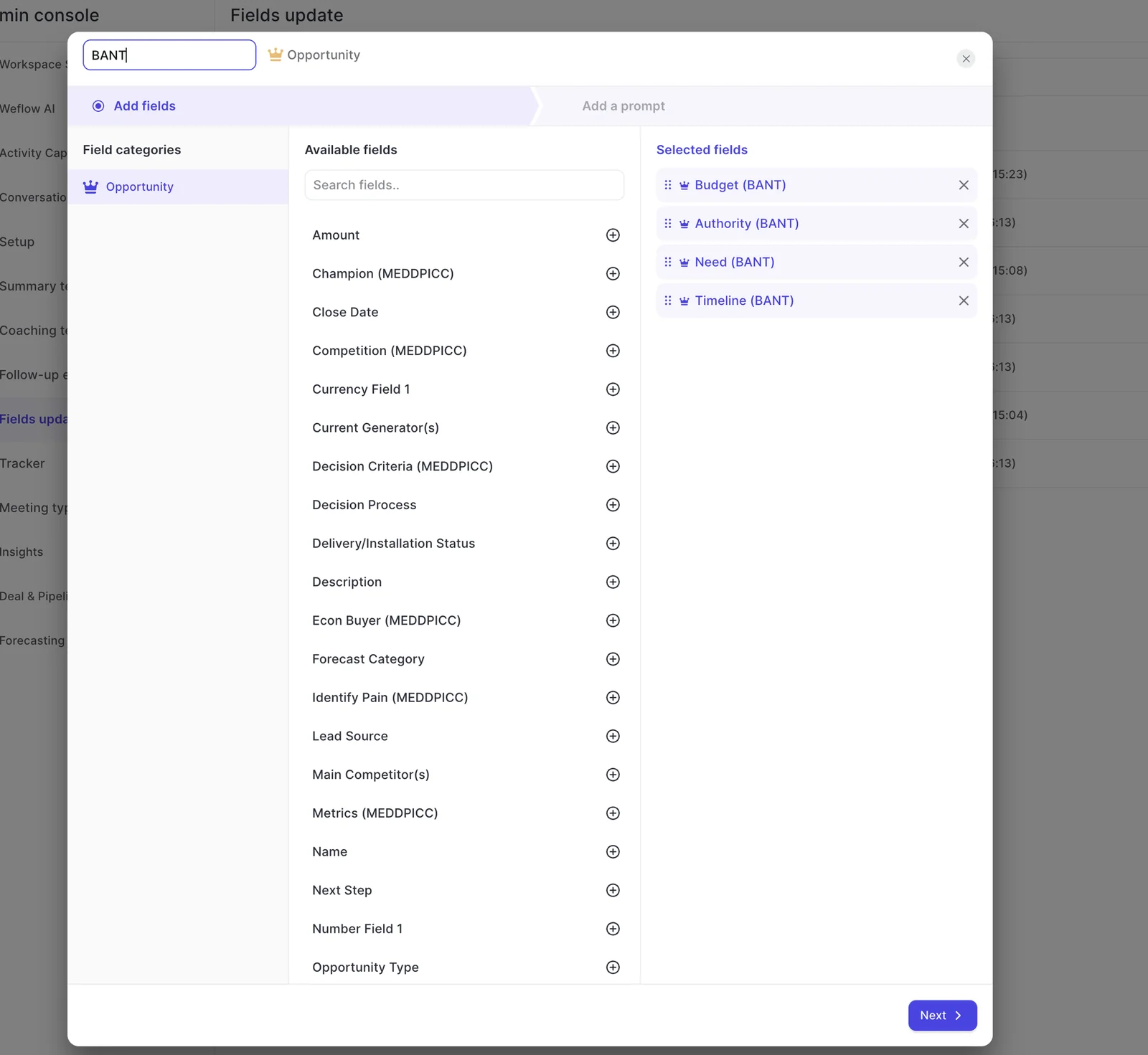
Step 2: Write a prompt that defines a real competitor
Your prompt needs to carry your team's definition of "competing," including the exclusions nobody has written down yet. Keep it simple, though. Business context works better than long lists of rules, and over-specified prompts tend to perform worse than simple ones.
You get 2,000 characters per prompt and can attach up to three PDFs as context, like your competitor list or a product sheet. Here's a Competitor picklist prompt that fits comfortably inside that cap:
Identify which competitors the buyer is actively evaluating for this deal.
A competitor counts only if the buyer says they are talking to, trialing,
comparing, or getting a proposal from that vendor for the problem this
deal solves. If the buyer is replacing their current vendor, that vendor
counts.

Do not count: tools the buyer uses and is keeping, partners or
integrations, vendors our rep mentions without the buyer confirming they
are in the evaluation, or passing references to the market.

Choose only from the field's picklist values. If the buyer names a
competitor that is not on the list, select Other. If the call gives no
clear evidence of a competitor, return nothing.

Use only what was said on this call. Do not use internet search.
Pair it with a short prompt on Competitor notes: "If a competitor came up, write its name and the buyer's sentence that shows they're evaluating it." That way, every value comes with the line that justifies it, and reps can see it during review.
Tell the prompt which mentions don't count
False positives tend to come from the same few situations on almost every team. Use lines like these to build your exclusions:
| Counts as a competitor | Does not count |
|---|---|
| "We've got a demo with [Competitor] next week." | "Our marketing team runs on [Competitor], and that's not changing." |
| "Procurement wants three quotes, and [Competitor] is one of them." | "[Partner] would handle the implementation for us." |
| "Honestly, [Competitor] came in cheaper." | Rep: "A lot of teams compare us to [Competitor]." (the buyer doesn't pick it up) |
| "We're on [Competitor] today and the contract ends in June." | "We looked at [Competitor] two years ago." |
| "[Competitor] is doing a pilot with our ops team." | "It has to integrate with [Tool]." |
When the evidence is unclear, the prompt should return nothing. An empty value on one call costs you little. An empty value on one call costs you very little, but a wrong value in your win-loss report costs the report its credibility.
Keep the prompt on conversation data, not web search
Web search is a per-prompt setting in Weflow that's off by default, and you should leave it off for the Competitor field.
Since Weflow doesn't tag a value as call-sourced or web-sourced (the review view shows what changed, not where it came from), you restrict the field to conversation data in the prompt itself, like the last line of the example prompt above does:
Use only what the buyer said on this call. If the call doesn't name a
competitor, return nothing.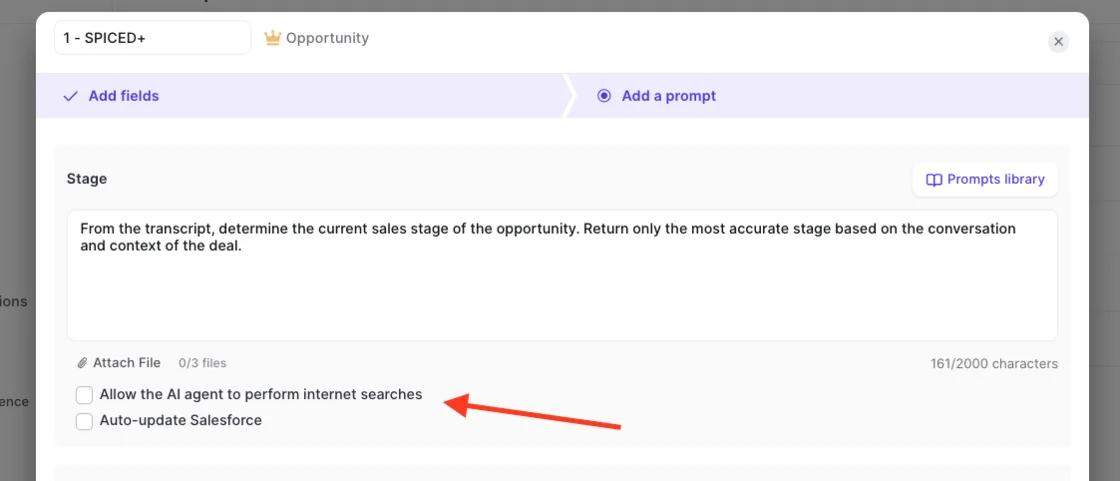
Step 3: Start the Competitor field in review mode
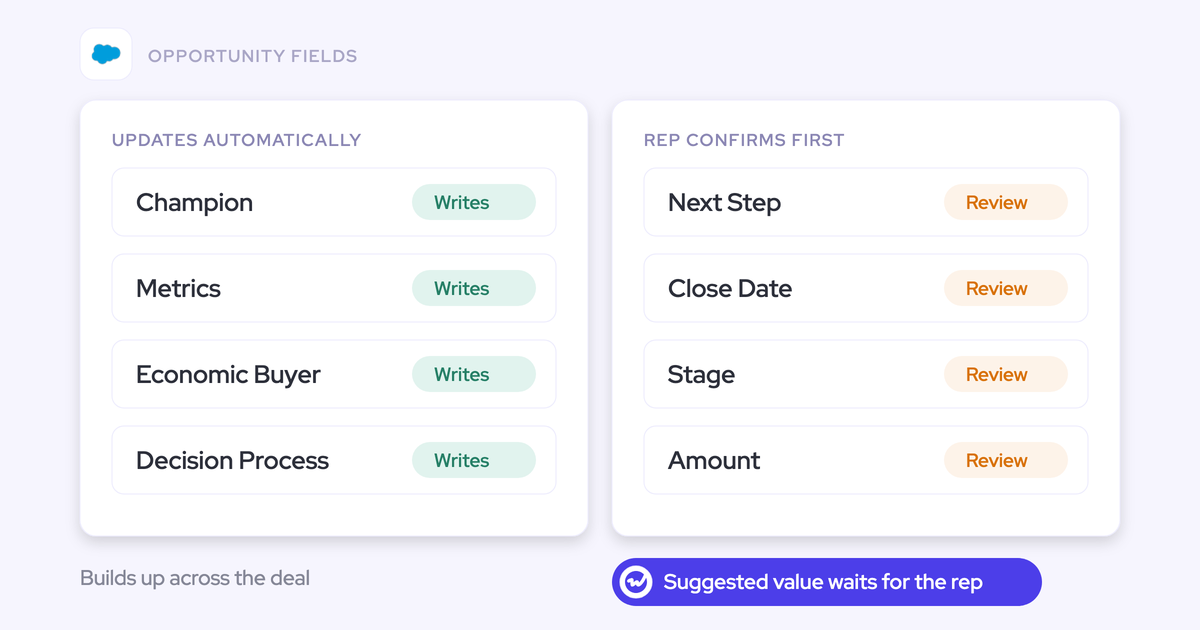
Weflow sets the choice between automatic and review per field, not per team. That means a website or billing address can update automatically from day one, while an interpretive field like Competitor starts in review within the same template.
Review mode does two jobs: it shows you whether the prompt is working, and it keeps reps reading what the AI wrote about their deals.
What reps see when Weflow suggests a competitor
Review only takes a few seconds, since Weflow only suggests fields the call actually changed. After each call, the rep:
- Opens the Review fields link in the email that arrives within about a minute of the meeting ending.
- Reads the side-by-side view in the Weflow app, with the current Salesforce value next to the suggested one.
- Accepts, edits, or discards each suggestion. If the call landed on the wrong deal, the rep reassigns it and the AI reanalyzes against the right opportunity.
- Clicks once to write the approved values to Salesforce.
One thing to know is you can't approve field updates from Slack, so reviews happen in the Weflow app.
When to switch the Competitor field to automatic
It's time to switch once reviewed suggestions stop needing edits. Look for these signals:
- Reps accept the suggested competitor without changes across a solid run of calls.
- Passing mentions and the buyer's current stack have stopped showing up as values.
- "Other" isn't absorbing a name that deserves its own picklist value.
- Reps have stopped opening the review email. In review mode, unreviewed calls leave the field empty, so switching is what gets the values in.
And judge accuracy against an empty field, not against perfection. The realistic alternative to an AI-filled Competitor field is the blank one you have today.
Step 4: Pick per-call updates or an AI Playbook
A per-call AI Field Update reflects a single call, but a deal's competitor list builds up over the whole sales cycle. Both routes can write to the same field, so pick one to own it, or they'll overwrite each other.
| Per-call AI Field Update | AI Playbook | |
|---|---|---|
| What it reads | One call's transcript, compared with what the field holds | Every email, meeting, transcript, related record and field on the opportunity |
| When it runs | After each recorded call | When new activity lands, and otherwise every three hours, for opportunities created or changed after setup |
| Approval step | Review by default, automatic if you set the field that way | None once write-back is on |
| Overwrite behavior | Replaces the field's content unless review or the prompt protects it | Keeps the field at the current best answer across the deal |
| Older deals | Regenerate call by call | Run Generate AI Playbooks in bulk |
| Best for | A primary competitor picklist that reps check | A cumulative multi-select, and deals where competitors come up in email |
Stop a later call from wiping an earlier competitor
Each AI Field Update replaces the field's content, since there's no append mode. So if call 3 only mentions competitor B, an unprotected update can drop competitor A. There are four ways to protect the field:
- Keep the field in review, so the rep sees the current value beside the suggestion and keeps what shouldn't change.
- Add an instruction not to change the field if the call names no new competitor.
- For a multi-select, instruct the prompt to keep the existing values and add new ones.
- If you want a per-call history, map a second field on the meeting or recording object, so every call keeps its own value while the opportunity holds the current list.
You can cover the second and third with one line in the prompt:
Keep every competitor already selected in this field and add any new
competitor this call names. If this call names no new competitor,
leave the field unchanged.
Use an AI Playbook when competitors show up in email
Per-call updates can't see a competitor that's only named in a procurement email, and on many teams, a large share of deals never gets a recorded call at all.
An AI Playbook fixes that by reading every email, meeting, transcript, and field on the opportunity. It keeps the competitor list at the current best answer rather than just the last call's answer, which makes it the right route for a cumulative multi-select.
If you run MEDDICC or MEDDPICC, you can add a Competition element to your playbook using the same definition you wrote in Step 2.
To set up the playbook route:
- Add a Competition element to your team's playbook, using your Step 2 definition and exclusions as its prompt.
- Assign the playbook to the team and leave write-back off. Results show in the Signals tab and the sidebar, and nothing writes to Salesforce yet.
- Turn on write-back for that playbook, pointed at a test field first, and give Weflow's integration user edit access. Once the values hold up, point it at the real Competitor field and switch off the per-call update for that field.
- Select your older open opportunities and run Generate AI Playbooks, because the scheduled refresh only covers opportunities created or changed after setup.
Keep in mind that playbook write-back has no approval step. Playbooks fill fields far more completely, but nobody checks the values before they land, which is why you start with a test field.
Step 5: Set up one Weflow tracker per competitor
Trackers give you the trend line next to the field, and setting up one per competitor keeps that line clean.
A single tracker built to catch every competitor fires on passing mentions, so its report can't tell a real competitive conversation from someone just saying a name. A narrow tracker will miss a few mentions, but in exchange you get a number you can actually trend.
- Create your trackers before you enroll users. Weflow's customer success team can reprocess the last two weeks of calls for a new tracker, but anything older won't be counted.
- Create one tracker per competitor, with the company name and its product names as keywords.
- Add exclusion terms for similarly named products, so those lines never count.
- Leave contextual matching off. For company and product names, only the exact name should count.
- Assign the teams whose calls the tracker should read.
- Read the results in Insights: mentions, meetings, and share of meetings, per rep, team, and region, by month. Open the meetings behind a spike to see what happened.
A tracker for one competitor looks like this:
- Name: [Competitor A]
- Keywords: [Competitor A], [Product X], [Product Y]
- Exclusion terms: [a similarly named product from another vendor]
- Contextual matching: Off
- Teams: Sales, Customer Success
Step 6: Report on competitors and trigger Flows in Salesforce
Once the value lives in a field in your Salesforce, win-loss by competitor is just a standard Opportunity report. You can also trigger Flows from it, which is something we get asked on almost every evaluation call:
"Is there a way to report on that in Salesforce? And can we create Salesforce flows and automation off of that data?"
To build win-loss by competitor:
- Create a new report on the Opportunities report type.
- Filter to Closed equals True and the close date range you care about, such as last quarter.
- Group rows by the primary Competitor picklist and columns by Won.
- Show record count and sum of Amount, then add a summary formula for win rate.
- For the multi-select field, filter Competitor includes [Competitor A] and save one report per competitor you track closely, since you can't group rows by a multi-select.
To alert product marketing when a competitor shows up on a large deal:
- Create a record-triggered Flow on Opportunity that runs when a record is created or updated.
- Set the entry conditions: Competitor is changed, Competitor contains [Competitor A], and Amount is greater than your threshold.
- Add an action that sends an email alert or a Slack message to product marketing with the opportunity link and the Competitor notes text.
- Activate it. The Flow fires whether Weflow or a rep set the value, because it reads the field, not the source.
What breaks when the Competitor field updates automatically
Most failures come from Salesforce configuration and call mapping, not the AI, and each one has a known fix.
| Symptom | Cause | Fix |
|---|---|---|
| The value never lands in Salesforce | A validation rule rejects it. Weflow can't know which value the rule would accept and doesn't bypass it. | Adjust the rule so it accepts your picklist values, or make sure the fields it depends on are filled first. |
| You get an error email that names no field and no reason | An automatic write failed because of a server timeout or a validation rule, and the email doesn't say which. A few timeouts over several weeks is normal. | Forward the email to Weflow support, which reads the failure and tells you the field and cause. |
| Nothing writes at all | Weflow's integration user lacks edit access, the field isn't in the template, or the team has no template assigned. | Grant field-level edit access, add the field to the Opportunity template, and assign the template to the team. |
| A competitor appears on the wrong deal | The call mapped to an unrelated opportunity, often a post-sale escalation call landing on a renewal through a contact role. | In review, the rep reassigns the deal and the AI reanalyzes. Use meeting types so onboarding or technical issue calls don't run the Competitor prompt. |
| "Other" keeps filling up | A recurring competitor isn't on the picklist, or the definition is too loose. | Read Competitor notes each month, promote recurring names to picklist values, and tighten the definition. |
| Passing mentions show up as competitors | The prompt is missing exclusions. | Add the exclusions from Step 2 and keep the field in review until they hold. |
What Weflow doesn't do for competitor tracking
Before you put in the setup time, here's what Weflow doesn't do:
- No live battlecards: Weflow delivers everything after the call, and nothing appears on screen when a competitor is named. Clari Copilot does offer this, showing a battlecard when the conversation hits a trigger word your team set up.
- No source tag on each value: The review shows what changed, not which call line or web result produced it. You keep it to conversation data through the prompt, and the Competitor notes field carries the buyer's line.
- Unlisted competitors land in "Other" plus notes: Momentum's Smart Tags attach the transcript quote to each tag and can surface a competitor nobody listed. If open-ended discovery is your main need, that's a real strength on their side.
We built Weflow post-call on purpose, because a rep reading a battlecard mid-call isn't listening to the buyer. But if live cues are a must for you, we're not the right fit for that part.
What it costs to fill the Competitor field with Weflow
Everything you need for per-call AI Field Updates and trackers comes with Weflow Conversation Intelligence, at $39 per user per month. All plans are billed annually with a 10-user minimum.
| Product or bundle | What it covers for this setup | List price |
|---|---|---|
| Weflow Conversation Intelligence | Recording, AI Field Updates to the Competitor field with review mode, and trackers. Includes Ask Weflow AI Pro, Agent Builder Free with 25 agent actions per month, and Weflow Mobile Copilot. | $39 per user per month |
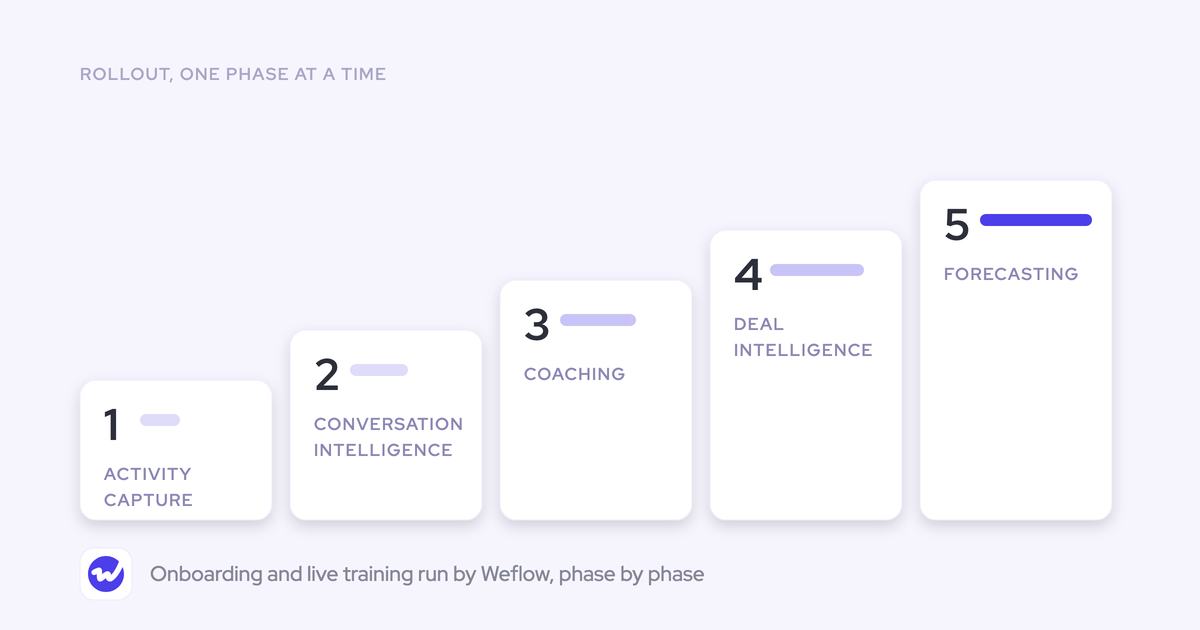
| Weflow Revenue AI Foundation | Conversation Intelligence plus Activity & Contact Capture, which syncs emails, meetings, and contacts into Salesforce | $49 per user per month |
| Weflow Revenue AI Business | Foundation plus Deal Intelligence | $59 per user per month |
| Weflow Revenue AI Enterprise | Business plus Forecasting | $79 per user per month |
There are no implementation fees or usage-based charges, and you can try it free for 14 days.
If you want to see the review screen and field mapping before talking to anyone, walk through the product yourself, no call required.
FAQ: Automating the Competitor field
Is Competition part of MEDDIC or only MEDDPICC?
No, MEDDIC's C stands for Champion. Competition is the extra C added in MEDDICC and MEDDPICC.
In Weflow you can track it as its own element: add a Competition element to your playbook or your own framework, or add the Competitor field to an AI Field Updates template with the definition from Step 2.
Can I backfill the Competitor field on last quarter's deals?
Yes, but it works differently for each route:
- Per-call AI Field Updates: You regenerate older calls one by one, and in review mode the rep presses Update to push the new value to Salesforce.
- AI Playbooks: You select older opportunities and run Generate AI Playbooks on them in bulk.
- Trackers: History only goes back two weeks, through reprocessing by Weflow's customer success team.
Can reps see where in the call a competitor was named?
Yes, in three places:
- The Competitor notes field, where the prompt writes the buyer's sentence (the review screen shows what changed, not the source line).
- Tracker hits are highlighted in the transcript and listed in Insights.
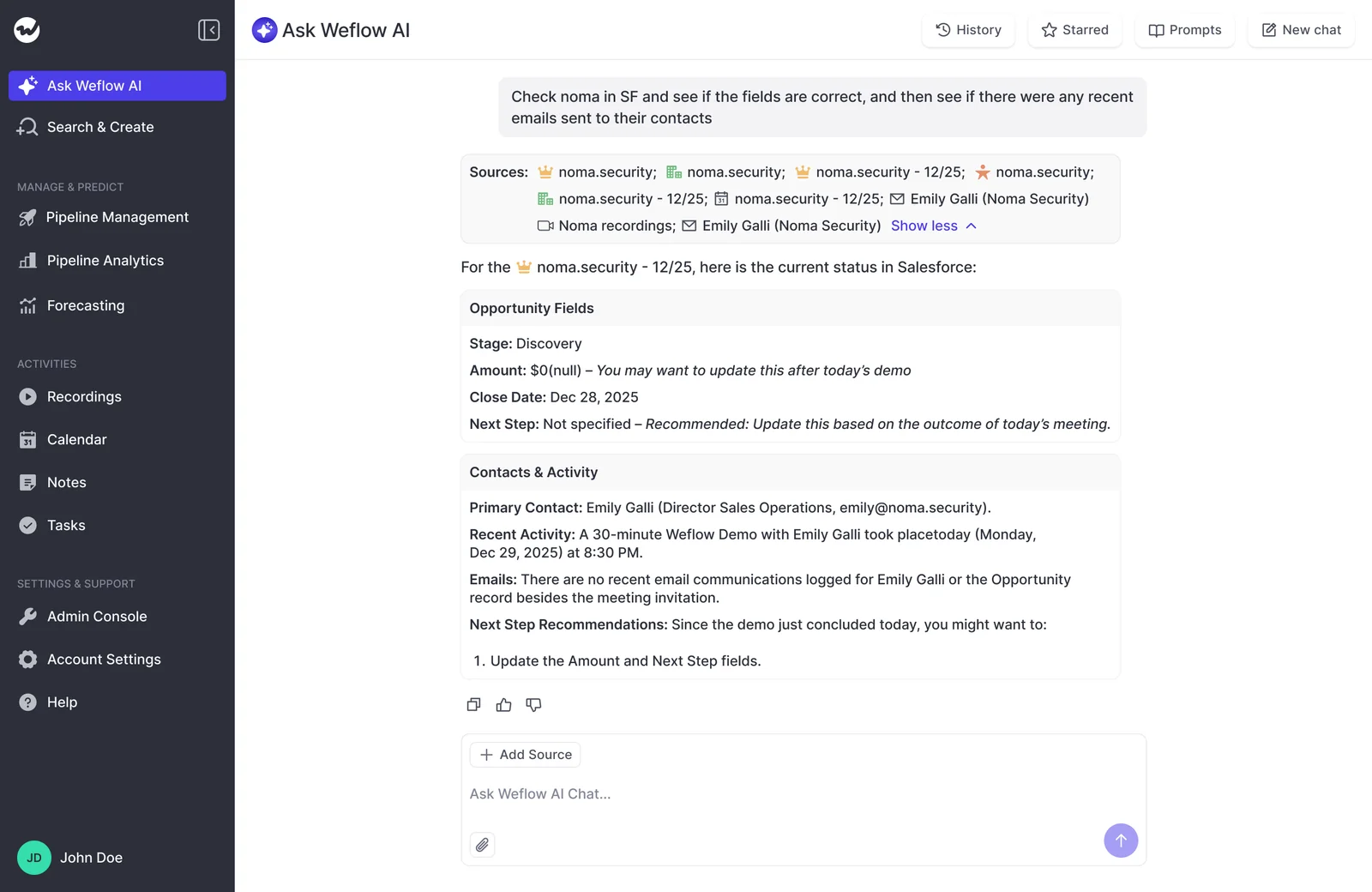
- Ask Weflow AI links each answer back to the call, transcript, or email it drew from.
Can Ask Weflow AI list which competitors came up last quarter?
Yes. Ask Weflow AI can be pointed at a single deal, a filtered deal board, an account, or the whole system, and it answers across calls, emails, and Salesforce records.
For example, you can ask, "Which competitors came up in the last six months, and what happened when they did?"
Because it reads the raw conversations, it also catches competitors or loss reasons nobody thought to set up a tracker for.
Can different sales teams use different competitor prompts?
Yes. AI Field Updates templates are assigned per team, so your mid-market and enterprise teams can each have their own competitor list and definition.
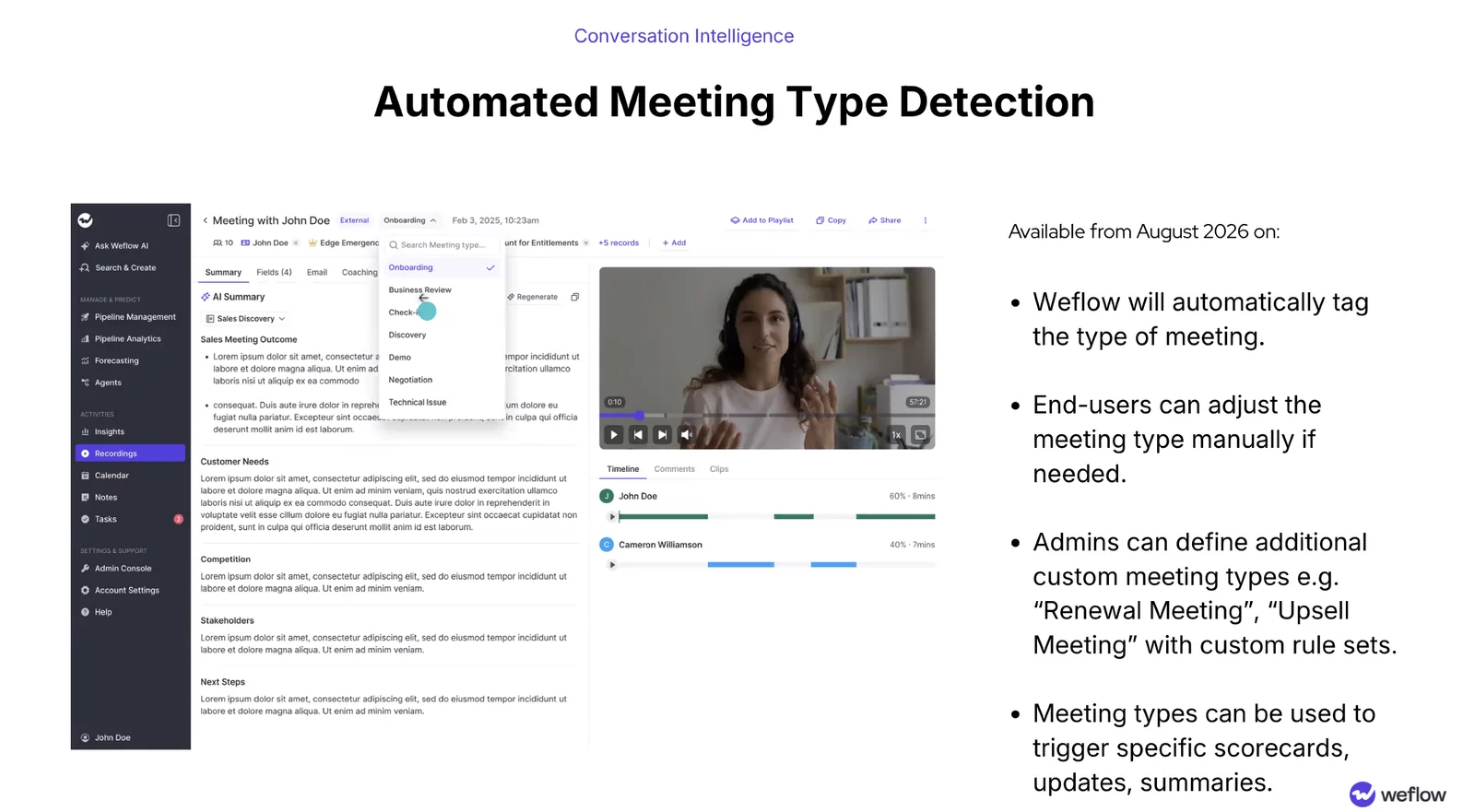
You can also use meeting type detection to run the Competitor prompt on discovery and demo calls and skip it on onboarding calls.How does Weflow handle recording consent and security review?
- Certifications and AI processing: Weflow is SOC 2 Type II certified and GDPR compliant, runs Zero Data Retention for AI processing, and never uses customer data to train AI models.
- Consent: Consent flows are configurable, including a pre-meeting email with an opt-in or opt-out link, and an in-call chat message that lets participants permanently delete the recording.
- Region: You choose where recordings and transcripts are stored, in Frankfurt, New York, or Sydney.
- Retention: Weflow can delete recordings after a set period while keeping transcripts, or delete both.