How Weflow Fills Next Step and Close Date From Every Sales Call
Learn how Weflow updates Next Step and Close Date from sales calls and syncs summaries to Salesforce


Within 30 to 60 seconds of a recorded call ending, Weflow drafts a new Next Step and Close Date from what the buyer said. Your rep sees both next to the call summary and a drafted follow-up email.
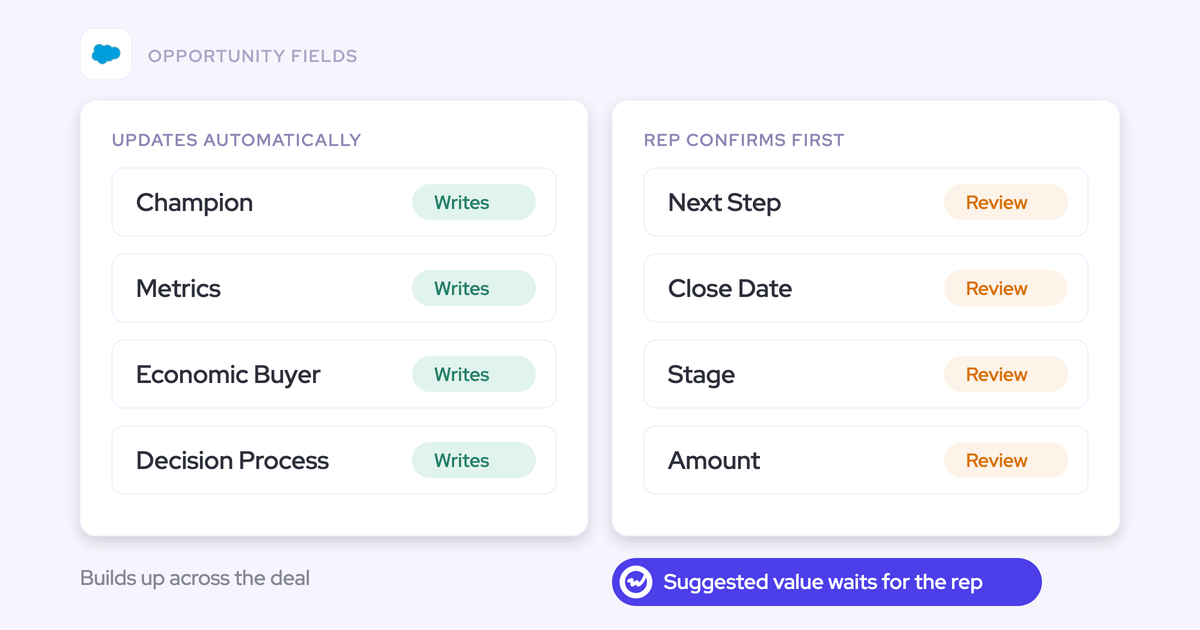
The summary lands on the Salesforce Event. The field updates go to the opportunity fields your forecast reads. You decide per field whether each value writes itself or waits for the rep to confirm it in one click.
Weflow is the Revenue AI Orchestration platform for sales, customer success, and RevOps teams. It's built for Salesforce teams, and this capability is part of Weflow Conversation Intelligence + AI Field Updates, at $39 per user per month.
Our recommendation for most teams:
- Keep Close Date on review.
- Let Next Step write automatically once it has proven itself on your calls.
That split gives the deal that has said "closing this month" four months running a date backed by what the buyer actually said. Your rep still owns the commitment.
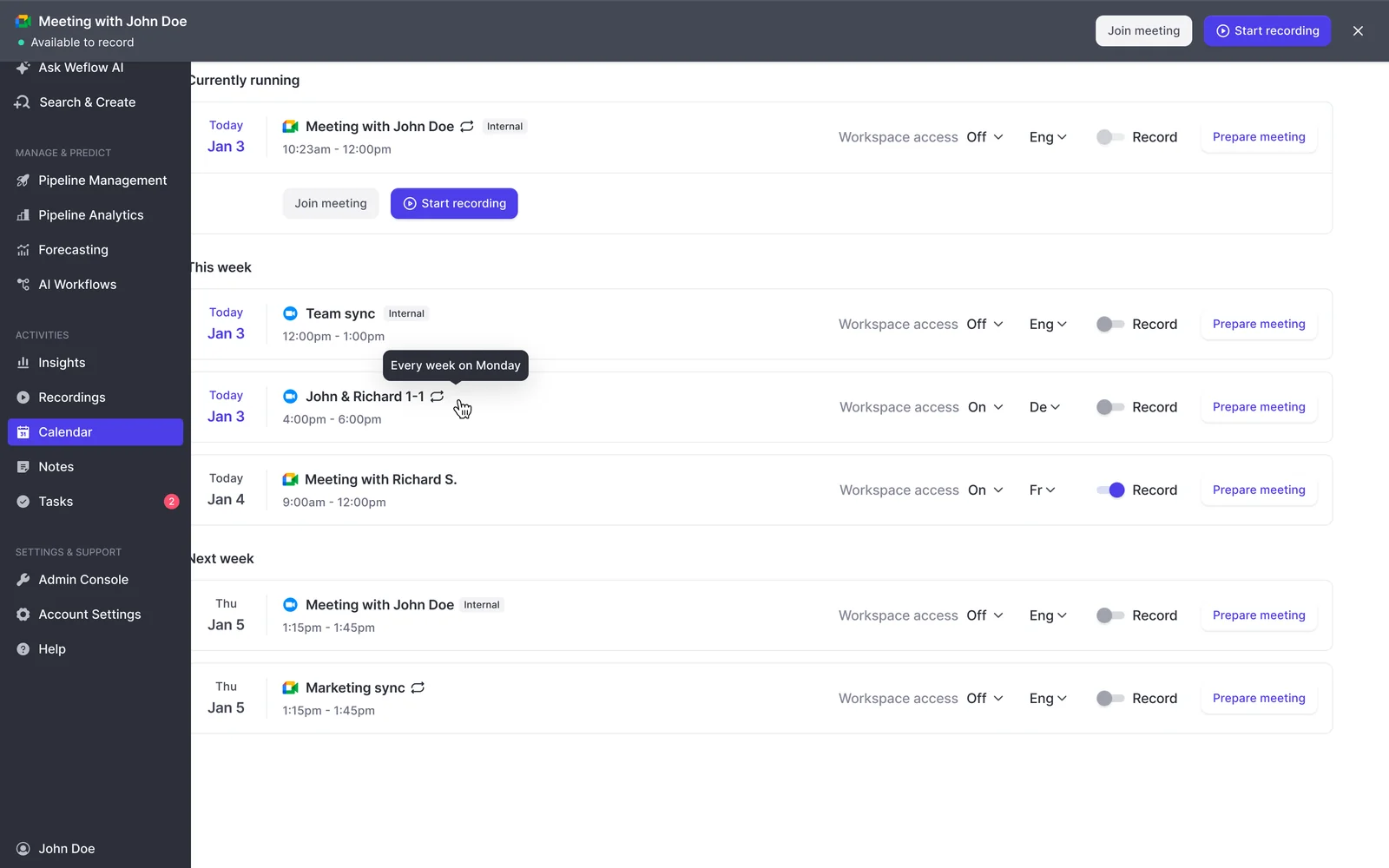
One note on scope. "Every sales call" means every meeting Weflow records. The notetaker auto-joins external Zoom, Microsoft Teams, Google Meet and Webex meetings for reps who have a template assigned. Reps can switch it off for a single meeting, and phone and dialer calls aren't covered.
Why a call summary never moved your Close Date field
A summary is a paragraph, and Close Date is a date field. Your forecast reads the field.
The buyer usually says the date out loud. "We'll reconnect after the board meets on the 14th" is a next step and a timeline in one sentence. First-generation recorders kept that sentence in their own tool or dropped it into a text box on the activity. The opportunity kept its stale values, and so did the forecast.
Mandates and validation rules don't fix this either. They raise completion without fixing the content, because reps type whatever clears the rule.
| What the buyer said on the call | What the opportunity still shows |
|---|---|
| "We'll reconnect after the board meets on the 14th." | Next Step: "follow up" |
| "Legal needs two weeks once we have the final contract." | Close Date: end of this month, pushed again |
| "Our CFO wants the revised pricing before Friday." | Next Step: blank |
A call summary in a text box doesn't change the Close Date your forecast reads. Weflow AI Field Updates write the value into the Salesforce field itself.
What Weflow puts in Salesforce the minute a call ends
Three things arrive together: the summary on the Salesforce Event, a follow-up email draft, and proposed updates to Next Step and Close Date. Here's the order:
- The call ends, and Weflow processes the recording and transcript.
- Weflow writes the AI summary onto the Salesforce Event, with a link to the recording.
- Weflow drafts the follow-up email from the transcript.
- The rep sees the proposed field updates: Next Step, Close Date, and any other fields your template maps.
All of it lands within 30 to 60 seconds. Your rep handles the deal while the call is still fresh, not that evening from memory.
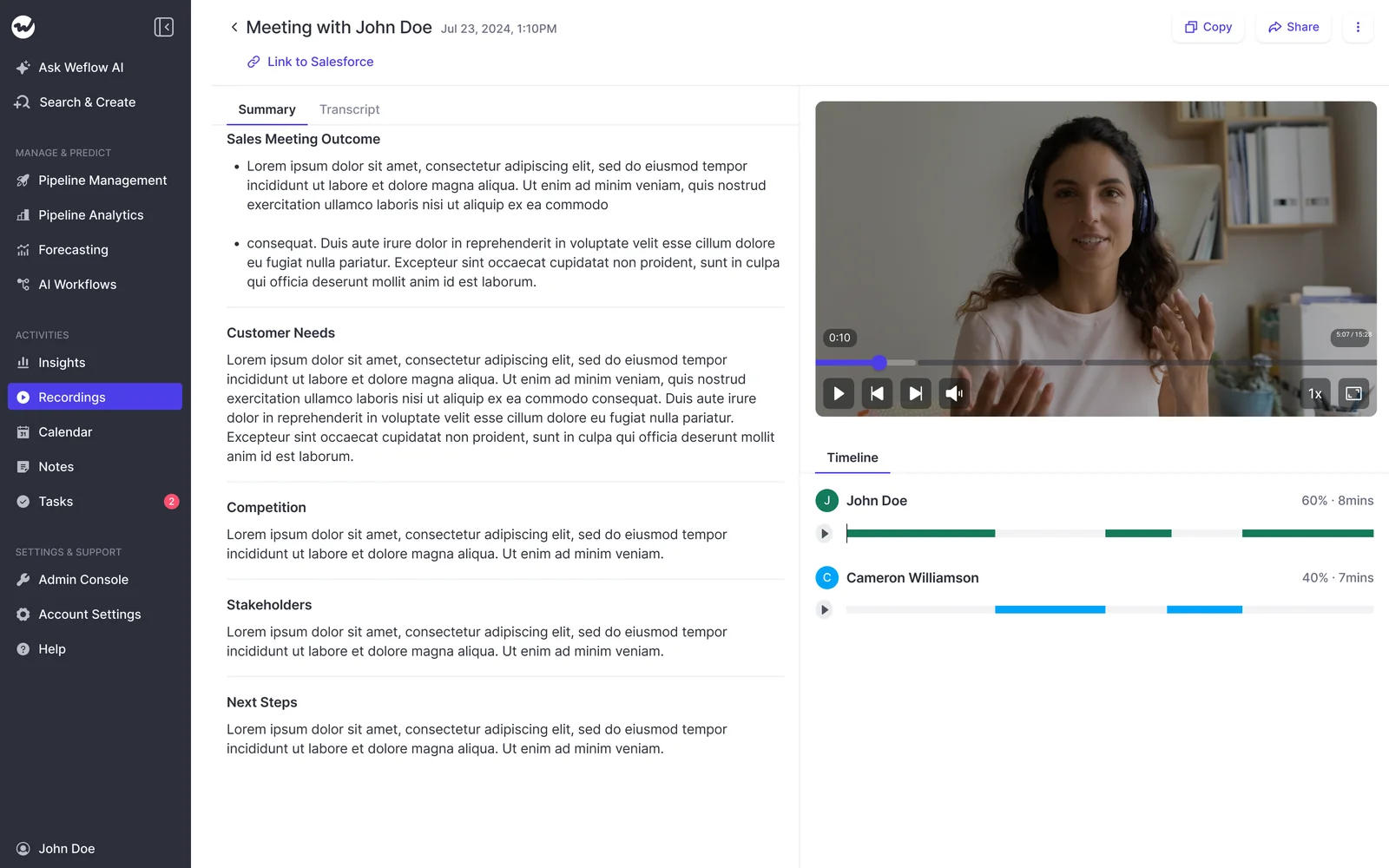
The call summary lands on the Salesforce Event and timeline
You read what happened on the call without leaving Salesforce. Weflow writes the summary onto the Event, so it shows up on the opportunity activity timeline you already look at in pipeline reviews.
Every summary is a prompt your admin controls.
- A team can hold as many summary templates as it wants.
- A rep picks the template from a dropdown on the call record.
- If your company mandates a specific note format, the template reproduces it, so reps stop retyping the call into that format every day.
Next Step and Close Date arrive as proposed field updates
Weflow extracts each value for a specific Salesforce field. Close Date comes back as a real date value. Next Step comes back as text written for the Next Step field, not buried in a paragraph.
When the rep accepts the suggestion, or when the field is set to write automatically, the opportunity changes. Your forecast reads the new value the next time anyone opens it.
How one deal's Next Step and Close Date change after a call
Take a deal with a Next Step of "follow up" and a Close Date that has been pushed three times. On the call, the champion says the board meets on the 14th of next month. If the board approves, procurement needs about two weeks.
| Next Step | Close Date | |
|---|---|---|
| Before the call | "Follow up" | The 31st of this month (pushed three times) |
| What the buyer said | "Send me something I can show the board before the 14th." | "If the board approves on the 14th, procurement needs about two weeks." |
| Weflow's proposed value | Send board summary to champion before the 14th; reconnect on the 15th for the outcome | The 28th of next month |
| What the rep does | Nothing, once the field writes automatically | Confirms the date in one click |
You now have a Next Step you can act on and a Close Date with a reason behind it. You didn't ask for either in a one-on-one.
How your reps review a suggested Close Date in one click
In review mode, the rep sees the current value beside Weflow's suggestion and writes everything back with a single click. For each suggestion the rep can:
- Accept the value as Weflow drafted it.
- Edit it, for example moving the date a week because the rep knows procurement runs slow at this account.
- Reassign the deal if Weflow matched the call to the wrong opportunity. Weflow re-runs the analysis on the deal the rep selects.
Required fields stay locked, so a suggestion can't blank a field your process depends on.
Review stays light because it arrives at the moment the rep is already looking at the call, next to the summary and the follow-up email. The rep isn't writing anything, just reading a date they heard two minutes ago and agreeing with it. That's what keeps this from feeling like one more admin task. When reps feel the time come back first, they stop treating the CRM as an audit.
Why we keep Close Date reviewed and let Next Step auto-write
You set automatic or review mode per field, not per team or workspace. We recommend splitting it. A close date is a commitment that moves your number, so the rep confirms it. Next Step carries less risk and can earn automatic writing once your team has watched it be right.
| Field | Mode we'd start with | Why |
|---|---|---|
| Close Date | Review, and keep it there | One misheard sentence moves your forecast. The rep's confirmation costs seconds and protects the number. |
| Next Step | Review first, then automatic | It changes on every call and a wrong value is cheap to correct. An imperfect Next Step beats "follow up". |
| Stage | Review | Weflow can move a deal between stages when your exit criteria are met on the call. A wrong stage change has consequences, so a person should approve it. |
| Fields with one clear answer (website, billing address) | Automatic from day one | There's nothing to interpret, so there's nothing to review. |
The fields matter more than the feature. HolidayCheck cut past-due opportunities by about 75% after rolling out Weflow activity capture, conversation intelligence, pipeline visibility and automated Salesforce field updates together. Close dates that reflect the last call are part of that result. The rest of the setup is too.
Close Date waits for the rep because it moves your forecast
Weflow drafts the date, and the rep commits to it. That one click is the rep's signature on the close date.
Full autopilot on Close Date fails in two ways:
- Accuracy. A buyer saying "maybe by the 15th" and a buyer saying "definitely by the 15th" produce the same date. Only the rep knows which one it was.
- Ownership. Sales leaders don't want reps to stop engaging with their own deals.
Review mode answers both. The field is filled from the call, and the rep still decides whether it's true.
Next Step switches to automatic once it earns your trust
Move Next Step to automatic once its output has proven itself on your team's calls, not on day one.
- Start Next Step on review for every rep with a template.
- Read the suggestions alongside the edits reps make in your pipeline reviews.
- Have your admin tune the prompt from what reps correct. Usually that's a sentence added or a few words removed. Simple prompts tend to beat over-specified ones.
- Add the "nothing new" instruction described below.
- Switch the field to Auto-update Salesforce once reps have stopped changing the suggestions.
The "nothing new" instruction matters because Next Step holds one value. In automatic mode, Weflow writes what the latest call produced over whatever the field held before. If the call was a technical deep-dive that set no next step, an unguarded prompt can replace a good Next Step with a weak one.
So tell the prompt not to update the field when the call carries no new next step. The good value survives the empty call.
Which sales calls Weflow records for field updates
Weflow's notetaker auto-schedules onto external meetings from the calendar connection, so field updates come from most of your team's calls without anyone remembering to invite a bot. Coverage is what makes this work. Once reps have to opt in per call, the recording rate collapses and your fields go stale again.
| Meeting | What happens |
|---|---|
| External Zoom, Microsoft Teams, Google Meet or Webex meeting, rep has a template | Notetaker joins automatically; summary and field updates arrive within about a minute |
| Meeting a rep switched recording off for | Not recorded, so no field updates |
| Internal meeting | Not recorded by default; the rep can add the notetaker on demand |
| Rep with no template assigned | No field update pop-up appears |
| Phone and dialer calls | Not covered |
| Deals that live mostly in email | Per-call updates don't touch them |
| In-person meetings | Recorded through Weflow Mobile Copilot |
| Meetings where you don't want a bot in the room | Recorded through the Weflow desktop app, without a notetaker |
Three platform settings decide whether the notetaker gets in:
- Webex recording has to be enabled for your workspace, or the recorder never joins.
- Zoom needs local recording turned on by your Zoom admin, plus host approval.
- On Teams and Meet, someone has to admit the notetaker from the lobby.
Which Salesforce fields Weflow AI Field Updates can write
Weflow AI Field Updates write to every Salesforce field type except relationship lookups. That includes date, picklist, number, text and multi-select fields, and your validation rules still apply.
| Field type | What Weflow does | What to watch |
|---|---|---|
| Date | Writes a real date value, such as Close Date | Keep forecast-moving dates on review |
| Picklist and multi-select | Reads the field's allowed values and matches its output to them | It never writes a value the field doesn't accept |
| Number | Writes a numeric value, and a prompt can calculate one from what was discussed, such as seats times price | Single-value fields get overwritten, so automate with care |
| Text | Writes the extracted value, such as Next Step | Add the "nothing new" instruction before going automatic |
| Stage | Moves the deal when the exit criteria in the prompt are met on the call | Keep on review |
| Relationship lookup | Not supported | Plan automations around this from the start |
Validation rules work the way they do today. If a rule blocks a stage change until five fields are filled, the stage stays blocked. Weflow can fill those five fields from the call too, so what the buyer said satisfies the gate, not a form your rep fills in afterwards.
When Weflow AI Playbooks fit better than per-call updates
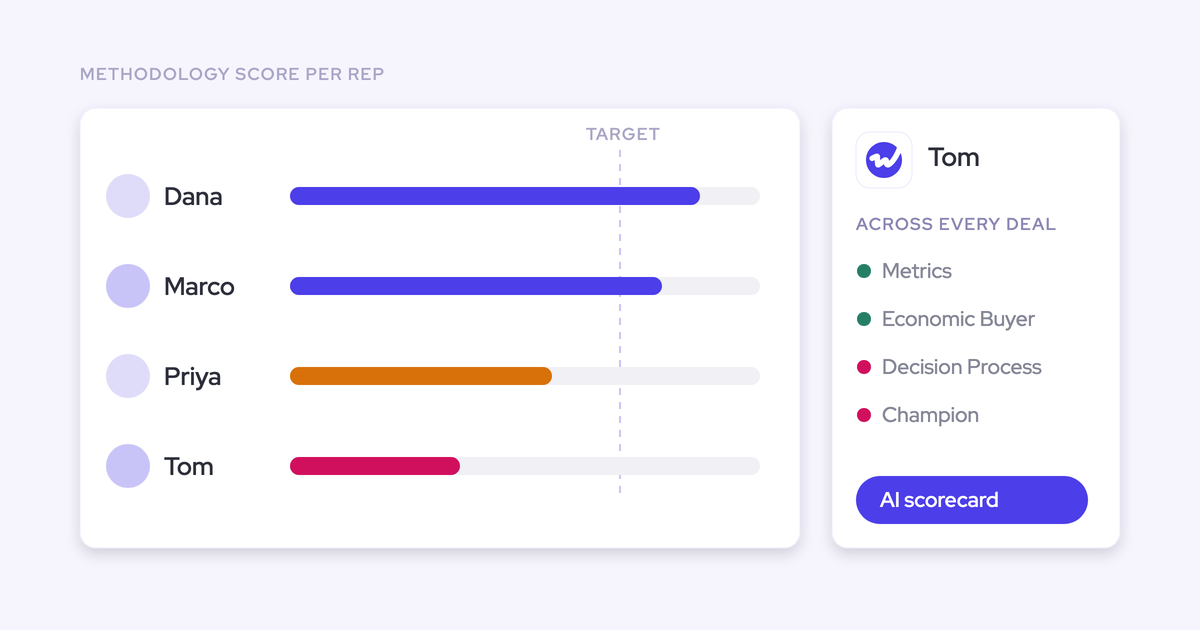
Per-call AI Field Updates suit single-value fields like Next Step and Close Date, which should reflect the latest call. Weflow AI Playbooks keep cumulative qualification fields, like your MEDDIC or SPICED elements, at the current best answer across the whole deal.
| Per-call AI Field Updates | Weflow AI Playbooks | |
|---|---|---|
| What it reads | One call transcript | Every email, meeting, transcript, related record and CRM field on the opportunity |
| When it runs | Once, when the call ends | When new activity lands on the deal, and otherwise every three hours |
| Best-fit fields | Next Step, Close Date, Stage, Amount | Champion, economic buyer, metrics, decision process |
| What it catches that the other misses | The new commitment from today's call | Qualification that only ever came up in email |
Playbooks cover opportunities created or changed after you set them up. Older deals stay empty until someone regenerates them.
Both routes can write to the same field. Decide up front which route owns each field so they don't overwrite each other.
How to set up Next Step and Close Date in Weflow
Your Salesforce admin or RevOps owns these steps. Your job as the manager is to agree the mode for each field and tell them which calls your team runs.
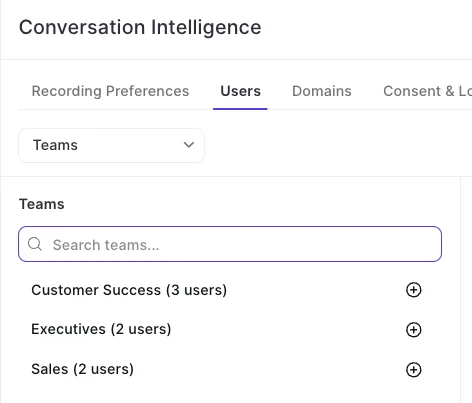
- Assign a template to your team (admin). The field update pop-up appears only for users with a template assigned, so add the whole team in Conversation Intelligence settings.
- Pick a prebuilt prompt or write one per field (admin or RevOps).
- Start from the prompts library, which ships with more than 250 prebuilt prompts.
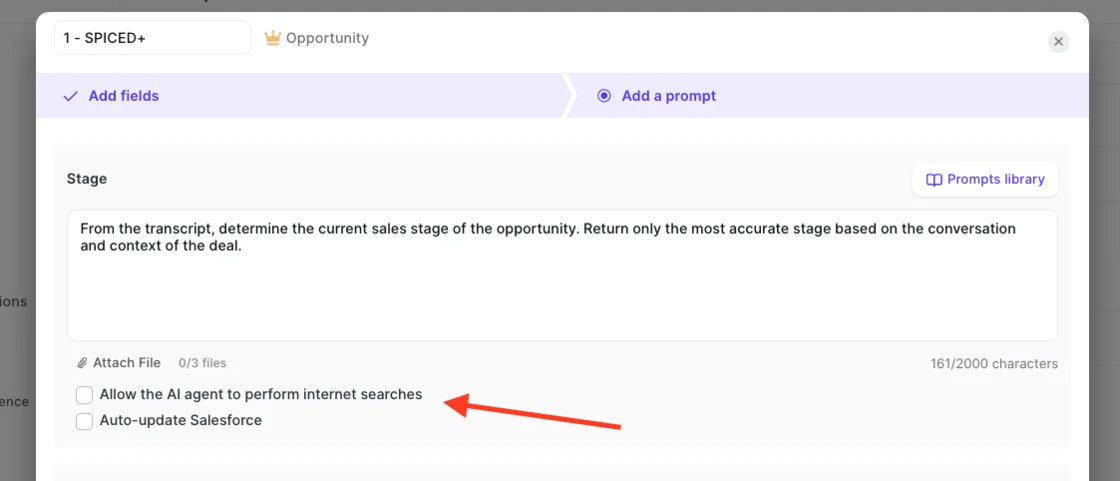
- Prompts can run up to 2,000 characters and take up to three PDF files as context, such as your stage definitions.
- Internet search is off by default. Leave it off for Next Step and Close Date so values come from the call.
- Set review or automatic per field (admin, with your input). Close Date on review, Next Step on review until it graduates.
- Enable the meeting platforms (admin). Switch on Webex for the workspace if your buyers use it. Ask your Zoom admin to turn on local recording.
- Test writes against every object your activities map to (admin). Run test calls against opportunities, accounts, and any custom objects before your reps go live. A failed write doesn't replay, so this is the step that protects your first month.
The limits to know before you roll this out
These are the four boundaries we'd want to hear about on your side of the table, with the workaround where one exists.
Weflow doesn't mark whether a value came from the call or the web
The comparison view shows the previous value, the new value and what changed. It doesn't show which source produced the new value.
To keep a field to call data only, leave internet search off and write that restriction into the field's prompt. Salesforce Agentforce's pipeline agent does show the source behind each update, and that's a fair point in its favor.
Next steps in the call summary can't be assigned to a person
The summary lists next steps, but it can't resolve a name to a Salesforce user and attach the item to them. Tagging people works in Weflow comments. If you need assigned tasks, push next steps through the API into a task system that owns assignment.
A failed Salesforce write doesn't replay
An update fires once, when the call ends. If a permissions problem blocks the write, nothing triggers it again.
The content survives on the Weflow recording, so your admin can recover it there. The field itself has to be fixed by hand. The failure is also silent, which is why the testing step in setup matters.
When Agentforce for Sales or Outreach Deal Agent already covers you
If your team already pays for Salesforce Agentforce for Sales or Outreach Deal Agent, you already have a tool that updates Next Step from calls. Stay where you are for this job.
- Agentforce for Sales lists at $125 per user per month. Its pipeline agent updates Stage and Next Steps autonomously or as suggestions.
- Outreach Deal Agent has Next Steps on by default. Each field can update automatically, only when empty, or after a rep confirms.
What Weflow Conversation Intelligence + AI Field Updates costs
Weflow Conversation Intelligence is $39 per user per month, and AI Field Updates are included. For a ten-rep team that's $390 a month at list. Call recording lives in Conversation Intelligence, not in Weflow Activity & Contact Capture, so any plan you pick for this needs Conversation Intelligence in it.
| Plan | Price per user per month | What it includes relevant to this article |
|---|---|---|
| Weflow Conversation Intelligence | $39 | Recording, AI summaries, AI Field Updates, follow-up emails, Ask Weflow AI Pro, Agent Builder Free (25 agent actions a month), Weflow Mobile Copilot, desktop app |
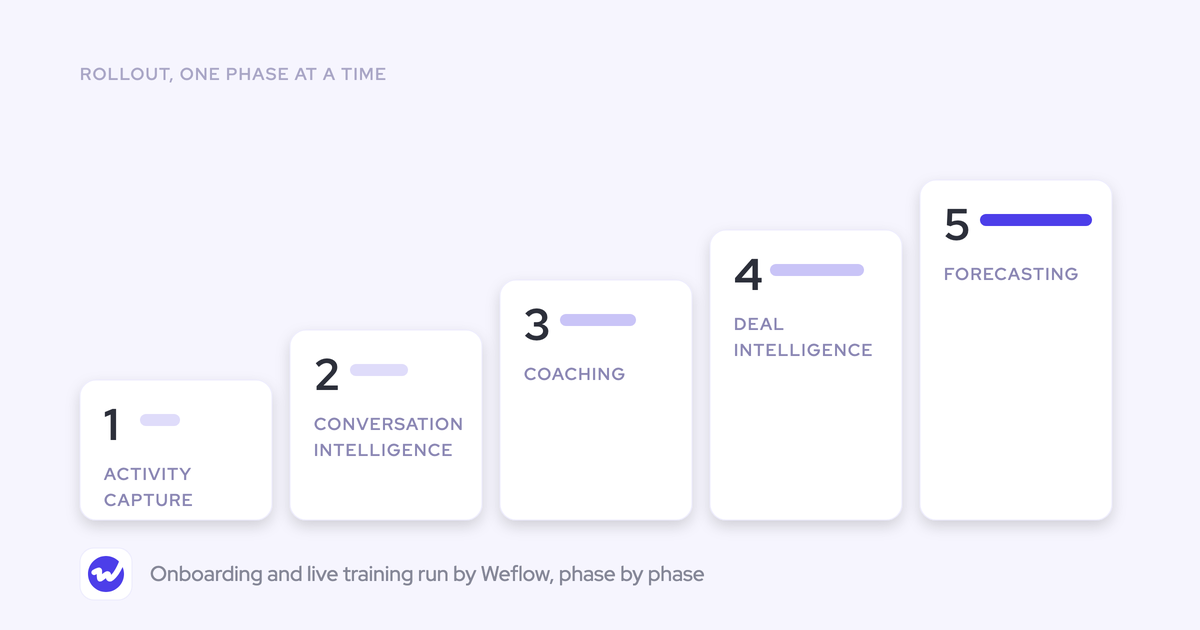
| Weflow Revenue AI Foundation | $49 | Weflow Activity & Contact Capture + Weflow Conversation Intelligence |
| Weflow Revenue AI Business | $59 | Foundation plus Deal Intelligence, including AI Playbooks |
| Weflow Revenue AI Enterprise | $79 | Business plus AI-powered forecasting |
All plans bill annually with a 10-user minimum, and unlimited view-only licenses are included.
See how Weflow captures activity, updates Salesforce fields from calls, and rolls up your forecast. Book a 30-minute demo.
FAQ: Next Step and Close Date updates in Weflow
What happens to the Close Date if a rep never reviews the suggestion?
In review mode, Weflow writes the Close Date only when the rep confirms it. If the rep never clicks, the field keeps its previous value. The call summary is still on the Salesforce Event, so you can read what was said.
Will Weflow overwrite a Next Step the rep already typed?
In automatic mode, yes. Weflow writes the latest call's value over the field's existing content.
In review mode, the rep sees their current Next Step beside the suggestion and keeps whichever is right. Either way, add an instruction to the prompt not to update the field when the call adds nothing new, so a quiet call doesn't replace a good value.
What if Weflow matches the call to the wrong opportunity?
The rep reassigns the deal in the review step. Weflow re-runs the analysis on the opportunity the rep selects, so the suggested values reflect the right deal.
How do I check where a suggested Close Date came from in the call?
Weflow splits every recorded call into topic chapters, and links into a recording show the timestamp they jump to. You can go to the moment the timeline came up instead of scrubbing through the call.
The suggested value itself isn't marked with its source. That's why we keep internet search off for date fields.
Can Weflow create a follow-up task in Salesforce from the call?
The call summary lists next steps but doesn't create an assigned Salesforce task from them. Teams that need assigned tasks push next steps through the API into a task system. With Weflow Deal Intelligence, reps can also create Salesforce tasks directly from pipeline views.
Can Weflow update custom Salesforce fields and custom objects?
Yes. AI Field Updates write to standard objects (Account, Contact, Opportunity, Lead) and to custom objects, on every field type except relationship lookups. Weflow support sets up custom objects for you.
Who on my team configures the prompts?
Your Salesforce admin or RevOps. They start from prebuilt prompts and configure each field's prompt and mode. Technical setup takes 30 to 45 minutes with your Salesforce admin and your Google Workspace or Microsoft admin. Most of the rollout time goes into tuning templates to your process.
Can Weflow run alongside Gong or Outreach, and can we bring our call history?
Weflow imports recordings from most conversation intelligence tools, including Gong. It pulls them through the vendor's API or from exported files and re-links them to Salesforce records.
Weflow runs alongside Outreach. It doesn't do sequencing or dialing, so the two cover different jobs.
How does Weflow handle calls in other languages?
Weflow transcribes 96 languages and detects the spoken language automatically.
- The summary written to Salesforce uses your workspace language, so records stay readable and reportable across regions.
- The follow-up email uses the language the meeting was held in.