Can You See Where an AI-Filled Salesforce Field Value Came From?
Learn whether AI-filled Salesforce field values show their source and how Weflow lets you trace them.


Short answer: no. When Weflow AI Field Updates writes a value into a Salesforce field, it doesn't stamp it "from the call" or "from the web." The review view shows the current value next to the suggestion and marks what changed, but not where the new value came from.
That said, you still have a trail. Weflow is the Revenue AI Orchestration platform for sales, customer success, and RevOps teams. The provenance sits around the value, in four places you can check during a trial:
- The prompt against each field, which decides whether Weflow can search the web for that field.
- The review view, where someone checks the suggestion against the current value before anything is written.
- The recording object in your Salesforce, which holds each call's transcript, summary and, if you map them, its own field values.
- Ask Weflow AI, whose answers link back to the call, transcript or email they reference.
Below, we'll walk through each one and share a field-by-field setup for values you can defend. And if you need a source stamp on every written value, we'll point you to the tools that do that.
Why a field value without a source fails a deal review
If a field value has no visible origin, you can't defend it in a deal review. When a manager asks where the champion name or pain statement came from, whoever switched on the automation has to answer. Usually, that's you.
It gets harder once the agent does more than read the call. If a field can be filled from what the buyer said or from what the AI found online, it holds two very different kinds of evidence, and the buyer's own words should always outrank the internet.
Blend the two in one field, and you can't trust it for either.
Here's how Dan Jiao frames it from the RevOps seat:
"Did the buyer say this, or is it just a sales rep filling out a custom field in Salesforce?"
— Dan Jiao, VP RevOps at Aircall
And a confidently wrong value costs more than an empty one. An empty field tells everyone to go ask the rep. A wrong one gets read out in the forecast call, the CRO starts questioning the data, and the rep who didn't write it stops trusting anything in that field.
Does Weflow mark a field value as from the call or the web?
No, Weflow doesn't mark a written field value with its source. The field update view shows the previous value next to the new one and marks what changed.
You can let the field-update agent search the web when the call doesn't have the answer, and you control that permission in each field's prompt.
| About the value | Recorded? | Where you see it |
|---|---|---|
| Previous value | Yes | Review view, beside the suggestion |
| Suggested new value | Yes | Review view |
| Which fields the call changed | Yes | Review view, which proposes only changed fields |
| The prompt that produced the value | Yes | The field's prompt in its update template |
| A call-vs-web marker on the written value | No | Not recorded |
In short, Weflow lets you control what a field can draw on and adds a checkpoint before the write, but it doesn't label the value after it lands.
Where you can trace a Weflow field value back to its source
Four controls work together here. Two decide what goes into a field (the prompt and the review), and two help you find the evidence afterward (the recording object and Ask Weflow AI). You can test each one in a trial within a few days.
Each field's prompt decides whether Weflow can search the web
Every field in a Weflow AI Field Updates template has its own prompt, and that's where web access is decided. To keep a field call-only, you write that restriction into the prompt.
Since it's a prompt-level instruction rather than a workspace-wide switch, your Budget field can stick strictly to the transcript while a firmographic field looks further.
A call-only restriction can be as simple as this:
Use only what the customer said in this transcript. Do not search the internet.
Weflow comes with more than 250 pre-built prompts. They're a great starting point, but don't trust them unread. A field update is only as accurate as its prompt, so read each one before you switch on a field you'll have to defend.
The review view puts the current value beside the suggestion
You can set each field to write automatically or wait for approval. In review mode, the rep sees the current Salesforce value next to the suggested one and accepts, edits or rejects it before anything syncs.
Here's what the flow looks like after a call:
- The rep gets the post-call email with a Review fields link.
- The link opens a side-by-side view of current and proposed Salesforce values.
- The rep accepts, edits or rejects each suggestion.
- One click writes the approved values to Salesforce.
Review takes less work than most teams expect, since Weflow only proposes the fields the call actually changed. On a follow-up where not much moved, that might be just two fields, so it takes seconds.
One thing to note: review happens in the Weflow app, which reps open from the post-call email or notification. They can't approve updates from Slack.
The recording object keeps each call's values in your Salesforce
The after-the-fact trail lives in your Salesforce, not in a vendor portal. Weflow writes three things you can go back to:
- Weflow_Recording__c holds the transcript and summary: The managed package adds this custom object, so the full text of every recorded call sits in your org.
- The Event carries the summary and a link to the recording: The summary shows up on the opportunity activity timeline, so you can get from the deal to the call without leaving Salesforce.
- Per-call field values can live on the meeting or recording record: Map updates there, and you get a call-by-call record of what each conversation produced.
Because it all sits in native Salesforce objects, your own reports, flows and BI tools can read it. Even months later, the evidence behind a value is still in your org, and it's yours.
Ask Weflow AI links its answers to the call or email
Ask Weflow AI's answers come with linked sources, so you can jump from an answer straight to the call, transcript or email where something was said.
Open it on a recording page, and it pulls in the transcript, the fields on linked Salesforce records, and related emails and meetings as sources.
If you're a RevOps leader who distrusts generative AI on principle, this is the path for you.
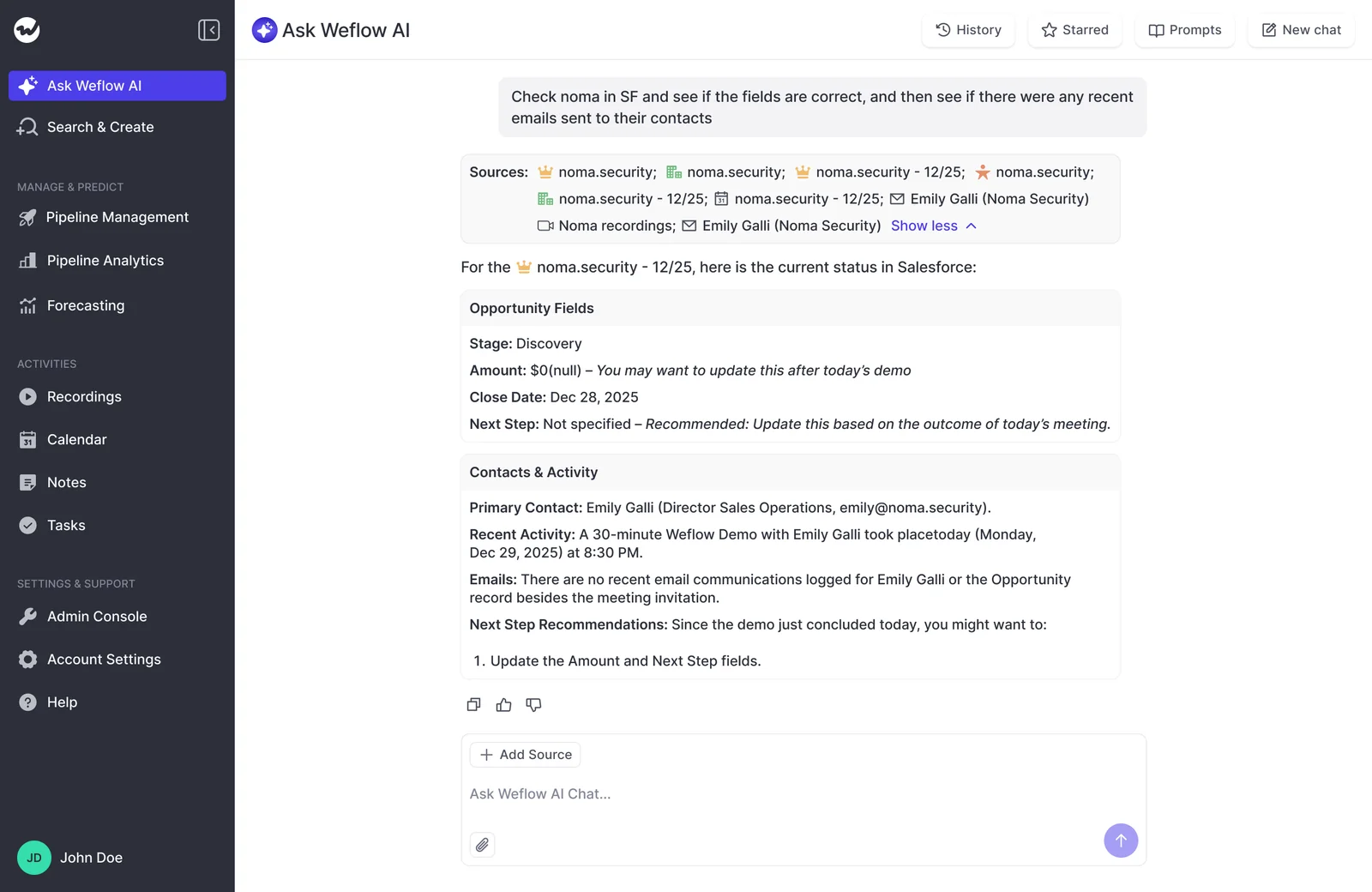
Just keep in mind that these citations belong to Ask Weflow AI's answers, not to the field value. To check a value, ask about the topic behind it, like who the champion is and where they were named, then follow the link to the conversation.
"I love being able to go right to the call, transcript or email and see where something was said that the AI is referencing."
— Scott Jones, SVP of GTM Revenue Intelligence & Enablement, KORE Wireless
How Gong AI Data Extractor handles a value's source
Gong's AI Data Extractor pulls from call data over a rolling six-month window and overwrites the previous value whenever it finds newer or better information. So the field always holds the most recent reading.
It can also draw on any non-private call or email in the workspace, including conversations the admin who configured it can't open. In other words, an admin might see a value in a field without being able to open the conversation behind it.
Whichever tool you're evaluating, it's worth asking whether the person accountable for a field can open the conversation that produced it.
When you need a source stamp on every field value
If you need a source marker on every written field value, Weflow doesn't do that today, and it's better to know now than in week three of a trial.
Two tools handle this differently, and they're worth a look:
- Salesforce Agentforce: The Pipeline Management agent shows the source behind each update it makes to fields such as Stage and Next Steps.
- Terret: It attaches its sources and a confidence score to each field its AI fills.
So here's the trade-off: Weflow gives you per-field control over what a value can draw on, a review before it writes, and a call-by-call trail in your own Salesforce. Those tools give you a stamp on the value itself.
How to set up Weflow AI Field Updates for defensible values
With a few prompt and mode choices per field, you can get every value into one of three states: drawn only from the call, waiting for a human, or leaving a call-by-call trail. You can run these steps in a trial this week.
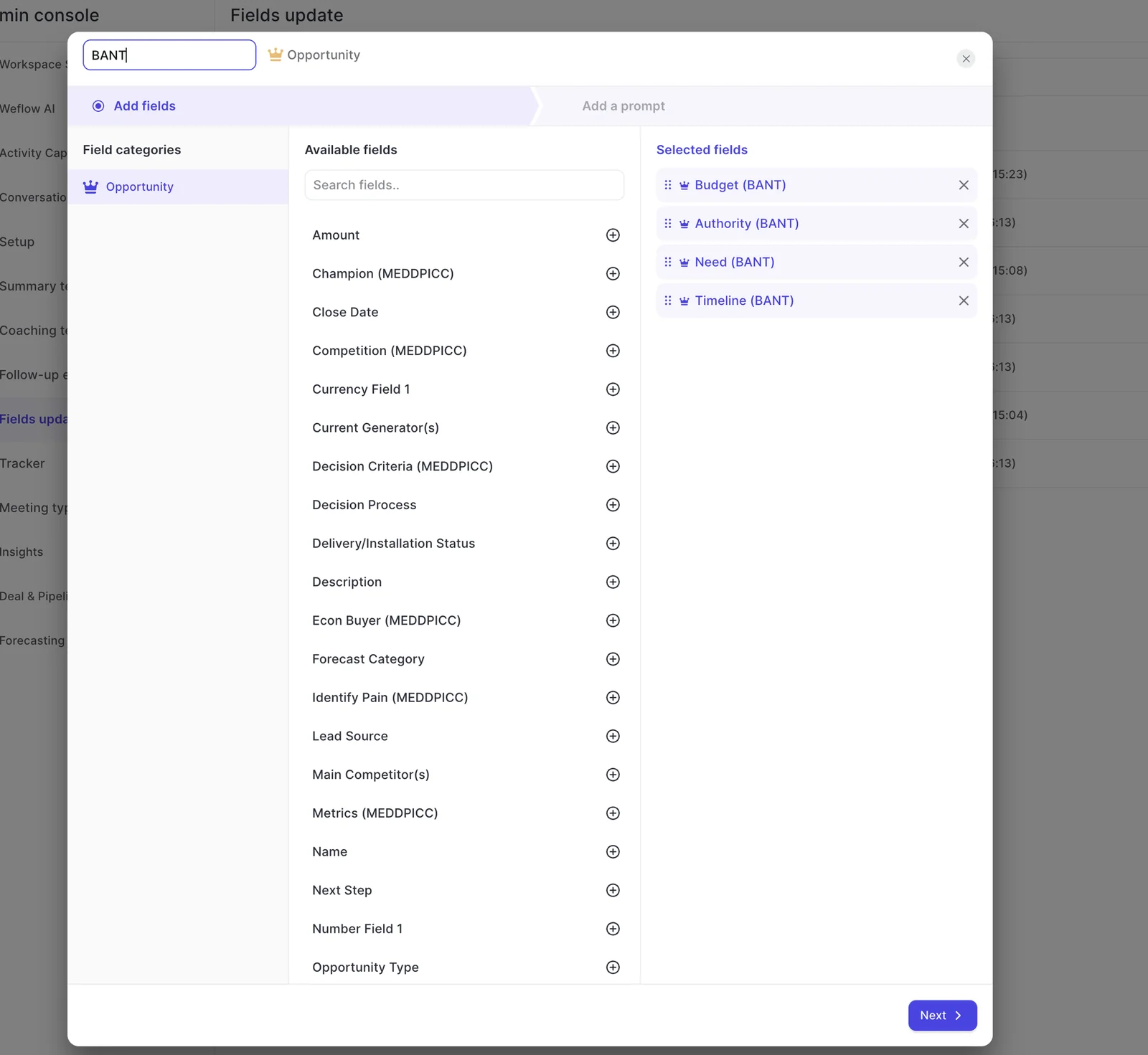
- Open the field update template for each object and read the prompt against every qualification and commercial field: Since web permission lives in the prompt, this is your audit.
- Write a call-only restriction into the prompt for every field where the buyer's words must take precedence: That keeps internet results out of the fields your deal reviews rely on.
- Where the reasoning matters, add an instruction to cite the evidence and name what's missing, and shorten it for one-line fields: This puts the reasoning in the field but makes values longer, so skip it for one-line fields.
- Add your product terms and business context in the admin console's AI context, under Context and Sources in the AI section, rather than writing long lists of rules about what never to write: Every AI output shares that context, and simple prompts tend to perform better than over-specified ones.
- Set each field to review or automatic: Since the mode is per field, one template can hold both.
- Map per-call values to the meeting or recording object wherever you want a call-by-call trail: Each call keeps its own values next to its transcript.
- Spot-check written values in Ask Weflow AI by following its links back to the call: It's a quick way to confirm a field says what the buyer actually said.
Which fields to keep call-only, under review, or automatic
Our rule of thumb: start every interpretive field in review, keep qualification fields call-only, and automate only what has one clear answer. Here's the setup we recommend starting with:
| Field | Source rule in the prompt | Start in | Why |
|---|---|---|---|
| Methodology criteria (MEDDIC, SPICED, BANT) | Call-only | Review | Qualification is only evidence if the buyer said it |
| Champion and pain | Call-only | Review | Interpretive, and the first fields a manager challenges |
| Next step | Call-only | Review | Feeds deal inspection the day it changes |
| Stage and close date | Call-only | Review | One misheard sentence moves the forecast |
| Amount | Call-only | Review | A single value the number rolls up from |
| Website and address | Your choice whether to allow web search | Automatic | Unambiguous, and low cost if a value needs correcting |
From there, earn automation field by field. Watch the review outputs for a few weeks, then move a field to automatic once its suggestions stop needing edits. As a bonus, you'll stop losing data from reps who ignore the post-call email.
You don't need perfection to get started, just values you can check. That's the bar most buyers set for themselves anyway.
If you'd like to see the review view and the prompt settings before you configure anything, walk through the product yourself, no call required.
AI field value sources: FAQ
How do I check which Weflow prompts allow web search?
Read the prompt behind every field you plan to switch on, since that's where web permission lives. You'll find Prompt Templates in the AI section of the Weflow admin console.
With more than 250 pre-built prompts to choose from, start with the fields your deal reviews depend on.
Can I find the call that produced a value weeks later?
Yes, either in Salesforce or through Ask Weflow AI. In Salesforce, the recording object and the Event hold each call's transcript, summary and mapped values. In Ask Weflow AI, ask about the topic and follow the linked source back to the call.
Can Weflow write a picklist value the field doesn't accept?
No. Before writing to a picklist or multi-picklist, Weflow checks the field's allowed values and matches its output against them. So you won't end up with an invented option that fails the write or clutters the field.
Does tracing a value's source cost extra in Weflow?
No. Ask Weflow AI Pro is included in every plan: Weflow Activity & Contact Capture, Weflow Conversation Intelligence and Weflow Deal Intelligence & Forecasting, plus the Revenue AI Foundation, Revenue AI Business and Revenue AI Enterprise bundles.
Pricing is seat-based with AI usage included, so you aren't charged per recording, transcript, AI template or Ask Weflow AI prompt.
How does Weflow handle security for AI processing of call data?
Weflow runs AI processing under Zero Data Retention, and customer data is never used to train AI models. Weflow is also SOC 2 Type II certified, and the audit covers the tenant segregation controls that keep your data separate from other customers'.