Weflow desktop app: Record meetings and softphone calls without a bot
See what Weflow desktop app records without a bot: Zoom, Teams, Meet, softphone calls, and consent.


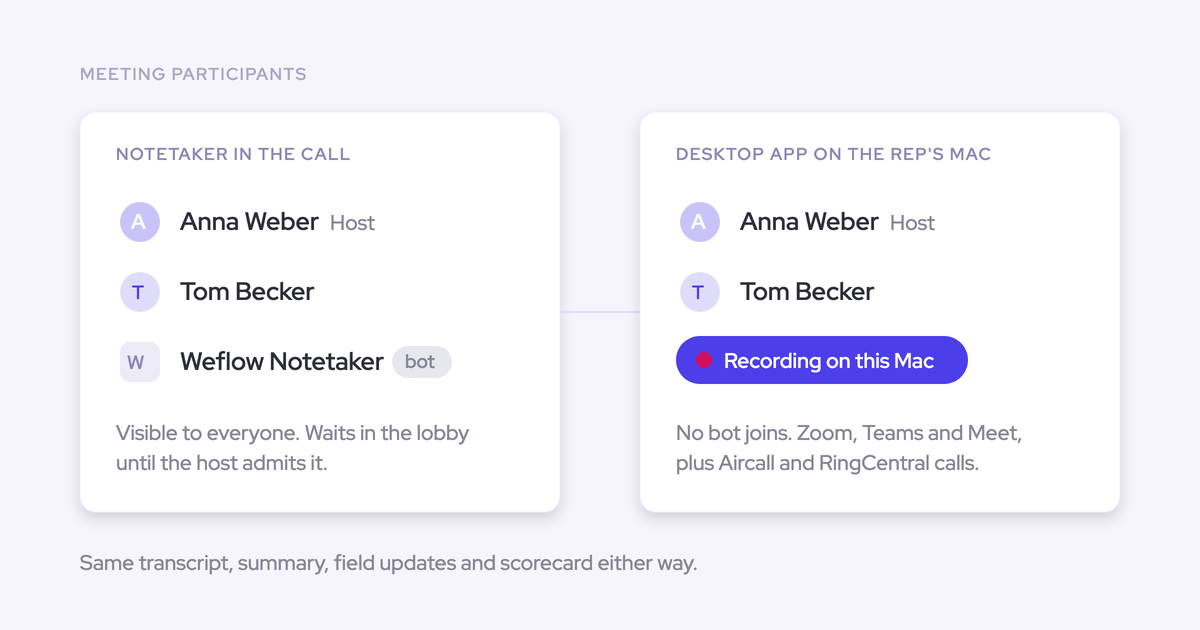

You can record Zoom, Microsoft Teams, Google Meet, and computer-based softphone calls with Weflow’s Windows and macOS desktop app. No Weflow participant joins the call, so recording doesn’t depend on someone admitting a notetaker from the lobby.
Desktop recordings go through the same Weflow Conversation Intelligence processing as notetaker recordings, including transcripts, summaries, and configured Salesforce field updates. The trade-off: your rep starts the recording and obtains consent. Weflow’s automated consent flow doesn’t run during desktop capture.
Weflow is the Revenue AI Orchestration platform for sales, customer success, and RevOps teams. Built for Salesforce teams, we give you different ways to capture conversations without sending their CRM output into separate workflows.
How does Weflow record calls without a bot?
Weflow’s desktop app captures system audio and your microphone, plus video where available. It records from your computer rather than joining as a meeting participant.
Your rep starts desktop recording. That removes the notetaker’s lobby dependency, but it introduces another: someone must remember to record the approved call.
Record Zoom, Microsoft Teams, and Google Meet without a bot
Weflow desktop recording supports Zoom, Microsoft Teams, and Google Meet, including video. You can use it for customer- and partner-hosted meetings because the recorder doesn’t need its own invitation or admission.
| Meeting platform | Desktop capture scope | Operating conditions |
|---|---|---|
| Zoom | System audio, microphone, and meeting video | The rep joins on the computer, obtains consent, and starts desktop recording. |
| Microsoft Teams | System audio, microphone, and meeting video | The rep joins on the computer, obtains consent, and starts desktop recording. |
| Google Meet | System audio, microphone, and meeting video | The rep joins on the computer, obtains consent, and starts desktop recording. |
Desktop capture removes the need to admit a separate recorder. It doesn’t override your customer’s recording policy or your own legal requirements.
Record softphone calls that run through your computer
Weflow can record computer-based softphone calls when their audio passes through the machine. Aircall and RingCentral are examples. Desktop capture doesn’t require a Weflow integration with the telephony provider.
You keep your existing dialer. The rep starts recording in Weflow, and the captured call enters the same post-call processing as a recorded meeting.
| Desktop capture | Provider-connected recording ingestion |
|---|---|
| Weflow records audio passing through the rep’s computer. | Weflow receives a recording from a supported provider connection, such as the Outreach dialer. |
| The rep starts recording in the desktop app. | The provider records the call, and Weflow pulls that recording in afterward. |
| No provider-specific integration is necessary. | Coverage depends on the supported connection and its configuration. |
Test your actual softphone and headset before rollout. Calls made through a phone’s native mobile dialer fall outside desktop capture.
How Weflow turns desktop recordings into Salesforce field updates
Weflow processes desktop recordings through the same Conversation Intelligence pipeline as notetaker recordings. Your configured AI templates determine what the conversation produces, including structured updates to Salesforce fields.
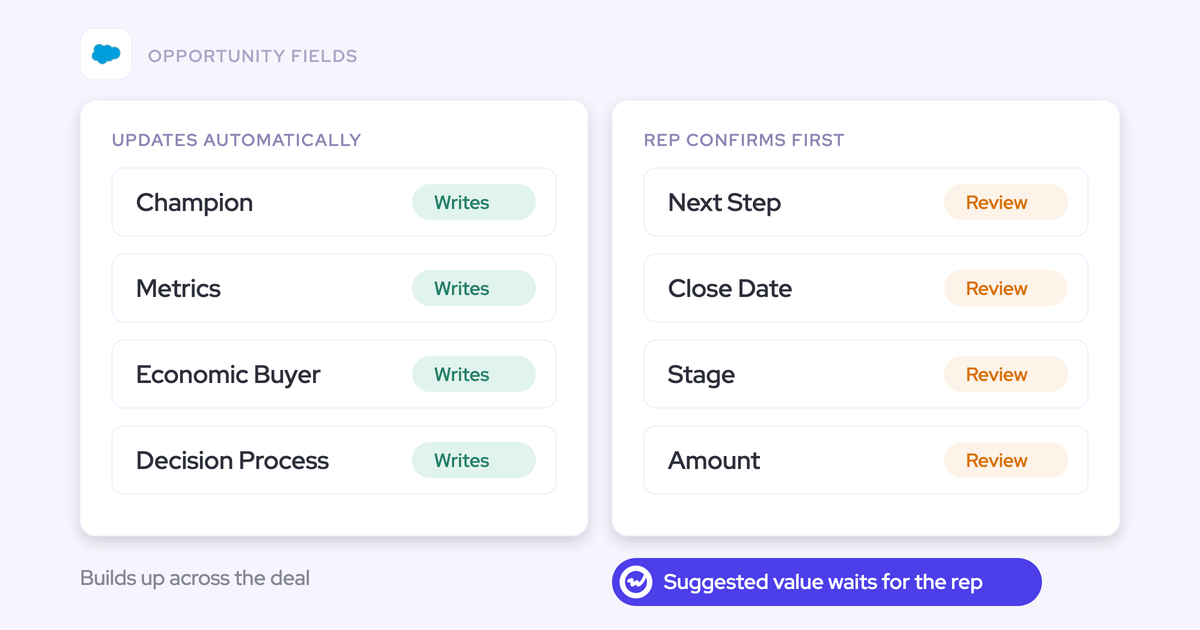
For example, you can extract next steps into an Opportunity field instead of asking a manager to find them inside a summary. You choose which updates need review and which can write automatically.
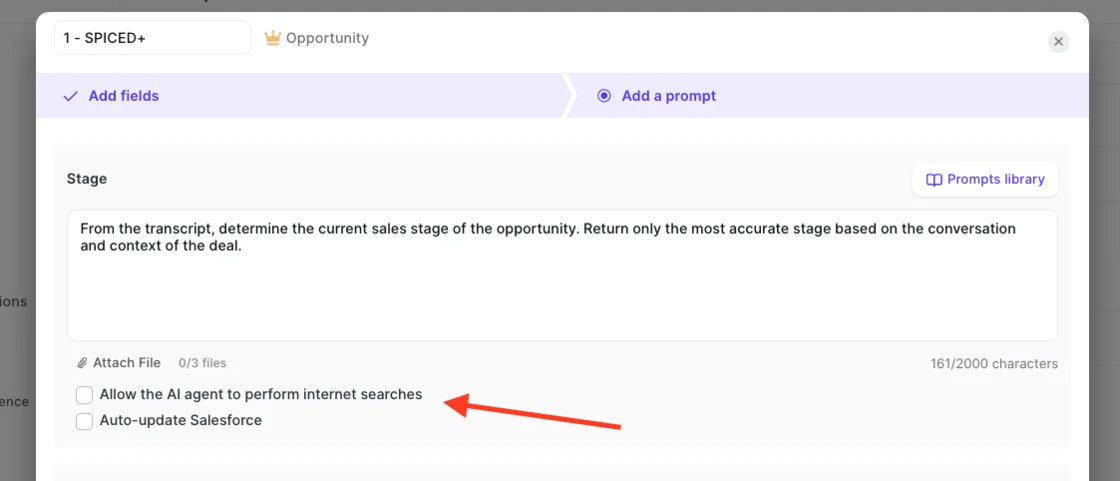
The outputs have different destinations. Recording files don’t live in Salesforce just because their transcripts and extracted fields reach the CRM.
| Output | Destination | What you can do with it |
|---|---|---|
| Audio and video recording | Weflow recording storage | Replay and share the conversation. |
| Transcript and executive summary | Weflow and the Weflow recording object in Salesforce | Read the conversation alongside linked CRM records and use the text in reporting or automation. |
| Configured AI Field Updates | Mapped Salesforce fields | Populate qualification answers and next steps in the fields your team reviews. |
| Chapters, follow-up emails, and scorecards | Weflow | Find relevant moments, prepare follow-ups, and review calls against your coaching criteria. |
| Search and Ask Weflow AI access | Weflow | Ask questions about processed conversations with linked CRM context. |
Check recording links and meeting activity separately. A Salesforce calendar Event and a Weflow recording are different records; attaching a recording to an Opportunity doesn’t necessarily move the Event there.
When should you use Weflow desktop recording?
Use desktop recording for approved calls where a visible notetaker can’t join or isn’t acceptable, and for softphone calls running through a computer. Keep the calendar-scheduled notetaker where automatic joining and product-managed consent meet your requirements.
We recommend choosing a recording route for each call workflow. You don’t need to replace automatic capture across the team to cover a specific exception.
Compare Weflow desktop recording with the calendar-scheduled notetaker
Weflow desktop recording avoids bot admission, while the calendar-scheduled notetaker avoids asking reps to start each recording. Both produce the same downstream Conversation Intelligence outputs after processing.
| Decision point | Desktop recording | Calendar-scheduled notetaker |
|---|---|---|
| Initiation | The rep starts recording. | Weflow schedules the notetaker for eligible external meetings through the calendar connection. |
| Meeting access | No separate participant needs admission. | The notetaker joins as a visible participant and may need admission. |
| Consent handling | The rep obtains consent; Weflow doesn’t run its automated notices or consent flow. | Configurable consent options include opt-in and opt-out, with participant notices. |
| Call coverage | Supported computer-based meetings and softphone calls. | Eligible meetings on supported conferencing platforms, not separate softphone audio. |
| Downstream processing | Transcription, summaries, configured field updates, and other Conversation Intelligence outputs. | The same Conversation Intelligence processing. |
Start with the notetaker for eligible meetings where policy allows it. Add desktop recording for the exceptions, with a named owner for consent and recording adherence.
If you need centrally enforced recording, don’t treat rep-started desktop capture as enforcement. The scheduled notetaker reduces reliance on rep action, but admission, opt-outs, and configuration still affect coverage.
Set a consent policy for Weflow desktop recording
Your rep must obtain participant consent when Weflow records through the desktop app. Removing the bot also removes Weflow’s automated participant notice and consent flow.
Have legal approve the workflow before customer calls. Approval to record and permission to process or analyze the conversation need separate consideration.
- Participant notice: Decide what reps must explain, when they must explain it, and how they handle people joining late.
- Consent evidence: Specify where your team documents permission. Don’t assume desktop consent appears in Weflow’s notetaker consent log.
- Objections: Give reps a procedure for stopping capture and handling any data already recorded.
- Exclusions: Identify customers and calls that must remain unrecorded. Confirm desktop enforcement separately from notetaker domain exclusions.
- Ownership: Name who approves policy, trains reps, audits adherence, and handles deletion requests.
Weflow’s notetaker consent configuration doesn’t automatically adapt to an account’s region. Don’t assume a desktop workflow does either.
A customer who objects to a visible bot may accept another approved recording method. A customer who objects to recording hasn’t given permission just because the recorder disappears from the attendee list.
How to set up and test Weflow desktop recording
Prove desktop recording on your actual devices and Salesforce configuration before expanding access. A playable recording alone doesn’t establish that the CRM workflow works.
Before installation, agree on these prerequisites:
- A pilot group with Weflow Conversation Intelligence access and confirmed desktop entitlement.
- IT approval for the app, supported operating-system versions, and device permissions.
- An approved recording and consent policy.
- A Salesforce admin who owns permissions, record association, and AI field mappings.
Set up Weflow desktop recording on Windows or macOS
Download the Weflow desktop app for your machine, verify recording permissions, and prepare an approved test call. We offer Windows, Apple Silicon Mac, and Intel Mac versions.
- Choose the installer. Download the matching version from the Weflow web app, website, or help center. Confirm your OS version with us before deploying across the fleet.
- Install and open the app. Follow your IT deployment process. Check that the pilot user can access the intended Weflow workspace.
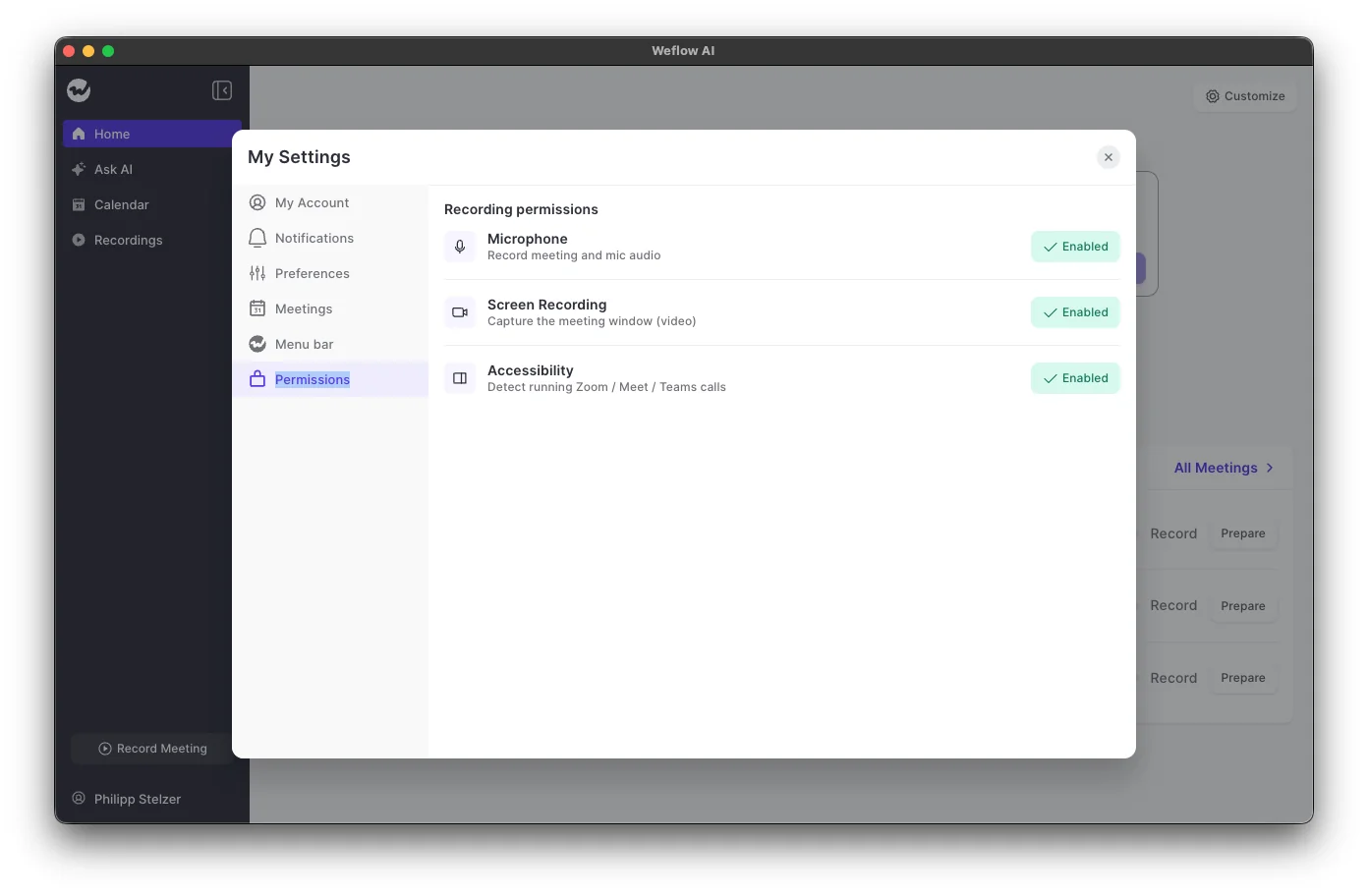
- Check macOS permissions. Open My Settings, then Permissions. The recording permissions screen lists Microphone, Screen Recording, and Accessibility. Verify the required permissions show Enabled.
- Confirm Windows requirements. Have IT validate the current Windows permission and deployment requirements with us. Don’t apply the macOS permission list to Windows.
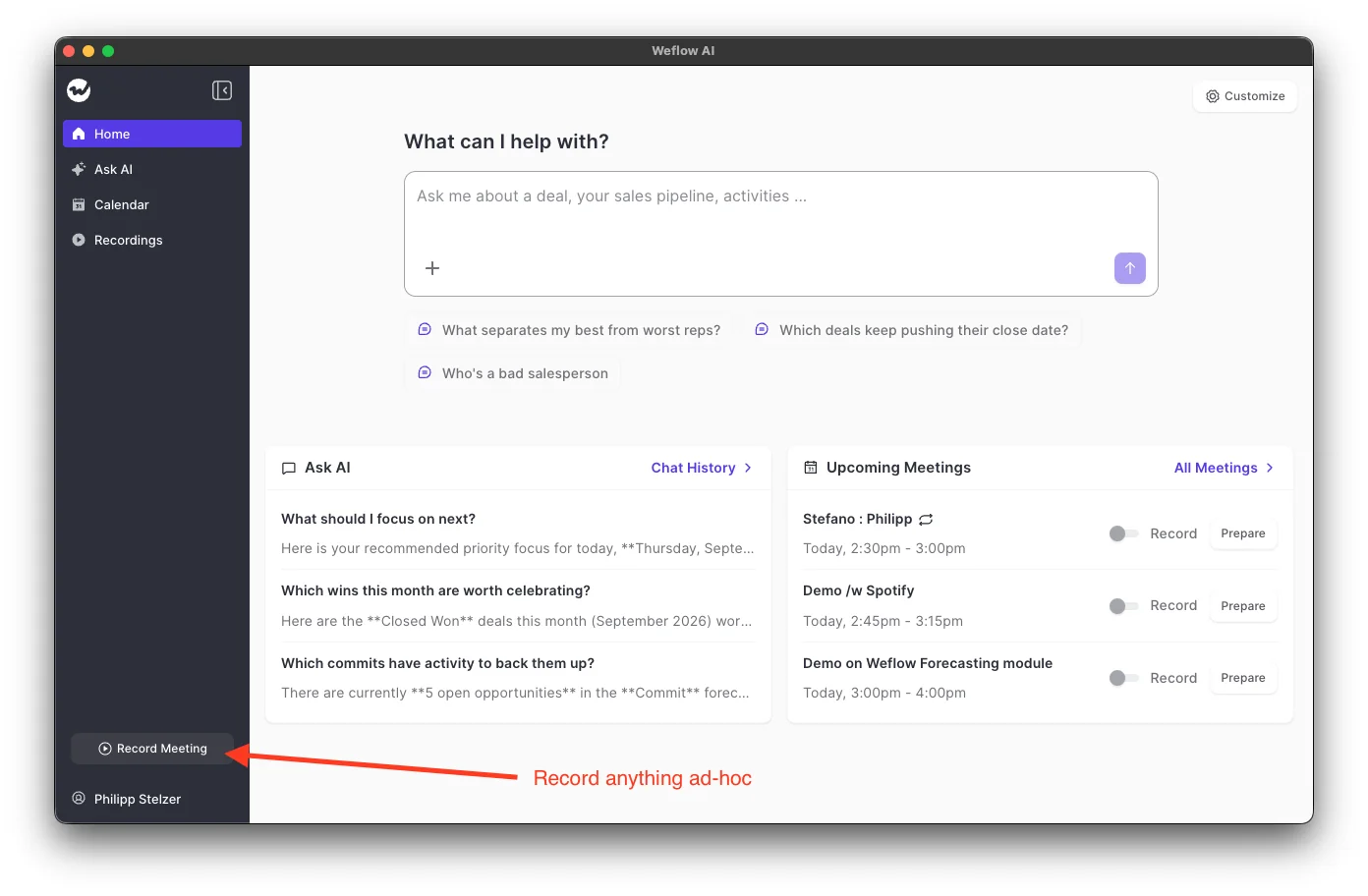
- Prepare the recording route. Find Record Meeting in the desktop sidebar. Confirm whether the test uses desktop capture or the scheduled notetaker so you don’t unintentionally run both.
On macOS, Microphone supports audio capture, Screen Recording supports meeting-window video, and Accessibility supports detecting running Zoom, Google Meet, and Microsoft Teams calls. Detection doesn’t mean recording starts automatically.
Test a desktop recording from call to Salesforce
Test Weflow desktop recording through to the destination Salesforce fields, using both a supported meeting and your computer-based softphone if you need both routes.
The Record Meeting button gives reps an ad-hoc recording entry point without requiring a calendar event.
- Obtain consent and start recording. Use your approved notice and evidence process. Check that the rep can initiate capture from the desktop app.
- Verify both sides of the audio. After processing, replay the recording and inspect the transcript. Confirm that it includes the rep and the other participants.
- Check speaker attribution and video. Compare the output with what happened on the call. Validate these on your actual headset and meeting setup rather than assuming desktop behavior.
- Inspect record association. Check the intended Account, Contact, and Opportunity links. For scheduled meetings, inspect the Salesforce Event separately.
- Validate configured outputs. Include an agreed next step in the test conversation. Check the summary, mapped field, and any configured scorecard against that source.
- Check downstream access. Confirm that an authorized user can find the conversation and query it with Ask Weflow AI. Test restricted access separately.
- Inspect overlap. If another recorder or activity capture product remains active, check for duplicate recordings and duplicate Salesforce meeting activities.
Test writes against every Salesforce object your configuration targets. Weflow can’t replay a failed automatic summary or field write after a permissions problem; you’ll need to copy the surviving content manually.
Check desktop recording coverage before expanding your Weflow rollout
Compare completed desktop recordings with eligible calls before expanding the rollout. One successful test won’t tell you whether reps remember to record during a normal week.
| Test scenario | Result to inspect | Owner |
|---|---|---|
| Customer-hosted meeting | Desktop capture records the approved conversation without admitting a Weflow participant. | Pilot rep |
| Computer-based softphone call | The recording contains both sides, and configured output reaches the intended Salesforce records. | RevOps and Salesforce admin |
| Headset or audio-device change | The test establishes whether capture continues and what the rep must do if it doesn’t. | IT |
| App closure, lost connectivity, or laptop sleep | The team documents what survives, what fails, and the supported recovery procedure. | IT with Weflow |
| Participant objection | The rep follows the approved stop-recording and data-handling procedure. | Legal and pilot lead |
| Existing capture products remain active | Salesforce reports count the meeting once, and recording ownership is clear. | Salesforce admin |
Before you expand access:
- Review missed recordings by cause, separating consent decisions from forgotten starts and technical failures.
- Document device-interruption behavior rather than promising recovery you haven’t tested.
- Confirm that reps can execute the consent process during real calls.
- Resolve open questions about deployment, exclusions, and field writes with the responsible owner.
See how Weflow captures activity, updates Salesforce fields from calls, and rolls up your forecast. Book a 30-minute demo.
Weflow desktop recording FAQ
Weflow supports desktop recording on Windows and macOS. Confirm version requirements, technical limits, and desktop entitlement against your deployment before purchasing or expanding access.
Does Weflow support Windows, Apple Silicon, and Intel Macs?
Yes. Weflow offers desktop apps for:
- Windows
- macOS on Apple Silicon
- macOS on Intel
Confirm minimum OS versions and Windows processor requirements with us. Support for an operating-system family doesn’t establish support for every device in your fleet.
Can Weflow record calls from a phone’s native dialer?
No. Weflow desktop recording doesn’t capture calls made through a phone’s native mobile dialer. It captures calls whose audio runs through the computer.
Mobile Copilot can record in-person conversations or a rep’s retrospective voice note. A voice note preserves what the rep remembers, not the original phone conversation.
What desktop recording limits should we confirm with Weflow?
Confirm desktop-specific technical limits separately from Weflow’s commercial recording allowance. Unlimited recordings doesn’t establish an unlimited duration or file size for an individual recording.
- Maximum recording duration and file size
- Storage allowances and retention settings
- Whether admins can disable video while retaining audio and transcription
- Behavior during connectivity loss, app closure, and laptop sleep
- Any differences between Windows and macOS
Manual recording uploads have a 512 MB limit. Don’t apply that number to desktop capture; they’re different recording routes.
Where does Weflow store desktop recordings and transcripts?
Weflow stores recording files in its own infrastructure. Transcripts and executive summaries also reach the Weflow recording object in your Salesforce org, while configured AI Field Updates populate mapped CRM fields.
| Data | Location |
|---|---|
| Audio and video files | Weflow infrastructure, outside Salesforce |
| Transcripts and executive summaries | Weflow and the Weflow recording object in Salesforce |
| Configured CRM field updates | Mapped fields in your Salesforce org |
For your data-handling review, confirm:
- The storage and processing regions for your deployment
- Retention settings and deletion procedures across both systems
- Recording access controls and Salesforce recording-object permissions
- Export and post-contract access arrangements
Weflow’s Zero Data Retention for AI processing doesn’t mean saved recordings immediately disappear. Treat processing retention and recording storage as separate questions.
Can Weflow import recordings from our current provider?
Yes. You can manually upload an existing recording of up to 512 MB, link it to Salesforce records, and set access permissions. Weflow processes the upload through the same Conversation Intelligence pipeline.
We can also assess historical-library migration during onboarding. Agree on source exports, scope, cost, timing, and record mapping before retiring your current recorder. Weflow can’t recover conversations nobody recorded.
What does Weflow Conversation Intelligence cost?
Weflow Conversation Intelligence costs $39 per user per month, billed annually, with a 10-user minimum. It includes Mobile Copilot, Ask Weflow AI, and Agent Builder’s Free tier.
Recording belongs to Weflow Conversation Intelligence, not Weflow Activity & Contact Capture. Confirm desktop access for your intended seats with us, then test one meeting and one softphone call through to the Salesforce fields your team needs.