Ask Weflow AI Prompts for Customer QBR Preparation: Usage, Stakeholders, Promises and Open Risks
Learn which Ask Weflow AI QBR prompts cover usage, stakeholders, promises, and open risks.


Ask Weflow AI can draft most of your QBR pre-read for you. Four groups of account-scoped prompts cover usage, stakeholders, promises and open risks, and you can run them from the Prepare meeting button on the QBR calendar entry or from the Salesforce account page.
The prompts read every email, meeting and call transcript captured on the account, plus its Salesforce records, so you're not limited to whatever fields someone remembered to fill in.
And since every claim links back to its source, you can check it before the customer sees it.
One thing to know up front: "usage" here means what the customer said about adoption on calls and emails, plus any usage or seat fields already in Salesforce. Ask Weflow AI doesn't read your product analytics or your ticketing system.
Weflow is the Revenue AI Orchestration platform for sales, customer success, and RevOps teams.
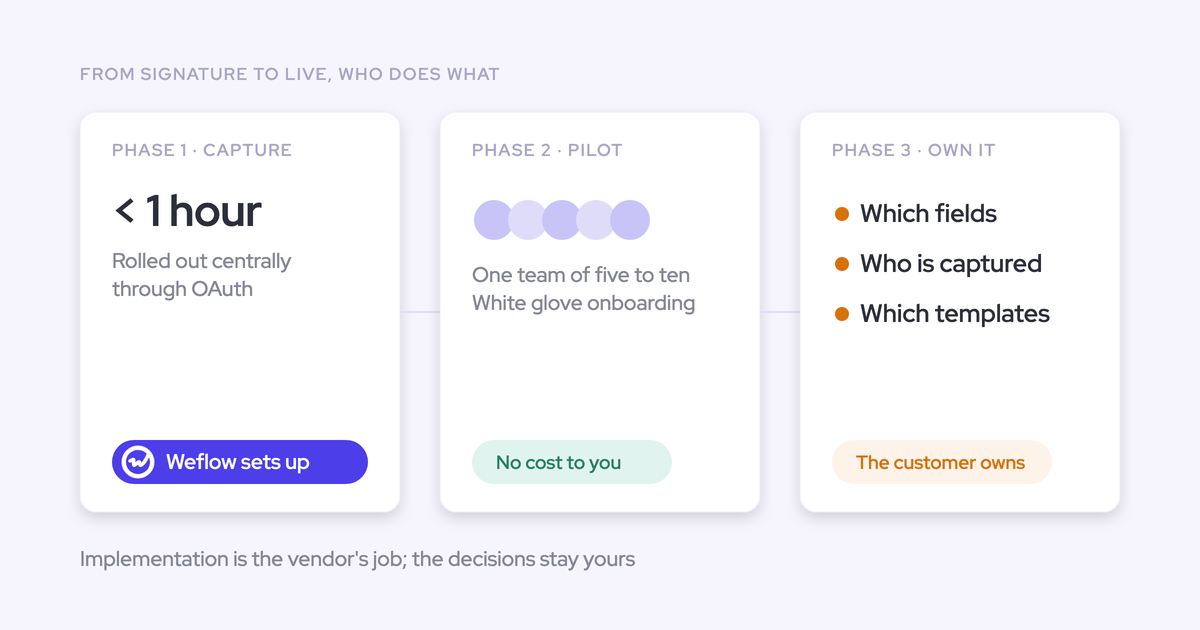
If your company already uses Weflow for sales, much of the history your QBR needs is already on your accounts, so you won't have to rebuild it or re-ask questions the customer answered during the sale.
What Ask Weflow AI reads, and doesn't, on an account
When you point Ask Weflow AI at an account, it reads every captured email, meeting and transcript, along with Salesforce records and fields, including any custom objects you've connected. Here's how each source breaks down.
| Source | Read by Ask Weflow AI on the account? |
|---|---|
| Captured emails and meetings | Yes. Weflow Activity & Contact Capture logs them to the account, and account scope pulls all of them into the question. |
| Call transcripts | Yes, for every call Weflow Conversation Intelligence recorded on the account. One question can span many recordings at once. |
| Salesforce records and custom objects | Yes. Standard objects are read out of the box. Custom objects such as licenses or delivery schedules are read once your admin connects them. |
| Salesforce Cases | Yes. Ask Weflow AI reads Cases in Salesforce, and Case logging can route ticket emails onto the Case. |
| Usage or health fields synced into Salesforce | Yes. Any field on any Salesforce object counts, whatever system originally filled it. |
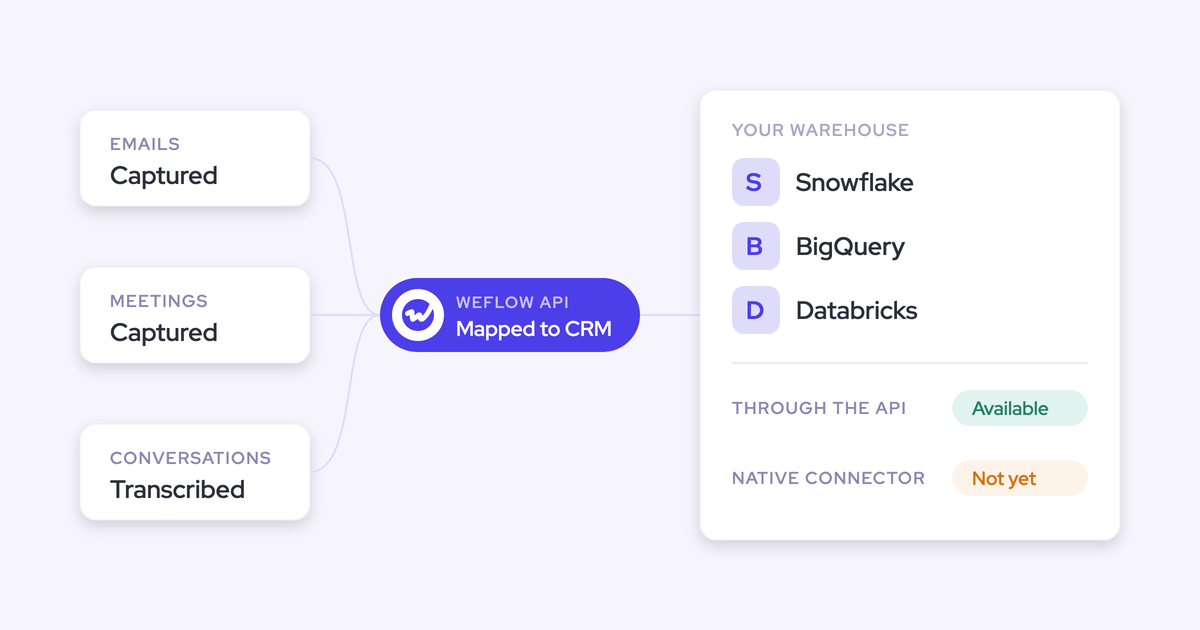
| ChurnZero or Gainsight | No, unless their data syncs into Salesforce fields. Ask Weflow AI has no direct connection to either. |
| Zendesk or Intercom tickets | No, unless the tickets live as Salesforce Cases or fields. The helpdesk stays your support tool. |
| Product analytics | No. Product usage counts only through fields already synced into Salesforce. |
Answers also follow your Salesforce permissions, so you'll only see what you could already see there.
Where to run the QBR prompts without opening another tool
You can start from two places, and both pass the account context to Ask Weflow AI, so you don't have to explain which customer you mean.
Start from Prepare meeting on the QBR calendar entry
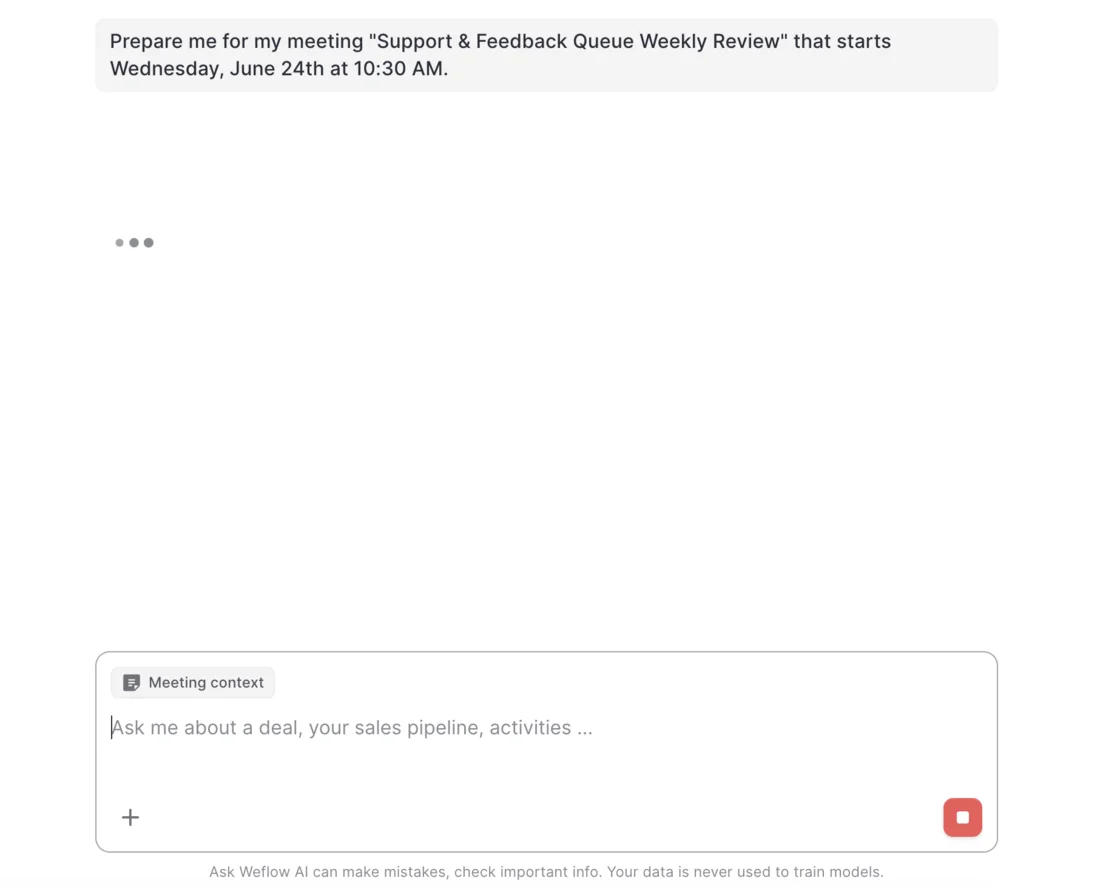
Clicking Prepare meeting on your QBR opens Ask Weflow AI with the meeting already attached, along with a starting brief built from prior emails, meetings, recordings and Salesforce. You can then run all four prompt groups in the same thread.
- Open the QBR on your Weflow calendar, either in the web app or from the Chrome extension.
- Click Prepare meeting: The chat opens with a Meeting context chip attached.
- Read the starting brief: It'll quickly show whether the account has enough captured history to work with.
- Paste the usage, stakeholder, promise and risk prompts below into the same thread, one at a time.
Ask from the Salesforce account page with the Chrome extension
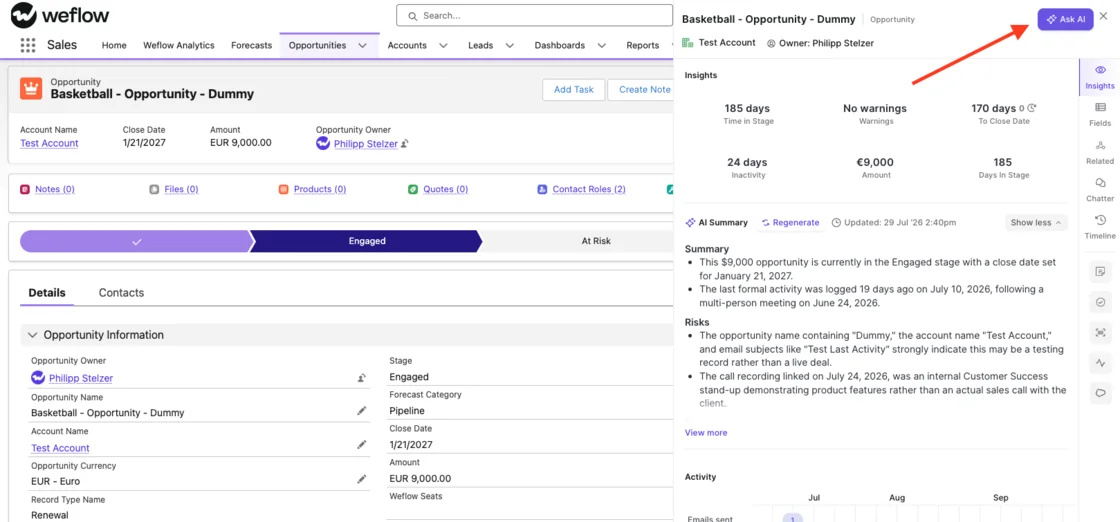
Ask Weflow AI also runs on Salesforce record pages through the Weflow Chrome extension. This comes in handy when there's no calendar entry, like a leadership readout or a mid-quarter check on an account that feels off.
Just open the account and click Ask AI. The same prompts will work with the record as context.
Usage prompts: What your customer says about adoption
These prompts don't read product analytics, but conversation evidence often matters more anyway: slow adoption and slow onboarding show up on calls months before a usage dashboard turns red.
Prompt 1: Pull every adoption signal from the account's conversations
Asking one account-scoped question across every call and email surfaces adoption wins, blockers and slow-onboarding signals over months, so you're not relying on the one call that happened to go well.
Look across every email, meeting and call transcript on this account. List everything the customer has said about how they use our product: adoption wins, blockers, features they rely on, features they've stopped using, and any sign of slow onboarding or slow rollout to new users. Group the findings by theme. For each item, give the date, who said it, and the call or email it came from. If you find nothing for a theme, say so instead of guessing.- Run it from: Prepare meeting on the QBR, or the account record.
- Needs: Account scope, captured emails, and Weflow Conversation Intelligence recordings for transcripts.
- Returns: Adoption signals grouped by theme, each with a date, a speaker and a source.
- What it can't see: In-product usage, logins or feature analytics.
Prompt 2: Check what they said against Salesforce usage fields
Putting conversation evidence next to the usage or seat fields you hold shows you the gap between "it's going fine" and what the numbers say.
Read the usage, seat and adoption fields on this account and its related records in Salesforce. Then compare them with what the customer has said about usage on calls and emails in the last 6 months. Show where the conversations and the fields agree, and where they contradict each other. Cite the field name and the call or email for each point. If a field is empty or missing, list it as missing.- Run it from: The same thread as Prompt 1.
- Needs: Usage or seat fields on the account or a connected custom object, such as a license object.
- Returns: Agreements, contradictions and missing fields, each with its source.
- What it can't see: Any usage number that isn't in a Salesforce field. If your product data doesn't sync to Salesforce, this prompt only reports the gap.
Stakeholder prompts: Who really engages on the account now
The people who matter on an account today often aren't the ones listed as contact roles in Salesforce. Champions leave and new leaders arrive, but nobody updates the record. These two prompts help you get the picture right before you walk into the room.
Prompt 3: Compare who shows up with who's on contact roles
Comparing engagement in captured meetings and emails against the listed contacts shows three groups: who's active, who's gone silent, and who's missing from Salesforce entirely.
List every person from the customer's side who has appeared in meetings or emails on this account in the last 6 months. Return a table with these columns: person, role on record (from the contact roles or contact title in Salesforce), last engagement date, engagement pattern (for example: attends every review, emails only, went quiet after a specific month). Then list the contacts on the account who haven't engaged in that period, and anyone who appears in meetings or emails but has no contact record in Salesforce.- Run it from: Prepare meeting or the account record.
- Needs: Account scope and captured emails and meetings. Activity & Contact Capture alone is enough for this one.
- Returns: A stakeholder table, a list of silent contacts and a list of people missing from Salesforce.
- What it can't see: Conversations held in channels Weflow doesn't capture, such as a shared Slack channel or text messages.
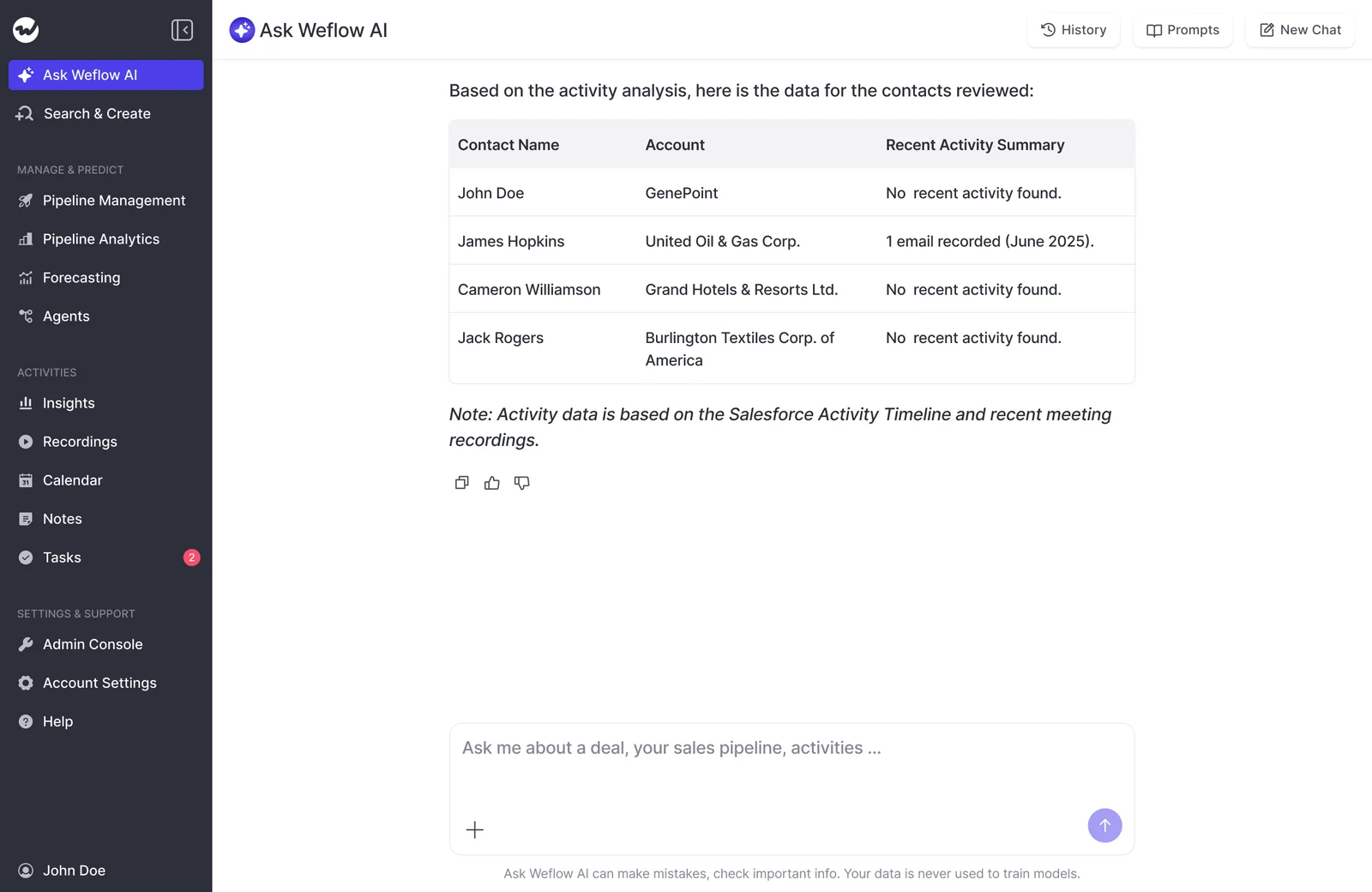
Prompt 4: Catch champion changes since the last business review
Asking who's been leading the conversation since a given date helps you spot a champion who left or cooled off before it shows up at renewal.
Since [date of last business review], who has led the conversations on this account from the customer's side? Compare that with the 6 months before. Flag anyone who used to drive the conversation and has gone quiet, anyone new who now speaks for the customer, and any mention of someone leaving, changing role or handing over. Cite the call or email for each change.- Run it from: The same thread as Prompt 3.
- Needs: The date of your last review, plus Conversation Intelligence transcripts so the AI can tell who did the talking.
- Returns: A before-and-after view of who drives the relationship, with flagged changes.
- What it can't see: A departure nobody mentioned on a captured call or email.
Promise prompts: What we committed during the sale and since
Most of what the customer told sales never reaches you at handover, which is how CSMs end up re-asking questions the customer already answered, often right before renewal.
Prompt 5: List what sales promised before closed-won
If your sales team used Weflow, the sales-cycle conversations are already on the account, and this prompt pulls three things out of them:
- Why the customer bought
- What was promised
- What they feared
Read the sales-cycle conversations on this account, from first meeting through closed-won. Summarize: why they bought, in their words; what we promised them, including timelines, features, integrations, services and pricing commitments; what they were worried about or said would make them walk away; and who was involved in the decision. Cite the call or email for each point. Mark anything that was promised but hasn't come up since closed-won.- Run it from: The account record. It works best a few weeks before the first QBR, or ahead of a renewal.
- Needs: Sales-cycle capture in Weflow. Without it, the prompt only finds what was emailed or recorded after handover.
- Returns: The buying reasons, promises, fears and decision makers, with open promises flagged.
- What it can't see: Promises made in conversations Weflow never captured, or written only into a contract PDF.
Prompt 6: Track what past QBRs committed and what followed
This prompt lists every commitment from your previous business reviews, then checks what later conversations say about each one.
Find our previous business reviews with this customer. For each one, list every commitment made by either side. Return a table: commitment, who owns it (us or the customer), date, source call, and what later calls or emails say about it (done, in progress, never mentioned again). Put the commitments with no later mention at the top.- Run it from: The account record, or add the past QBR recordings as sources in the chat.
- Needs: Recorded past reviews through Weflow Conversation Intelligence.
- Returns: A commitment tracker with forgotten items at the top.
- What it can't see: Work that was done but never discussed on a captured call or email. Those items show as "never mentioned again".
Open risk prompts: What the customer raised that never closed
"Open risk" here means one of two things:
- Issues the customer raised in conversations
- Criteria your team writes into the prompt
Since Weflow has no built-in health model, it can't tell a quiet, stable customer from one that's disengaging unless you define the difference.
Prompt 7: Find issues the customer raised with no resolution
This prompt answers the question you most need settled before the review: what did they complain about that we never closed out?
List every problem, complaint or request this customer raised on calls or emails in the last 12 months. For each one, show when it was raised, who raised it, whether a later call or email shows it was resolved, and the source. Put unresolved items first, oldest first. Also treat these as risk signals: no meeting with the customer's main contact for more than 60 days; any mention of [Competitor A] or [Competitor B]; talk of budget cuts, reorganization or consolidating tools.- Run it from: Prepare meeting or the account record.
- Needs: Account scope, captured emails and transcripts, and Cases in Salesforce if you want tickets included.
- Returns: An open-issues list, oldest unresolved first, with your own risk signals flagged.
- What it can't see: Tickets that live only in Zendesk or Intercom.
Customize the last part of the prompt before you save it:
- Set what silence means for this customer type, and over what period.
- List the competitor names that count in your market.
- Name the phrases your team has learned to treat as warnings.
Prompt 8: Separate proactive engagement from escalations
A high meeting count isn't always a good sign, especially if most of those meetings are escalations. This prompt separates business reviews and adoption calls from firefighting, so you can tell whether all that activity is healthy.
Classify every meeting on this account in the last 6 months as either proactive (business reviews, adoption or training sessions, roadmap or expansion conversations) or reactive (escalations, outage or bug calls, complaints). Return the count of each type by month, and list the reactive meetings with their topic and source. Tell me whether the mix has shifted toward reactive meetings over the period.- Run it from: The same thread as Prompt 7.
- Needs: Captured meetings on the account. Transcripts make the classification sharper than titles alone.
- Returns: A monthly proactive-versus-reactive count and a list of escalations.
- What it can't see: Support calls run outside your captured calendars.
Pull the four answers into one QBR pre-read
Once you have the four answers, one closing prompt in the same thread turns them into a pre-read you can bring to the customer or send to your VP.
Prompt 9: Assemble the pre-read in your team's format
Using your answers above in this conversation, write a QBR pre-read with four sections: Usage, Stakeholders, Promises, Open risks. Keep each section to five bullets or fewer, lead with what changed since the last review, and keep the source citation on every bullet. End with three questions we should ask the customer in the meeting. Use these section headings and order: [paste your team's template headings].- Run it from: The same thread as Prompts 1 to 8.
- Needs: The earlier answers in the thread and your team's template headings.
- Returns: A structured pre-read with sources kept on every point.
- What it can't see: Anything the earlier prompts didn't surface. It summarizes and doesn't research again.
Here's what a good answer looks like in each section:
| Section | What a good answer contains | Source type it should cite |
|---|---|---|
| Usage | Adoption wins and blockers since the last review, plus any gap between what was said and the usage fields | Call transcripts, emails, Salesforce usage or seat fields |
| Stakeholders | Who drives the relationship now, who went quiet, and who's missing from Salesforce | Meeting attendance, emails, contact records |
| Promises | Open commitments from the sale and past reviews, with owner and date | Sales-cycle calls, past QBR recordings |
| Open risks | Unresolved issues, oldest first, and any shift toward reactive meetings | Call transcripts, emails, Salesforce Cases |
| Questions for the meeting | Three questions that close the biggest gaps above | The four sections above |
Check every claim against its cited call or email
Before anything reaches the customer, click through the sources Ask Weflow AI cites for each answer.
"I love being able to go right to the call, transcript or email and see where something was said that the AI is referencing."
— Scott Jones, SVP of GTM Revenue Intelligence & Enablement at KORE Wireless
- Check commitments first: A promise you repeat to the customer has to be one they actually heard.
- Check open risks next: Anything you raise as unresolved needs a source showing it was raised and no later source showing it closed.
- Check names and roles on every stakeholder change before you assume someone has left.
- Remove any point that has no source.
Make these prompts your CS team's standard in Weflow
Once the whole CS team runs these prompts, QBR prep no longer depends on who happens to be diligent that week.
"I want a prompt library so we're not reliant on the AE coming up with them."
— A customer on a call with us
CSMs run the prompts, while an admin or RevOps owns the three setup steps below.
Save the QBR prompts to the shared Ask Weflow AI library
Admins can save shared prompts to the library so any CSM can run the QBR set in one click from the chat. The setting lives in the Admin Console under Settings > Ask Weflow AI.
You can enable Ask Weflow AI org-wide or for a single team, so you can turn it on for CS first.
We recommend saving Prompts 1 to 9 under clear names, with the bracketed parts already filled in for your team.
Teach Ask Weflow AI your product names and custom objects
CS teams won't put generic AI output in front of a customer or a VP.
"We want to make sure this is not just generic AI, that it is personalized to us and our team."
A customer on a call with us
Three layers of context help the output sound like your team:
- Object and field context: In the Admin Console's Context and Sources section, admins tell the AI what an object means and what each field means, so "health" or "seats" isn't left to guesswork.
- Connected custom objects: Once a license or delivery schedule object is connected, Ask Weflow AI reads it and follows your rules. For example, it can take revenue from the delivery schedule instead of the opportunity amount.
- The company-level system prompt: Every workspace runs on one that covers what you do, who your buyers are and who you compete with. We maintain it for you and add the material you send us, such as product names, terminology and phrasing to avoid.
Set up CS capture so post-sale calls land on the account
The prompts are only as good as what's captured, so make sure post-sale calls land in the right place:
- Weflow transcribes and extracts recorded calls even when no opportunity is attached, and writes the output to the account or a custom object.
- Each team can run its own summary and field-update templates, so onboarding and CS calls stop being summarized against a sales qualification structure.
- With Case logging on, customer email about a ticket logs to the matching Case instead of the deal or the account. Give support its own capture configuration so sales email doesn't follow the same rule.
- A Case setting creates Tasks for incoming emails too, so the Case history shows the customer's replies as well as your own.
- Mobile Copilot records in-person meetings, so onsite reviews and visits end up on the account like any other call.
What these QBR prompts won't do for you
Here's what's out of scope today, and what to do instead.
| Limit | What to do instead |
|---|---|
| Weflow has no built-in health model. | Define risk yourself in the prompt, or in an AI Playbook on the account so every account gets scored the same way. |
| There's no account-level board or forecast roll-up. Weflow forecasting is opportunity-based, and Clari's account module does offer that customer-wide view. | Use the account summary for one view of the account, and run renewal forecasting on renewal opportunities. |
| Weflow won't keep a living account plan document current. Agents write a fresh file each run. | Have the prompt draft the plan changes after each review, and let AI Playbooks write results to Salesforce fields that stay current. |
| Ask Weflow AI doesn't read ticketing or product-usage systems. | Sync the usage, seat, health and ticket fields you need into Salesforce, where every prompt can read them. |
| Some CS teams run entirely in ChurnZero or Gainsight with no Salesforce sync. | Keep that tool as your health record, and use the prompts for what the conversations say. |
Move from QBR prompts to account playbooks and agents
Ad hoc prompts work well one account at a time. But with 30 to 40 accounts in your book, you'll want the same read on every account without running it by hand.
Score every account the same way with AI Playbooks on the account
AI Playbooks attach to the account object as well as the opportunity. They score against everything related to the account, not one deal, and write the results back to Salesforce fields. That way, your risk view lives in the CRM, where reports and automations can use it.
One approach we've seen work is to flip a sales playbook into a churn playbook. Instead of scoring how closely an account matches success, describe what churn looks like and name the mechanisms behind it:
- Adoption going quiet.
- An implementation that never went live.
- A suite vendor consolidating the capability away.
- A gap between what was sold and what the product does.
The playbook then scores how close each account has come to that picture. Give it a numeric output, and you can rank your whole book.
Run the pre-read before every QBR with Weflow Agent Builder
You can also set up a scheduled agent to produce the pre-read as a file, so it's waiting for you before the review. The flow has four steps:
- Trigger: A schedule with day, time and timezone, for example every Monday morning.
- Lookup: Salesforce accounts filtered by field, such as accounts whose next business review date falls in the coming week, if you keep that date in a field.
- Agent step: A condensed version of the QBR prompts, run over each account's emails, meetings, transcripts and fields.
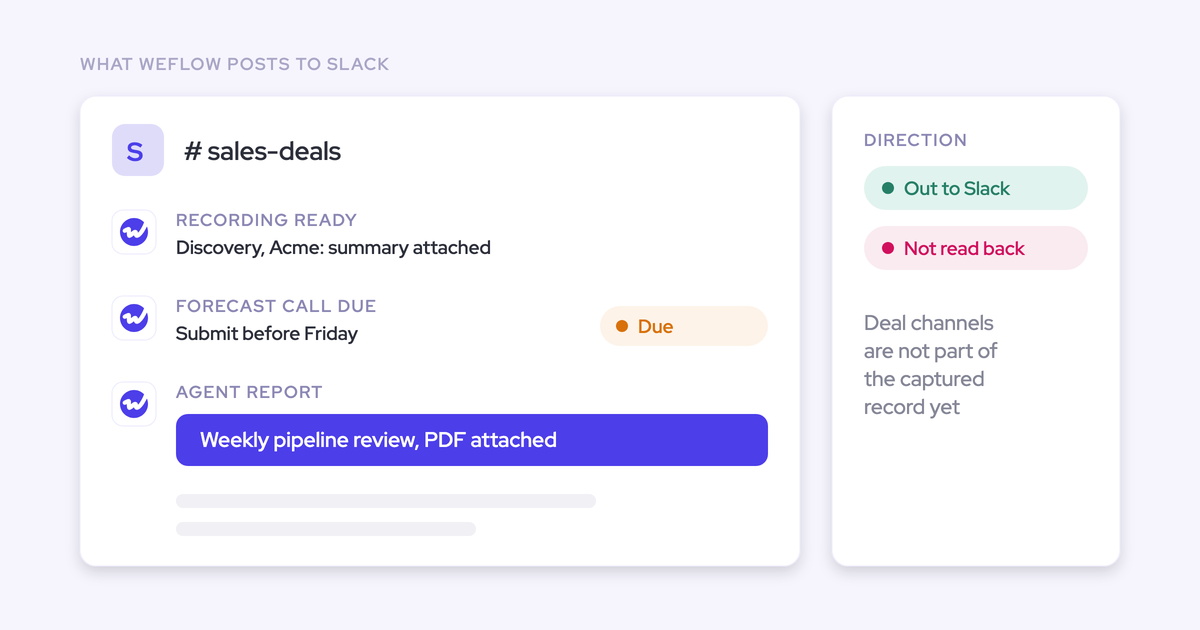
- Delivery: A PDF or spreadsheet sent to email or Slack.
A few constraints to know before you build:
- The agent prompt is capped at 2,000 characters.
- The agent step can't reference an uploaded document.
- Each run produces a fresh file.
- Agent Builder is our newest product and less mature than the rest of the platform.
What QBR prep with Ask Weflow AI costs
Ask Weflow AI isn't metered or priced separately. It's included with every Weflow product and bundle under a fair use policy that no customer has reached yet.
The only consumption-priced piece is Agent Builder, which is priced per workspace rather than per user.
| Product | How it's priced | What it adds for QBR prep |
|---|---|---|
| Ask Weflow AI | Included with every product and bundle, with no metering | Runs all nine prompts, from Prepare meeting or the Salesforce record |
| Weflow Activity & Contact Capture | $19 per user per month, billed annually | Emails, meetings and contacts on the account. No recordings. |
| Weflow Conversation Intelligence | $39 per user per month, billed annually | Recordings and transcripts, needed for Prompts 1, 4, 5 and 6 to work fully |
| Revenue AI Foundation | $49 per user per month, billed annually | Activity & Contact Capture and Conversation Intelligence together, plus Mobile Copilot |
| Weflow Agent Builder | Per workspace: Free with 25 agent actions per month in every plan, Growth at $299 per month for 500, Scale at $999 per month for 2,500, Enterprise custom | Scheduled pre-reads delivered as files before each QBR |
Plans have a 10-user minimum. Every plan includes unlimited view-only licenses, so your CS VP can open recordings and summaries without a paid seat. All of this is on our public pricing page at weflow.ai.
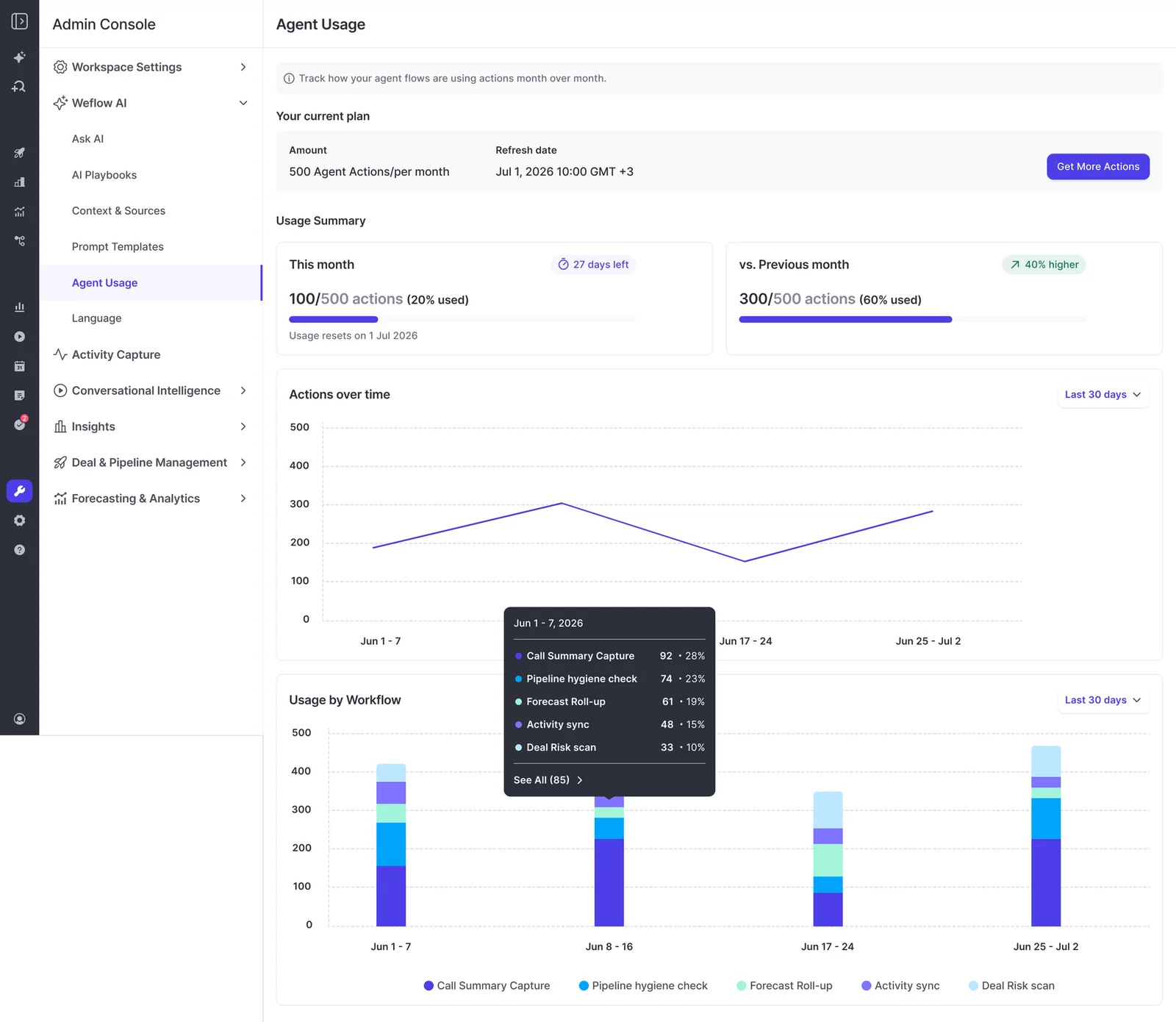
Admins track agent consumption on the Agent Usage page, broken down by workflow, so you can see what a scheduled QBR agent uses each month.
If you want more ready-to-run prompts your team can standardize on, grab 16 Free AI Workflows & Prompts for RevOps.
FAQ: Ask Weflow AI for QBR preparation
Do CSMs need Weflow Conversation Intelligence to get call transcripts?
Yes. Recording and transcription are part of Conversation Intelligence, and Activity & Contact Capture alone doesn't record calls.
That said, a CSM with only Capture can still run Prompts 3 and 8 on emails and meetings. If you need both, the Revenue AI Foundation bundle includes them.
How far back does Ask Weflow AI read an account's history?
It reads everything Weflow has captured on the account, including the full sales cycle if sales used Weflow before handover.
For email from before you deployed Weflow, Activity & Contact Capture offers historical backfill of up to 24 months as an add-on. Transcripts only exist for calls recorded after Conversation Intelligence went live.
Will Ask Weflow AI show a CSM accounts they don't own?
No. Ask Weflow AI inherits Salesforce permission sets, field-level security and the role hierarchy, then adds its own guardrails on top, so it can even withhold information a user could reach in Salesforce.
If your org restricts access through list views or Lightning component visibility, those rules aren't part of the Salesforce permission model. In that case, your admin can reproduce them in Weflow with centrally assigned views.
What should we sync into Salesforce before running QBR prompts?
Sync the numbers the conversations can't give you:
- Seat counts and product usage.
- Health scores from ChurnZero or Gainsight.
- Ticket counts or Cases from your helpdesk.
Each field you add makes Prompt 2 and the risk prompts sharper.
How do the prompts handle an account with several products and renewals?
Account scope covers every product on the account together, and the account summary gives one summary, risk view and next steps for the whole customer.
If each product has its own owner and renewal, a Weflow board built on your product or license object gives each product its own view, grouped by account. For a single-product read, just name the product in the prompt.
Can Ask Weflow AI update the account plan after the QBR?
It can draft the changes. Give it the current plan and the review recording, then ask what should change. Weflow doesn't maintain a living plan document or edit files in SharePoint or Google Drive.
What stays current is Salesforce, through AI Playbook results written to account fields.
How long can a QBR agent prompt be in Weflow Agent Builder?
The cap is 2,000 characters. To fit within it, keep the four section instructions and the citation rule, and drop the examples. If you need more room, split the work into two agents, one for usage and stakeholders and one for promises and risks, each with its own prompt.