How to Forecast Across Multiple Currencies: Corporate Currency, Dated Rates and Converted Amount Fields
Learn how to forecast across multiple currencies with corporate currency, dated rates, and one field


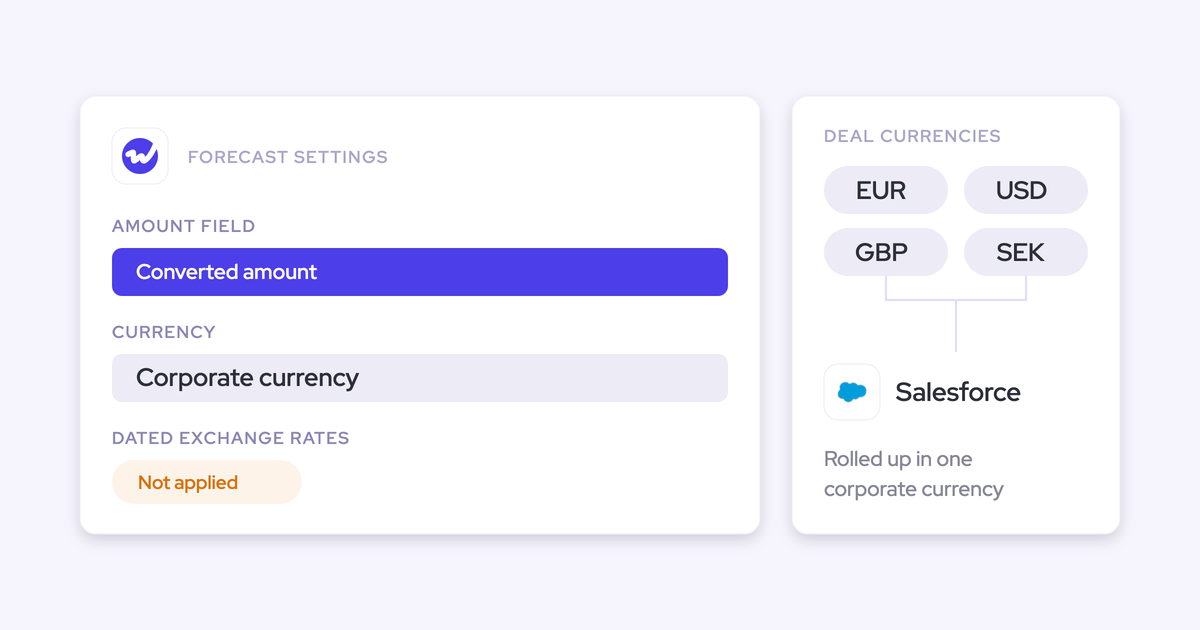

In a multi-currency org, your forecast is only as honest as the one field it reads. To make regional pipeline match what finance books, put one stored, finance-approved converted amount field on the opportunity. Backfill it before any forecast connects, then point every forecast setup at it.
You probably already see the symptom. The corporate-currency pipeline for EMEA or APAC lands a few points off finance's number, and nobody on the forecast call can explain the FX delta. Sellers in local-currency regions look at their converted deals and don't recognize them.
The cause is almost always the same. Salesforce, your reports, your forecasting tool and finance each convert at their own rate, and nobody decided which field carries finance's conversion.
This guide covers the Salesforce mechanics first, then the build sequence, then Weflow as the worked example. Weflow is the Revenue AI Orchestration platform for sales, customer success, and RevOps teams. Weflow forecast roll-ups run on whichever Salesforce currency field you map. Weflow doesn't apply Salesforce dated exchange rates, and that's exactly why the field decision matters.
Why your converted pipeline doesn't match what finance books
Your pipeline and finance's books disagree because the same deal gets converted at different rates depending on where you read it. With Advanced Currency Management (ACM) on, Salesforce applies dated exchange rates in some contexts and the static corporate rate in others. Every tool that reads the opportunity adds its own conversion path on top.
| Where the amount is read | Which conversion it reflects |
|---|---|
| Converted opportunity amounts in Salesforce, with ACM on | The dated exchange rate |
| Currency fields outside ACM's dated scope | The static corporate conversion rate |
| A forecasting layer reading the currency field, Weflow included | The single standard rate, no dated rates |
| Finance's booked figures | Finance's own rate rule and rate date |
Every row is a defensible number on its own. The trouble starts when three of them meet in one forecast call.
Better maths won't close the gap, because the root cause is a missing decision: nobody has named the single field that carries finance's conversion. Until someone makes that decision deliberately, every layer you add converts its own way and the drift keeps coming back.
Which amount field should a multi-currency forecast read?
The forecast should read the number finance closes on. In most global orgs that's a converted corporate-currency amount, so make it one named, stored field and forecast on it. Don't forecast on Amount, and don't build a field per currency.
Most teams we talk to have already moved off standard Amount for something. A subscription business typically forecasts ARR.
Currency is the same problem with a different field. Here's how the usual candidates compare:
| Candidate field | Rate it reflects | History in Salesforce | Verdict |
|---|---|---|---|
| Standard Amount | None: each deal stays in its own currency | Trackable | Fine per deal, useless for a corporate roll-up |
| A custom field per currency | Whatever each field's author built | Varies by field | Retire them |
| Formula converted amount | Whatever the formula can reference | Can't be history-tracked | Breaks every time-based view |
| Stored converted amount, written by automation | Finance's dated rate on finance's chosen date | Trackable | The field to forecast on |
| ARR or custom revenue field | Depends on how it's built | Trackable if stored | A separate forecast setup, not a blend |
If you forecast ARR as well as bookings, treat it as a second forecast setup on its own converted ARR field. Blending the two into one number hides which motion is actually off.
Take this as permission to delete the per-currency fields too. Every extra currency field is another number somebody can quote in a meeting, and another place the drift can come from.
"So don't add, like, ten currency fields on top of the amount fields. No one's winning because of this, and your sales motion is not necessarily going to become better."
— Philipp Stelzer, CPO & Co-founder of Weflow
Formula vs stored converted amount: what you lose in history
Build the converted amount as a stored value. A formula works on day one. The problem is that Salesforce can't history-track calculated fields, so your slippage, waterfall and change-since-last-week views go blind on the exact field you forecast on.
| Dimension | Formula field | Stored field written by automation |
|---|---|---|
| Rate it can use | Only fields on the record and its parents, so it can't look up a dated rate record itself | The dated rate for the date finance chose |
| Field history tracking | Not available | Available |
| When rates change | Recalculates silently, with no record of the old value | Changes when automation writes it, and history records the change |
| Maintenance | Low at first, then formula-on-formula stacks build up | One Flow or Apex job with a clear owner |
| Readability by reports and other tools | Every reader sees the value at read time | Every reader sees the same stored value |
The formula looks cheaper because you skip the automation. You pay for it later, when leadership asks why commit dropped since last week and the field has no history to answer with.
An external system that snapshots opportunities on a schedule can keep history even on a calculated field, and Weflow does this (more on that below). We still recommend the stored field. With a stored field, finance, your Salesforce reports and every tool you connect all read the identical value.
What to have in place before you build the field
You need five things in place before you start. Without them, one of the later steps stalls.
- Confirmed ACM status. You know whether Advanced Currency Management is on in production and in your sandbox, and which currencies are active.
- Finance's rate rule, in writing. Finance has stated which rate and which date drive conversion, and how revisions are handled.
- Admin permissions. You can create fields, enable field history tracking, and build and deploy Flow or Apex.
- An inventory of existing currency and amount fields. You know every currency, amount and formula field on the opportunity, plus every report, dashboard and tool that reads each one.
- A sandbox with real currency data. You can test the automation and the backfill against realistic deals before touching production.
How to set up a converted amount field for forecasting
The sequence is decide, populate, backfill, map, then import. The order is the whole point. If you connect a forecast before the field is populated and backfilled, your history and your accuracy baseline will read blanks.
Step 1: Agree with finance which date sets the exchange rate
Finance chooses the rate date, whether that's close date, booking date or contract start. Get it written down before you build anything, because the automation in Step 4 encodes that rule and nothing else.
A written rule might look like this:
New business and expansion convert to USD at the dated rate in effect on Close Date. Renewals convert at the dated rate in effect on Contract Start Date. Finance loads new rates by the third business day of each month. Open opportunities re-convert when new rates load; closed-won opportunities keep the rate they closed at.
Check: finance signs off on the rule, and you can name the person who owns rate revisions from now on.
Step 2: Audit your currency fields and retire the ones nobody needs
Decide which legacy currency fields die before the new one arrives. If you add the new field first, it becomes number eleven instead of the replacement.
For every currency and amount field in your inventory, ask:
- What reads it: which reports, dashboards, Flows, integrations and tools?
- Who owns it, and do they still need it?
- Does finance use it for anything they close on?
- Is it a formula that only re-derives a number another field already holds?
- Can whatever reads it move to the new converted field instead?
Check: every field on the list is marked keep, migrate or retire, with an owner and a date.
Step 3: Create one stored corporate currency amount field
Create a single custom currency field on the opportunity that holds the finance-approved converted amount, and turn on field history tracking for it.
- Create a custom field of type Currency on Opportunity.
- Give it a name nobody can misread, such as "Amount (USD, Finance Rate)".
- Add a help text that states the rate rule from Step 1.
- Make it read-only for everyone except the automation's running user, so reps can't overwrite it.
- Enable field history tracking on it.
Check: the field shows up in field history tracking settings as tracked, and a test user can't edit it.
Step 4: Populate the field with automation that reads dated rates
A Flow or Apex job writes the converted value using the dated rate for the date finance agreed. It has to re-run whenever an input changes: Amount, the opportunity's currency, or the rate date field. A second, scheduled job covers rate revisions, because a new rate from finance doesn't touch the opportunity record by itself.
The logic looks like this:
- Trigger on opportunity create and update, but only when Amount, currency or the agreed rate date changes.
- If the opportunity is already in corporate currency, copy Amount into the converted field and stop.
- Otherwise, look up the dated rate for the opportunity's currency whose date range contains the agreed date. Salesforce stores these as DatedConversionRate records, each with a currency code, a start date and a next start date.
- Divide Amount by that conversion rate. Salesforce expresses rates as units of the currency per one unit of corporate currency.
- Write the result to the converted field.
- Separately, run a scheduled job after finance loads or revises rates. It re-runs the same logic across open opportunities, and across closed ones if your rule says they move.
Check: in the sandbox, change the Amount, then the currency, then the close date on a test deal. After each change, compare the converted field to a manual calculation with finance's rate.
Step 5: Backfill historical opportunities before any forecast connects
A new field starts out blank on every existing opportunity. Your history, your AI projection and your accuracy baseline all read that blank, so run the same conversion logic as a one-off batch across open and closed opportunities.
Backfill as far back as your forecast will import. Weflow imports 12 months of opportunity history by default, and more on request where field history allows. Weflow's AI projection needs at least six months of history and works from up to two years, so if you plan to use the projection, backfill at least that far.
After the backfill, check:
- No in-scope opportunity has a blank converted value.
- Closed-won totals per quarter, per region, match finance's booked figures.
- A spot-check of five deals per currency matches finance's own conversion.
- The automation from Step 4 is active, so new deals don't arrive blank.
Step 6: Point every forecast setup at the field, then import history
Map the converted field as the amount in every forecast configuration before the opportunity history import runs. In Weflow, the import reads each configuration's field mapping and creates the opportunity snapshots that every history-based view uses. If you import while the configuration still points at Amount, your history is built on Amount.
Check: each configuration names the converted field as its amount before you trigger the import.
Mistakes that quietly break a multi-currency forecast
Most failures come from sequence and sprawl. The arithmetic itself is rarely the problem.
| Mistake | What you'll see in the forecast |
|---|---|
| Building the converted field as a formula on a Salesforce-only setup | No slippage, waterfall or week-over-week change on the field you forecast on |
| A converted field per report or per region | Two dashboards with two different corporate numbers, and a meeting spent arguing about which is right |
| Connecting the forecast before the backfill | Blank history, an accuracy baseline of zeros, and an AI projection with nothing to learn from |
| Letting each tool apply its own rate | The FX delta from the diagnosis table, back on every call |
| No owner for rate revisions | Converted values that drift from finance's latest rates until someone notices at quarter close |
How Weflow Deal Intelligence & Forecasting uses your converted field
Weflow Deal Intelligence & Forecasting forecasts on the field you choose, so your forecast stays on finance's conversion logic and never on ours. The admin chooses that field in configuration, and Weflow builds history for it from its own snapshots.
Map the converted field as each forecast setup's amount
Any standard, custom or formula currency field in Salesforce can be the foundation of a Weflow forecast. You set it in the forecast configuration:
- Choose the object: the opportunity, or opportunity product line items if one deal carries several products or years.
- Map the amount field to your stored converted field.
- Map the date field, usually close date, or contract start date for a renewal configuration.
- Choose whether the forecast slices by stage or by forecast category.
- Set permanent filters on record type, opportunity type or any field condition.
Changing any of this later is an admin edit, not a professional services ticket. Your existing Salesforce forecast configuration doesn't carry over, so you set forecasting up in Weflow. We run that setup with you during onboarding, and we don't charge for implementation.

Run new business, renewal and expansion on their own fields
Weflow runs parallel forecast configurations, each pointed at its own converted field, each with its own stages, targets and forecast calls. Your renewal number never blends into new business. Weflow's AI projection builds a separate model per configuration, so each motion is projected from its own history.
| Forecast setup | Amount field it reads | Date field |
|---|---|---|
| New business | Amount (USD, Finance Rate) | Close Date |
| Renewal | Renewal ARR (USD, Finance Rate) | Contract Start Date |
| Expansion | Net New ARR (USD, Finance Rate) | Close Date |
| Professional services | Services Amount (USD, Finance Rate) | Close Date |
Keep waterfall and pacing history on a calculated field
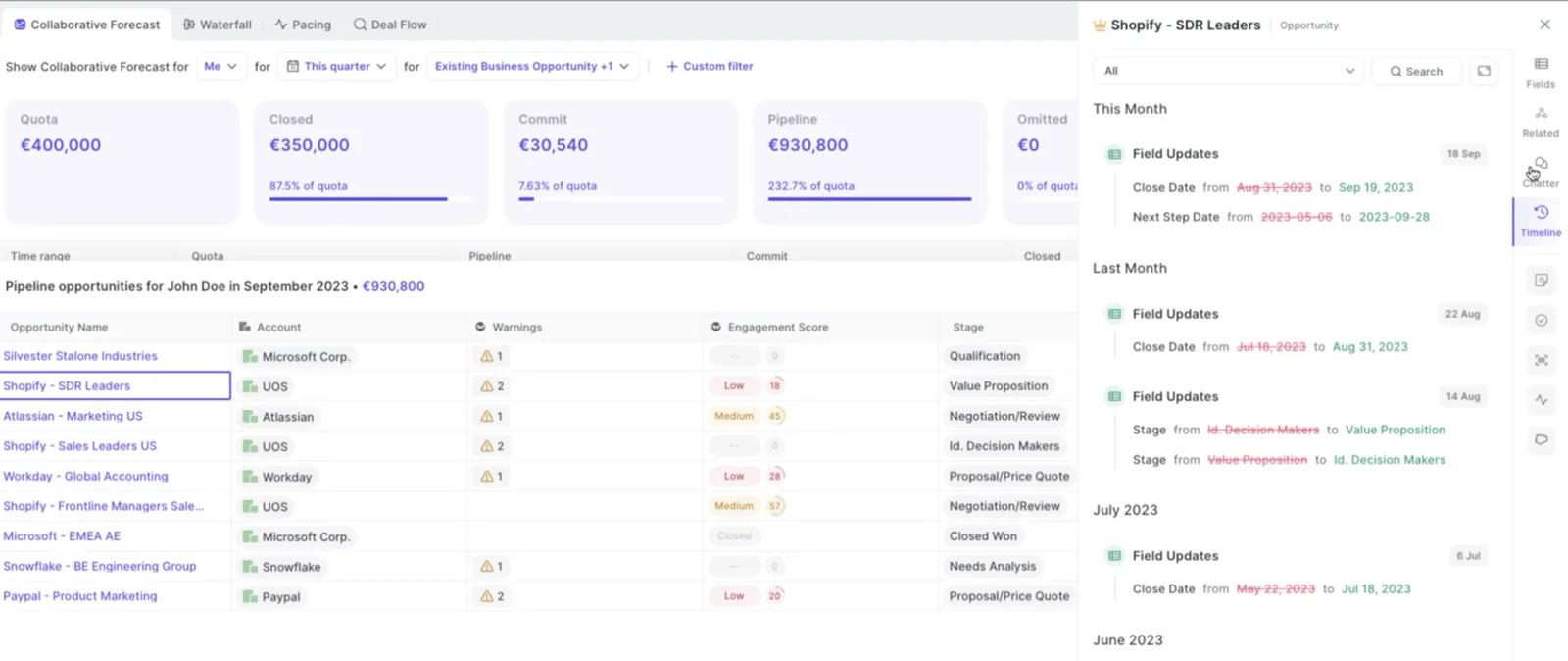
Weflow snapshots opportunity data every few hours and builds the pipeline waterfall, pacing and change views from those snapshots, not from Salesforce field history. So if you went with a formula converted field anyway, you still get history in Weflow on a field Salesforce can't track.
The waterfall reconciles starting pipeline to ending pipeline through created, increased, moved in, moved out, decreased, won and lost. Each bucket drills through to the deals behind it.
Build currency formula columns without a professional services ticket
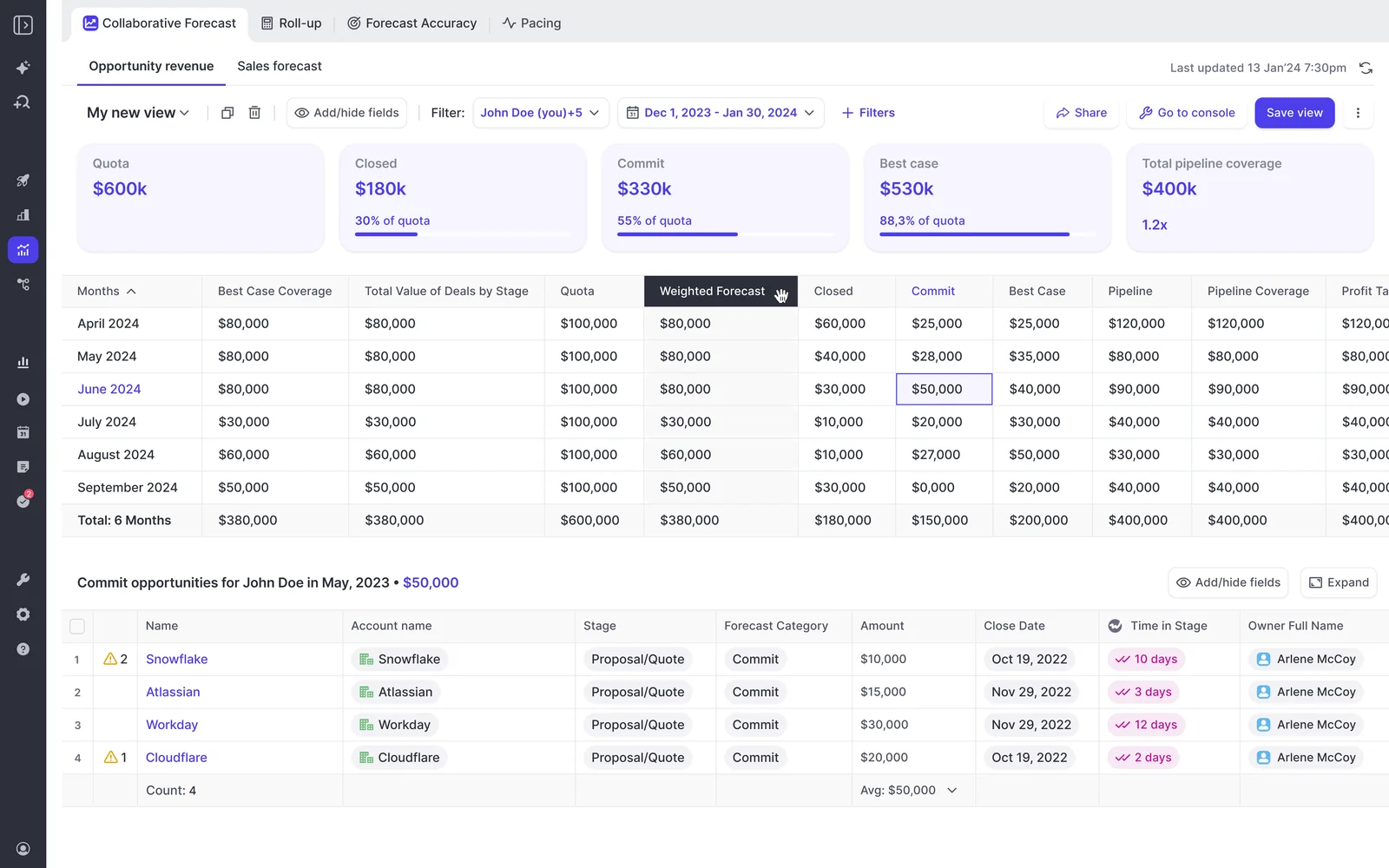
Weflow forecasting has its own formula fields. You define condition groups, write a formula over them and over Salesforce currency fields, then add the result to forecast views as a column formatted as currency.
A typical example: one condition group for opportunities in Commit, another for Best Case, and a formula that sums the converted field across both. The column shows Best Case plus Commit in corporate currency, and clicking the value opens the deals behind it. Clari blocks calculations across a currency field and a plain number field. In Weflow, that combination is an ordinary formula.
What Weflow won't do with currency, and the workarounds
Weflow doesn't apply Salesforce dated exchange rates. If you skip the converted field, Weflow converts your regions at the single standard rate, and regional pipeline will be misstated against finance. The other limits below follow from the same one-field, one-period model.
| Limit | What you'll see | Workaround |
|---|---|---|
| No dated exchange rates | Regional pipeline converted at one standard rate, drifting from finance | Map your stored converted field as the amount |
| A deal's full amount lands in one period | A deal that books across quarters shows entirely in the period its date field falls in | Choose the date field deliberately, or forecast on opportunity product line items |
| One period type across all configurations | Renewals on annual periods can't run beside quarterly new business | Pick one period shape that works for every motion |
| Submitted forecasts aren't written back to Salesforce | Finance can't reconcile the submitted call from a Salesforce report | Pull forecast calls through the Weflow MCP connector or the public API |
Weflow Deal Intelligence & Forecasting pricing and trial options
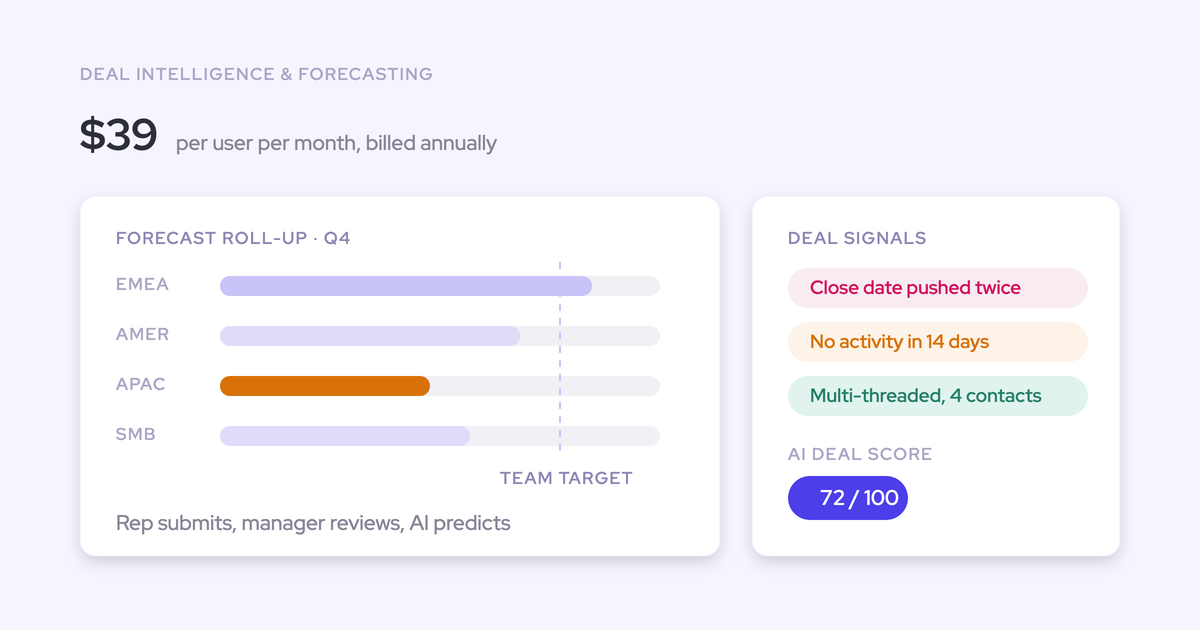
Weflow Deal Intelligence & Forecasting costs $39 per user per month, billed annually, with a 10-user minimum and no implementation fee. Forecasting is included in Weflow Revenue AI Enterprise. It isn't included in Weflow Revenue AI Business, which covers deal intelligence without pipeline analytics and forecasting.
| Product or bundle | Price per user per month, billed annually | Includes forecasting |
|---|---|---|
| Weflow Deal Intelligence & Forecasting | $39 | Yes |
| Weflow Revenue AI Foundation | $49 | No |
| Weflow Revenue AI Business | $59 | No |
| Weflow Revenue AI Enterprise | $79 | Yes |
Each way of evaluating proves something different:
| Option | What it proves |
|---|---|
| 14-day free trial | The field mapping and the history import on your own Salesforce, with your converted field as the amount |
| Proof of concept in a sandbox | The same mechanics against your sandbox data, before anything touches production |
| Three-month paid pilot | Forecast accuracy, across enough forecast cycles to compare predicted against actual. It's the first three months of a multi-year agreement, with an opt-out at the end |
Two weeks is enough to see your converted field driving the forecast and the history landing correctly. It isn't enough to prove accuracy, which takes closer to three months.
When you don't need a forecasting tool to fix this
You might not need a separate forecasting tool. If your forecast already runs on a converted field finance trusts, and your quarter rests on about ten material deals, native Salesforce forecasting and pipeline inspection can carry it. With ten deals, the forecast call is whether each one lands, so there's little to aggregate.
The field decision is the fix either way. A tool earns its place as the number of deals, managers and roll-up layers grows.
You've outgrown native forecasting when:
- Several management layers submit and adjust numbers, and you need to see each level's call side by side.
- Leadership asks what changed since last week, and someone answers it by clicking through deals.
- You run new business, renewal and expansion on different fields and want separate roll-ups.
- Your forecast field is calculated, and you still need waterfall and pacing history on it.
- You want each rep's forecast accuracy tracked against what actually closed, quarter after quarter.
If you're still mapping out which path fits, our free Ultimate Sales Forecasting Guide walks through the full forecasting process, from cadence to roll-ups to accuracy.
Questions admins ask about multi-currency forecasting in Salesforce and Weflow
Which date should drive the exchange rate on a converted amount field?
Use the date finance uses to book the deal. Close date keeps the forecast aligned with bookings. Contract start date suits renewals and deals that start well after signature. Booking date fits orgs where signature and booking differ. No date is universally right, and once finance picks one, your automation should encode only that rule.
What happens to the forecast when finance revises an exchange rate?
Your scheduled job re-runs the conversion and rewrites the stored converted value on the deals your rule covers. Because the field is stored, Salesforce field history records the old and new values. Weflow picks up the new value in its next snapshot.
Do we need one converted field or two if we forecast ARR?
Use one converted field per forecast setup. If you forecast bookings and ARR, that's two Weflow configurations, each on its own converted field. Don't blend them into a single number.
Does the AI projection read the same converted field as the roll-up?
Yes. Weflow builds a separate AI projection model for each forecast configuration, using that configuration's amount field. The roll-up sums the same chosen field on the selected deals. It doesn't apply stage probability weighting unless a weighted field is the foundation. The weighted forecast and the AI projection model likelihood separately.
How far back should we backfill the converted field before import?
Backfill at least 12 months, which is Weflow's default import window. If you want the AI projection, backfill at least six months and ideally up to two years, since the projection works from up to two years of history.
Will our Salesforce Collaborative Forecasts setup carry over to Weflow?
No. Weflow forecasting runs independently of Salesforce forecasting, so you configure it in Weflow. The role hierarchy imports from Salesforce automatically, and you can switch to a custom hierarchy in Weflow if your forecast reporting lines differ.
How do Weflow targets work with a converted amount forecast?
Targets in Weflow are named and attached to one or more forecast configurations, with the month as the finest grain. Set them in the same corporate currency your converted field carries, so attainment compares like with like.