How to Build a Deal Inspection Agent in Weflow on Your Own Win, Slip and Loss Model
Learn how to build a Weflow deal inspection agent from your own win, slip, and loss model.


You can build a Julien Cerutti-style deal inspection agent in Weflow without starting a whole build project. It's not a single agent, though. It's really two parts working together, plus a place where reps can argue back:
- AI Playbooks hold your win, slip and loss model and pressure-test every open deal against it, challenging filler and implausible rep scores.
- A scheduled flow in Weflow Agent Builder reads those scores alongside your calls and emails, then delivers a pressure-tested inspection list before your deal review.
- Ask Weflow AI is where reps and managers push back, and every answer links to the call or email behind it.
Since an agent is only as good as the model behind it, we'll start with why your deals win, slip and lose before opening the canvas.
Weflow is the Revenue AI Orchestration platform for sales, customer success, and RevOps teams. Deal inspection is one of the clearest places to see what that means.
In short, AI Playbooks do the judging, a scheduled Agent Builder flow does the delivery, and Ask Weflow AI handles the argument.
How Weflow AI Playbooks and Agent Builder split deal inspection
AI Playbooks do the judging, a scheduled Agent Builder flow does the delivery, and Ask Weflow AI handles the argument. Keep that split in mind, because every step below belongs to one of these pieces.
| Component | Its job in deal inspection | When it runs and what it produces |
|---|---|---|
| AI Playbooks | Scores each methodology element against your own evaluation criteria, reading every email, meeting, transcript and CRM field on the opportunity | Reruns every two hours on records that changed. Produces a per-element rating with notes on what's missing |
| Agent Builder flow | Looks up the deals your review covers, reads the playbook results and conversations, and ranks what needs inspecting | Runs on the schedule you set. Produces a PDF, CSV or Ask AI message by email, Slack or Microsoft Teams |
| Ask Weflow AI | Lets the rep or manager question the inspection result and get cited answers | Runs on demand. Produces answers linked to the call, transcript or email behind them |
| Salesforce fields | Holds the playbook output where your dashboards and reports already read | Updates when playbook write-back is on. Produces reportable scores under your existing permissions |
This setup is modeled on the internal bot Julien Cerutti built at Meltwater. He didn't build it in Weflow, but it's the clearest description of the goal we've heard:
"I've created a deal inspection bot. Right? It knows why we win, why we lose, why we slip. It knows our scoring methodology that's all weighted, and it's a MEDDIC and SPICED coach, and it will give you a score, which a rep can say, hey, my champion's a three. I got this, this, and this, and it'll say, your champion isn't a three. You don't have these things. So it's actually pressure testing, which was a big thing I focused on in designing that."
— Julien Cerutti, VP of Global Revenue Strategy at Meltwater
What you need in Weflow and Salesforce before you start
Before Step 1, make sure you have these in place, or you'll hit a wall halfway through the build:
- Admin rights in Weflow: Only Weflow admins can build, edit and manage agents. Reps and managers just receive the output, so they never need to open the flow editor.
- AI Playbooks and Weflow's deal health fields: These come with Weflow Deal Intelligence & Forecasting, or with the Revenue AI Business or Revenue AI Enterprise bundle. The Stage Win Rate chart sits in Pipeline Analytics, which comes with Weflow Deal Intelligence & Forecasting and Revenue AI Enterprise.
- Weflow Conversation Intelligence for transcripts: The agent and playbooks can only read call content you record. Conversation Intelligence is included in Revenue AI Business and Revenue AI Enterprise.
- Long-text Salesforce fields for playbook output: Create one for each element you want written back, such as champion or decision process.
- A plan for agent actions: Every plan includes Agent Builder Free with 25 actions per month per workspace, which is enough to build and test one inspection agent before you pick a paid tier.
Delivering to Slack or Microsoft Teams? Connect the Weflow Slack App or Teams app first so the channel can receive the report.
Step 1: Find out why your deals win, slip and lose
Before you touch a playbook, figure out which qualification variables separate your won, slipped and lost deals, using your own data rather than a framework author's opinion.
Most first builds skip this step, and it's exactly why reps end up arguing with the score. A weighting borrowed from a book doesn't explain why your deals die, and reps can tell.
Read the Stage Win Rate chart for where deals fall out
The Stage Win Rate chart is the fastest way to see where you lose deals. For each stage, it compares won deals against all closed deals (won plus lost) that reached that stage.
Two details make the number trustworthy:
- Open deals don't dilute it: Only closed deals count.
- Skipped stages still count: A deal that jumped from discovery to negotiation counts toward every stage in between, so later-stage rates don't look better than they are.
- Open Pipeline Analytics and select the Stage Win Rate chart.
- Set a time period long enough to hold a meaningful number of closed deals. Use the top bar filters for users and teams, record types, opportunity filters and currency.
- Note the stage with the biggest drop, then cut it by rep, team and segment to see whether the drop is systemic or sits with one person.
The chart shows where deals die, but not where they slip. For slippage, add the Close Date Pushed field as a column in a pipeline view and check which stages the pushed deals sit in.
Run a closed-lost agent over your lost deals' conversations
Your closed-lost picklist probably says "price" because that's what a rep picks under time pressure.
It's often the first agent our customers build, and the cheapest way to fill in the "lose" half of your model.
- Create a new agent from scratch as a Schedule-Triggered Flow. Set it to Monthly, early in the month.
- Add a Get/Lookup Record step on Opportunity, with Stage equal to Closed Lost and Close Date in the previous month.
- Add an AI Agent step. In the prompt, ask for the recurring loss reasons in the buyer's words, the competitors that appeared, and the deals where the stated closed-lost reason contradicts the conversation.
- Set Output Format to PDF and send it only to yourself until the output holds up.
Because the agent reads the full text, it finds reasons nobody thought to track, while a keyword tracker only catches the words you picked in advance. Our co-founder Philipp Stelzer has seen this firsthand:
"Like, we had one customer in advertising and we found, hey, actually the biggest objection is not their price or whatever, like typical objections, like authority, like path to power, stuff like this. But it was actually just budget management, like how their accounting team dealt with advertising budgets. And that's obviously a huge insight for them because that's something they can fix."
Map each outcome to the driver that predicts it
A finished model names a handful of drivers, each tied to an outcome. Meltwater's analysis is a clean example, since each outcome landed on a different variable:
| Outcome (Meltwater's finding) | Driver that predicted it |
|---|---|
| Won | Champion strength |
| Slipped | Missing decision process |
| Lost | Undocumented decision criteria |
The champion sits at the center because a strong one opens the other doors:
"Surprise, surprise, we win deals when we have really strong champions. They're the domino effect of getting access to power, the economic buyer, and information, which is basically the decision process, decision criteria. That's the main thing."
— Julien Cerutti, VP of Global Revenue Strategy at Meltwater
Swap in your own drivers from the chart and the closed-lost agent. Cerutti also found his drivers were nearly identical across enterprise, mid-market and SMB, so one model can serve every segment.
Then move fast. Reps are most interested when they first see their own data explained back to them, and a playbook that ships a quarter later has to start from scratch.
Step 2: Write your model into AI Playbook evaluation criteria
Each playbook element carries your own evaluation criteria, which describe what "properly established" means at your company. Weflow AI then scores every deal against that description.
A Weflow AI Playbook runs two algorithms over each opportunity. The first fills in every methodology element from the deal's evidence, and the second judges how well each element is actually established, including anything a rep typed in.
That second pass answers the question every RevOps leader asks about methodology fields:
"Did the buyer say this, or is it just a sales rep filling out a custom field in Salesforce?"
So if a rep fills a MEDDIC field with filler, Weflow marks that element not assessed rather than complete. Reps can still override any element, but Weflow checks each override for plausibility against the deal. It's "your champion isn't a three," built right in.
Describe what a fully established champion looks like here
Good criteria read like evidence requirements, not definitions, and they need to separate fully established from partially established from never discussed. Here's what that wording could look like for a model built on Meltwater-style drivers:
| Element | Evaluation criteria (example wording) | What gets marked partial or not assessed |
|---|---|---|
| Champion | A named contact has stated, on a call or in email, why they want this purchase and has taken an action for us internally, such as sharing a document, introducing a stakeholder or booking a meeting with their leadership. | Partial: enthusiasm on calls with no action taken. Not assessed: a name typed into the field with no supporting conversation. |
| Decision process | The buyer has described the approval steps, who signs at each step, and the dates those steps happen. | Partial: steps named without owners or dates. Not assessed: "standard process" or similar filler. |
| Decision criteria | The buyer has listed what they'll judge vendors on, and at least one criterion maps to something we do differently. | Partial: criteria listed with no link to our differentiation. Not assessed: never raised with the buyer. |
| Economic buyer | The person who controls the budget has joined a meeting or replied on a thread, and the champion has confirmed their role. | Partial: identified by title only. Not assessed: no evidence of contact. |
Write the criteria in your team's own vocabulary. Every partial rating comes with a note on what's missing, which doubles as a coaching instruction.
Carry your weighting in the criteria and the agent prompt
Cerutti's bot ran on a weighted model, with the champion carrying the most weight. AI Playbooks don't compute a weighted composite score, so in Weflow you carry that weighting in two places instead.
The first is strictness: make the criteria for your heaviest driver the hardest to satisfy. If champion strength predicts wins, its criteria should demand action, not just sentiment.
The second is the agent prompt in Step 4, where you rank the gaps. For example, you might tell the agent that a commit-stage deal without an established decision process is the top risk, and that champion gaps outrank everything below it.
This gives your managers a ranking they can read and argue with, but not a single number to average across a rep's pipeline. If you need that number, build your own Salesforce formula over the playbook fields.
Link existing fields and turn on write-back to Salesforce
Playbook scores belong in Salesforce, where your managers already look.
- For each element, link the CRM fields that already hold its data, so the playbook reads what reps have entered as well as what buyers said.
- Choose the long-text Salesforce field that receives the AI output for that element.
- Switch on write-back. The scores then land in Salesforce, show up in your existing reports and dashboards, and follow your Salesforce permission sets, field-level security and role hierarchy.
Step 3: Generate playbook scores across your open pipeline
Your agent needs a baseline on day one, but playbooks don't score existing deals until you ask them to. For opportunities that predate setup, Weflow generates playbooks on demand, one record at a time or in bulk.
- Bulk-generate the playbook across the open pipeline your deal review covers.
- Pick five deals you know well: a couple you're confident in, a couple you suspect are hollow, and one that just slipped.
- Read each element's rating and notes against what you know about the deal.
- Where a rating is wrong, tighten or loosen the criteria and regenerate those five deals.
On those five deals, look for:
- Elements rated fully established where you know the evidence is thin.
- Notes on what's missing that name the real gap, not a generic one.
- Rep overrides the playbook flagged as implausible, and whether you agree.
After that first generation, a record reruns automatically every two hours whenever something changes, like an edit, a new activity or a new recording. Playbook evaluations don't add anything to your bill because Weflow covers the token cost.
That's also why generating scores for older deals is a deliberate action rather than a background job.
Step 4: Build the scheduled inspection flow in Agent Builder
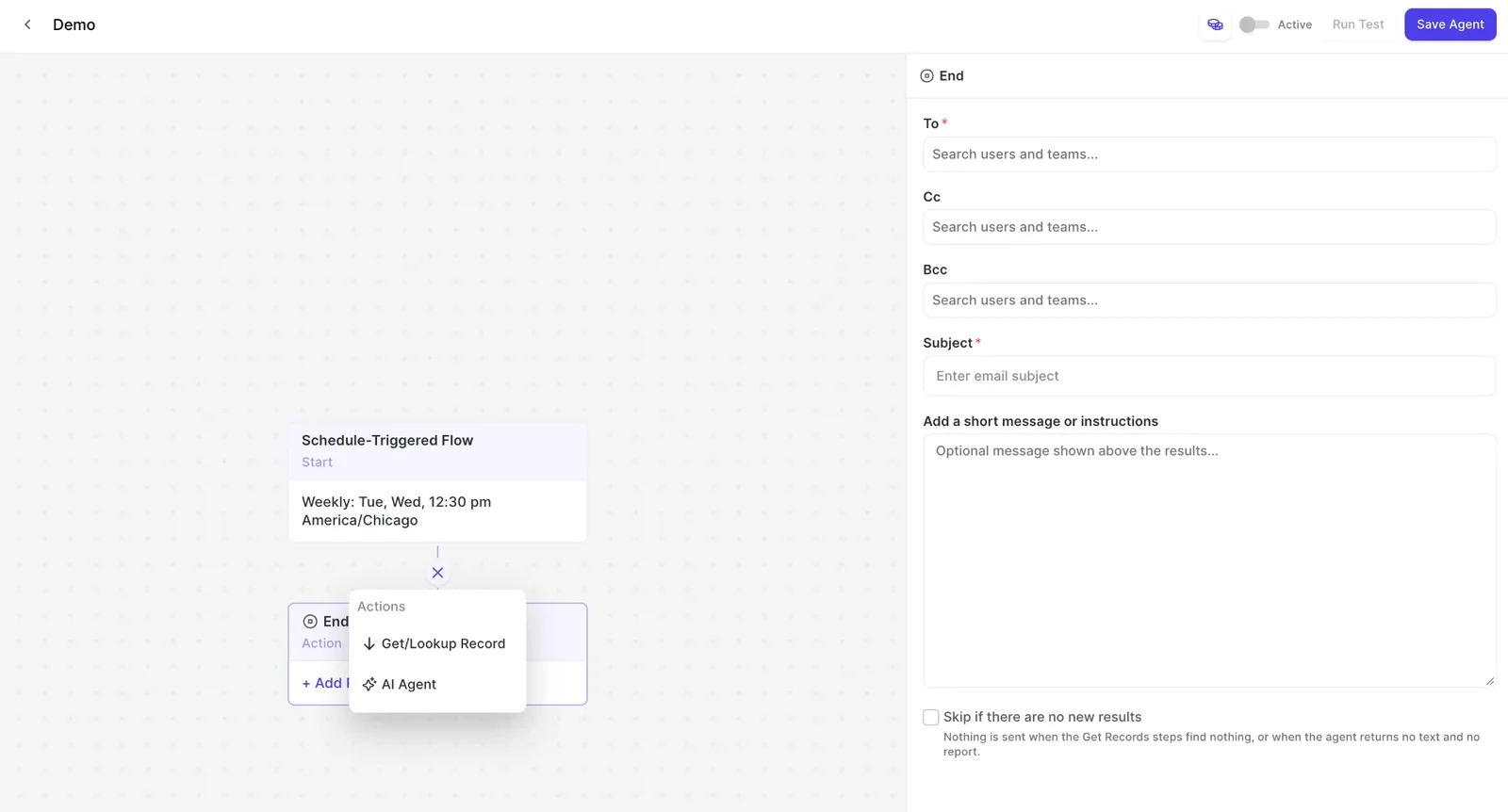
The flow has four steps, and each one has settings that make or break the output:
Schedule-Triggered Flow → Get/Lookup Record → AI Agent → End
To add a step, click the + on the line between two steps. This opens an Actions menu with Get/Lookup Record and AI Agent.
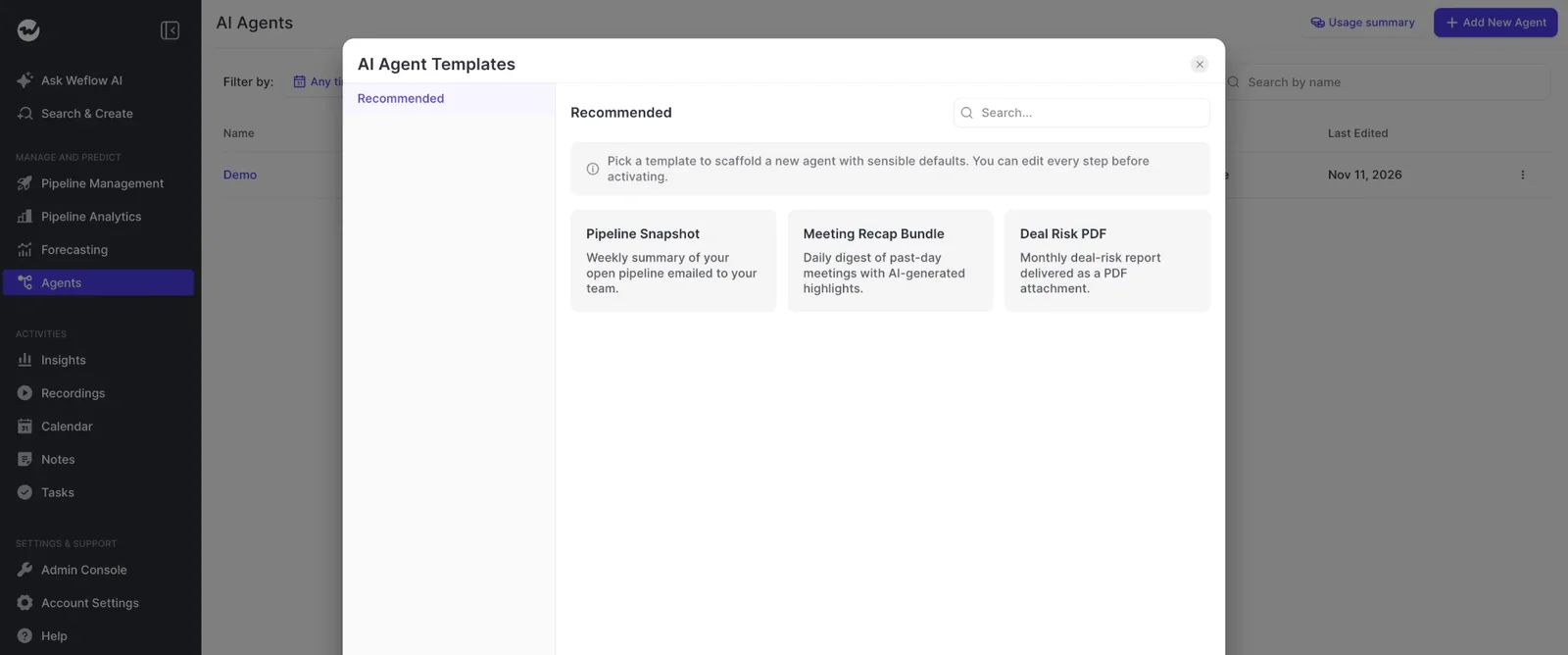
Start from the Deal Risk PDF template and set the schedule
Start from the template rather than a blank agent, since the Deal Risk PDF template includes the record lookup by default. Without a constrained lookup, a prompt that works fine in chat returns an empty or unusable report from the agent.
- On the AI Agents page, click Add New Agent, open Agent Templates and pick Deal Risk PDF.
- Rename the agent so your team recognizes it, for example "Weekly deal inspection, EMEA Enterprise".
- Change the schedule from Monthly to Weekly. Select the day before your inspection session, then set the time and timezone.
- Plan to rewrite the template prompt, as it's deliberately basic.
Scope the record lookup with condition groups and team filters
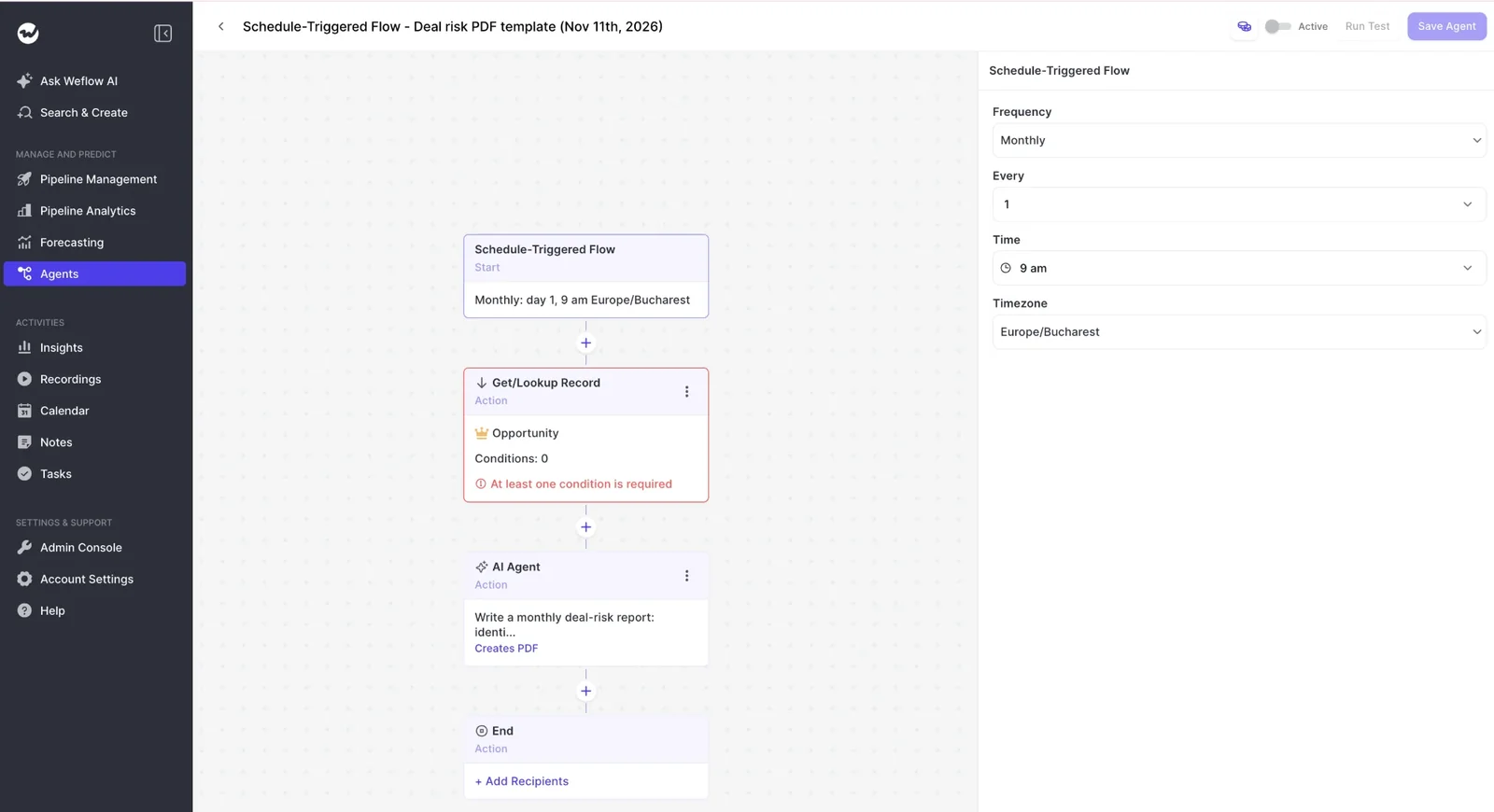
Scope is the biggest lever you have on output quality. If you ask an agent to analyze every deal in Salesforce, it won't know where to focus. A narrow lookup gives it a question small enough to answer well, and it uses fewer actions too.
- Open the Get/Lookup Record step on Opportunity. It won't run until it has at least one condition.
- Add conditions for the deals your review actually covers: stage, close-date window and amount threshold.
- Use condition groups when you need mixed logic. Conditions inside a group are joined all with AND or all with OR, so a rule that needs both gets one group per part.
- Add a team or hierarchy filter. Filtering on a Weflow team keeps the lookup to records owned by people in that team and in the teams nested below it.
Here's an example: Group 1 says Stage is Proposal OR Stage is Negotiation. Group 2 says Close Date is in this quarter AND Amount is at least your large-deal threshold.
The team filter is set to the EMEA Enterprise team. The lookup reads Salesforce live, so a stage change made a minute before the run is in it.
Write the AI Agent prompt around your model and glossary
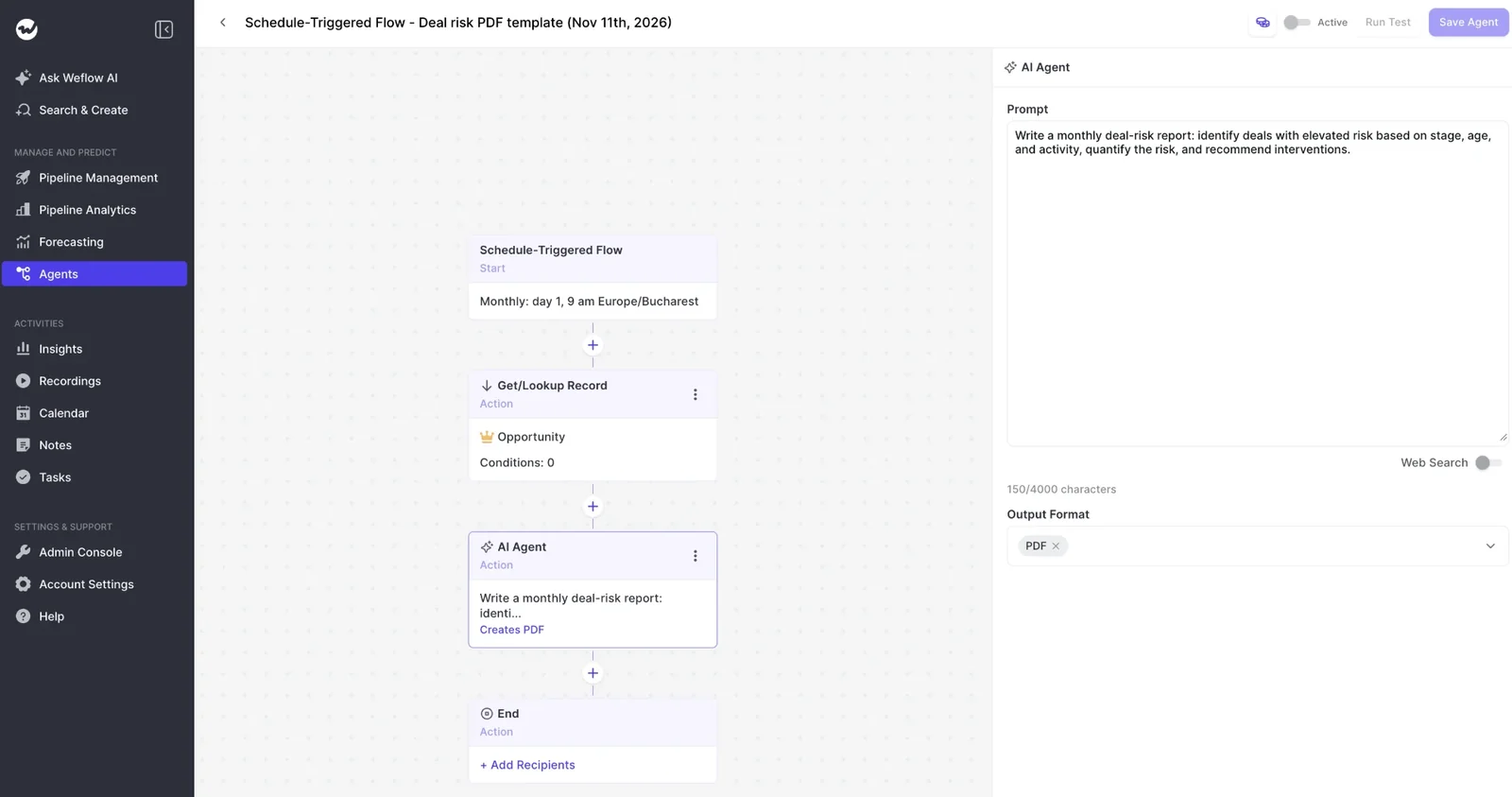
If your prompt doesn't say whose deals, whose competitors and which dates it means, the agent will answer from the wrong context. Prompts that work are long and specific, and yours should cover:
- Scope and period: Whose deals these are, which quarter, and what the inspection session is for.
- Your model: The drivers from Step 1 and the gap ranking from Step 2, for example that missing decision process on a late-stage deal is the top risk.
- Company context: Who your competitors are, how long your sales cycle runs, and a short glossary of terms that mean something specific at your company.
- What to read: The playbook results, transcripts and emails, plus Weflow's deal fields such as Close Date Pushed, Multi-threading (30d), Reply Rate and Meeting follow up.
- The output shape: Deals ranked by risk, the specific missing evidence on each, and one question the manager should ask the rep.
- What to leave out: Healthy deals with no gaps, generic sales advice, and anything not supported by the deal's own data.
Leave Web Search off unless you want account news in the report, since inspection should run on your own deal evidence.
Choose PDF or CSV output and configure the End step
The Output Format setting decides what file you get. Asking for a file in the prompt alone won't produce one.
- On the AI Agent step, open Output Format and choose PDF for a narrative inspection brief, CSV for a ranked deal list, or both. Ask AI Message is also available.
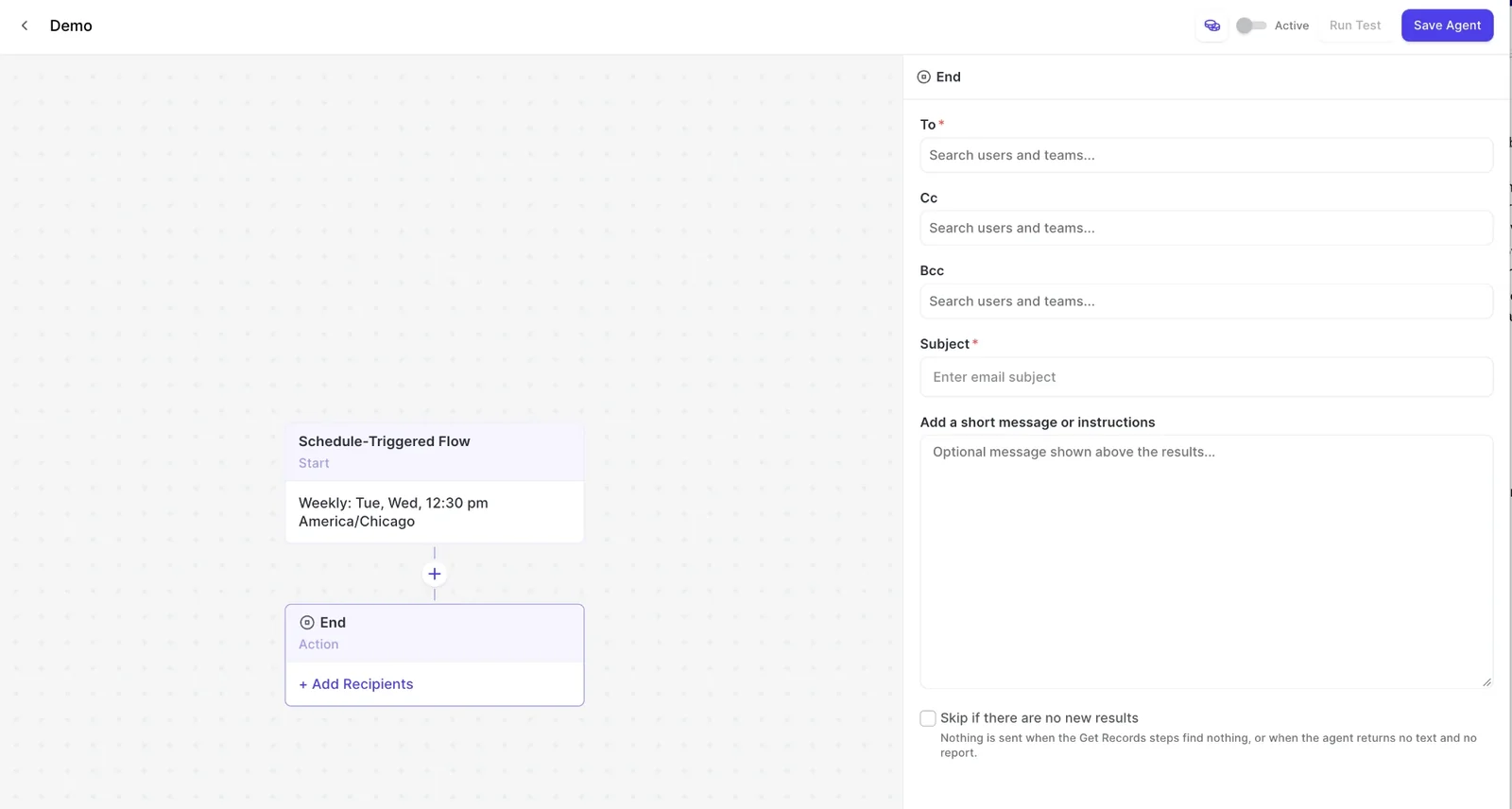
- On the End step, add recipients from your Weflow users and teams, write a subject, and add an optional message that appears above the results.
- Choose the delivery channel: email, Slack or Microsoft Teams.
- Tick "Skip if there are no new results" so nothing is sent when the lookup finds no deals or the agent returns no text and no report. The run history marks those runs as skipped.
Step 5: Test the agent privately before your CRO sees it
The first inspection your CRO receives decides whether they trust the tool, and you only get one shot at it.
Weflow's test run sends the real output (with TEST RUN in the subject line) to the recipients you've set, so start with just yourself on the list.
- Set the End step recipients to yourself. If you deliver to Slack, point the step at a private test channel.
- Click Run Test and watch each step's status in the test panel. A test takes a few minutes (the Deal Risk PDF template took about eight in our demo workspace).
- Download the file from the AI Agent step, or click Preview Results to open the output in Ask Weflow AI.
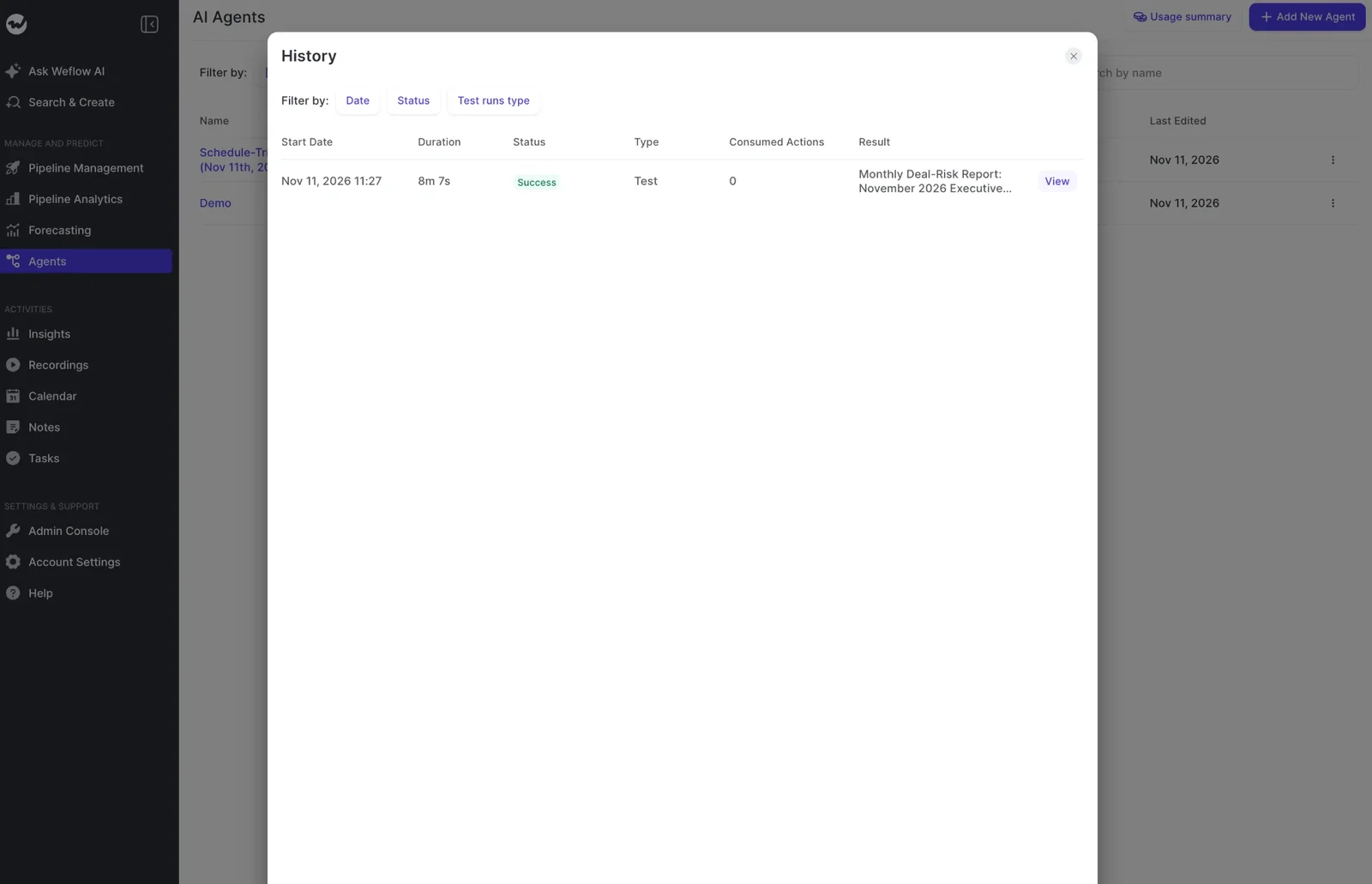
- Open the Estimated cost popover and the agent's History to see how the run went.
- Tune the prompt and lookup, test again, and only then add managers. Add senior recipients after a full live cycle, and point Slack back at the real channel.
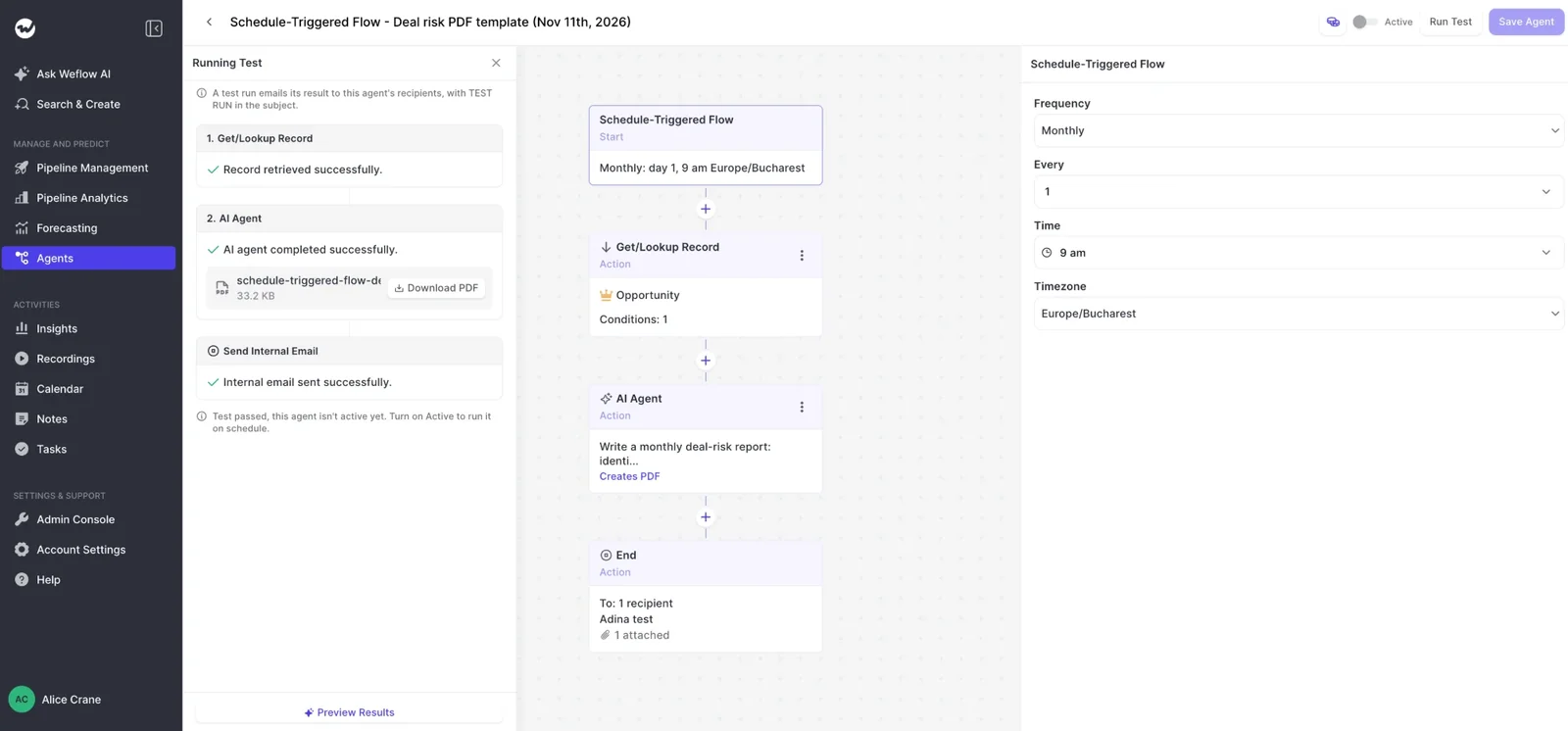
In the test output, look for:
- Claims that could apply to any company, not to your deals.
- Wrong competitors, or competitors read from the vendor's point of view.
- Scores or risks the deal's own evidence doesn't support.
- Deals outside the scope you meant to inspect.
A successful test is saved in the agent's History, with its start date, duration and status, and in Weflow AI History, where you can reopen the result.
Step 6: Let reps challenge the score in Ask Weflow AI
Pressure-testing only works if reps still think about their deals and can argue back with evidence. A tool that just fills in fields removes the admin, but it removes the coaching too. Cerutti was clear about keeping that reflection:
"But there is that deal inspection thing where there are questions, and I do want them to reflect."
— Julien Cerutti, VP of Global Revenue Strategy at Meltwater
In Weflow, rep pushback has two homes: the playbook checks their override, and Ask Weflow AI answers their questions with sources.
| What the rep or manager does | Where it happens in Weflow |
|---|---|
| Disagrees with an element's rating | Overrides the playbook element, and Weflow evaluates the override for plausibility against the deal |
| Asks why a deal is on the inspection list | Opens the emailed result in Ask Weflow AI and asks the follow-up question |
| Wants to see the evidence behind a claim | Follows the link in the Ask Weflow AI answer to the call, transcript or email it cites |
| Asks which deals on a team-wide list are theirs | Asks that question in Ask Weflow AI on the same result |
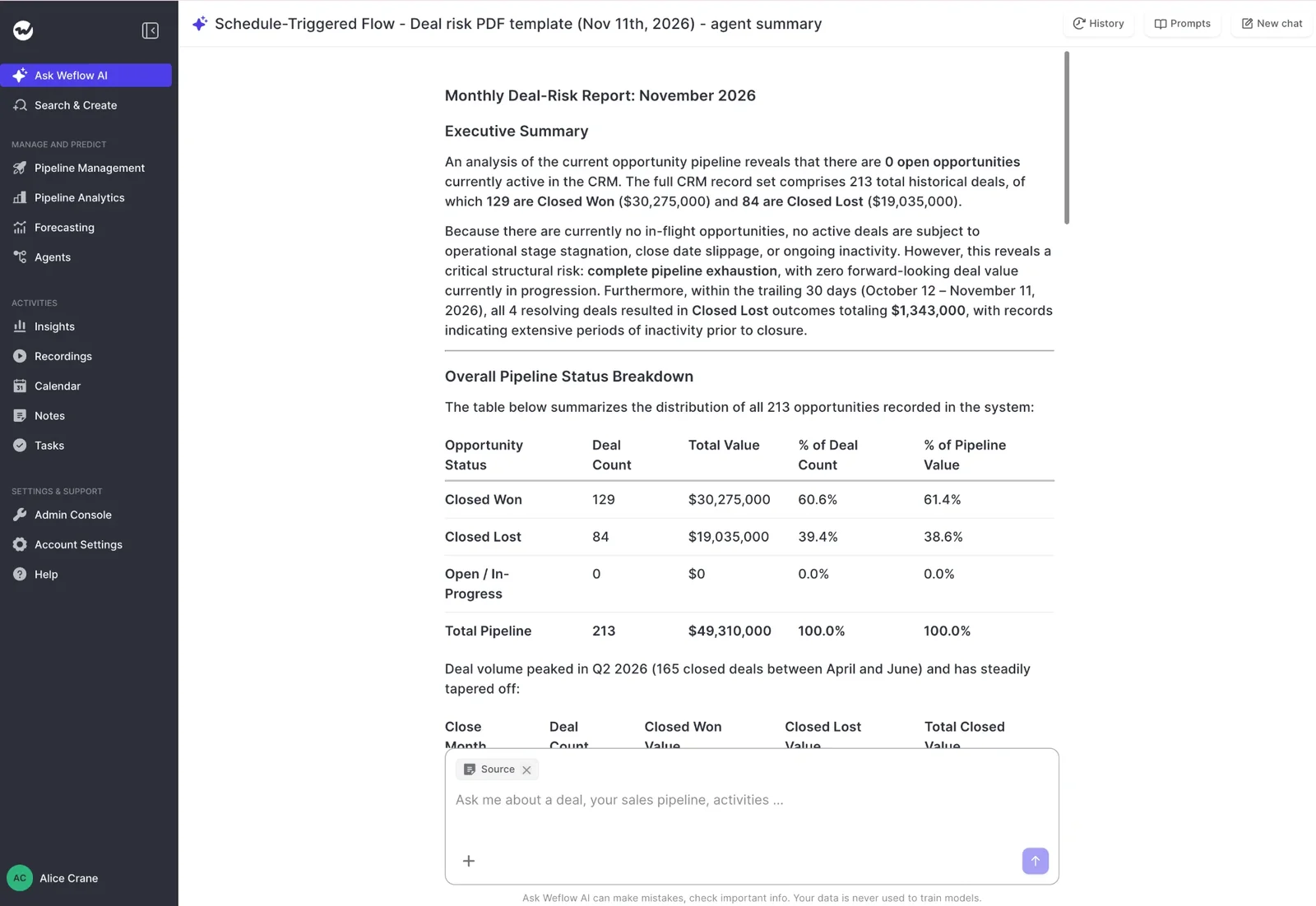
Citations are what make the argument productive, and that's how KORE Wireless uses them:
"I love being able to go right to the call, transcript or email and see where something was said that the AI is referencing."
— Scott Jones, SVP of GTM Revenue Intelligence & Enablement at KORE Wireless
How you frame the rollout decides whether reps see this as surveillance or as help. Present it as your company's own data explaining why deals win, slip and lose, and reps will see a career advantage.
Present it as an outside framework, and it feels like a control mechanism.
"This isn't generic. This isn't a book you can read. This is about real Meltwater data that tells you why you're winning, slipping, and losing deals, and the advantages you can have having that context, and what you should do moving forward."
— Julien Cerutti, VP of Global Revenue Strategy at Meltwater
Why a first deal inspection agent comes back generic
Generic output comes from missing context and scope, not from model quality. Here are the usual culprits and how to fix each one:
- Skipping the model and prompting directly: The agent has nothing specific to judge against, so it falls back on generic sales advice. Do Steps 1 to 3 first, and point the prompt at the playbook results.
- An unscoped lookup across every deal: The agent can't tell what matters and spends actions on deals nobody will review. Scope by stage, close-date window, amount and team.
- No company glossary: The agent reads "competitor" from the vendor's point of view, not yours. Name your competitors, cycle length and internal terms in the prompt.
- Asking for a file in the prompt: You get no attachment. Set PDF or CSV in Output Format.
- Sending to everyone on day one: The agent becomes another report nobody opens. Start with a few recipients who'll act on it, tick "Skip if there are no new results", and retire any agent nobody acts on.
One agent per manager, or one for the whole team?
Both work. Each Weflow agent runs one fixed prompt that can't personalize itself to whoever receives it. So you can either build an agent per team or manager, or send one team-wide agent and let managers find their slice in Ask Weflow AI.
Every Weflow plan lets you build unlimited agents, and only the actions their runs consume are metered.
| Consideration | One agent per team or manager | One team-wide agent |
|---|---|---|
| When it fits | Teams sell differently, or managers want their own ranking and recipients | Teams share one model and one inspection cadence |
| Setup effort | Duplicate the agent and change the team filter and prompt for each team | Build and tune one agent |
| How managers get their slice | The team filter scopes the lookup to their part of the hierarchy | They ask "which of these are mine" in Ask Weflow AI on the same result |
| Action impact | Each agent's runs consume actions, though each run reads fewer deals | One run per schedule, reading the whole team's deals |
We recommend starting with one team-wide agent for the team whose manager will act on it first. Once a second team's model or cadence differs, split into per-team agents.
What the Weflow deal inspection agent can't do yet
Here's every limit you'll run into, what it means for inspection, and how teams work around it today.
| Limit | What it means for inspection | Workaround |
|---|---|---|
| No direct agent write-back to Salesforce | The agent's verdict lands in an email, Slack or Teams message, not a field. Write-back from agents is planned. | Let the playbook write element scores to Salesforce fields. A person enters the agent's conclusions where needed. |
| Schedule-only trigger | A deal that slips or moves backwards surfaces at the next scheduled run, not the moment it changes. | Schedule the run just before the inspection session, or run it Daily or Weekly on several days. |
| One fixed prompt per agent | An agent can't personalize itself to each recipient. | Use one agent per team or manager, or one team-wide agent plus Ask Weflow AI. |
| No native weighted score | Playbooks rate each element. They don't combine elements into one weighted number. | Carry the weighting in criteria strictness and in the agent prompt's gap ranking. |
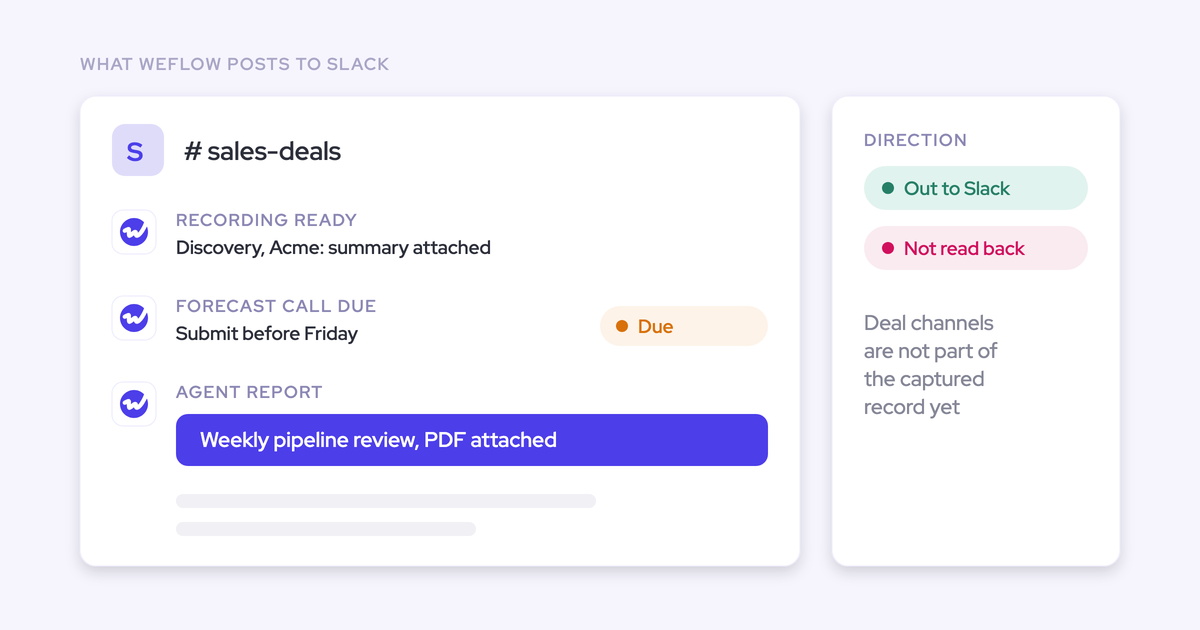
| No Slack reading | Context held in shared customer Slack channels isn't part of what the agent reads. Reading channels is on the roadmap. | Slack works as an output channel today. |
| Not a live conversational coach | No chat bot argues with reps in real time the way Cerutti's internal build does. | Pushback runs through playbook override evaluation plus Ask Weflow AI follow-ups. |
| Newest Weflow product | Agent Builder is newer than our capture, conversation intelligence and deal intelligence products, which are more mature. | Keep the judging in AI Playbooks, the more established layer, and use the agent to deliver. |
How many agent actions a weekly inspection run uses
A simple weekly run uses about one agent action, while a run that reasons over many transcripts and emails typically uses up to five. Every run uses at least one.
Actions are based on the tokens a run consumes, at roughly one million tokens per action. Agent Builder is the only consumption-priced part of Weflow, so AI Playbooks, Ask Weflow AI, AI summaries and field updates don't use any actions.
Once a workspace uses up its allowance, its scheduled agents pause rather than run over. That means you can start on the free allowance, watch real usage and size a tier from there.
| Agent Builder tier | Monthly price per workspace | Actions per month |
|---|---|---|
| Free | Included in every plan | 25 |
| Growth | $299 | 500 |
| Scale | $999 | 2,500 |
| Enterprise | Custom | Custom volume |
To estimate usage, multiply each agent's runs per month by its actions per run, then add up the totals.
The Agent Usage page (under Weflow AI in the Admin Console) shows actions used against your plan, by agent, week over week and month over month. Each run's History also shows what that run consumed.
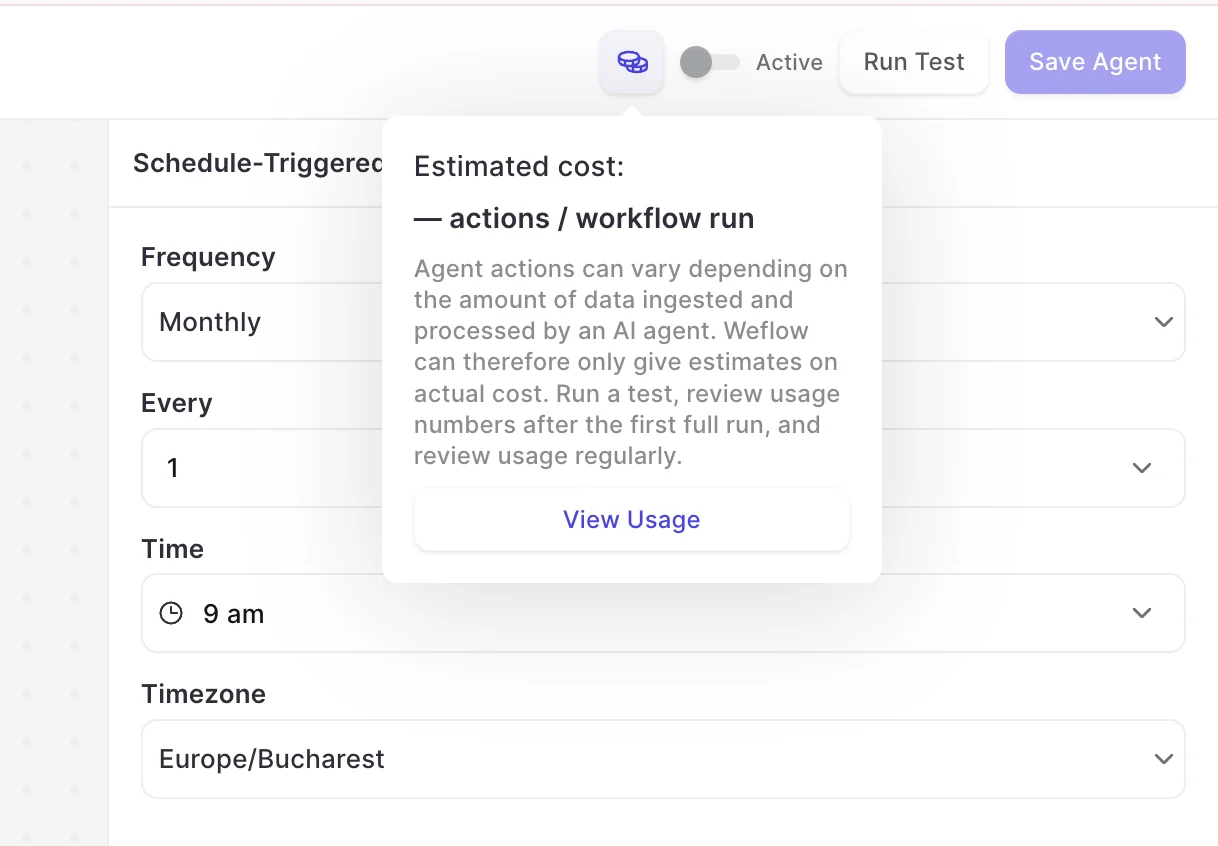
Once the agent is live, your job shifts to monitoring it: watching cost, tuning prompts and retiring what nobody uses. Our Free AI Agent Ops Cheatsheet for RevOps covers that next stage.
FAQ: Building a deal inspection agent in Weflow
Does Weflow train AI models on our calls and deal data?
No. Weflow runs on third-party foundation models, primarily Google Gemini, and doesn't train or host any model on customer data. Our DPA lists every sub-processor and states that customer data is never used for model training.
If you'd like, we can also add an explicit no-training provision to your DPA.
Where does Weflow store our data, and how does it handle prompt injection?
Weflow stores your data in the same region as your Salesforce instance, so if your org is hosted in Europe, your Weflow data stays in Europe. The one exception is video recordings, which Weflow holds and streams back.
To protect against prompt injection, Weflow separates system instructions from customer data, sanitizes inputs and only lets the model return structured results that can't run actions. Our annual third-party penetration test also covers the AI endpoints.
How is this different from pointing Claude at Salesforce through MCP?
A Claude-plus-MCP build gives you a chat over whatever is in Salesforce, and it inherits whatever is missing from your CRM.
What it doesn't give you is the playbook evaluation that marks filler as not assessed and checks rep overrides, the constrained lookup that keeps an agent focused, or the test runs, skip rules and admin-only controls that stop the output from turning into noise.
That said, if your team works in Claude, you can bring Weflow's unified revenue data there through our MCP server and public API, so you don't have to choose between them.