How Reps and Managers Submit and Adjust a Forecast Call in Weflow
Learn how reps and managers submit, roll up, and override a forecast call in Weflow.


Weflow is the Revenue AI Orchestration platform for sales, customer success, and RevOps teams. In Weflow Deal Intelligence & Forecasting, a forecast call records someone's judgment. It isn't a number typed into a cell.
Here's how a week works:
- Each rep submits a baseline and a best case, tied to the deals behind them.
- You submit your own team call next to theirs.
- When you disagree with a rep, you log an override with your name and a reason. You don't rewrite their number.
- Next week, the history shows whose call moved.
Weflow is built for Salesforce teams. The deals your reps pick are their Salesforce opportunities, and any opportunity edit you make in Weflow writes back to Salesforce.
This guide follows your first forecast week from the manager's seat. Three limits will matter to you, and we flag each one at the step where you'll run into it:
- Submission happens only in the web app.
- Submitted calls don't land in a Salesforce field.
- The roll-up isn't weighted.
Why a forecast nobody owns can't be coached
You can't coach a forecast when nothing records who said what. The maths is rarely the problem. The problem is that no one owns the number.
Most managers we talk to are coming from one of three setups:
- One spreadsheet per rep, with numbers collected by email.
- A "keep your pipeline updated by Friday" routine, with no actual submission.
- A forecasting license that nobody uses, sitting under a weighted roll-up no one stands behind.
In all three, the forecast call becomes a one-by-one walkthrough with every rep, because the deal-level reasoning lives in people's heads.
Corrections are the second problem. When a manager quietly rewrites a rep's number, the original disappears. After a missed quarter, nobody can say whose judgment failed.
The rep who always calls high keeps calling high. The manager who trimmed the number correctly gets no credit. And the team learns that their call doesn't really count.
Without a snapshot, you can't measure accuracy, you can't see what changed since last week, and you can't hold anyone to anything. A forecast becomes coachable when each person's call is captured, tied to deals, and kept over time.
| Question | What happens today | What a recorded call changes |
|---|---|---|
| Who owns the number | Whoever touched the sheet last | Each rep and each manager submits their own call |
| What's tied to it | A total, maybe a note | The named opportunities behind the baseline and best case |
| What happens on a correction | The rep's number gets overwritten | The override sits next to the original, with a name, a time, and a reason |
| What's left next week | Nothing to compare against | Every version of every call |
| What the one-on-one runs on | The rep's memory of each deal | The deals the rep committed and the warnings on them |
How one forecast week runs in Weflow
A Weflow forecast week has five steps, and each one leaves something on the record.
| Step | Who | What they do in Weflow | What gets recorded |
|---|---|---|---|
| 1. Reminder | Weflow | Emails each rep a link straight into their submission | Who has and hasn't submitted |
| 2. Rep submission | Rep | Submits a baseline and a best case by picking deals, with a comment | A versioned call tied to named opportunities |
| 3. Team call | You | Submits your own team number, built from your reps' deals | Your call next to the sum of theirs |
| 4. Override | You | Adjusts a rep's call at the deal or total level, with a reason | Who changed what, when, and why |
| 5. History | You and your VP | Reviews which calls moved and which didn't | Per-rep accuracy against the locked call |
Your admin sets the deadline and the lock. We cover those settings in the Weflow forecast cadence settings guide, so this guide doesn't repeat them.
How Weflow's reminder email gets reps to submit on time
You don't chase reps in Weflow. When a forecast is due, Weflow emails every rep a reminder that deep-links them straight into their own submission. There's no hunting for the right view and no "where do I put my number" message in your inbox.
Here's what each side gets:
- Your rep receives a reminder email when the forecast is due. One click opens their submission.
- Your rep sees a missed-submission warning if the deadline passes without a call.
- You see who has submitted in the roll-up. Reps who haven't submitted show an empty forecast call.
This matters most for the objection you'll hear first. Reps don't want another task.
"I don't want to have to go add this another manual process that I'm doing."
A RevOps lead, describing their sales team's pushback
The honest answer to your team: the weekly task is picking deals they already know into two numbers and writing a line about them. The email takes them straight there.
There's one limit to plan around. The submission itself happens only in the Weflow web app, not on a phone or in a chat tool. If you're with customers on lock day, plan on having a laptop.
What your reps submit: baseline, best case and the deals
Each week, a rep submits two numbers, a baseline and a best case. They enter each one either as a total or by selecting the opportunities behind it, and they add a free-text comment. Weflow versions every submission, so you can see each earlier call later.
That's the whole rep task. The rest of this section covers what you coach inside it.
What goes in the baseline and what goes in the best case
The baseline holds the deals a rep is confident will close. The best case holds what closes if timing goes their way. The gap between the two is where you coach.
| Question | Baseline | Best case |
|---|---|---|
| What qualifies a deal | The rep is confident it closes in the period | It closes if timing goes the rep's way |
| What the business plans on | This number | Upside, not the plan |
| What a big gap signals | Too few deals the rep will stand behind | Lots of hope riding on timing |
| What you ask in the one-on-one | "What makes each of these certain?" | "What has to happen for these to land this period?" |
A single committed number hides where the risk sits. Two numbers make the rep state a range, and that range is your agenda.
Why selecting deals beats typing a total
Yes, reps can submit by picking deals instead of typing a number, and you want them to. A selected-deals call lets you open the number and run the one-on-one deal by deal. A typed total leaves you nothing to open.
This is usually the first question managers ask us:
"Am I able to submit for Q3 forecast by selecting the deals I want to include, not just putting in a number?"
A sales leader on a call with us
| What you get | Typed total | Selected deals |
|---|---|---|
| What the rep enters | One figure per call | The opportunities behind each call |
| What you can open afterward | The figure and the comment | Every deal that makes up the number |
| What the one-on-one runs on | The rep's account of the total | Each committed deal, one at a time |
| What next week's comparison shows | That the number changed | Which deals came in or dropped out |
How deal warnings catch weak deals before reps commit them
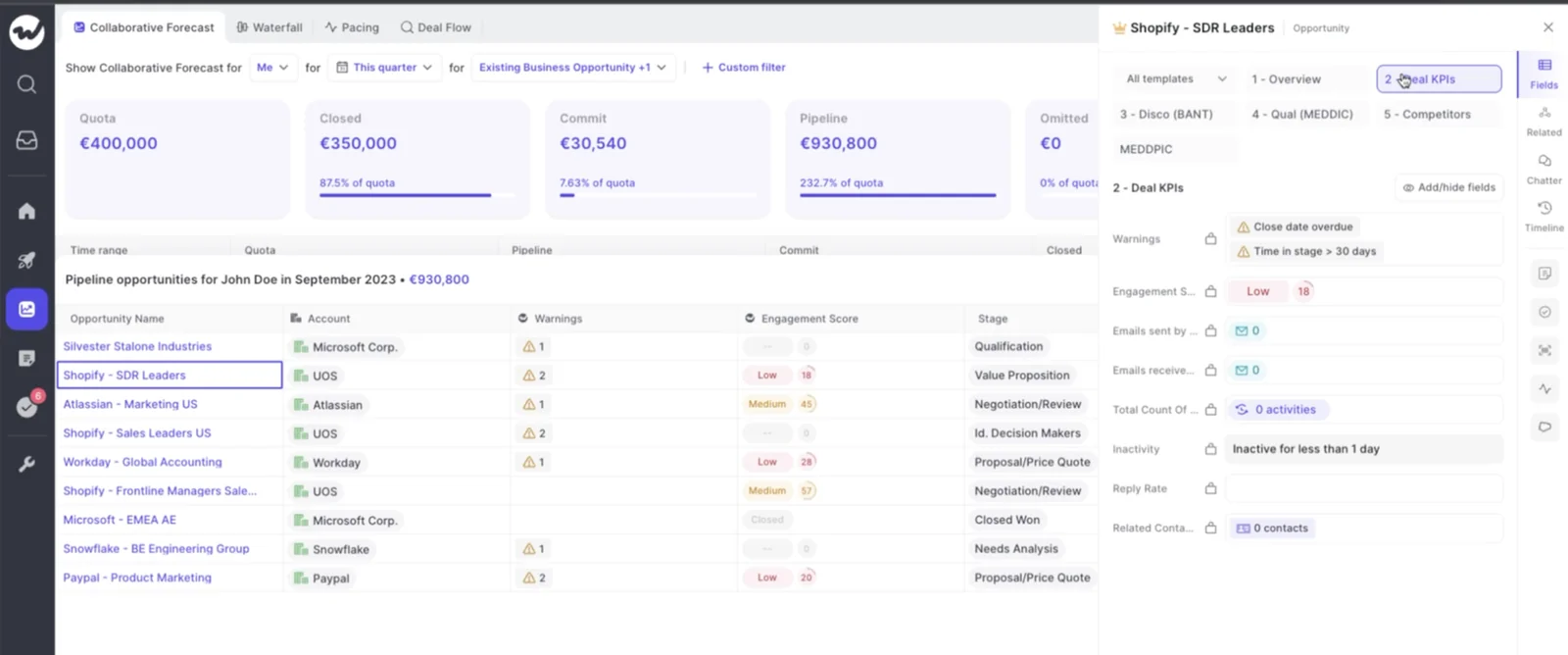
Weflow shows deal warnings inside the submission screen, at the moment a rep picks which deals to commit. A shaky deal gets questioned before it enters the number, not in a report after the number is already wrong.
Typical warnings your team can set up:
- The close date has been pushed more than twice.
- Only one contact is on the deal.
- A methodology field is missing.
- The deal has sat in its current stage for too many days.
- Nobody has logged activity on the deal for a set number of days.
Your team defines its own warnings, because they only work when they match your sales cycle. A team with a 60-day cycle can flag 14 days of silence. A team with a 12-month cycle wouldn't.
The same warnings show on the deal itself when you open it in the forecast.
Why the submitted total isn't weighted, and how to use that
No, the roll-up isn't weighted. It sums the amount field on the selected deals, with no stage or probability weighting. A rep holding five deals at 20 percent doesn't see one deal's worth of value. They see all five.
You have two practical options:
- Use the two calls for conviction. Treat the raw sum of likely deals as the best case, and keep the baseline for deals the rep will defend. This is where we'd start.
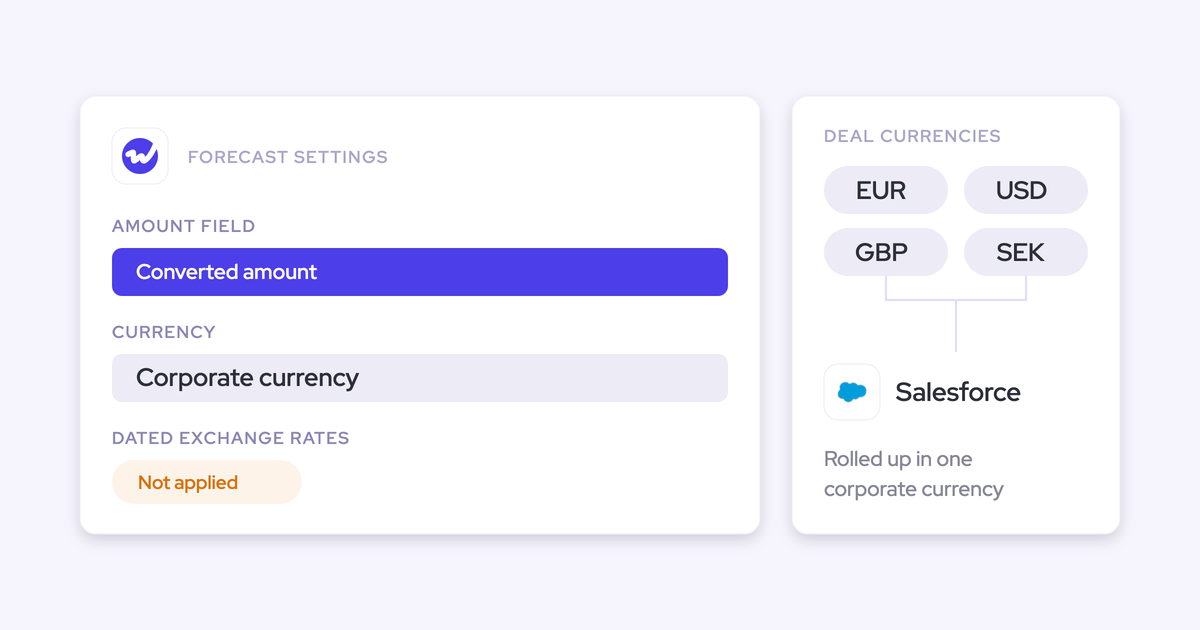
- Forecast on a weighted field. Your admin can build the forecast on a weighted Salesforce field, so the number reps submit already carries the weighting.
Weflow still models likelihood. The weighted forecast and the AI projection do it, just outside the roll-up. More on those below.
How you submit your own team call in Weflow
Your team call is your own number. Weflow doesn't just add up your reps' calls. You submit an independent call, built from your reps' deals, and it sits next to theirs in the roll-up.
Why your team call can sit above or below your reps' total
Your call carries your judgment, so it can differ from the sum of your reps in either direction. Both numbers stay visible.
Most managers come in below their team's total. They know not every rep will hit, and they want a buffer:
"the manager needs some gap between the overall roll up versus his own number for the team"
A sales leader on a call with us
Sometimes you come in above it, because you know about a deal that isn't committed yet. Either way, the gap between your number and theirs is exactly what your VP wants to discuss.
"They let their reps make a forecast call, and then they let their managers make an independent forecast call that is not just a roll up of the reps who report into them, but a separate estimate of what they think their team can achieve, with their own justification."
Here's a worked example. Say your reps' baselines add up to a figure you don't fully believe, because one rep's biggest deal has a close date that has already moved twice. You leave that deal out of your team baseline and say why in your comment. The rep's call stays as they submitted it, and your call sits beside it.
If you also carry deals yourself, as many first-line managers do, you submit two numbers: one for your own deals and one for your team. Weflow keeps both.
How to pick your reps' deals into your team call
When you submit the team call, you pick the individual opportunities behind it, whoever owns them.
- Open your team's forecast submission. You'll see your team's numbers.
- Select the opportunities that belong in your baseline, from any rep on your team.
- Select the opportunities that belong in your best case.
- Add a comment explaining where your call differs from your reps'.
- Submit.
Because your call is built from named deals, your VP can review it deal by deal, the same way you review your reps.
How to check your call against the weighted forecast and AI projection
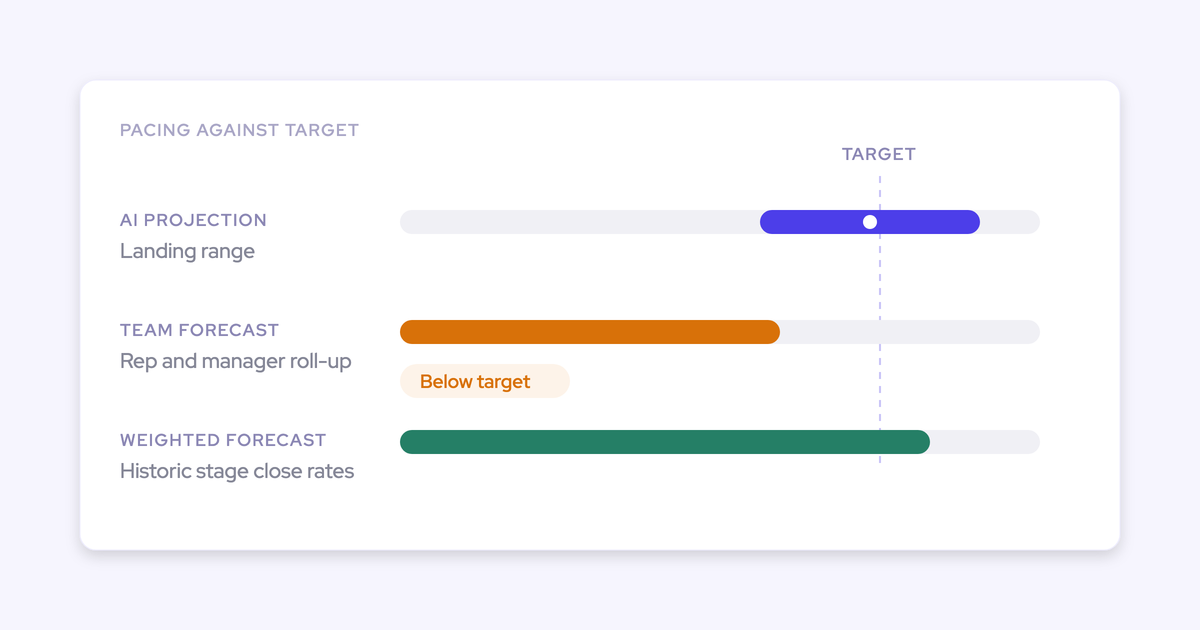
Weflow runs the weighted forecast and the AI projection next to the roll-up. Together they give you a corridor to check your call against before you submit. Where the three disagree, you have the agenda for the forecast call.
| Forecast method | What it reflects, and what a gap tells you |
|---|---|
| Roll-up | What your team believes. If it sits far above the other two, someone is optimistic. If a rep's call never moves all quarter, that tells you something too. |
| Weighted forecast | What the pipeline supports, using stage win rates recalculated over a rolling window such as the last 90 or 180 days. A big gap from the roll-up means your team is calling something the history doesn't back. |
| AI projection | What deal behavior predicts, from more than 50 deal-level signals, as a low, middle, and high range. A gap here usually points to deals that look big but are being worked poorly. |
The AI projection needs at least six months of opportunity history. When it isn't confident in a range, it shows none and says why.
Use the gaps as questions for your reps, not verdicts:
"Or if you disagree with what the AI is saying, give me a clear answer on why."
Kelly Lewis, RevOps and sales leadership coach; co-host, The Revenue Insiders podcast
Where quota, gap to target and gap to forecast show up
Quota, gap to target, and gap to forecast sit on the same forecast page as your call. You can see whether your number covers your target without leaving the view.
- Quota is the target your admin sets for each person and period.
- Gap to target is how far the forecast falls short of that target.
- Gap to forecast is the distance between what's closed and what's been called.
A setting controls who can see quotas, since many teams keep them private.
If your reps' quotas don't add up to your team target, Weflow carries the remainder on you, so the gap stays visible.
When a quota looks missing, the usual reason is that someone set the target outside the active forecast period.
How to disagree with a rep's call without rewriting it
In Weflow, your override sits next to the rep's original call and never erases it. It carries who made the change, when, and why.
That's what keeps your reps' trust. A silent rewrite tells the team their call doesn't count. Reps learn to hide risk, and you lose the honest read you need.
An override with a written reason reads as coaching on the record. You're asking questions about the deal, not questioning the rep.
What every override records, and who can see it
Overrides work at the deal level or the total level. For every override, Weflow records:
- The time of the change.
- Your name as the person who made it.
- The reason you wrote.
- The rep's original call, which stays in place beside your override.
Weflow keeps override history across quarters. Anyone reviewing the roll-up later, including your VP, sees the rep's call and your adjustment together.
Write the reason as a question the rep can answer. "Moved to best case: what's the signing date from procurement?" opens a conversation. "Not real" ends one.
How to submit or adjust for a rep who's on leave
Yes, you can cover for a rep who's out. Adjusting a rep's call is a separate permission from submitting your own, and your admin grants it.
- Get adjust rights from your admin. Without them, you can still submit your manager call, but you can't change a rep's.
- Adjust the rep's call within the adjust window your admin has set.
- Leave a comment saying you're covering, and why the number is what it is.
The adjust window can stay open or be limited to a few days either side of the deadline. That limit is what stops coverage for a rep on leave from turning into quiet rewrites all quarter.
How your team call rolls up to your VP
Calls roll up the hierarchy automatically. Your VP sees your reps' calls and your call side by side, not one blended figure.
By default, the hierarchy follows your Salesforce role hierarchy. If your team doesn't match Salesforce roles, your admin can switch on a custom hierarchy in Weflow and arrange which team reports into which by drag and drop. One person can belong to several teams, such as a customer success manager who carries both a renewal and an expansion number.
| Level | What they submit | What they see |
|---|---|---|
| Rep | A baseline and a best case for their own deals | Their own call, deals, and warnings |
| First-line manager | A team call, plus a personal call if they own deals | Each rep's call next to their own team call |
| VP | Their own call for the teams below them | Every manager's call and the reps' calls beneath |
| Executive | Their own call for the org | The full roll-up, level by level |
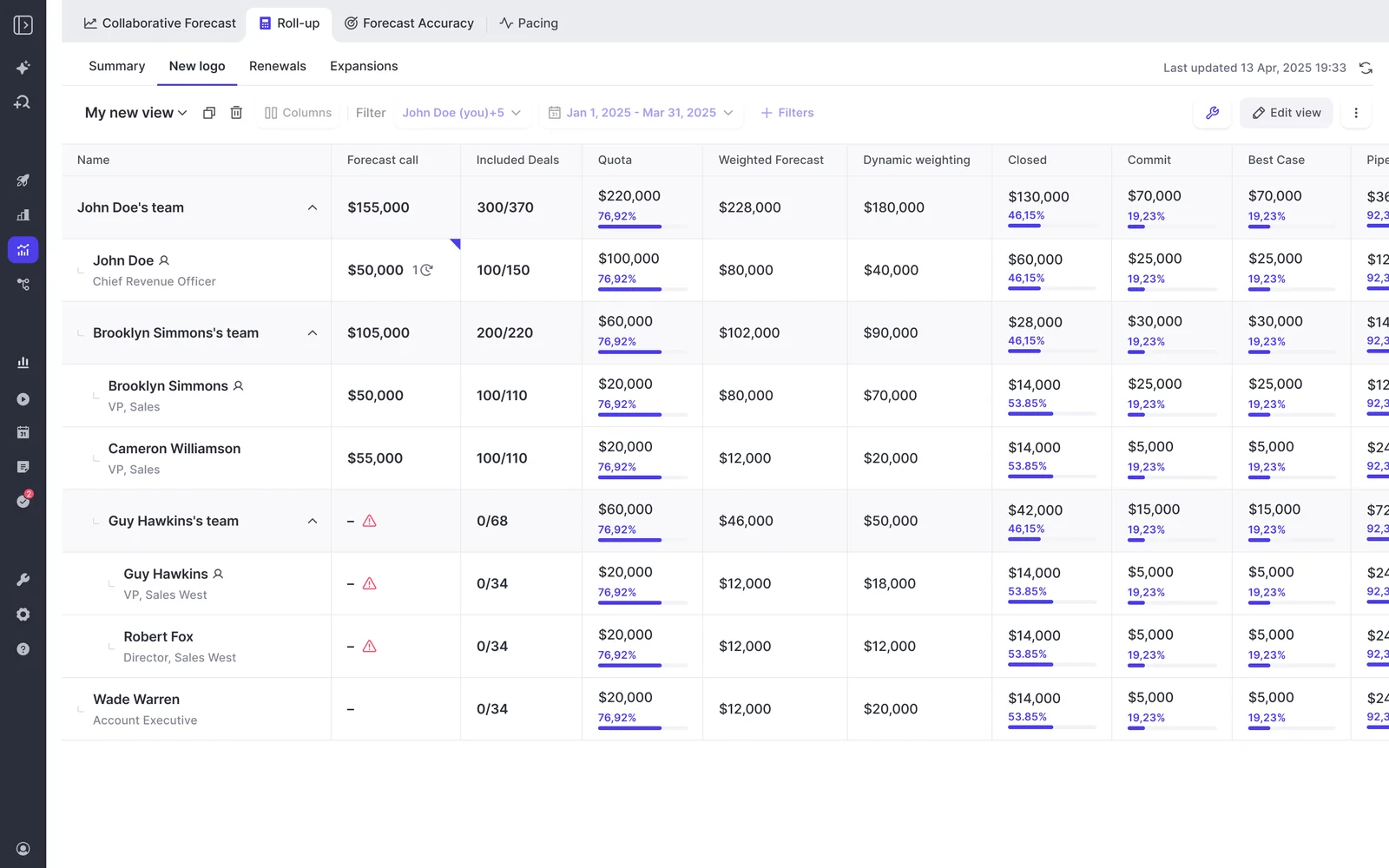
Here's the limit that matters at this step. Submitted forecast calls live in Weflow, not in Salesforce fields. Your VP reads the roll-up in Weflow, not in a Salesforce dashboard.
The deal records stay in Salesforce as the source of truth. Any opportunity edit you or a rep makes in Weflow writes back to Salesforce.
How to see which reps' calls moved since last week
Weflow keeps every revision and every override. Next week, you can see whether a rep's call moved during the quarter or never moved at all. That history is what turns a forecast from opinion into a track record.
Where to open a rep's forecast version history
The Forecast Call column in the roll-up holds each rep's history.
- Open the Roll-up tab for your forecast.
- Find the rep's row under your team.
- Hover over their Forecast Call cell to see how the call changed over time.
- Open a deal to see its Timeline, which shows field changes such as close dates moving and stage changes.
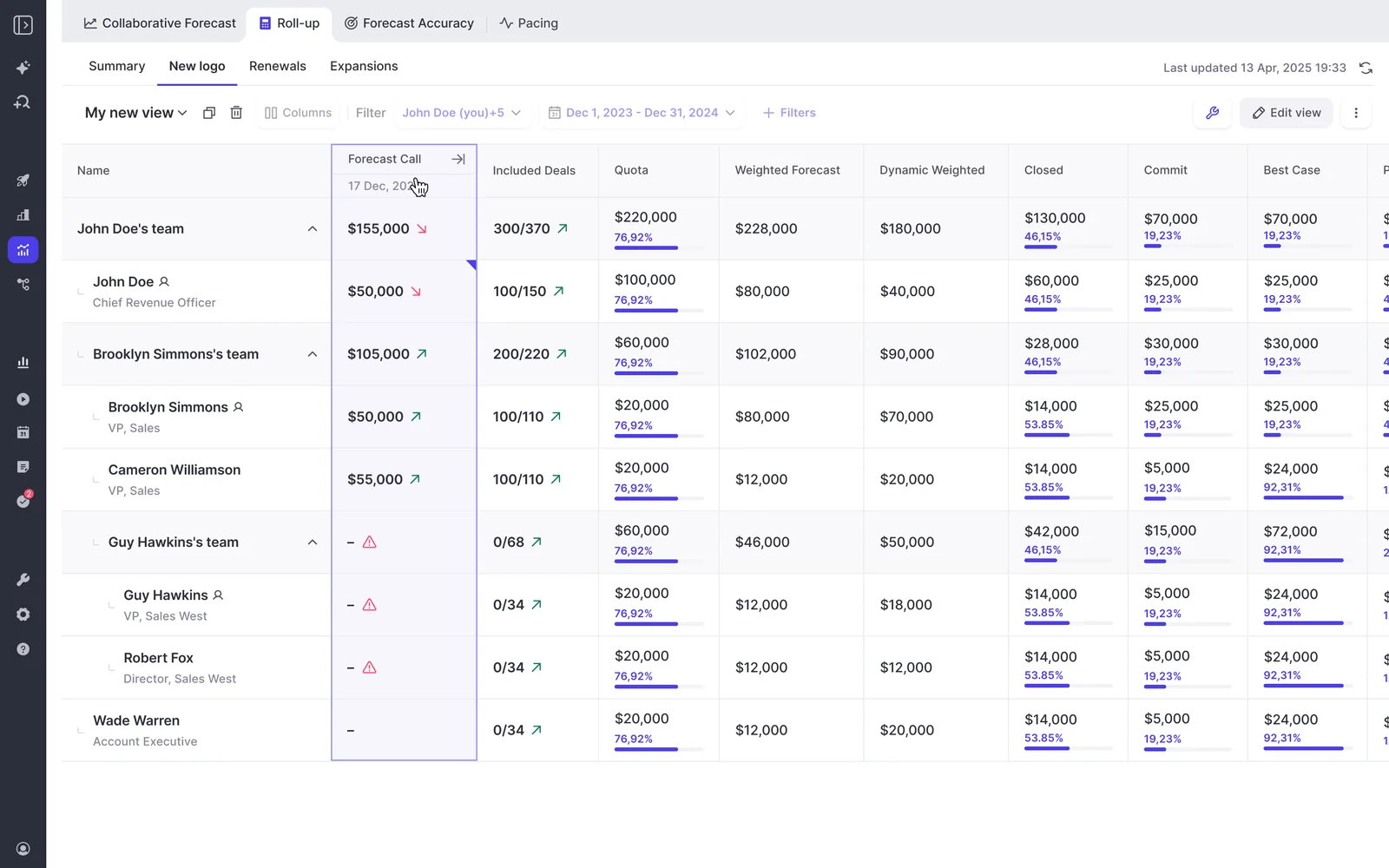
Start the one-on-one there. "Last week this deal was in your baseline. What changed?" gets a better conversation than "talk me through your pipeline."
How locked calls become per-rep forecast accuracy
Accuracy tracking is on by default for every customer with forecasting. Weflow compares each locked call to the outcome, using a field your admin chooses, such as Closed Won.
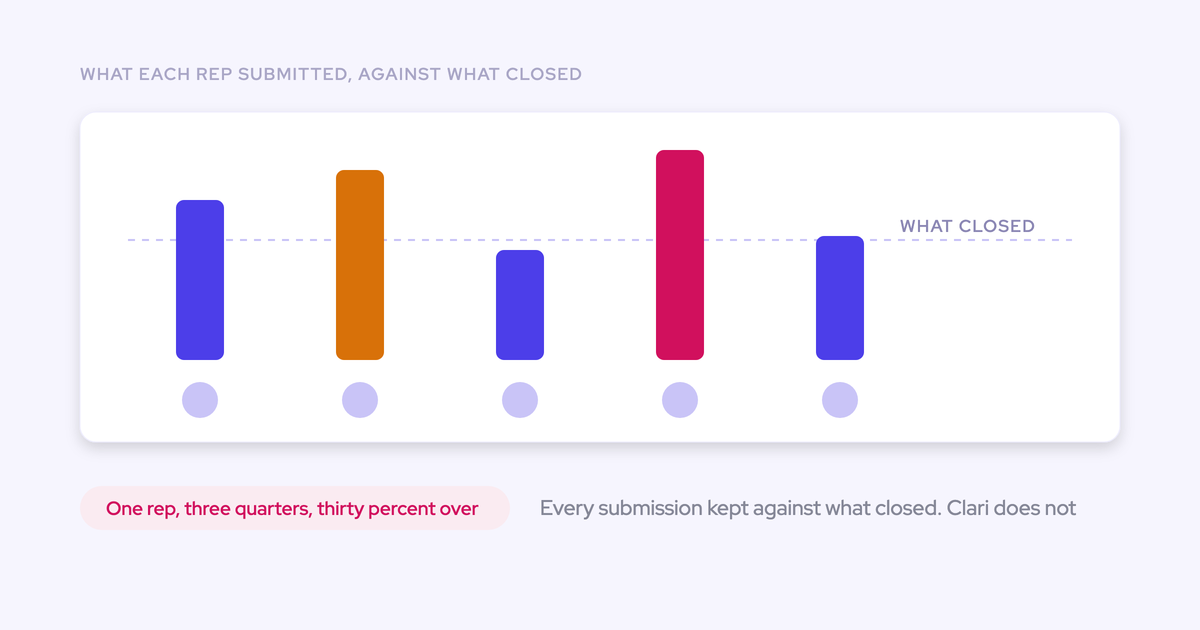
Weflow reports accuracy per rep, per manager, and per team, with manager and team averages beneath the people. You can read your own call against your team's.
Locking is what makes this work. Once a call is fixed at a point in time, the habitual sandbagger and the habitual optimist both show up as a pattern, not a feeling.
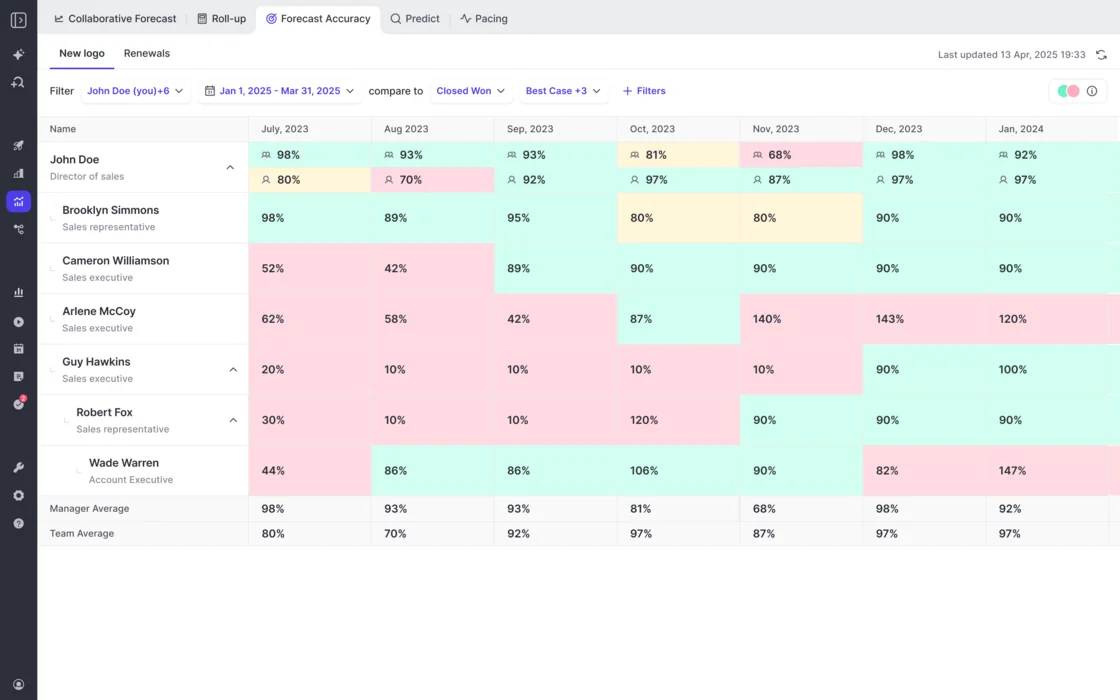
That's the result a weekly recorded cadence produces:
"With Weflow, we forecast within 7% by week 4 of the quarter."
What the collaborative forecast view doesn't show yet
The collaborative forecast view shows only the latest value of each call. There's no week-over-week table of calls there yet, and a quarterly call's monthly split shows only in the edit dialog.
| What you want | In the collaborative forecast view | Where to look instead |
|---|---|---|
| A rep's current call | Yes, as a column | No need to look elsewhere |
| How a rep's call changed week over week | No, latest value only | The Forecast Call cell history in the Roll-up tab |
| The monthly split of a quarterly call | No | The edit dialog for that call |
| Close dates moving on a deal | No | The deal's Timeline in the opportunity sidebar |
What to set up before your first Weflow forecast week
A handful of decisions made before Monday decides whether the first cycle sticks or stalls. Some are your admin's settings. The rest are habits you choose.
What to confirm with your admin before lock day
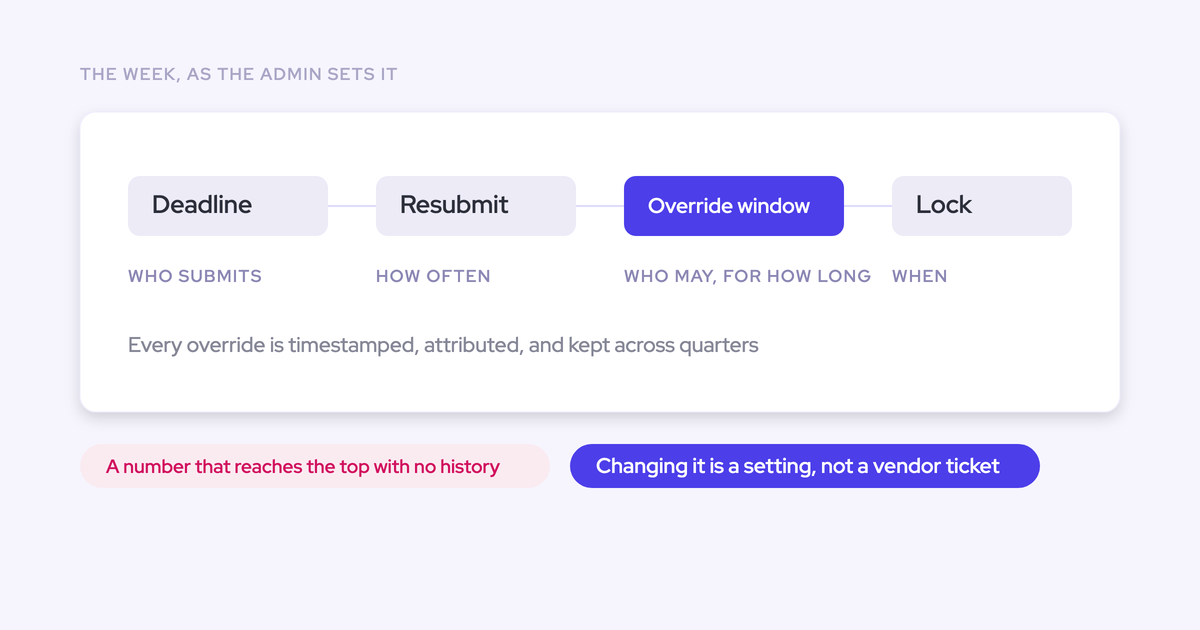
Five settings shape your week. Agree on them with your admin before the first deadline. Deadline and lock options are covered in the Weflow forecast cadence settings guide.
- The forecast setup: which amount field and which date field the forecast runs on.
- The hierarchy: whether the roll-up follows Salesforce roles or a custom hierarchy built in Weflow.
- Permissions: who submits, whether you have adjust rights, and how long the adjust window stays open.
- The deadline and lock: when calls are due and when they freeze.
- Quotas: set for the active forecast period, so they show on the page.
Which options to use in your first forecast cycle
These are the defaults we recommend for a first cycle:
- Submit by selecting deals. It gives you a call you can open in the one-on-one.
- Use the baseline for conviction. Since the roll-up isn't weighted, the baseline is where reps state what they'll stand behind.
- Comment on every override. The reason is what makes it coaching instead of a rewrite.
- Plan lock-day web access. Submission is web-app only, so block time at a laptop if you're traveling.
- Tell reps up front that the submission lives in Weflow. Teams with a "reps live in Salesforce only" rule hear it from you first, not on deadline day.
If you want a one-page version of the bottom-up motion to share with your team, start with our Free Guide: Getting started with Bottom-up Forecasting.
FAQ: submitting and adjusting forecast calls in Weflow
Can I submit or adjust a forecast call from my phone?
No. Weflow forecast submission and adjustment happen only in the web app. Reminders and missed-submission warnings arrive by email. The Weflow mobile app records in-person meetings, but it doesn't take forecast calls.
Does the Weflow forecast call show up in Salesforce reports?
No. No Salesforce field holds a submitted Weflow forecast call. You can reach submitted calls today through the Weflow MCP connector in an assistant such as Claude or ChatGPT, and API access is planned. Opportunity edits made in Weflow still write back to Salesforce.
Can I break a quarterly forecast call down by month?
Yes. When you submit a quarterly call, you can adjust each month's number or included deals, with a comment. The monthly split shows only inside the edit dialog, not in the collaborative forecast view.
How do split or shared deals count in the roll-up?
Weflow forecasting doesn't support Salesforce opportunity splits. A shared deal counts in full for its owner and rolls up through the owner's hierarchy. Overlay forecasting, where the same deal also appears in a specialist team's roll-up, isn't available either.
When does the forecast lock, and can I adjust after the deadline?
Your admin sets the deadline, how often reps resubmit, who can submit and override, how long the adjust window stays open, and when the forecast locks. If the adjust window extends past the deadline, managers with adjust rights can still make changes inside it. The Weflow forecast cadence settings guide covers each option.
Is forecasting included in Weflow Revenue AI Business or Enterprise?
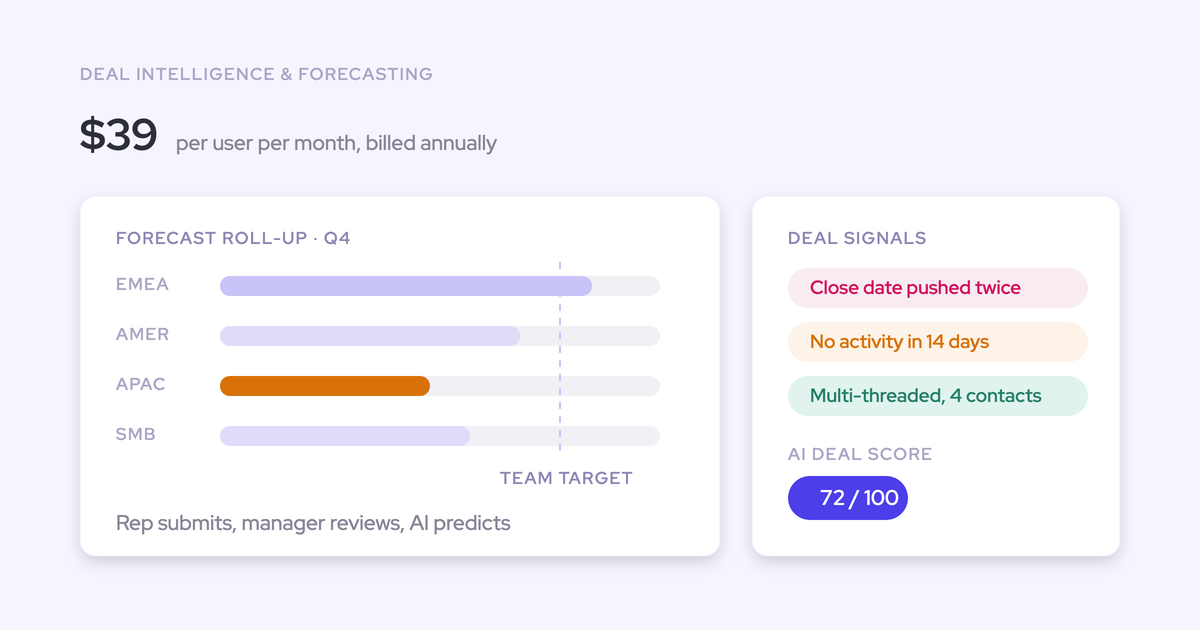
Weflow Revenue AI Enterprise ($79 per user per month) includes forecasting. Weflow Revenue AI Business ($59 per user per month) includes Deal Intelligence (pipeline views, deal scoring, and warnings) without forecasting or pipeline analytics. Weflow Deal Intelligence & Forecasting is also available on its own at $39 per user per month. All plans are billed annually with a 10-user minimum.
Do VPs who only view the forecast need a paid seat?
No. Weflow viewer seats are free, and every plan includes unlimited view-only licenses. A VP or executive who only reviews the roll-up and dashboards doesn't need a paid seat.
Can we judge Weflow forecasting in a 14-day trial?
Not fully. Our 14-day free trial runs on your own Salesforce with setup done for you, and that's enough to prove out activity capture and conversation intelligence. Forecasting proves itself across several forecast cycles, which takes closer to three months. For that, we offer a three-month paid pilot that counts as the first three months of a multi-year agreement, with an opt-out at the end.