Salesforce Tasks: How to Create, Manage, and Automate Them
Learn how to create, manage, bulk assign, and automate Salesforce tasks.



Looking to learn how to use Salesforce tasks in the most effective way possible? Read this guide to find out.
What are Salesforce tasks?
Salesforce tasks provide to-do items that need to be completed by a Salesforce user to whom the task is assigned. Those tasks can be easily related to leads, contacts, campaigns, and contracts.
Using tasks in Salesforce helps avoid deal slippage and supports team collaboration.
Salesforce tasks vs. Salesforce activities
"Activities" is the term for both tasks and events in Salesforce. That's also why there is no "Activities" object but only individual "Task" and "Event" objects in Salesforce.
In short, you can think of tasks and events as types of activities that are tracked in the Salesforce activity timeline.
Limitations of Salesforce Tasks
Here's a quick run-through of major Salesforce tasks limitations:
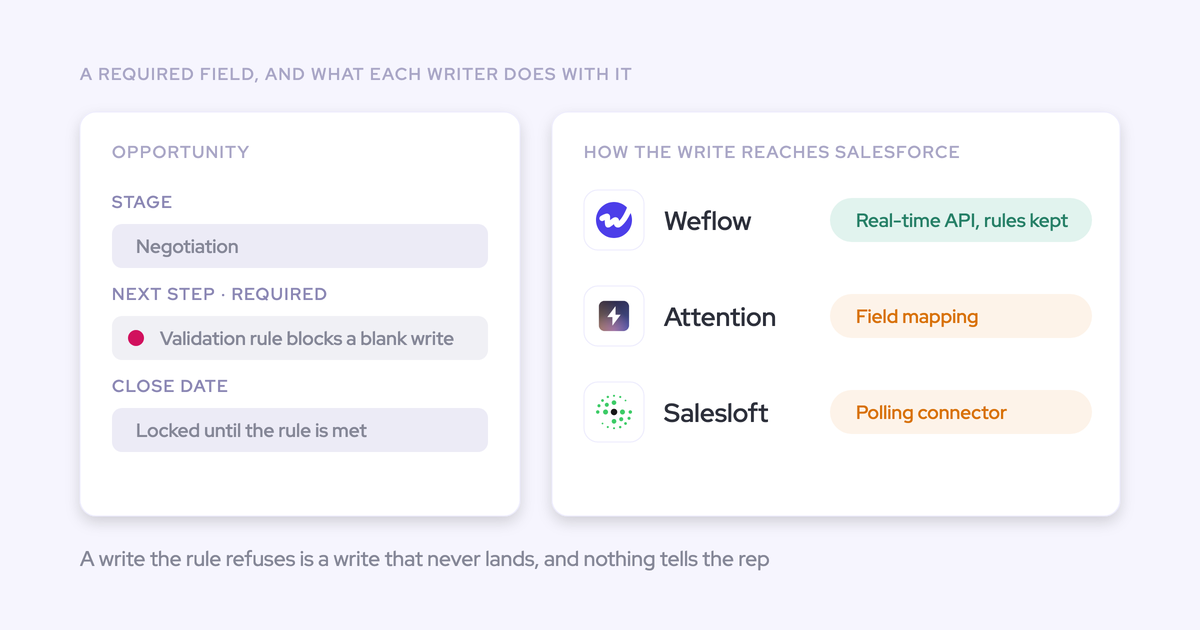
- Validation and workflow rules – If a Salesforce task is created when you send an email, validation and workflow rules for that task aren’t triggered. This means that you’ll need to manually add them.
- Due date display – Due dates are displayed in the time zone you’ve selected in your personal settings. So, if you’ve got a more dispersed and global sales team, you’ll need to be more mindful of the time zone your team members are in.
- Shared Activities – If Shared Activities isn’t enabled, custom reports based on activity relationships don’t include event organizers along with invitees. Custom reports also don’t show events to which no one has been invited.
- Task relation – You can relate a task to up to 50 contacts or one lead using the Name field.
- Recurring tasks – You can’t relate multiple contacts to a recurring task series.
Aside from the limitations mentioned above, there are also the following restrictions when creating tasks for People and Groups in Salesforce Lightning Experience:
- You can create and assign up to 200 tasks for every user.
- When editing a task, you can’t create more tasks by adding new users to the Assigned to field.
- You can’t create recurring tasks in bulk.
- Creating bulk tasks for people and groups isn’t supported in Lightning Experience quick actions.
- Tasks can be created only for active members in public groups.
How to create Salesforce tasks
There are three general things about Salesforce tasks to keep in mind:
- You can create a task from any Salesforce object.
- In Salesforce Lightning, the activity feature is usually located on the right-hand side of the page. Here, you can view, create, manage, and track tasks (and activities).
- You need to have the corresponding user permission to create tasks.
With that said, here's how you can create a task for a contact:
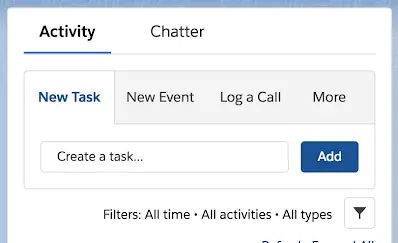
Step 1: In the Activity section of the contact record page, click on Create a task or the Add button, which will reveal the task dialog.
Step 2: The task is automatically assigned to the person creating it. However, you can assign tasks to any other team member as well. You can also do this in bulk.
Step 3: Fill in the Subject field (what the task is about).
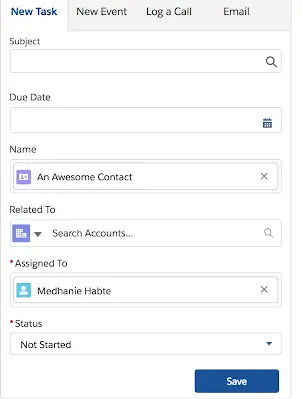
Step 4: Set a due date.
Step 5: Relate your task to an object. You can choose an object, such as an opportunity, account, or contact, to relate the task to.
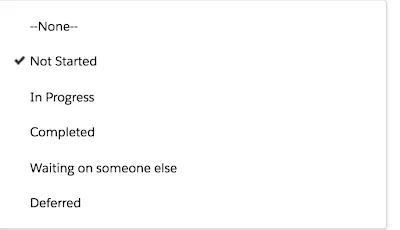
Step 6: Select the task status. This is set to Not started by default, but you can select the appropriate choice as shown below.
Step 7: Once the details are filled in, click Save.
You will receive a reminder in the notification section of Salesforce when a task with a due date in the future is created. Additionally, you can view tasks assigned to you on the homepage under Today’s Task.
That's about it!
However, while it's good to know how to create a task, why not create multiple tasks at once?
How to create Salesforce tasks in bulk
If you're looking to create tasks in bulk for multiple people (for up to 100 coworkers) in Salesforce, this section is for you.
Here are some examples of bulk tasks worth considering:
- Example 1: As a sales manager, you wish to assign a task to everyone in the sales team, asking them to update their pipeline.
- Example 2: You may also want to create bulk tasks to monitor your team’s performance by asking them to fill in their daily to-dos.
In these instances, know that you can add multiple assignees only when creating a task. You can’t add assignees to an existing task.
Let's look at an example to understand this better:
Creating bulk tasks asking Account Executives to update their pipeline
Say you want to create a task called "Update pipeline" with the corresponding due date and assign it to a team of Account Executives.
Follow these steps to do so:
Step 1: First, make sure you have the required user permissions to do so.
Step 2: When creating a new task, click the lookup icon next to the Assigned To field.
Step 3: In the lookup window, select the Multiple Users tab.
Step 4: Add up to 100 people (including members of groups) to Selected Members.
Step 5: Click Done. The New Task page will display your selections and the total number of tasks next to the Assigned To field.
Step 6: Save the task.
That's it. You’ve now assigned copies of the task to the Salesforce users you selected.
Remember that those users can edit, reassign, or delete their tasks as needed.
How to create recurring Salesforce tasks
Next, let's look at how to enable recurring Salesforce tasks. If you have tasks that need to be repeated at a specific interval, this feature can come in handy. For instance:
- Example 1: Making weekly updates to the sales pipeline.
- Example 2: Retiring qualified leads that haven't been updated for a long time.
Again, you'll first need to ensure you have the required editions and user permissions.
Then, follow these steps:
- Start by creating a new task or viewing an existing task.
- For Repeat This Task, you can choose After due date or After date completed. If you don’t see the repeating tasks option, you can ask your Salesforce administrator to add repeating tasks to a page layout.
- For Recurrence Interval, you’ll need to enter the number of days post the task’s due date or completed date (i.e., the date when you want the next task to be due).
- If Repeat This Task on an existing task is set to Task closed, remember that this means that the task was closed as part of a repeating series. This information becomes useful when distinguishing repeating tasks from other tasks for reporting purposes.
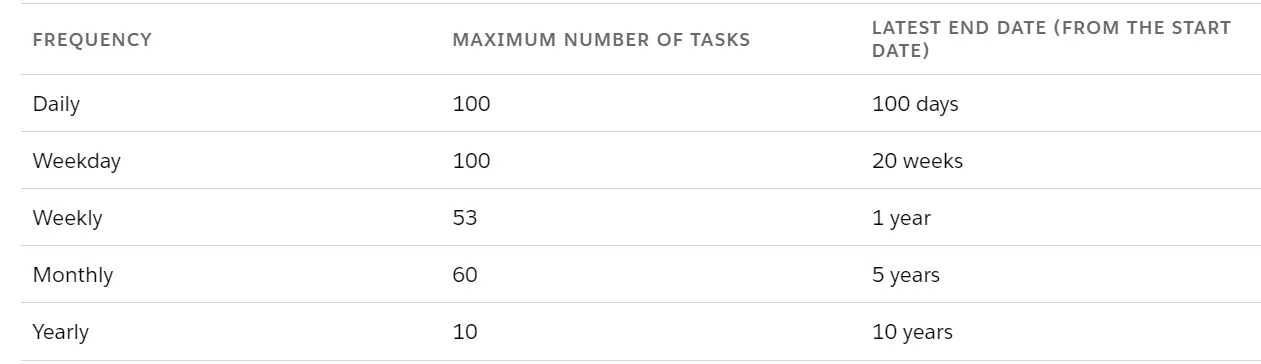
Lastly, please note that there's a limit to how many recurring tasks you can create:
A better way to create and manage Salesforce tasks
Weflow offers a powerful task manager that allows you to create and manage Salesforce tasks effortlessly.
It only takes a couple of clicks to create a task in Weflow. Tasks are easily accessible from the Weflow dashboard and can be filtered by due date.
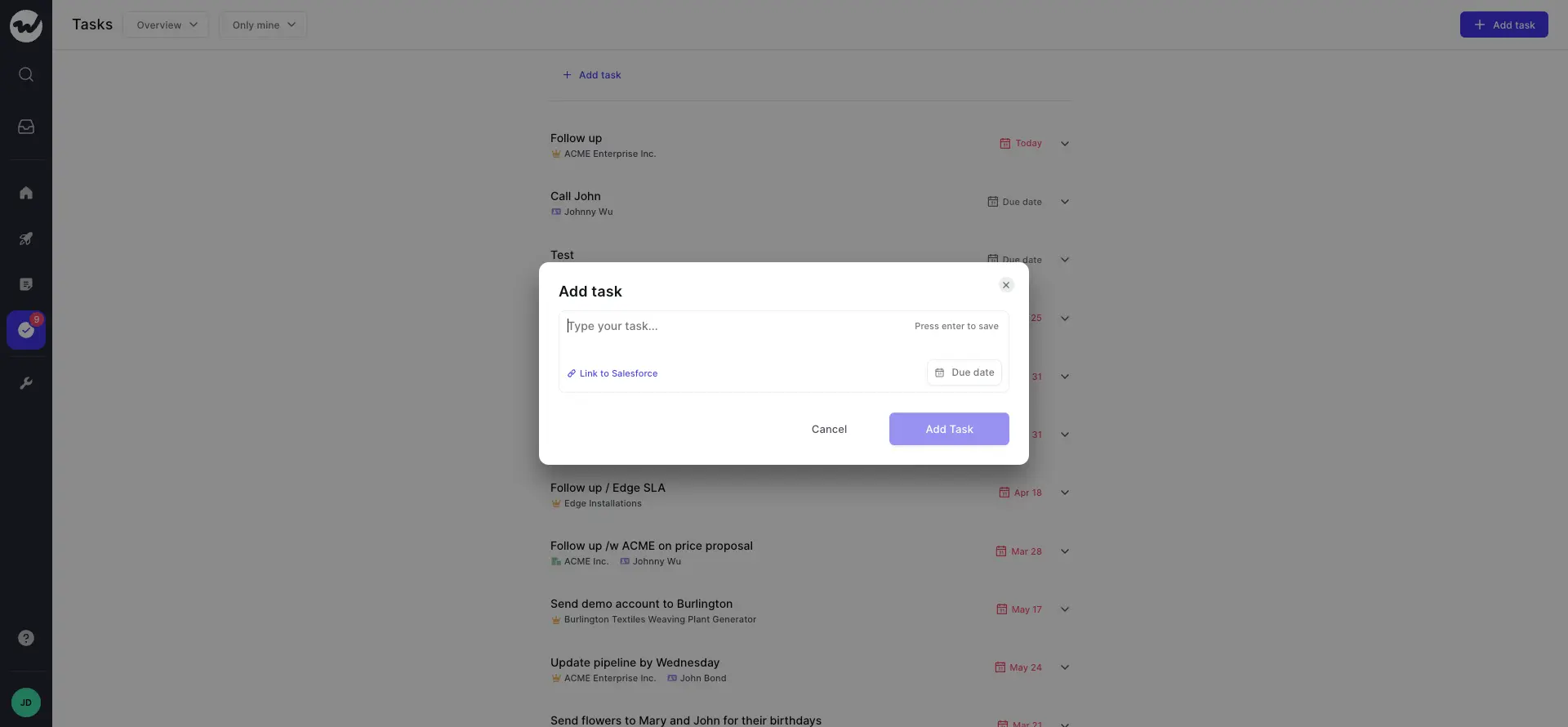
Weflow can also sync all tasks to Salesforce automatically.
Apart from a task manager, Weflow also offers a variety of other features designed to streamline your team's Salesforce workflow and sales process, as well as improve sales performance and productivity. These include bulk Salesforce updates, notes and note templates, custom pipeline views, automated deal signals, and more.