How to Automate Salesforce Data Completeness Checks Without Making Every Field Required
Learn how to automate Salesforce data completeness checks without making every field required.


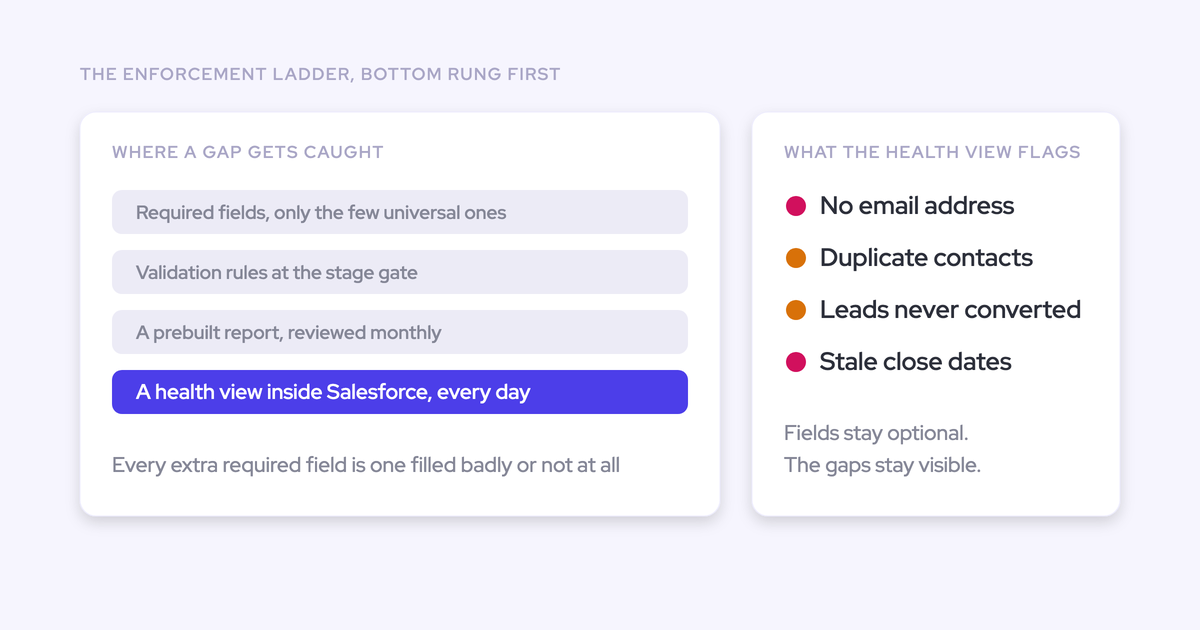

You automate Salesforce data completeness checks with a four-tier ladder, not a longer list of required fields:
- Hard-require only the values every record needs, like the email on a contact.
- Gate two or three stage changes with validation rules.
- Run everything else as automated warnings that don't block anyone.
- Check whether filled fields actually say something, because filler is where completeness programs fail.
You've already watched required fields at work. The fill rate goes up and the records get worse. One prospect described their org to us like this:
"only 52% of the fields are filled out · they're mandatory but a lot of them will have like one"
A filled field isn't evidence of a complete record. Data that looks complete and isn't is worse than an empty field, because it creates the illusion that you can trust it, and people make decisions on it.
You can build tiers 1 to 3 natively, and this guide shows you how. Then it shows where native checks stop being honest: they inspect what someone typed, never the emails, meetings and calls underneath. It also shows you how to find the rules that are quietly breaking the tools writing into your org. That evidence layer is where automated deal hygiene in Salesforce comes in, and it's the last part of the build, not the first.
The four-tier completeness ladder that replaces required fields
Each tier uses a different Salesforce mechanism and catches a different failure. Each one also costs you a different amount of rep friction and admin maintenance. This is the design you can put in front of leadership:
| Tier 1: Hard require | Tier 2: Stage gates | Tier 3: Warnings | Tier 4: Content quality | |
|---|---|---|---|---|
| What it enforces | Universal identifiers | Two or three process gates | Everything else | Whether a filled field holds real content |
| Salesforce mechanism | Field-level required, default values | Validation rules scoped to a stage change | Formula fields plus scheduled flows | Length rules and blocklists at best |
| Blocks the rep? | Yes, on save | Yes, only at the gate | No | No |
| Admin maintenance | Low | Medium, per rule | Medium, per flow | High, if you try it with rules |
| Integration risk | High without defaults | Medium | Low | Low |
| What it can't catch | Junk values | Filler that clears the rule | Activity nobody logged | Whatever the evidence doesn't show |
Read the bottom row carefully. Every tier leans on the one below it, and the lower tiers only stay trustworthy when the evidence underneath them reaches Salesforce automatically.
What you need before building Salesforce completeness checks
Take stock of what you already have before you add a single rule. Every item below gets used in a later step:
- You need admin permissions and a sandbox that mirrors your production record types and page layouts.
- You need an inventory of every required field on Opportunity, Contact, Account and Lead, split by where it's enforced: field-level, page layout, or validation rule.
- You need a list of every integration and integration user that writes to Opportunity, Contact and Account.
- You need written entry and exit criteria for each opportunity stage. If they only exist in someone's head, write them down first.
- You need the short list of fields leadership actually uses in forecast calls and deal reviews. That list decides what's worth checking at all.
Step 1: Find the required fields silently blocking your integrations
Start with an audit, because some of your existing enforcement is already failing with no error, and nothing will report it to you.
Page-layout required fields the API never sees
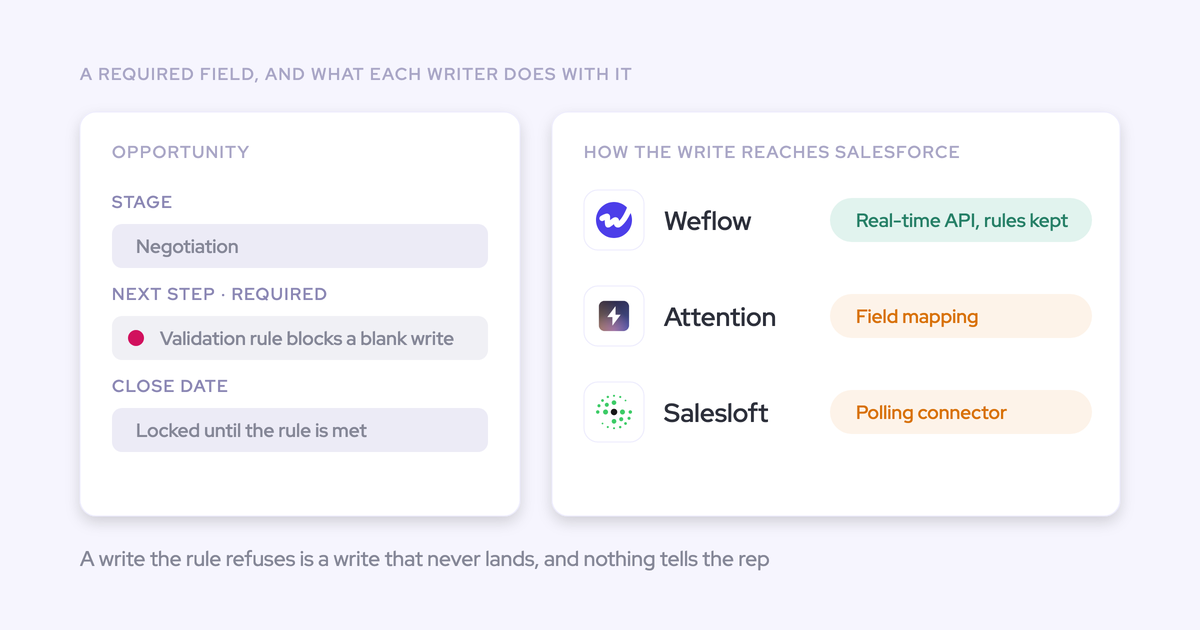
Required fields set on a page layout block external tools from creating records, and those tools can't see the requirement. Validation rules and permission sets are exposed through the API. Page layouts generally aren't. So a tool can satisfy every rule it can see and still get rejected, and the team assumes the feature is broken.
This is the single most common silent cause of failed automatic contact creation. Here's how you find it:
- Open each object's page layouts in Object Manager and check the page layout assignment for every record type and profile.
- List every field marked required on a layout that isn't required at the field level or by a validation rule.
- For each one, decide: move the requirement to the field definition, turn it into a validation rule, or drop it.
- If you move it to the field level, give it a default value. Otherwise you've just made the block visible without removing it.
Validation rules and required fields that reject your integration user
Automated writers can't satisfy fields they can't infer. A capture tool creating a contact knows a first name, a last name and an email address. It can't decide a lead source, and enrichment won't always find a job title. Waterfall enrichment matches around 70 to 80 percent of contacts, so plan for a fifth of new contacts arriving with little more than an email.
Test every rule on the objects your integrations write to, logged in as the integration user:
- Create a contact with only first name, last name and email.
- Update an opportunity's stage, amount and close date through the integration's normal path.
- Create, move, reschedule and delete a meeting, so you test update and delete rights as well as create.
- Check the result on the record, not in the tool, because a blocked write often shows up as a missing record rather than an error.
When a test fails, the symptom usually points to the rule:
| Symptom | Likely rule cause | Fix option |
|---|---|---|
| New stakeholders never appear as contacts | Required picklist such as lead source, or a page-layout requirement | Default value, or a flow that sets the value on records created by the integration user |
| Some auto-created contacts save, others don't | Required title or phone that enrichment couldn't fill | Relax the rule for the integration user, or accept manual creation for those contacts |
| Stage or field updates from a tool fail on some deals | Validation rule requiring fields the tool didn't write | Have the tool fill the dependent fields, or leave that transition to the rep |
| Meetings log but never update when rescheduled | Missing edit rights on Event for the integration user | Grant update and delete on the objects the tool writes |
| Contacts get created on the wrong account | Wrong or shared value in the account Website field | Correct the Website field and merge duplicate accounts |
Step 2: Hard-require only the values every record needs
Keep hard requirements for universal identifiers, the values without which a record can't do its job. Email on a contact or lead is the clearest example. Everything else moves down the ladder.
| Field | Where it belongs | Why |
|---|---|---|
| Email on Contact and Lead | Tier 1, keep required | It's the identifier matching, dedup and capture all run on |
| Lead source on Contact | Tier 1 with a default, or Tier 3 | No automated writer can infer it |
| Job title and phone | Tier 3 warning | Enrichment won't find everyone, so a hard block stops contact creation |
| Champion, decision criteria, economic buyer | Tier 2 at one gate | They only need to be true once the deal reaches a specific stage |
| Next step | Tier 3 warning | It goes stale, so a one-time requirement proves nothing |
| Methodology fields | Tier 2 or 4 | Filler is the main risk, so presence alone tells you little |
Every field you keep required needs a default value. Without one, automated contact creation fails on that field, and you lose visibility into who's actually in the deal.
Step 3: Gate a few stage changes with validation rules
Pick the two or three stage transitions that actually matter and require the fields that must be true to cross them. Then stop. You only add more if data quality is still poor after a few weeks.
Both extremes fail. One prospect told us:
"We had no boundaries in Salesforce on our sales stages. So you can go from stage zero to stage close, one, with one click of the button."
The opposite, where every stage change is a form, is how you get filler. Here's the build:
- Choose the gate. Pick a transition where a wrong stage costs you something, usually entering commit, procurement, or closed won.
- Define the exit criteria in writing: the three or four fields that must be true.
- Write the rule so it fires only when the stage changes into that value, not on every save.
- Test it in the sandbox twice: once as a rep, once as the integration user.
Here's what a gate on entering procurement looks like:
AND(
  ISCHANGED(StageName),
  ISPICKVAL(StageName, "Procurement"),
  OR(
    ISBLANK(Amount),
    ISBLANK(Champion__c),
    ISBLANK(Decision_Criteria__c)
  )
)
The rule stays quiet until someone tries to move the deal into procurement without an amount, a champion or decision criteria. Reps edit the opportunity freely the rest of the time.
"I think you start with, like, two or three dependencies and validation rules, and then you see how it goes. And if this, like, leads to high quality data already, then just stop there. Don't, like, don't go crazy because this creates, like, maintenance efforts. This will create other problems with other integrations that you may have."
Count the cost before adding a fourth gate. Every extra rule is one more thing to maintain, and one more place where a tool writing into the same object can fail.
Step 4: Turn every other rule into a non-blocking warning
Everything below the gates becomes an automated warning to the rep or manager. It feeds deal inspection and reviews instead of stopping a rep mid-deal.
Build warnings with formula fields and scheduled flows
Formula fields detect the condition, and scheduled flows act on it. The split keeps each piece simple to test.
- Build a formula field or a flow-maintained field for each condition you want to watch.
- Create a scheduled flow that runs daily on open opportunities and filters on those fields.
- Have the flow create a task for the owner, with the condition in the subject line.
- Add a second scheduled path that escalates to the manager if the task is still open after a set number of days.
- Add the warning fields to a list view so managers can scan them before deal reviews.
These are the conditions most teams start with:
| Warning condition | What it reads |
|---|---|
| Days inactive | Formula on TODAY() - LastActivityDate |
| Days in current stage | A date field a record-triggered flow stamps on every stage change |
| Single contact on the deal | A flow-maintained count of opportunity contact roles |
| Close date pushed more than twice | A counter a record-triggered flow increments when Close Date moves later |
| Missing methodology field | ISBLANK checks on the methodology fields for the current stage |
Flag the first and third rows now. Activity-based conditions are only as true as the activity that reached Salesforce, which is where native checks start to lie.
Route warnings so reps and managers don't tune them out
A warning works when it fires at a decision moment, reaches the owner first, and escalates only when the owner doesn't act. These routing principles keep it from becoming spam:
- Fire warnings before the moments that use the data: forecast submission, deal review prep, a stage change.
- Send the first notice to the deal owner. Managers see it only after the owner has had time to act.
- Escalate on a timer, from task to manager to a Slack or Teams message, instead of sending everything to everyone at once.
- Set thresholds from your own sales cycle. Fourteen days of silence is a warning on a 60-day cycle and normal on a 12-month one.
- Retire any warning nobody acts on for a month. A warning people ignore trains them to ignore the others.
Step 5: Build a Salesforce completeness score you can report on
A per-record completeness score turns the check into something you can see at any time, instead of an audit someone runs the night before the forecast call. Weight it by the fields that drive decisions, not by field count.
- Define the field set per stage. Early stages get scored on a few fields, late stages on more.
- Build a number formula field that adds a weight for each populated field.
- Create a custom report type on Opportunity so the score sits next to owner, stage and amount.
- Build a dashboard showing the average score by team and stage, plus the lowest-scoring open deals.
- Schedule the report to managers weekly, a day before pipeline review.
A simple version of the scoring formula:
IF(NOT(ISBLANK(NextStep)), 20, 0) +
IF(NOT(ISBLANK(Amount)), 20, 0) +
IF(NOT(ISBLANK(Champion__c)), 30, 0) +
IF(NOT(ISBLANK(Economic_Buyer__c)), 30, 0)
Wrap it in CASE(StageName, ...) so a discovery-stage deal isn't marked down for missing late-stage fields.
Be clear with leadership about what this score can't do:
- It counts presence, not truth. A field holding "tbd" scores the same as a field holding the real answer.
- It can't tell you whether the next step is current or three weeks old.
- It can't see a contact who's active on the thread but was never added to the deal.
Step 6: Check whether filled fields say anything real
Presence checks repeat the required-field mistake in report form. Filler is the actual failure mode of a completeness program, and a filled-in methodology field is often a box someone typed into to get past a validation rule.
A useful check separates what was established by evidence from what was merely typed. That takes more states than "filled" and "empty":
| State | How it looks in a report | What a native check detects |
|---|---|---|
| Empty | Blank, counted as incomplete | Yes, with ISBLANK |
| Filled with filler | Populated, counted as complete | Only obvious junk like "." or "tbd" |
| Partially established | Populated, counted as complete | No, it can't see what's missing |
| Established by evidence | Populated, counted as complete | No, it can't tell this apart from filler |
Three of the four states look identical in a report. The native workarounds help at the edges:
- A minimum length rule using
LEN()catches one-character entries. Reps respond by typing longer filler. - A blocklist of junk values ("n/a", "tbd", "unknown") catches the lazy cases. Reps respond by typing a synonym.
- Both add to the rule maintenance you were trying to cut in Step 3.
AI can create the same problem at scale. Attention, when it finds nothing on a call for a field, writes prose explaining the absence into that field, and every report reads that as populated data.
"it's worse to have basically incomplete, inconsistent, or inaccurate data than to have no data at all because then you have this illusion of like, oh, I have data and I can trust the data"
Why your inactivity checks lie when activity never reaches Salesforce
Every native tier inspects typed fields, and your activity-based warnings inspect only the activity someone logged. When emails, replies and meetings never reach Salesforce, "days inactive" fires on healthy deals, and "single contact" stays silent on deals with five people on the thread.
Completeness checks only mean something when the evidence under the field was captured automatically and stored as native Salesforce records a flow can read.
"If you haven't stored an object or record into the core Salesforce database, then you cannot do automations with it."
Here's what the same checks read in each case:
| Check | When activity is hand-logged | When activity is captured automatically |
|---|---|---|
| Days inactive | Days since the rep last remembered to log something | Days since the last real email or meeting |
| Single contact on the deal | Whoever the rep added by hand, usually one champion | Everyone on the threads and invites |
| Replies from the buyer | Often missing, since many add-ins only log outgoing mail | Incoming and outgoing mail both logged |
| Meeting count | Meetings the rep chose to log | Every external meeting, recorded or not |
The gap is usually bigger than teams expect. United Fintech saw 3x more captured activities after switching to Weflow, and checked them by hand before believing the number:
"We thought it was just wrong data - but we looked manually and realized this is the amount of insight we were missing before."
Rugile Pudzevelyte, Senior Revenue Operations Manager at United Fintech
How Weflow runs completeness checks on top of your Salesforce rules
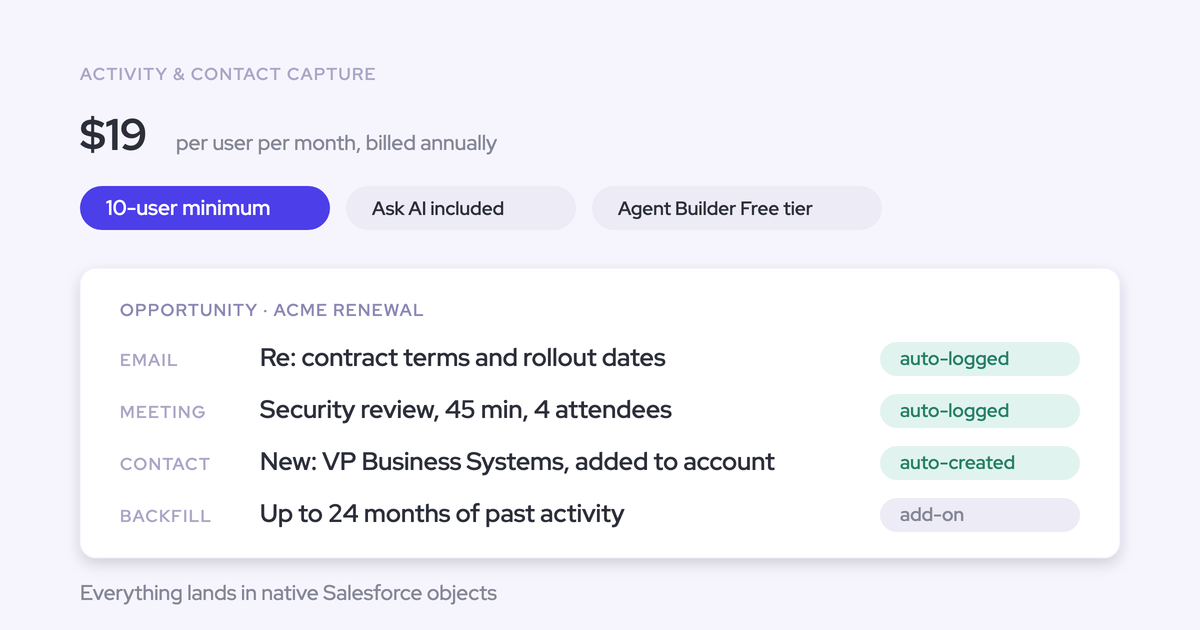
Weflow is the Revenue AI Orchestration platform for sales, customer success, and RevOps teams. It's built for Salesforce teams, and everything it captures lands in native Salesforce objects your flows and reports already read. For this ladder, Weflow adds the evidence layer without adding a second rule set.
Weflow inherits your validation rules instead of bypassing them
Weflow applies your existing Salesforce configuration instead of asking you to rebuild it. Your standard and custom fields, field dependencies, validation rules, permission sets and role hierarchy all carry over, so you change access in one place.
- Weflow reads your configuration through the API and caches it for about an hour. A rule you change in Salesforce applies in Weflow within that hour, with nothing to do on our side.
- Field and record access apply as the signed-in user. A field someone can't see or edit in Salesforce isn't visible or editable in Weflow.
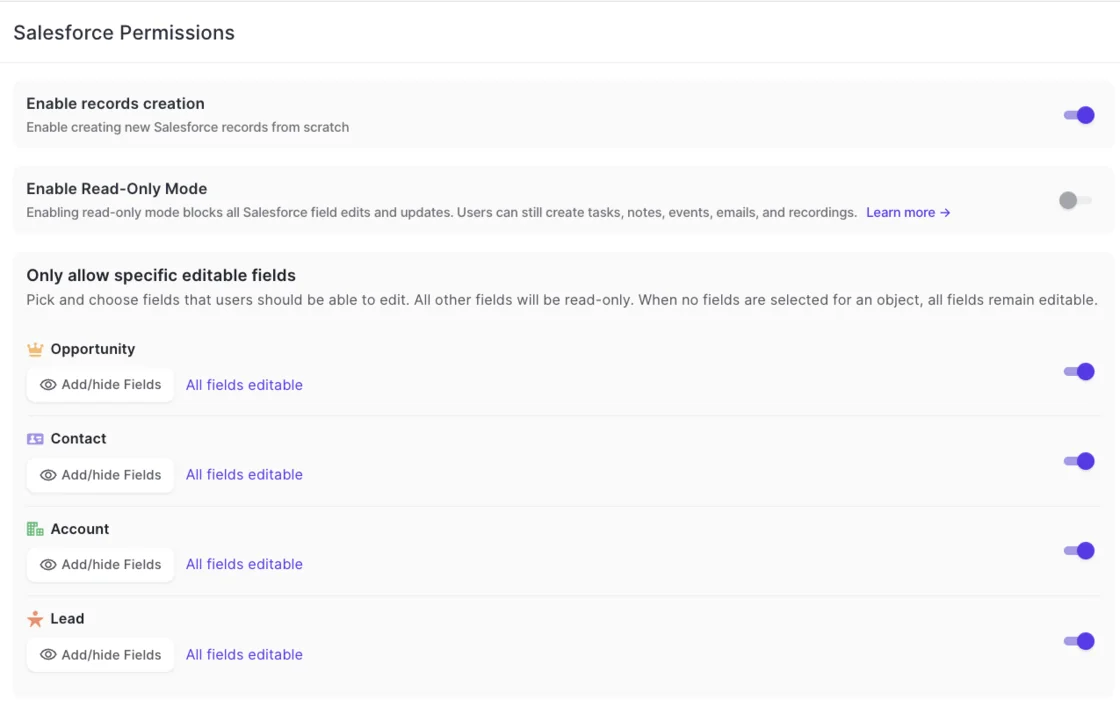
- You can go stricter than Salesforce with field-level write permissions per object. Leave nothing selected and every field stays editable, so saving the screen without changes changes nothing.
Other tools in this space respect your rules too, in different ways. Aviso, for example, writes deal fields under each rep's own Salesforce login, so a write fails when the value breaks a validation rule.
Weflow AI Field Updates fill stage-gate fields from the call
A stage change blocked by your validation rule stays blocked until its dependent fields are filled. Weflow AI Field Updates fill those fields from what was said on the call, so your Step 3 gate gets satisfied by evidence instead of a form-filling exercise afterwards.
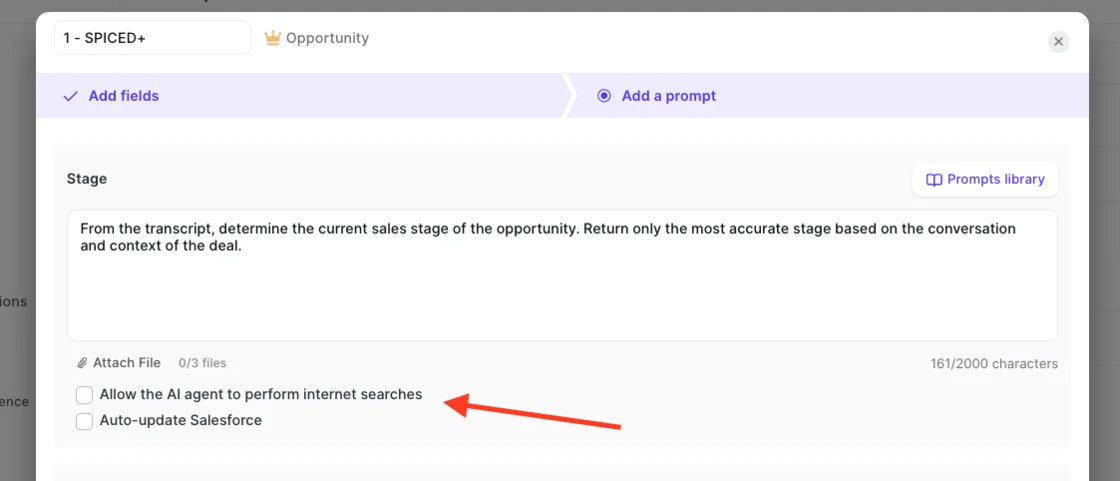
- Each Salesforce field maps to a prompt. The rep sees the current value beside the suggested one and accepts, edits or rejects each.
- AI Field Updates can write Stage itself when the exit criteria in your prompt are met on the call. We recommend keeping Stage under human review, because a wrong extraction there has consequences.
- Picklist writes respect the values defined on the field.
- Every object and field type is in scope except relationship lookup fields.
Weflow deal warnings run on computed activity signals
Weflow deal warnings do the job of your Step 4 flows, but they run on fields reps can't game. You write them as rules against any Salesforce field, or against fields Weflow computes from captured activity: days inactive, last and next meeting, per-contact engagement, and a rolling four-week activity timeline.
- You author the warnings, so they encode your own slippage patterns and cycle length instead of generic defaults.
- Typical triggers match the Step 4 table: close date pushed more than twice, one contact on the deal, a missing methodology field, days in stage, no activity in a set number of days.
- Warnings are part of Weflow Deal Intelligence, included in Weflow Revenue AI Business.
- If you run forecasting in Weflow, the same warnings appear in the forecast submission screen, at the moment the rep picks which deals to commit.
That timing is the difference from a scheduled flow. IDnow reduced slipped deals by 60% using AI deal warnings, and HolidayCheck reduced past-due opportunities by about 75%.
The Weflow AI playbook marks filler answers as not assessed
The Weflow AI playbook runs two passes over each opportunity. The first fills in each element of your methodology from the deal's evidence. The second judges how well each element was actually established, and it also judges text a human typed.
So a rep who fills a MEDDIC field with filler gets that element marked as not assessed, not complete. That's the Step 6 check a formula can't do.
- It shows three states: fully established, partially established with a note on what's missing, and never discussed.
- It reads every related CRM field, email, event and call on the opportunity.
- It reruns whenever a new activity lands on the record, and otherwise every three hours.
Weflow Activity Capture Health shows whether the tool or the CRM is at fault
Activity Capture Health is a Weflow Analytics view inside Salesforce that flags the data conditions that make capture fail quietly. Each of these produces a record that looks dormant rather than an error:
- contacts with no email address;
- duplicate accounts and duplicate contacts;
- unconverted leads that already have a matching contact;
- accounts sharing the same website domain, the pattern that breaks activity-to-opportunity mapping;
- capture settings not yet configured, which matters most on a new install.
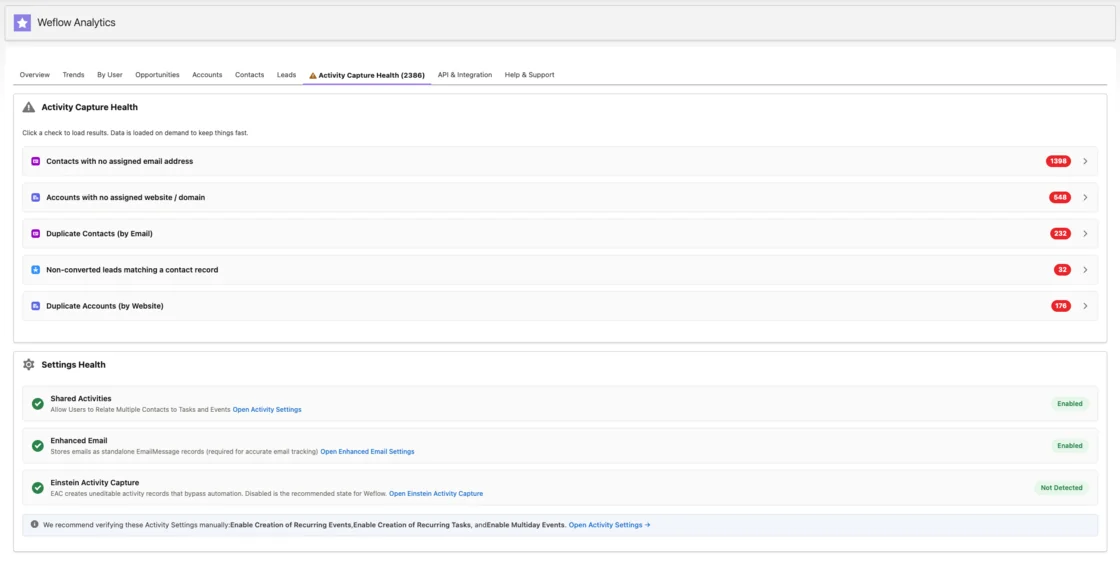
This is the view you open when a rep says capture isn't working.
The health view turns that complaint into a per-record answer.
What Weflow leaves to you as the Salesforce admin
Some of these limits need admin work, and some are by design. Each one comes with the action it implies:
- A required Contact field with no default still blocks automatic contact creation. Set a default in Salesforce, or add a flow that sets a value on contacts the Weflow integration user creates.
- Page-layout required fields still block Weflow the same way they block every external tool. Run the Step 1 audit before you switch on contact creation.
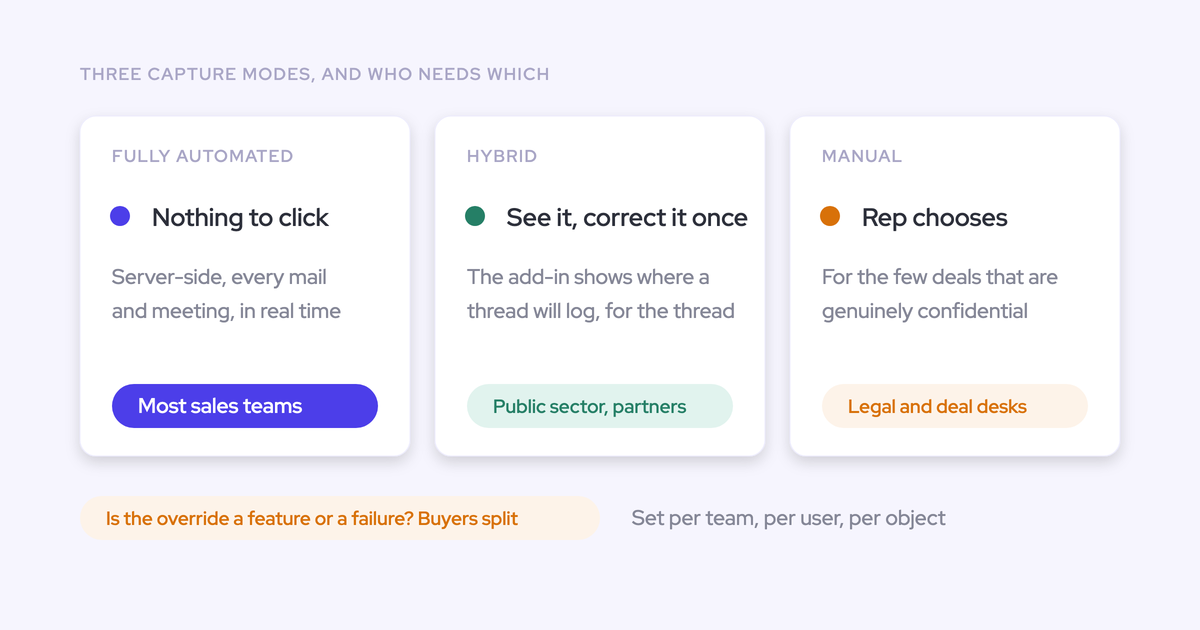
- There's no queue where an admin reviews new contacts before they're created. You control creation by switching it off, restricting it to existing accounts, capping contacts per meeting, blocking prefixes like invoice, billing, no-reply and support, or letting reps clear the tick in the mail extension before sending.
- With creation restricted to existing accounts, an email from a domain that matches no account creates no contact, and nobody gets notified. Reps can still create the contact from the Chrome or Outlook extension.
- Weflow links a new contact to the opportunity as a contact role, but never infers whether that person is a champion or economic buyer. The role type stays a human or playbook step.
- Weflow creates contacts, never leads. Keep whatever you use today for inbound lead creation.
- Tiers 1 to 3 are yours to build natively. If two or three rules already give you good data, stop there. You don't need us for that part.
What Weflow Activity & Contact Capture and Conversation Intelligence cost
Each module powers a different part of the ladder. Weflow Activity & Contact Capture gives you the activity evidence your warnings and health view run on. Weflow Conversation Intelligence adds call-derived field updates and content evaluation.
| Product or bundle | What it adds to the ladder | List price |
|---|---|---|
| Weflow Activity & Contact Capture | Automatic emails, meetings and contacts as native records, Activity Capture Health | $19/user/month |
| Weflow Conversation Intelligence | AI Field Updates for gate fields, methodology evaluation from calls | $39/user/month |
| Weflow Deal Intelligence & Forecasting | Deal warnings on computed activity fields, forecast submission | $39/user/month |
| Weflow Revenue AI Foundation | Activity & Contact Capture plus Conversation Intelligence | $49/user/month |
| Weflow Revenue AI Business | Foundation plus Deal Intelligence, including warnings | $59/user/month |
| Weflow Revenue AI Enterprise | Business plus forecasting, where warnings show in forecast submission | $79/user/month |
All prices are billed annually, with a 10-user minimum and unlimited view-only licenses. Final pricing is quote-based. Bundling capture with Conversation Intelligence costs about 16% less than buying both standalone.
We recommend starting with capture and adding Conversation Intelligence later. The bundle discount means adding it costs less per seat than the standalone price suggests, and you get the evidence layer under your warnings first.
What surfaces in month one when capture exposes old gaps
Turning on automatic capture doesn't fix the CRM. It shows you how it already was. Duplicate accounts, contacts on the wrong parent and reports that no longer match what people remember all surface in the first weeks, and they get the new tool's name attached.
Plan for it with a test plan and a way to recover history.
Test rule changes in a sandbox before reps see them
Weflow reads no mailbox until a user is enrolled in an activity capture configuration, so you can finish setup and testing before anyone's email is touched. Run this with one user:
- Email an address outside your company. Mail between two addresses on your own domain is excluded as internal, so a test with colleagues logs nothing and looks broken.
- Use a personal address as a test contact, with its domain on a test account's Website field, so you exercise contact creation too.
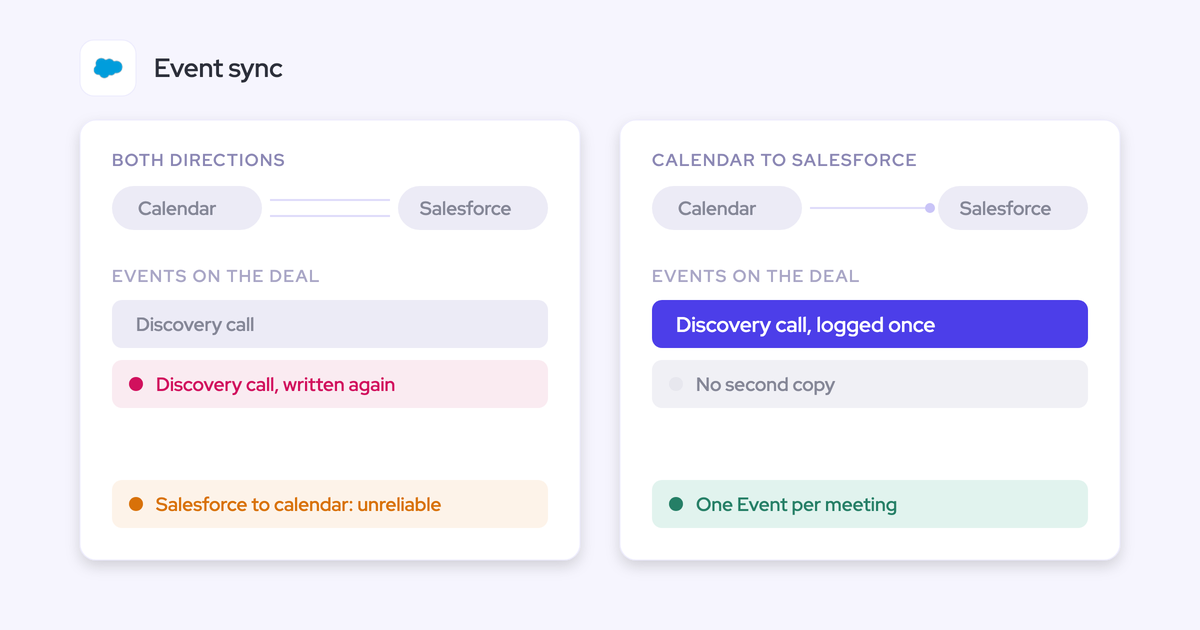
- Create, move, reschedule and delete a meeting. Creating proves the create permission; moving and deleting prove the update rights that otherwise fail weeks after go-live.
- Check permissions and record types for the user and the integration user before you enroll the team.
- After changing a validation rule, allow up to an hour before retesting, because of the configuration cache.
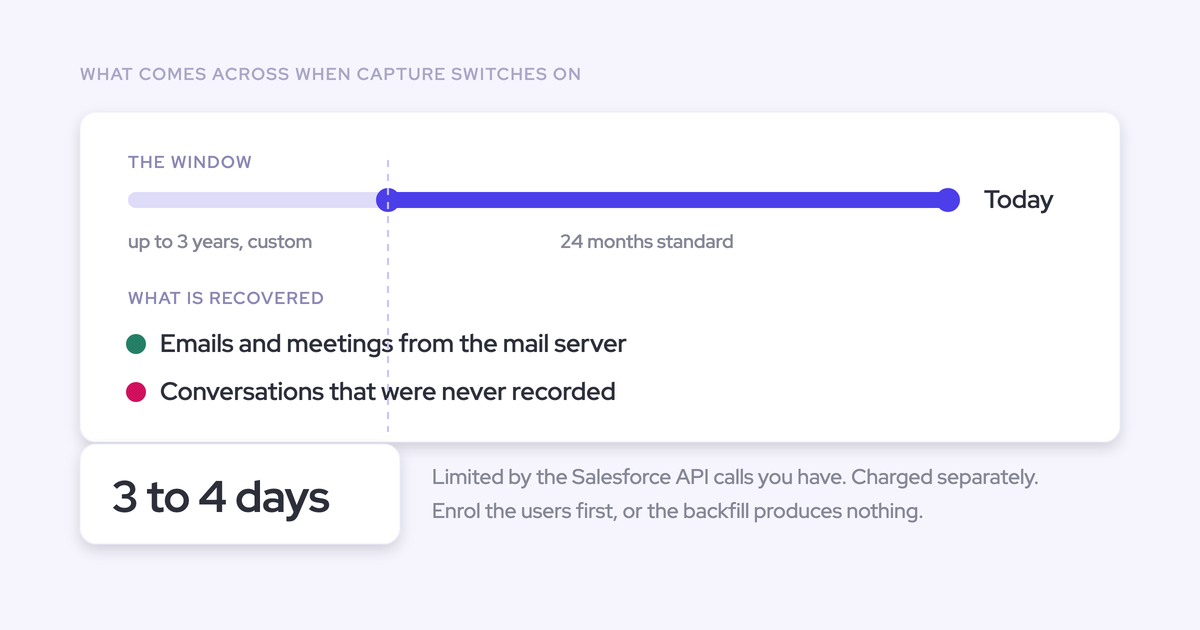
Backfill history so checks don't judge half-empty records
Your completeness checks shouldn't score deals against a history that was never captured. Weflow recovers what it can:
- Any meeting or email that failed to sync, whether a week or a month ago, can be recovered and pushed into Salesforce after support corrects the matching rule.
- When you create an account after a rep has already emailed people there, Weflow logs those earlier emails to it automatically.
- Historical backfill of up to 24 months is available as an add-on.
Conversations that were never recorded can't be backfilled. Teams that wait to clean the CRM before adding capture lose every month of calls in between, and that's the one input a later cleanup can't recreate.
If you want the full checklist for this rollout on one page, grab our free Salesforce Data Hygiene Cheat Sheet.
Salesforce data completeness checks: questions admins ask
Should your integration user get an exception to validation rules?
Only when the downstream cost of a half-formed record is low. You have three options: a default value on the field, a flow that sets a value on records the integration user creates, or a custom permission that exempts the integration user from the rule. Defaults and scoped flows are safer, because the record still meets your standard. Skip the exemption when contacts feed billing or subscription systems, where a bad contact costs more than a missing one.
Does an AI field update overwrite what a rep already typed?
In review mode, Weflow shows the rep the current value beside the suggested one, and the rep accepts, edits or rejects it. Nothing replaces the rep's text unless they accept. You can switch individual fields to automatic updates once you trust the output. Other tools handle this with append modes that timestamp each entry, or with a fill-only-empty setting, as Momentum does.
What if your Salesforce contacts sync into a billing or subscription system?
Then your required fields probably can't change, and some automatic contact creations won't save. Weflow enriches a contact before writing it, so creation goes through when enrichment finds the required fields. When it doesn't, you either relax the rule for the integration user or accept that those contacts get created by hand. Keep contact creation on for the rest, because it's what makes the buying committee visible.
Why do some auto-created contacts have an email in the last name field?
Because the incoming email or invite carried an address and no display name. Weflow fills first and last name only when a name was actually sent. When only an address arrived, the address goes into last name and first name stays blank. That's capture reproducing what arrived, not a bug.
How many custom fields do completeness checks actually need?
Fewer than you'd think. Standard fields cover most of what pipeline reporting needs, and many metrics can be calculated from a small set of them. Add custom fields mainly for your sales methodology, and keep those to a minimum, since every field adds maintenance and tech debt.
How long until a changed Salesforce rule applies in Weflow?
Within about an hour. Weflow reads your Salesforce configuration through the API and caches it, so there's no second configuration to update. If you test a rule right after saving it, you may still see the old behavior. Wait out the cache before you retest in the sandbox.