Salesforce Opportunity Management: 8 Best Practices
Learn 8 Salesforce opportunity management best practices for stages, data quality, automation, and forecasts.




What Is Salesforce Opportunity Management?
Salesforce opportunity management is the process of tracking, updating, and analyzing sales opportunities in your CRM to improve forecast accuracy and pipeline visibility. It encompasses everything from initial qualification through close—capturing deal data, tracking stage progression, and giving leadership a clear view of what's likely to close and when.
The stakes are concrete: according to Miller Heiman Group research, teams with structured opportunity management processes win 25% more forecasted deals than those without defined workflows. Yet most revenue teams struggle to get even basic opportunity data right. Reps skip updates, close dates slip without explanation, and stage definitions vary by region or rep.
Effective opportunity management in Salesforce requires three things working together: correctly configured opportunity fields, consistent rep behavior, and automation that fills the gaps when reps don't. Get these right, and your weekly forecast call becomes a conversation about strategy instead of data reconciliation.
Key opportunity fields every sales team should track
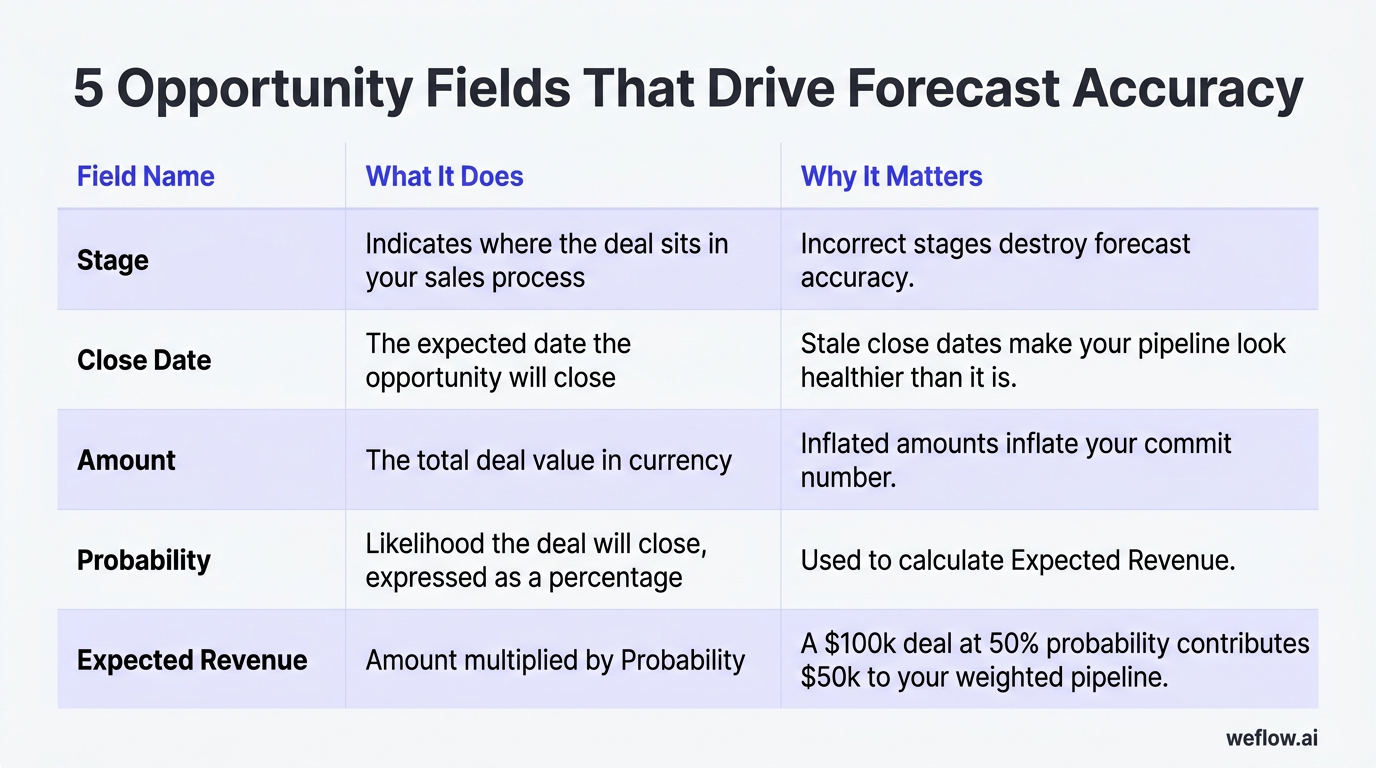
Five fields drive everything downstream in Salesforce opportunity reporting: Stage, Close Date, Amount, Probability, and Expected Revenue. Here's what each does and why it matters for your pipeline accuracy.
| Field Name | What It Does | Why It Matters |
|---|---|---|
| Stage | Indicates where the deal sits in your sales process (e.g., Qualification, Proposal, Negotiation) | Powers forecast categories and determines which bucket your deal lands in for reporting. Incorrect stages destroy forecast accuracy. |
| Close Date | The expected date the opportunity will close (win or lose) | Drives pipeline coverage calculations and quarterly forecasts. Stale close dates make your pipeline look healthier than it is. |
| Amount | The total deal value in currency | Feeds into weighted pipeline, revenue forecasting, and attainment tracking. Inflated amounts inflate your commit number. |
| Probability | Likelihood the deal will close, expressed as a percentage (often auto-populated based on Stage) | Used to calculate Expected Revenue. Custom probability fields allow reps or managers to override stage defaults for specific deals. |
| Expected Revenue | Amount multiplied by Probability (calculated automatically) | The weighted value used in most pipeline and forecast reports. A $100k deal at 50% probability contributes $50k to your weighted pipeline. |
Beyond these five, most RevOps teams add custom fields for methodology compliance (MEDDIC, SPICED, BANT), Next Steps, and Primary Contact Role. The goal is capturing enough information to inspect deals without burdening reps with a 30-field data entry exercise after every call.
Salesforce Opportunity Management Best Practices
The practices below cover configuration, rep behavior, automation, and reporting—the four areas where opportunity management typically breaks down. Each section leads with the specific problem it solves and includes setup steps you can implement this week.
How to define and customize opportunity stages in Salesforce
Salesforce ships with nine default opportunity stages, each mapped to a forecast category and default probability. Before customizing anything, understand what you're starting with.
| Stage Name | Type | Default Probability | Forecast Category |
|---|---|---|---|
| Prospecting | Open | 10% | Pipeline |
| Qualification | Open | 10% | Pipeline |
| Needs Analysis | Open | 20% | Pipeline |
| Value Proposition | Open | 50% | Pipeline |
| Id. Decision Makers | Open | 60% | Pipeline |
| Perception Analysis | Open | 70% | Pipeline |
| Proposal/Price Quote | Open | 75% | Best Case |
| Negotiation/Review | Open | 90% | Commit |
| Closed Won | Closed/Won | 100% | Closed |
| Closed Lost | Closed/Lost | 0% | Omitted |
To create or edit custom stages: Go to Setup > Object Manager > Opportunity > Fields & Relationships > Stage. Click "New" to add a stage or edit existing values to modify names, probabilities, or forecast categories.
Three rules for stage design:
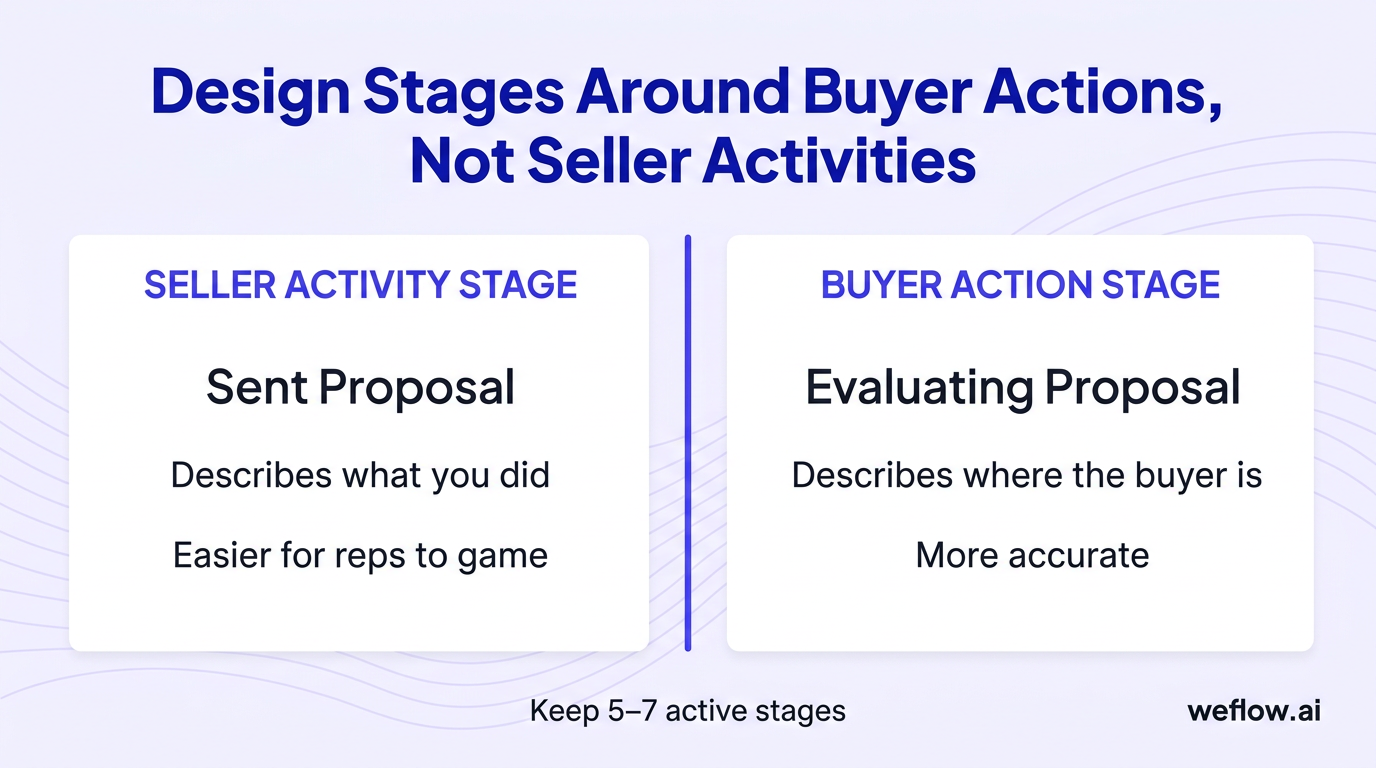
- Align stages to buyer actions, not seller activities. "Sent Proposal" describes what you did. "Evaluating Proposal" describes where the buyer is. The second is more accurate and harder for reps to game.
- Keep it to five to seven active stages. More stages don't mean more accuracy—they mean more confusion about which stage applies and more data entry friction for reps.
- Map stages to forecast categories deliberately. Most Salesforce orgs leave too many stages in "Pipeline" and not enough in "Best Case" or "Commit." This makes your weighted pipeline look thin. Review your forecast category mapping quarterly.
How to get sales reps to update opportunities consistently
Reps don't update opportunities because updating Salesforce feels like work that doesn't help them close deals. You can't change that perception with training alone—you need a combination of accountability, incentives, and automation.
Accountability tactics that work:
- Weekly pipeline hygiene scores. Create a report showing each rep's percentage of opportunities with updated close dates (within the last 14 days), completed Next Steps fields, and accurate stages. Share it in your team channel every Monday.
- Leaderboards for data quality. Gamify CRM hygiene by ranking reps on completeness metrics. Make it visible in your weekly sales meeting. Reps care about standing relative to peers.
- Manager-led pipeline review expectations. The most effective tactic is the simplest: managers who refuse to discuss deals in pipeline review unless the opportunity data is current. When reps know they'll waste meeting time explaining stale data, they update before the meeting.
The cost of poor CRM data: Forecast inaccuracy cascades upward. When your commit is off by 20%, the CRO presents bad numbers to the board, operations can't plan headcount, and finance loses trust in revenue projections. Quarterly forecast misses are often traceable to individual opportunities where the stage, amount, or close date was wrong for weeks before close. Make this cost visible to reps.
Reduce friction, don't just add pressure: Accountability works better when combined with tools that make updating easy. Mobile CRM access, in-context reminders, and automated activity capture (covered below) all reduce the effort required to keep opportunities current.
Use validation rules to enforce data quality on opportunities
Validation rules prevent reps from advancing opportunities without completing required information. They're the enforcement mechanism for your sales process—and one of the most underused features in Salesforce opportunity management.
How validation rules work: When a rep tries to save an opportunity, Salesforce evaluates your validation rule formula. If the formula returns true, the save is blocked and an error message displays. This happens before the record is saved, ensuring bad data never enters the system.
Practical validation rule examples:
- Require a Next Step before advancing past Qualification. Formula:
AND(ISPICKVAL(StageName, "Needs Analysis"), LEN(Next_Step__c) < 10). Error: "Please enter a Next Step of at least 10 characters before moving to Needs Analysis." - Require a primary Contact Role before Proposal stage. Use a rollup or formula field to count Contact Roles, then validate:
AND(ISPICKVAL(StageName, "Proposal/Price Quote"), Primary_Contact_Count__c = 0). Error: "Add a primary contact role to this opportunity before moving to Proposal." - Prevent close dates in the past for open opportunities. Formula:
AND(NOT(IsClosed), CloseDate < TODAY()). Error: "Close date cannot be in the past for open opportunities. Please update the close date." - Block unrealistic close dates. Formula:
AND(ISPICKVAL(StageName, "Prospecting"), CloseDate < TODAY() + 14). Error: "Opportunities in Prospecting should have a close date at least 14 days out."
To create validation rules: Go to Setup > Object Manager > Opportunity > Validation Rules > New.
Implementation tip: Roll out validation rules gradually. Start with one rule, communicate the change to the sales team, and give reps two weeks to update existing opportunities before enforcement. Activating five rules at once creates backlash and support tickets.
[banner type="download" url="https://www.weflow.ai/resources/cheat-sheets/pipeline-management-guide" text="Pipeline Management Best Practices Guide" subtitle="Run deal reviews that catch slippage before it shows up in your commit" button="Get the guide"]
Automate activity capture and sync to Salesforce opportunities
Manual activity logging is where opportunity data goes to die. Reps forget to log calls, skip email logging because it takes too long, and write vague notes that don't help anyone. The result: incomplete activity history, missing context for handoffs, and deals that slip through cracks because no one saw the warning signs.
Automated activity capture solves this by syncing emails, calendar events, and call data to Salesforce records without rep action. The technology has matured significantly—modern solutions capture activities automatically and associate them with the correct Contact, Account, and Opportunity records using matching logic.
Weflow, a Salesforce-native revenue AI platform, handles automated activity capture alongside conversation intelligence and pipeline management. The platform syncs emails, meetings, and calls to Salesforce automatically, writing directly to native Task, Event, and EmailMessage objects.
Benefits of automated activity capture:
- Eliminates manual data entry. Reps save hours per week when they don't have to log every touchpoint manually.
- Improves CRM data hygiene. Activity data flows in consistently, regardless of whether reps remember to log it.
- Prevents deals from falling through cracks. When activities are visible, managers can spot opportunities with no recent engagement before they go dark.
- Improves forecast accuracy. Activity data is a leading indicator of deal health. Opportunities with declining activity are less likely to close on time—but only if the activity data is captured.
Salesforce's native Einstein Activity Capture (EAC) provides basic email and event sync, but many organizations find it unreliable—activities appear inconsistently, matching logic is opaque, and the data lives in a separate store rather than native Salesforce objects. If you're evaluating activity capture solutions, ask about data storage location (native Salesforce objects vs. external), sync reliability across email providers, and how activities are matched to opportunities.
How to set up Salesforce Path for opportunity progression
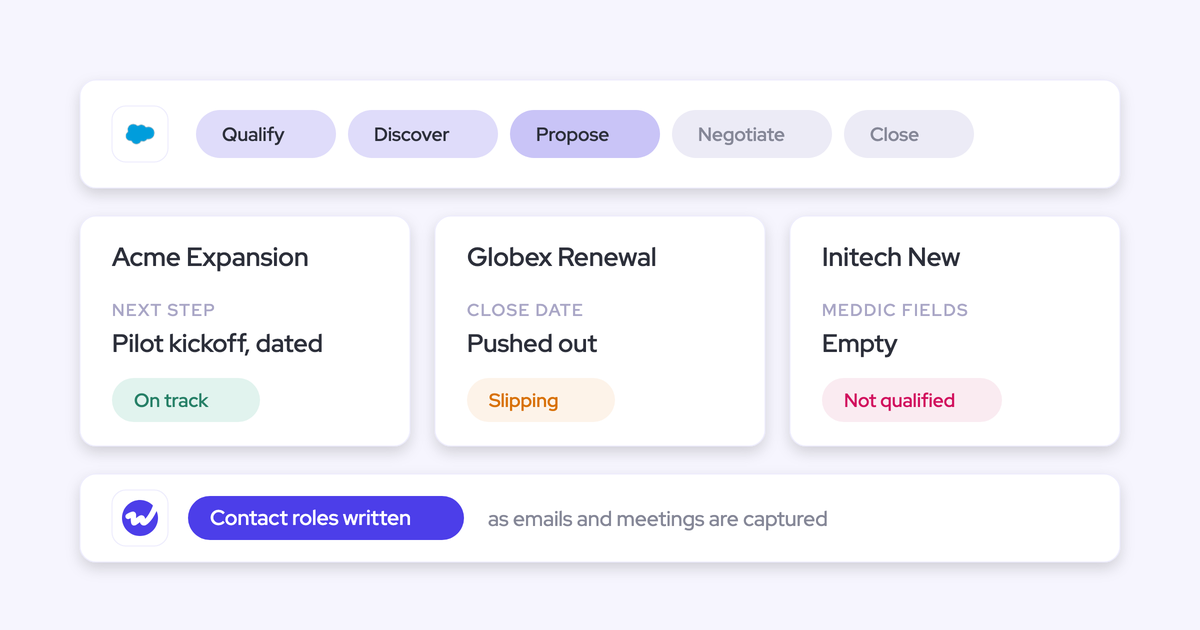
Salesforce Path displays your opportunity stages as a visual chevron diagram at the top of the record page. More than a cosmetic feature, Path reduces stage-skipping and improves data completeness by showing reps exactly what information is required at each stage.
Why Path matters: Without Path, reps see a Stage picklist and choose whatever value seems close enough. With Path, they see a visual progression, key fields to complete for that stage, and guidance text explaining what qualifies a deal for that stage. This structure reduces the "I'll just pick something" behavior that pollutes pipeline data.
Setting up Path:
- Go to Setup > Path Settings > Enable Path.
- Click New Path and select Opportunity as the object and Stage as the picklist field.
- For each stage, configure up to five Key Fields that appear prominently when a rep is at that stage (e.g., show MEDDIC fields when in Qualification, show Contract fields when in Negotiation).
- Add Guidance for Success text explaining what must be true before advancing to the next stage. Keep it concise—two to three sentences maximum.
- Optionally enable Celebrations for Closed Won stages (yes, confetti).
Important configuration tips:
- Create field dependencies alongside Path. Path shows reps what fields they should complete, but it doesn't require them. Pair Path with validation rules for fields that must be completed before stage advancement.
- Don't mix new and existing opportunities on the same Path. If you're rolling out Path to an existing Salesforce org, create the Path for new opportunities and communicate that existing deals may not have all the fields completed for their current stage.
- Review key fields quarterly. As your sales process evolves, the fields that matter at each stage change. Don't let Path become a relic of how you sold two years ago.
Path is available for Opportunities and several other Salesforce objects—use it wherever you have a stage-based picklist that drives process compliance.
When and how to use Salesforce Opportunity Teams
Opportunity Teams let you assign multiple users to a single opportunity with defined roles and access levels. Use them when deals involve multiple stakeholders from your organization—sales reps, solutions engineers, legal reviewers, or executive sponsors.
When Opportunity Teams make sense:
- Enterprise deals with dedicated solutions consultants or pre-sales engineers
- Multi-region opportunities where territory reps and overlay specialists collaborate
- Deals requiring legal, finance, or executive involvement before close
- Complex accounts where an Account Executive and Customer Success Manager co-own revenue
Setting up Opportunity Teams:
- Enable Opportunity Teams in Setup > Opportunity Team Settings.
- Define Team Roles in Setup > Opportunity Team Roles (e.g., Account Executive, Solutions Engineer, Executive Sponsor, Deal Desk).
- For individual users, create default teams: Go to the user's record > Advanced User Details > Default Opportunity Team. This team is automatically added to new opportunities the user owns.
- Configure access levels for each team role: Read Only, Read/Write, or Full Access (includes delete and transfer).
Practical tip: Most organizations over-engineer Opportunity Teams on the first attempt. Start with three to four roles that reflect how your team actually works, then add roles as specific needs emerge. Too many roles creates confusion about who does what.
How to run pipeline reviews that improve forecast accuracy

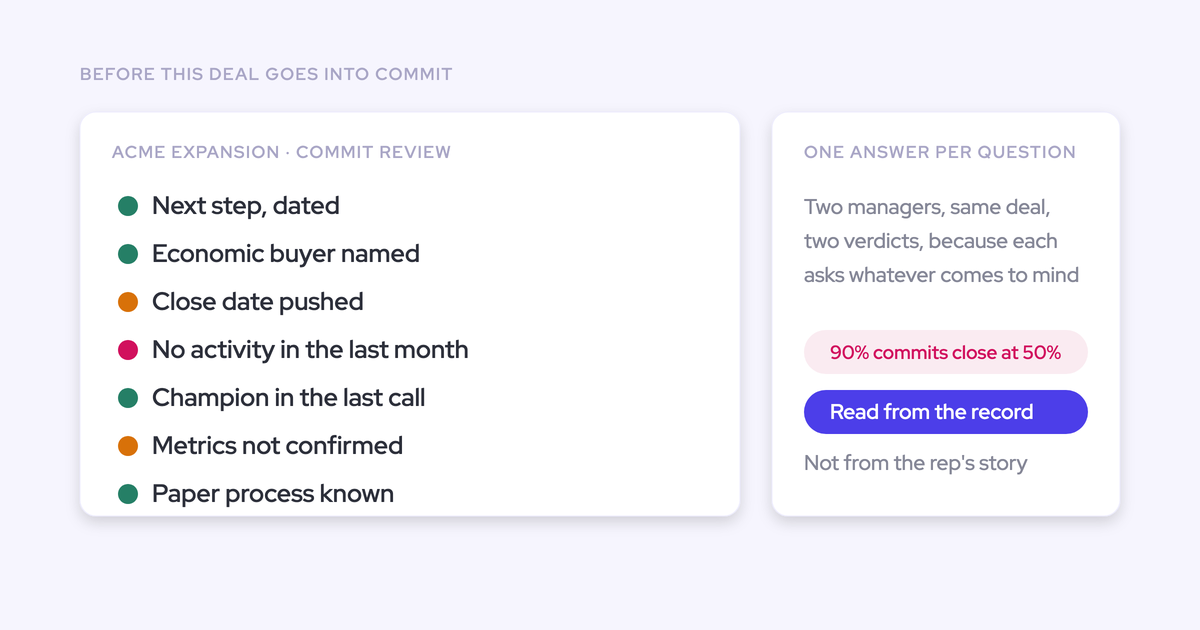
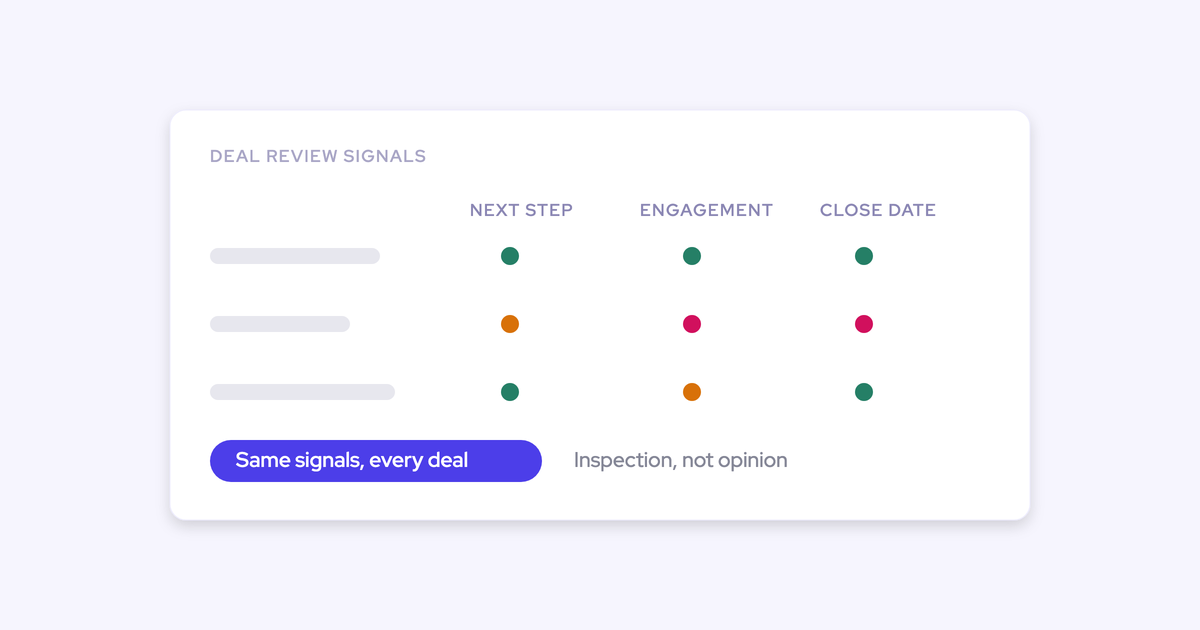
Effective pipeline reviews inspect deal data, not just deal stories. The goal is catching forecast problems early—before the quarter ends and the miss is already locked in.
What a good pipeline review checks:
[banner type="download" url="https://www.weflow.ai/resources/cheat-sheets/pipeline-visibility-cheat-sheet" text="Pipeline Visibility Cheat Sheet" subtitle="Spot stale stages, missing activity, and at-risk deals before quarter close" button="Download cheat sheet"]
- Is the stage accurate? Does the opportunity's current stage reflect the buyer's actual position, or is it optimistic based on what the rep hopes happens?
- Is there a defined next step? An opportunity without a clear next step isn't being actively worked. Flag these for follow-up.
- Is the close date realistic? Deals with close dates that have pushed multiple times, or close dates less than two weeks out with no scheduled meeting, are at risk.
- Is the amount accurate? Has the deal scope changed? Is there a risk of downsell that isn't reflected?
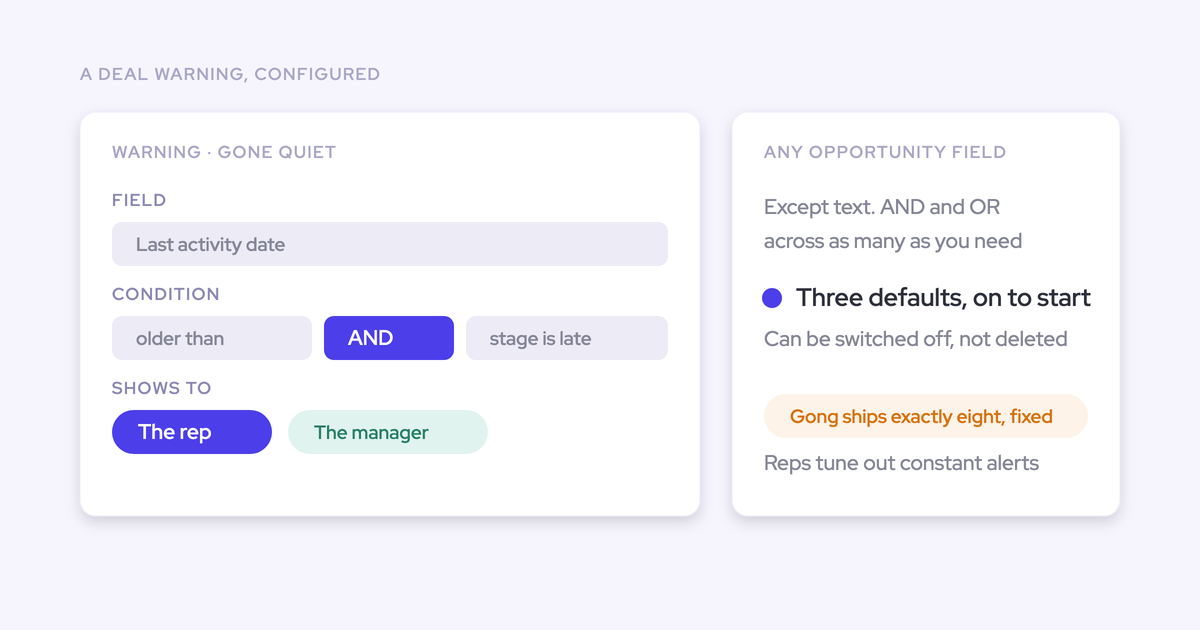
- What's the activity trend? Declining email and meeting activity often predicts deal slippage before the rep acknowledges it.
Native Salesforce tools for pipeline inspection:
Pipeline Inspection (available in Sales Cloud) provides a visual interface for reviewing pipeline changes, including historical snapshots and AI-powered opportunity scoring. Einstein Opportunity Scoring assigns a score to each opportunity based on historical win/loss patterns, helping managers prioritize which deals to inspect.
For teams needing faster pipeline views with inline editing and real-time Salesforce data, Weflow's pipeline inspection tools let managers review and update opportunities directly without opening individual records—useful for high-volume pipeline reviews where clicking into each opportunity takes too long.
Track opportunity changes with reports and Pipeline Inspection
Understanding how opportunities change over time reveals patterns that point forecasts miss. Salesforce provides several native tools for tracking opportunity history—use them to spot problems before they become quarter-end surprises.
Opportunity History reports: Track how opportunities move through stages over time. Create a report using the Opportunity History report type to see when deals entered and exited each stage, how long they spent in each stage, and stage regression patterns (deals that move backward are often in trouble).
Opportunity Field History reports: Enable field history tracking on key fields (Stage, Amount, Close Date, Probability) in Setup > Object Manager > Opportunity > Fields & Relationships. Then create reports using the Opportunity Field History report type to see exactly when fields changed, who changed them, and what the old and new values were.
What to look for in change reports:
- Close date pushes: Opportunities that have pushed close dates multiple times are either misqualified or stalled. Three pushes should trigger a qualification review.
- Amount decreases: A shrinking deal often signals scope reduction or competitive pressure. These deals are at higher risk than the current stage suggests.
- Stage regression: Deals moving backward (e.g., from Negotiation back to Proposal) indicate something changed on the buyer side. These need immediate attention.
- Sudden late-stage entries: Opportunities that jump from early stages to Commit in a single update often haven't followed the sales process. Validate that the required information is actually captured.
Pipeline Inspection with Einstein Opportunity Scoring: Available in Sales Cloud Enterprise and above, Pipeline Inspection combines historical snapshots with Einstein's AI scoring. The Opportunity Score predicts close likelihood based on your org's historical win/loss patterns, factoring in engagement data, stage velocity, and field completeness. Use it to flag deals where the rep's stage is optimistic relative to what the data suggests.
Frequently Asked Questions
What is opportunity management in Salesforce?
Opportunity management in Salesforce is the process of tracking sales deals from qualification through close, including managing stages, amounts, close dates, and related activities. It provides pipeline visibility, enables accurate forecasting, and gives revenue teams a shared record of where deals stand and what needs to happen next.
What are the default opportunity stages in Salesforce?
Salesforce includes nine default stages: Prospecting, Qualification, Needs Analysis, Value Proposition, Id. Decision Makers, Perception Analysis, Proposal/Price Quote, Negotiation/Review, Closed Won, and Closed Lost. Each maps to a forecast category (Pipeline, Best Case, Commit, Closed, or Omitted) and default probability percentage. Most organizations customize these to match their specific sales process.
How do I create a custom opportunity stage in Salesforce?
Navigate to Setup > Object Manager > Opportunity > Fields & Relationships > Stage. Click "New" to add a stage value, then configure the stage name, stage type (Open, Closed/Won, or Closed/Lost), default probability, and forecast category. After saving, you can reorder stages and set the default value for new opportunities.
What is the difference between a lead and an opportunity in Salesforce?
A Lead represents a potential buyer who hasn't been qualified yet—typically someone who filled out a form or was sourced by marketing or SDRs. An Opportunity represents a qualified sales deal that's being actively pursued. Leads are converted into Contacts, Accounts, and Opportunities once they meet your qualification criteria (often when they're ready to engage in a sales conversation).
How does Salesforce Path help with opportunity management?
Path displays your opportunity stages as a visual chevron at the top of the record page. For each stage, you can configure up to five key fields and guidance text that help reps understand what information to capture and what qualifies a deal to move forward. Path reduces stage-skipping and improves data completeness by making the expected behavior visible at each step.
What are Salesforce Opportunity Teams and when should I use them?
Opportunity Teams let you assign multiple users with defined roles to a single opportunity—for example, an Account Executive, Solutions Engineer, and Deal Desk reviewer. Use them for complex deals that require collaboration across roles. Each team member can have different access levels (Read Only, Read/Write, or Full Access) depending on their role in the deal.
How can I improve forecast accuracy with Salesforce opportunities?
Start with data quality: enforce required fields through validation rules, use Path to guide stage progression, and implement activity capture to fill visibility gaps. Then use Pipeline Inspection and Einstein Opportunity Scoring to identify deals where the data doesn't match the rep's optimism. Regular pipeline reviews that inspect specific deals—not just roll-up numbers—catch problems before they become forecast misses.
What validation rules should I add to the Salesforce Opportunity object?
Start with three high-impact rules: require a Next Step field before advancing past Qualification, prevent close dates in the past for open opportunities, and require a primary Contact Role before reaching Proposal stage. Add rules gradually based on where your data quality breaks down. Avoid implementing too many rules at once—each rule adds friction, so focus on the fields that matter most for forecast accuracy.
Key Takeaways
- Configure stages around buyer actions, not seller activities. Map stages to forecast categories deliberately, and keep the total to five to seven active stages. Review quarterly.
- Use validation rules to enforce data quality at the point of entry. Rules for Next Steps, Contact Roles, and realistic close dates prevent bad data from entering the system in the first place.
- Automate activity capture to fill the gaps reps miss. Manual logging is unreliable—solutions like Weflow sync emails, meetings, and calls to Salesforce automatically.
- Run pipeline reviews that inspect deal data, not just deal stories. Check stage accuracy, close date realism, defined next steps, and activity trends. Use Pipeline Inspection and Einstein Scoring to flag deals where the data doesn't match the rep's optimism.
- Track opportunity changes over time to spot patterns. Enable field history tracking on Stage, Amount, and Close Date. Opportunities with multiple close date pushes, amount decreases, or stage regression need immediate attention.