5 Weflow MCP Prompts for Weekly Forecast Prep in Claude
Learn 5 Weflow MCP prompts for weekly forecast prep in Claude: changes, exceptions, agenda.


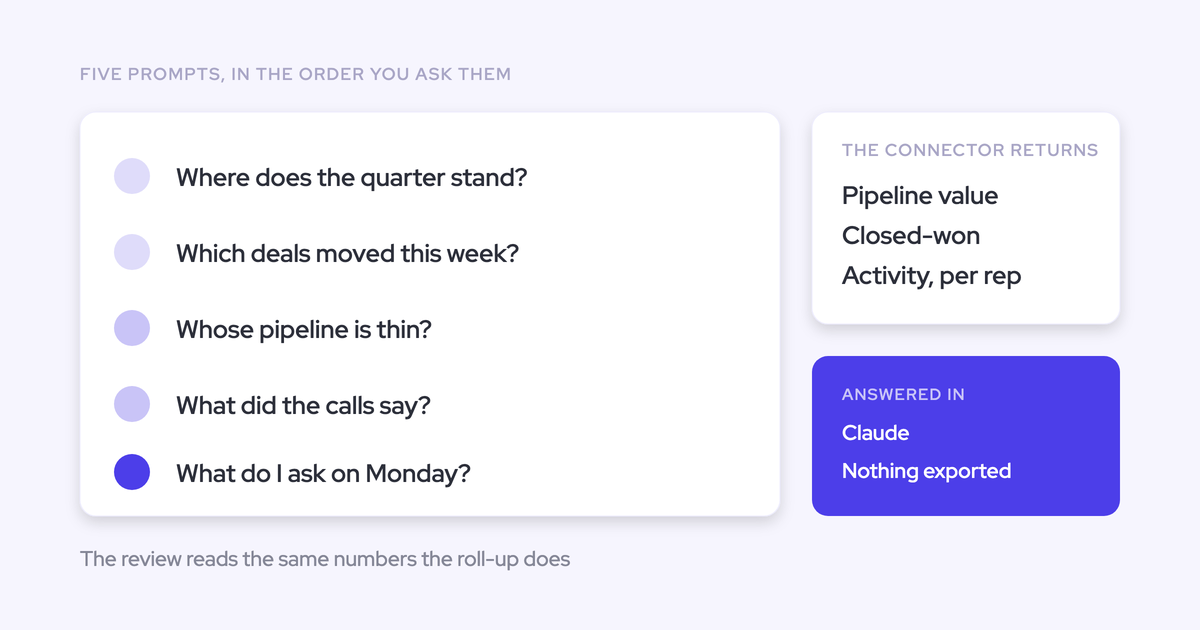

Use Claude to prepare your weekly forecast review: find what changed, identify the exceptions, and bring the supporting records into a short agenda. Keep the forecast judgment with the manager. An assistant should tell you where to look and what to ask before you decide whether the number holds.
The test is practical. Can you prepare without opening every rep’s submission and chasing explanations for every moving close date?
A long pipeline summary doesn’t solve that problem. You need a bounded review that separates material changes from routine updates, names missing evidence, and gives each discussion a clear decision point.
Weflow is the Revenue AI Orchestration platform for sales, customer success, and RevOps teams.
These five prompts bring Weflow forecast context into Claude through Model Context Protocol (MCP), extending the preparation behind Weflow deal reviews into the workspace your team already uses.
What forecast context does Weflow MCP add?
Weflow MCP gives Claude access to forecast calls, playbooks, call summaries, and transcripts, alongside Weflow-computed forecast metrics. That includes forecast context a Salesforce connection alone can’t retrieve.
The distinction matters because forecast calls, submissions, and targets live in Weflow rather than Salesforce objects. Your CRM record and your submitted forecast aren’t interchangeable.
| Context source | Forecast-review use | Traceability | Boundary to respect |
|---|---|---|---|
| Salesforce records through a Salesforce connector | Inspect opportunity fields and CRM activity available through that connection. | Salesforce record IDs and the fields the connector returns. | Salesforce access doesn’t expose forecast calls, submissions, or targets held in Weflow. |
| Weflow forecast context through Weflow MCP | Review forecast calls and per-rep metrics, including weighted and unweighted pipeline, closed-won results, coverage, and gap to forecast. | Underlying opportunity IDs accompany the per-rep metrics. | Requests use a close-date period and personal or team scope. The per-rep breakdown has a 25-owner cap. |
| Weflow conversation context through Weflow MCP | Inspect playbooks, summaries, and transcripts for evidence behind a forecast exception. | Request the available recording or playbook reference and the relevant supporting text. | Accessible context doesn’t guarantee that every customer interaction was captured or that every source is available. |
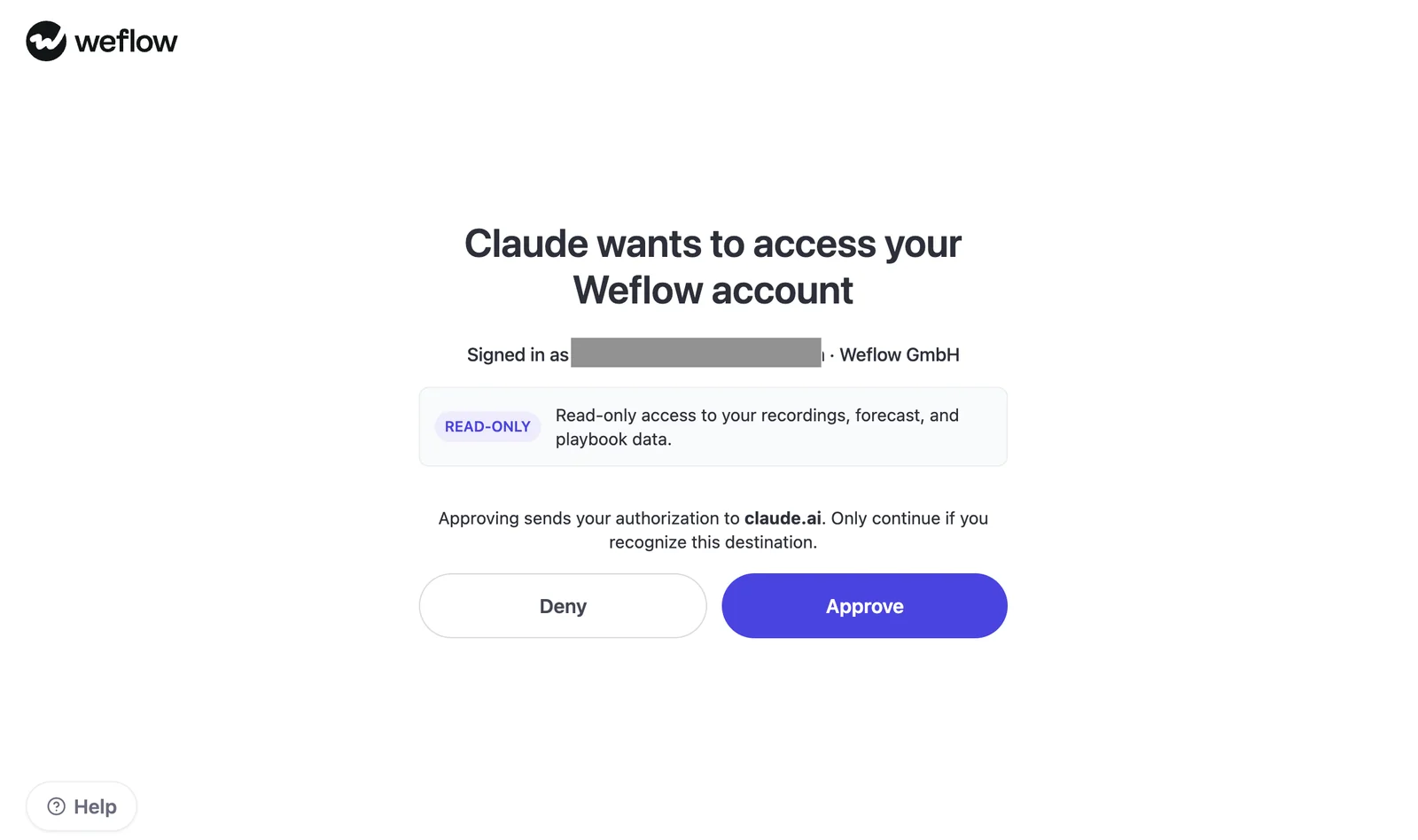
The Weflow authorization screen grants Claude read-only access to recordings, forecast, and playbook data. This workflow prepares recommendations; it doesn’t submit forecasts, apply overrides, or change Salesforce fields.
What should you define before running the prompts?
Define the forecast period, owner population, comparison checkpoint, and exception rules before asking Claude for analysis. Otherwise, two plausible answers can describe different populations.
Fill in these variables once. Paste your completed values into the same Claude conversation before Prompt 1, then keep them unchanged through the workflow unless you explicitly restart the analysis.
| Variable | What to enter |
|---|---|
[PERIOD_START] and [PERIOD_END] | Explicit start and end dates for the opportunity close-date period. |
[SCOPE] | me or team. Team follows the configured reporting hierarchy. |
[EXPECTED_OWNERS] | The owner names you expect the request to cover. Use this list to validate scope, not to assume an owner-filter capability. |
[FORECAST_MOTION] | The configured new-business, renewal, or expansion forecast you intend to review. |
[REVENUE_BASIS] | The amount field, currency, and revenue definition your team uses. Don’t mix ARR, ACV, and total contract value. |
[CURRENT_CHECKPOINT] | The current submission deadline or specific submission version, including time zone. |
[PREVIOUS_CHECKPOINT] | The comparable previous submission deadline or version, including time zone. |
[MATERIAL_CHANGE_RULES] | Your amount or percentage thresholds, plus category changes and close-date movements that always require review. |
[EXCEPTION_RULES] | Your coverage floor, gap-to-forecast trigger, sales-cycle threshold, and any other named metric rules. Specify units and denominators. |
[MAX_ITEMS] | The maximum number of ranked findings in each analytical output. |
[SELECTED_EXCEPTIONS] | The exception IDs you choose after Prompt 3 for evidence review. |
[EVIDENCE_WINDOW] | The conversation date range to inspect. Allow older evidence where it establishes a still-relevant commitment. |
[MEETING_MINUTES] and [PRIORITY_ORDER] | Your meeting length and discussion priorities, such as baseline exposure before best-case upside. |
Run this preflight check before sharing forecast data with Claude:
- Connection: Confirm Weflow forecast access and a working, approved Claude connection. Check Claude plan eligibility and account-level MCP requirements with your administrator.
- Scope: Verify the returned owner population. Don’t accept a partial per-rep breakdown as a complete team review.
- Inputs: Confirm the intended forecast motion, revenue basis, and current submission checkpoint. Identify any missing prior submission.
- Data handling: Confirm transcript access and your company’s rules for sending customer and forecast data to Claude.
Weflow’s connector makes forecast context accessible; it doesn’t create a submission cadence or fill gaps in the underlying customer record. Resolve those gaps before treating the output as meeting-ready.
Five Weflow MCP prompts for weekly forecast preparation
Run the five Weflow MCP prompts in order, in one Claude conversation. Each step narrows the review until you have an agenda rather than another pipeline report.
| Step | Input state | Task | Resulting artifact |
|---|---|---|---|
| 1. Snapshot | Completed variables and a working connection. | Establish the period, population, and current forecast position. | Scoped team and rep baseline. |
| 2. Changes | Validated snapshot and two comparable checkpoints. | Isolate material submission and deal movement. | Prioritized change table. |
| 3. Exceptions | Snapshot, changes, and manager-defined rules. | Identify reps whose metrics require attention. | Ranked exception list. |
| 4. Evidence | Selected exceptions and underlying opportunity IDs. | Inspect the deals and conversations behind each finding. | Evidence table with unresolved questions. |
| 5. Agenda | Evidence-backed exceptions and meeting constraints. | Order the decisions and clarifications the manager needs. | Time-boxed forecast-review agenda. |
Prompt 1: Build a scoped team forecast snapshot
Start by making Claude show which owners and opportunities its answer covers. Weflow MCP returns per-rep metrics with underlying opportunity IDs, so use that traceability before asking for conclusions.
Run in Claude with Weflow MCP.
| Required inputs | Purpose |
|---|---|
[PERIOD_START], [PERIOD_END], [SCOPE], [EXPECTED_OWNERS] | Bound and verify the population. |
[FORECAST_MOTION], [REVENUE_BASIS], [CURRENT_CHECKPOINT] | Keep the forecast definition and submission reference consistent. |
Prepare a weekly forecast baseline using Weflow MCP.

Use:
- Close-date period: [PERIOD_START] through [PERIOD_END]
- Scope: [SCOPE]
- Expected owners: [EXPECTED_OWNERS]
- Forecast motion: [FORECAST_MOTION]
- Revenue basis: [REVENUE_BASIS]
- Current submission checkpoint: [CURRENT_CHECKPOINT]

First, confirm the resolved scope and returned owners.
Report missing or unexpected owners.
If the per-rep request exceeds 25 owners or appears incomplete,
stop the rep-level analysis and request a narrower supported scope.
Don't silently broaden the request.

Confirm that you can isolate the requested forecast motion.
If you can't, stop and explain the missing filter or context.

Apply these rules throughout this conversation:
- Use Weflow's configured forecast category names.
- Separate submitted forecasts from current pipeline metrics.
- Keep baseline, best case, and weighted pipeline distinct.
- Cite retrieved source references and opportunity IDs.
- Use links only when a source returns them. Don't invent URLs.
- Label missing values "unavailable," never zero.
- Separate observed facts, calculations, and interpretations.
- Show formulas and inputs for any calculation you make.
- Report retrieval time separately from source-update timestamps.
- Don't submit, override, or write any changes.

Return:
1. A scope header with period, owners, motion, revenue basis,
   retrieval time, and available source timestamps.
2. A team summary using available Weflow totals.
3. A rep table containing:
   Owner | Submitted baseline | Submitted best case |
   Weighted pipeline | Unweighted pipeline | Closed won |
   Coverage ratio | Gap to forecast | Source reference
4. An evidence index linking each rep's metrics to the returned
   opportunity IDs.
5. Missing inputs and any reconciliation issues.

Don't average rep ratios to manufacture a team ratio.
Don't present current metrics as a historical checkpoint snapshot.
Keep commentary to the issues that prevent a reliable baseline.
Expected output: A scope header, baseline table, and evidence index. The shell below shows structure only, not sample performance.
| Owner | Submitted forecast | Pipeline and results | Coverage / gap | Evidence |
|---|---|---|---|---|
| Returned owner | Baseline and best case, or unavailable | Weighted, unweighted, and closed-won values | Returned metrics with definitions | Source reference and opportunity-ID index |
Customize: Remove columns your team doesn’t use. Keep the distinction between a submitted number and current pipeline math, even if you shorten everything else.
Prompt 2: Compare this week with the previous submission
Ask Claude for material movement between comparable checkpoints, not two full summaries. Weflow versions forecast submissions, but the prompt must verify that the connection can retrieve the versions and historical deal fields your comparison needs.
Run in Claude with Weflow MCP, after validating Prompt 1.
| Required inputs | Purpose |
|---|---|
[CURRENT_CHECKPOINT], [PREVIOUS_CHECKPOINT] | Identify comparable submission versions. |
[MATERIAL_CHANGE_RULES], [MAX_ITEMS] | Define what deserves investigation and limit the output. |
Using the validated scope from Prompt 1, compare:
- Current checkpoint: [CURRENT_CHECKPOINT]
- Previous checkpoint: [PREVIOUS_CHECKPOINT]

Apply [MATERIAL_CHANGE_RULES].
Return no more than [MAX_ITEMS] material changes.

First verify that both submission versions are accessible.
Identify the version, timestamp, and source for each.

If a baseline is missing:
- State which comparison you can't perform.
- Ask me for the missing submission or a dated export.
- Don't reconstruct a prior submission from current pipeline data.
- Label any manager-supplied baseline separately from MCP data.

Where both checkpoints support the comparison, inspect:
- Submitted baseline and best-case movement
- Manager overrides, separately from rep submissions
- Changes to named opportunities supporting the submission
- Amount, category, and close-date changes

Compare opportunity membership across both checkpoints.
Include deals that left the period as well as deals that entered it.
If historical membership or field values aren't accessible,
state that limitation. Absence from today's results isn't proof
that an opportunity slipped, closed, or disappeared.

Return:
Rank | Rep | Metric or opportunity | Previous value |
Current value | Absolute change | Percentage change where valid |
Why it meets the materiality rule | Sources for both checkpoints

Keep submission movement separate from pipeline movement.
Don't claim one explains the other without supporting evidence.
Don't calculate percentage change from a zero baseline.
Finish with unavailable comparisons and excluded minor changes.
Expected output: A change table with evidence for both sides of each comparison.
| Rep / item | Previous → current | Materiality | Evidence status |
|---|---|---|---|
| Returned rep and metric or opportunity ID | Retrieved values and calculated difference | Matched manager-defined rule | Both checkpoint references, or comparison unavailable |
Customize: Match checkpoints to your actual submission cadence. Comparing a locked submission with an unfinished resubmission creates noise before Claude analyzes anything.
Prompt 3: Find rep-level forecast exceptions
Rank rep-level exceptions against rules you set, rather than asking Claude which reps “look risky.” Weflow MCP provides named metrics such as coverage, gap to forecast, win rate, and average sales-cycle length that make those findings inspectable.
Run in Claude with Weflow MCP, using the snapshot and available comparisons.
| Required inputs | Purpose |
|---|---|
[EXCEPTION_RULES] | Set explicit metric thresholds and units. |
[PRIORITY_ORDER], [MAX_ITEMS] | Rank the findings and keep the review focused. |
Find rep-level forecast exceptions using the validated Weflow
snapshot and any verified changes from Prompt 2.

Apply only these exception rules: [EXCEPTION_RULES].
Rank findings using [PRIORITY_ORDER].
Return at most [MAX_ITEMS] exceptions.

For every finding:
- Name the rep, metric, observed value, and threshold crossed.
- State the metric definition and denominator where available.
- Cite the Weflow source and underlying opportunity IDs.
- Explain the possible forecast implication as an interpretation,
  not as a confirmed outcome.
- Give one specific question the manager should resolve.

Don't invent a risk score or an industry benchmark.
Don't label a rep optimistic or conservative from one snapshot.
If a rule needs missing data, mark it "not assessed."
If no rep meets the defined rules, say so.

Return:
Exception ID | Rank | Rep | Metric and observed value |
Rule crossed | Forecast implication | Evidence |
Manager question | Missing data

Keep data-quality exceptions separate from commercial exceptions.
Don't label a rep healthy simply because required data is missing.
Expected output: A ranked exception table with stable IDs you can select for the next prompt.
| Exception | Rep / metric | Reason for review | Manager question |
|---|---|---|---|
| Assigned exception ID | Returned owner, metric, and value | Threshold crossed, with source reference | The clarification needed before accepting the forecast |
Customize: Tighten [MAX_ITEMS] to match your meeting capacity. Don’t loosen the evidence requirement just to fit more reps into the review.
Prompt 4: Trace exceptions to deals and conversations
Use the opportunity IDs behind each selected exception to inspect its evidence. Weflow MCP gives Claude access to call summaries, transcripts, and playbooks, but a conversation only explains a forecast issue when it supports the specific claim.
Run in Claude with Weflow MCP, after choosing exceptions from Prompt 3.
| Required inputs | Purpose |
|---|---|
[SELECTED_EXCEPTIONS] | Choose which exception IDs deserve a drill-down. |
[EVIDENCE_WINDOW] | Bound the conversation review without confusing it with the opportunity close-date period. |
Investigate these exceptions: [SELECTED_EXCEPTIONS].
Keep the validated forecast scope from Prompt 1.
Inspect conversation evidence within [EVIDENCE_WINDOW].

Start with the opportunity IDs behind each exception.
Retrieve accessible opportunity context, Weflow playbooks,
call summaries, and transcripts relevant to the finding.

For each opportunity:
- Identify the rep, opportunity name, and opportunity ID.
- Show the available amount, category, and close date.
- Explain how the opportunity contributes to the exception.
- Find evidence that supports or contradicts the submitted call.
- Distinguish customer statements from rep interpretation.
- Separate transcript evidence from AI-generated summaries.
- Give the source date and reference.
- Include an exact short excerpt only when you retrieved it.
- Use a timestamp or source link only when available.

Don't infer inactivity from an absent transcript.
Don't treat an old customer statement as a current commitment.
If evidence sits outside the requested window, explain why it
still matters before using it.

Return:
Exception ID | Rep | Opportunity and ID | Forecast contribution |
Supporting or contradictory evidence | Source type and date |
Source reference | Unresolved question

Label each conclusion:
Supported / Contradicted / Insufficient evidence.

If you can't retrieve a record, retain its ID and state the
access gap. Don't invent a link, quote, or explanation.
Expected output: An evidence table that distinguishes a supported finding from a question you still need to ask.
| Rep / opportunity | Finding | Source | Unresolved question |
|---|---|---|---|
| Returned owner and opportunity ID | Supported, contradicted, or insufficient evidence | Retrieved source type, date, reference, and relevant text | What the evidence doesn’t establish |
Customize: Start with summaries for triage, then require transcript evidence for disputed timing or customer commitments. You don’t need every call to settle every exception.
Prompt 5: Turn exceptions into a review agenda
Turn the verified exceptions into decisions, owners, and questions. Claude should use the Weflow evidence to prepare the meeting, while you decide whether to keep, revise, or investigate the forecast call.
Run in Claude with Weflow MCP, after reviewing Prompt 4’s evidence.
| Required inputs | Purpose |
|---|---|
[MEETING_MINUTES], [PRIORITY_ORDER] | Set the available time and discussion order. |
[SELECTED_EXCEPTIONS], [MAX_ITEMS] | Limit the agenda to the findings you intend to discuss. |
Create a weekly forecast-review agenda from the validated
snapshot, verified changes, and evidence-reviewed exceptions.

Meeting length: [MEETING_MINUTES] minutes.
Priority order: [PRIORITY_ORDER].
Selected exceptions: [SELECTED_EXCEPTIONS].
Maximum discussion items: [MAX_ITEMS].

Open with a short readout of the submitted forecast and the
material unresolved issues. Preserve Weflow's category labels.

For each agenda item, include:
Order | Time box | Owner | Exception |
Question to resolve | Decision or clarification needed |
Supporting opportunity IDs and source references

Make the time boxes fit the meeting length.
Identify the proposed decision owner without claiming that
person has approved anything.

Separate:
- Evidence-backed forecast decisions
- Missing-data clarifications that block a decision
- Deal strategy or coaching that needs a separate session

Put routine status updates in a parking lot.
Don't add an item simply because an opportunity is large.
Every discussion must have a material forecast implication
or resolve a named evidence gap.

End with an action-capture table:
Decision | Owner | Due date | Record to update

Leave decisions and due dates blank for the meeting.
Don't write changes, submit a forecast, or apply an override.
If the evidence is insufficient for a usable agenda, say what
must be resolved first rather than presenting a finished review.
Expected output: A time-boxed agenda, a parking lot, and an empty action-capture table.
| Order / time | Owner and exception | Question | Decision needed | Evidence |
|---|---|---|---|---|
| Assigned order and time box | Returned owner and selected exception | Specific unresolved forecast question | Keep, revise, or investigate the call | Opportunity IDs and retrieved source references |
Customize: For a shorter meeting, cut discussion items rather than squeezing a full deal review into each time box. Move deal strategy into a separate working session.
How should you validate Claude’s forecast output?
Validate Claude’s Weflow forecast output against scope, source timestamps, totals, and familiar deals before using the agenda. A correct-looking table isn’t enough.
We’ve heard buyers reject AI preparation after a basic name or account-history error. Check the simple facts first. They’re often where trust breaks.
- Match the population. Compare returned owners with your intended team. Pass only when you can explain every missing or unexpected owner and confirm the per-rep breakdown is complete.
- Match the forecast definition. Check close-date period, motion, currency, amount field, and category names against Weflow. Fail any comparison that mixes revenue definitions.
- Check freshness. Inspect submission versions and available source-update timestamps. A retrieval timestamp alone doesn’t prove freshness. Hold affected conclusions if you can’t verify the checkpoint.
- Reconcile the numbers. Compare submitted totals, pipeline values, and closed-won results with the matching Weflow view. Keep rep sums and manager overrides separate. Require an explanation for any difference.
- Inspect familiar opportunities. Open several deals you already know using the returned IDs. Confirm owner, amount, category, and close date before trusting the interpretation.
- Read the supporting evidence. Check that the cited conversation supports the claim, belongs to the right opportunity, and remains relevant. Reject unsupported quotes or explanations.
- Check the gaps and agenda. Make sure unavailable data stays visible. Pass only when every discussion item has a decision point or an explicit missing-data question.
Weflow’s own early forecast prediction struggled without enough activity and conversation data. That experience shaped our focus on automatic capture. Claude faces the same constraint: better instructions can expose missing inputs, but they can’t supply customer evidence that nobody captured.
Claude with Weflow MCP vs Ask Weflow AI
Choose Claude with Weflow MCP when Claude is already your working surface or you need to combine revenue context with other approved sources. Choose Ask Weflow AI when your question stays inside Weflow and you want less connection setup.
| Decision factor | Claude with Weflow MCP | Ask Weflow AI |
|---|---|---|
| Workflow location | Prepare the review in the Claude conversation where you already work. | Ask from Weflow recording pages, pipeline views, or individual records. |
| Data combination | Combine Weflow context with other sources your organization has connected and approved in Claude. | Work with Weflow sources spanning recordings, CRM records, pipeline views, and related activity. |
| Setup | Requires a working Weflow MCP connection and approval for the external assistant’s data handling. | Uses the built-in assistant and its source-selection workflow. |
| Prompt portability | The five prompts above target the Weflow MCP workflow in Claude. | Reuse the analytical questions, but adapt source instructions. Don’t assume identical retrieval capabilities. |
| Best-fit situation | Your team already works in Claude and wants forecast preparation there. | You need answers from Weflow without introducing another assistant connection. |
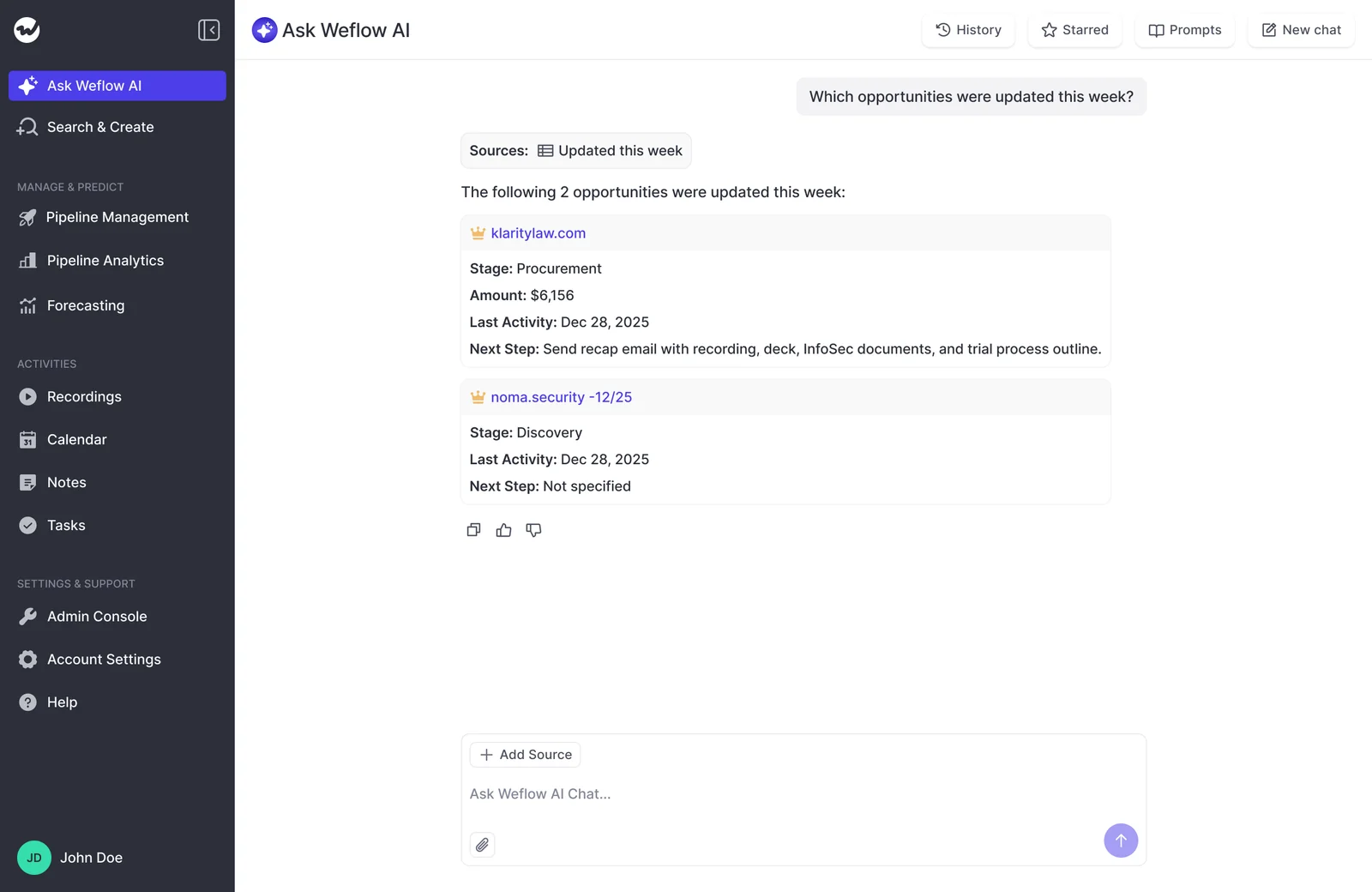
Ask Weflow AI can attach sources to an answer so you can inspect the underlying context. Moving to Claude changes the working surface; it doesn’t remove the need to check sources.
- Choose Claude with Weflow MCP if staying in Claude removes a real step from your weekly preparation.
- Choose Ask Weflow AI if you only need to query Weflow. Don’t add an external connection just to reproduce a chat you already have.
Weflow MCP forecast prompt FAQ
The readiness checks for Weflow MCP forecast prompts are forecast access, verified team scope, and retrievable evidence. Confirm those before rolling the workflow out to other managers.
What Weflow access is required for forecast prompts?
You need access to the underlying Weflow forecasting capability and an authorized Weflow MCP connection in Claude. Weflow Deal Intelligence & Forecasting includes forecasting; Revenue AI Enterprise includes it in the full bundle. Revenue AI Business includes deal intelligence, but not forecasting.
Don’t infer MCP entitlement from those product names alone. Confirm account-level MCP availability, any separate charges or query limits, and Claude plan eligibility before rollout.
- Verify that you can open the intended forecast and submissions in Weflow.
- Test the authorized Claude connection with your actual user identity, including transcript access where needed.
Should you connect Salesforce and Weflow MCP together?
Connect both when your review needs Salesforce record detail alongside Weflow’s forecast and conversation context. A Salesforce connection alone can’t retrieve forecast submissions and targets that live in Weflow.
| Salesforce connection | Weflow MCP connection |
|---|---|
| Provides the CRM records and fields its available tools can retrieve. | Provides Weflow forecast metrics, forecast calls, playbooks, call summaries, and transcripts. |
Use Weflow MCP alone if it returns everything your review needs; add Salesforce access when you encounter a specific record-level gap.
How does team hierarchy affect Weflow MCP scope?
Weflow MCP team scope follows the configured reporting hierarchy. For an administrator with no hierarchy configured, team scope resolves to every active user in the company, so don’t assume “team” means direct reports.
- Ask Claude to return the resolved owner population before analyzing it.
- Compare that population with your intended reporting group and correct the configuration or request scope before proceeding.
Scope validation doesn’t replace permission testing. Weflow inherits Salesforce permission sets and role hierarchy, but Salesforce list-view restrictions and Lightning component visibility aren’t equivalent access controls.
What happens when team scope exceeds 25 owners?
Weflow MCP caps the per-rep breakdown at 25 owners. A larger scope can provide aggregate answers, but it doesn’t support a complete rep-by-rep exception review in one breakdown.
- Narrow the request through supported personal or team scopes. Ask your administrator how to reach the intended subteams.
- Run each segment with the same period, revenue basis, checkpoints, and exception rules.
- Check owner and opportunity overlap before combining results. Don’t average coverage ratios or double-count shared records.
If you can’t narrow the scope, keep the aggregate analysis and use Weflow directly for the rep-level review.
Which forecast categories will Claude use?
Weflow MCP returns categories from your organization’s Weflow configuration, including category-style or stage-based groupings. Weflow computes the forecast metrics; the output doesn’t automatically mirror Salesforce’s forecast setup.
Keep the instruction to preserve category names in every reused prompt. If you need a mapping to another taxonomy, supply it explicitly and display both labels.
Can Claude trace findings to opportunities and conversations?
Yes. Weflow MCP returns underlying opportunity IDs with per-rep metrics and provides access to playbooks, call summaries, and transcripts. Whether a particular finding has enough supporting evidence depends on what the connection can retrieve.
- Opportunity: Require the returned ID, owner, and relevant fields.
- Conversation: Require source type, date, and the available recording or playbook reference.
- Conclusion: Require supporting text and an explicit statement when evidence is insufficient.
A returned opportunity ID gives you an audit path.
Can these prompts prepare a renewal forecast review?
Yes, reuse the workflow for a deal-based renewal forecast when Weflow MCP can isolate your configured renewal scope. Weflow supports renewal forecasting separately from new business, but verify that the connector returns the intended renewal population before using these prompts.
| Variable | Renewal substitution |
|---|---|
[FORECAST_MOTION] | Your configured renewal forecast. |
[EXPECTED_OWNERS] | The account-management or customer-success owners responsible for those renewals. |
[PERIOD_START] and [PERIOD_END] | The renewal opportunity close-date window. Don’t silently substitute contract end date for the connector’s close-date filter. |
[REVENUE_BASIS] and [EXCEPTION_RULES] | Your renewal amount definition and renewal-specific review thresholds. |
Weflow doesn’t support consumption forecasting. Keep usage-based revenue projection outside this workflow.
Test the five prompts on one known team before your next review. Share the agenda only after the scope, totals, and supporting deals reconcile.