How to Find Single-Threaded Deals From Email and Meeting Data
Learn how to find single-threaded deals from email and meeting data, and flag risk by stage.


A deal is single-threaded when only one person on the buyer side replies to your emails or shows up to meetings, no matter how many contact roles are filled.
To find these deals, count the engaged buyer contacts on each opportunity using captured email and meeting data, compare that number to what's normal for the deal's stage, and bring any flag into your one-on-one as a question.
Most managers learn this the hard way: The one contact goes quiet or leaves the company, and the deal goes with them. And since the opportunity record can't tell you who's actually involved, every deal review starts with the rep's version of events
Below, we'll walk you through our six-step method, show how far Salesforce reports and Gong's deal panel can take you, and explain where Weflow automates the count.
That includes using Ask Weflow AI to find out which contact on a deal has actually replied before you sit down with the rep.
What counts as a single-threaded deal, and what doesn't
A deal with six contact roles and only one person replying is still single-threaded. A full contact list or a crowded CC line doesn't change that.
Here's how the difference plays out:
| Looks multi-threaded | Actually multi-threaded |
|---|---|
| Six contact roles listed on the opportunity | Several of those contacts replying on the thread |
| Five people CC'd on the proposal email | Several people attending the meetings |
| Ten emails sent to the economic buyer | Emails coming back from the economic buyer |
Our co-founder, Philipp Stelzer, sums up why this matters:
"Multithreading in the current times are just it's just super crucial. Right? Like, there's very few deals that get bought if you're not multithreaded these days. And then it obviously also comes down to the depth of your relation, right? Like how many meetings, how many emails have you had with different folks?"
So the count is your starting point, and depth comes next.
Why Salesforce makes single-threaded deals look multi-threaded
Salesforce can make your buying group look smaller or bigger than it really is, and it comes down to four structural reasons. None of them gets fixed by asking reps to try harder.
| What you see | Why it happens |
|---|---|
| One contact on a deal that has five people on the thread | Reps don't create contacts by hand because there's no payoff for them. |
| Contact roles counted as engagement | Roles show who's listed on the deal, not who replies or attends. |
| A deal that looks dead, or busier than it is | When an account has several open opportunities, activity falls back to the account instead of the deal. |
| Answering the question takes several reports | Salesforce report types can't put contact-level engagement in an opportunity report column. |
As a result, a single-threaded deal looks just like a healthy one in every pipeline report, right up until it slips.
What you need before you count engaged buyer contacts
Before the count can mean anything, you'll need four things in place:
- Emails and meetings are captured automatically, not hand-logged: Since capture runs through the mailbox and calendar, this sits with your mail admin and Salesforce admin.
- Buyer-side participants exist as Salesforce contacts: Your Salesforce admin owns the contact creation rules and duplicate handling.
- Activity is tied to the opportunity, not just the account: RevOps usually owns the matching logic, since it decides what your deal-level reporting can see.
- You have enough closed-won history to set benchmarks: RevOps pulls it, and the sales leader agrees on what it means.
Coverage has a hard edge. Anything that happens in channels you don't capture, like a shared Slack channel or a mailbox legal won't connect, won't show up in the count.
How to find single-threaded deals in six steps
The order matters here: build the buying group first, attach activity to the right deal, count engagement, compare it against the stage, surface one flag, and then use that flag to start a conversation.
Step 1: Get every person on the thread onto the opportunity
Everyone who shows up on the deal's email threads and calendar invites needs to exist as a contact attached to the account and the opportunity. Otherwise, your count is off from the start.
You'll know this step is done when:
- Every external participant on the deal's threads and invites is captured.
- Each one is attached to the matching account.
- Each one is linked to the opportunity, optionally as a contact role.
- Nobody is created twice.
This is the step reps tend to skip. A rep may have met the VP twice, but the opportunity still only shows the one contact who booked the first call.
Step 2: Map emails and meetings to the right opportunity
Matching activity on contact roles alone falls apart as soon as an account has new business, a renewal and an upsell open at the same time. That's why a good match also weighs prior communication on the thread, the opportunity's stage and when it was created.
Here's an example. Say an account has three open opportunities, and the same two contacts hold roles on both the renewal and the upsell. One of them replies to an email about expansion pricing.
- Under contact-role matching: There's no one-to-one link to follow, so the email falls back to the account. The upsell looks quiet. The renewal looks unaffected.
- Where it should land: On the upsell, because the earlier messages on that thread were about the upsell and it's the open deal in an active stage.
This is how your rep can say they spoke to the buyer yesterday while the deal looks dead. Both are true, and the activity simply landed somewhere you weren't looking.
Step 3: Count who replies and attends, not who was emailed
For each opportunity, count the buyer-side contacts who sent an email or attended a meeting within a rolling window, and watch whether that number is rising or falling. Then pair it with reply rate, so ten emails out and none back shows up as the monologue it is.
Here's what to track:
- Engaged contacts in the window
- Whether that number is rising or falling
- Reply rate, meaning emails received against emails sent
- Last meeting per contact
Here's what that looks like for a deal that seems healthy on paper:
| Measure | One deal, last 30 days |
|---|---|
| Contact roles on the opportunity | 6 |
| Engaged contacts (replied or attended) | 1 |
| Trend in engaged contacts | Falling |
| Emails sent to the economic buyer | 10, with no replies |
| Last meeting with anyone but the champion | None in the window |
Six roles, but only one thread. That's exactly the kind of deal you want to catch.
Step 4: Set the engaged-contact threshold by stage from closed-won deals
Base the threshold on your own closed-won deals, stage by stage, and only flag deals that fall below the line for their current stage. A blanket rule like "every deal needs seven contacts" just creates noise, since procurement and legal usually join late.
- Pull your closed-won deals from the last few quarters.
- For each one, read how many buyer contacts were engaged when it exited each stage.
- Set a floor per stage at the level your winning deals usually reached.
You'll end up with a table like this:
| Stage | Buyer roles usually involved | Floor you set |
|---|---|---|
| Discovery | Champion, the person who owns the pain | Engaged contacts at discovery exit in your closed-won deals |
| Evaluation | Champion plus technical evaluators and users | Engaged contacts at evaluation exit |
| Proposal | Evaluators plus the economic buyer | Engaged contacts at proposal exit, with the economic buyer among them |
| Negotiation | Economic buyer, procurement, legal, security | Engaged contacts at negotiation exit |
Philipp made this point about days in stage, but it applies just as much to engaged contacts:
"That allows you to create internal benchmarks, and you can then use these benchmarks and to then create, you know, signals and warnings and so on. So having a good grasp and understanding of this actually allows you to coach better and to react quickly. Right? So you need to have those benchmarks. Otherwise, you won't know what is good and what is bad, basically."
Step 5: Put one flag where reps and managers both see it
Stick to one rule, in one place, that both the rep and the manager can see and that stays empty when everything's on track. If the same flag arrives as an email, a task and a dashboard tile, your team will tune it out within a week.
When you design the flag, keep three rules in mind:
- One place: The flag lives where deals are already reviewed, not in a separate alert stream.
- Rep-visible: Reps tell us they'd rather spot the red deal themselves than get a manager's email telling them to chase it. A flag only the manager sees feels like surveillance.
- Conditions combined: "Engaged contacts below the stage floor" fires only in combination with stage (and amount, if you want), so it only shows up where being wrong is expensive.
Step 6: Bring the flag into the one-on-one as a question
Engagement data shows you who's in the conversation, but it can't confirm a champion. So use the flag to open the conversation, not close it. Ask questions like:
- Who else at the account knows this deal exists?
- Will this person take your call if you ring them today?
- Can they get you to the economic buyer, and when?
- If they left next month, who would carry the decision?
The data narrows things down, and clues like response speed, whether the relationship has moved to phone and whether the contact picks up all help. But it's the conversation that gives you the answer.
And when the engagement picture is already on screen, you don't have to piece it together from memory, so the one-on-one turns into a discussion about how to widen the deal.
Mistakes that hide single-threaded deals from your pipeline review
Most of these mistakes come from shortcuts that make the count look better than the deal really is:
- Counting CC lines or emails sent as engagement: You end up measuring the rep's outreach instead, so a ten-email monologue looks like a live relationship.
- Treating last modified dates or field edits as activity: Salesforce's Last Modified date moves whenever anyone touches the record, so a neglected deal looks alive.
- Reading high engagement as proof of a champion: A busy contact with no internal pull is the deal that slips at quarter end.
- Waiting until the champion leaves: By then, there's no second relationship to fall back on, so run the check weekly while there's still time to widen the deal.
Where Salesforce reports and Gong's deal panel get you
Both get you part of the way, but each one hits a wall at some point.
Building a single-threaded deals report in Salesforce
In Salesforce, you can list contact roles per opportunity and pull activity, but an opportunity report can't show contact-level engagement or replies in a single column.
Because reports are bound to their report type, the DIY version turns into a weekly stitching job:
- Run a report of open opportunities with their contact roles.
- Run a separate activity report for those contacts over your window.
- Export both and join them in a spreadsheet per opportunity.
- Count distinct contacts with activity, and try to separate inbound from outbound.
- Rebuild it before every pipeline review.
And it tends to break in three places:
- Replies: If inbound mail isn't logged against the contact, you're counting emails sent.
- Several open opportunities on one account: Activity that fell back to the account never shows up on the deal.
- Upkeep: The report is only as good as Steps 1 and 2, and those depend on contacts and matching that reps don't maintain.
Reading multi-threading from Gong's deal panel and warnings
Gong's deal panel shows who's actively engaged on both sides of a deal and how active each person was over the last 21 days, using bars (none, under 10, 10 to 20, or over 20 activities).
It also recommends other contacts to engage, and the board's contact column tells you at a glance whether a deal is single-threaded.
Gong's pipeline board puts a contacts column, warning counts and an activity timeline on every deal:
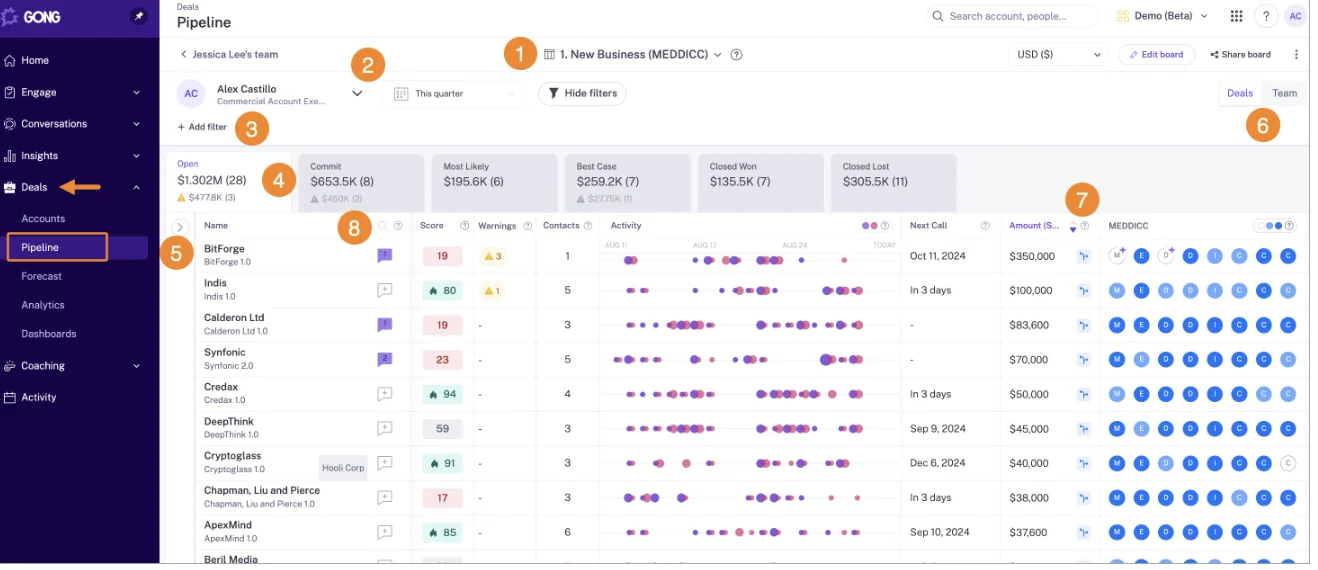
It's a good board, and teams tend to get attached to it. Our Head of Sales bought Gong twice before joining us, and here's what kept him there:
"The reason why I stuck with it was like the bubbles, like, you sort of get like addicted to the bubbles. It's like this nice UI thing, but it kind of gives you this good, like momentum of the deal."
— Chris Nethercote, Head of Sales at Weflow, former Gong enterprise customer
Where it falls short is the warnings. Gong's AI Deal Monitor comes with eight fixed warnings, all defined by Gong:
- No activity
- Ghosted
- Overdue
- Not enough contacts
- No power
- Pricing not mentioned
- Red flag
- Stalled in stage
You can switch each one on or off and adjust when it triggers, but you can't create your own. That means there's no way to build a rule that combines contact count with stage.
Gong also stores captured calls in its own cloud instead of as native Salesforce records, so getting that data into a warehouse or BI tool requires Data Cloud, a separate purchase at around $5,000 a year.
That said, if your team is happy with those eight warnings and already reviews deals in Gong, you have a reasonable read on multi-threading.
How Weflow finds single-threaded deals from email and meeting data
Weflow is the Revenue AI Orchestration platform for Salesforce teams in sales, customer success and RevOps, and everything it captures lands in native Salesforce objects you own.
Each part of Weflow takes care of one of the steps above:
- Contact creation from threads and invites handles Step 1.
- Opportunity matching handles Step 2.
- The deal board's engagement columns handle Step 3.
- Warnings you define handle Steps 4 and 5.
- Ask Weflow AI prepares Step 6.
Weflow Activity & Contact Capture creates contacts from threads and invites
Weflow Activity & Contact Capture creates Salesforce contacts for the people it detects on email threads and calendar invites, attaches them to the matched account and opportunity, and can automatically add them as contact roles too.
Your reps don't have to add anyone by hand, and the buying group finally becomes something you can report on.
Three safeguards keep things clean:
- Existing accounts only: Weflow never creates accounts, leads or opportunities, so capture can't spawn orphan records.
- A cap per event: A hundred-person webinar doesn't write ninety-nine contacts.
- Deduplication: It runs on top of Salesforce's own duplicate rules. If an address already exists as a lead, the activity attaches to that lead.
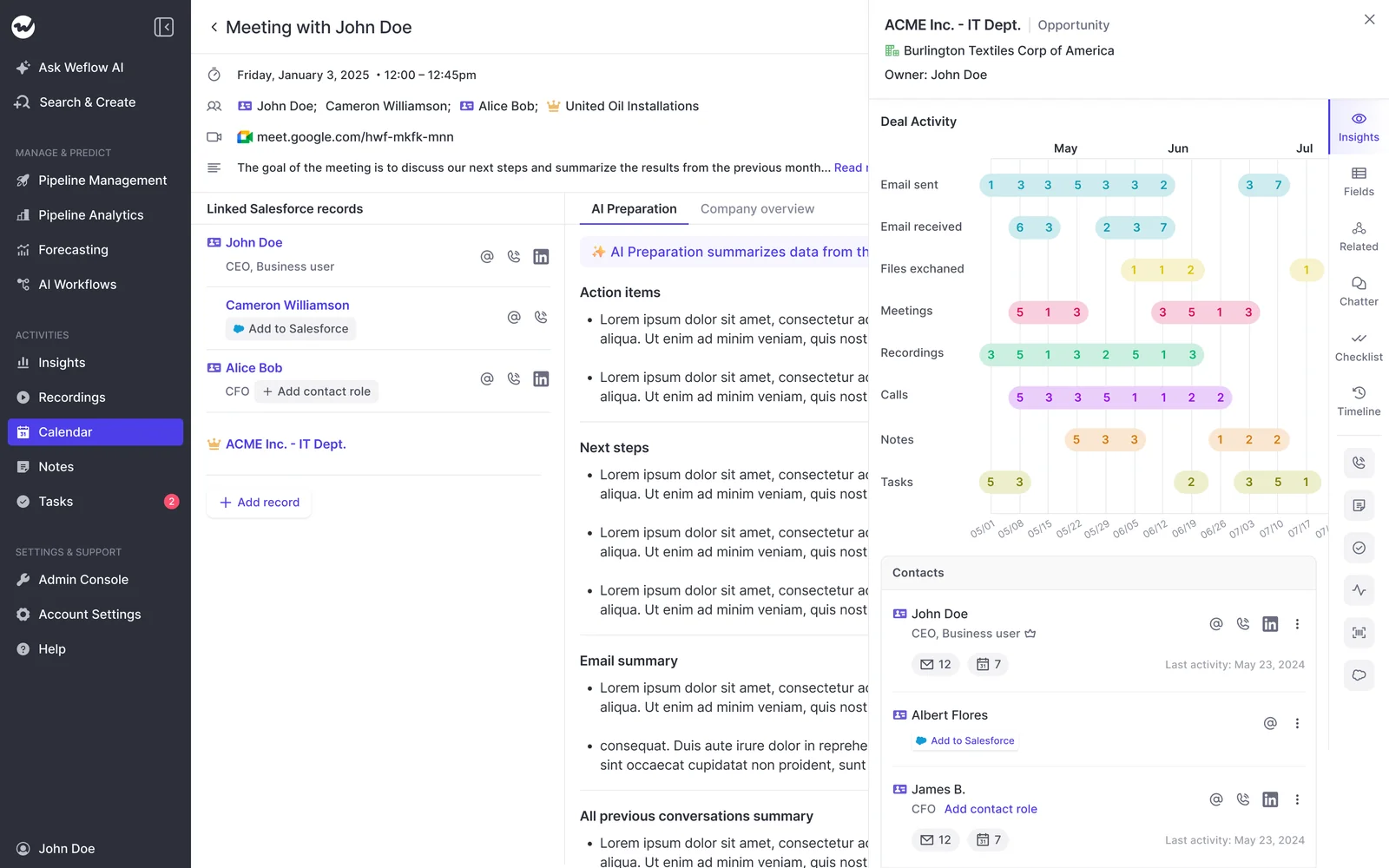
Each opportunity's panel then lists its contacts with their Salesforce sync status and last activity:
Weflow matches each email and meeting to the right opportunity
Weflow matches activity to opportunities based on contact roles, plus prior communication on the thread, the opportunity's stage and its creation date. This keeps engagement on the right deal, even when an account has several open opportunities.
Going back to the Step 2 example, the expansion pricing reply lands on the upsell because that's where the thread's history points.
The upsell shows the engagement it actually has, the renewal stays clean, and your activity counts stop sparking arguments in the review.
Weflow Deal Intelligence & Forecasting puts engaged contacts on the deal board
Weflow Deal Intelligence & Forecasting shows engagement as columns next to your Salesforce fields, so you can read multi-threading across the whole team without opening every deal. Here are the columns that matter for this check:
- Multi-threading over 30 days.
- Per-contact engagement and related contacts.
- Engaged buyer contacts, and whether that number is rising.
- Reply rate.
- Days inactive, which counts only emails and meetings, so a field edit doesn't make a deal look alive.
- Last meeting and next meeting.
Weflow Deal Intelligence & Forecasting shows engagement as columns next to your Salesforce fields, so you can read multi-threading across the whole team without opening every deal. Here are the columns that matter for this check:
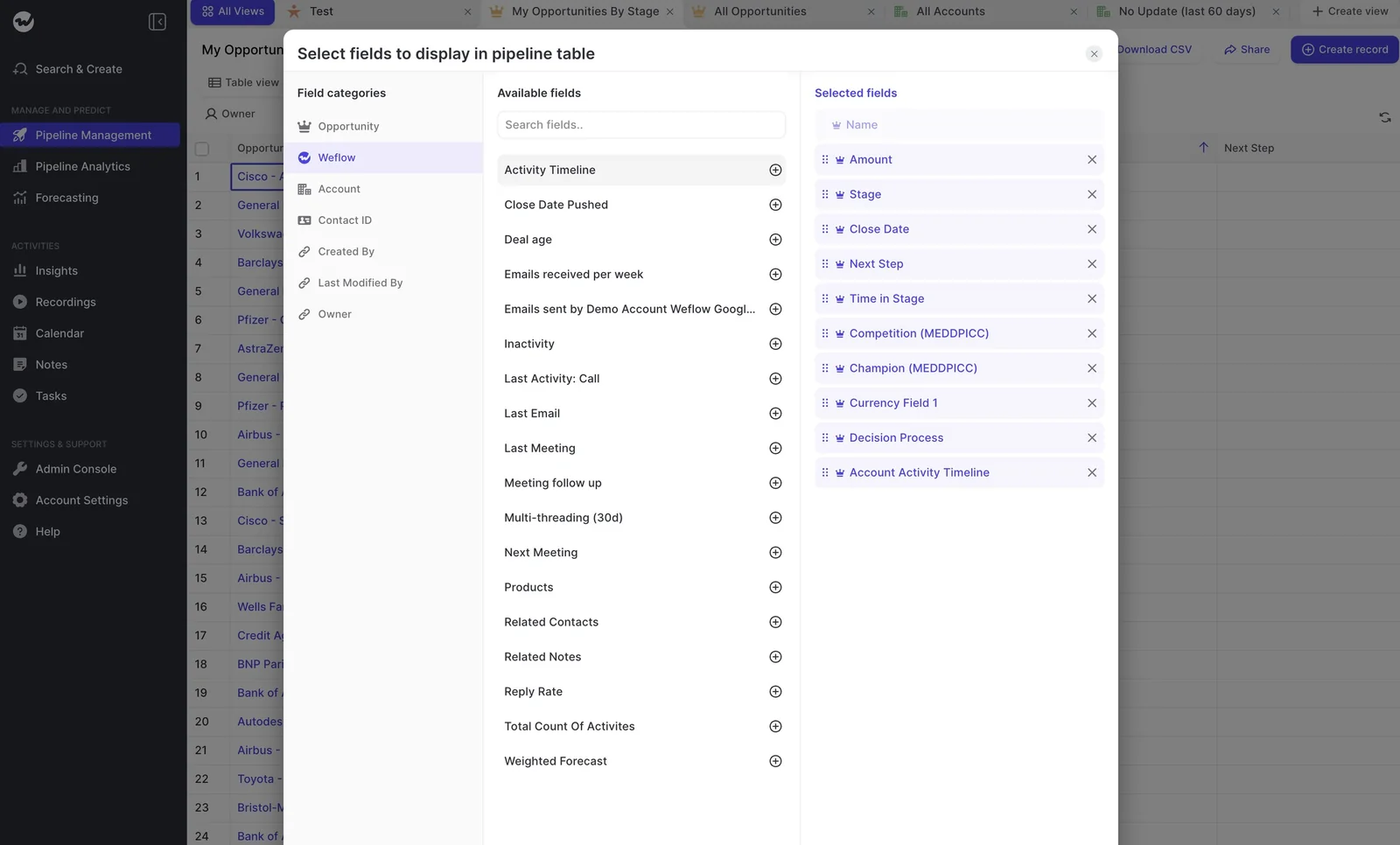
When you open a single deal, you'll see everyone involved alongside communication velocity, based on emails actually sent and received.
Admins can also publish a company board that every rep and manager sees from their first login, so everyone reviews deals from the same view.
You define the single-threaded warning by stage and amount
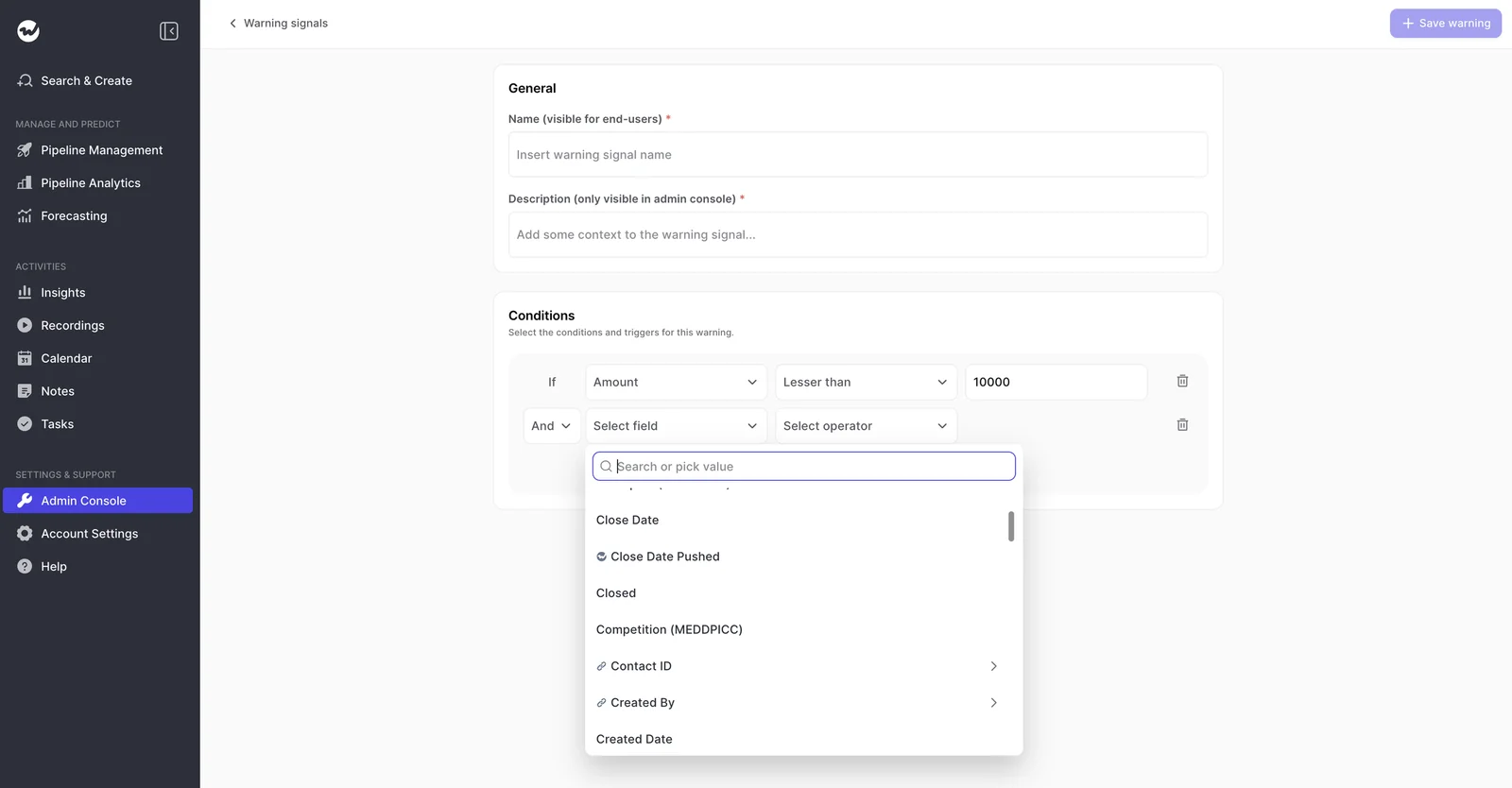
In Weflow, warnings are AND/OR rules you build on opportunity fields, related-record fields and Weflow's computed fields. This means you can tie "too few engaged contacts" to stage or amount, which solves the stage-timing problem from Step 4.
For example, a single-threaded rule might look like this:
- Multi-threading over 30 days is below your Proposal floor
- AND Stage is Proposal or later
- AND Amount is above your large-deal line
Here's the warning editor with conditions chained by And:
Here's how warnings reach your team:
- Admins create up to 15 warnings, and each can count toward the Deal Score.
- Each warning has a name users see and a description only admins see.
- Warnings appear on the deal board and on the forecast submission screen. The rep sees the flag at the moment they choose which deals to commit.
- Every user gets a weekly email summary of their own warnings.
Rep visibility is what really changes behavior. HolidayCheck cut inactive opportunities by over 60% with Weflow, and their sales operations lead explained why:
"The visibility alone changed behavior. Reps come into meetings already aware of what's overdue or inactive. They're more proactive now, because they can actually see what needs attention."
— Bastian Stosic, Head of Media Sales Operations at HolidayCheck
Ask Weflow AI which contact on the deal is actually engaged
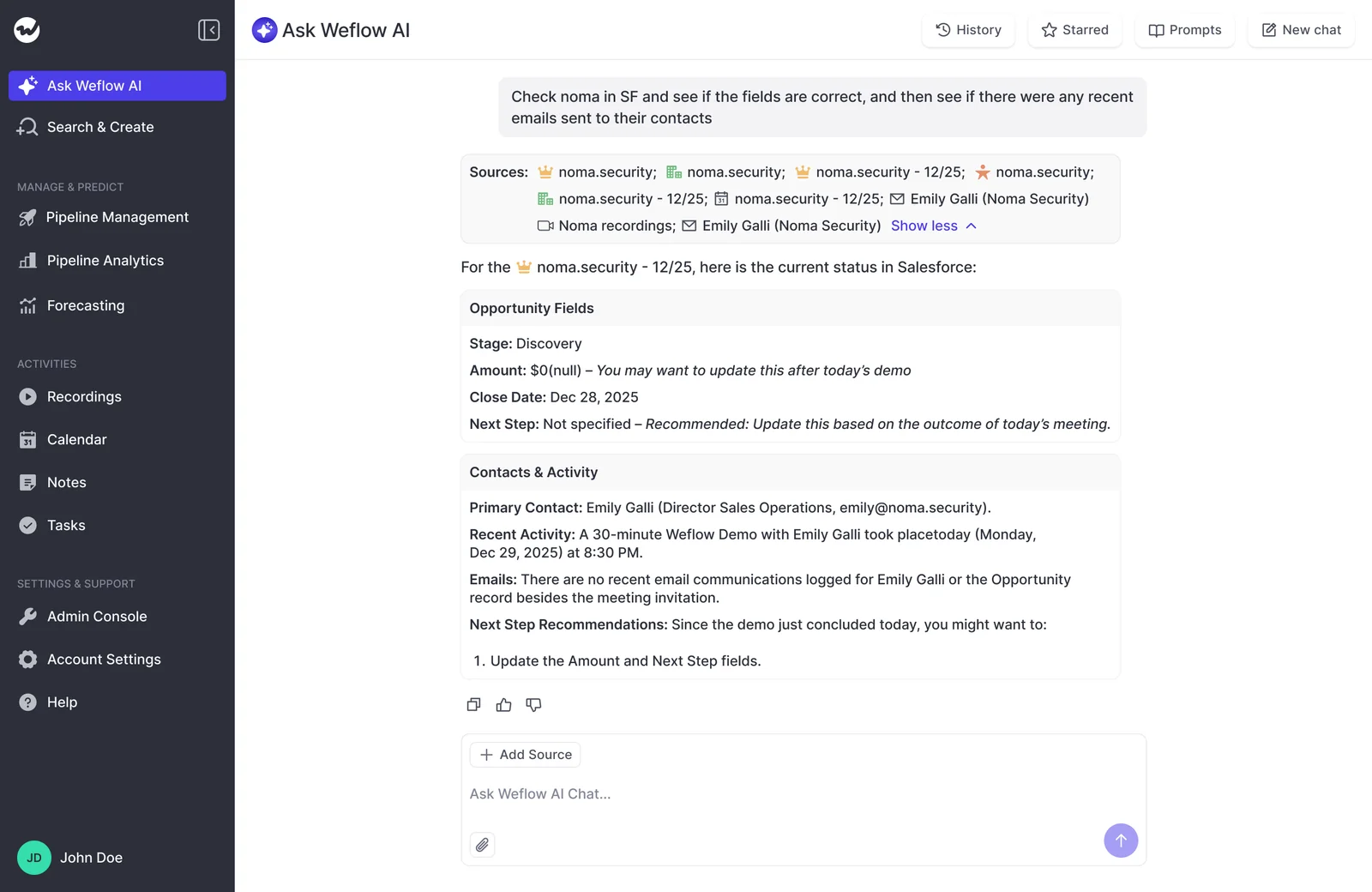
Ask Weflow AI answers questions about a single deal or account by pulling from Salesforce records, captured emails, meetings and call transcripts, and it lists the sources it used. That way, you walk into the one-on-one with evidence, not just the rep's version.
Here are a few questions managers ask before a review:
- Which contact on this deal is actually the decision maker?
- Who on the buyer side has replied in the last 30 days, and who hasn't?
- Has the economic buyer joined any call or replied to any email on this opportunity?
From there, you can open the email or call behind each answer:
What Weflow won't do for you on multi-threading
Some things still stay with you:
- Weflow doesn't infer roles: Someone on your team names the champion or economic buyer, for example by picking the contact from the deal board sidebar. So while contact role coverage improves automatically, role quality is still a human call.
- Warnings and playbook scores are Weflow fields: They don't appear in Salesforce reports or BI until the result is written to a Salesforce field. You can spot Weflow fields by the W next to them in the interface.
- Agents run on a schedule: An agent built in Agent Builder is a recurring briefing, so a deal that thins out surfaces at the next scheduled run rather than the moment a record changes.
- Shared Slack channels aren't captured: Threading that happens in a shared customer channel doesn't show up in the count.
What Weflow costs for single-threaded deal detection
Weflow's pricing is public, and there are two ways to get what this check needs:
| Option | What it covers for this check | Price per user per month (annual) |
|---|---|---|
| Weflow Activity & Contact Capture | Email and meeting capture, contact creation from threads and invites, opportunity matching | $19 |
| Weflow Deal Intelligence & Forecasting | Deal board with engagement columns, warnings you define, deal signals and forecasting | $39 |
| Both standalone products together | Everything this check needs, plus forecasting | $58 |
| Weflow Revenue AI Business | Activity & Contact Capture, Conversation Intelligence and Deal Intelligence with warnings and buying committee intelligence | $59 |
Here's how the two options differ:
- The two standalone products include forecasting, but not call recording.
- Revenue AI Business costs $1 more per user and adds Weflow Conversation Intelligence. Forecasting moves to Revenue AI Enterprise.
Every plan includes Ask Weflow AI Pro and Agent Builder Free with 25 agent actions a month. The minimum is 10 users billed annually, and there's no implementation fee.
Whichever route you take, our Free Guide: Deal Insights & Pipeline Management Best Practices can help you set up the rest of your deal signals around this check.
FAQ: Finding and tracking single-threaded deals
What time window should count as single-threaded for our sales cycle?
It depends on your cycle length. For example, a team with a 60-day cycle can treat 14 days of silence as a warning, but a team on a 12-month cycle wouldn't.
Can I report on single-threaded deals in Salesforce dashboards or Power BI?
Partly. Since Weflow stores captured emails and meetings as native Salesforce records, you can report on them in Salesforce or pull them into a BI tool. Weflow warnings only reach Salesforce reports or BI once the result is written to a Salesforce field.
How long until a single-threaded warning is live in Weflow, and who sets it up?
It typically takes two to three weeks. The technical setup is one 30 to 45 minute session with your Salesforce admin and mail admin. After that, your admin configures warnings and boards with guidance from our customer success team.
Most of that time goes into agreeing on the stage thresholds with your sales leader.