How to Use Activity Data in Pipeline Reviews Instead of the Stage the Rep Entered
Learn how to run pipeline reviews with activity data instead of rep-entered stage.


A deal sits in Commit. The CRM shows no reply from the buyer in five weeks, but the rep says they met yesterday and everything's fine. With no way to tell who's right, the rep's story usually wins.
The stage tells you what the rep believes, while the activity record tells you what the buyer actually did. So to run a review on evidence, check each claim a stage makes against the activity behind it:
- Reply rate, not emails sent
- Who on the buying committee is engaging
- How fast the rep followed up after meetings
- Time in stage and close-date pushes against your own won deals
- The real last interaction, not the last edit
There's one catch: every email and meeting has to land on the right opportunity. Otherwise, a live deal looks dead, and you end up questioning a rep who did the work.
You can build most of these checks in Salesforce with some effort, and we'll show you where that breaks down. We built Weflow Deal Intelligence & Forecasting to compute them from captured activity, so they sit on the deal board without custom fields.
Test every stage claim against what the buyer actually did
Every stage quietly makes claims about the buyer: they're engaged, the decision maker is in, the deal is moving. Each of those claims has an activity check you can run:
| What the stage implies | The rep-entered field you're relying on | The activity evidence that tests it | What contradicts the claim |
|---|---|---|---|
| The deal is active | Stage, Last Modified | Date of the last email or meeting with the buyer | No buyer interaction in weeks, even though the record was edited yesterday |
| The buyer is engaged | Stage, Next Step | Reply rate on the opportunity | Ten emails out, one reply back |
| The committee is involved | Contact roles | Which contacts actually reply or attend in the last 30 days | Six contact roles, one person in the conversation, and the economic buyer silent |
| The rep is driving it | Next Step | Follow-up time after each meeting, and whether a next meeting is booked | Six days to send the recap, nothing on the calendar |
| The deal is on schedule | Close date | Days in stage and close-date push count against your won deals | Three times the won-deal average in stage, close date moved three times |
Get these four things right before you trust the activity
An activity signal is only as good as the record underneath it, so check these four things first.
Make sure capture is near-complete, because partial capture misleads
Activity capture only becomes useful once roughly 99% of emails, meetings and contacts land in the CRM. Below that, you can't tell a stale deal from a gap in the record.
In fact, partial capture is worse than none, because it gives you a confident-looking report built on incomplete data.
The tricky part is that capture rarely fails loudly. It just goes quiet, usually because:
- A connector gets switched off.
- A browser extension needs an update.
- The admin who set it up leaves, and nobody knows who's enrolled.
- Capture only covers roles with a sales engagement license, leaving CSMs and account managers out.
How to check it: Pick three reps, open a week of their sent mail and calendar, and count how much of it appears on Salesforce records.
Check that activity lands on the opportunity, not the account
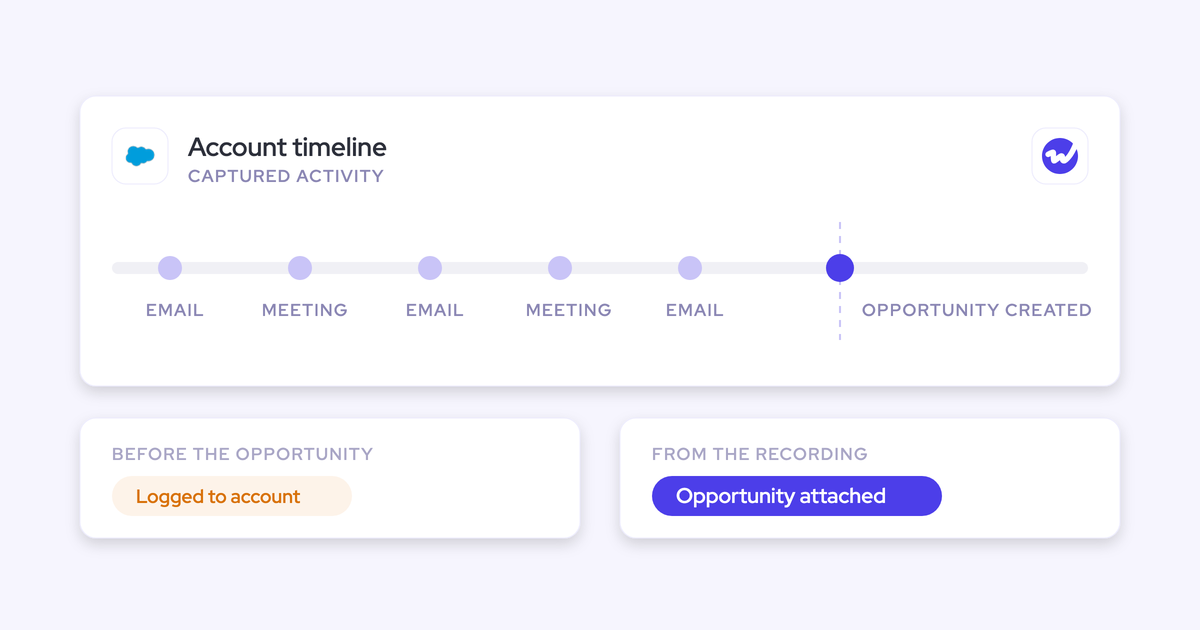
When an account has several open opportunities, many capture tools can't decide where an email belongs, so they log it to the account. The opportunity you're reviewing then shows nothing, and you walk into the review thinking the rep hasn't worked it.
"You're running seventeen different opportunities at one account sometimes, and some of those are worth five k, and some of those are worth five million."
— Kelly Lewis, RevOps and sales leadership coach and co-host of The Revenue Insiders podcast
Say a $5K add-on and a $5M platform deal sit on the same account. If emails for the big deal log against the small one, the $5M deal looks abandoned. And once that argument happens, nobody in the room trusts the activity numbers again.
How to check it: Open a deal you know is active and confirm its recent emails sit on the opportunity, not just the account.
Get the people on the thread onto the deal as contacts
Reps rarely add new participants by hand, so a deal that's grown to six stakeholders can still show one contact and look single-threaded. The reverse happens too: six contact roles typed in, but only one person actually talking.
Multi-threading only shows up on the record when contacts are created from email threads and calendar invites and attached to the opportunity.
How to check it: Compare the contact roles on three big deals with the people on their latest email threads.
Pull time-in-stage benchmarks from your own won deals
"Sixty days in stage" means nothing until you know how long your won deals spent there.
Build that benchmark from your own closed-won history rather than an industry article, and run it per funnel, since new logo, expansion and renewal deals move at different speeds.
"So you need to have those benchmarks. Otherwise, you won't know what is good and what is bad, basically."
For example, say your won new-logo deals spent an average of 18 days in Proposal, and the deal under review has been there for 47. That's more than double your norm, so it's no longer a matter of opinion. It's worth a question.
How to check it: Take the last two or three quarters of new-logo closed-won deals and average their days in each stage.
Run the pipeline review on activity evidence, step by step
Prep the review by running seven checks across your pipeline, then open the meeting with whatever they flag.
Step 1: Build one review view with stage next to activity
Most managers piece the picture together by hand before every review: one report for stage duration, one for last activity, and the rep's story for the rest.
That takes about an hour per team per week, and you still end up taking the rep's word for it. Instead, build one view that holds:
- Stage, amount and close date
- Days in current stage
- Close-date push count
- Date of the last email and last meeting with the buyer
- Next meeting booked, yes or no
- Reply rate on the opportunity
- Contacts engaged in the last 30 days
- Follow-up time after the last meeting
Step 2: Sort deals by last real interaction, not Last Modified
Last Modified changes whenever anyone edits the record, so a rep updating the next step field can make a neglected deal look alive. Instead, sort by the date of the last email or meeting with the buyer, and filter to deals closing this month.
This surfaces the kind of deal every manager has been burned by:
"It's so hard to effectively manage deals in Salesforce because you can't see a deal might be closing this week or this month or whatever, but it might have had no activity on it for two months."
For example, picture a renewal closing in 12 days. It was last modified two days ago, but the last buyer email was 58 days ago. Ask the rep, "When did you last hear from them, and is there anything the CRM didn't pick up?"
Step 3: Read reply rate instead of emails sent
Sent volume shows the rep's effort, while replies show the buyer's interest. A rep can look busy on a deal that's really a one-way conversation.
| Looks engaged | Is engaged |
|---|---|
| Ten emails sent to the economic buyer this month | The economic buyer replied to four of them |
| High total activity count on the deal | Replies come in within a day or two |
| Rep forwarded the proposal three times | The buyer forwarded it internally and new people joined the thread |
| Weekly check-in emails going out | The buyer is asking questions back |
If the conversation looks one-sided, ask the rep: "We've sent a lot and heard little. What's going on at their end?"
Step 4: Check who on the buying committee is actually replying
Measure multi-threading by who engages, not by how many contacts are attached, and watch for the classic deal killer: an economic buyer who's on the record but never in the conversation.
For example, take a $240K deal in Negotiation with six contact roles, where only the project lead has replied in the last 30 days.
The CFO is listed as economic buyer but has never written back. Ask, "Who besides your contact has engaged this month, and how do we get to the CFO?"
Native Salesforce doesn't give you an easy sent-versus-received view per contact role. You end up pulling several reports and stitching them together.
Step 5: Look at how fast the rep followed up after meetings
Follow-up speed shows whether the rep is driving the deal or waiting on it. A recap within the hour keeps momentum. A recap sent within the hour keeps the momentum going, while one sent a week later tells the buyer the deal isn't a priority.
For example, say the discovery call happened on Monday, the recap went out six days later, and there's no next meeting booked. Ask, "What held up the follow-up, and what's the next step you've agreed with them?"
Step 6: Compare time in stage and pushes to your won deals
Read days in the current stage and the close-date push count against your won-deal benchmark. That's how you tell a deal that's slow but on track from one that's stuck.
| Deal | Stage | Days in stage | Won-deal average | Close-date pushes |
|---|---|---|---|---|
| Northwind platform | Proposal | 47 | 18 | 3 |
| Contoso expansion | Proposal | 21 | 18 | 0 |
| Fabrikam new logo | Discovery | 34 | 12 | 1 |
| Litware renewal | Negotiation | 9 | 14 | 0 |
| Adatum new logo | Negotiation | 40 | 14 | 4 |
| Tailspin new logo | Discovery | 10 | 12 | 0 |
Here, Northwind and Adatum need a real conversation, while Contoso is a little slow but fine. And a deal pushed four times, like Adatum, says something about how the team sets close dates, not just about that one deal.
For the stuck deals, ask, "What has to happen for this to move, and who on their side is making it happen?"
Salesforce doesn't keep history on calculated fields, so days in each earlier stage and push count need custom fields and automation you build and maintain.
Step 7: Open the review with flagged deals and ask what the CRM missed
The final step is changing how the meeting itself runs. Most reviews collapse into a round robin.
"The forecast call turns into, hey, so what's up with that deal? Okay. And what's the next? Okay. Great. Next."
Instead, start from the deals your checks flagged and work through them in this order:
- Share the flagged list before the meeting, so reps arrive knowing which deals you'll discuss.
- Open each deal by asking whether the record is missing anything, and fix the record first.
- Spend the rest of the time on the merits of the deal: the buyer's pain, who's driving it internally, what happens next.
- End each deal with one agreed action and an owner.
The best managers use the activity record to ask better questions, not to catch people out.
"I'm not gonna go to the rep and say, you're seven days late on following up with so and so. I'm gonna ask them like, hey, did HubSpot miss something here? And sometimes it does."
| Say | Don't say |
|---|---|
| "The CRM shows no buyer contact since March. Did it miss something?" | "You haven't touched this deal in six weeks." |
| "Only one person has replied this month. Who else should we reach?" | "This deal is single-threaded, why?" |
| "Our won deals spend about 18 days here. What's different about this one?" | "You're a month late." |
| "What would have to be true for this to close by the date?" | "Is this still real?" |
Want a reference to take into your next review? Free Guide: Deal Insights & Pipeline Management Best Practices
What activity data can't tell you about a deal
Activity shows engagement, not commitment, and several of the things that decide a deal still only come out in conversation:
- Champion strength: A busy contact isn't necessarily someone fighting for you internally. Ask, "Will this person take your call and get you to the economic buyer?"
- Pain and urgency: Without clear, quantified pain, there's no urgency, and the deal drags. Ask, "What does it cost them to do nothing this quarter?"
- Competition: Email counts won't tell you whether the deal is competitive. Ask, "Who else are they looking at?"
- The real next steps: A booked meeting isn't the same as a path to signature. If the deal is in legal, ask, "When do the redlines come back, and who signs off after that?"
- Texts and messaging: Texts, iMessage and WhatsApp sit outside every capture layer, yet being on texting terms with a buyer is often a strong sign in enterprise deals. Ask, "Are you in touch with them outside email?"
Where activity-based pipeline reviews go wrong
- One silence threshold for every cycle: Two weeks of silence matters on a 60-day cycle but means little on a 12-month one, so set inactivity thresholds per team or per funnel.
- Meeting counts logged once per attendee: Invite five buyers to one call, and some setups record five meetings. Count meetings per event before reading them as engagement.
- Inspection folded into the forecast call: A packed forecast call leaves no time or calm for real inspection. Run inspection as its own session with a few selected deals, and keep the forecast call for the number.
- Signals only on the manager's screen: When reps first hear a deal is slipping from your chase email, the signal feels like surveillance. Put the same flags where reps work, so they can fix things before you ask.
- Benchmarks built on too little history: New reps, and orgs that migrated without stage history, don't have enough closed deals for a fair benchmark, so use team-level benchmarks until individual history builds up.
Can you run this from Salesforce reports alone?
Partly. With custom fields, automation and Pipeline Inspection, you can cover some of these checks natively, but others break or eat up real admin time.
| Check from the steps | What native Salesforce gives you | What it costs you to build or what breaks |
|---|---|---|
| One review view (Step 1) | Opportunity reports and list views | Reports are bound to their report type, so contact-level columns can't sit next to opportunity fields |
| Last real interaction (Step 2) | Last Modified on the record | Last Modified moves on any edit; a true interaction date needs a custom field fed from activity records |
| Reply rate (Step 3) | Activity reports on logged emails | Sent versus received per deal has to be built, and only works if capture is complete |
| Who's replying (Step 4) | Contact roles | No easy sent-versus-received view per contact role; you stitch several reports together |
| Follow-up speed (Step 5) | Meeting and email timestamps | Time from meeting to follow-up isn't a standard field and needs custom logic |
| Days in stage and pushes (Step 6) | Stage history on the opportunity | Push count and per-stage duration need custom fields and automation; calculated fields keep no history |
| Pipeline movement over a period | Pipeline Inspection shows new, won, lost and amount changes | Any other period-over-period view becomes a custom reporting project |
That said, sometimes Salesforce alone is enough. If your quarter rests on about ten material deals, the review is a deal-by-deal judgement call, and Pipeline Inspection plus solid, opportunity-level capture can handle that.
The case for a dedicated tool grows with the number of deals, reps and managers, not with how much the number matters.
How Weflow puts activity evidence on the deal board
Weflow is the Revenue AI Orchestration platform for sales, customer success and RevOps teams on Salesforce.
For this workflow, it captures activity onto the opportunity and computes the evidence columns, warnings and benchmarks for you, so you get the Step 1 view without custom fields.
Weflow counts only emails and meetings as activity
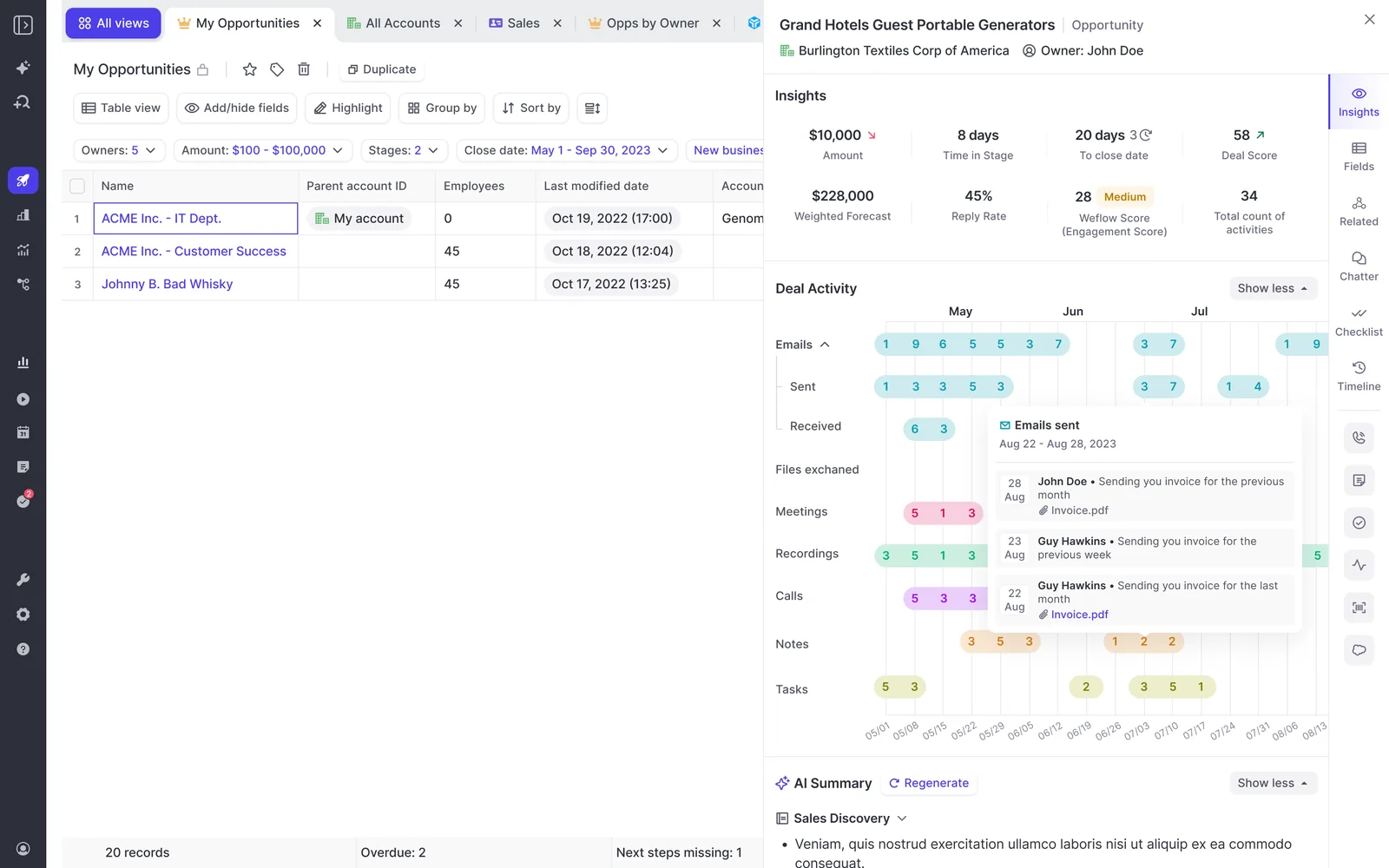
Unlike Last Modified, Weflow's days inactive doesn't reset when a rep edits fields or notes. That gives you Step 2 as a column you can add to any pipeline view.
Admins set the inactivity threshold per team in the admin console, so a 60-day cycle and a 12-month cycle each get their own definition of quiet.
Reps can see and fix where Weflow logged an email
Weflow Activity & Contact Capture logs emails and meetings automatically from the mailbox, and decides where each one goes based on your Salesforce data at that moment, such as open opportunities and contact roles.
If a match is wrong, the rep or an admin can move it to the right record from the Outlook add-in or the Chrome extension (Weflow never moves logged activity on its own). That's what keeps you out of the false "you're not working this deal" conversation.
Weflow also creates Salesforce contacts for people on email threads and calendar invites, and attaches them to the matched account and opportunity (it never creates accounts, leads or opportunities).
That way, your board shows who's actually involved, not just who someone typed in.
Weflow computes the review columns and your team's benchmarks
Weflow automatically tracks days in stage and close-date pushes on every opportunity, and shows how long a deal spent in each earlier stage.
The computed columns sit in the same table as fields from the opportunity, its account and its contacts, and every Salesforce field stays editable.
| Step | Weflow column |
|---|---|
| Step 1: One review view | Company deal boards that mix Salesforce fields with Weflow fields |
| Step 2: Last real interaction | Inactivity, Last Email, Last Meeting, Next Meeting |
| Step 3: Reply rate | Reply Rate, Emails received per week, Emails sent by a user |
| Step 4: Who's replying | Multi-threading (30d), Related Contacts, per-contact engagement |
| Step 5: Follow-up speed | Meeting follow up, in bands from within an hour to later than 24 hours |
| Step 6: Time in stage and pushes | Days in stage, Close Date Pushed, Deal age |
| Benchmarks | Stage Conversion Rate, Stage Win Rate and Team Benchmark, built from your own history |
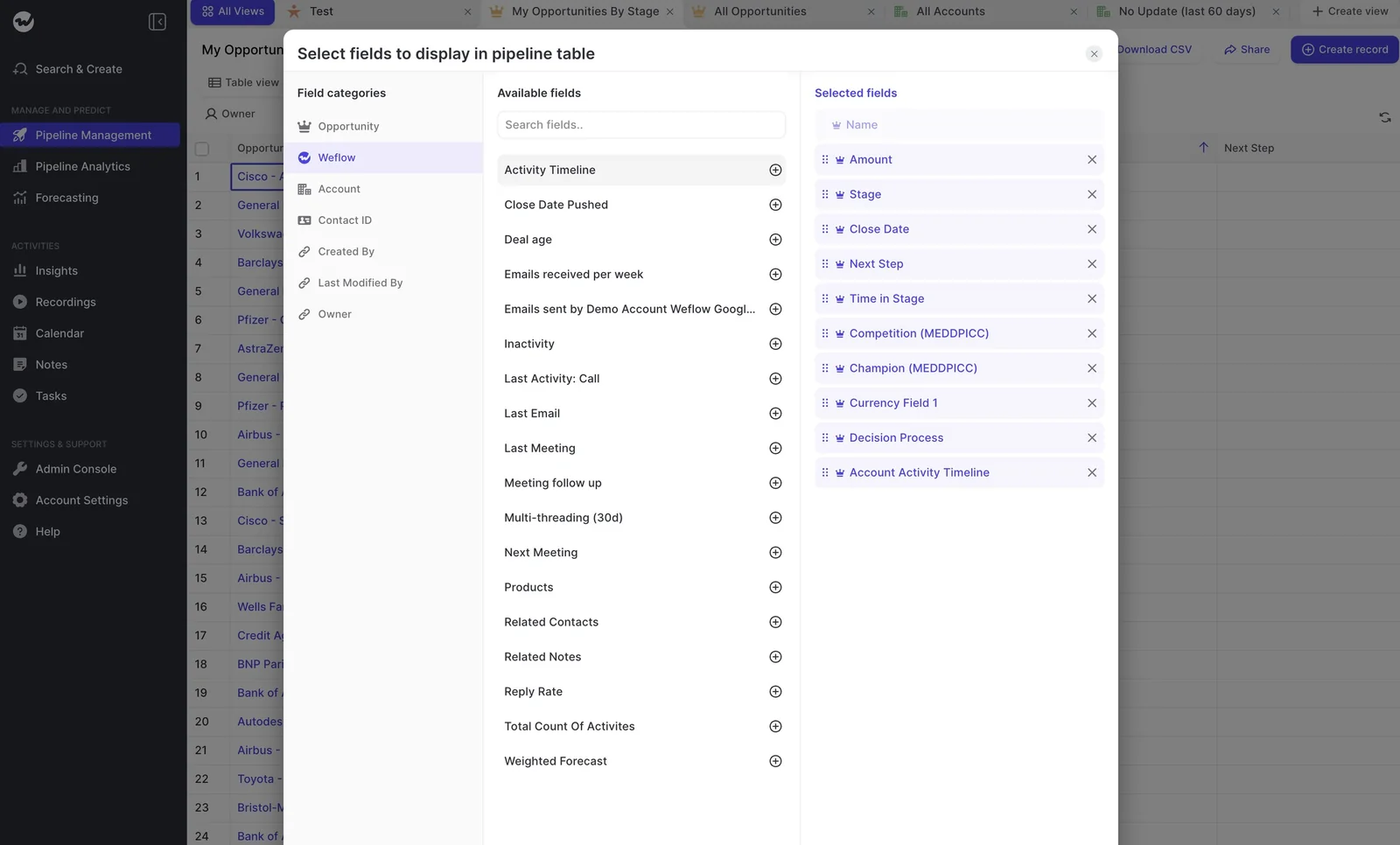
Admins publish company boards that every user sees from their first login, so reps and managers inspect deals from the same view. Anyone who wants different columns can duplicate the board instead of editing the shared one.
The benchmark reports run per forecast configuration, so new logo, expansion and renewal each get their own numbers.
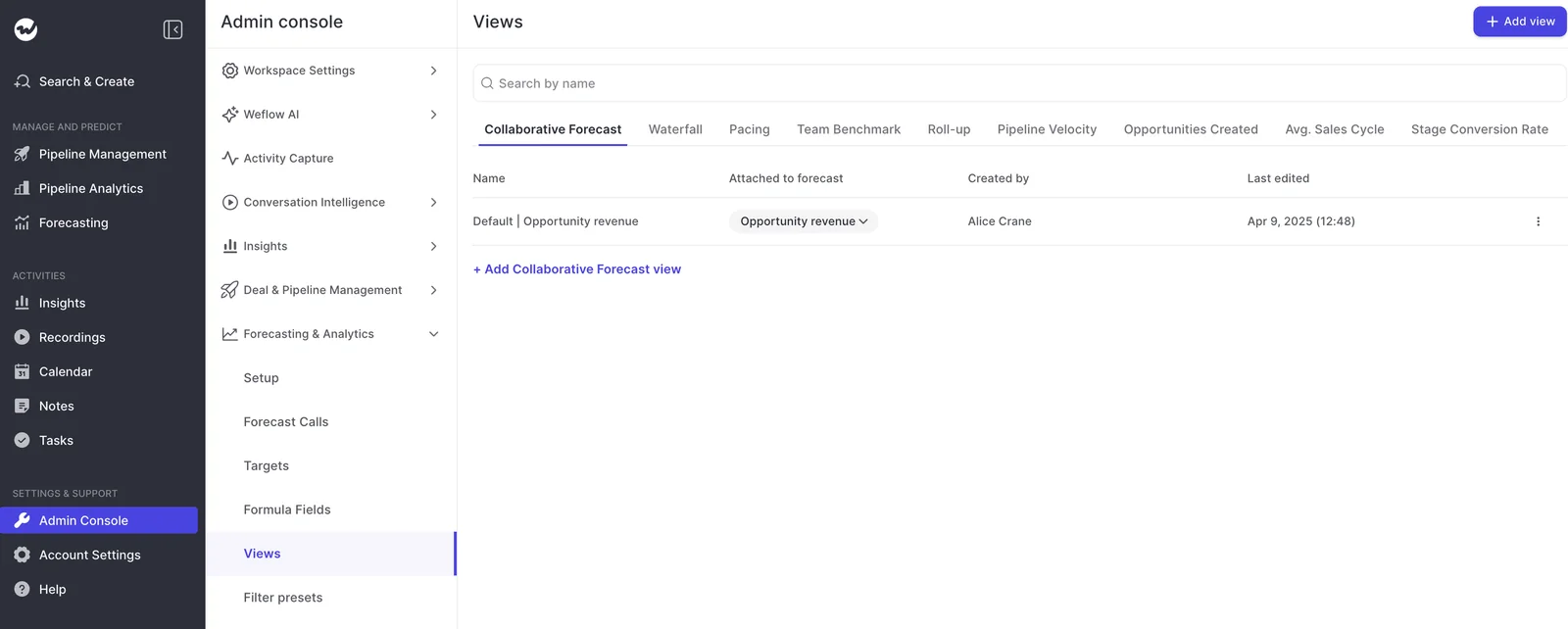
Weflow warnings follow your rules and show up where reps work
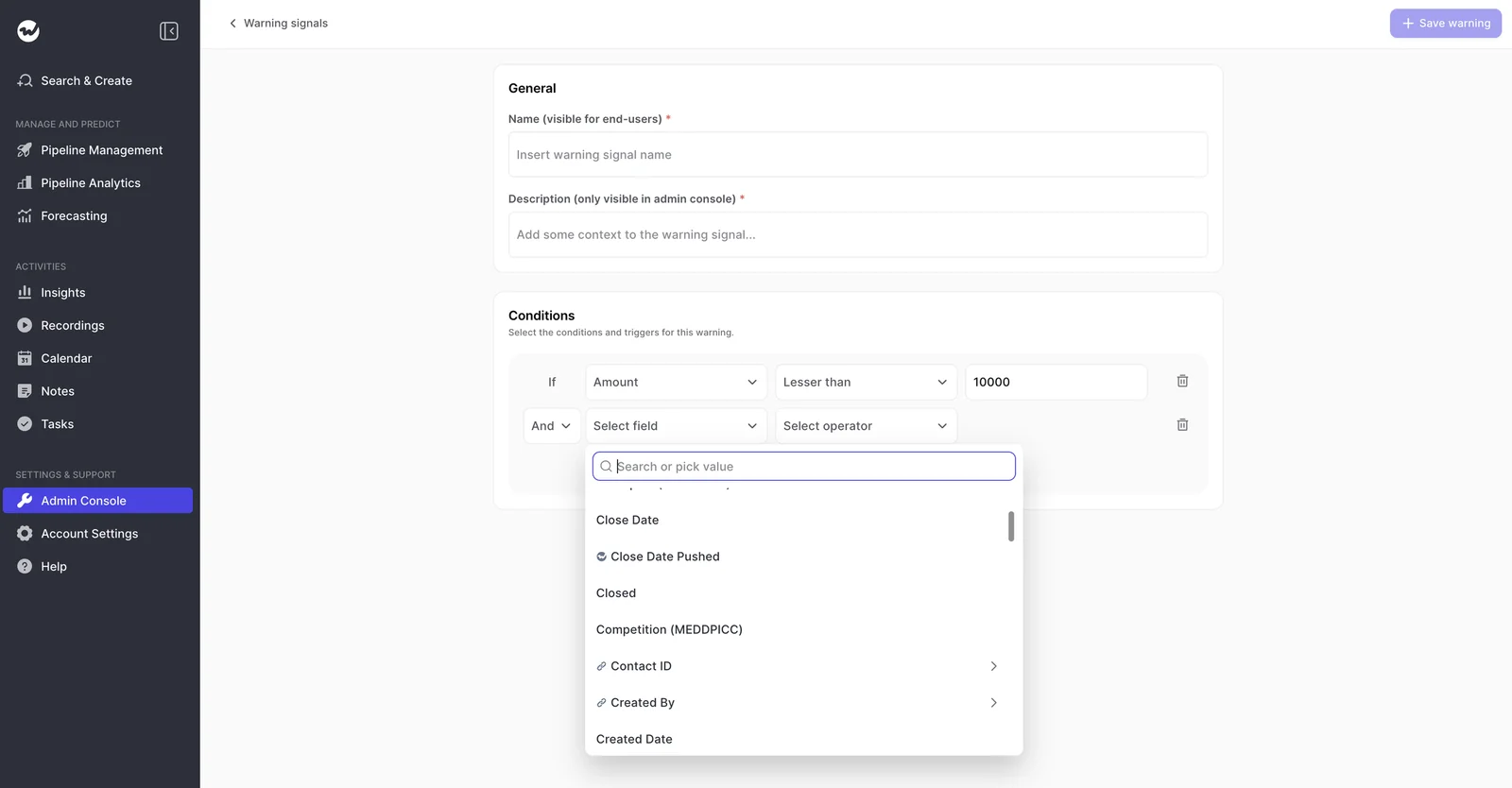
You build Weflow deal warnings from your own rules, chained with AND or OR. Conditions can use any non-text opportunity field, related-record fields, Weflow's computed fields and AI Playbook results. Here are a few rules our customers commonly build:
- Close date pushed more than twice
- Only one contact on the deal
- No buyer activity in 14 days on a short-cycle team
- Days in current stage above the team's norm
- A required methodology field still empty
- Amount below 10,000 and close date pushed
The same warnings appear on the deal board reps work from and inside the forecast submission screen, so reps see the risk right when they choose what to commit, before you have to ask.
"The visibility alone changed behavior. Reps come into meetings already aware of what's overdue or inactive. They're more proactive now, because they can actually see what needs attention."
— Bastian Stosic, Head of Media Sales Operations at HolidayCheck
The AI deal summary and AI Playbook show what's missing
The Weflow AI deal summary reads every email, meeting and call transcript on the opportunity and returns pros, cons, next steps and risks. You can generate it on demand to get up to speed on a deal without a rep briefing.
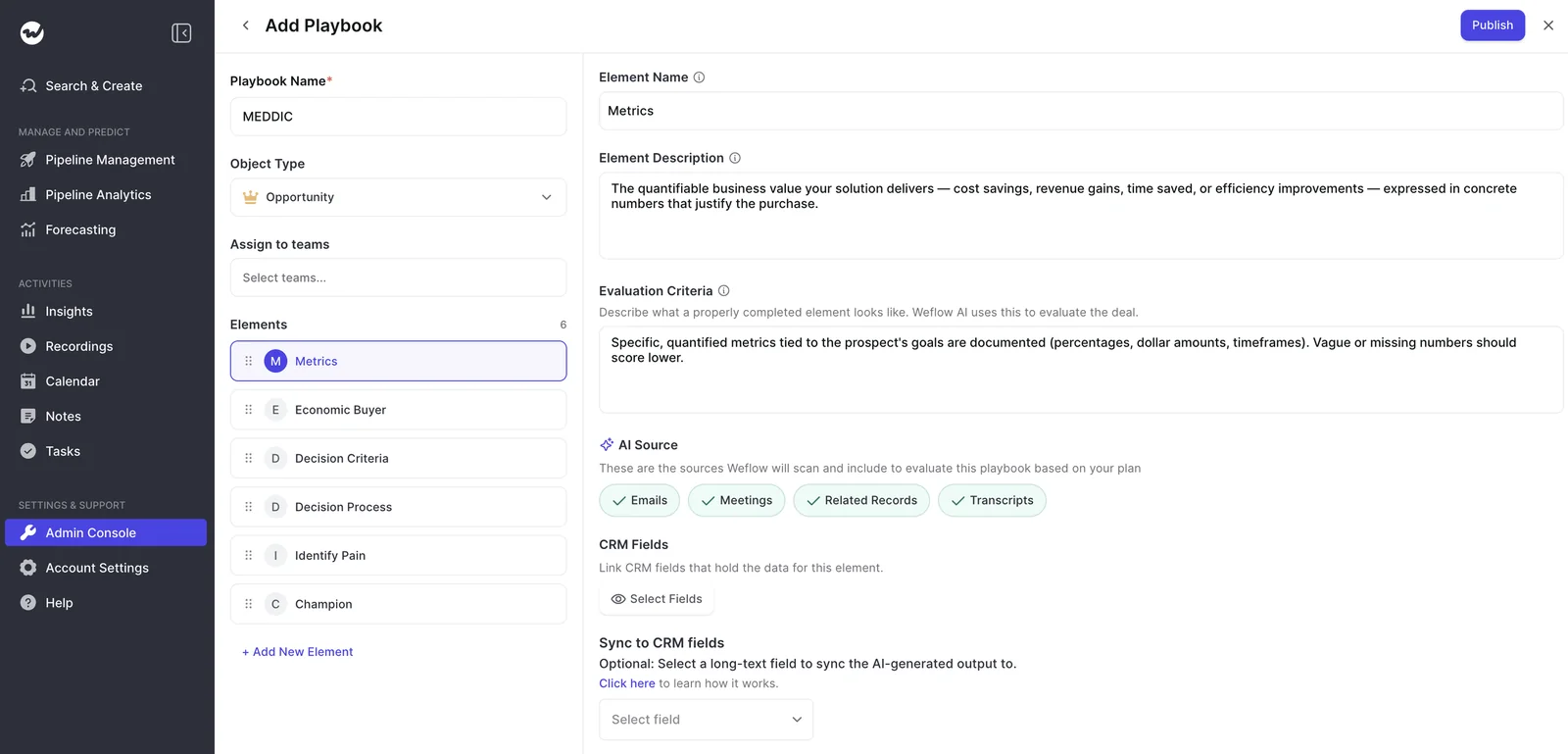
AI Playbooks read every email, meeting, transcript and CRM field to score the deal against your methodology, such as MEDDIC or BANT. The panel shades each element:
- Grey where nothing was found
- Light blue where the information is partial
- Full blue where it's complete
The same shading shows up as a column in pipeline views, so you can see at a glance when a deal forecast to close this month still has no evidenced economic buyer.
How United Fintech and Zeotap review pipeline in Weflow
- United Fintech: Full activity capture let the RevOps team prove that activity predicts close speed. "We saw that deals with more activities tended to close faster. Now we can prove that." (Rugile Pudzevelyte, Senior Revenue Operations Manager at United Fintech)
- Zeotap: Runs weekly sales meetings and pipeline inspections in custom Weflow views and forecasts the quarter within 7%.
Where Weflow stops and a person still has to decide
- Warnings and AI Playbook scores are Weflow fields until you write them to a Salesforce field.
- Weflow attaches new contacts to the opportunity but doesn't decide who the champion or economic buyer is. Someone on your team sets that from the deal board sidebar.
- People who joined a meeting through a forwarded invite aren't created as contacts until they join an email thread with the rep.
- Weflow doesn't capture WhatsApp, text or iMessage.
- The AI deal score needs about six months of closed history before it scores accurately.
What Weflow costs for activity-based pipeline reviews
For this workflow, you need capture plus Deal Intelligence, which includes deal boards and warnings. Pipeline Analytics, including the benchmark reports, comes with Forecasting.
| Product or bundle | What it includes for this workflow | List price per user per month (annual) |
|---|---|---|
| Weflow Activity & Contact Capture | Automatic email, meeting and contact capture onto the opportunity, plus activity reports | $19 |
| Weflow Deal Intelligence & Forecasting | Deal boards, computed columns, warnings, deal scoring, pipeline analytics and forecasting | $39 |
| Weflow Revenue AI Foundation | Activity & Contact Capture and Conversation Intelligence, with no deal boards | $49 |
| Weflow Revenue AI Business | Foundation plus Deal Intelligence: table and Kanban views, AI deal and account scoring, warnings, buying committee intelligence | $59 |
| Weflow Revenue AI Enterprise | Business plus Forecasting, which brings pipeline analytics and benchmarks | $79 |
All plans bill annually with a 10-user minimum, and every plan includes Ask Weflow AI Pro and Agent Builder Free.
FAQ
What happens in Weflow when activity capture stops working?
A warning icon appears next to the affected user in the Activity Capture configuration, with a link to a help article on the likely causes.
If every user shows the icon, the problem is the connection to your Microsoft 365 or Google Workspace tenant, not the individual users.
Will a long enterprise cycle with weeks of nurture look like a dead deal?
Not if you set the inactivity threshold for that team, so a 12-month cycle won't flag after two quiet weeks. And since nurture emails and check-ins with matched contacts are captured like any other email, a patiently worked deal still shows its activity.
Does activity data replace stage exit criteria and methodology fields?
No. Activity, conversation content, methodology fields and exit criteria each answer different questions about a deal, so they work side by side.
AI Playbooks read the methodology evidence across calls and emails, so those fields reflect what actually happened.
What if Outreach or Salesloft already logs our activity?
Engagement-tool capture usually covers only licensed roles, which often leaves CSMs and account managers out. Weflow captures at the mailbox level for every enrolled user, and our logging panel shows you when a compatibility mode rule skipped an email.
Can we keep executives' sensitive email out of Salesforce?
Yes. You can give executives their own Activity Capture configuration, such as manual logging only or blocking certain domains, like investors.
When an executive emails a customer alongside sales team members, the most permissive rule applies, so the commercial thread still logs.
How long does setup take, and do reps have to do anything?
Implementation typically takes two to three weeks, including a 30- to 45-minute technical session with your Salesforce and mail admins. Activity capture is switched on centrally, so reps don't need to do anything.
Pipeline management training happens separately once your views and warnings are set up.
Can Weflow's warnings and signals feed Salesforce dashboards or our BI tool?
Only once they're written to a Salesforce field. Fields marked with a W in Weflow are Weflow fields and don't reach Salesforce reports on their own.
The captured emails and meetings themselves, though, are stored as native Salesforce records, so your standard activity reports work on them.