Ask Weflow AI Prompts for Weekly Pipeline 1:1s Between Managers and Reps
Learn nine Ask Weflow AI prompts for weekly pipeline 1:1s between managers and reps.


Here's a fixed script of nine prompts to run against one rep's pipeline view before every weekly one-on-one. That way, every rep gets the same inspection each week, in the same order, instead of whatever question came to mind that morning.
Weflow is the Revenue AI Orchestration platform for sales, customer success, and RevOps teams. The script runs in Ask Weflow AI, which comes with every Weflow plan and doesn't meter prompts. Running nine prompts per rep per week costs nothing extra.
Each prompt reads a signal the board already computes, like days inactive, close-date pushes or contact engagement, and lists its sources.
So instead of asking the rep to narrate the deal from memory, you walk in with "the system says this, tell me if you disagree."
The script focuses on deal inspection, not coaching, and wraps up with the few questions only the rep can answer, starting with the champion.
Set up one rep's pipeline view in Ask Weflow AI
Start by pointing Ask Weflow AI at one rep's deals with the right columns visible, so every question applies only to the deals in that view. Here's the setup we recommend:
- Start from your company board: Your admin's company board gives every manager the same baseline, but you can't change its fields, so duplicate it into your own view.
- Filter by owner: Scope the duplicate to one rep and save it as a tab named after them. Repeat for each rep.
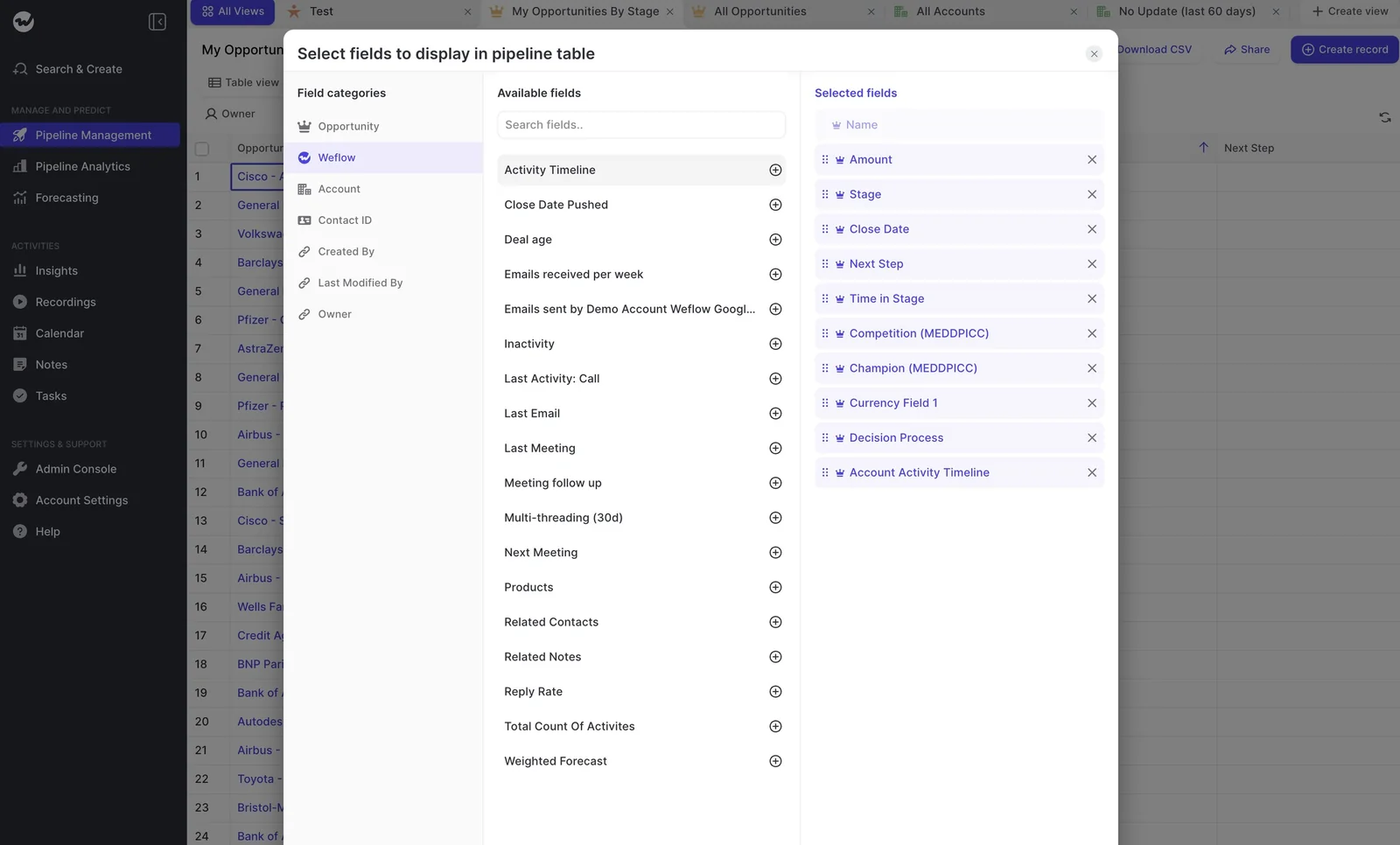
- Add the Weflow columns the prompts read: Use Inactivity, Close Date Pushed, Time in Stage, Last Meeting, Next Meeting, Reply Rate, Meeting follow up, Multi-threading (30d), Related Contacts, Emails received per week, the AI Playbook column, and warnings.
- Keep the Salesforce fields you already review: These are Amount, Stage, Close Date, Forecast Category and Next Step, plus sales cycle length for the stage comparison in Prompt 4.
- Open Ask Weflow AI from the view: It automatically links the current pipeline view as a source. Use "+ Add Source" if you want a single deal record or a recording alongside it.
- Paste Prompt 1 and work down the list.
Your company context already sits in Weflow's system prompt, so none of the prompts below restate who you sell to.
Ask Weflow AI reads up to 2,000 records per view and up to ten views in one chat, which is far more than one rep's open pipeline.
How each prompt card turns a signal into a question
Each card below follows the same four parts, so once you've seen one, you can move through the rest quickly:
| Card part | What it gives you |
|---|---|
| The prompt | Copy-paste text, capped at a short list and asking for sources |
| The signal it reads | The board column the answer rests on, so you know what's being measured |
| What a red answer looks like | The shape of a result worth raising in the meeting |
| The one question to ask the rep | Your opening line for that deal, so the agenda is set before you walk in |
Run the cards in order, and before you raise anything, click the cited source and read the email, call or transcript yourself. That's what makes the finding hold up in the room.
"I love being able to go right to the call, transcript or email and see where something was said that the AI is referencing."
— Scott Jones, SVP of GTM Revenue Intelligence & Enablement at KORE Wireless
From there, raise each finding as "the system says X. If you disagree, tell me why." The gap between what the data shows and what the rep believes becomes your agenda, and the rep no longer has to be the one confessing the risk.
"You're looking for what is the system telling me, and then what is my rep telling me, and what is the disconnect? So that's where I can focus."
— Kelly Lewis, RevOps and sales leadership coach and co-host of The Revenue Insiders podcast
Prompts 1–4: Find deals going quiet, slipping or stuck
These four prompts narrow a full pipeline down to the handful of deals worth your meeting time. Each one reads a signal Weflow computes from captured activity and opportunity history, rather than from what the rep typed.
Prompt 1: Rank the deals worth discussing this week
Using only the deals in this view, rank the five deals I most need to discuss with this rep this week. Weigh active deal warnings first, then amount and close date. For each deal, give one line on the warning or signal that put it on the list, and list the sources you used.- Inputs: The rep's view with warnings, Amount and Close Date visible.
- Signal it reads: Active deal warnings, which your admin built from your team's own slippage patterns.
- Output: A ranked list of five deals, each with its reason and sources.
- Red answer looks like: A large deal near the top carrying two or more warnings, for example "[Deal A]: close date pushed and no meeting booked."
- Ask the rep: "The system ranks [Deal A] as the one to talk about. Do you agree?"
- Run in: Ask Weflow AI, or Agent Builder on a schedule.
It's the opener because it gives managers what they ask us for most: a short list, not a data dump.
Prompt 2: Find deals with no recent buyer emails or meetings
Which open deals in this view have gone longer without a buyer email or meeting than our inactivity warning allows? Use the Inactivity, Last Email, Last Meeting and Next Meeting columns. Show up to five, oldest first, with the date and subject of the last real interaction and its source.- Inputs: Inactivity, Last Email, Last Meeting, Next Meeting.
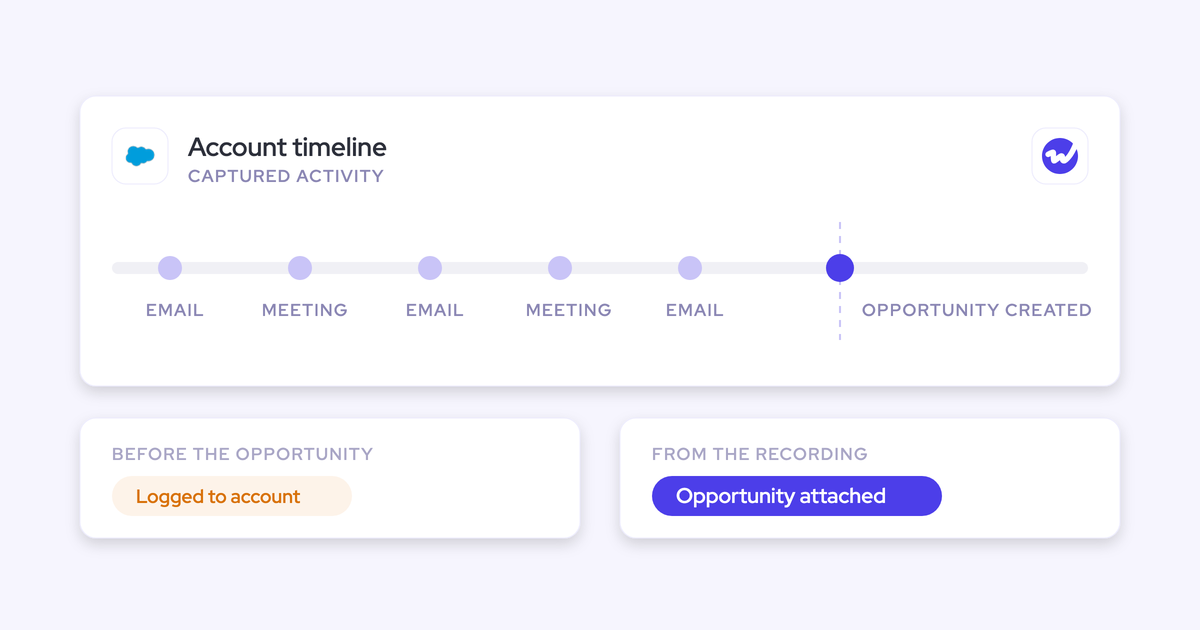
- Signal it reads: Days inactive, which counts only emails and meetings.
- Output: Up to five quiet deals, each with the last real touch and a link to it.
- Red answer looks like: "[Deal B]: last meeting several weeks ago, no email since, no next meeting booked."
- Ask the rep: "The last time the buyer replied on [Deal B] was [date]. What's happened since that isn't in email or on a call?"
- Run in: Ask Weflow AI.
This prompt settles the familiar argument where the CRM says a deal is stale and the rep says, "I met them yesterday, it's fine." Since Weflow's days inactive ignores field edits and notes, updating a close date won't make a deal look alive.
If the rep did meet the buyer yesterday, the meeting will be on the timeline. If it isn't, you both know where to look.
Prompt 3: Catch close dates that keep moving
List the deals in this view whose close date has been pushed more than twice, plus any deal closing this period with no next meeting booked. Use Close Date Pushed, Close Date and Next Meeting. Show up to five, with the push count, the current close date, and what the last email or call said about timing. List sources.- Inputs: Close Date Pushed, Close Date, Next Meeting.
- Signal it reads: Close-date push count, which Weflow tracks on every opportunity without a custom field.
- Output: Up to five deals whose dates you shouldn't trust, with the buyer's own words on timing.
- Red answer looks like: "[Deal C]: pushed three times, closes this month, nothing on the calendar, and the last call mentions bringing in more stakeholders."
- Ask the rep: "What did the buyer say that makes this date different from the last three?"
- Run in: Ask Weflow AI.
Prompt 4: Spot deals sitting too long in one stage
For each open deal in this view, compare days in its current stage with how long it spent in earlier stages and with the sales cycle length shown in this view. Flag up to five deals running long against that pattern, say how far over they are, and name the last activity that moved the deal forward. List sources.- Inputs: Time in Stage, Stage, sales cycle length.
- Signal it reads: Days in stage, read against time in earlier stages from opportunity history.
- Output: Up to five stuck deals, each with how far over they are and the last forward move.
- Red answer looks like: "[Deal D]: in this stage longer than its earlier stages combined, and the last activity that moved it was a meeting two months ago."
- Ask the rep: "What has to happen for [Deal D] to leave this stage, and when?"
- Run in: Ask Weflow AI.
On its own, sixty days in a stage doesn't tell you much. Whether that's slow or dead depends on your team's normal, which is why this prompt compares against your own numbers rather than an industry average.
"So you need to have those benchmarks. Otherwise, you won't know what is good and what is bad, basically."
Prompts 5–6: Check who the rep is really talking to
Captured activity shows who actually sends, receives and attends on a deal, so you can tell a populated contact list from a live buying committee without the rep drawing it on a whiteboard.
Prompt 5: Find single-threaded deals and silent buying committees
Find deals in this view where only one buyer contact has emailed or met with us in the last 30 days, or where contacts linked to the deal never appear in any email or meeting. Use Multi-threading (30d) and Related Contacts. Show up to five, naming who is engaged and who is silent. List sources.- Inputs: Multi-threading (30d), Related Contacts.
- Signal it reads: Per-contact engagement over 30 days.
- Output: Up to five deals, each with engaged and silent contacts by name.
- Red answer looks like: "[Deal E]: four contacts linked, one person replying, and the senior contact on the record has never been in a meeting."
- Ask the rep: "[Contact] is the only one talking to us. If they went quiet tomorrow, who else would pick up?"
- Run in: Ask Weflow AI.
Keep the answer to that last question in mind, because it leads straight into the champion question at the end of the script.
Prompt 6: Find deals where replies or follow-ups slowed
Which deals in this view show weak momentum: a low buyer reply rate, few emails received per week, or our follow-up after the last meeting coming later than 24 hours? Use Reply Rate, Emails received per week and Meeting follow up. Show up to five, with the specific signal for each. List sources.- Inputs: Reply Rate, Emails received per week, Meeting follow up.
Signal it reads: Two things:
The buyer's side: Reply rate and emails received.
- Our side: Follow-up time after meetings, measured in bands from within an hour to later than 24 hours.
- Output: Up to five deals losing momentum, with which side it's slowing on.
- Red answer looks like: "[Deal F]: several emails sent this month, few replies, and the follow-up after the last demo went out days later."
- Ask the rep: "The buyer has stopped replying on [Deal F]. What changed on their side?"
- Run in: Ask Weflow AI.
Treat both signals as deal risk, not a mark against the rep. A slow follow-up on one deal just means that deal needs attention this week.
Prompts 7–9: Test the rep's story against calls and emails
This is where Ask Weflow AI does what a board column can't: it reads what was actually said. These prompts query the emails, meetings and transcripts on each deal, so you get what the buyer said, not what the rep remembered to type.
Prompt 7: List methodology gaps on late-stage deals
For deals in this view at [your late stages], list the AI Playbook elements that are grey or light blue. For each missing or partial element, tell me what the emails, meetings and transcripts actually say about it, quote the evidence, and list the source. If there is no evidence, say so. Show up to five deals.- Inputs: The AI Playbook column and Stage.
Signal it reads: AI Playbook completeness shading:
Grey: Nothing found.
- Light blue: Partial.
- Full blue: Complete.
- Output: The gaps on your late-stage deals, each with the evidence or a plain "nothing found."
- Red answer looks like: "[Deal G]: late stage, economic buyer grey, no email or call mentions who signs."
- Ask the rep: "Nothing in the calls names who signs [Deal G]. Who is it, and have you spoken to them?"
- Run in: Ask Weflow AI.
This is where using both together pays off. AI Playbook results don't cite the emails or calls behind each element, but Ask Weflow AI answers do. The shading tells you where to look, and the prompt shows you the evidence.
Prompt 8: Compare agreed next steps with the next step field
For each deal in this view closing this quarter, compare the Next Step field with the next steps agreed on the most recent calls and in recent emails. Flag up to five deals where they don't match, or where the agreed step has no date or no owner. Quote what was agreed and list the source.- Inputs: Next Step, Close Date, plus the activity on each deal.
- Signal it reads: The next step field against recent transcripts and emails.
- Output: Up to five deals where the field and the conversation disagree.
- Red answer looks like: "[Deal H]: field says 'follow-up call.' On the last call the buyer said legal needs to review and named no date."
- Ask the rep: "What's the next step to close [Deal H], by when, and with whom?"
- Run in: Ask Weflow AI.
Keep in mind that a next step is what has to happen to close, by when and with whom, not just the next meeting on the calendar.
"And I'm not talking about the next step field here. It's about really understanding what are the next steps of the deal."
Prompt 9: Ask why each committed deal could fall through
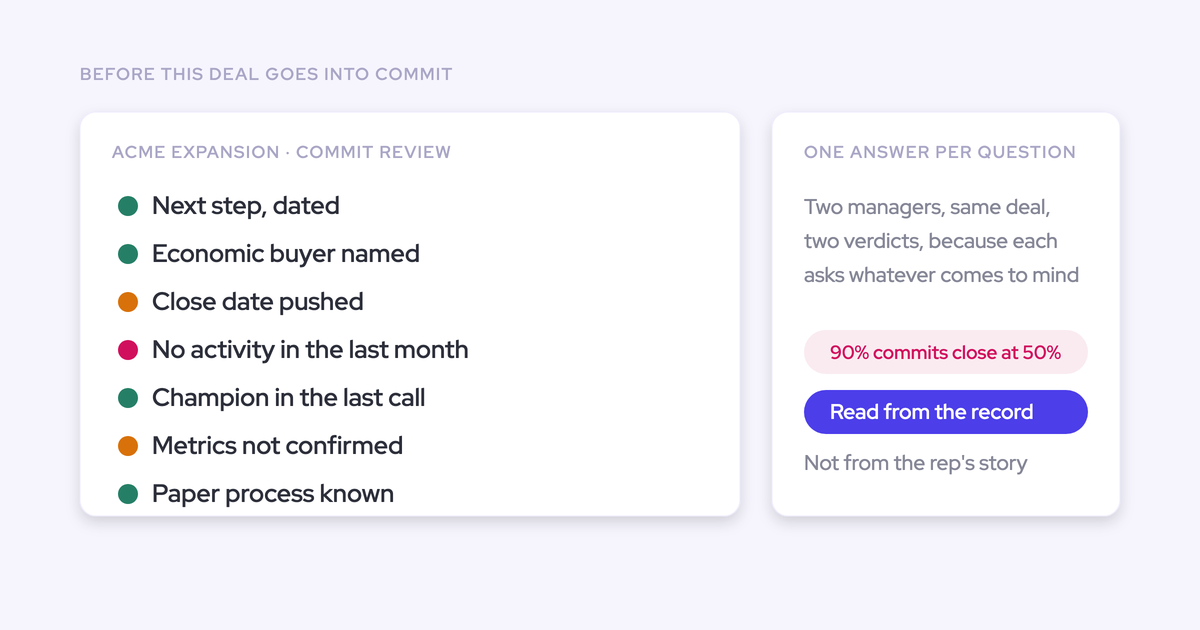
For every deal in this view in Commit, tell me what in the calls and emails could make it slip or fall through this period. Give the top risk per deal in one line, quote the moment it came up, and list the source. If you find no risk in the conversations, say that too.- Inputs: Forecast Category, plus the activity on each committed deal.
- Signal it reads: Commit status set against conversation evidence.
- Output: One risk per committed deal, quoted and sourced, or an explicit "no risk found."
- Red answer looks like: "[Deal J]: in Commit, but on the last call the buyer said a new stakeholder needs to approve the budget."
- Ask the rep: "The system found this risk on [Deal J]. Is it real, and what are you doing about it?"
- Run in: Ask Weflow AI.
This prompt catches the deal that both the CRM and the rep say is fine, but isn't. It also takes the pressure off the rep: since the risk comes from a third party reading the conversation, the rep can work on it instead of defending against it.
"I asked the AI, I said, why would this deal fall through? And it gave me a really nice answer. I was like, okay. Well, that's kinda cool. You know, you can use your judgment to understand that stuff, but you can also get this objective opinion from this third party robot that can, you know, give you help with that answer. And I think it takes a little bit of the onus off of the rep to try to say, oh, here's, you know, where I might have a weakness or here's something that I'm not thinking of."
Close with the questions only the rep can answer
Some things don't show up in the data, and champion strength is the biggest one. Weflow links contacts to a deal, but it doesn't infer who the champion or economic buyer is.
Email and meeting volume tells you someone is engaged, not that they're fighting for you internally.
That's why it's worth closing every one-on-one with the same questions, asked out loud and in the same order:
- Champion: "Will [name] take your call this week, and will they get you to the economic buyer?" Engagement isn't advocacy, and this question separates a busy contact from a deal that closes.
- Pain and urgency: "What happens to them if they don't buy this quarter?" Without pain there's no urgency, and a deal without urgency can't be forecast reliably.
- Access to power: "When did you last speak to the person who signs?" Prompt 5 shows who's in the conversation, but only the rep knows whether that person can say yes.
- What isn't captured: "What do you know about this deal that isn't in an email or a call?" Phone calls and hallway conversations don't appear on the timeline, and they still matter.
Once the rep names a champion, have them set it on the record from the deal board sidebar. That fills the champion lookup, so next week's script starts from there.
Have your reps run the same script before you meet
The easiest way to keep this from feeling like surveillance is to share the script with your reps. Each rep runs the same nine prompts on their own view the day before the one-on-one, so they see what you'll see and arrive with answers instead of excuses.
Reps also get a weekly email summary of their own deal warnings, so the flags on your screen are already on theirs.
"The visibility alone changed behavior. Reps come into meetings already aware of what's overdue or inactive. They're more proactive now, because they can actually see what needs attention."
— Bastian Stosic, Head of Media Sales Operations at HolidayCheck
Once you've both run the script, the meeting changes shape. Instead of spending the first twenty minutes establishing what's in the pipeline, you can spend it on the two or three deals where you disagree.
Tune the script to your team's warnings and methodology
The prompts rely on thresholds and definitions your team owns, so tune those and leave the prompt wording alone.
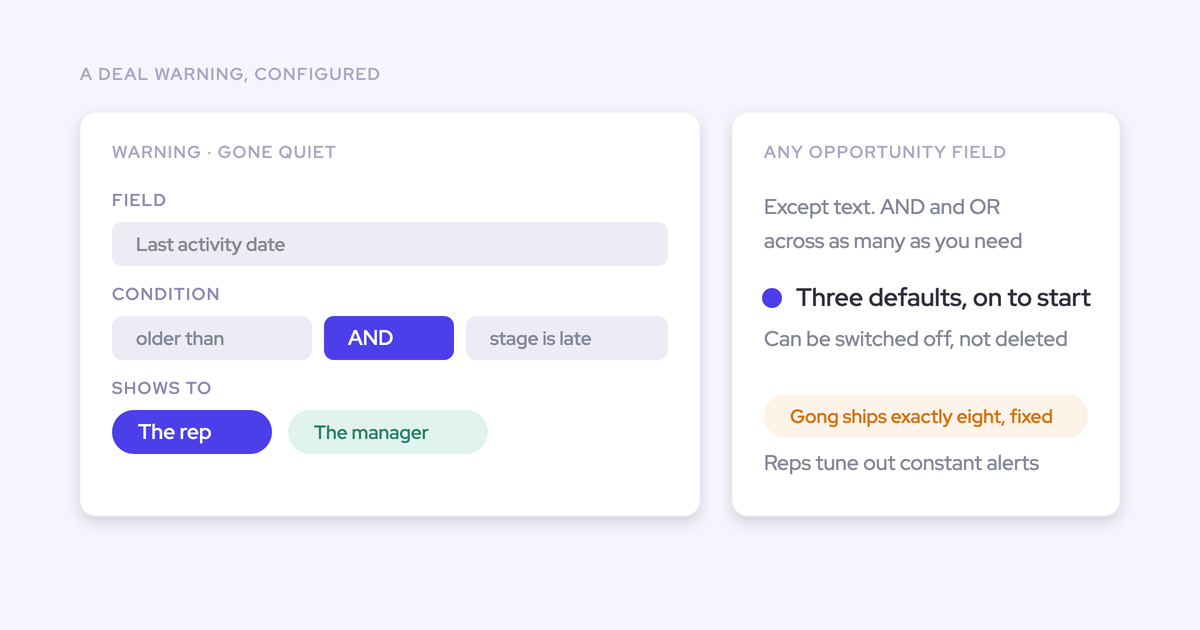
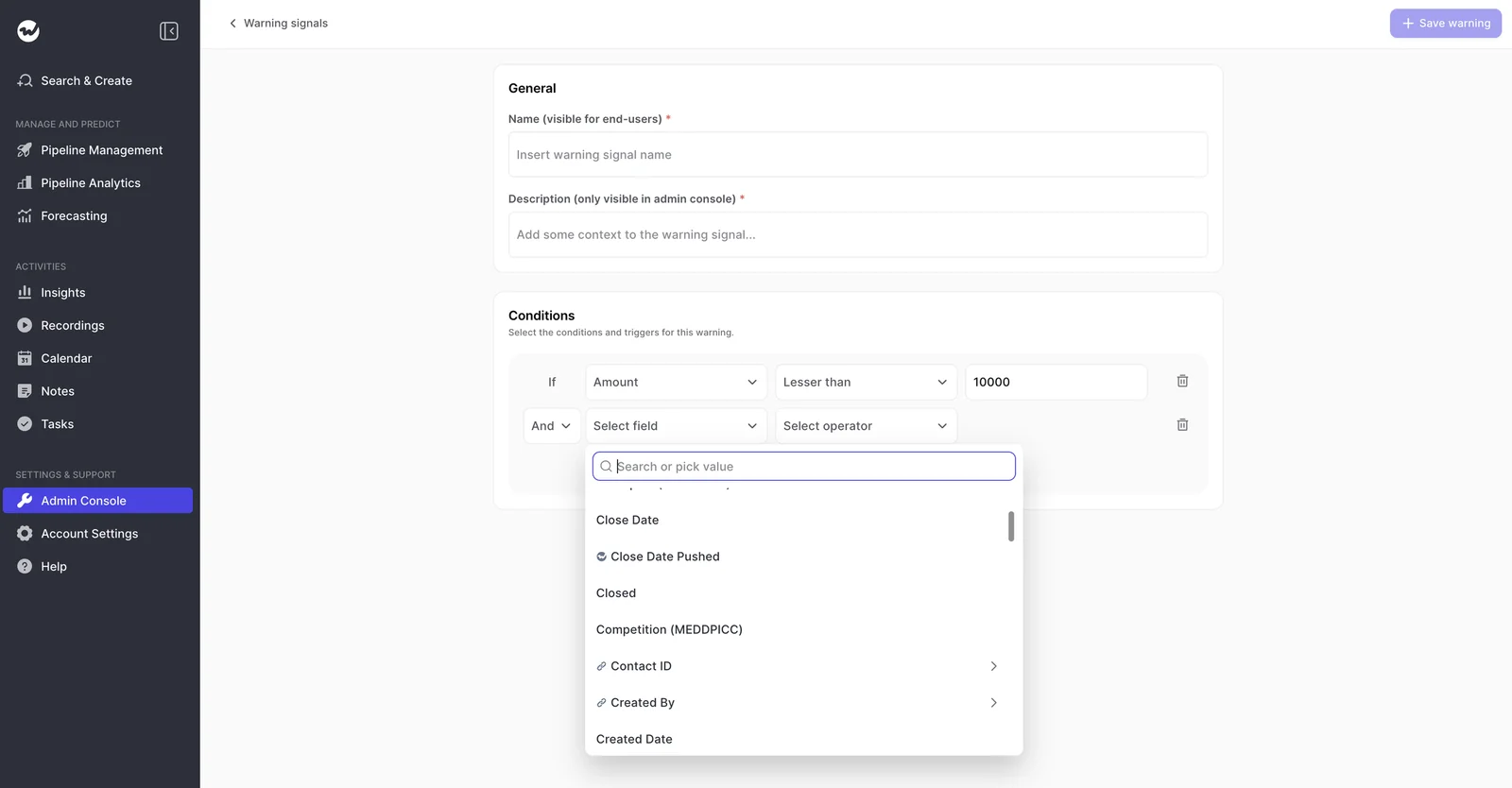
- Your admin creates up to 15 deal warnings. Each one can use Weflow's computed fields, AI Playbook results or Salesforce fields, chained with AND/OR logic. Prompt 1 ranks on whatever those warnings encode.
- The inactivity threshold behind Prompt 2 is set per team, so a team with a short sales cycle can treat two weeks of silence as a warning, while a team with a year-long cycle wouldn't.
- In Prompt 7, swap in your stage names and your methodology's element names, whether that's MEDDIC, MEDDPICC, SPICED or BANT. The AI Playbook your admin assigned to the team defines the elements the shading shows.
- In Prompt 3, match "more than twice" to your own push-count warning, so the prompt and the board flag the same deals.
- Point the script at a second or third view for the same rep, such as current quarter only or deals above a size threshold.
Run the script on a schedule with Weflow Agent Builder
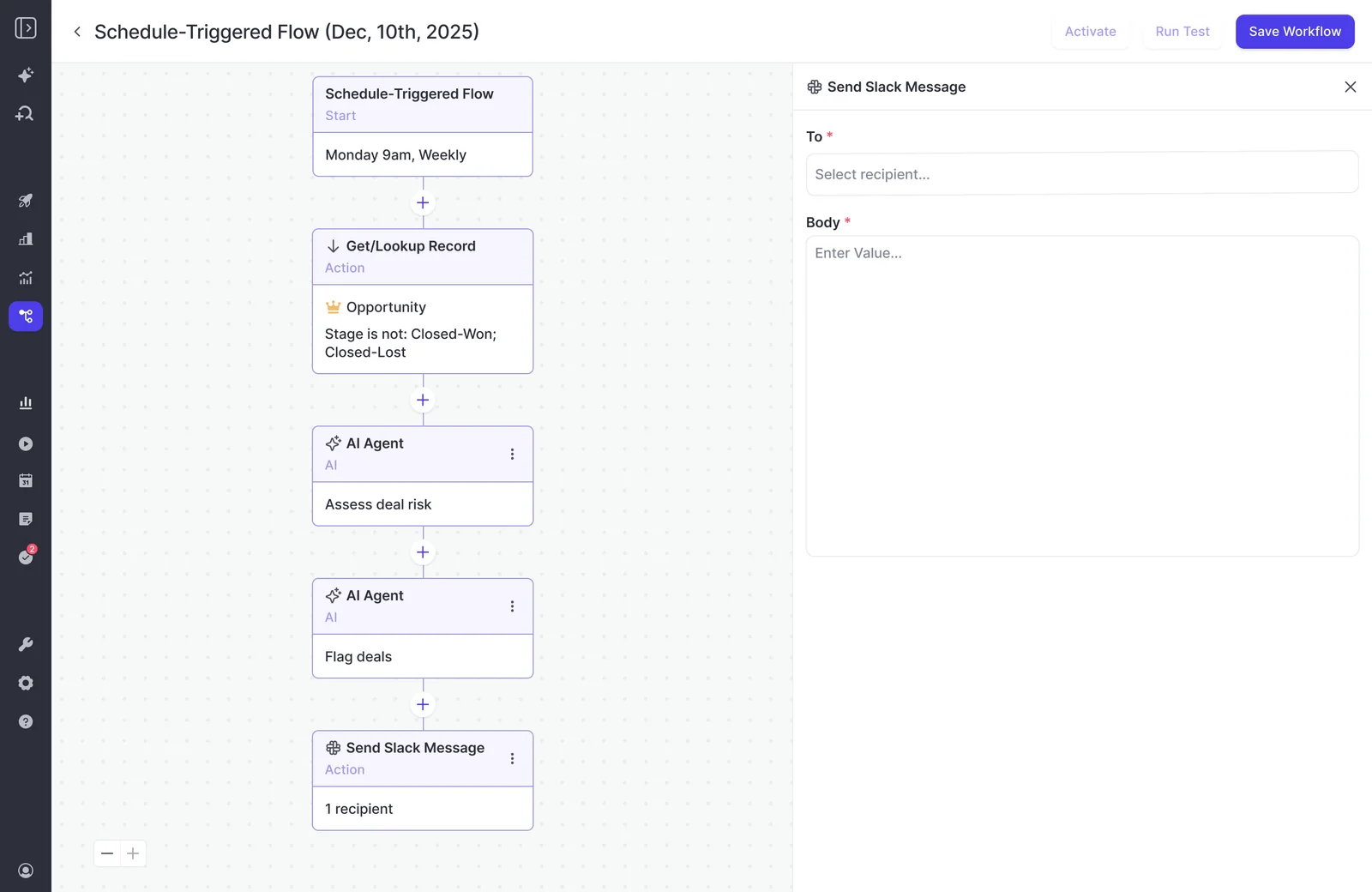
If you'd rather not run the script yourself, an admin can turn it into a scheduled Agent Builder briefing that lands in your email or Slack before your one-on-ones. Each flow has four steps:
- Trigger: Set the day, time and timezone, for example Monday morning before your one-on-ones start.
- Lookup: Pull the opportunities to inspect, with field-level filters such as owner and open stages. Lookups read Salesforce live, so a change made a minute ago is in the run.
- Agent prompt: Paste the prompts you want. The agent reads the emails, calls and transcripts attached to the records the lookup pulled. Test-run it in Ask Weflow AI first to check the output.
- Delivery: Send the result by email, with an optional PDF report, or post it to Slack.
Keep in mind that an agent is a scheduled briefing, not a real-time alert, so a deal that slips on Tuesday shows up at the next run. And since each agent's lookup carries its own filter, you'll need to set the owner filter to a specific rep to get a briefing per rep.
Know where the script stops before you trust it
The script gives every rep a consistent starting point for the conversation, but it isn't a verdict or a rep score.
- AI answers vary between runs, so use the output to pick what to talk about, and never turn it into a rep score or tie it to pay.
- The answers are only as complete as your capture. If a rep's emails and meetings aren't flowing into Weflow, the prompts inherit those gaps.
If you want to take this further across your team, our Free Guide: Deal Insights & Pipeline Management Best Practices covers the signals, warnings and review cadence behind this script.
FAQ: Ask Weflow AI prompts for pipeline one-on-ones
Which Weflow plan gives a manager pipeline views and Ask Weflow AI?
Ask Weflow AI Pro comes with every Weflow plan and bundle. Deal boards and warnings come with Weflow Deal Intelligence & Forecasting ($39 per user per month) or Revenue AI Business ($59 per user per month).
Pipeline analytics and the pipeline waterfall come with forecasting, in Weflow Deal Intelligence & Forecasting or Revenue AI Enterprise ($79 per user per month). All plans are billed annually with a 10-user minimum.
Can Ask Weflow AI show what changed in a rep's pipeline since last week?
Ask Weflow AI reads the current state of the view, but Close Date Pushed and Time in Stage carry history inside it, so Prompts 3 and 4 already show movement over time.
For a true week-over-week view of what entered, left, grew or shrank, use Weflow's hourly opportunity snapshots and the pipeline waterfall in Forecasting.
Can I save these prompts and share them with my reps?
Yes. Your answers stay in your Ask AI history, so you can reopen last week's run before this week's one-on-one. Admins manage Prompt Templates in the AI section of the admin console, and a prompt library ships with Ask Weflow AI.
Do Ask Weflow AI prompts or scheduled agents cost extra?
Ask Weflow AI prompts aren't metered, so they don't. Agent Builder is priced per workspace, not per user.
Every plan includes a free tier of 25 agent actions per month. Growth is $299 per month for 500 actions, Scale is $999 per month for 2,500, and Enterprise is a custom package.
Who sets the deal warning thresholds these prompts rely on?
Admins do, in the Admin Console under Deal & Pipeline Management, Warnings. If a prompt flags too many or too few deals, adjust the warning rather than the prompt.
Do deal warnings show up in my director's Salesforce reports?
Not unless they're written to a Salesforce field. Deal warnings and AI Playbook scores are Weflow fields, marked with a W in the interface. That W is the quickest way to tell which columns on your board won't reach a Salesforce report on their own.