How to Exclude Internal and Personal Emails From Salesforce: Einstein Activity Capture vs Weflow
Learn when Einstein Activity Capture vs Weflow can exclude internal and personal emails in Salesforce.


Einstein Activity Capture supports exclusions for known email addresses and domains. Stay with those controls if they fully express your privacy policy. The difficult cases are messages from people you do want in Salesforce: a customer discussing a legal matter, a board member who’s also a contact, or a buyer using Gmail.
Start by defining which messages must stay out, which customer conversations must reach Salesforce, and who owns each exception. Test both outcomes before enrolling more mailboxes. An empty activity timeline doesn’t prove an exclusion worked if the integration never captured anything.
Selective capture belongs in your Salesforce deal hygiene policy. Complete customer history matters. So does keeping unrelated correspondence out.
Weflow is the Revenue AI Orchestration platform for sales, customer success, and RevOps teams. Built for Salesforce teams, Weflow Activity & Contact Capture adds object, email-body keyword, record-condition, team, and user controls. Neither Weflow nor Einstein Activity Capture understands whether an email is sensitive from its meaning alone.
Which control fits each sensitive-email scenario?
Use a central rule wherever the policy has a stable identifier or Salesforce record condition. Reserve user intervention for exceptions that those rules can’t express.
Einstein Activity Capture filters by addresses and domains; Weflow also evaluates email-body keywords and Salesforce record conditions. The table separates available controls from outcomes you still need to test.
| Scenario | Policy objective | Einstein Activity Capture control | Weflow control | Residual risk | Required test |
|---|---|---|---|---|---|
| All-internal correspondence | Keep internal discussions out | Address and domain exclusions; validate recipient behavior | Default exclusion when every participant belongs to an internal domain | Missing sister-company domains change the participant classification | Send between each internal domain |
| External lawyer or service provider | Exclude correspondence with a known party | Known address or domain exclusion | Domain exclusion plus a custom rule for existing Salesforce records | A Weflow domain exclusion alone doesn’t block an existing contact or account | Test with and without an existing record |
| Board member already stored as a contact | Prevent capture against the restricted record | Address exclusion; test the resulting capture behavior | Custom Salesforce-record exclusion | Other participants may match other records | Inspect every potential destination on a mixed thread |
| Unrelated personal mail | Keep nonbusiness correspondence out | Known address or domain exclusion | No logging without a Salesforce match | A personal address or domain may already match a record | Test unmatched and matched personal addresses |
| Customer using Gmail | Keep legitimate customer activity | Avoid blocking the entire consumer domain | Record-aware conditions and capture modes | A consumer domain in Account Website can cause broad matching | Test a customer contact and an unrelated Gmail sender |
| System notifications | Remove predictable noise | Stable sender or domain exclusion | Sender/domain controls or an email-body keyword rule | A broad keyword can also exclude useful customer mail | Send a notification and a legitimate message containing similar text |
| B2C records in a B2B workflow | Exclude one customer segment | Address/domain exclusions where identifiers separate the segment | Custom conditions against Salesforce fields | Missing or incorrect segment values weaken the rule | Compare B2B, B2C, and unclassified records |
| Sensitive content on a valid customer thread | Keep one confidential exchange out | No content-based sensitivity filter | Body keyword, record condition, hybrid suppression, or manual capture | Neither product interprets sensitivity | Test a sensitive example that contains no exclusion keyword |
Neither tool understands email sensitivity by meaning
Neither Einstein Activity Capture nor Weflow makes a contextual privacy judgment before capturing an email. A valid customer match can still contain a job offer, legal advice, or confidential board discussion.
Weflow’s keyword rules check literal text in the email body. A record condition checks a Salesforce field. Those controls make a policy more precise, but they don’t recognize every way someone can express something confidential.
Limitation: A sensitive email on an otherwise eligible customer thread can pass every configured rule. If a role routinely handles correspondence that must never enter Salesforce, leave that role outside automated capture or assign manual capture.
We wouldn’t make every seller responsible for spotting privacy exceptions. Central exclusions should carry the policy; rep controls should handle the remaining exceptions.
What to prepare before changing capture rules
Prepare a policy, a capture inventory, and a test environment before changing mailbox enrollment. Salesforce activity capture needs a named owner for both unwanted writes and missing customer activity.
- Get policy approval. Ask the privacy owner to define prohibited correspondence, permitted customer activity, and acceptable exceptions.
- Inventory every writer. Include Einstein Activity Capture, mail add-ins, BCC logging, Weflow, sequencers, and meeting-recording integrations.
- Confirm administrative access. Arrange access to Salesforce capture settings and the relevant Microsoft 365 or Google Workspace administration.
- Review matching records. Inspect contact email fields, account websites, duplicate records, and the fields that will drive exclusions.
- Define mailbox scope. List nominated users, teams, tenants, and sensitive roles that must remain outside automated capture.
- Check integration permissions. Weflow needs Account and Opportunity access for mapping; Contact-only access isn’t sufficient.
- Prepare safe test data. Use controlled mailboxes and dummy Salesforce records, not actual HR or legal correspondence.
- Name the rollback owner. Decide who can stop capture, restore the prior configuration, and investigate an unexpected write.
How to audit a growing exclusion list
Audit exclusions by policy reason, not just by address. Moving an unexplained list into a replacement system preserves the maintenance problem.
One buyer described roughly 250 exclusions accumulated over years: system notifications, HR alerts, board correspondence, and personal shopping messages. Each entry followed something unwanted appearing in Salesforce. That’s an incident history, not yet a capture policy.
Use this working table to turn each exclusion into an owned, testable requirement.
| Entry | Reason | Affected users | Policy owner | Replacement control | Test case | Review date |
|---|---|---|---|---|---|---|
| Corporate and sister-company domains | Internal correspondence | Users across relevant tenants | IT | Maintained internal-domain list | Cross-company internal thread | Set before rollout |
| Board member address | Restricted correspondence | Leadership | Privacy owner | Record condition where a Salesforce record exists | Board contact on a mixed thread | Set before rollout |
| Notification sender | System noise | Recipients of the notification | System owner | Stable sender exclusion or narrow body keyword | Notification versus useful customer reply | Set before rollout |
| Consumer email domain | Unclear or overly broad exclusion | Customer-facing teams | Sales Ops | Review matching records and narrow the policy | Real customer versus unrelated personal sender | Set before rollout |
Consolidate duplicates and ask owners to justify obsolete entries. Don’t remove an unexplained exclusion from production just because nobody remembers it. Investigate the original scenario and test the replacement first.
How to configure Einstein Activity Capture exclusions
Configure Einstein Activity Capture first if your policy maps cleanly to known addresses and domains. You don’t need another product to maintain a fixed exclusion list.
Step 1: List policy-defined addresses and domains
Translate each prohibited category into an identifier Einstein Activity Capture can evaluate. Keep cases without a dependable identifier on a separate unresolved list.
| Policy scenario | Usable identifier |
|---|---|
| Known external adviser | Approved email address or dedicated domain |
| Predictable system notification | Stable sender address |
| Internal correspondence | Corporate domains, subject to recipient-combination testing |
| Confidential message from a normal customer | No reliable address-only identifier |
| Personal mail from a consumer provider | Specific address, rather than the whole provider domain |
For example, exclude a known board member’s address rather than blocking Gmail for every customer. If the same address also handles legitimate sales conversations, document that an address exclusion sacrifices those conversations too.
Step 2: Configure Einstein Activity Capture exclusions
Apply the approved list through Einstein Activity Capture’s excluded-address and domain settings, not through the separate Outlook or Gmail manual-logging add-in.
- Open your Salesforce org’s Einstein Activity Capture settings with an authorized admin account.
- Locate the controls for excluded email addresses and domains.
- Review the existing entries and the scope of the setting before editing it.
- Enter the approved identifiers using the format the settings screen accepts.
- Save the changes, then reopen the settings to verify the stored entries.
- Record the change and the users whose capture you’ll test.
For example, add the approved notification sender and leave the wider customer domain eligible. Treat input syntax, setting scope, and propagation behavior as checks in your org, rather than assumptions carried over from another Salesforce setup.
Step 3: Validate internal, external, and mixed-recipient threads
Test recipient combinations explicitly; an exclusion label doesn’t establish what happens to every mixed thread. Separate the policy’s expected result from Einstein Activity Capture’s observed behavior.
| Test case | Expected policy result | Observed result | Salesforce destination | Pass/fail |
|---|---|---|---|---|
| Internal sender to internal recipient | No capture | Record after test | Inspect matched records | Pending |
| Eligible customer inbound and rep outbound | Capture both directions | Record after test | Inspect intended records | Pending |
| Excluded external sender | No prohibited capture | Record after test | Inspect all potential matches | Pending |
| Customer thread with an excluded party in CC | Apply the approved mixed-thread policy | Record after test | Inspect every participant’s potential destination | Pending |
| Reply or forward containing sensitive quoted text | No prohibited content in Salesforce | Record after test | Inspect captured body | Pending |
For example, test a normal customer reply, then repeat it with a restricted participant in CC. If the second message violates policy, the configuration hasn’t passed, even if the basic sender exclusion worked.
How to configure Weflow activity capture rules
Configure Weflow from broad capture boundaries down to record-aware exclusions and user controls. This is a setup sequence, not a claim about the internal order in which Weflow executes every rule.
Weflow Activity & Contact Capture supports central configurations for users, teams, objects, domain exclusions, body keywords, and Salesforce-record conditions.
Step 1: Set internal and external domain exclusions
Define every internal domain before enrolling users, including domains belonging to acquired or sister companies. Weflow excludes all-internal emails and meetings by default when every participant belongs to an internal domain.
- Open the relevant Activity Capture configuration.
- In the setup flow’s Exclude Addresses step, review internal and external domain exclusions.
- Add the internal domains needed to classify group correspondence correctly.
- Add approved external exclusions, such as a dedicated supplier domain.
- Save and test the exclusions against both unmatched participants and existing Salesforce records.
Weflow’s Exclude Addresses screen separates internal and external entries.
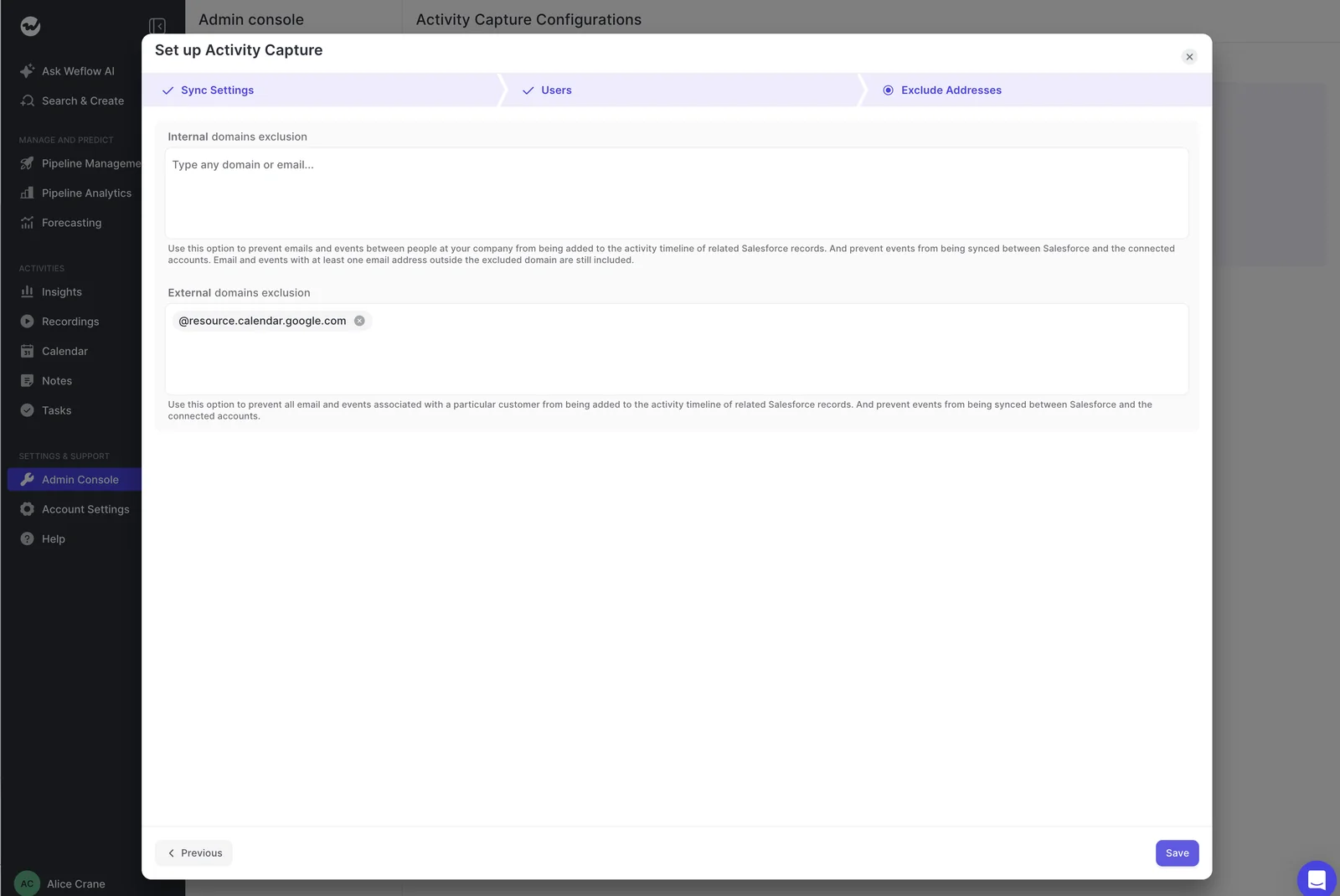
For example, treat mail between two sister companies as internal by maintaining both domains. Don’t block a consumer provider wholesale if real buyers use it.
Watch the record exception: Weflow’s domain exclusion alone doesn’t stop capture against an existing Salesforce contact or account. Use a custom record rule for that requirement.
Step 2: Scope capture by team, user, and object
Assign capture according to the work each group does. A customer success escalation shouldn’t automatically become activity against an unrelated sales opportunity.
| Group | Configuration objective | Admin check |
|---|---|---|
| Sales | Capture eligible customer activity against the intended sales records | Check open opportunities and contact roles |
| Customer success | Use accounts, cases, or the relevant renewal workflow | Keep unrelated opportunities outside the mapping policy |
| Leadership | Limit automatic capture of sensitive correspondence | Consider manual capture or no enrollment |
| Regional teams | Apply the policy associated with the region | Validate the Salesforce field values driving conditions |
- Use Users and teams to review the intended capture population.
- Open Object Management and enable only the destinations that belong in the workflow.
- Review owner-participation restrictions for Opportunity and custom objects where those restrictions fit the policy.
- Test each group against representative records before broad enrollment.
Weflow’s Object Management screen provides per-object controls, including owner-participation restrictions for opportunities and custom objects.
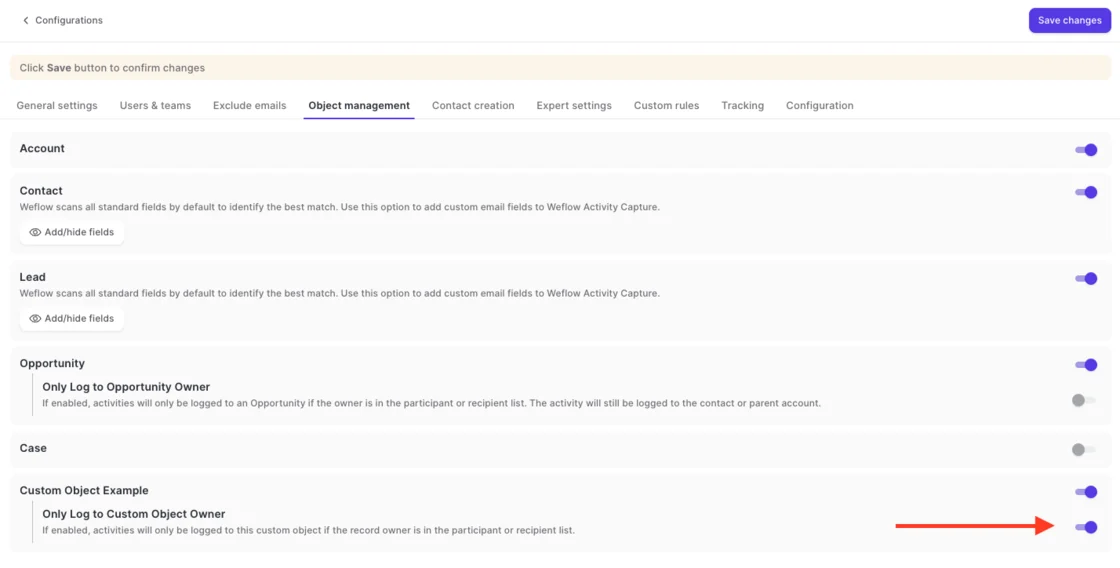
For example, scope a CS configuration to its account workflow rather than allowing implementation discussions to populate whichever opportunity happens to match.
Step 3: Add keyword and Salesforce-record conditions
Use a Salesforce-record condition when the policy describes a person, company, or segment. Use a body keyword when a stable literal string identifies the unwanted message.
| Requirement | Control | Failure to test |
|---|---|---|
| Never capture against a restricted account | Custom condition against an account field | A blank or incorrect restriction value |
| Keep B2C records out of a B2B process | Segment or record-type condition | Unclassified records |
| Suppress a recognizable notification | Email-body keyword rule | The same phrase in a useful customer email |
| Exclude a board contact already in Salesforce | Contact-level custom condition | A mixed thread that also matches other records |
- Choose the Salesforce field or body text that expresses the policy.
- For record exclusions, configure the condition in Custom rules.
- For keywords, use a narrow, stable phrase rather than a broad word such as “private.”
- Test a message that should match the exclusion and a similar message that should remain eligible.
- Repeat the test with missing field values and additional matching participants.
For example, exclude a consumer segment through its Salesforce classification instead of collecting every consumer email address. Blacklane replaced Einstein Activity Capture with Weflow and used custom exclusions to keep B2C activity out of its B2B process.
Step 4: Choose automated, hybrid, or manual capture
Choose capture mode by role and residual risk. Weflow supports automated, hybrid, and manual capture, with modes assigned per team.
| Mode | Operating behavior | Governance trade-off |
|---|---|---|
| Automated | Server-side capture logs eligible activity without rep action | Central rules must cover the policy |
| Hybrid | Automatic capture plus an add-in for mapping visibility, correction, and optional thread suppression | Suppression depends on the rep noticing the exception |
| Manual | Nothing logs unless the user chooses to log it | Stronger user selection, less complete capture |
For example, use hybrid capture for sellers who need mapping corrections, and manual capture for leadership whose mailbox contains frequent sensitive exceptions.
- Use central record exclusions for accounts that must never receive captured activity.
- Decide whether reps may suppress logging or only view the mapping.
- Train manual-capture users on what they may log, not just how to click the control.
How existing Salesforce records affect Weflow exclusions
An existing Salesforce contact or account changes which Weflow exclusion you need. A domain exclusion isn’t a substitute for a custom record condition.
Use this decision tree when an unwanted message appears:
- No matching contact, lead, or account domain: Weflow doesn’t log the unmatched activity. Check for overlooked secondary email fields or domain matches if a write still appears.
- Existing contact: Use a custom record rule when the contact must not receive captured activity. Adding the domain to an exclusion list alone won’t stop it.
- Existing account: Apply the account-level condition and test threads containing other matching contacts or accounts.
- Questionable Account Website value: Correct the matching data before expanding capture. A consumer provider domain can draw unrelated correspondence onto that account.
Weflow uses the Salesforce Account Website field for domain matching. Storing a consumer email provider there can cause unrelated messages involving that provider to match the account.
That’s why “personal email stays out” is too broad a promise. Unmatched personal mail stays out; a personal address already attached to a Salesforce record needs its own policy.
Should you keep Einstein Activity Capture or switch?
Stay with Einstein Activity Capture when fixed exclusions meet the policy and pass your tests. Evaluate Weflow when the policy requires record-aware conditions or different controls for different groups.
| Keep Einstein Activity Capture | Evaluate Weflow |
|---|---|
| Known addresses and domains describe the exclusions | The same domain contains both permitted and prohibited correspondence |
| Your representative tests meet privacy and coverage requirements | Salesforce fields must determine capture eligibility |
| The exclusion list remains explainable and maintainable | The list keeps expanding because the rule type is wrong |
| You don’t need the additional controls for this task | Teams need different objects, capture modes, or correction controls |
Keep Einstein Activity Capture for fixed exclusions
Einstein Activity Capture is a sensible choice when your privacy policy fits its address-and-domain controls. This issue alone doesn’t justify switching if the existing configuration passes.
- Every required exclusion has a stable identifier.
- Mixed-recipient tests produce acceptable results.
- Consumer-domain exclusions don’t remove legitimate customer activity.
- A named owner reviews the list and investigates exceptions.
Consider Weflow for layered capture policies
Weflow earns an evaluation when Salesforce record data needs to govern capture. The benefit is a policy you can express centrally, rather than another list of addresses to maintain.
- Restricted contacts or accounts already exist in Salesforce.
- B2B and B2C records require different treatment.
- Sales, CS, leadership, or regions need different configurations.
- Stable body keywords can remove predictable unwanted messages.
- Reps need mapping visibility and controlled correction options.
The trade-off remains: more configurable rules require ownership and testing. If your requirement is automatic recognition of every sensitive message, Weflow doesn’t meet that requirement.
How to test and cut over without duplicate activity
Prove exclusions and customer coverage before production rollout, then assign one writer to each activity source. Don’t test Weflow and Einstein Activity Capture by letting both write the same emails and meetings.
Step 1: Build the email scenario matrix
Write the acceptance tests before configuring capture. Include messages that must reach Salesforce as well as messages that must stay out.
| Scenario | Expected control | Expected Salesforce outcome | Risk severity |
|---|---|---|---|
| All-internal thread | Internal-domain classification | No captured activity | High |
| Restricted contact already in Salesforce | Custom record rule | No prohibited write | High |
| Ordinary inbound customer reply | Eligible matching | Activity on the intended record | Coverage-critical |
| Legitimate customer using Gmail | Contact matching | Customer activity captured | Coverage-critical |
| Sensitive customer email without a keyword | Manual mode or user suppression where policy requires it | No prohibited content | High |
| Sequencer email | Designated writer and compatibility settings | No duplicate activity | Operational |
For example, repeat the restricted-contact test as inbound, outbound, reply, forward, and CC. A single clean result doesn’t establish thread behavior.
Step 2: Test writes in a Salesforce sandbox
Use a Salesforce sandbox to verify the first writes against dummy records. Keep real sensitive correspondence out of the test.
- Arrange the sandbox connection and confirm how you’ll reconnect for production.
- Create dummy contacts, accounts, opportunities, and restriction values.
- Enroll only the nominated test mailbox.
- Run the scenario matrix and inspect the resulting records and captured content.
- Correct rules or matching data, then rerun failed cases.
- Invalidate test connections as appropriate before changing environments.
For example, create a dummy restricted contact and a permitted contact on the same account. Confirm that the resulting writes match the policy rather than assuming account membership settles the conflict.
- Go: Required customer activity reaches the correct records.
- No-go: Any prohibited content reaches Salesforce.
- No-go: An empty timeline reflects a connection or permission failure rather than a working exclusion.
Step 3: Assign one writer per activity source
Assign write ownership before connecting the production pilot. Weflow can work alongside Outreach or Salesloft, but coexistence still needs explicit duplicate prevention.
| Activity source | Designated writer | Suppression mechanism | Validation owner |
|---|---|---|---|
| Ordinary mailbox email | Weflow after cutover | Disable overlapping capture | Sales Ops |
| Calendar meeting activity | Chosen activity-capture system | Disable competing event writes where configurable | Salesforce admin |
| Sequencer email | Outreach or Salesloft, if retained as writer | Weflow compatibility and tracking-pattern exclusions | Engagement admin |
| Recorded meeting | Agreed meeting-activity writer | Verify how the recording integration handles its event write | Integration owner |
For example, if Outreach owns sequenced-email logging, configure Weflow to skip those tracked messages. Test replies separately so duplicate prevention doesn’t create an inbound coverage gap.
Step 4: Disable overlapping Einstein Activity Capture sync
Disable overlapping Einstein Activity Capture writes before Weflow takes ownership of the same activity. Treat the switch as a controlled change, not an informal trial.
- Confirm the approved rules, nominated cohort, and rollback owner.
- Record the cutover time and current capture state.
- Disable the overlapping Einstein Activity Capture sync for the scope you’re moving.
- Verify that the previous writer has stopped before enabling the replacement writes.
- Tell users which connections and add-ins they should use.
- If rollback becomes necessary, stop Weflow’s overlapping writes before restoring the prior writer.
For example, warn pilot users not to reconnect a separate capture service merely because Salesforce prompts them to connect their email. A connection warning doesn’t establish whether server-side Weflow capture is running.
Step 5: Enroll a limited Weflow pilot
Start production with a nominated admin and dummy records, then expand to a small representative cohort. Weflow starts reading a mailbox only when you enroll the user in an activity capture configuration.
- Confirm mailbox-access restrictions with the mail administrator.
- Check the production configuration and destination org.
- Run the initial admin test against dummy records.
- Enroll the approved pilot users.
- Assign an owner to investigate unwanted writes, missing activity, and mapping errors.
Choose a cohort that covers your actual policy boundaries:
- Include the relevant sales and CS workflows.
- Include customer contacts using both corporate and consumer domains.
- Represent each tenant or regional configuration you intend to expand.
- Leave sensitive roles out until their separate policy passes.
Step 6: Verify results before wider enrollment
Expand only after privacy, mapping, and coverage checks pass. A high activity count doesn’t prove the capture configuration is correct.
| Gate | Pass condition | Owner | Remediation if failed |
|---|---|---|---|
| Privacy | No prohibited test content reaches Salesforce | Privacy owner | Pause affected capture and revise the rule |
| Coverage | Expected customer messages and meetings appear | Sales Ops | Inspect scope, connection, permissions, and exclusions |
| Mapping | Activity reaches the intended records | Salesforce admin | Correct record data or mapping configuration |
| Duplicates | No overlapping activity writes | Integration owner | Fix source ownership and suppression |
| User controls | Permitted suppression and correction work as expected | Pilot lead | Adjust configuration or training |
| Scope | Only nominated users participate | Mail administrator | Correct access and enrollment |
For example, compare a pilot user’s known customer exchanges with the corresponding Salesforce records. Investigate both missing messages and unexpected additions before approving the next cohort.
How to clean up activity already captured
Stop recurrence first, then clean up according to the activity’s source and storage location. Changing an exclusion isn’t a deletion procedure.
Weflow stores captured emails in Salesforce Task or EmailMessage records and calendar activity in Event records. Einstein Activity Capture cleanup depends on whether your org uses externally stored activity or Sync Email as Salesforce Activity.
| Source and storage | What to establish | Cleanup path |
|---|---|---|
| Weflow-written Salesforce records | Object, record IDs, related records, and attachments | Use an approved Salesforce cleanup process; test individual correction controls separately |
| Einstein Activity Capture activity stored outside Salesforce records | Actual storage and available removal controls | Use the applicable Einstein Activity Capture removal process |
| Einstein Activity Capture using Sync Email as Salesforce Activity | Written records and related copies | Use the applicable Salesforce record-removal process |
| Several integrations wrote the activity | Every source and copy | Remediate each copy and stop duplicate recreation |
- Contain the capture. Pause the affected scope or correct the faulty rule before more sensitive messages arrive.
- Involve the privacy owner. Determine whether the exposure requires incident handling and access restrictions.
- Identify the source. Don’t assume everything visible in a Salesforce timeline uses the same storage model.
- Find related copies. Review matched records, attachments, duplicate activity, and downstream copies where relevant.
- Preserve a restricted audit trail. Record the affected IDs and remediation decisions without unnecessarily copying sensitive bodies.
- Remove through the approved process. Confirm retention and legal-hold requirements before deletion.
- Verify removal and prevention. Recheck destinations and rerun the scenario that caused the exposure.
If a consumer domain in Account Website caused broad matching, correct that field before cleanup. Otherwise, the next eligible message can repeat the problem.
Frequently asked questions
Resolve these setup details before approving wider activity capture. The important distinction is between a supported control and a privacy outcome your own tests have proven.
What counts as personal email in activity capture?
“Personal email” describes several different scenarios. Weflow evaluates infrastructure, participants, Salesforce matches, and configured rules, not the label “personal.”
- An unrelated message in a corporate mailbox: Weflow doesn’t log it when no Salesforce record matches.
- A separate personal mailbox: Weflow’s corporate-infrastructure capture doesn’t capture that mailbox.
- A customer using a consumer domain: The correspondence can be legitimate customer activity.
- A personal address attached to a Salesforce contact: The address can match, so apply a record-aware exclusion if policy requires it.
Do Weflow keyword rules inspect subjects or attachments?
Weflow’s supported keyword filtering described here evaluates the email body. Don’t rely on subject or attachment inspection without confirming that coverage for your configuration.
For example, test a message with the exclusion phrase only in an attachment. A body-keyword rule doesn’t establish protection for that case. Attachment-storage settings are a separate control.
In what order does Weflow evaluate capture rules?
Weflow’s custom record rules take precedence, but mapping precedence isn’t a complete capture-rule execution sequence. Use these established behaviors to troubleshoot:
- All-internal activity stays out under the default internal-domain policy.
- Unmatched correspondence doesn’t log.
- A domain exclusion alone doesn’t block an existing Salesforce contact or account; a custom record rule handles that exclusion.
- For mapping ambiguity, Weflow prefers a contact over a lead, then a single open opportunity with the person’s contact role, with unresolved activity falling back to the account.
Confirm overlapping keyword, record, mode, and user-control behavior during the pilot. Don’t infer an undocumented execution order from the order of configuration tabs.
Can teams and regions use separate capture policies?
Yes. Weflow supports capture configurations scoped by team, user, object, and Salesforce field values such as billing region.
Assign an owner to each policy and test overlapping assignments. Don’t assume inheritance behavior: verify which configuration governs a user and what happens when the user changes team or region.
Can reps stop a thread or correct its mapping?
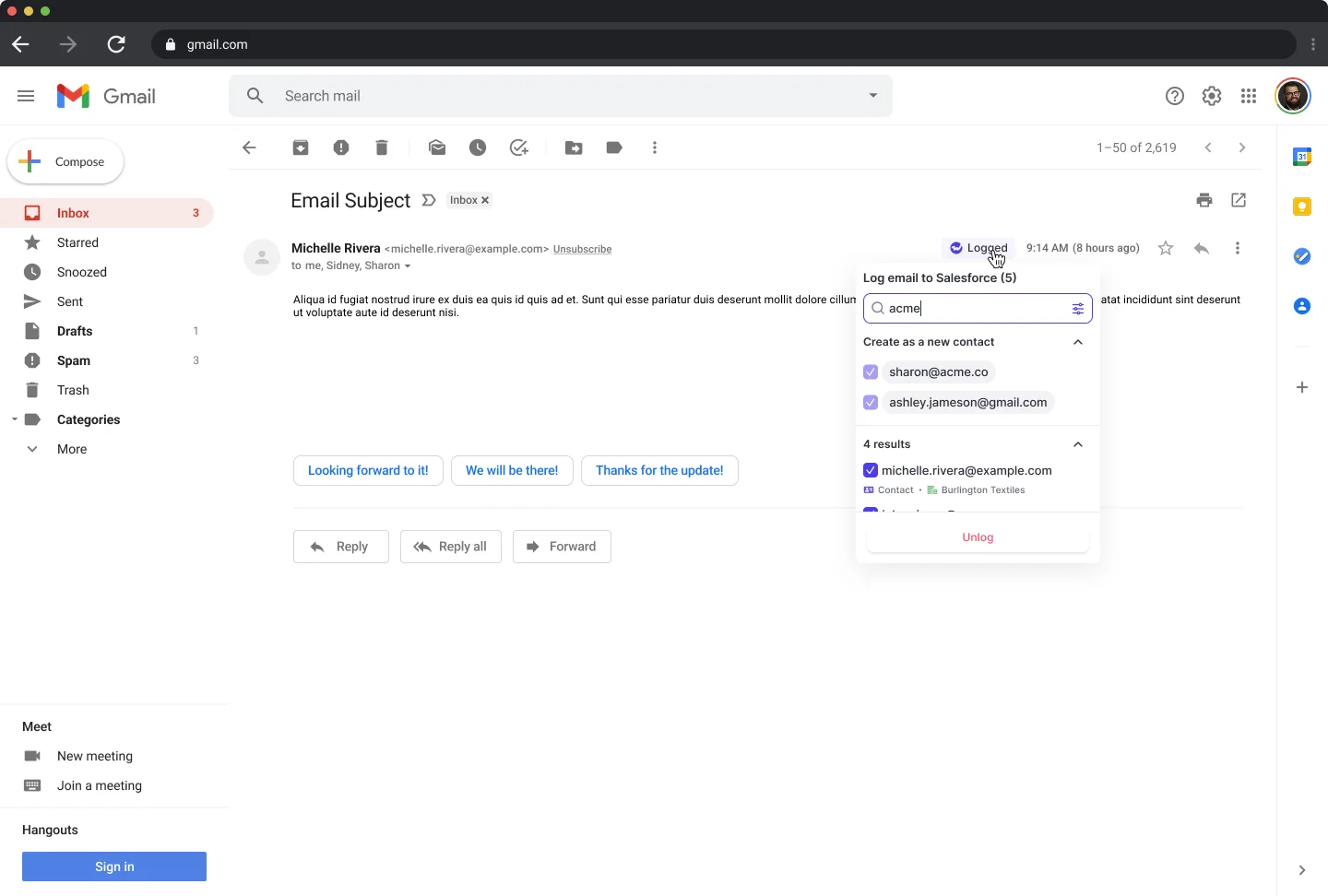
Yes. Weflow’s hybrid mode gives reps mapping visibility, remapping, and thread suppression where admins allow those controls. Admins can also remove the suppression control.
| Admin control | Rep control |
|---|---|
| Set central record exclusions | Handle permitted thread-level exceptions |
| Choose capture mode and available overrides | View and correct the proposed mapping |
| Define eligible objects | Unlink and re-log a wrongly mapped meeting |
Weflow’s Gmail add-in also shows an Unlog action for a previously logged email. Verify its cleanup result before treating it as a broader incident-remediation process.
How does Weflow handle multiple mail tenants?
Weflow activity capture requires tenant-specific configuration, with users assigned within their own tenant/domain scope. Don’t treat several tenants as one global capture configuration or assume a single administrative view across them.
- Inventory each Microsoft 365 or Google Workspace tenant.
- Confirm user assignment and configuration ownership per tenant.
- Maintain sister-company domains in every relevant internal-domain list.
- Test cross-company correspondence before enrolling an acquired business.
Can Weflow run with Outreach or Salesloft?
Yes. Weflow works alongside Outreach and Salesloft through compatibility controls. Keep one designated writer for each source instead of asking both systems to log the same message.
Weflow’s Expert settings include compatibility mode and tracking-pattern exclusions. The example below uses an Outreach tracking pattern to prevent duplicate email sync.
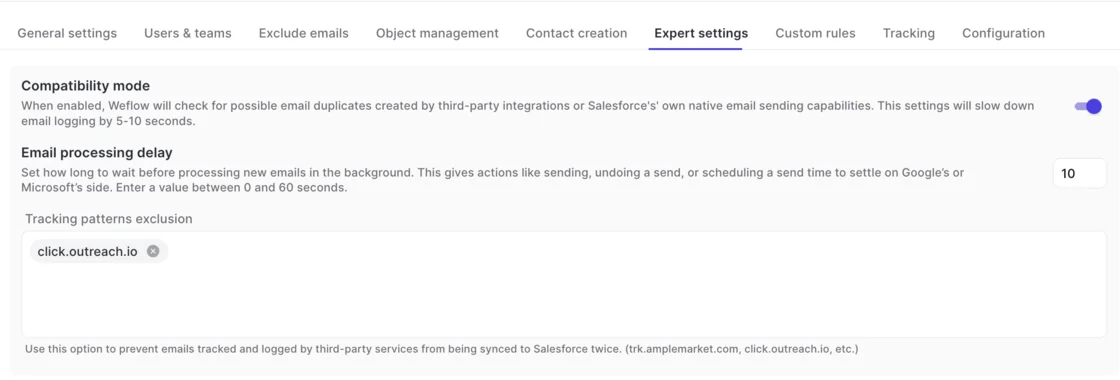
Compatibility with a sequencer doesn’t mean you should leave overlapping Einstein Activity Capture writes active.
How is Weflow mailbox access limited?
Weflow doesn’t read email or calendar events until you enroll a user in an activity capture configuration. Installation, access grants, policy configuration, and enrollment are separate decisions.
- Install and connect: Set up the managed packages, Salesforce integration user, and workspace application.
- Restrict access: Have the mail administrator apply and verify nominated-mailbox or security-group restrictions appropriate to the tenant.
- Configure capture: Define exclusions, objects, conditions, and modes.
- Enroll users: Activate only the approved population, then verify capture against the roster.
A Weflow login isn’t the capture switch. An enrolled user’s mailbox can participate even if that person never signs in to Weflow.
What does Weflow Activity & Contact Capture cost?
Weflow Activity & Contact Capture costs $19 per user per month, billed annually, with a 10-user minimum.
| Term | Weflow Activity & Contact Capture |
|---|---|
| List price | $19 per user per month |
| Billing | Annual |
| Minimum | 10 users |
| Platform and implementation fees | None |
| Historical backfill | Up to 24 months, available as an add-on |
| Meeting recordings | Require Weflow Conversation Intelligence |
Price the approved capture population, not just the people who’ll open the application. Confirm backfill scope before enabling it so historical writes receive the same privacy review as new activity.
Before enrolling the next team, complete your scenario matrix and assign each activity source a writer. Use the Free Salesforce Activity Capture Cheat Sheet as your setup reference.